

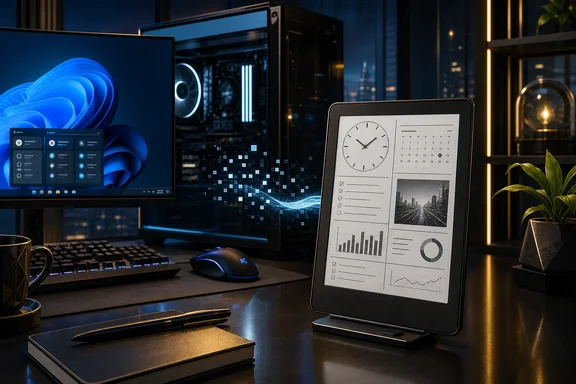
That distinction explains both the appeal and the limitations. E-paper can be an excellent fit for a calm clock, calendar, task list, timer, now-playing card, or occasional build-status view. It is much less convincing for a full desktop, live chat feed, animation, or anything requiring fast and dependable interaction. For Windows users, the evidence supports treating this as a feasibility project for a narrowly designed desk dashboard—not a verified, ready-to-install Windows display solution.
What this Kindle display approach actually does
The identified project describes itself as a simple VNC-like server and client for Kindle 3 and later. But it explicitly does not use the Remote Framebuffer protocol used by conventional VNC software. It supplies a series of JPEG frames through a web page instead.
The computer does the demanding work. It captures a configured rectangle of its screen, converts the result to grayscale, writes a JPEG, and responds to browser requests for that image. On the Kindle, a small page displays the JPEG. When an image load completes, the page changes the image address with a timestamp-like query value, prompting another request for a fresh frame.
This makes the Kindle a networked image viewer rather than a remote desktop terminal. The design is technically simple and suits a device whose browser can load a local page and images, but it imposes firm limits:
- It can display a selected Windows screen region. A dedicated status panel is the most natural target.
- It is not another Windows display output. Apps cannot be dragged onto it as if it were an LCD connected to the GPU.
- It is not designed for fluid interaction. What arrives is a repeated sequence of still images.
- Compatibility should not be assumed. The project identifies Kindle 3+ as its scope, which is not proof that every generation, firmware version, browser configuration, or network setup will work.
The useful mental model is a digital desk card fed by a computer, rather than a bargain external monitor.
Why e-paper is better for status views than desktops
A Kindle Oasis illustrates why the idea has a real niche. Its 7-inch, 1680×1264, 300-dpi, 16-level grayscale display provides enough density for crisp, large text and simple layout elements. A high-contrast agenda, a timer, or a short task queue can remain legible without competing aggressively for attention on a desk.
However, good results depend heavily on what is being shown. Information that remains stable for a while is a strong fit: the time, the next appointment, a short checklist, a project state, a music title, a countdown, or a handful of system indicators. Such panels can still be useful if a new frame is delayed.
E-paper’s visual behavior sets the other boundary. Kindle documentation notes that the screen can visibly flash while updating, while E Ink identifies ghosting as a display characteristic that needs management. Those traits are not evidence of a fault in the JPEG-based design; they are part of the underlying display technology. They make video, rapid animation, scrolling streams, fast-moving telemetry, and a normal live desktop poor candidates.
Grayscale conversion also changes how a Windows interface reads. A calendar that relies on several subtle colors may lose its most meaningful distinctions. Thin type, pale text, low-contrast widgets, and color-only alerts can become difficult to parse. A dedicated dashboard window designed around large text, high contrast, and restrained visual elements is therefore likely to work better than a crop of an already crowded desktop. That is an inference from the documented capture and display constraints, not a result established for a particular Windows build.
Legacy reference code means Windows work is expected
The reference implementation’s server file and header date to 2016. That identifies the age of the available server code, rather than establishing a fully documented project release date. Its technical assumptions also show their age: it declares Python 2 and wxPython as requirements and imports Python-2-era HTTP modules.
Python 2 reached end of life on January 1, 2020. The underlying method remains understandable—capture pixels, make a grayscale JPEG, serve it locally, reload it in a browser—but the supplied implementation should not be approached as current, supported software.
The code also writes its frame to /dev/shm/frame.jpg. That is a Linux/POSIX-oriented path that is not available on standard Windows installations. As a result, a Windows user should expect to adapt or replace parts of the reference code: the outdated Python components, the output location, and potentially the screen-capture integration for the chosen Windows environment.
A modern Windows port is plausible as an engineering task, but the available material does not verify a ready-to-run port, list its modern dependencies, or establish its reliability. That is a critical distinction between “the architecture can work” and “this is a setup guide.”
Capture size and output orientation are different questions
The upstream server’s default capture geometry is 700×600 pixels, beginning at the upper-left screen origin. It also provides controls for capture width, height, and origin coordinates, so a user can choose a different source region in principle.
A 600×700 delivered JPEG does not, by itself, mean the default capture geometry was modified. The reference server has rotation enabled by default. Capturing a 700×600 region and then applying the 90-degree rotation produces output dimensions of 600×700. In other words, the capture rectangle and the orientation of the final image must be considered separately.
The code supports grayscale conversion, JPEG output, HTTP delivery, and rotation, allowing a dashboard to be arranged for portrait or landscape placement. But none of that guarantees the resulting layout will be readable on a specific Kindle. Text size, browser scaling, screen orientation, JPEG quality, and the content chosen for the captured panel all need hands-on testing.
For a Windows project, it makes sense to settle on one useful panel before adapting software. The smaller and more purposeful the target area, the easier it should be to preserve readability after grayscale conversion and to avoid exposing irrelevant desktop content.
Security is the first deployment decision
A screenshot dashboard can disclose far more than its small screen suggests. The identified server returns the current JPEG over HTTP without an authentication check. A related Kindle-display project warns that anyone able to reach its server can view the captured screenshots and recommends use only on a trusted network, with firewall restrictions or USB networking.
That warning has practical consequences. Even a narrow crop might reveal meeting titles, task names, notification previews, customer information, document text, browser content, or sensitive data shown during normal work. A dashboard is not harmless merely because it is grayscale or low refresh.
A cautious deployment should therefore make the image service available only along a deliberately trusted local path. Do not expose it to the public internet. Limit the captured region to a dedicated dashboard window where possible, rather than using a broad desktop crop. Keep sensitive apps and notifications outside that region, and revisit the decision when the desktop layout or the dashboard’s content changes.
The simple image-serving architecture is not inherently unreasonable on a private, controlled network. The concern is that the known reference design does not supply an authentication barrier. Network exposure controls are part of the design requirement, not optional polish after the display works.
Sleep behavior must be tested, not assumed
An unattended desk display has another operational challenge: the Kindle needs to remain in a state where it can continue to display useful information. The available Oasis guidance establishes that the device enters sleep after a few minutes and that the browser requires Wi-Fi. It does not establish a universal Wi-Fi shutdown-and-reconnection mechanism for this use case.
Whether frames continue refreshing while a Kindle sleeps is therefore model- and setup-specific behavior that should be tested. Firmware, browser behavior, power state, local-network conditions, and the exact page implementation may all matter. A setup that appears fine while the device is being actively handled might behave differently after sitting on a desk for hours.
Before relying on a Kindle dashboard, test it through the idle period it will experience in real use. Check whether the browser remains on the intended page, whether the displayed information remains current enough, and whether the screen is still useful if an update stops or lags. A clock and next-event card may remain valuable when stale; a rapidly changing alert panel may not.
The Windows workloads that fit best
The Kindle concept is most persuasive when it moves a small, low-change information view off the main display instead of trying to reproduce the entire Windows workspace. Suitable uses include:
- a large clock and the next calendar event;
- a concise personal task list or work queue;
- a now-playing panel for music or podcasts;
- an occasional build, backup, or download state;
- a focus, meeting, or break timer;
- a household or home-office status card designed with privacy in mind.
Poor fits are equally clear: video, games, dense development environments, full email clients, active chat streams, scrolling dashboards, animated visualizations, and interfaces where color is the principal status signal. These workloads conflict with grayscale conversion, e-paper refresh characteristics, and a browser-driven sequence of JPEG snapshots.
A purpose-built HTML dashboard or carefully arranged Windows window is likely to be more effective than an arbitrary application crop. The aim should be information that remains useful at a glance, rather than trying to force a normal PC interface into an e-reader’s display model.
A viable reuse project, with deliberately narrow expectations
Using a retired Kindle as a Windows desk dashboard is technically credible for the right job. E-paper is naturally comfortable for static information, and the capture-to-JPEG approach makes efficient use of a Kindle browser without claiming that the device has become a modern display client.
The limitations are substantial, though. The available reference code is legacy Python 2 software with Linux/POSIX-oriented assumptions, not a verified contemporary Windows package. It delivers browser-loaded snapshots rather than a real operating-system monitor. Compatibility is not universal. Screen flashes and ghosting limit motion-heavy use. Sleep-time behavior needs to be validated on the actual device and configuration. Most importantly, an unauthenticated screenshot endpoint demands careful local-network controls.
For someone willing to adapt old code, build a high-contrast low-change panel, and keep the service private, the result could be a distinctive passive desk display. For a responsive second monitor, the evidence points in the opposite direction: a Kindle belongs in the category of specialized e-paper dashboard, not conventional desktop expansion.
References
- kindle-vnc server.py GitHub / Jerzy Głowacki
- Kindle Paperwhite User’s Guide, 2nd Edition Amazon