

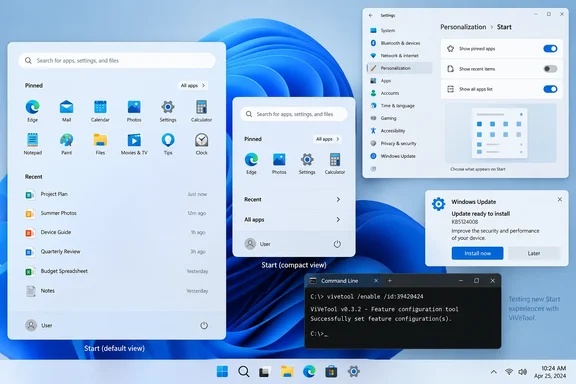
The practical payoff is straightforward: users who found the redesigned Start panel unreasonably tall can choose a smaller layout when Microsoft’s staged rollout reaches their PC, and can separately control whether Pinned, Recent, and All apps appear. Windows Latest first documented the oversized menu and the new controls; Neowin and Pureinfotech have independently confirmed that the underlying feature flags exist in the public builds.
There is a catch that Microsoft’s update documentation makes easy to miss. The company describes the August additions as a gradual rollout, meaning the code can be installed while the visible setting remains absent. Microsoft’s own KB5120998 release notes do not specifically call out the Start menu resizing option at all, even though several outlets have found it in the released build. That leaves ordinary users with an update installed, a feature technically present, and no firm public schedule for when Microsoft will enable it for every eligible device.
Check the September build before installing anything else
If Windows Update has installed September’s security update, do not go hunting for the superseded August preview package. Press Win + R, run winver, and look for one of these builds:
- Windows 11 version 24H2 should show build 26100.9445 or later.
- Windows 11 version 25H2 should show build 26200.9445 or later.
KB5124008 includes the quality changes from KB5120998. Microsoft’s September release notes specifically say it incorporates the August 27 preview update, so manually installing that optional preview now adds complexity without getting a newer Start implementation.
On a fully updated PC, open Settings > Personalization > Start. If the redesigned page has arrived for the device, the controls for Start size and individual sections should appear there. Windows Latest reports the choices as Automatic, Small, and Large, alongside visibility switches for Pinned, Recent, and All apps and an option to hide the account name and profile image.
The distinction between removing content and reducing the panel’s footprint is important. Earlier Start menu layouts left empty space when users disabled recommendations or removed pins; the new settings are meant to give the panel a deliberately smaller geometry instead. A user who wants a compact launcher can keep All apps available while turning off the other sections, but the exact visual result depends on which options Microsoft has enabled on that system.
Microsoft has shipped the code, not a universal switch
This is another example of Microsoft’s Controlled Feature Rollout model, where a Windows cumulative update supplies dormant components and server-controlled configuration decides which PCs actually expose them. That approach lets Microsoft pause or adjust a change without issuing another full operating-system update, but it also means two machines on the same build can have materially different Settings pages.
For enthusiasts, that produces the familiar temptation to use ViVeTool, a third-party command-line utility that changes Windows feature configuration flags. Neowin and Pureinfotech have both reported that feature ID 61754985 is associated with the Start menu resize and customization work in these builds. Their reporting also indicates that the menu may require several companion IDs rather than the two-ID command circulated by Windows Latest.
That discrepancy matters. The command in the original report enables 61161244,61754985, while other testing guides list the Start-specific bundle as:
vivetool /enable /id:61754985,61225604,61596616,61596617,61596618,61596619
A broader master flag, 61161244, has also been reported to enable a collection of September-era features. It is therefore the least precise choice for someone interested only in the Start menu. Turning on a broad experimental bundle can surface unrelated taskbar, Search, or shell changes, complicating rollback and troubleshooting.
Microsoft does not document or support these ViVeTool commands. The feature flags may change in later builds, may depend on configuration outside the local PC, and can enable work that has not yet been validated across the full Windows hardware and software base. This is a reversible enthusiast workaround, not an enterprise deployment technique.
A cautious way to test the smaller Start menu
For a personal test machine that is already on build 26100.9445 or 26200.9445, the least disruptive approach is to wait for the Settings page first. If it is still missing and the user knowingly accepts unsupported configuration changes, test the Start-specific flags rather than a catch-all feature bundle.
Download ViVeTool only from its maintained project release page, extract it to a simple local directory such as C:\ViVeTool, then open Windows Terminal, Command Prompt, or PowerShell as administrator. Change to that directory and run the Start-related command:
.\vivetool.exe /enable /id:61754985,61225604,61596616,61596617,61596618,61596619
Restart Windows before checking Settings > Personalization > Start again. If the controls still do not appear, stop rather than stacking random IDs from forum posts or downloading modified utilities from file-sharing sites. The absence can mean the build, edition, rollout dependency, or Microsoft-side configuration does not match the reported setup.
To undo the test, replace /enable with /disable using the same ID list, restart, and confirm the Start settings have returned to their default state. ViVeTool also provides a broader reset option, but using that can erase unrelated feature-flag experiments; it is not the right first move on a machine where other Windows changes have been deliberately tested.
For managed fleets, the recommendation is simpler: do not use ViVeTool. There is no documented Group Policy or Intune policy in Microsoft’s public Start-layout documentation that exposes these consumer-facing size controls, and forcing a hidden feature on a corporate endpoint creates a state support teams cannot reliably reproduce. Let the gradual rollout complete, then assess the finalized behavior before standardizing a Start layout.
September fixed the preview’s cursor and wallpaper failures
The August preview was not merely optional in name. Microsoft recorded three significant known issues after KB5120998: non-English Windows installations could lose custom pointer settings, some systems could fall back to a solid black desktop background, and Teams and the new Outlook could fail to launch on Arm-based PCs.
KB5124008 states that it fixes all three. The cursor style and color settings should now load correctly, the black-background personalization failure is addressed, and Microsoft says it corrected the Teams and Outlook crash issue on Arm64 devices. That makes the September build a better baseline for testing the Start menu than the August preview was when Windows Latest published its workaround.
But September’s patch is not consequence-free. Microsoft currently lists three known issues: certain USB Audio Class 1.0 devices can fail with Code 10 or produce no sound; Linux virtual machines using Plan9 host-folder sharing through HCS-managed environments can lose access to shared folders; and some organizations are seeing Remote Desktop Services instability after the update. Microsoft says standard Hyper-V virtual machines that do not use Plan9 folder sharing are unaffected by that second issue.
The Start menu change itself is low-stakes, but patch selection is not. Home users with an older USB audio interface should verify playback after the update. Administrators using Windows Sandbox, WSL-related workflows, or HCS-managed Linux VMs should test KB5124008 before broad deployment. RDS operators should treat Microsoft’s unresolved September warning as more urgent than any desktop-personalization benefit.
A smaller preset is still not freeform resizing
Microsoft’s concession is useful, but it does not restore the Windows 10 behavior many power users expected. The new Start menu offers predefined sizes and section toggles; users still cannot grab an edge and resize the panel freely to an arbitrary height or width. The company has also not publicly explained why its release documentation omits a user-visible Start change that independent testing has repeatedly identified in the shipped code.
For now, the actionable answer is to update normally to KB5124008, check for the new Start controls, and wait if they are absent. If an enthusiast chooses to force the flags, use the narrow Start-specific configuration on a noncritical PC and retain a clear rollback path. The useful improvement is real, but Microsoft has delivered it as a staggered configuration change rather than a clean, universally available correction to the oversized Start menu.