

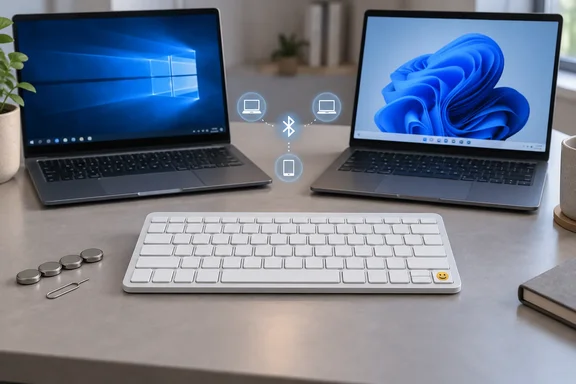
Microsoft Draws a Windows 10/11 Line for the Designer Compact Keyboard
Microsoft states the requirements briefly. You need a PC running Windows 11 or Windows 10 with Bluetooth 4.0 or later to set the keyboard up. The page doesn't list macOS, iPadOS, Android or older Windows versions. The "three devices" figure shouldn't be read as proof that those platforms are supported. They may work in practice, but this page doesn't document it.
Two features have narrower limits than the basic setup. Swift Pair is Microsoft's notification-based pairing shortcut in Windows. The keyboard supports it, and it's the quickest way to connect. The Expressive key opens an emoji picker, which Microsoft compares to picking emoji on a phone, and it needs Windows 11. On a Windows 10 PC the keyboard still types and pairs, but Microsoft doesn't promise that key will work.
Microsoft also points to Windows' own typing settings (Start > Settings > Time & language > Typing) and to Microsoft Mouse and Keyboard Center. That app helps personalize Microsoft keyboards and mice. The keyboard page doesn't say which customizations the app offers for this model, so don't assume particular remaps or macros are available.
The rest of the page describes the product: a "sleek design, premium finish, and low-profile angle." That's Microsoft's marketing description, not a test result, and nothing on the page backs up the comfort claim.
Pairing the Designer Compact Keyboard: Swift Pair First, Settings as Fallback
The initial pairing is the same on both operating systems until the manual fallback, where the Settings paths differ.
- Turn the keyboard on with the slide switch on its underside. It should go into pairing mode by itself, and the LED will flash.
- If the LED doesn't flash, press and hold the pair button at the top left of the keyboard for five seconds, or until the light starts flashing.
- On the Windows PC, select Connect when the Swift Pair notification for the keyboard appears. Then wait while Windows finishes setting it up.
If no notification appears, add the keyboard by hand. The steps depend on the OS.
Windows 11
Go to Start > Settings > Bluetooth & devices > Add device > Bluetooth, then choose Microsoft Designer Compact Keyboard from the list.
Windows 10
Go to Start > Settings > Devices > Bluetooth & other devices > Add Bluetooth or other devices > Bluetooth. Choose Microsoft Designer Compact Keyboard, then select Done.
It's working when the keyboard shows up in Windows' list of Bluetooth devices and your keystrokes appear on screen. The page also links a help topic on finding your PC's Bluetooth version, which is worth checking first on older desktops or USB Bluetooth adapters where you aren't sure the radio meets the 4.0 minimum.
Three Bluetooth Slots Turn One Designer Compact Keyboard Into a Multi-PC Switcher
The pair button does more than start pairing. Press it once and the keyboard moves to the next of its three Bluetooth slots, with the light showing the change, and goes into pairing mode for a new device. Incase's retail listing for the current version describes the same three-device support, with Bluetooth that allows seamless pairing with up to three devices.
Microsoft warns about one situation. If the Connect notification pops up on more than one PC at the same time, which is likely when two Windows machines sit on the same desk, accept it only on the PC you want in the current slot and follow its prompts. If you accept on the wrong machine, that slot is tied to the wrong PC.
The page doesn't explain how to clear a saved slot, how to tell which slot is active beyond the light changing, or how to pair with non-Windows devices. If you're managing several machines, remember that each slot you fill needs its own pairing step on the target PC. Removing the keyboard from one PC's Bluetooth list is done in that PC's Windows settings, not on the keyboard.
Four Coin Cells and a Pin: Battery Care on the Designer Compact Keyboard
There's no charging port. The keyboard takes four coin-cell batteries, which Microsoft labels "C2032." That label appears to match the widely sold CR2032 size, but that's our inference, not something the page says. Changing them takes a pin:
- Turn the keyboard over and push a pin into the small hole.
- Keep holding the pin while you slide the battery door away from the keyboard.
- Put the batteries in the slots with the positive side facing up.
- Slide the door back into place.
To check the charge, Microsoft says to search Windows for "Bluetooth" and open Bluetooth & other devices settings. The page then says the battery level "appears next to your mouse," which looks like text copied from a mouse guide. The fair reading is that the level shows beside the paired device's entry in that Settings list. Microsoft doesn't give a battery-life estimate for this model, so plan replacements by the reading in Settings, not by a lifespan claim.
When Pairing Fails: Microsoft's Keyboard Troubleshooting Playbook
Microsoft keeps a separate troubleshooting guide for its mice and keyboards, and the Designer Compact Keyboard is on its supported list. The steps are generic, not written for this model, but they cover most of the ways pairing goes wrong:
- Open the battery compartment and check that the cells sit the right way round, then swap in new ones if the keyboard still won't respond.
- Hold the pairing button for five to seven seconds. A blinking light means the keyboard has power. If nothing lights up, the batteries are the likely cause.
- Check that Bluetooth is on, then toggle airplane mode on for 10 to 15 seconds and turn it off again.
- Disconnect other Bluetooth devices for a while. Microsoft notes that too many connected at once can interfere with a keyboard or mouse connection.
- Remove the keyboard from the PC's Bluetooth device list and pair it again.
- Try it on another PC. If it works there, the problem is probably the original computer.
One symptom has a specific meaning. If the pairing light flashes three times and then goes off, Microsoft says the keyboard is already paired to another PC within range. Go to that PC, remove the keyboard from its Bluetooth list, then pair it again on the PC you want. For a three-slot keyboard used between several machines, this is probably the most useful single tip in the guide.
The same guide covers some other issues. Bluetooth accessories go into hibernation after 8 to 10 minutes idle to save battery, so it can take a few seconds for input to register when you come back. If typed characters don't match the screen, make sure the input language matches the display language under Time & language settings. If special keys aren't working, Microsoft says the PC may be missing updates and suggests running Windows Update. On non-Surface PCs it also suggests checking the manufacturer's updates.
Two small inconsistencies are worth knowing about. The keyboard page says to hold the pair button for five seconds, and the troubleshooting page says five to seven. Holding it until the light flashes covers both. The troubleshooting guide also uses Windows 10 menu names such as Devices and Update & Security. On Windows 11 the equivalent areas are Bluetooth & devices and Windows Update in Settings, so adjust the paths to match your version.
Incase Now Sells the Designer Compact Keyboard; Microsoft Still Writes the Manual
This support page covers a product Microsoft no longer makes. In 2023, Microsoft shifted its focus to its Surface accessories, stopping production of its Microsoft-branded PC peripherals. Incase has since taken over, continuing production of the discontinued accessories, including some unreleased products, and Game Rant reports that the Incase-branded models use the same components and supply chain as Microsoft.
The keyboard is now sold as the Incase Designer Compact, Designed by Microsoft, part number 21Y-00001. Staples' listing describes an Expressive Input key for quick access to emojis and symbols, as well as a Screen Snipping key for capturing and sharing content. That second key isn't mentioned in Microsoft's guide.
Software is where buyers of the Incase version need to be careful. Incase warns, for a different model, its Compact Ergonomic Keyboard, that this device is not compatible with the Microsoft Mouse and Keyboard Center or Microsoft Accessory Center utilities. None of the sources we checked say whether that applies to the Incase Designer Compact. Microsoft's advice to install Mouse and Keyboard Center is clearly meant for the Microsoft-branded keyboard. If you bought the Incase version, treat app support as unconfirmed until the app actually detects your keyboard.
What this means for you
If you own the Microsoft-branded keyboard, follow Microsoft's pairing and battery steps as written. The main decision is about the Windows version on each PC in its three slots. Windows 10 machines get typing and pairing, and Windows 11 machines also get the Expressive key. For IT staff handing these keyboards out, a Bluetooth 4.0 radio is the hardware check to make first, and the three-flash light is the symptom to recognize when someone says the keyboard "won't connect."
- Confirm each PC runs Windows 10 or Windows 11 and has Bluetooth 4.0 or later before pairing.
- Expect the Expressive emoji key to work only on Windows 11. Other keys and pairing work on Windows 10 as well.
- Keep four coin cells and a pin handy, since the keyboard has no charging port and the battery door needs the pin.
- If the pairing light flashes three times and turns off, remove the keyboard from the other PC it's paired with before trying again.
- When the Connect notification appears on several PCs, accept it only on the one you mean to pair.
- Don't assume Mouse and Keyboard Center will recognize an Incase-branded unit. Incase says at least one of its Microsoft-designed keyboards isn't compatible with that app.
Microsoft's guide is a small but useful record: it confirms the exact requirements, the three-slot switching behavior, and the Windows 11 limit on the Expressive key for a keyboard design that Incase now builds and sells. The page is dated July 2025, yet it still refers to Windows 10 as a supported setup platform. Its instructions are most reliable on Windows 11, which also gives you the Expressive key.