

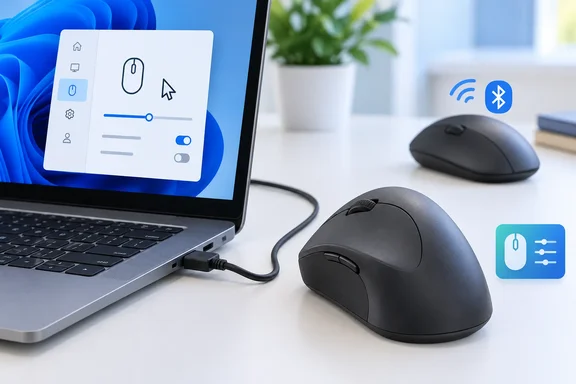
Microsoft Ergonomic Mouse setup is plug-and-play over USB
Microsoft describes the mouse as a wired mouse designed for fast mobility and reliability no matter where you use it, and says this light mouse can help you work all day without fatigue. Those are Microsoft's marketing claims. No independent ergonomic or health research backs them. The setup requirements are clearer. To get set up, you'll need a PC that's running Windows 11 or Windows 10.
Connecting it takes one step: plug the USB end of the mouse into a USB port on your Windows PC. The support page describes no pairing, no battery installation, no wireless receiver and no driver download. It also gives no minimum Windows build, USB version or other hardware requirement, so none is stated here.
Other sources fill in the hardware details Microsoft leaves out. In its 2019 review, Windows Central described it as a 100 percent fully wired mouse with a long USB-A cable to plug into a PC or laptop. Retail listings sell it under part number RJG-00001, which helps when you're ordering for a fleet. One retailer lists it as Wired, USB 2.0, 5 Buttons, 1000 DPI. That spec sheet comes from a reseller, not from Microsoft's support page, so treat it as a listing rather than a confirmed specification.
Where Windows 11 and Windows 10 hide the Mouse settings
The two Windows versions keep mouse settings in different places, and Microsoft gives a separate path for each:
- On Windows 11, select Start > Settings > Bluetooth & devices > Mouse.
- On Windows 10, select Start > Settings > Devices > Mouse.
Windows 11 lists the Mouse page under "Bluetooth & devices" even though this mouse doesn't use Bluetooth. Don't read that as a hint that you need to pair it. That's just how Windows 11 organizes all its input devices. On Windows 10 the same page sits under "Devices."
Microsoft's page doesn't say which controls appear on that page for this mouse. Treat the Settings page as the built-in, no-install place to adjust pointer behaviour. Don't expect it to offer anything specific to this model.
Mouse and Keyboard Center unlocks the programmable buttons
Microsoft's support page presents its accessory software as a tip, not a requirement. The Microsoft Mouse and Keyboard Center is an app that helps you make the most out of your Microsoft keyboard and mouse. The page doesn't list which settings the app offers for this mouse, and it doesn't say you need the app for the mouse to work.
Reviews and listings explain why you might want the app anyway. Microsoft's retail description advertises two programmable buttons you can customize for the actions you use most. Windows Central compared the button count with Microsoft's more expensive mouse: the Surface Precision Mouse has three to configure, whereas the Microsoft Ergonomic Mouse has just two. Our inference is that changing those buttons from their default actions happens in Mouse and Keyboard Center. Microsoft's page for this model doesn't spell out which button functions the app controls.
For managed PCs, this changes the rollout decision. The mouse works on Windows 10 and 11 with no extra software, so a standard image doesn't need Mouse and Keyboard Center just to support it. Add the app only for users who actually want to remap buttons.
The Microsoft Ergonomic Mouse vs the Microsoft Bluetooth Ergonomic Mouse
The two products have almost the same name, and Microsoft's instructions for them are very different. The wired Ergonomic Mouse plugs in and works. The Bluetooth Ergonomic Mouse has its own support page, which says the PC needs Bluetooth 4.0 or later. Its setup involves a power switch, a pairing button and Windows' Add device flow, and it can pair with up to three PCs.
The Bluetooth model also has features that depend on software. Microsoft's page for it says that full customization requires Mouse and Keyboard Center, and so does Smart Switch, which moves the cursor between paired PCs when you push it to the edge of the screen. The Bluetooth model runs on two AAA batteries and shows its battery level in Windows Settings.
Here's how the two compare, based on Microsoft's support documentation and the review above:
| Microsoft Ergonomic Mouse | Microsoft Bluetooth Ergonomic Mouse | |
|---|---|---|
| Connection | Wired USB (USB-A, per Windows Central) | Bluetooth 4.0 or later |
| Setup step | Plug into a USB port | Power on, pair via notification or Add device |
| Multi-PC use | One PC at a time via cable | Up to three paired PCs |
| Power | Draws from USB | Two AAA batteries |
| Mouse and Keyboard Center | Optional customization | Required for full customization and Smart Switch |
If you follow the Bluetooth instructions for the wired mouse, you'll be looking for a power switch and pairing button it doesn't have. If you follow the wired instructions for the Bluetooth model, it won't connect at all. Before you use either support page, check the product name printed on the box or the mouse itself.
Trade-offs of a wired ergonomic mouse
Going wired saves you a pairing step and removes battery management, and you give up flexibility in return. Windows Central's review listed the missing features plainly: it's not Bluetooth, and there's also no dedicated profile switch feature. The reviewer explained that the Surface Precision Mouse, being wireless, allows you to switch between three dedicated profiles, which can be linked up to three separate machines.
Price was the other side of that trade. Windows Central reported that the Ergonomic Mouse retails for just $40 in the United States and has 70 percent of the feature-set that the Surface Precision Mouse has for $100. Those were 2019 launch prices, so today's street prices may be different. The reviewer concluded that buyers should pay for the Surface Precision Mouse only if they need the extra configurable button, the dedicated profile switch feature, or the ability to switch the scroll wheel to smooth scrolling.
The USB-A cable matters for newer laptops. As an inference we haven't tested, a PC with only USB-C ports would need an adapter or hub to connect this mouse. Microsoft's support page doesn't mention adapters either way.
What this means for you
If you already have the wired Ergonomic Mouse on a Windows 10 or Windows 11 PC, plug it in and start working. You don't need to pair it or install software. Adjust pointer behaviour in Settings first, and install Mouse and Keyboard Center only if you want to remap the two programmable buttons. If you're deciding between models, the choice comes down to one cable to one PC versus Bluetooth pairing with up to three machines.
- Confirm the exact product name before following any Microsoft setup steps, because the wired Microsoft Ergonomic Mouse and the Microsoft Bluetooth Ergonomic Mouse have different procedures.
- Connect the wired model by plugging its USB cable into a USB port on a Windows 11 or Windows 10 PC.
- Find pointer settings in Windows 11 under Start > Settings > Bluetooth & devices > Mouse, or in Windows 10 under Start > Settings > Devices > Mouse.
- Treat Microsoft Mouse and Keyboard Center as optional for the wired model and install it only for users who want button customization.
- Budget for a USB-C adapter or hub if the target PCs have no USB-A ports, since reviewers describe the cable as USB-A.
- Choose the Bluetooth model or the Surface Precision Mouse instead if you need to switch between multiple PCs, because the wired Ergonomic Mouse has no profile switching.
For this model, Microsoft's instructions simply confirm that it needs almost no setup on Windows 10 and Windows 11. The Settings page and the optional Mouse and Keyboard Center app cover most adjustments, so most people never need to troubleshoot. The main mistake to avoid is mixing up the wired and Bluetooth models, especially when you're ordering and deploying them for a team.
References
- Use Microsoft Ergonomic Mouse | Microsoft Support Microsoft Support · 2025-11-26T00:00:00+00:00
- Microsoft Ergonomic Mouse review: A budget Surface Precision Mouse | Windows Central windowscentral.com