

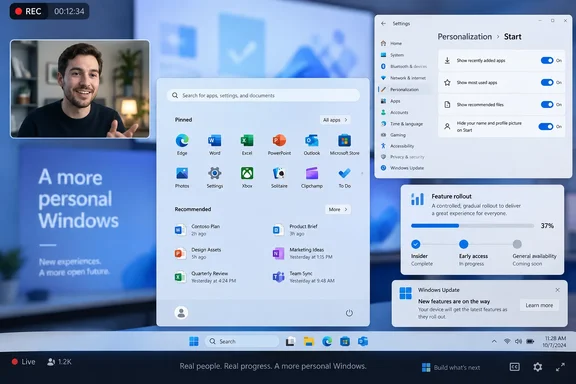
The important qualification is that this is not a universal “install the update and it appears” change. Microsoft shipped the setting in the August 27 optional preview update, KB5120998, then included that update’s improvements in the September 8 security release, KB5124008. But Microsoft has placed the Start-menu changes in a gradual rollout, meaning a fully updated PC can still lack the toggle while another machine on the same build already has it.
That distinction makes the feature more useful than a cosmetic tip: it is a visible example of how Windows feature delivery now works. The cumulative update can be installed, the build number can be current, and the user-facing control may still be withheld pending Microsoft’s staged enablement.
What the Start-menu setting actually hides
When enabled, the option removes the readable account name and personal profile image from the Start menu’s account area. It does not convert the Windows account to a local account, delete the account image, change the sign-in screen, or remove identity details elsewhere in Windows.
The account entry point remains available. Neowin says Start displays a generic account image after the toggle is enabled, and the account panel still shows the user’s details when that generic icon is selected. Independent how-to reporting from IntoWindows reaches the same practical conclusion: the change conceals the information from the persistent Start surface without disabling sign-out or account-management access.
That is a narrower privacy measure than some users may expect, but it is the sensible scope for the setting. A presenter can open Start in a recorded demo without putting a full name or recognizable portrait on screen, while retaining the normal account controls. The name may still appear in Settings, File Explorer, Microsoft 365 apps, the lock screen, collaboration software, and any content stored under a user-profile folder.
For a recording or presentation workflow, the setting should therefore be treated as one layer of cleanup rather than a complete anonymity feature. It handles a frequent accidental disclosure point: opening Start to launch an app during a screen share.
KB5120998 introduced it, but it was never a simple all-device release
Microsoft’s KB5120998 release notes identify the capability as new for Windows 11 24H2 build 26100.9278 and Windows 11 25H2 build 26200.9278. The setting arrived alongside more conspicuous Start changes, including configurable Start-menu sizing, the renaming of “Recommended” to “Recent,” and independent controls for the Pinned, Recent, and All apps sections.
The profile-hiding control belongs to the same gradual rollout group as those Start features. Microsoft uses that label for functions released in stages rather than being activated for every eligible device as soon as the update package installs. The vendor does not publish a device-by-device schedule or a promised completion date for this particular control.
That makes one line in Neowin’s guide too broad: the option did not simply “arrive to all users” in August. The underlying update was made available broadly as an optional preview on August 27, 2026, and its improvements moved into the September 8, 2026 security update. Yet availability of the actual Start control still varies by device because its activation remains staged.
Users who have installed the September update but cannot find the setting should not assume their Windows installation is damaged. First confirm the PC is running Windows 11 24H2 or 25H2, then install current Windows updates and check Settings > Personalization > Start again later. Microsoft’s documentation does not offer a supported registry value, Group Policy setting, PowerShell command, or feature-enable tool for forcing this particular rollout.
Third-party utilities and unofficial feature flags may expose dormant Windows components, but they are a poor answer for a basic presentation-privacy preference. They create an unsupported configuration and can complicate support or change behavior when Microsoft revises the component. Waiting for normal enablement is less exciting, but it avoids turning a one-toggle adjustment into a configuration-management problem.
The feature is more relevant to shared screens than private PCs
On a personal laptop used only at home, hiding the account name from Start will be easy to overlook. In business environments, classrooms, repair shops, help-desk sessions, and remote demonstrations, the information can be unexpectedly exposed whenever someone opens Start to search for software or access shutdown controls.
A user’s display name can reveal more than an organization may intend: a surname, department convention, client relationship, or identity that can be matched to a public profile. The profile photograph is even more direct. For presenters working with external customers or posting tutorials publicly, eliminating that persistent visual identifier saves a post-production blur and reduces the chance that a brief Start-menu opening leaks information into a recording.
The setting also has a more modest role on managed PCs. IT administrators should not pitch it as identity protection or a security boundary. It does not prevent a logged-in user from being identified locally, does not block another person from accessing the account menu, and does not alter authentication. It is a user-interface privacy preference.
Still, it is a practical preference that previously required awkward workarounds: temporarily changing the Microsoft account picture, using a different account, editing screenshots, or carefully avoiding Start during a recording. Microsoft has now separated the concern from the account itself, which is the right design choice.
Administrators should separate the feature from the preview update’s risks
There is little reason for a managed fleet to deploy an optional preview update solely to hide an account tile. KB5120998 was not merely a Start-menu package; Microsoft’s release-health documentation lists issues tied to that update, including mouse personalization being reset on non-English Windows installations and some desktop background settings reverting to solid black.
Microsoft’s September 8 security update, KB5124008, carries the earlier update’s improvements, while its release notes say that the mouse-customization issue is resolved by Windows updates released on or after September 14, such as KB5129195. The black-background issue remains listed as a confirmed problem for Windows 11 24H2 and 25H2 in Microsoft’s current release-health information.
For organizations, the sensible route is to remain on the supported monthly servicing cadence, validate the relevant September updates in representative language and hardware configurations, and allow the Start change to appear through Microsoft’s rollout. A single account-name toggle is not a justification for broad deployment of preview code.
There is also no indication in Microsoft’s documentation that the setting is centrally manageable through an administrative policy. That omission matters. Enterprises that need to enforce visual privacy in shared kiosks, training rooms, or customer-facing demonstration devices cannot currently count on this toggle as a fleet-wide control. They will need to use account design, kiosk configuration, presentation procedures, or endpoint-management controls appropriate to the broader environment.
Check the setting before a public demo
The operational advice is simple: if Start will appear on camera, enable the setting and reopen Start before recording. Do not assume that selecting the toggle makes the entire account identity disappear from Windows, and do not wait until a live session to discover that Microsoft has not yet enabled it on the device.
For users with the feature, the workflow is short:
- Open Settings, then select Personalization and Start.
- Turn on Hide your name and profile picture on Start.
- Open Start again and verify that the ordinary name-and-photo display has been replaced by the generic account entry.
- Check any other likely disclosure points, including the lock screen, browser profiles, Teams or Outlook windows, desktop files, and notification banners.
Microsoft has made a long-requested Start customization available, but the delivery model remains the catch. On Windows 11 24H2 and 25H2, KB5120998 and the September cumulative update place the feature on the system; Microsoft’s staged rollout decides when the toggle becomes visible.
References
- Quick tip: How to hide your name and profile picture from the Windows 11 Start menu - Neowin Neowin · 2026-09-16T23:00:02+00:00