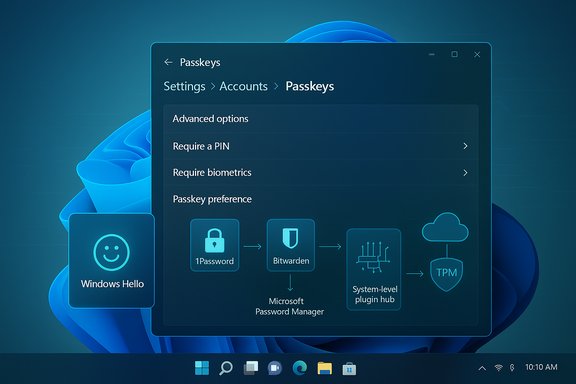
1Password Becomes Windows 11 System Passkey Manager with MSIX Build

  • Thread Author
1Password’s desktop app can now act as the system-level passkey manager on Windows 11, letting the vault you trust create, store and surface passkeys directly inside the operating system’s authentication flow — provided you run the MSIX build of 1Password and a supported Windows 11 release.

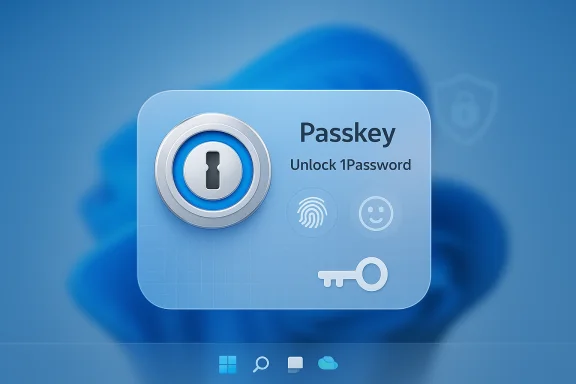
Passkey UI panel for 1Password with a blue keyhole lock and biometric icons.Background / Overview​

Passkeys are a FIDO/WebAuthn‑based replacement for passwords: the device creates a cryptographic private/public key pair, keeps the private key securely on the device, and the website stores only the public key. Unlocking the private key is done locally with Windows Hello (face, fingerprint or PIN) so sign‑ins become both faster and phishing‑resistant. Microsoft has built a native passkey management surface into Windows 11 and — crucially — exposed a plugin API so third‑party credential managers can register as the system passkey provider. This is not an abstract developer feature: it changes the day‑to‑day experience. With a third‑party passkey provider registered at the OS level, creating a passkey on a website can offer to save that passkey into your chosen manager (for example, 1Password) instead of only into Windows or into a browser store. Windows Hello still performs the local biometric/PIN unlock, while the third‑party manager handles storage, sync and discovery.

What changed — the essentials​

  • Windows exposes a passkey plugin API. That API lets apps register as system passkey providers, so the OS can call into them when a site or app asks to create or use a passkey.
  • 1Password implemented that API in its Windows app. The company shipped a build that uses the Windows passkey plugin model so users can choose 1Password as the system authenticator.
  • Requirements: up‑to‑date Windows 11 with the passkey features enabled, and the MSIX build of the 1Password app (the desktop .MSIX package is required to support the system integration).
  • User flow: enable the 1Password passkey option inside the 1Password app, then set 1Password as the system passkey manager in Settings > Accounts > Passkeys > Advanced options. Windows Hello continues to authenticate the local user.

Why this matters — practical benefits​

  • One place to manage both passwords and passkeys. If 1Password (or another manager) acts as the system provider, your passkeys become part of your vault alongside stored logins, sharing workflows and sync mechanisms you already use.
  • Passkeys outside the browser. System‑level integration lets applications and non‑browser flows use passkeys seamlessly, removing some of the friction that previously required QR workflows or mobile device pairing.
  • Windows Hello for unlock, manager for storage. The split keeps local biometric verification handled by the OS while delegating storage and cross‑device sync to the password manager. That gives users both convenience and control.

How it works — step‑by‑step​

Prerequisites (short list)​

  • Windows 11 build with passkey settings and plugin support (passkey management became available in Windows 11 starting from 22H2 with the related rollups; check the Passkeys page in Settings).
  • The MSIX package of 1Password for Windows (the MSIX packaging is necessary for the app to register as a system plugin).
  • A Windows Hello authenticator configured (face, fingerprint or PIN).

Enabling 1Password as the system passkey manager​

  • Install or update to the MSIX build of 1Password for Windows. The MSIX version is how 1Password exposes the plugin integration.
  • In 1Password open: Settings > Autofill and enable Show passkey suggestions. This signals 1Password to participate in passkey flows.
  • Open Windows Settings, go to Accounts > Passkeys > Advanced options and choose your preferred passkey manager (toggle 1Password on). If the toggle is absent, the platform may still be rolling the feature to your device — see troubleshooting below.
  • Create a passkey on a supported website or app. When Windows prompts where to save the credential, 1Password should appear as the system option; Windows Hello will handle the unlock prompt.

Verifying the technical claims​

Multiple independent sources confirm the same technical architecture: Microsoft’s Windows developer docs describe the plugin passkey manager API and provide a sample "Contoso Passkey Manager" demo; Microsoft’s Support and security pages document the Settings controls and the Windows Hello unlock behavior; and 1Password’s community and beta announcements explain the MSIX requirement and the onboarding flow. A cautionary note: several community reports showed delays or greyed‑out toggles during the beta rollout, which indicates the feature is controlled by Microsoft-side rollout flags and may require a short propagation window after installing the MSIX build. Expect a short wait (24–48 hours) and a restart in some cases.

Security model and protections​

  • Private key never leaves the device: Windows and the FIDO/WebAuthn design ensure private keys remain local; authentication is a signed challenge using the private key and the site verifies using the public key. This is the central anti‑phishing property of passkeys.
  • Windows Hello remains the verifier: Biometric templates don’t leave the device; Windows Hello merely unlocks the cryptographic operation. The passkey manager is invited into the flow, but the OS still enforces local user verification for private key use.
  • TPM and end‑to‑end encryption for syncing: Microsoft’s synced passkey option leverages TPM and E2E encryption for cross‑device sync; third‑party managers implement their own encryption and recovery models. Users should evaluate the manager’s backup, recovery and sync architecture before relying solely on it.

Interoperability and device scenarios​

  • Local Windows device: passkey stored by 1Password on the device and protected by Windows Hello.
  • Cross‑device via 1Password sync: if you use 1Password across devices (iOS/Android/other PCs), the manager’s sync stack can propagate passkeys between your trusted devices depending on the manager’s implementation. 1Password’s announcements emphasize sync as a goal but also warn about early‑release limitations.
  • Companion device or QR flow: Windows still supports using a phone/tablet by scanning a QR code for scenarios where passkeys live on a different device.
  • Security keys: FIDO2 hardware keys remain fully supported for users who prefer hardware guardians.

Risks, caveats and things to watch​

  • Passkeys are not yet a blanket replacement for every account. Many services offer passkeys as an additional sign‑in method; truly passwordless (passkey‑only) transitions require careful account recovery planning. Avoid deleting password recovery options until you’re certain you have robust recovery methods.
  • Recovery and vendor lock‑in. Using a third‑party manager for passkeys centralizes credentials into a single vendor’s sync and recovery model. That simplifies management but concentrates risk if you can’t access the manager. Keep recovery codes and secondary access methods documented and secured.
  • Rollout rough edges. During early availability some users reported greyed‑out toggles, delayed Windows rollout flags, and mismatches between beta builds and stable channels. If the system toggle is missing, check you have the MSIX build, wait 24–48 hours and restart — or confirm Windows Update applied the required platform update.
  • Enterprise controls. Organizations using managed devices should plan for policy controls: IT can enable or restrict passkey providers via MDM/Group Policy and must define recovery/self‑service flows to prevent lockouts. Microsoft documents enterprise management paths for a passwordless transition.
  • “First” claims require care. Media and vendor posts have described 1Password as the first third‑party manager to ship stable Windows system‑level passkey support. That wording aligns with 1Password’s release notes and reporting, but market activity moves quickly — other managers have rolled passkey features across platforms and may have overlapping milestones. Treat “first” as a newsworthy marketing point but verify against contemporaneous vendor announcements for your own decisions.

Troubleshooting checklist​

  • Ensure Windows 11 is updated to a build that includes Passkeys settings (Windows 11 22H2 with rollups added the initial passkey management entry; verify via Settings > Accounts > Passkeys).
  • Confirm you installed the MSIX version of 1Password (other package formats don’t register as the system plugin).
  • In 1Password enable Settings > Autofill > Show passkey suggestions and then restart the machine if the Windows toggle doesn’t appear immediately. Community reports show a 24–48 hour propagation window can apply.
  • If the passkey options are greyed out, ensure you aren’t on a pre‑release Windows Insider build that changed the Settings UI — some Insider builds have temporarily removed or altered the Advanced options. Check update notes and consider switching to the supported Insider ring or the stable release.
  • If you’re an enterprise user check with IT: your organization may centrally manage which passkey providers are permitted.

What to expect next​

  • Other managers will follow. The Windows plugin architecture is public documentation and several major password managers have signaled or already implemented passkey features across platforms; expect Bitwarden, Dashlane and others to surface Windows system‑level integrations in their roadmaps.
  • Continued UX polish and Settings evolution. Microsoft is iterating the Passkeys UI inside Settings and has been gradually rolling upgrades in 24H2/25H2 updates; expect clearer controls, reporting and enterprise management hooks to land over time.
  • Growing standardization around passkey portability. Industry efforts to standardize passkey export/import and credential exchange (so users aren’t locked to a single manager) are advancing; this will make choosing a manager less binding in the long run. This reduces the risk of vendor lock‑in over time.

Recommended checklist before switching day‑to‑day​

  • Confirm your most important accounts support passkeys and test the creation flow.
  • Configure a robust recovery plan (secondary sign‑ins, recovery codes, a hardware key or an alternative verified contact method).
  • Install the MSIX build of your chosen manager and enable passkey settings inside the app.
  • Set the OS system authenticator to your manager and test sign‑in flows across at least two sites.
  • Keep a fallback: retain at least one account where you can revert to password + 2FA if necessary until you’re confident with the new flows.

Final analysis — strengths and tradeoffs​

This OS‑level plugin model is the missing piece passkeys needed on Windows: it lets trusted password managers participate in the platform authentication flow, which reduces friction and improves discoverability for everyday users. Strengths include better usability, stronger phishing resistance, and integration with established vaults and sync systems. Microsoft’s design preserves biometric privacy by keeping templates local and leverages TPM and E2E options for sync where appropriate. The tradeoffs are practical and organizational. Centralizing passkeys in a single third‑party vault simplifies management but increases reliance on that vendor’s recovery and sync design. Early rollouts showed UX friction (greyed toggles, rollout delays) and some compatibility hitches between Insider builds and manager betas. Enterprises must thoughtfully deploy and document recovery to avoid help‑desk storms if users lose access. If you value a single coherent security UX and already trust 1Password’s vault model, the Windows system‑level integration is a meaningful upgrade that makes passkeys practical for everyday use. For power users and organizations, the feature is a timely building block toward a passwordless future — but not a switch to flip without planning for recovery and cross‑vendor portability.

This new integration marks a major usability advance for passkeys on Windows, and it’s an important step toward mainstream passwordless adoption — but it carries the normal “new feature” caveats. Confirm your Windows build, use the MSIX version of 1Password, verify recovery paths, and expect additional managers and standards improvements to follow.
Source: ZDNET 1Password can now save passkeys directly in Windows 11 - here's how
 

Windows 11 has finally moved passkeys out of the browser and into the operating system itself: the November 11, 2025 cumulative update introduces a system-level plugin passkey manager API that lets third‑party credential managers register as the default passkey provider for the OS, with 1Password and Bitwarden among the first vendors to ship integrations and Microsoft’s own Password Manager now surfaced as a native Windows plugin.

Windows 11 Passkeys settings screen showing PIN, biometrics, and password manager options.Background / Overview​

Passkeys are FIDO2/WebAuthn credentials built from public/private key cryptography. The relying party stores a public key; the private key stays under user control and is unlocked locally by an authenticator (for Windows that has long been Windows Hello). This model is inherently phishing‑resistant, reduces damage from server breaches, and avoids the reuse problems that made passwords so brittle. Microsoft has been rolling passkey support into Windows for more than a year, but until now storage and sync were typically browser‑centric or vendor‑specific, which fractured the cross‑device experience. What changed in November 2025 is both practical and architectural:
  • Windows 11 exposes a plugin credential manager API so packaged credential managers can register as system passkey providers.
  • The Settings UI gained a Passkeys area (Settings > Accounts > Passkeys) with an Advanced options pane listing registered providers and letting users enable a chosen manager after Windows Hello verification.
  • Microsoft’s own Password Manager (the store inside Microsoft Edge) is now available as a native Windows plugin that can sync passkeys across devices using cloud protections.
  • Third‑party vendors such as 1Password (via an MSIX build) and Bitwarden (initially via beta/preview builds) have implemented the plugin path so passkeys stored in their vaults can be used across browsers and native apps.
These moves convert passkeys from an isolated convenience into a first‑class OS‑level authentication surface that apps, browsers, and native Windows flows can call into without browser extensions, ad‑hoc QR pairing, or mobile relay tricks.

What Microsoft shipped (technical summary)​

Plugin model and WebAuthn routing​

Windows now supports a plugin model for passkey providers. When an application (or browser) initiates a WebAuthn create/assertion request, Windows can route that request to the registered plugin provider. The provider handles discovery, creation, and assertion of passkeys, while Windows Hello remains the local authenticator performing user verification (PIN, fingerprint, or facial recognition) before a signing operation. This split preserves platform protections (TPM, local biometric templates) while allowing vault vendors to manage storage and sync.

Settings UI and user flow​

  • New Settings path: Settings > Accounts > Passkeys includes a redesigned workflow for creating, saving and managing passkeys.
  • Advanced options lists registered providers; enabling a provider requires a Windows Hello confirmation to prevent silent registration.
  • Once enabled, the provider will appear in passkey creation and sign‑in dialogs as an option alongside “save to Microsoft” or “keep local.”

Microsoft Password Manager as a native plugin​

Microsoft integrated Microsoft Password Manager (the passkey store from Edge) into Windows as a native plugin. Passkeys saved here can be synced across Windows devices tied to the same Microsoft account. Microsoft documents that cloud sync uses a user PIN for unlock and leverages Azure protections — including Managed HSM and hardware‑isolated Azure Confidential Compute for sensitive operations, and an immutable audit/recovery primitive (Confidential Ledger) for recovery flows. That gives Microsoft’s sync path a hardware‑backed cloud envelope designed for enterprise‑grade protections.

Vendor integrations at launch​

  • 1Password: Implemented native Windows passkey support and shipped an MSIX build that registers as a system passkey provider. The MSIX package is required for the system registration because packaged apps can register with the OS plugin registry in ways unpackaged EXEs cannot. 1Password has an onboarding flow in its app that toggles the passkey suggestions and will redirect users to the Settings > Passkeys advanced options to enable the provider.
  • Bitwarden: Offers desktop passkey integration in beta/preview; early adopters must install preview desktop builds (GitHub releases) while Bitwarden’s stable desktop installer catches up. Bitwarden previously rolled out mobile and extension passkey support earlier in 2025 and has extended that work to the desktop plugin path.
  • The platform rollout for this capability is part of the November 11, 2025 cumulative/security update (KB5068861) for supported Windows 11 versions; if Settings > Passkeys > Advanced options is not visible, a Windows update and reboot are the first checks.

Why this matters — the practical security and UX wins​

Passkeys already remove the most common attack vectors tied to passwords: phishing, credential stuffing, and server‑side breaches of reusable secrets. The OS‑level plugin architecture brings several concrete benefits:
  • Choice and continuity: Users are no longer forced into using only Edge or Microsoft’s vault to get full passkey functionality on Windows; they can choose a trusted third‑party manager and carry their passkeys across devices using the vendor’s sync and recovery model.
  • Consistent cross‑app behavior: Native apps, PWAs, and web browsers can all rely on the same system provider surface instead of depending on per‑browser implementations or fragile extension interactions.
  • Windows Hello as the gatekeeper: Local biometric or PIN verification still happens on‑device before private key use, preserving the security model that ties user presence and key use to the hardware-backed authenticator.
  • Practical sync for mainstream users: Microsoft’s self‑hosted sync via Edge plus protections like Azure Managed HSM and Confidential Compute make cloud‑backed passkey sync practical for non‑power users and reduces the friction of switching devices.
Put plainly: passkeys are now easier to use everywhere on Windows, and you can pick the vendor that matches your threat model — whether that’s Microsoft’s integrated experience or a third‑party vault you already trust.

Operational and technical caveats — what to watch out for​

This is a major platform change, but it is not risk‑free. Adopt thoughtfully.

Packaging and deployment friction​

  • MSIX requirement: Windows requires a packaged application (MSIX) to register reliably as a system passkey provider. That matters for enterprises that restrict Store/MSIX installations, or have centralized deployment pipelines still built around classic EXE/MSI installers. Rolling out third‑party providers at scale may require vendor cooperation on enterprise installers or signed MSIX packages and MDM policy changes.
  • Staged rollouts and propagation delays: Community reports show the toggle can be missing or take a short propagation period (reboot + up to 24–48 hours) after installing the vendor’s MSIX package. Expect a short stabilization window in helpdesk workflows.

Recovery and account lockout risks​

  • Sync & recovery models vary: Third‑party managers use their own vault‑level recovery workflows (recovery codes, account recovery, device linking). Microsoft’s cloud path uses PIN + Azure enclaves. These differences mean recovery plans are vendor‑specific; organizations must review and test recovery policies to avoid lockouts. Treat recovery as a first‑class operational requirement.
  • Fallback plans for critical access: For critical systems, keep a fallback sign‑in option during migration (e.g., a secondary admin device or a short‑term recovery credential) until passkey recovery paths are validated.

Browser and app interoperability​

  • Browser UX fragmentation may persist initially: Although the OS coordinates provider selection, different browsers and apps may surface passkey choices slightly differently while vendors refine UX. Expect some user confusion in the first wave of rollouts and prepare helpdesk docs that show the Settings path and the vendor onboarding screens.

Trust and centralization tradeoffs​

  • Cloud sync implies trust: Using vendor sync (Microsoft or third‑party) means trusting their cloud key‑protection model. Microsoft advertises hardware‑backed protections (Managed HSM, Confidential Compute, Confidential Ledger), but enterprises must still compare that architecture against policy requirements for data residency, auditability, and third‑party access. Where regulation or compliance requires it, vendors with self‑host or on‑premises options (or hardware‑backed, customer‑controlled HSMs) may be preferred.
  • Supply‑chain & plugin security: Any plugin path increases the attack surface at OS integration points. Maintain vendor vetting, require signed installers, and monitor CVE and vendor advisories for the plugin components.

Step‑by‑step: how to enable a third‑party passkey manager on Windows 11​

  • Update Windows 11 to the latest cumulative release (the November 11, 2025 cumulative update is KB5068861). Reboot after updates.
  • Install the password manager build that implements Microsoft’s plugin API:
  • For 1Password, install the MSIX release that exposes passkey support. Open 1Password and enable the passkey suggestion option (Settings > Autofill > Show passkey suggestions) to trigger onboarding.
  • For Bitwarden, install the desktop beta/preview build if GA support hasn’t reached your channel yet; follow Bitwarden’s beta release notes to enable passkey features.
  • Open Settings > Accounts > Passkeys > Advanced options, authenticate with Windows Hello, and toggle on your preferred passkey provider. The provider will appear in passkey save/use dialogs thereafter.
  • Test with a known passkey‑enabled site or app: create a passkey and confirm it is saved to the chosen provider; sign out, sign in on another device (or use the vendor’s vault sync) to validate recovery and cross‑device behavior.
Troubleshooting tips:
  • If the provider toggle is missing: verify Windows Update installed KB5068861 (or later), confirm the vendor installed the MSIX build (for 1Password), reboot, and allow a short propagation window; check MDM/Group Policy for restrictions on Store/MSIX packages.

Vendor snapshots: what each provider brings to the table​

1Password (MSIX)​

Strengths:
  • Uses customers’ existing 1Password vault and sync model; vault recovery and sharing features carry over to passkeys.
  • Deep onboarding flow and UI guidance inside the 1Password app to make the switch smoother.
    Caveats:
  • Requires MSIX packaging; enterprises that disallow MSIX may need special distribution plans. Community rollout notes show staged propagation, so expect a short wait after install.

Bitwarden (beta → GA)​

Strengths:
  • Open‑source roots, flexible hosting/self‑host options, which appeals to privacy‑sensitive organizations.
  • Mature mobile passkey support and active beta testing for desktop integration.
    Caveats:
  • Desktop system provider path may still be beta in some channels; early adopters may need to install preview builds.

Microsoft Password Manager (Edge → Windows plugin)​

Strengths:
  • Zero extra installs for users who already use Edge and a Microsoft account.
  • Cloud sync uses a PIN + hardware‑backed cloud protections (Azure Managed HSM, Confidential Compute, Confidential Ledger) intended to protect key material and provide tamper‑resistant auditability. This lowers the barrier to cross‑device passkey use for mainstream users. Caveats:
  • Initially limited to consumer Microsoft Accounts on Windows desktops in the first wave; enterprise/Entra (Azure AD) support and broader platform parity may follow but enterprises should validate timelines and compliance posture before broad adoption.

Security analysis: strengths and remaining risks​

The architectural design Microsoft chose — Windows Hello as the local gatekeeper and vetted, packaged providers for storage/sync — is sound and pragmatic. It preserves platform security primitives (TPM, local biometric templates) while giving vendors the ability to reuse their existing vault and recovery systems. That yields two immediate security wins:
  • Phishing is far less effective because the private key never leaves the authenticator, and passkey sign‑ins require an origin‑bound WebAuthn flow that browsers and platforms verify.
  • Server breaches have lower blast radius because compromise of a server’s public keys does not allow authentication without access to the private key on the user’s authenticator.
However, some risk vectors remain and require operational attention:
  • Cloud‑sync trust model: Syncing passkeys to the cloud (Microsoft or third‑party) introduces trust in vendor key‑protection models. Microsoft advertises Azure Managed HSM and Confidential Compute envelopes — strong protections — but organizations with strict compliance or jurisdictional constraints must validate these architectures against their policies.
  • Recovery semantics are varied: Different vendors expose different recovery methods; mismatched or poorly tested recovery processes can cause user lockout. Treat recovery as a critical operational control and run tabletop exercises before widescale migration.
  • Plugin surface area risks: New OS integration points are attractive targets; require code signing, routine vulnerability monitoring, and update controls for vendor plugins. Encourage vendors to publish clear CVE/responsible‑disclosure protocols.
  • Enterprise policy and packaging constraints: For enterprises that restrict MSIX or installers via Group Policy/MDM, ensure vendor packaging and distribution options meet corporate deployment requirements before adoption.

Recommended rollout approach for IT teams​

  • Pilot with volunteers and power users: Test representative hardware, browser mixes (Edge, Chrome, Firefox), and key business web apps to identify any site‑specific compatibility issues.
  • Validate recovery workflows: Test vendor recovery, vault access restoration, and cross‑device sync for both Microsoft Password Manager and chosen third‑party providers.
  • Update deployment tooling: Ensure MSIX installers are allowed where needed, update packaging repositories, and coordinate with vendors on enterprise install options.
  • Train helpdesk staff: Provide clear triage steps (check KB5068861, verify package and MSIX, reboot & propagation wait, and vendor‑specific diagnostics).
  • Phase migration: Start with low‑risk groups, collect telemetry and support metrics, then widen rollout once operations stabilize.

What remains uncertain (and cautions)​

  • Cross‑platform parity: While Windows now supports third‑party managers natively, full parity with macOS and iOS vendor experiences depends on vendor roadmaps and browser support outside Edge. This means users who live in mixed OS ecosystems should verify cross‑device behavior before committing to a single provider.
  • Enterprise Azure/Entra timelines: Microsoft’s consumer‑facing sync model is clear; the timetable for broader Entra/Azure AD parity and for support on mobile and Mac is subject to future updates and vendor roadmaps. Organizations should track Microsoft release guidance and vendor announcements.
  • Plugin lifecycle and security hardening: The long‑term security depends on how vendors maintain the plugin code and how quickly vulnerabilities are fixed and pushed to users.
When a claim in marketing or early posts cannot be verified for a specific scenario (for example, “full enterprise Entra parity on day one”), treat that as a planned or staged capability and verify with vendor roadmaps before depending on it operationally.

Conclusion​

The November 2025 Windows update that exposes a plugin passkey manager API is a watershed moment for passwordless on the PC. It resolves a critical UX gap — where passkeys were often trapped in a browser or mobile silo — by giving users and organizations real choice about where credentials live while preserving the platform security guarantees of Windows Hello and TPM. Microsoft’s integration of its Password Manager as a native plugin, backed by Azure Managed HSM and Confidential Compute, gives mainstream users a low‑friction path to synced passkeys, and third‑party vendors like 1Password and Bitwarden have already implemented or seeded system providers so veteran vault users can maintain continuity. That said, this is an infrastructure change that requires operational work: packaging and deployment strategy (MSIX), recovery planning, browser and app testing, and vendor vetting. IT teams should pilot, validate recovery flows, update deployment tooling, and train helpdesks before broad rollout. For end users, the day when you can choose your favorite passkey manager and use it natively across Windows apps and browsers has arrived — but realizing the security and convenience gains in practice will depend on careful rollout and vendor cooperation.


Source: How-To Geek Windows 11 just got a big passkey upgrade
 

Back
Top