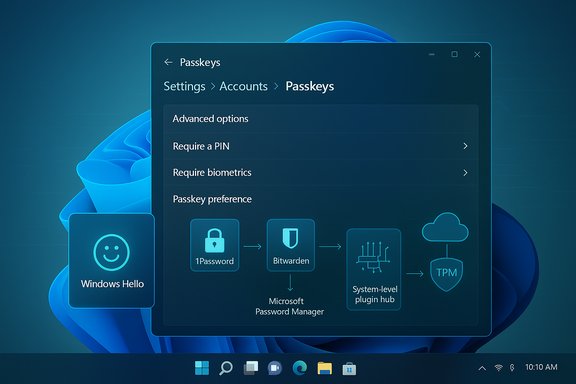
1Password’s desktop app can now act as the system-level passkey manager on Windows 11, letting the vault you trust create, store and surface passkeys directly inside the operating system’s authentication flow — provided you run the MSIX build of 1Password and a supported Windows 11 release.
Passkeys are a FIDO/WebAuthn‑based replacement for passwords: the device creates a cryptographic private/public key pair, keeps the private key securely on the device, and the website stores only the public key. Unlocking the private key is done locally with Windows Hello (face, fingerprint or PIN) so sign‑ins become both faster and phishing‑resistant. Microsoft has built a native passkey management surface into Windows 11 and — crucially — exposed a plugin API so third‑party credential managers can register as the system passkey provider. This is not an abstract developer feature: it changes the day‑to‑day experience. With a third‑party passkey provider registered at the OS level, creating a passkey on a website can offer to save that passkey into your chosen manager (for example, 1Password) instead of only into Windows or into a browser store. Windows Hello still performs the local biometric/PIN unlock, while the third‑party manager handles storage, sync and discovery.
This new integration marks a major usability advance for passkeys on Windows, and it’s an important step toward mainstream passwordless adoption — but it carries the normal “new feature” caveats. Confirm your Windows build, use the MSIX version of 1Password, verify recovery paths, and expect additional managers and standards improvements to follow.
Source: ZDNET 1Password can now save passkeys directly in Windows 11 - here's how
 Background / Overview
Passkeys are a FIDO/WebAuthn‑based replacement for passwords: the device creates a cryptographic private/public key pair, keeps the private key securely on the device, and the website stores only the public key. Unlocking the private key is done locally with Windows Hello (face, fingerprint or PIN) so sign‑ins become both faster and phishing‑resistant. Microsoft has built a native passkey management surface into Windows 11 and — crucially — exposed a plugin API so third‑party credential managers can register as the system passkey provider. This is not an abstract developer feature: it changes the day‑to‑day experience. With a third‑party passkey provider registered at the OS level, creating a passkey on a website can offer to save that passkey into your chosen manager (for example, 1Password) instead of only into Windows or into a browser store. Windows Hello still performs the local biometric/PIN unlock, while the third‑party manager handles storage, sync and discovery. What changed — the essentials
- Windows exposes a passkey plugin API. That API lets apps register as system passkey providers, so the OS can call into them when a site or app asks to create or use a passkey.
- 1Password implemented that API in its Windows app. The company shipped a build that uses the Windows passkey plugin model so users can choose 1Password as the system authenticator.
- Requirements: up‑to‑date Windows 11 with the passkey features enabled, and the MSIX build of the 1Password app (the desktop .MSIX package is required to support the system integration).
- User flow: enable the 1Password passkey option inside the 1Password app, then set 1Password as the system passkey manager in Settings > Accounts > Passkeys > Advanced options. Windows Hello continues to authenticate the local user.
Why this matters — practical benefits
- One place to manage both passwords and passkeys. If 1Password (or another manager) acts as the system provider, your passkeys become part of your vault alongside stored logins, sharing workflows and sync mechanisms you already use.
- Passkeys outside the browser. System‑level integration lets applications and non‑browser flows use passkeys seamlessly, removing some of the friction that previously required QR workflows or mobile device pairing.
- Windows Hello for unlock, manager for storage. The split keeps local biometric verification handled by the OS while delegating storage and cross‑device sync to the password manager. That gives users both convenience and control.
How it works — step‑by‑step
Prerequisites (short list)
- Windows 11 build with passkey settings and plugin support (passkey management became available in Windows 11 starting from 22H2 with the related rollups; check the Passkeys page in Settings).
- The MSIX package of 1Password for Windows (the MSIX packaging is necessary for the app to register as a system plugin).
- A Windows Hello authenticator configured (face, fingerprint or PIN).
Enabling 1Password as the system passkey manager
- Install or update to the MSIX build of 1Password for Windows. The MSIX version is how 1Password exposes the plugin integration.
- In 1Password open: Settings > Autofill and enable Show passkey suggestions. This signals 1Password to participate in passkey flows.
- Open Windows Settings, go to Accounts > Passkeys > Advanced options and choose your preferred passkey manager (toggle 1Password on). If the toggle is absent, the platform may still be rolling the feature to your device — see troubleshooting below.
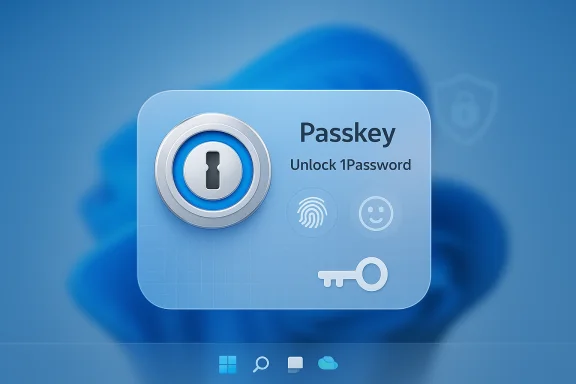
- Create a passkey on a supported website or app. When Windows prompts where to save the credential, 1Password should appear as the system option; Windows Hello will handle the unlock prompt.
Verifying the technical claims
Multiple independent sources confirm the same technical architecture: Microsoft’s Windows developer docs describe the plugin passkey manager API and provide a sample "Contoso Passkey Manager" demo; Microsoft’s Support and security pages document the Settings controls and the Windows Hello unlock behavior; and 1Password’s community and beta announcements explain the MSIX requirement and the onboarding flow. A cautionary note: several community reports showed delays or greyed‑out toggles during the beta rollout, which indicates the feature is controlled by Microsoft-side rollout flags and may require a short propagation window after installing the MSIX build. Expect a short wait (24–48 hours) and a restart in some cases.Security model and protections
- Private key never leaves the device: Windows and the FIDO/WebAuthn design ensure private keys remain local; authentication is a signed challenge using the private key and the site verifies using the public key. This is the central anti‑phishing property of passkeys.
- Windows Hello remains the verifier: Biometric templates don’t leave the device; Windows Hello merely unlocks the cryptographic operation. The passkey manager is invited into the flow, but the OS still enforces local user verification for private key use.
- TPM and end‑to‑end encryption for syncing: Microsoft’s synced passkey option leverages TPM and E2E encryption for cross‑device sync; third‑party managers implement their own encryption and recovery models. Users should evaluate the manager’s backup, recovery and sync architecture before relying solely on it.
Interoperability and device scenarios
- Local Windows device: passkey stored by 1Password on the device and protected by Windows Hello.
- Cross‑device via 1Password sync: if you use 1Password across devices (iOS/Android/other PCs), the manager’s sync stack can propagate passkeys between your trusted devices depending on the manager’s implementation. 1Password’s announcements emphasize sync as a goal but also warn about early‑release limitations.
- Companion device or QR flow: Windows still supports using a phone/tablet by scanning a QR code for scenarios where passkeys live on a different device.
- Security keys: FIDO2 hardware keys remain fully supported for users who prefer hardware guardians.
Risks, caveats and things to watch
- Passkeys are not yet a blanket replacement for every account. Many services offer passkeys as an additional sign‑in method; truly passwordless (passkey‑only) transitions require careful account recovery planning. Avoid deleting password recovery options until you’re certain you have robust recovery methods.
- Recovery and vendor lock‑in. Using a third‑party manager for passkeys centralizes credentials into a single vendor’s sync and recovery model. That simplifies management but concentrates risk if you can’t access the manager. Keep recovery codes and secondary access methods documented and secured.
- Rollout rough edges. During early availability some users reported greyed‑out toggles, delayed Windows rollout flags, and mismatches between beta builds and stable channels. If the system toggle is missing, check you have the MSIX build, wait 24–48 hours and restart — or confirm Windows Update applied the required platform update.
- Enterprise controls. Organizations using managed devices should plan for policy controls: IT can enable or restrict passkey providers via MDM/Group Policy and must define recovery/self‑service flows to prevent lockouts. Microsoft documents enterprise management paths for a passwordless transition.
- “First” claims require care. Media and vendor posts have described 1Password as the first third‑party manager to ship stable Windows system‑level passkey support. That wording aligns with 1Password’s release notes and reporting, but market activity moves quickly — other managers have rolled passkey features across platforms and may have overlapping milestones. Treat “first” as a newsworthy marketing point but verify against contemporaneous vendor announcements for your own decisions.
Troubleshooting checklist
- Ensure Windows 11 is updated to a build that includes Passkeys settings (Windows 11 22H2 with rollups added the initial passkey management entry; verify via Settings > Accounts > Passkeys).
- Confirm you installed the MSIX version of 1Password (other package formats don’t register as the system plugin).
- In 1Password enable Settings > Autofill > Show passkey suggestions and then restart the machine if the Windows toggle doesn’t appear immediately. Community reports show a 24–48 hour propagation window can apply.
- If the passkey options are greyed out, ensure you aren’t on a pre‑release Windows Insider build that changed the Settings UI — some Insider builds have temporarily removed or altered the Advanced options. Check update notes and consider switching to the supported Insider ring or the stable release.
- If you’re an enterprise user check with IT: your organization may centrally manage which passkey providers are permitted.
What to expect next
- Other managers will follow. The Windows plugin architecture is public documentation and several major password managers have signaled or already implemented passkey features across platforms; expect Bitwarden, Dashlane and others to surface Windows system‑level integrations in their roadmaps.
- Continued UX polish and Settings evolution. Microsoft is iterating the Passkeys UI inside Settings and has been gradually rolling upgrades in 24H2/25H2 updates; expect clearer controls, reporting and enterprise management hooks to land over time.
- Growing standardization around passkey portability. Industry efforts to standardize passkey export/import and credential exchange (so users aren’t locked to a single manager) are advancing; this will make choosing a manager less binding in the long run. This reduces the risk of vendor lock‑in over time.
Recommended checklist before switching day‑to‑day
- Confirm your most important accounts support passkeys and test the creation flow.
- Configure a robust recovery plan (secondary sign‑ins, recovery codes, a hardware key or an alternative verified contact method).
- Install the MSIX build of your chosen manager and enable passkey settings inside the app.
- Set the OS system authenticator to your manager and test sign‑in flows across at least two sites.
- Keep a fallback: retain at least one account where you can revert to password + 2FA if necessary until you’re confident with the new flows.
Final analysis — strengths and tradeoffs
This OS‑level plugin model is the missing piece passkeys needed on Windows: it lets trusted password managers participate in the platform authentication flow, which reduces friction and improves discoverability for everyday users. Strengths include better usability, stronger phishing resistance, and integration with established vaults and sync systems. Microsoft’s design preserves biometric privacy by keeping templates local and leverages TPM and E2E options for sync where appropriate. The tradeoffs are practical and organizational. Centralizing passkeys in a single third‑party vault simplifies management but increases reliance on that vendor’s recovery and sync design. Early rollouts showed UX friction (greyed toggles, rollout delays) and some compatibility hitches between Insider builds and manager betas. Enterprises must thoughtfully deploy and document recovery to avoid help‑desk storms if users lose access. If you value a single coherent security UX and already trust 1Password’s vault model, the Windows system‑level integration is a meaningful upgrade that makes passkeys practical for everyday use. For power users and organizations, the feature is a timely building block toward a passwordless future — but not a switch to flip without planning for recovery and cross‑vendor portability.This new integration marks a major usability advance for passkeys on Windows, and it’s an important step toward mainstream passwordless adoption — but it carries the normal “new feature” caveats. Confirm your Windows build, use the MSIX version of 1Password, verify recovery paths, and expect additional managers and standards improvements to follow.
Source: ZDNET 1Password can now save passkeys directly in Windows 11 - here's how