

Windows 11 includes dozens of underused features, from Snap Layouts and virtual desktops to passkeys, PowerToys, Phone Link, File Explorer tabs, Windows Backup, Copilot, and Copilot+ PC tools, that can make Microsoft’s current desktop operating system faster, safer, and less irritating to use.
That is the practical answer hiding inside yet another “hidden features” roundup: Windows 11 is not short on capability, it is short on discoverability. Microsoft has spent the last few years bolting productivity tools, security changes, AI experiments, and quality-of-life fixes onto an operating system that many users still experience mostly as a centered Start button and a nagging update prompt. The result is a platform whose best improvements often feel like Easter eggs rather than core design.
Windows 11 has always suffered from a perception gap. To casual users, it can look like Windows 10 with a new coat of paint, a relocated Start button, and more Microsoft account pressure. To administrators, it can look like another migration project with stricter hardware requirements, changing defaults, and a growing pile of policy decisions. To power users, it can feel like Microsoft removed muscle memory before slowly adding back the tools people actually use.
That frustration is not imaginary. The Start menu changed, the taskbar regressed before recovering some features, default app settings became more granular than friendly, and some AI features arrived wrapped in marketing before they were trusted by the people expected to deploy them. But the other half of the story is that Windows 11 now contains a surprising amount of useful machinery, especially if you know where Microsoft hid the switches.
The operating system has become less of a single interface and more of a collection of overlapping control surfaces. Settings, Quick Settings, Widgets, Start recommendations, Phone Link, Copilot, File Explorer, PowerToys, and Copilot+ features all compete for attention. Microsoft’s challenge is that many of these tools are useful in isolation but poorly explained as a whole.
That is why a list of hidden Windows 11 features is more than a tips column. It is a map of Microsoft’s product strategy: push the baseline OS toward security and cloud identity, give enthusiasts a parallel toolbox through PowerToys, fold phones and backups into the Microsoft account, and use AI as the next reason to buy new hardware.
That design choice was not merely aesthetic. Microsoft wanted Windows 11 to feel modern, symmetrical, touch-friendly, and closer to the visual language of macOS, ChromeOS, and mobile launchers. But for longtime users, especially those who live in Windows all day, the centered Start button was a reminder that Microsoft sometimes optimizes for screenshots before workflows.
The ability to realign the taskbar is therefore not just customization. It is a concession that the desktop remains a muscle-memory environment. People who administer servers, reconcile spreadsheets, triage tickets, or jump between remote sessions do not want their operating system to become a daily reorientation exercise.
The same logic applies to Start menu folders, pinned apps, the full app list, and the Recommended section. Windows 11’s Start menu is not as spatially rich as Windows 10’s Live Tile grid, but it is more manageable than it first appears. You can pin the apps that matter, group them into folders, restore quick links to Settings and File Explorer, and reduce the amount of recommendation noise.
The lesson is blunt: Windows 11 becomes better when users stop accepting Microsoft’s defaults as the intended experience. The default layout is a sales floor. The configured layout is the workstation.
PowerToys is where Microsoft lets practical utility outrun design committee caution. FancyZones gives users more control over window layouts than the built-in Snap system. PowerRename handles bulk file renaming without forcing users into scripts. Image Resizer, Always On Top, Mouse utilities, Keyboard Manager, Text Extractor, and other modules solve the kind of everyday problems that rarely earn keynote time.
The package also reflects a healthier model of Windows development. It is modular, optional, enthusiast-friendly, and frequently updated. Users can turn individual tools on or off rather than accepting one monolithic vision of how a desktop should behave.
That modularity is precisely why PowerToys matters in 2026. Windows 11 is trying to serve touchscreen convertibles, gaming rigs, enterprise laptops, developer workstations, education fleets, and Copilot+ PCs. No single default interface can satisfy all of those users. PowerToys is Microsoft’s tacit admission that the best Windows is often the one users assemble themselves.
That matters because the modern Windows desktop is crowded before the user does anything. Cloud sync tools, hardware utilities, chat clients, game launchers, printer helpers, RGB control panels, VPN agents, update checkers, and collaboration apps all want a place in the boot sequence. Individually they are defensible; collectively they turn a fast PC into a shrug.
Windows 11 gives users two practical views into this mess: the Startup page in Settings and the Startup apps tab in Task Manager. The former is friendly enough for normal users; the latter gives more diagnostic context, including startup impact and, on many systems, BIOS startup time. Turning off nonessential startup entries is one of the rare tweaks that can make a machine feel better immediately without changing hardware.
For IT departments, startup hygiene is not just about speed. It is about reducing background attack surface, cutting down on user complaints, and keeping managed endpoints predictable. A Windows installation that launches twenty helpers at sign-in is harder to troubleshoot than one that launches five.
This is where “hidden features” become operational discipline. The difference between a sluggish laptop and a responsive one is often not a registry hack or a new SSD. It is the quiet removal of things that never needed to run in the first place.
This is one of Windows 11’s most successful design changes because it teaches by showing. Instead of expecting users to remember invisible gestures, Microsoft exposes common layouts at the moment they are needed. Two columns, three columns, side-by-side workspaces, and asymmetric arrangements become discoverable rather than expert-only tricks.
Virtual desktops serve a related purpose. They are not just for people pretending their laptop is a mission-control wall. They let users separate work contexts: one desktop for communications, one for research, one for administrative tools, one for personal apps. Different wallpapers per desktop may sound cosmetic, but visual cues help prevent context switching from becoming mental static.
The stronger argument is that Windows 11’s productivity story is not only about apps. It is about reducing the friction of arranging those apps. The operating system cannot write your report, close your ticket queue, or finish your spreadsheet, but it can stop making you manually resize six windows every morning.
The irony is that Microsoft’s own messaging often undersells this. AI gets the spotlight, but Snap Layouts probably save more minutes for more users every day. A feature does not need to be futuristic to be transformative.
Tabs are the most obvious improvement. Anyone who has juggled multiple Explorer windows while copying files between folders understands the appeal immediately. Tabs reduce desktop clutter, make side-by-side file operations more manageable, and bring Explorer closer to the mental model users already know from browsers.
Native archive support is another meaningful shift. Windows has handled ZIP files for ages, but support for formats such as 7z, TAR, and RAR reduces dependence on third-party tools for common extraction and compression tasks. Dedicated utilities will still matter for advanced workflows, encryption options, batch operations, and edge cases, but basic archive handling no longer feels frozen in the early 2000s.
Then there are the newer AI-adjacent context menu actions. Image background removal, document summarization, and other file-specific actions point toward a future in which Explorer is not merely a place to store files but a place to act on them. That is useful, but it also raises the stakes for clarity. Users need to know which actions run locally, which invoke cloud services, and which depend on Microsoft 365 or Copilot capabilities.
The best version of File Explorer’s future is not one where every right-click menu becomes an AI billboard. It is one where common file tasks become faster without forcing users to leave the filesystem. Windows lives or dies by the quality of these mundane interactions.
For Android users, Phone Link can be genuinely powerful. Notifications appear on the PC, messages can be answered from the keyboard, calls can be handled without picking up the phone, and some devices support app streaming, hotspot use, or webcam functionality. Recent Windows 11 integration also pushes phone status and activity closer to the Start menu and Settings.
The iPhone story remains more constrained, largely because Apple’s ecosystem incentives point in the opposite direction. Microsoft can build bridges, but it cannot make iOS behave like Android. That limitation matters in mixed-device workplaces where Windows laptops and iPhones are common.
Still, Phone Link is a reminder that Microsoft’s desktop strategy is not merely defensive. The company wants Windows to absorb adjacent workflows rather than surrender them to the phone. If that works, the PC becomes less isolated. If it fails, Windows risks becoming the place where users do formal work while everything else happens elsewhere.
Windows 11’s passkey support matters because security features only work at scale when they become ordinary. If using a passkey feels like an exotic ritual, users will fall back to passwords. If it feels like unlocking a device with a face, fingerprint, or PIN, adoption becomes plausible.
The practical appeal is straightforward. A passkey is resistant to classic phishing because there is no shared password to type into a fake site. Windows Hello provides the local proof that the user is present. The website or app gets authentication without the user memorizing another fragile secret.
For enterprises, the picture is more complicated but promising. Passkey deployment intersects with identity providers, device trust, browser support, credential managers, recovery procedures, and user training. But the strategic direction is obvious: the password is becoming a compatibility layer, not the end state.
This is where Windows 11’s security posture is strongest. Microsoft is not asking users to become security experts. It is trying to make the safer path the normal path.
That ambiguity matters. Users understand a calculator, a clipboard, or a file manager. They do not always understand whether “Copilot” means a chatbot, a Microsoft 365 service, a Windows control surface, a web-connected assistant, an on-device model, or a premium feature tied to a new PC.
The most promising Copilot features are the ones that attach help to context. If Copilot can look at what a user is doing, explain a setting, summarize a document, identify part of an image, or suggest a next action, it becomes more than a text box waiting for a prompt. Features such as Copilot Vision and Click to Do point in that direction.
But contextual AI also intensifies trust concerns. The more Windows can see, infer, summarize, and suggest, the more users and administrators need clear boundaries. What is captured? What is stored? What leaves the device? What can be disabled? What is available only on managed hardware? Microsoft has learned, painfully, that AI convenience does not erase privacy scrutiny.
The sensible way to use Copilot today is as an assistant, not an authority. Let it draft, summarize, brainstorm, and explain. Verify anything important. Treat it like a fast junior colleague with a tendency to overstate confidence.
That split is not inherently wrong. Hardware-accelerated features have always existed, from graphics effects to biometric login to virtualization-based security. But Copilot+ branding makes the divide more visible because Microsoft is using AI features as a reason to buy new machines, not merely as a bonus for those who already have them.
Recall, Click to Do, improved Windows search, real-time translation in Live Captions, enhanced Photos features, and Windows Studio Effects form the core of that pitch. The best of these features use local processing to reduce latency and preserve privacy. The worst risk becoming another layer of confusion in an OS already crowded with feature names.
Recall remains the lightning rod. The idea is powerful: search your past activity by describing what you remember seeing. The concern is equally obvious: a system that remembers your screen history must be designed, secured, explained, and governed with extreme care. Microsoft’s subsequent privacy and security changes show that the original reaction was not mere paranoia.
For businesses, Copilot+ PCs are less about novelty than lifecycle planning. If on-device AI becomes part of Windows management, support, accessibility, and productivity, hardware procurement decisions made today will shape feature availability for years. If the features remain inconsistent or poorly governed, admins will treat them as another thing to disable.
The panel is useful because it matches how people actually troubleshoot small problems. Audio wrong? Open Quick Settings. Bluetooth acting up? Open Quick Settings. Need to project to another display? Open Quick Settings. The fewer trips into the full Settings app, the better.
Widgets are more divisive. Weather, calendar items, traffic, sports scores, stocks, tasks, and news can be helpful at a glance, but Microsoft’s news and recommendation surfaces often carry the smell of engagement bait. A good widget board is ambient computing. A bad one is a portal homepage wearing a productivity costume.
Themes and personalization sit somewhere in between. Dark mode, accent colors, wallpapers, cursor options, lock screen widgets, and per-desktop backgrounds do not make Windows more capable in a narrow sense. They make it more tolerable, and tolerability matters for an interface people stare at for eight hours a day.
Microsoft’s challenge is restraint. The company is good at building surfaces. It is less good at resisting the urge to monetize or cross-promote through them. Windows 11’s personalization features work best when they serve the user’s environment, not Microsoft’s feed strategy.
The mouse pointer setting is a perfect example. Making the cursor larger, changing its color, or using an inverted style is not only for users with visual impairments. It is also useful on high-resolution monitors, multi-display setups, remote sessions, presentations, and screen recordings. Anyone who has lost a tiny white pointer on a bright background understands the problem.
Mono audio is similarly practical. It can help users with hearing differences, but it also helps when using a single earbud, a conference-room speaker, or a device with uneven channel output. Sound enhancement options such as loudness equalization and virtual surround can improve specific setups, though they should be tested rather than assumed beneficial.
Focus Sessions are another example of accessibility-adjacent design becoming mainstream productivity design. By giving users a structured block of time, reducing interruptions, and integrating with the Clock app, Windows acknowledges that attention is now a system resource. The operating system cannot fix workplace overload, but it can stop contributing quite so aggressively.
This is a healthier direction for Windows. Accessibility should not be treated as a separate annex of the OS. Many accessibility features are simply good interface features with a more urgent first audience.
Screen recording is now a normal work task. Users record bugs, document workflows, create training clips, capture presentations, and send visual explanations instead of writing long emails. A built-in recording path lowers friction, especially on machines where third-party capture tools are not installed or approved.
Performance overlays also help non-gamers. If a laptop suddenly feels slow during a video call or a workstation stutters under load, seeing CPU, GPU, RAM, and frame statistics can quickly separate a system problem from an application problem. The Game Bar is not a replacement for deep diagnostics, but it is a fast first look.
Auto HDR and gaming-specific display features show another side of the Windows strategy. Microsoft wants Windows to remain the default PC gaming platform while also making those investments spill into broader media and display improvements. The gamer gets the feature first; everyone else eventually benefits from the plumbing.
That cross-pollination is one reason Windows remains hard to displace. Its messiness comes from serving many audiences at once, but so does its strength.
This is not the same as a full disk image, and IT professionals should not confuse it with enterprise backup, endpoint management, or disaster recovery. But for normal users moving to a new PC, it can reduce the pain of setup dramatically. Wi-Fi credentials, app restoration, personalization, and known folders matter because they are exactly the small things users forget they depend on.
The tradeoff is cloud gravity. The more Windows Backup improves, the more Windows assumes a Microsoft account and OneDrive are part of the default PC experience. For many users, that is convenient. For others, it is another example of local computing being gently but persistently pulled into a subscription-shaped orbit.
Administrators should pay attention to that distinction. In unmanaged consumer scenarios, Windows Backup may prevent data loss and reduce support calls. In managed environments, backup and restore need policy, compliance boundaries, retention rules, and clarity about what belongs in corporate systems versus personal cloud storage.
The feature is useful. The assumption behind it is strategic.
Title bar shake is almost comically simple: grab the active window and shake it to minimize the others. It sounds like a gimmick until you use it on a cluttered desktop. Then it becomes one of those small gestures that makes the machine feel responsive to intent.
Keyboard shortcuts are another durable advantage. Windows key combinations for Quick Settings, Widgets, Snap Layouts, casting, clipboard history, screenshots, and window snapping let users bypass interface layers. The more Microsoft adds surfaces, the more shortcuts matter as a form of resistance.
Projection to a PC screen is a more specialized but underrated capability. With the Wireless Display optional feature installed, one Windows device can receive projection from another device. For labs, classrooms, quick demos, or repurposed hardware, that flexibility can be surprisingly useful.
Default app settings remain a sore spot because Windows 11’s file-type granularity can feel needlessly fussy. But the control is there, and users who care about browsers, media players, image editors, PDF tools, and archive utilities should take the time to set it correctly. Defaults are policy by another name.
Copilot features require data-governance decisions. Passkeys require identity planning. Phone Link raises questions about cross-device data flow. Widgets and recommendations can become distraction or policy concerns. Windows Backup intersects with cloud storage and account policy. Archive support changes user expectations. PowerToys may be beloved by power users but still needs approval in controlled environments.
The danger is not that Windows 11 has too many features. The danger is that Microsoft often ships features into overlapping consumer, business, and enthusiast channels without making the administrative story feel equally polished. A feature that is delightful on a home PC can be ambiguous on a regulated endpoint.
This is especially true as AI features expand. The line between local action, cloud inference, Microsoft account integration, and Microsoft 365 tenancy is not always obvious to users. If Microsoft wants IT pros to trust these tools, it needs to make control planes, documentation, and defaults as mature as the demos.
Windows has always been a compromise between user freedom and organizational control. Windows 11’s hidden features sharpen that compromise because more of the OS is now connected, identity-aware, and context-sensitive.
Microsoft’s operating system is strongest when it respects that tuning instinct. The company can keep adding AI, cloud restore, phone integration, widgets, and new shell experiences, but Windows earns loyalty in the smaller moments: a faster boot, a cleaner desktop, a visible cursor, a snapped layout, a restored backup, a login that cannot be phished. Windows 11’s future will not be decided only by Copilot demos or hardware branding; it will be decided by whether Microsoft can turn this dense pile of hidden usefulness into an operating system that feels coherent before users go hunting for the switches.
Source: PCMag Australia 32 Hidden Windows 11 Features You're Probably Not Using (But Should Be)
That is the practical answer hiding inside yet another “hidden features” roundup: Windows 11 is not short on capability, it is short on discoverability. Microsoft has spent the last few years bolting productivity tools, security changes, AI experiments, and quality-of-life fixes onto an operating system that many users still experience mostly as a centered Start button and a nagging update prompt. The result is a platform whose best improvements often feel like Easter eggs rather than core design.
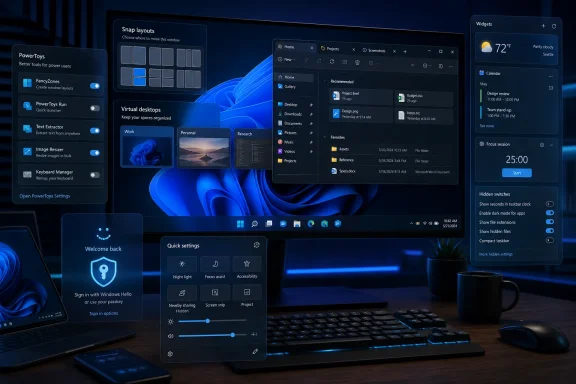 Windows 11’s Real Problem Is Not Missing Features, but Buried Ones
Windows 11 has always suffered from a perception gap. To casual users, it can look like Windows 10 with a new coat of paint, a relocated Start button, and more Microsoft account pressure. To administrators, it can look like another migration project with stricter hardware requirements, changing defaults, and a growing pile of policy decisions. To power users, it can feel like Microsoft removed muscle memory before slowly adding back the tools people actually use.That frustration is not imaginary. The Start menu changed, the taskbar regressed before recovering some features, default app settings became more granular than friendly, and some AI features arrived wrapped in marketing before they were trusted by the people expected to deploy them. But the other half of the story is that Windows 11 now contains a surprising amount of useful machinery, especially if you know where Microsoft hid the switches.
The operating system has become less of a single interface and more of a collection of overlapping control surfaces. Settings, Quick Settings, Widgets, Start recommendations, Phone Link, Copilot, File Explorer, PowerToys, and Copilot+ features all compete for attention. Microsoft’s challenge is that many of these tools are useful in isolation but poorly explained as a whole.
That is why a list of hidden Windows 11 features is more than a tips column. It is a map of Microsoft’s product strategy: push the baseline OS toward security and cloud identity, give enthusiasts a parallel toolbox through PowerToys, fold phones and backups into the Microsoft account, and use AI as the next reason to buy new hardware.
The Start Button Fight Was Really About Trust
The first hidden feature many Windows 11 users discover is also the most symbolic: you can move the Start button back to the left side of the taskbar. It is a small setting, buried under taskbar behavior, but it carries outsized emotional weight. For decades, Windows trained users to look down and left; Windows 11 asked them to look toward the center.That design choice was not merely aesthetic. Microsoft wanted Windows 11 to feel modern, symmetrical, touch-friendly, and closer to the visual language of macOS, ChromeOS, and mobile launchers. But for longtime users, especially those who live in Windows all day, the centered Start button was a reminder that Microsoft sometimes optimizes for screenshots before workflows.
The ability to realign the taskbar is therefore not just customization. It is a concession that the desktop remains a muscle-memory environment. People who administer servers, reconcile spreadsheets, triage tickets, or jump between remote sessions do not want their operating system to become a daily reorientation exercise.
The same logic applies to Start menu folders, pinned apps, the full app list, and the Recommended section. Windows 11’s Start menu is not as spatially rich as Windows 10’s Live Tile grid, but it is more manageable than it first appears. You can pin the apps that matter, group them into folders, restore quick links to Settings and File Explorer, and reduce the amount of recommendation noise.
The lesson is blunt: Windows 11 becomes better when users stop accepting Microsoft’s defaults as the intended experience. The default layout is a sales floor. The configured layout is the workstation.
PowerToys Remains the Windows Feature Lab Microsoft Will Not Fully Admit It Needs
If there is one recommendation that separates casual Windows users from people who have made peace with the platform, it is PowerToys. Microsoft’s free utility suite has become the unofficial advanced settings panel for Windows 11, and that status says something awkward about the OS itself. Some of the most useful Windows enhancements still arrive outside Windows proper.PowerToys is where Microsoft lets practical utility outrun design committee caution. FancyZones gives users more control over window layouts than the built-in Snap system. PowerRename handles bulk file renaming without forcing users into scripts. Image Resizer, Always On Top, Mouse utilities, Keyboard Manager, Text Extractor, and other modules solve the kind of everyday problems that rarely earn keynote time.
The package also reflects a healthier model of Windows development. It is modular, optional, enthusiast-friendly, and frequently updated. Users can turn individual tools on or off rather than accepting one monolithic vision of how a desktop should behave.
That modularity is precisely why PowerToys matters in 2026. Windows 11 is trying to serve touchscreen convertibles, gaming rigs, enterprise laptops, developer workstations, education fleets, and Copilot+ PCs. No single default interface can satisfy all of those users. PowerToys is Microsoft’s tacit admission that the best Windows is often the one users assemble themselves.
Performance Gains Start Before the Desktop Appears
One of the least glamorous but most immediately useful Windows 11 features is startup app control. It does not photograph well, it will not sell a new laptop, and it does not require AI. It simply stops unnecessary programs from launching every time you sign in.That matters because the modern Windows desktop is crowded before the user does anything. Cloud sync tools, hardware utilities, chat clients, game launchers, printer helpers, RGB control panels, VPN agents, update checkers, and collaboration apps all want a place in the boot sequence. Individually they are defensible; collectively they turn a fast PC into a shrug.
Windows 11 gives users two practical views into this mess: the Startup page in Settings and the Startup apps tab in Task Manager. The former is friendly enough for normal users; the latter gives more diagnostic context, including startup impact and, on many systems, BIOS startup time. Turning off nonessential startup entries is one of the rare tweaks that can make a machine feel better immediately without changing hardware.
For IT departments, startup hygiene is not just about speed. It is about reducing background attack surface, cutting down on user complaints, and keeping managed endpoints predictable. A Windows installation that launches twenty helpers at sign-in is harder to troubleshoot than one that launches five.
This is where “hidden features” become operational discipline. The difference between a sluggish laptop and a responsive one is often not a registry hack or a new SSD. It is the quiet removal of things that never needed to run in the first place.
Snap Layouts and Virtual Desktops Are Microsoft’s Best Productivity Argument
Windows has long been a better window manager than many users realize. Windows 7 introduced Aero Snap, Windows 10 improved virtual desktops, and Windows 11 finally made layout choices visible through Snap Layouts. Hovering over the maximize button or using keyboard shortcuts now reveals structured arrangements that make large monitors and ultrawide displays more useful.This is one of Windows 11’s most successful design changes because it teaches by showing. Instead of expecting users to remember invisible gestures, Microsoft exposes common layouts at the moment they are needed. Two columns, three columns, side-by-side workspaces, and asymmetric arrangements become discoverable rather than expert-only tricks.
Virtual desktops serve a related purpose. They are not just for people pretending their laptop is a mission-control wall. They let users separate work contexts: one desktop for communications, one for research, one for administrative tools, one for personal apps. Different wallpapers per desktop may sound cosmetic, but visual cues help prevent context switching from becoming mental static.
The stronger argument is that Windows 11’s productivity story is not only about apps. It is about reducing the friction of arranging those apps. The operating system cannot write your report, close your ticket queue, or finish your spreadsheet, but it can stop making you manually resize six windows every morning.
The irony is that Microsoft’s own messaging often undersells this. AI gets the spotlight, but Snap Layouts probably save more minutes for more users every day. A feature does not need to be futuristic to be transformative.
File Explorer Is Quietly Becoming a Serious Workbench Again
File Explorer has been one of the most contentious parts of Windows 11. Microsoft modernized the interface, simplified the command bar, and slowly added features that power users had wanted for years. The transition was uneven, but the direction is now clearer: File Explorer is becoming less of a legacy shell and more of a modern workspace.Tabs are the most obvious improvement. Anyone who has juggled multiple Explorer windows while copying files between folders understands the appeal immediately. Tabs reduce desktop clutter, make side-by-side file operations more manageable, and bring Explorer closer to the mental model users already know from browsers.
Native archive support is another meaningful shift. Windows has handled ZIP files for ages, but support for formats such as 7z, TAR, and RAR reduces dependence on third-party tools for common extraction and compression tasks. Dedicated utilities will still matter for advanced workflows, encryption options, batch operations, and edge cases, but basic archive handling no longer feels frozen in the early 2000s.
Then there are the newer AI-adjacent context menu actions. Image background removal, document summarization, and other file-specific actions point toward a future in which Explorer is not merely a place to store files but a place to act on them. That is useful, but it also raises the stakes for clarity. Users need to know which actions run locally, which invoke cloud services, and which depend on Microsoft 365 or Copilot capabilities.
The best version of File Explorer’s future is not one where every right-click menu becomes an AI billboard. It is one where common file tasks become faster without forcing users to leave the filesystem. Windows lives or dies by the quality of these mundane interactions.
Phone Link Shows Microsoft Still Wants the PC to Be the Hub
Phone Link is one of Microsoft’s most strategically important Windows apps because it addresses a basic reality: the PC is no longer the only personal computer in a user’s life. Text messages, calls, notifications, photos, hotspots, and cameras all live on the phone. If Windows cannot participate in that flow, it becomes a place users leave whenever a small task arrives.For Android users, Phone Link can be genuinely powerful. Notifications appear on the PC, messages can be answered from the keyboard, calls can be handled without picking up the phone, and some devices support app streaming, hotspot use, or webcam functionality. Recent Windows 11 integration also pushes phone status and activity closer to the Start menu and Settings.
The iPhone story remains more constrained, largely because Apple’s ecosystem incentives point in the opposite direction. Microsoft can build bridges, but it cannot make iOS behave like Android. That limitation matters in mixed-device workplaces where Windows laptops and iPhones are common.
Still, Phone Link is a reminder that Microsoft’s desktop strategy is not merely defensive. The company wants Windows to absorb adjacent workflows rather than surrender them to the phone. If that works, the PC becomes less isolated. If it fails, Windows risks becoming the place where users do formal work while everything else happens elsewhere.
Passkeys Are the Security Feature Users Should Actually Learn
Among the features most likely to improve real-world security, passkeys deserve more attention than they get. Passwords remain a systemic weakness: they are reused, phished, leaked, guessed, stored badly, and forgotten constantly. Passkeys change the login model by tying authentication to cryptographic credentials and local user verification such as Windows Hello.Windows 11’s passkey support matters because security features only work at scale when they become ordinary. If using a passkey feels like an exotic ritual, users will fall back to passwords. If it feels like unlocking a device with a face, fingerprint, or PIN, adoption becomes plausible.
The practical appeal is straightforward. A passkey is resistant to classic phishing because there is no shared password to type into a fake site. Windows Hello provides the local proof that the user is present. The website or app gets authentication without the user memorizing another fragile secret.
For enterprises, the picture is more complicated but promising. Passkey deployment intersects with identity providers, device trust, browser support, credential managers, recovery procedures, and user training. But the strategic direction is obvious: the password is becoming a compatibility layer, not the end state.
This is where Windows 11’s security posture is strongest. Microsoft is not asking users to become security experts. It is trying to make the safer path the normal path.
Copilot Is Useful, but Microsoft Keeps Blurring the Line Between Tool and Strategy
Copilot is now one of the most visible parts of Microsoft’s Windows story, and it is also one of the most uneven. As a general assistant, it can draft text, summarize material, explain images, generate ideas, answer questions, and help users get unstuck. As a Windows feature, it has been more fluid: sometimes a sidebar, sometimes an app, sometimes a taskbar presence, sometimes a brand umbrella for half the company’s AI ambitions.That ambiguity matters. Users understand a calculator, a clipboard, or a file manager. They do not always understand whether “Copilot” means a chatbot, a Microsoft 365 service, a Windows control surface, a web-connected assistant, an on-device model, or a premium feature tied to a new PC.
The most promising Copilot features are the ones that attach help to context. If Copilot can look at what a user is doing, explain a setting, summarize a document, identify part of an image, or suggest a next action, it becomes more than a text box waiting for a prompt. Features such as Copilot Vision and Click to Do point in that direction.
But contextual AI also intensifies trust concerns. The more Windows can see, infer, summarize, and suggest, the more users and administrators need clear boundaries. What is captured? What is stored? What leaves the device? What can be disabled? What is available only on managed hardware? Microsoft has learned, painfully, that AI convenience does not erase privacy scrutiny.
The sensible way to use Copilot today is as an assistant, not an authority. Let it draft, summarize, brainstorm, and explain. Verify anything important. Treat it like a fast junior colleague with a tendency to overstate confidence.
Copilot+ PCs Turn Hidden Features Into a Hardware Upsell
Copilot+ PCs complicate the hidden-features story because they create a split Windows 11 experience. Two users may both be “on Windows 11,” fully updated, and still have different capabilities depending on whether their hardware includes the required neural processing unit and meets Microsoft’s Copilot+ specifications.That split is not inherently wrong. Hardware-accelerated features have always existed, from graphics effects to biometric login to virtualization-based security. But Copilot+ branding makes the divide more visible because Microsoft is using AI features as a reason to buy new machines, not merely as a bonus for those who already have them.
Recall, Click to Do, improved Windows search, real-time translation in Live Captions, enhanced Photos features, and Windows Studio Effects form the core of that pitch. The best of these features use local processing to reduce latency and preserve privacy. The worst risk becoming another layer of confusion in an OS already crowded with feature names.
Recall remains the lightning rod. The idea is powerful: search your past activity by describing what you remember seeing. The concern is equally obvious: a system that remembers your screen history must be designed, secured, explained, and governed with extreme care. Microsoft’s subsequent privacy and security changes show that the original reaction was not mere paranoia.
For businesses, Copilot+ PCs are less about novelty than lifecycle planning. If on-device AI becomes part of Windows management, support, accessibility, and productivity, hardware procurement decisions made today will shape feature availability for years. If the features remain inconsistent or poorly governed, admins will treat them as another thing to disable.
Quick Settings, Widgets, and Themes Reveal Microsoft’s Mobile Envy
Windows 11’s Quick Settings panel is one of the clearest signs that Microsoft continues to borrow from mobile operating systems. Wi-Fi, Bluetooth, audio, brightness, battery saver, accessibility, casting, and related controls sit in a compact panel rather than the old Action Center model. Notifications are separated from controls, which makes conceptual sense even if it required adjustment.The panel is useful because it matches how people actually troubleshoot small problems. Audio wrong? Open Quick Settings. Bluetooth acting up? Open Quick Settings. Need to project to another display? Open Quick Settings. The fewer trips into the full Settings app, the better.
Widgets are more divisive. Weather, calendar items, traffic, sports scores, stocks, tasks, and news can be helpful at a glance, but Microsoft’s news and recommendation surfaces often carry the smell of engagement bait. A good widget board is ambient computing. A bad one is a portal homepage wearing a productivity costume.
Themes and personalization sit somewhere in between. Dark mode, accent colors, wallpapers, cursor options, lock screen widgets, and per-desktop backgrounds do not make Windows more capable in a narrow sense. They make it more tolerable, and tolerability matters for an interface people stare at for eight hours a day.
Microsoft’s challenge is restraint. The company is good at building surfaces. It is less good at resisting the urge to monetize or cross-promote through them. Windows 11’s personalization features work best when they serve the user’s environment, not Microsoft’s feed strategy.
Accessibility Features Often Double as Power-User Features
Some of Windows 11’s most useful hidden features live under accessibility or adjacent settings. Mouse pointer visibility options, mono audio, captions, touch gestures, focus tools, and sound enhancements are framed around specific needs, but they often benefit a much wider audience.The mouse pointer setting is a perfect example. Making the cursor larger, changing its color, or using an inverted style is not only for users with visual impairments. It is also useful on high-resolution monitors, multi-display setups, remote sessions, presentations, and screen recordings. Anyone who has lost a tiny white pointer on a bright background understands the problem.
Mono audio is similarly practical. It can help users with hearing differences, but it also helps when using a single earbud, a conference-room speaker, or a device with uneven channel output. Sound enhancement options such as loudness equalization and virtual surround can improve specific setups, though they should be tested rather than assumed beneficial.
Focus Sessions are another example of accessibility-adjacent design becoming mainstream productivity design. By giving users a structured block of time, reducing interruptions, and integrating with the Clock app, Windows acknowledges that attention is now a system resource. The operating system cannot fix workplace overload, but it can stop contributing quite so aggressively.
This is a healthier direction for Windows. Accessibility should not be treated as a separate annex of the OS. Many accessibility features are simply good interface features with a more urgent first audience.
Gaming Features Have Become General-Purpose System Tools
The Xbox Game Bar began as a gaming overlay, but in practice it has become a general-purpose utility drawer. The Windows key plus G shortcut opens tools for recording screen activity, monitoring performance, adjusting audio, and accessing capture controls. Those capabilities matter well beyond games.Screen recording is now a normal work task. Users record bugs, document workflows, create training clips, capture presentations, and send visual explanations instead of writing long emails. A built-in recording path lowers friction, especially on machines where third-party capture tools are not installed or approved.
Performance overlays also help non-gamers. If a laptop suddenly feels slow during a video call or a workstation stutters under load, seeing CPU, GPU, RAM, and frame statistics can quickly separate a system problem from an application problem. The Game Bar is not a replacement for deep diagnostics, but it is a fast first look.
Auto HDR and gaming-specific display features show another side of the Windows strategy. Microsoft wants Windows to remain the default PC gaming platform while also making those investments spill into broader media and display improvements. The gamer gets the feature first; everyone else eventually benefits from the plumbing.
That cross-pollination is one reason Windows remains hard to displace. Its messiness comes from serving many audiences at once, but so does its strength.
Backup Is Finally Becoming a First-Run Conversation
Windows Backup is not glamorous, but it addresses one of the most persistent failures in consumer computing: people do not prepare for device loss until after it happens. Windows 11’s backup app can preserve files, settings, apps, credentials, and preferences through a Microsoft account and OneDrive-backed restore flow.This is not the same as a full disk image, and IT professionals should not confuse it with enterprise backup, endpoint management, or disaster recovery. But for normal users moving to a new PC, it can reduce the pain of setup dramatically. Wi-Fi credentials, app restoration, personalization, and known folders matter because they are exactly the small things users forget they depend on.
The tradeoff is cloud gravity. The more Windows Backup improves, the more Windows assumes a Microsoft account and OneDrive are part of the default PC experience. For many users, that is convenient. For others, it is another example of local computing being gently but persistently pulled into a subscription-shaped orbit.
Administrators should pay attention to that distinction. In unmanaged consumer scenarios, Windows Backup may prevent data loss and reduce support calls. In managed environments, backup and restore need policy, compliance boundaries, retention rules, and clarity about what belongs in corporate systems versus personal cloud storage.
The feature is useful. The assumption behind it is strategic.
The Old Desktop Tricks Still Earn Their Keep
Not every useful Windows 11 feature is new. Title bar shake, keyboard shortcuts, projection support, default app controls, and classic file-management habits all sit in the long tail of Windows functionality. Some are off by default. Some are easy to forget. Some survive because they remain faster than the modern alternative.Title bar shake is almost comically simple: grab the active window and shake it to minimize the others. It sounds like a gimmick until you use it on a cluttered desktop. Then it becomes one of those small gestures that makes the machine feel responsive to intent.
Keyboard shortcuts are another durable advantage. Windows key combinations for Quick Settings, Widgets, Snap Layouts, casting, clipboard history, screenshots, and window snapping let users bypass interface layers. The more Microsoft adds surfaces, the more shortcuts matter as a form of resistance.
Projection to a PC screen is a more specialized but underrated capability. With the Wireless Display optional feature installed, one Windows device can receive projection from another device. For labs, classrooms, quick demos, or repurposed hardware, that flexibility can be surprisingly useful.
Default app settings remain a sore spot because Windows 11’s file-type granularity can feel needlessly fussy. But the control is there, and users who care about browsers, media players, image editors, PDF tools, and archive utilities should take the time to set it correctly. Defaults are policy by another name.
Microsoft’s Hidden Feature Strategy Creates an Admin Burden
For enthusiasts, hidden features are fun. For administrators, they are inventory. Every new Windows 11 capability creates a question: should this be enabled, disabled, configured, documented, supported, or ignored?Copilot features require data-governance decisions. Passkeys require identity planning. Phone Link raises questions about cross-device data flow. Widgets and recommendations can become distraction or policy concerns. Windows Backup intersects with cloud storage and account policy. Archive support changes user expectations. PowerToys may be beloved by power users but still needs approval in controlled environments.
The danger is not that Windows 11 has too many features. The danger is that Microsoft often ships features into overlapping consumer, business, and enthusiast channels without making the administrative story feel equally polished. A feature that is delightful on a home PC can be ambiguous on a regulated endpoint.
This is especially true as AI features expand. The line between local action, cloud inference, Microsoft account integration, and Microsoft 365 tenancy is not always obvious to users. If Microsoft wants IT pros to trust these tools, it needs to make control planes, documentation, and defaults as mature as the demos.
Windows has always been a compromise between user freedom and organizational control. Windows 11’s hidden features sharpen that compromise because more of the OS is now connected, identity-aware, and context-sensitive.
The 32-Feature Tour Proves Windows 11 Is Better After You Rewire It
The practical lesson from this feature grab bag is not that every user should enable everything. It is that Windows 11 rewards deliberate configuration. The best experience comes from choosing the features that match your hardware, work style, risk tolerance, and patience for Microsoft’s defaults.- Moving the Start button, customizing Start, and pinning important apps can make Windows 11 feel less like a showroom and more like a familiar workstation.
- PowerToys remains the fastest way for power users to add window management, file handling, keyboard remapping, and mouse utilities that Windows still does not expose well enough by default.
- Startup app controls, battery usage views, Focus Sessions, and Snap Layouts deliver more everyday productivity value than many headline AI features.
- Passkeys, Windows Hello, and backup improvements are the Windows 11 features most likely to matter when something goes wrong.
- Copilot and Copilot+ tools are promising, but they should be treated as context-sensitive assistants whose privacy, licensing, and hardware requirements deserve scrutiny.
- File Explorer tabs, native archive support, Phone Link, Game Bar, and accessibility settings show that many of Windows 11’s best upgrades are hiding in plain sight.
Microsoft’s operating system is strongest when it respects that tuning instinct. The company can keep adding AI, cloud restore, phone integration, widgets, and new shell experiences, but Windows earns loyalty in the smaller moments: a faster boot, a cleaner desktop, a visible cursor, a snapped layout, a restored backup, a login that cannot be phished. Windows 11’s future will not be decided only by Copilot demos or hardware branding; it will be decided by whether Microsoft can turn this dense pile of hidden usefulness into an operating system that feels coherent before users go hunting for the switches.
Source: PCMag Australia 32 Hidden Windows 11 Features You're Probably Not Using (But Should Be)
