Microsoft released Windows 11 Insider Release Preview builds 26100.8728 and 26200.8728 for version 24H2 and 25H2 testers on June 12, 2026, alongside Canary-era build 28000.2333, adding point-in-time recovery, more flexible update pausing, Widgets changes, accessibility updates, Bluetooth fixes, and enterprise networking and printing refinements. This is not one of those Insider drops where the build number matters more than the build itself. Microsoft is quietly moving several long-running Windows arguments — recovery, update control, device reliability, AI hardware visibility, and default protocol choices — from the realm of complaint into the realm of product design. The interesting part is not that Windows 11 got more features; it is that Microsoft is admitting where Windows 11 has been brittle.
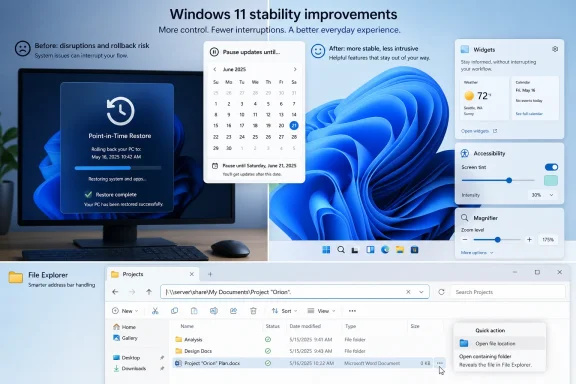
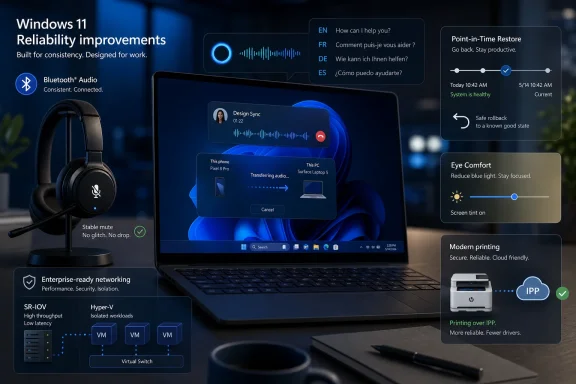
The headline addition in the 24H2 and 25H2 Release Preview builds is point-in-time restore, a recovery feature designed to roll a PC back to a recent automatic restore point, including apps, settings, and personal files. That phrasing matters because it lands somewhere between the old System Restore mental model and the heavier reset-or-reimage workflows administrators have learned to keep in reserve.
For home users, the promise is straightforward: if a driver, update, configuration change, or mystery failure breaks the machine, Windows should offer a recent working state rather than a weekend of forum archaeology. For IT departments, the more interesting promise is reduced downtime without immediately escalating to device replacement, Autopilot reprovisioning, or a support-desk remote session that ends in “back up what you can.”
This also reflects a broader shift in Windows servicing. Microsoft has spent years arguing that faster update adoption is safer, but that argument only works if users believe they can recover when something goes wrong. Point-in-time restore is a product-level answer to the oldest Windows Update objection: what if this breaks my PC?
The feature will need careful scrutiny before anyone treats it as a backup strategy. Microsoft’s wording suggests a convenience recovery layer, not a replacement for offline backups, enterprise endpoint management, or disaster recovery. Still, even that limited role could be meaningful if it makes rollback less obscure and less destructive.
For years, Windows update policy has been shaped by a tension Microsoft never fully resolved. Security teams want machines patched quickly, ordinary users want their PCs not to reboot at the wrong moment, and administrators want predictability more than either side wants slogans. The new calendar control does not abolish that tension, but it does acknowledge that timing is a legitimate user need rather than a nuisance behavior to be corrected.
The 35-day window is not new as a concept, but the ability to keep choosing a new endpoint changes the feel of the feature. Instead of a hard stop that eventually drags the user back into Microsoft’s schedule, it becomes a planning tool. That is especially relevant for travel, exams, medical settings, point-of-sale systems, field laptops, and small businesses that do not have a full management stack but still live or die by uptime.
Microsoft is not becoming an update libertarian. The company still frames Windows as secure by default, and the Release Preview channel remains a staging area rather than a final consumer guarantee. But the direction is unmistakable: Windows Update is being softened from a command channel into a negotiated calendar.
That does not make 25H2 unimportant. In practice, the version number still matters for support lifecycles, enterprise validation, OEM images, compliance baselines, and the moment when Microsoft starts nudging eligible PCs forward. But the user-visible experience increasingly arrives in waves that cut across nominal versions.
This is the bargain Microsoft has been trying to normalize since Windows 10. The company wants Windows to evolve continuously, while customers still want fixed points for testing and deployment. Release Preview is where that contradiction becomes visible: the build is close enough to production to matter, but still fluid enough that Microsoft can change the mix before broad rollout.
For WindowsForum readers, the practical lesson is simple. Do not wait for “25H2” as though it were a single box of features. Watch the build trains, the enablement packages, and the gradual rollout notes. That is where Windows now tells the truth about itself.
That is a retreat from one of modern Windows’ most persistent bad habits: assuming that engagement is inherently good. A desktop operating system is not a social feed, and the taskbar is not a growth surface. When a panel opens because the pointer wandered over the wrong pixel, the user does not experience delight; the user experiences trespass.
The revised defaults suggest Microsoft is trimming the sharpest edges rather than abandoning Widgets. Users can still configure dashboards and alerts, but the system is less eager to insert itself into the flow of work. That is the right instinct, particularly on business machines where surprise panels and notification badges look less like convenience and more like distraction.
Performance improvements are also welcome, though they are harder to judge from release notes. Widgets have often suffered from the curse of being lightweight in concept and heavy in implementation. If Microsoft wants the feature to remain part of Windows, it has to feel like part of the shell, not like a web portal wearing a taskbar badge.
These features will not dominate screenshots, and they will not sell Copilot+ PCs. But they help a broad range of users, including people with visual sensitivity, low vision, migraines, or simply long workdays under bad lighting. The best accessibility features often become general usability features once people discover them.
Voice access and voice typing also expand with French, German, and Spanish support on Copilot+ PCs, with real-time correction for grammar, punctuation, recognition errors, and clarity. That addition sits at the intersection of accessibility and AI, and it shows how Microsoft is likely to justify local AI hardware in everyday terms. The pitch is not just image generation or chat; it is cleaner dictation, better noise handling, and less manual correction.
The caveat is the familiar one. By tying some of these capabilities to Copilot+ PCs, Microsoft is creating a two-tier Windows experience. That may be technically justified by on-device AI requirements, but it will still frustrate users whose perfectly serviceable PCs are excluded from the newest assistive polish.
That regional carve-out is becoming increasingly common in Windows feature notes, and it is a reminder that Windows is now shaped as much by regulation as by engineering. Microsoft can build a feature once, but it may not be able to ship it everywhere in the same form. For administrators, that means documentation and user training increasingly need geography-aware caveats.
More mundane File Explorer fixes may prove more universally appreciated. The address bar now better supports paths with double backslashes and quotation marks, the suggestion dropdown should close more reliably, OneDrive duplicates in Favorites are addressed, and rename behavior gets several fixes. These are not glamorous changes, but File Explorer is one of the places where small bugs become daily irritants.
The Copilot quick action deserves a cautious reading. Microsoft clearly wants AI affordances close to files and workflows, but File Explorer is sacred ground for many Windows users. If AI actions feel optional and useful, they may be accepted. If they feel like promotional furniture in the file manager, they will become another front in the long Windows customization wars.
That list is revealing because it reflects how people actually use PCs now. Bluetooth audio is no longer a luxury accessory path; it is the default meeting, calling, commuting, and hybrid-work audio layer for millions of users. When mute indicators disagree, microphones fail, or headphones reconnect slowly after hibernation, the PC feels broken even if the kernel is doing heroic things underneath.
The Phone Link audio routing fixes are similarly pragmatic. Outgoing call audio should remain on the phone while ringing and transfer to the PC only when answered there, while Do Not Disturb on Windows should prevent incoming paired-phone call audio from ringing on the PC. These are human-behavior fixes, not spec-sheet improvements.
Microsoft’s Bluetooth stack has had to absorb a messy ecosystem of radios, drivers, earbuds, codecs, and power states. The Release Preview notes suggest the company is still working through that complexity one scenario at a time. That may be unsatisfying, but it is probably the only realistic way to make wireless peripherals feel boringly reliable.
Those are not consumer headline features, but they matter in the environments where Windows failures are measured in tickets and lost work hours. Preserving network adapter settings and bindings across OS upgrades is particularly important because upgrade projects often fail on the unglamorous details. If a machine comes back with the wrong binding behavior, the user does not care that the upgrade technically succeeded.
Printing also gets a notable default change: new printer installations use Internet Printing Protocol by default when supported, controlled through a Windows Ready Print toggle in Settings. That aligns with the industry’s slow move away from vendor-specific driver chaos toward more standardized, serviceable printing paths. Anyone who has managed printers at scale understands why Microsoft wants fewer brittle driver dependencies in the stack.
The Secure Boot certificate targeting note is another enterprise-grade clue. Microsoft says Windows quality updates now include additional high-confidence device targeting data to increase coverage for devices eligible to receive new Secure Boot certificates, with delivery gated by successful update signals. In plain English, Microsoft is trying to modernize trust infrastructure without bricking machines that are not ready for it.
This is the kind of plumbing that matters before an ecosystem becomes legible. Users cannot manage what they cannot see, and administrators cannot troubleshoot workloads that disappear into marketing acronyms. If NPUs are going to become a serious part of Windows performance, Task Manager has to show them as first-class compute resources.
The same build adds a Multi-App Camera feature, allowing multiple applications to access the camera stream at the same time, along with a Basic Camera mode for troubleshooting or stability. Enterprise administrators can control these modes through Group Policy. That is a welcome admission that camera behavior has become infrastructure, not just a consumer convenience.
Windows Setup also gains the ability to choose a custom name for the user folder during setup. This sounds minor until you remember how often Windows account naming decisions become permanent annoyances. Giving users a supported path at setup is better than forcing them into registry edits, profile migration hacks, or living forever with an unwanted folder name.
This is platform work, and platform work rarely produces a single viral screenshot. But it is exactly what Windows needs if Microsoft expects users to accept more AI, more background services, more hardware abstraction, and more continuous delivery. A system that launches apps faster, resumes more cleanly, preserves wallpapers, and handles USB docks more reliably earns permission for bigger changes later.
The Windows Hello changes are especially notable. Microsoft says face or fingerprint sign-in will remain the default when available, even if the user previously used another method, while repeated PIN use can keep PIN selected until the user switches again. That is a small behavioral tuning, but authentication friction is one of those areas where tiny inconsistencies can make a secure feature feel unreliable.
The Microsoft Store download improvements and clearer error reporting under Windows Update group policy settings also point toward a more managed future. Store reliability is no longer just a consumer issue; packaged apps, inbox components, and enterprise deployment policies increasingly intersect there. If policy blocks a download, Windows needs to say so plainly.
That is not a contradiction. It is the prerequisite. AI features layered onto a system that users do not trust will be treated as bloat, surveillance, or distraction. AI features layered onto a system that recovers cleanly, updates predictably, and behaves consistently have a better chance of being judged on their merits.
Microsoft appears to understand that Windows 11’s next phase cannot be sold purely as novelty. The installed base includes enthusiasts who resent forced change, administrators who fear regressions, and ordinary users who simply want their laptop to survive a meeting. Reliability is not the opposite of innovation; it is the condition that allows innovation to be tolerated.
That is why point-in-time restore and calendar-based update pausing may matter more than another Copilot button. They address trust. They tell users that Windows may still change on Microsoft’s schedule, but it is at least beginning to provide better tools when that schedule collides with real life.
 Microsoft Is Turning Recovery Into a First-Class Windows Feature
The headline addition in the 24H2 and 25H2 Release Preview builds is point-in-time restore, a recovery feature designed to roll a PC back to a recent automatic restore point, including apps, settings, and personal files. That phrasing matters because it lands somewhere between the old System Restore mental model and the heavier reset-or-reimage workflows administrators have learned to keep in reserve.For home users, the promise is straightforward: if a driver, update, configuration change, or mystery failure breaks the machine, Windows should offer a recent working state rather than a weekend of forum archaeology. For IT departments, the more interesting promise is reduced downtime without immediately escalating to device replacement, Autopilot reprovisioning, or a support-desk remote session that ends in “back up what you can.”
This also reflects a broader shift in Windows servicing. Microsoft has spent years arguing that faster update adoption is safer, but that argument only works if users believe they can recover when something goes wrong. Point-in-time restore is a product-level answer to the oldest Windows Update objection: what if this breaks my PC?
The feature will need careful scrutiny before anyone treats it as a backup strategy. Microsoft’s wording suggests a convenience recovery layer, not a replacement for offline backups, enterprise endpoint management, or disaster recovery. Still, even that limited role could be meaningful if it makes rollback less obscure and less destructive.
The 35-Day Pause Button Becomes a Calendar, and That Is More Political Than It Looks
Windows Update is also getting a calendar-based pause experience in Settings, allowing users to choose an end date up to 35 days out. More importantly, Microsoft says users can extend the pause by selecting a different end date and re-pause updates as needed. That is a small interface change with unusually large symbolic weight.For years, Windows update policy has been shaped by a tension Microsoft never fully resolved. Security teams want machines patched quickly, ordinary users want their PCs not to reboot at the wrong moment, and administrators want predictability more than either side wants slogans. The new calendar control does not abolish that tension, but it does acknowledge that timing is a legitimate user need rather than a nuisance behavior to be corrected.
The 35-day window is not new as a concept, but the ability to keep choosing a new endpoint changes the feel of the feature. Instead of a hard stop that eventually drags the user back into Microsoft’s schedule, it becomes a planning tool. That is especially relevant for travel, exams, medical settings, point-of-sale systems, field laptops, and small businesses that do not have a full management stack but still live or die by uptime.
Microsoft is not becoming an update libertarian. The company still frames Windows as secure by default, and the Release Preview channel remains a staging area rather than a final consumer guarantee. But the direction is unmistakable: Windows Update is being softened from a command channel into a negotiated calendar.
Release Preview Is Where the Real 25H2 Story Starts to Take Shape
The pairing of builds 26100.8728 and 26200.8728 is also significant because it reinforces how Microsoft is treating Windows 11 25H2. The 24H2 and 25H2 branches are moving together in Release Preview, with the same long list of changes landing across both build trains. That suggests 25H2 is less a dramatic platform break than a continuation of the servicing-era Windows model: features arrive gradually, enablement decides timing, and the old “big annual release” language becomes less useful every year.That does not make 25H2 unimportant. In practice, the version number still matters for support lifecycles, enterprise validation, OEM images, compliance baselines, and the moment when Microsoft starts nudging eligible PCs forward. But the user-visible experience increasingly arrives in waves that cut across nominal versions.
This is the bargain Microsoft has been trying to normalize since Windows 10. The company wants Windows to evolve continuously, while customers still want fixed points for testing and deployment. Release Preview is where that contradiction becomes visible: the build is close enough to production to matter, but still fluid enough that Microsoft can change the mix before broad rollout.
For WindowsForum readers, the practical lesson is simple. Do not wait for “25H2” as though it were a single box of features. Watch the build trains, the enablement packages, and the gradual rollout notes. That is where Windows now tells the truth about itself.
Widgets Get Quieter Because Microsoft Finally Heard the Room
The Widgets changes are framed as focus and performance improvements, but the subtext is that Microsoft is still trying to make Widgets feel less like an interruption. In these builds, Widgets no longer open on hover, notifications and taskbar badges are minimized by default, and new users see a simpler lock screen experience with Weather as the only default widget.That is a retreat from one of modern Windows’ most persistent bad habits: assuming that engagement is inherently good. A desktop operating system is not a social feed, and the taskbar is not a growth surface. When a panel opens because the pointer wandered over the wrong pixel, the user does not experience delight; the user experiences trespass.
The revised defaults suggest Microsoft is trimming the sharpest edges rather than abandoning Widgets. Users can still configure dashboards and alerts, but the system is less eager to insert itself into the flow of work. That is the right instinct, particularly on business machines where surprise panels and notification badges look less like convenience and more like distraction.
Performance improvements are also welcome, though they are harder to judge from release notes. Widgets have often suffered from the curse of being lightweight in concept and heavy in implementation. If Microsoft wants the feature to remain part of Windows, it has to feel like part of the shell, not like a web portal wearing a taskbar badge.
Accessibility Improvements Show the Value of Boring Precision
The accessibility work in the Release Preview builds is not flashy, but it is exactly the kind of Windows work that tends to matter most over time. Screen tint allows a full-screen color overlay to reduce eye strain and improve readability, while Magnifier gains more precise zoom controls directly from its window and settings menu.These features will not dominate screenshots, and they will not sell Copilot+ PCs. But they help a broad range of users, including people with visual sensitivity, low vision, migraines, or simply long workdays under bad lighting. The best accessibility features often become general usability features once people discover them.
Voice access and voice typing also expand with French, German, and Spanish support on Copilot+ PCs, with real-time correction for grammar, punctuation, recognition errors, and clarity. That addition sits at the intersection of accessibility and AI, and it shows how Microsoft is likely to justify local AI hardware in everyday terms. The pitch is not just image generation or chat; it is cleaner dictation, better noise handling, and less manual correction.
The caveat is the familiar one. By tying some of these capabilities to Copilot+ PCs, Microsoft is creating a two-tier Windows experience. That may be technically justified by on-device AI requirements, but it will still frustrate users whose perfectly serviceable PCs are excluded from the newest assistive polish.
File Explorer Keeps Becoming the Place Where Microsoft Tests Its Boundaries
File Explorer gets a mix of polish, compatibility fixes, and account-specific behavior. Quick actions such as “Open file location” and “Ask Copilot” appear when hovering over files in File Explorer Home, with support now extended to work and school accounts using Entra ID. Microsoft notes that this experience is not available in the European Economic Area.That regional carve-out is becoming increasingly common in Windows feature notes, and it is a reminder that Windows is now shaped as much by regulation as by engineering. Microsoft can build a feature once, but it may not be able to ship it everywhere in the same form. For administrators, that means documentation and user training increasingly need geography-aware caveats.
More mundane File Explorer fixes may prove more universally appreciated. The address bar now better supports paths with double backslashes and quotation marks, the suggestion dropdown should close more reliably, OneDrive duplicates in Favorites are addressed, and rename behavior gets several fixes. These are not glamorous changes, but File Explorer is one of the places where small bugs become daily irritants.
The Copilot quick action deserves a cautious reading. Microsoft clearly wants AI affordances close to files and workflows, but File Explorer is sacred ground for many Windows users. If AI actions feel optional and useful, they may be accepted. If they feel like promotional furniture in the file manager, they will become another front in the long Windows customization wars.
Bluetooth Fixes Read Like a Confession From the Real World
The Bluetooth section is long, and that is usually a sign that reality has been filing bug reports. The update improves microphone mute-state synchronization between the Windows audio mixer and Bluetooth Hands-Free Profile devices, improves compatibility with AirPods and Beats Studio Pro headphones, addresses audio stability, improves LE Audio reconnection behavior, and makes device removal more reliable when the Bluetooth radio changes state.That list is revealing because it reflects how people actually use PCs now. Bluetooth audio is no longer a luxury accessory path; it is the default meeting, calling, commuting, and hybrid-work audio layer for millions of users. When mute indicators disagree, microphones fail, or headphones reconnect slowly after hibernation, the PC feels broken even if the kernel is doing heroic things underneath.
The Phone Link audio routing fixes are similarly pragmatic. Outgoing call audio should remain on the phone while ringing and transfer to the PC only when answered there, while Do Not Disturb on Windows should prevent incoming paired-phone call audio from ringing on the PC. These are human-behavior fixes, not spec-sheet improvements.
Microsoft’s Bluetooth stack has had to absorb a messy ecosystem of radios, drivers, earbuds, codecs, and power states. The Release Preview notes suggest the company is still working through that complexity one scenario at a time. That may be unsatisfying, but it is probably the only realistic way to make wireless peripherals feel boringly reliable.
Enterprise Networking and Printing Get the Kind of Changes Admins Notice First
Several changes in these builds are aimed squarely at business environments, even when they appear deep in the changelog. Confidential Virtual Machines now use SR-IOV hardware acceleration by default for better network throughput, nested Hyper-V networking gets a provisioning fix, and Windows networking reliability is improved across Wi-Fi power, WWAN connectivity, IPv6 VPN support, third-party VPN compatibility, and SR-IOV configurations on server hardware.Those are not consumer headline features, but they matter in the environments where Windows failures are measured in tickets and lost work hours. Preserving network adapter settings and bindings across OS upgrades is particularly important because upgrade projects often fail on the unglamorous details. If a machine comes back with the wrong binding behavior, the user does not care that the upgrade technically succeeded.
Printing also gets a notable default change: new printer installations use Internet Printing Protocol by default when supported, controlled through a Windows Ready Print toggle in Settings. That aligns with the industry’s slow move away from vendor-specific driver chaos toward more standardized, serviceable printing paths. Anyone who has managed printers at scale understands why Microsoft wants fewer brittle driver dependencies in the stack.
The Secure Boot certificate targeting note is another enterprise-grade clue. Microsoft says Windows quality updates now include additional high-confidence device targeting data to increase coverage for devices eligible to receive new Secure Boot certificates, with delivery gated by successful update signals. In plain English, Microsoft is trying to modernize trust infrastructure without bricking machines that are not ready for it.
Build 28000.2333 Shows Where the Next Hardware Argument Is Going
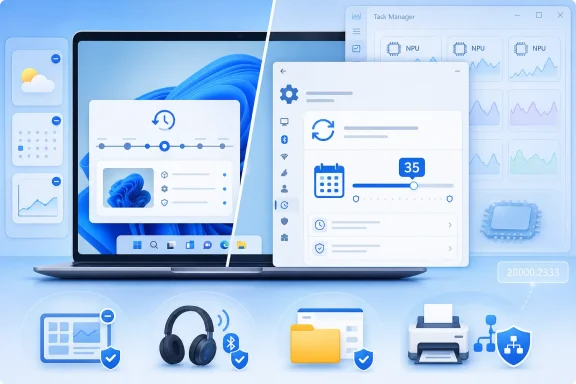
The separate build 28000.2333, aimed at 26H1-era flighters, pushes a different story: Windows is being prepared for a world where AI hardware, camera sharing, and setup customization become normal operating system concerns. Task Manager gains optional NPU and NPU Engine columns, plus NPU dedicated and shared memory columns, while neural engines that are part of a GPU appear on the Performance page.This is the kind of plumbing that matters before an ecosystem becomes legible. Users cannot manage what they cannot see, and administrators cannot troubleshoot workloads that disappear into marketing acronyms. If NPUs are going to become a serious part of Windows performance, Task Manager has to show them as first-class compute resources.
The same build adds a Multi-App Camera feature, allowing multiple applications to access the camera stream at the same time, along with a Basic Camera mode for troubleshooting or stability. Enterprise administrators can control these modes through Group Policy. That is a welcome admission that camera behavior has become infrastructure, not just a consumer convenience.
Windows Setup also gains the ability to choose a custom name for the user folder during setup. This sounds minor until you remember how often Windows account naming decisions become permanent annoyances. Giving users a supported path at setup is better than forcing them into registry edits, profile migration hacks, or living forever with an unwanted folder name.
The Canary Build Is Less About Today’s Windows Than Tomorrow’s Baseline
The 28000.2333 changelog is filled with the kind of refinements that often vanish into the background by the time they reach mainstream builds. App launch and core shell experiences are accelerated, Windows Hello behavior is adjusted, Search can prioritize files with as few as two characters, Dev Drive sizing becomes more sensible, USB4 display reliability improves, and sensor and HID power hygiene gets attention.This is platform work, and platform work rarely produces a single viral screenshot. But it is exactly what Windows needs if Microsoft expects users to accept more AI, more background services, more hardware abstraction, and more continuous delivery. A system that launches apps faster, resumes more cleanly, preserves wallpapers, and handles USB docks more reliably earns permission for bigger changes later.
The Windows Hello changes are especially notable. Microsoft says face or fingerprint sign-in will remain the default when available, even if the user previously used another method, while repeated PIN use can keep PIN selected until the user switches again. That is a small behavioral tuning, but authentication friction is one of those areas where tiny inconsistencies can make a secure feature feel unreliable.
The Microsoft Store download improvements and clearer error reporting under Windows Update group policy settings also point toward a more managed future. Store reliability is no longer just a consumer issue; packaged apps, inbox components, and enterprise deployment policies increasingly intersect there. If policy blocks a download, Windows needs to say so plainly.
The Pattern Is Reliability First, AI Second
The most striking thing about these builds is how much of the changelog is not AI. Microsoft’s public Windows story over the past two years has leaned heavily on Copilot, Copilot+ PCs, Recall, NPUs, and AI-assisted workflows. Yet this Release Preview drop is dominated by recovery, pausing, Bluetooth, File Explorer, printing, networking, accessibility, and shell reliability.That is not a contradiction. It is the prerequisite. AI features layered onto a system that users do not trust will be treated as bloat, surveillance, or distraction. AI features layered onto a system that recovers cleanly, updates predictably, and behaves consistently have a better chance of being judged on their merits.
Microsoft appears to understand that Windows 11’s next phase cannot be sold purely as novelty. The installed base includes enthusiasts who resent forced change, administrators who fear regressions, and ordinary users who simply want their laptop to survive a meeting. Reliability is not the opposite of innovation; it is the condition that allows innovation to be tolerated.
That is why point-in-time restore and calendar-based update pausing may matter more than another Copilot button. They address trust. They tell users that Windows may still change on Microsoft’s schedule, but it is at least beginning to provide better tools when that schedule collides with real life.
The Concrete Read for WindowsForum Readers
For testers and admins, this is a build pair worth watching because it moves several practical controls closer to broad release. The safest interpretation is neither hype nor dismissal: Microsoft is staging meaningful quality-of-life changes, but they still need validation across hardware, regions, policies, and managed environments.- Windows 11 24H2 and 25H2 Release Preview testers are receiving the same major feature and reliability set through builds 26100.8728 and 26200.8728.
- Point-in-time restore is the most important user-facing recovery change because it promises rollback of apps, settings, and personal files to a recent automatic restore point.
- Windows Update’s calendar-based pause experience gives users more control over update timing in 35-day increments.
- Widgets, Bluetooth, File Explorer, networking, printing, and accessibility changes suggest Microsoft is prioritizing friction reduction over headline spectacle.
- Build 28000.2333 points toward the next Windows baseline, with stronger NPU visibility, camera policy controls, setup customization, and shell performance work.
- Enterprise admins should test the networking, Secure Boot, printer, VPN, Windows Hello, and Group Policy interactions before assuming these changes are harmless.
References
- Primary source: Neowin
Published: Fri, 12 Jun 2026 17:36:13 GMT
Microsoft releases big Windows 11 25H2, 24H2 Release Preview with Recovery, Update features - Neowin
New Windows 11 Release Preview Channel Builds, 26100.8728, 26200.8728 and 28000.2333, are now available for trying. www.neowin.net
- Related coverage: techspot.com
Windows Insiders can now pause updates indefinitely, in 35-day increments | TechSpot
A new Windows update, currently rolling out to Dev Channel and Experimental Channel Insiders, overhauls how users manage system updates. Windows Update now allows indefinite postponements, the...www.techspot.com - Related coverage: windowslatest.com
I tested Windows 11's Point-in-time Restore and it's one of the best features without AI
Windows 11’s new Point-in-time restore brings a faster way to roll back your entire system, without relying on backups or cloud services. www.windowslatest.com
- Official source: blogs.windows.com
Your Windows update experience just got updated
Hey Windows Insiders, Today, we’re excited to share some improvements to the Windows Update experience that are now starting to roll out. These improvements are the direct result of your feedback. We are continually reading the feedback submittedblogs.windows.com - Related coverage: windowscentral.com
We’ve tested the April 2026 Windows 11 update, and its 11 improvements genuinely make the OS feel better | Windows Central
Microsoft rolls out major Windows 11 Insider changes in April 2026, focusing on updates, recovery, gaming, and AI improvements.www.windowscentral.com - Related coverage: computerworld.com
Windows 11 Insider Previews: What’s in the latest build? – Computerworld
Get the latest info on new preview builds of Windows 11 as they roll out to Windows Insiders. Now updated for the June 19, 2026 releases for the Beta, Beta 26H1, Experimental, Experimental 26H1, and Experimental Future Platforms Channels. www.computerworld.com
- Related coverage: technews.city
Microsoft Finally Lets You Pause Windows 11 Updates Forever
Microsoft Finally Lets You Tell Windows 11 Updates to Wait For the first time since Windows 10 shipped in 2015, Microsoft is handing real up...www.technews.city
- Related coverage: winbuzzer.com
Windows 11 Update Redesign Adds Indefinite Pause Control
Microsoft has redesigned Windows 11's Windows Update, letting users pause monthly updates 35 days at a time and re-extend that pause window indefinitely. winbuzzer.com
- Official source: download.microsoft.com
- Official source: learn-attachment.microsoft.com