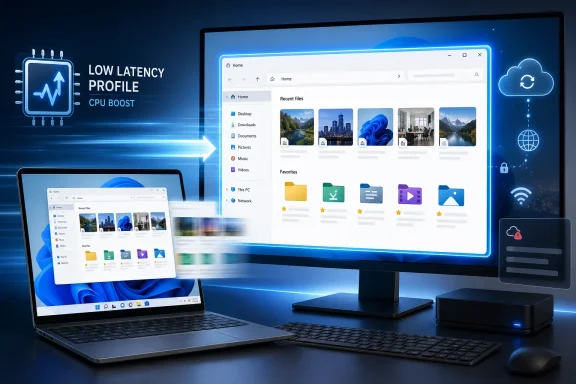
Microsoft is rolling a Windows 11 Low Latency Profile into the June 2026 update path for versions 24H2 and 25H2, using short CPU-frequency bursts to make selected shell actions such as Start, Search, Action Center, File Explorer, and app launch feel faster. The important word is selected. This is not a secret gaming mode, not a blanket performance unlock, and not proof that every slow Windows interaction can be fixed by throwing clock speed at it. It is Microsoft admitting, in the most Windows way possible, that responsiveness is now a first-class feature rather than a byproduct of raw hardware.
For years, Windows performance arguments have orbited the wrong numbers. Users complain that Windows “feels slow,” reviewers test export times and frame rates, and Microsoft ships another batch of scheduler, memory, and graphics plumbing changes that may or may not be visible to the person opening the Start menu. Low Latency Profile cuts through that mismatch by targeting the small waits that make an otherwise powerful PC feel less immediate than a phone.
The mechanism is simple in concept. When Windows detects certain foreground interactions, it briefly asks the processor to ramp up, handles the action, then lets the system fall back toward normal power behavior. The goal is not to sustain higher performance but to shorten the perceptual gap between click and response.
That distinction matters because the Windows shell has become a sprawling performance theater. Start, Search, notifications, Quick Settings, context menus, File Explorer surfaces, and modern app launches do not behave like a single old-school executable popping open a menu. They are layered UI systems, service calls, cached content, security checks, web-influenced frameworks, indexed results, and graphics composition all trying to appear effortless.
Low Latency Profile is a tacit acknowledgment that the first half-second matters. In a benchmark chart, a 300-millisecond improvement can look trivial. In daily use, repeated dozens or hundreds of times, it can be the difference between an operating system that feels crisp and one that feels like it is thinking about your request.
That is why Low Latency Profile lands in an awkward but important place. Microsoft is not promising that KB5094126 turns a midrange laptop into a workstation. It is promising that the visible machinery of Windows 11 should hesitate less often.
The surfaces named in reporting around the feature are telling: Start menu, Search, Action Center, Notification Center, context menus, File Explorer, and app launch. These are not niche workloads. They are the front doors to Windows itself, the places where even a user with a modern NVMe SSD and a recent CPU can still feel the operating system catching up.
The change also fits a broader industry pattern. Modern operating systems increasingly treat responsiveness as a scheduling problem, not merely an application problem. Phones have trained users to expect touch, animation, and launch events to receive instant priority, even if background tasks must wait. Windows, with its decades of compatibility baggage and enormous hardware spread, has been slower to present that polish consistently.
Low Latency Profile is therefore less radical than it sounds. It is not a hack so much as a policy: when the user is clearly waiting on the shell, spend a little more power immediately rather than saving it and making the interface feel sluggish.
That is also why the feature should not be confused with the older Processor performance boost mode exposed through hidden Windows power-policy controls. Windows has long included deeper knobs for how processors behave when boosting above nominal performance. Those controls sit in the power-management world, where firmware, silicon, cooling, power plans, and operating-system policy all negotiate what a machine can safely and efficiently do.
Low Latency Profile appears to sit above that as a targeted Windows experience feature. It is not primarily a user-facing “make CPU faster” switch. It is an automated behavior tied to specific shell and launch moments, activated through the regular Windows update path and staged like many modern Windows features.
That staging is important. Installing the June cumulative update may put the code on a machine without immediately enabling the behavior. Microsoft has become fond of shipping features behind server-side rollout gates, feature flags, and gradual enablement waves, which means two PCs on the same build can behave differently for a while.
For administrators, that makes the feature both less dramatic and more annoying. It reduces the odds of a single bad switch hitting every system at once, but it complicates troubleshooting because “updated” no longer means “identically enabled.” The modern Windows estate is increasingly a matrix of build numbers, feature state, hardware eligibility, policy state, and rollout timing.
This distinction is where many forum threads will go wrong. A user sees “CPU boost,” finds a registry tweak, changes a hidden value, and assumes they have enabled the new Windows 11 shell acceleration feature. In reality, they may have changed broader processor boost behavior in a way that affects thermals, fan curves, battery life, or stability far beyond the Start menu.
There is nothing inherently illegitimate about exposing hidden power settings. Enthusiasts have been doing it for years, particularly on laptops where disabling or moderating boost can tame heat and noise. The problem is that the same control can be a cure on one machine and a nuisance on another.
A thin-and-light laptop with limited cooling is not a desktop tower with a large heatsink and power headroom to spare. A boost mode that makes the UI feel marginally more responsive on AC power may cost unplugged runtime, trigger fan noise in a quiet room, or push skin temperatures in ways the user notices more than the menu delay they were trying to fix.
The safest registry tweak is the one you can undo. Anyone experimenting should record the original setting before changing it, test on both battery and AC power, and watch temperatures and clocks rather than trusting vibes alone. That advice is not glamorous, but it is the difference between tuning Windows and merely poking it.
Low Latency Profile is not aimed there. Games already drive CPUs and GPUs through sustained workload patterns, and modern processors already boost aggressively within their thermal and power limits. A one-to-three-second shell-oriented burst is not going to transform a GPU-bound game, shorten a long video render, or make a heavy compile meaningfully faster.
That does not make the feature useless. It makes it correctly scoped. The latency Microsoft is chasing is the kind that occurs before a big workload starts or between user actions, not during the workload itself.
In fact, the narrowness is arguably the best defense of the feature. If Microsoft had marketed this as a broad Windows performance upgrade, the backlash would be deserved. By keeping the claim tied to app launch and core shell experiences, the company is describing a responsiveness tweak rather than a performance revolution.
The tricky phrase is “app launch.” Depending on implementation and rollout state, users may see different behavior across inbox apps, Win32 applications, Store apps, and shell-adjacent experiences. The safest reading is that Microsoft is prioritizing launch moments and shell interactions it can identify and influence, not guaranteeing that every third-party app suddenly opens faster in every scenario.
That does not mean Microsoft has found a magic path to make unsupported or underpowered PCs modern again. It means the operating system can sometimes improve perceived performance by changing when it spends performance, not how much total performance the hardware has.
This is the same reason storage upgrades once made old PCs feel reborn. The machine was not suddenly faster at everything; it stopped pausing in the places users hit constantly. Low Latency Profile plays a similar psychological game with CPU behavior, attacking the waiting moments that form the user’s impression of speed.
There is a risk in that framing. Microsoft could be accused of papering over shell complexity instead of reducing it. If Start or Search needs a CPU sprint to feel good on hardware that should already be more than adequate, critics will see the boost as an indictment of Windows 11’s UI stack.
That criticism is not entirely unfair. But it is incomplete. Software optimization and power-policy tuning are not mutually exclusive. A mature operating system should do both: make code paths leaner and make scheduling smarter when the user is waiting.
Users want to know whether the feature is enabled, what it affects, and how to turn it off if it causes trouble. Microsoft’s instinct is often to hide the control surface in the name of simplicity. For mainstream users, that may be defensible. For Windows enthusiasts and IT pros, opacity becomes the problem.
This is especially true because processor behavior is not abstract. People can hear fans. They can feel heat through a laptop deck. They can watch battery estimates fall. A feature that briefly raises CPU frequency may be harmless on most systems, but the lack of a visible state indicator makes every thermal twitch suspicious.
The company could reduce that suspicion with plain instrumentation. A small note in Windows Update history, an optional advanced power page, or a documented enterprise policy would go a long way. Microsoft does not need to give every Home user a giant turbo button, but administrators should not have to infer rollout state from Task Manager clock spikes.
This is where Windows still differs from more vertically integrated platforms. Microsoft supports a vast range of processors, firmware implementations, OEM power profiles, cooling designs, and user modifications. A hidden behavior that works beautifully on Microsoft’s test fleet can still meet a weird BIOS, an aggressive OEM fan curve, or a user who has already edited power policies.
The operational question is not whether every user gets faster menus on day one. It is whether the rollout causes measurable support noise: fan complaints, battery regressions, unexpected behavior on specific models, or confusion among users who read about the feature and cannot find a toggle. Those are manageable problems if IT teams approach the change as a staged user-experience update rather than a performance baseline shift.
Administrators should be cautious about registry-based enablement across fleets. A tweak that exposes or changes Processor performance boost mode is not equivalent to approving Low Latency Profile, and broad deployment could create exactly the power and thermal variability Microsoft’s staged rollout is trying to avoid.
The better enterprise response is targeted validation. Test the June update on representative hardware, compare user-facing responsiveness, watch battery and thermals on laptops, and document whether the feature appears active. If the benefit is real and the side effects are negligible, let Microsoft’s rollout proceed.
The biggest risk is not that Low Latency Profile melts laptops. The bigger risk is that organizations conflate three separate things: the cumulative update, the hidden power-setting dropdown, and unofficial feature-toggle tools. Keeping those categories separate will prevent a lot of unnecessary troubleshooting.
For Low Latency Profile, that temptation is obvious. The feature is easy to understand, the promise is appealing, and the cost appears low. Why wait for Microsoft’s rollout machinery if a command can light it up now?
Because feature flags are not merely marketing gates. They can reflect hardware targeting, telemetry checks, dependency timing, known issues, or simple caution. Forcing a feature early may work perfectly, but it also removes the guardrails that staged deployment provides.
That does not mean enthusiasts should never experiment. WindowsForum readers are exactly the sort of people who will test this carefully, compare before-and-after behavior, and report what they find. The key is to avoid turning an enthusiast experiment into blanket advice for everyone else.
If a machine is mission-critical, battery-sensitive, thermally constrained, or used by someone who will not know how to reverse the change, waiting is the sane path. If the machine is a test box and the user understands feature flags, power profiles, and rollback steps, then experimentation is part of the Windows culture. The mistake is pretending those two situations are the same.
Windows 11 has improved since launch, but its shell still carries the burden of Microsoft’s design ambitions and compatibility promises. The OS wants modern UI, cloud integration, search intelligence, personalization, security hardening, app recommendations, legacy support, and enterprise manageability to coexist in surfaces that users expect to appear immediately. That is a lot of machinery behind a click.
Low Latency Profile does not absolve Microsoft from making the shell leaner. If anything, it raises the standard. Once Microsoft treats shell latency as a named engineering target, users are entitled to ask why those paths are slow, which parts are being optimized, and whether the same attention is being paid to File Explorer regressions, context menu delays, and Search quality.
The best version of this feature is invisible. Users should not think, “My CPU boosted.” They should think nothing at all because the menu opened when they expected it to. Responsiveness is one of those qualities that only becomes a topic when it fails.
That is why the feature’s success will be hard to quantify in public. Benchmark sites can record CPU clocks, launch timings, and animation responsiveness, but the mass judgment will be quieter. Fewer sighs. Fewer repeated clicks. Fewer users blaming Windows for feeling heavier than the hardware underneath it.
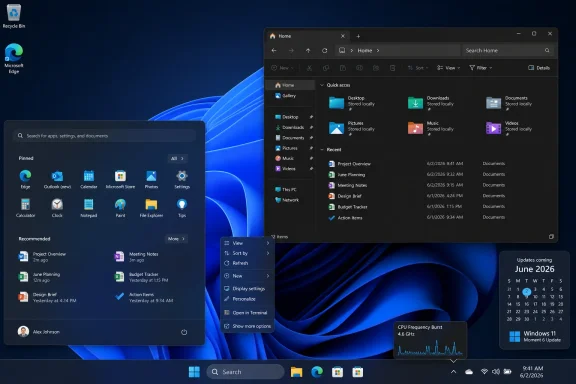 Microsoft Is Selling Responsiveness, Not Speed
For years, Windows performance arguments have orbited the wrong numbers. Users complain that Windows “feels slow,” reviewers test export times and frame rates, and Microsoft ships another batch of scheduler, memory, and graphics plumbing changes that may or may not be visible to the person opening the Start menu. Low Latency Profile cuts through that mismatch by targeting the small waits that make an otherwise powerful PC feel less immediate than a phone.The mechanism is simple in concept. When Windows detects certain foreground interactions, it briefly asks the processor to ramp up, handles the action, then lets the system fall back toward normal power behavior. The goal is not to sustain higher performance but to shorten the perceptual gap between click and response.
That distinction matters because the Windows shell has become a sprawling performance theater. Start, Search, notifications, Quick Settings, context menus, File Explorer surfaces, and modern app launches do not behave like a single old-school executable popping open a menu. They are layered UI systems, service calls, cached content, security checks, web-influenced frameworks, indexed results, and graphics composition all trying to appear effortless.
Low Latency Profile is a tacit acknowledgment that the first half-second matters. In a benchmark chart, a 300-millisecond improvement can look trivial. In daily use, repeated dozens or hundreds of times, it can be the difference between an operating system that feels crisp and one that feels like it is thinking about your request.
The Shell Became the Benchmark Microsoft Could Not Ignore
The traditional PC performance story has always favored big workloads. A faster CPU compiles more code, encodes more video, simulates more physics, and feeds more frames to a GPU. But the emotional judgment users make about Windows is often formed before any of that happens, in the mundane rhythm of opening Search, summoning a context menu, launching File Explorer, or clicking the network flyout.That is why Low Latency Profile lands in an awkward but important place. Microsoft is not promising that KB5094126 turns a midrange laptop into a workstation. It is promising that the visible machinery of Windows 11 should hesitate less often.
The surfaces named in reporting around the feature are telling: Start menu, Search, Action Center, Notification Center, context menus, File Explorer, and app launch. These are not niche workloads. They are the front doors to Windows itself, the places where even a user with a modern NVMe SSD and a recent CPU can still feel the operating system catching up.
The change also fits a broader industry pattern. Modern operating systems increasingly treat responsiveness as a scheduling problem, not merely an application problem. Phones have trained users to expect touch, animation, and launch events to receive instant priority, even if background tasks must wait. Windows, with its decades of compatibility baggage and enormous hardware spread, has been slower to present that polish consistently.
Low Latency Profile is therefore less radical than it sounds. It is not a hack so much as a policy: when the user is clearly waiting on the shell, spend a little more power immediately rather than saving it and making the interface feel sluggish.
The Boost Is Short Because the Tradeoff Is Real
The reported boost window is brief, commonly described as lasting roughly one to three seconds during supported interactive actions. That timing is the whole design. A CPU frequency spike during Start or Search can improve perceived snappiness without turning the system into a space heater, because the system is not trying to hold turbo clocks through a long render or game session.That is also why the feature should not be confused with the older Processor performance boost mode exposed through hidden Windows power-policy controls. Windows has long included deeper knobs for how processors behave when boosting above nominal performance. Those controls sit in the power-management world, where firmware, silicon, cooling, power plans, and operating-system policy all negotiate what a machine can safely and efficiently do.
Low Latency Profile appears to sit above that as a targeted Windows experience feature. It is not primarily a user-facing “make CPU faster” switch. It is an automated behavior tied to specific shell and launch moments, activated through the regular Windows update path and staged like many modern Windows features.
That staging is important. Installing the June cumulative update may put the code on a machine without immediately enabling the behavior. Microsoft has become fond of shipping features behind server-side rollout gates, feature flags, and gradual enablement waves, which means two PCs on the same build can behave differently for a while.
For administrators, that makes the feature both less dramatic and more annoying. It reduces the odds of a single bad switch hitting every system at once, but it complicates troubleshooting because “updated” no longer means “identically enabled.” The modern Windows estate is increasingly a matrix of build numbers, feature state, hardware eligibility, policy state, and rollout timing.
The Registry Rabbit Hole Is Where Good Intentions Go to Sweat
Power users quickly found the adjacent power-policy controls because, of course, they did. Windows contains a hidden Processor performance boost mode setting that can be exposed through registry or powercfg changes, revealing options such as Disabled, Enabled, Aggressive, Efficient Enabled, and Efficient Aggressive. That dropdown is real, but it is not the same thing as Microsoft’s staged Low Latency Profile rollout.This distinction is where many forum threads will go wrong. A user sees “CPU boost,” finds a registry tweak, changes a hidden value, and assumes they have enabled the new Windows 11 shell acceleration feature. In reality, they may have changed broader processor boost behavior in a way that affects thermals, fan curves, battery life, or stability far beyond the Start menu.
There is nothing inherently illegitimate about exposing hidden power settings. Enthusiasts have been doing it for years, particularly on laptops where disabling or moderating boost can tame heat and noise. The problem is that the same control can be a cure on one machine and a nuisance on another.
A thin-and-light laptop with limited cooling is not a desktop tower with a large heatsink and power headroom to spare. A boost mode that makes the UI feel marginally more responsive on AC power may cost unplugged runtime, trigger fan noise in a quiet room, or push skin temperatures in ways the user notices more than the menu delay they were trying to fix.
The safest registry tweak is the one you can undo. Anyone experimenting should record the original setting before changing it, test on both battery and AC power, and watch temperatures and clocks rather than trusting vibes alone. That advice is not glamorous, but it is the difference between tuning Windows and merely poking it.
Gaming Is the Wrong Place to Look for a Miracle
The most predictable misunderstanding is already baked into the phrase “CPU boost.” To many users, that sounds like higher frame rates. To creators, it sounds like faster exports. To benchmarkers, it sounds like a number that should move.Low Latency Profile is not aimed there. Games already drive CPUs and GPUs through sustained workload patterns, and modern processors already boost aggressively within their thermal and power limits. A one-to-three-second shell-oriented burst is not going to transform a GPU-bound game, shorten a long video render, or make a heavy compile meaningfully faster.
That does not make the feature useless. It makes it correctly scoped. The latency Microsoft is chasing is the kind that occurs before a big workload starts or between user actions, not during the workload itself.
In fact, the narrowness is arguably the best defense of the feature. If Microsoft had marketed this as a broad Windows performance upgrade, the backlash would be deserved. By keeping the claim tied to app launch and core shell experiences, the company is describing a responsiveness tweak rather than a performance revolution.
The tricky phrase is “app launch.” Depending on implementation and rollout state, users may see different behavior across inbox apps, Win32 applications, Store apps, and shell-adjacent experiences. The safest reading is that Microsoft is prioritizing launch moments and shell interactions it can identify and influence, not guaranteeing that every third-party app suddenly opens faster in every scenario.
Older PCs May Feel the Change Before New Ones Can Measure It
The users most likely to notice Low Latency Profile are not necessarily the people with the newest machines. On a high-end desktop already idling at generous boost behavior, opening Start may already feel instant enough that another short ramp is hard to perceive. On an older laptop, a power-limited mini PC, or a system with conservative power behavior, the same policy could be more visible.That does not mean Microsoft has found a magic path to make unsupported or underpowered PCs modern again. It means the operating system can sometimes improve perceived performance by changing when it spends performance, not how much total performance the hardware has.
This is the same reason storage upgrades once made old PCs feel reborn. The machine was not suddenly faster at everything; it stopped pausing in the places users hit constantly. Low Latency Profile plays a similar psychological game with CPU behavior, attacking the waiting moments that form the user’s impression of speed.
There is a risk in that framing. Microsoft could be accused of papering over shell complexity instead of reducing it. If Start or Search needs a CPU sprint to feel good on hardware that should already be more than adequate, critics will see the boost as an indictment of Windows 11’s UI stack.
That criticism is not entirely unfair. But it is incomplete. Software optimization and power-policy tuning are not mutually exclusive. A mature operating system should do both: make code paths leaner and make scheduling smarter when the user is waiting.
Microsoft’s Real Problem Is Trust, Not Turbo
The reaction to Low Latency Profile has been shaped by a decade of Windows users learning to distrust mystery changes. A hidden feature arrives through a cumulative update, behaves differently across machines, has no obvious settings toggle, and is described in update notes with language broad enough to invite speculation. That is the modern Windows rollout playbook, and it wears thin even when the engineering idea is reasonable.Users want to know whether the feature is enabled, what it affects, and how to turn it off if it causes trouble. Microsoft’s instinct is often to hide the control surface in the name of simplicity. For mainstream users, that may be defensible. For Windows enthusiasts and IT pros, opacity becomes the problem.
This is especially true because processor behavior is not abstract. People can hear fans. They can feel heat through a laptop deck. They can watch battery estimates fall. A feature that briefly raises CPU frequency may be harmless on most systems, but the lack of a visible state indicator makes every thermal twitch suspicious.
The company could reduce that suspicion with plain instrumentation. A small note in Windows Update history, an optional advanced power page, or a documented enterprise policy would go a long way. Microsoft does not need to give every Home user a giant turbo button, but administrators should not have to infer rollout state from Task Manager clock spikes.
This is where Windows still differs from more vertically integrated platforms. Microsoft supports a vast range of processors, firmware implementations, OEM power profiles, cooling designs, and user modifications. A hidden behavior that works beautifully on Microsoft’s test fleet can still meet a weird BIOS, an aggressive OEM fan curve, or a user who has already edited power policies.
The Enterprise Version of This Story Is Boring, Which Is Good
For managed fleets, Low Latency Profile should not be treated as a crisis. It is arriving through the ordinary update channel, targets interactive shell responsiveness, and does not appear designed to alter sustained workload performance. That makes it less like a compatibility-breaking platform shift and more like one more feature flag in the Windows servicing stream.The operational question is not whether every user gets faster menus on day one. It is whether the rollout causes measurable support noise: fan complaints, battery regressions, unexpected behavior on specific models, or confusion among users who read about the feature and cannot find a toggle. Those are manageable problems if IT teams approach the change as a staged user-experience update rather than a performance baseline shift.
Administrators should be cautious about registry-based enablement across fleets. A tweak that exposes or changes Processor performance boost mode is not equivalent to approving Low Latency Profile, and broad deployment could create exactly the power and thermal variability Microsoft’s staged rollout is trying to avoid.
The better enterprise response is targeted validation. Test the June update on representative hardware, compare user-facing responsiveness, watch battery and thermals on laptops, and document whether the feature appears active. If the benefit is real and the side effects are negligible, let Microsoft’s rollout proceed.
The biggest risk is not that Low Latency Profile melts laptops. The bigger risk is that organizations conflate three separate things: the cumulative update, the hidden power-setting dropdown, and unofficial feature-toggle tools. Keeping those categories separate will prevent a lot of unnecessary troubleshooting.
ViveTool Is a Scalpel, Not a Servicing Strategy
Unofficial tools like ViveTool occupy a strange place in the Windows ecosystem. They are invaluable for enthusiasts tracking hidden features and staged rollouts, but they are also a reminder that modern Windows often ships as a set of dormant possibilities. If you know the feature ID, you can sometimes pull tomorrow’s switch into today.For Low Latency Profile, that temptation is obvious. The feature is easy to understand, the promise is appealing, and the cost appears low. Why wait for Microsoft’s rollout machinery if a command can light it up now?
Because feature flags are not merely marketing gates. They can reflect hardware targeting, telemetry checks, dependency timing, known issues, or simple caution. Forcing a feature early may work perfectly, but it also removes the guardrails that staged deployment provides.
That does not mean enthusiasts should never experiment. WindowsForum readers are exactly the sort of people who will test this carefully, compare before-and-after behavior, and report what they find. The key is to avoid turning an enthusiast experiment into blanket advice for everyone else.
If a machine is mission-critical, battery-sensitive, thermally constrained, or used by someone who will not know how to reverse the change, waiting is the sane path. If the machine is a test box and the user understands feature flags, power profiles, and rollback steps, then experimentation is part of the Windows culture. The mistake is pretending those two situations are the same.
The Start Menu Should Not Need an Alibi
The deeper discomfort around Low Latency Profile is not technical. It is aesthetic. A Start menu should feel instant. A context menu should not require a policy discussion. A notification flyout should not make users think about CPU governors.Windows 11 has improved since launch, but its shell still carries the burden of Microsoft’s design ambitions and compatibility promises. The OS wants modern UI, cloud integration, search intelligence, personalization, security hardening, app recommendations, legacy support, and enterprise manageability to coexist in surfaces that users expect to appear immediately. That is a lot of machinery behind a click.
Low Latency Profile does not absolve Microsoft from making the shell leaner. If anything, it raises the standard. Once Microsoft treats shell latency as a named engineering target, users are entitled to ask why those paths are slow, which parts are being optimized, and whether the same attention is being paid to File Explorer regressions, context menu delays, and Search quality.
The best version of this feature is invisible. Users should not think, “My CPU boosted.” They should think nothing at all because the menu opened when they expected it to. Responsiveness is one of those qualities that only becomes a topic when it fails.
That is why the feature’s success will be hard to quantify in public. Benchmark sites can record CPU clocks, launch timings, and animation responsiveness, but the mass judgment will be quieter. Fewer sighs. Fewer repeated clicks. Fewer users blaming Windows for feeling heavier than the hardware underneath it.
The June Update Draws a Narrow Map for Sensible Tweaking
The practical reading of KB5094126 is neither panic nor hype. Windows 11 is getting a targeted responsiveness feature through the normal update stream, and users should treat it as a shell-smoothing change with staged availability. The most useful response is to verify before tweaking and to separate Microsoft’s automated profile from older manual power-policy controls.- The June 2026 Windows 11 update path brings Low Latency Profile to a wider audience on versions 24H2 and 25H2, but staged rollout means updated systems may not behave identically at first.
- The feature is aimed at short interactive moments such as Start, Search, Action Center, File Explorer, context menus, and app launch rather than sustained workloads.
- Gaming, rendering, compiling, and other long-running performance tasks should not be expected to gain meaningful speed from this shell-focused behavior.
- Task Manager or hardware-monitoring tools may show brief CPU-frequency ramps during supported actions, but clock spikes alone are not perfect proof of feature state.
- Registry changes that expose Processor performance boost mode affect broader power behavior and should be treated as reversible experiments, especially on laptops.
- ViveTool-style enablement is best reserved for test systems and enthusiasts who understand feature flags, rollback steps, and the difference between curiosity and fleet policy.
References
- Primary source: WinBuzzer
Published: Mon, 15 Jun 2026 09:49:38 GMT

New Windows 11 Feature Enables Short CPU Boosts for Shell-Actions
Windows 11's June update adds an option to force short CPU boosts for shell actions, but its scope limits any real-world gain for most users.winbuzzer.com - Related coverage: techradar.com

Windows 11's June update is here — these are the 3 most important features, including a huge move to make apps and menus load much faster | TechRadar
Low Latency Profile, shared audio, and a boost for searchwww.techradar.com - Related coverage: pcgamer.com

Microsoft rolls out Windows Low Latency Profile, giving older PCs a bit more snap when opening the Start Menu and apps | PC Gamer
Every little helps, even if it really is very little.www.pcgamer.com - Related coverage: allthings.how

KB5094126 for Windows 11 (June 2026): Builds 26200.8655 and 26100.8655
The June Patch Tuesday update brings the Low Latency Profile, Shared Audio, multi-app camera streaming, and the Secure Boot certificate push.allthings.how - Official source: learn.microsoft.com
PERFBOOSTMODE | Microsoft Learn
PERFBOOSTMODE determines how processors select a performance level when current operating conditions allow for boosting performance above the nominal level.learn.microsoft.com - Related coverage: windowslatest.com

Windows 11's CPU speed boost feature is making your battery last longer, not shorter
Worried Windows 11's Low Latency Profile will damage CPU or battery? Our tests prove the "race to sleep" feature is safe and boosts speed. www.windowslatest.com
- Related coverage: pcgameshardware.de

Windows 11: Juni-Update schaltet den CPU-Boost scharf
Windows 11: Das Juni-Update KB5094126 schaltet den CPU-Boost frei. So lässt sich das Low Latency Profile überprüfen und per Vivetool aktivieren.www.pcgameshardware.de
- Related coverage: knightli.com

Windows 11 Low Latency Profile: Using Short CPU Boosts To Improve System Responsiveness
Windows 11's June 2026 update starts rolling out Low Latency Profile, which briefly raises CPU frequency to improve responsiveness in Start, Search, and app launches.
knightli.com
- Related coverage: windowsforum.com
Windows 11 KB5094126 (June 2026) Guide: Low Latency, Shared Audio, Secure Boot | Windows Forum
Microsoft released Windows 11 KB5094126 on June 9, 2026, as the June Patch Tuesday security update for Windows 11 versions 25H2 and 24H2, raising systems to...windowsforum.com - Related coverage: ginjfo.com
Windows 11 et KB5094126, comment activer le boost des performances ? - GinjFo
Un nouveau profil de faible latence améliore le répondant de Windows 11 , surtout sur les PC à la puissance modeste ou ancienswww.ginjfo.com - Related coverage: windowscentral.com

Confused about Windows 11’s Low Latency Profile? Here is what it actually does and what we know so far about it. | Windows Central
If you are confused about Windows 11’s Low Latency Profile, you are not alone.www.windowscentral.com - Related coverage: tomshardware.com

Microsoft staunchly defends its new 'Low Latency Profile' for Windows 11 after community backlash — says every other OS already boosts CPU speeds for quicker load times | Tom's Hardware
The quest to fix Windows 11 is a bumpy one.www.tomshardware.com - Related coverage: cordero.me
- Related coverage: amd.com