
Microsoft began rolling out Roadmap ID 559602 in June 2026 for Microsoft Teams Rooms on Android, adding front-of-room view control when a room is invited as a presenter in webinars and structured meetings across commercial and government Microsoft 365 clouds. The change sounds narrow because it is: a display default and a presenter-side toggle. But in the world of hybrid events, that sort of small interface decision is often the difference between a polished broadcast and a room full of people guessing what the audience can see.
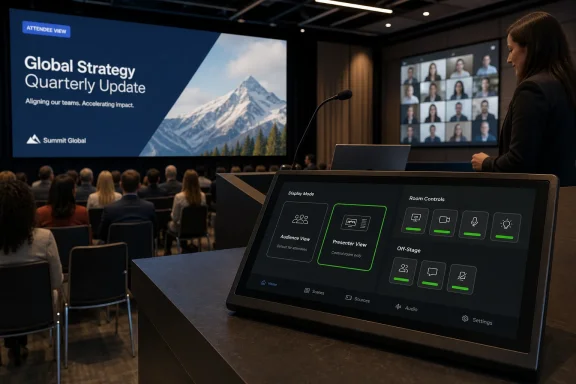
The feature makes one important assumption explicit. A room that is presenting is not the same thing as a person presenting from a laptop, and the large display at the front of that room has competing jobs: it must reassure the people physically present, support the presenter’s production workflow, and avoid leaking behind-the-scenes event controls to the remote audience. Microsoft’s answer is to default the front-of-room screen to the attendee view while preserving full presenter control on the room console.
Teams has spent years trying to make meetings more structured without making them feel like television production. Webinars, town halls, green rooms, attendee stages, and presenter roles all came from the same pressure: organizations want the reach of a broadcast with the convenience of a calendar invite. The trouble is that meeting rooms were designed around collaboration, not event direction.
A traditional Teams Rooms setup assumes that the room is a shared participant. It joins, shows people and content, provides audio and video, and lets the room interact. A webinar or structured meeting asks the room to behave more like a production node. The room may be a presenter, but that does not mean everyone in the room should stare at backstage controls on the main screen.
That distinction explains why the default matters. If the front-of-room display opens in attendee view, in-room presenters can see what the audience sees by default. They are not forced to infer the live experience from a console, a laptop companion device, or a nervous producer whispering from the back of the room.
The console remains the operational surface. Presenters keep access to green room and off-stage management, and they can switch the front-of-room display into presenter view when they need it. Microsoft is separating control from confidence, and that is the right split for event rooms.
When a Teams Room joins as a presenter, the people in that room are not merely consuming the meeting. They may be speaking, watching a remote moderator, checking whether content is live, waiting for a cue, or confirming that the audience is seeing the correct stage. A display that defaults to presenter view can be useful for operators, but disorienting for speakers and attendees in the room.
Microsoft’s new behavior recognizes that the biggest screen should usually show the audience-facing truth. That is a broadcast convention masquerading as a meeting-room feature. The talent sees what the viewer sees unless someone deliberately switches to a control view.
This matters because hybrid events fail in visible ways. A presenter who thinks they are live before they are live, a room that reacts to a green-room feed as if it were public, or a front display that shows production-only information can all make an otherwise routine webinar feel amateur. Microsoft is not inventing event discipline here; it is encoding a little of it into the default.
The June 2026 rollout is part of that broader convergence. Microsoft’s own Teams Rooms release history shows Android gaining capabilities that once felt more native to Windows Rooms: town hall presenter support, recording and transcription controls, live transcription, digital signage, room reservation, better dual-display behavior, and more event-oriented controls. The direction is clear even when parity remains imperfect.
That does not mean Android and Windows Rooms are identical. Microsoft still documents differences across device categories, security capabilities, display support, interoperability, camera intelligence, and management features. The practical point for IT is subtler: buying Android Rooms no longer means opting out of serious Teams event workflows by default.
For organizations standardizing on Android appliances from vendors such as Logitech, Yealink, Cisco, Neat, Poly, or others, this changes procurement psychology. The question becomes less “Can Android Rooms handle the event?” and more “Which exact room model, firmware path, license, and console configuration will support the event experience we intend to run?”
That is a sensible model. In a physical room, the console is typically at the table, lectern, or operator position. It is visible to the people managing the session, not necessarily to every person seated in the room or watching remotely through a camera. The front-of-room display, by contrast, is theatrical by nature; anything shown there becomes part of the room’s shared reality.
Green room and off-stage management are especially sensitive in structured meetings. These features exist because not every participant should be live all the time. Presenters may need to prepare, organizers may need to sequence speakers, and content may need to be staged before appearing to attendees.
By allowing full control from the console while defaulting the large display to attendee view, Teams Rooms on Android reduces the chance that production mechanics become the show. The presenter can still switch the front-of-room display to presenter view. The important part is that the room does not start there automatically.
A public-sector briefing, internal agency webinar, legal update, incident-review meeting, or executive town hall may involve presenters in a conference room, remote attendees across locations, and strict expectations around what is visible to whom. In those settings, the front-of-room display is not merely a usability component. It is part of the information boundary.
The availability across government clouds suggests Microsoft understands that Teams Rooms improvements cannot remain commercial-only if Teams is to keep serving as the collaboration layer for public-sector work. GCC High and DoD customers are often slower to receive cloud features, partly because of compliance and deployment constraints. Seeing this capability land across those instances gives administrators more reason to plan for it rather than dismiss it as a consumerized meeting nicety.
It also means change management must be more deliberate. A government tenant with Teams Rooms on Android devices may see the behavior arrive as part of a rollout rather than a big-bang upgrade. Room support staff need to know what changed before a high-stakes session begins.
In the old model, a room was just a resource. You booked it, people walked in, and the room joined. In modern Teams, the role assigned to that resource can shape the device’s behavior. A room invited as a presenter participates differently from a room joining as a normal attendee.
That makes meeting setup a shared responsibility between event organizers and room administrators. If the room is not invited with the intended role, the hardware may not expose the experience people expect. The resulting failure will look like a room problem, but the root cause may be a meeting-design problem.
This is where many organizations stumble. They treat Teams Rooms as endpoints, while Microsoft keeps turning them into role-aware participants. A device can be a room, a presenter, an attendee, a recording control surface, a transcription surface, a camera source, and a display policy target. The line between AV configuration and Teams meeting configuration keeps getting thinner.
Teams Rooms on Android lives at the intersection of Microsoft cloud service updates, the Teams Rooms app, Android device firmware, OEM validation, and tenant policy. Microsoft’s release notes routinely warn that there can be a delay between when a feature is released and when it becomes available on a particular device make and model. Anyone who has managed room systems knows that sentence does a lot of work.
This is especially true for Android Rooms, where appliances and consoles vary widely. A feature may be in the Teams app, but a device may need an OEM firmware update, a supported console connection, or a configuration refresh before the experience is reliable. Microsoft previously noted console-specific limitations for related town hall presenter and front-of-room view controls, then later resolved some of those gaps for direct console connections on named hardware.
That history is a reminder not to confuse roadmap status with deployment completion. “Rolling out” is a planning signal, not a service-level guarantee for the room where the CEO is presenting at 9 a.m. tomorrow.
For this feature, administrators should validate the entire presenter path. The room should be invited as a presenter, joined into a webinar or structured meeting, placed through green room or off-stage states, and switched between attendee and presenter views from the console. The front-of-room display should be checked from the perspective of the people in the physical room, not merely from the Teams admin center.
Dual-display rooms deserve extra scrutiny. Android Rooms have received multiple fixes and controls around dual-display configuration, screen swapping, content sharing, and gallery behavior over the last couple of years. A view-control feature that behaves correctly on a single display can still surprise users in a room with two front screens and a console.
Support teams should also document what users will see. The worst time to explain attendee view versus presenter view is during a live webinar. A short internal runbook, a laminated quick reference in high-use rooms, or a five-minute rehearsal with presenters will do more for reliability than another round of abstract Teams training.
That is particularly important for executives, instructors, public-sector leaders, and subject-matter experts who present from rooms but do not run events for a living. They should not need to understand every Teams event state to know whether the audience is seeing the right thing. The system should make the safe, audience-oriented view the default.
At the same time, Microsoft is not dumbing down the room. The console still exposes the power-user workflow. This is not an attendee-only mode pretending to be presenter support; it is presenter support with a more careful display default.
That balance is difficult. Too much simplification and event staff lose control. Too much control exposed on the wrong surface and ordinary presenters become accidental producers. Microsoft’s answer here is not flashy, but it is unusually well aimed.
The home screen refresh, QR-code join, digital signage, room reservation, transcription controls, speaker attribution, camera intelligence, and structured-event roles all push Teams Rooms toward a managed workplace appliance model. These devices are less like shared PCs and more like policy-driven collaboration terminals. They are expected to be consistent, remotely managed, and context-aware.
That is good news for administrators who want predictable rooms. It is less comfortable for organizations that rely on improvisation. As Teams Rooms becomes more opinionated, the cost of weak governance rises.
This feature illustrates the trade-off. Microsoft makes a sensible default decision for structured meetings, but organizations still need to understand it. If presenters expect the large display to show backstage controls immediately, they will think something is wrong. If they expect an attendee confidence monitor, they will think Microsoft finally fixed an annoyance they had learned to work around.
If a presenter can rely on front-of-room view control in one Android-equipped room but not another, the organization does not have a Teams feature problem. It has a room standards problem. The user experience becomes hostage to procurement history.
The answer is not necessarily to replace everything. It is to classify rooms by capability and publish the difference. A room intended for webinars and structured meetings should be validated as an event-capable room. A room intended for ordinary collaboration can be treated differently. Users should not discover the distinction after accepting a presenter slot.
This is where WindowsForum readers who live in endpoint management will recognize the pattern. Hardware heterogeneity is manageable when it is documented and governed. It becomes chaos when every room is treated as functionally equivalent because every room has a Teams logo on the screen.
Event presentation, room intelligence, management, signage, advanced monitoring, and premium meeting experiences often intersect with licensing and policy. A feature may appear in documentation, but whether it is usable in a particular tenant can depend on the room license, meeting policy, organizer license, or Teams Premium configuration. The device is only one part of the entitlement chain.
This is another reason to test the exact scenario. Do not assume that because a Teams Room on Android can join a webinar, it can perform every presenter function your event team expects. Joining, presenting, managing backstage state, recording, transcribing, and controlling attendee-visible output are related but distinct capabilities.
Licensing is rarely the most elegant part of a Microsoft story. Here, the practical advice is simple: validate with the same room account, organizer account, meeting template, cloud environment, and device model that will be used in production.
Software defaults are policy statements. They decide what happens under pressure, when nobody has read the documentation and the meeting has already started. In a structured event, defaulting the front-of-room display to attendee view says the first priority is not backstage efficiency. It is preventing confusion about what is live.
That is the right bias. A presenter who needs presenter view can switch to it. An organizer who needs green room controls has them on the console. But a room full of people looking at the main screen begins from the same visual reference as the audience.
This is a small control, but it reflects maturity in the Teams Rooms product. Microsoft is no longer just trying to make rooms join meetings. It is trying to make rooms behave appropriately for the kind of meeting they have joined.
The feature makes one important assumption explicit. A room that is presenting is not the same thing as a person presenting from a laptop, and the large display at the front of that room has competing jobs: it must reassure the people physically present, support the presenter’s production workflow, and avoid leaking behind-the-scenes event controls to the remote audience. Microsoft’s answer is to default the front-of-room screen to the attendee view while preserving full presenter control on the room console.
 Microsoft Fixes the Room Before It Fixes the Event
Teams has spent years trying to make meetings more structured without making them feel like television production. Webinars, town halls, green rooms, attendee stages, and presenter roles all came from the same pressure: organizations want the reach of a broadcast with the convenience of a calendar invite. The trouble is that meeting rooms were designed around collaboration, not event direction.A traditional Teams Rooms setup assumes that the room is a shared participant. It joins, shows people and content, provides audio and video, and lets the room interact. A webinar or structured meeting asks the room to behave more like a production node. The room may be a presenter, but that does not mean everyone in the room should stare at backstage controls on the main screen.
That distinction explains why the default matters. If the front-of-room display opens in attendee view, in-room presenters can see what the audience sees by default. They are not forced to infer the live experience from a console, a laptop companion device, or a nervous producer whispering from the back of the room.
The console remains the operational surface. Presenters keep access to green room and off-stage management, and they can switch the front-of-room display into presenter view when they need it. Microsoft is separating control from confidence, and that is the right split for event rooms.
The Front-of-Room Screen Has Become a Production Monitor
The phrase “front-of-room display” undersells what that screen has become. In a normal meeting, it is a shared window into the call. In a structured event, it becomes a confidence monitor, a stage monitor, and sometimes a social contract with the people sitting in the physical room.When a Teams Room joins as a presenter, the people in that room are not merely consuming the meeting. They may be speaking, watching a remote moderator, checking whether content is live, waiting for a cue, or confirming that the audience is seeing the correct stage. A display that defaults to presenter view can be useful for operators, but disorienting for speakers and attendees in the room.
Microsoft’s new behavior recognizes that the biggest screen should usually show the audience-facing truth. That is a broadcast convention masquerading as a meeting-room feature. The talent sees what the viewer sees unless someone deliberately switches to a control view.
This matters because hybrid events fail in visible ways. A presenter who thinks they are live before they are live, a room that reacts to a green-room feed as if it were public, or a front display that shows production-only information can all make an otherwise routine webinar feel amateur. Microsoft is not inventing event discipline here; it is encoding a little of it into the default.
Android Rooms Are No Longer the Lightweight Option
Teams Rooms on Android used to carry an implicit compromise. They were easier to deploy in many room types, often appliance-like, and attractive for smaller or simpler spaces, but Windows-based Rooms tended to receive some of the deeper meeting and event features first. That gap has narrowed steadily.The June 2026 rollout is part of that broader convergence. Microsoft’s own Teams Rooms release history shows Android gaining capabilities that once felt more native to Windows Rooms: town hall presenter support, recording and transcription controls, live transcription, digital signage, room reservation, better dual-display behavior, and more event-oriented controls. The direction is clear even when parity remains imperfect.
That does not mean Android and Windows Rooms are identical. Microsoft still documents differences across device categories, security capabilities, display support, interoperability, camera intelligence, and management features. The practical point for IT is subtler: buying Android Rooms no longer means opting out of serious Teams event workflows by default.
For organizations standardizing on Android appliances from vendors such as Logitech, Yealink, Cisco, Neat, Poly, or others, this changes procurement psychology. The question becomes less “Can Android Rooms handle the event?” and more “Which exact room model, firmware path, license, and console configuration will support the event experience we intend to run?”
The Console Is Where Microsoft Wants the Risk to Live
The design choice here is not simply user experience polish. It is risk containment. Microsoft is putting the powerful controls on the console and keeping the shared display audience-safe unless the presenter intentionally changes it.That is a sensible model. In a physical room, the console is typically at the table, lectern, or operator position. It is visible to the people managing the session, not necessarily to every person seated in the room or watching remotely through a camera. The front-of-room display, by contrast, is theatrical by nature; anything shown there becomes part of the room’s shared reality.
Green room and off-stage management are especially sensitive in structured meetings. These features exist because not every participant should be live all the time. Presenters may need to prepare, organizers may need to sequence speakers, and content may need to be staged before appearing to attendees.
By allowing full control from the console while defaulting the large display to attendee view, Teams Rooms on Android reduces the chance that production mechanics become the show. The presenter can still switch the front-of-room display to presenter view. The important part is that the room does not start there automatically.
Government Clouds Make This More Than a Commercial Convenience
The roadmap entry lists Worldwide, GCC, GCC High, and DoD availability. That is not a decorative detail. Government and regulated organizations are heavy users of structured meetings, and they often have the least tolerance for ad hoc workarounds.A public-sector briefing, internal agency webinar, legal update, incident-review meeting, or executive town hall may involve presenters in a conference room, remote attendees across locations, and strict expectations around what is visible to whom. In those settings, the front-of-room display is not merely a usability component. It is part of the information boundary.
The availability across government clouds suggests Microsoft understands that Teams Rooms improvements cannot remain commercial-only if Teams is to keep serving as the collaboration layer for public-sector work. GCC High and DoD customers are often slower to receive cloud features, partly because of compliance and deployment constraints. Seeing this capability land across those instances gives administrators more reason to plan for it rather than dismiss it as a consumerized meeting nicety.
It also means change management must be more deliberate. A government tenant with Teams Rooms on Android devices may see the behavior arrive as part of a rollout rather than a big-bang upgrade. Room support staff need to know what changed before a high-stakes session begins.
The Calendar Invite Is Now Part of Room Configuration
The new behavior depends on the Teams Room being invited as a meeting presenter. That detail matters because the calendar invite is increasingly becoming a configuration surface.In the old model, a room was just a resource. You booked it, people walked in, and the room joined. In modern Teams, the role assigned to that resource can shape the device’s behavior. A room invited as a presenter participates differently from a room joining as a normal attendee.
That makes meeting setup a shared responsibility between event organizers and room administrators. If the room is not invited with the intended role, the hardware may not expose the experience people expect. The resulting failure will look like a room problem, but the root cause may be a meeting-design problem.
This is where many organizations stumble. They treat Teams Rooms as endpoints, while Microsoft keeps turning them into role-aware participants. A device can be a room, a presenter, an attendee, a recording control surface, a transcription surface, a camera source, and a display policy target. The line between AV configuration and Teams meeting configuration keeps getting thinner.
The Roadmap Date Is Not the Same as the Room Date
Microsoft lists this feature as rolling out with general availability in June 2026, and the roadmap item was last updated on June 23, 2026. That tells administrators when Microsoft expects the service capability to arrive, not necessarily when every physical device in every conference room will behave the same way.Teams Rooms on Android lives at the intersection of Microsoft cloud service updates, the Teams Rooms app, Android device firmware, OEM validation, and tenant policy. Microsoft’s release notes routinely warn that there can be a delay between when a feature is released and when it becomes available on a particular device make and model. Anyone who has managed room systems knows that sentence does a lot of work.
This is especially true for Android Rooms, where appliances and consoles vary widely. A feature may be in the Teams app, but a device may need an OEM firmware update, a supported console connection, or a configuration refresh before the experience is reliable. Microsoft previously noted console-specific limitations for related town hall presenter and front-of-room view controls, then later resolved some of those gaps for direct console connections on named hardware.
That history is a reminder not to confuse roadmap status with deployment completion. “Rolling out” is a planning signal, not a service-level guarantee for the room where the CEO is presenting at 9 a.m. tomorrow.
IT Should Test the Event, Not Just the Join Button
The minimum test for Teams Rooms used to be brutally simple: can the room join, can people hear, can people see, and can content be shared? Structured meetings require a different checklist. A room can pass the old test and still fail the event.For this feature, administrators should validate the entire presenter path. The room should be invited as a presenter, joined into a webinar or structured meeting, placed through green room or off-stage states, and switched between attendee and presenter views from the console. The front-of-room display should be checked from the perspective of the people in the physical room, not merely from the Teams admin center.
Dual-display rooms deserve extra scrutiny. Android Rooms have received multiple fixes and controls around dual-display configuration, screen swapping, content sharing, and gallery behavior over the last couple of years. A view-control feature that behaves correctly on a single display can still surprise users in a room with two front screens and a console.
Support teams should also document what users will see. The worst time to explain attendee view versus presenter view is during a live webinar. A short internal runbook, a laminated quick reference in high-use rooms, or a five-minute rehearsal with presenters will do more for reliability than another round of abstract Teams training.
This Is a Quiet Win for Presenters Who Do Not Want to Become Producers
The best collaboration tools hide complexity until it is needed. This Teams Rooms change does that. It lets presenters keep their eyes on the audience experience while leaving production controls within reach.That is particularly important for executives, instructors, public-sector leaders, and subject-matter experts who present from rooms but do not run events for a living. They should not need to understand every Teams event state to know whether the audience is seeing the right thing. The system should make the safe, audience-oriented view the default.
At the same time, Microsoft is not dumbing down the room. The console still exposes the power-user workflow. This is not an attendee-only mode pretending to be presenter support; it is presenter support with a more careful display default.
That balance is difficult. Too much simplification and event staff lose control. Too much control exposed on the wrong surface and ordinary presenters become accidental producers. Microsoft’s answer here is not flashy, but it is unusually well aimed.
The Teams Rooms Strategy Is Becoming More Opinionated
There is a broader pattern in Teams Rooms development. Microsoft is not merely adding more buttons. It is deciding what kind of meeting room behavior should be normal.The home screen refresh, QR-code join, digital signage, room reservation, transcription controls, speaker attribution, camera intelligence, and structured-event roles all push Teams Rooms toward a managed workplace appliance model. These devices are less like shared PCs and more like policy-driven collaboration terminals. They are expected to be consistent, remotely managed, and context-aware.
That is good news for administrators who want predictable rooms. It is less comfortable for organizations that rely on improvisation. As Teams Rooms becomes more opinionated, the cost of weak governance rises.
This feature illustrates the trade-off. Microsoft makes a sensible default decision for structured meetings, but organizations still need to understand it. If presenters expect the large display to show backstage controls immediately, they will think something is wrong. If they expect an attendee confidence monitor, they will think Microsoft finally fixed an annoyance they had learned to work around.
The Android Rollout Puts Pressure on Room Standards
For many enterprises, the Teams Rooms estate is messy. There are Windows Rooms in boardrooms, Android bars in huddle rooms, touch boards in collaboration spaces, older devices still waiting on firmware, and a few rooms nobody wants to touch because they mostly work. Feature rollouts like this expose that mess.If a presenter can rely on front-of-room view control in one Android-equipped room but not another, the organization does not have a Teams feature problem. It has a room standards problem. The user experience becomes hostage to procurement history.
The answer is not necessarily to replace everything. It is to classify rooms by capability and publish the difference. A room intended for webinars and structured meetings should be validated as an event-capable room. A room intended for ordinary collaboration can be treated differently. Users should not discover the distinction after accepting a presenter slot.
This is where WindowsForum readers who live in endpoint management will recognize the pattern. Hardware heterogeneity is manageable when it is documented and governed. It becomes chaos when every room is treated as functionally equivalent because every room has a Teams logo on the screen.
The Licensing Shadow Still Hangs Over Advanced Rooms
Microsoft’s Teams Rooms release notes frequently mark advanced capabilities with the Teams Rooms Pro indicator. The roadmap item itself does not spell out every licensing nuance in the user-provided summary, but administrators should be cautious. In Teams Rooms, the difference between Basic and Pro is not academic.Event presentation, room intelligence, management, signage, advanced monitoring, and premium meeting experiences often intersect with licensing and policy. A feature may appear in documentation, but whether it is usable in a particular tenant can depend on the room license, meeting policy, organizer license, or Teams Premium configuration. The device is only one part of the entitlement chain.
This is another reason to test the exact scenario. Do not assume that because a Teams Room on Android can join a webinar, it can perform every presenter function your event team expects. Joining, presenting, managing backstage state, recording, transcribing, and controlling attendee-visible output are related but distinct capabilities.
Licensing is rarely the most elegant part of a Microsoft story. Here, the practical advice is simple: validate with the same room account, organizer account, meeting template, cloud environment, and device model that will be used in production.
Microsoft Is Designing for the Moment Before the Mistake
The most interesting thing about this rollout is not that presenters can switch views. It is that Microsoft chose the safer default before the presenter touches anything.Software defaults are policy statements. They decide what happens under pressure, when nobody has read the documentation and the meeting has already started. In a structured event, defaulting the front-of-room display to attendee view says the first priority is not backstage efficiency. It is preventing confusion about what is live.
That is the right bias. A presenter who needs presenter view can switch to it. An organizer who needs green room controls has them on the console. But a room full of people looking at the main screen begins from the same visual reference as the audience.
This is a small control, but it reflects maturity in the Teams Rooms product. Microsoft is no longer just trying to make rooms join meetings. It is trying to make rooms behave appropriately for the kind of meeting they have joined.
The Practical Read for Teams Rooms Admins Is Written on the Glass
This rollout is worth tracking because it changes the live-room experience without demanding a new user ritual. The details are concrete enough for IT teams to act on now, especially in organizations that run webinars, leadership broadcasts, training sessions, or regulated briefings from Android-based Teams Rooms.- Teams Rooms on Android now defaults the front-of-room display to attendee view when the room is invited as a presenter in supported webinars and structured meetings.
- Presenters retain full control from the room console, including green room and off-stage management.
- The front-of-room display can be switched to presenter view without changing what attendees see.
- The rollout is listed for June 2026 general availability across Worldwide, GCC, GCC High, and DoD cloud instances.
- Device model, firmware, console configuration, room license, and tenant policy may still determine when the feature is actually reliable in a given room.
- Event-capable rooms should be tested with the same meeting role, organizer policy, and hardware path that will be used for production sessions.
References
- Primary source: Microsoft 365 Roadmap
Published: 2026-06-23T23:15:39.6678540Z
Microsoft 365 Roadmap | Microsoft 365
The Microsoft 365 Roadmap lists updates that are currently planned for applicable subscribers. Check here for more information on the status of new features and updates.www.microsoft.com
