
Microsoft added “room optimization mode” for Teams desktop to the Microsoft 365 Roadmap on June 10, 2026, updated it on June 24, and currently plans worldwide General Availability for August 2026 across desktop Teams and Teams/Surface device scenarios. The feature replaces shared display mode with a more explicit room-aware experience for people bringing laptops into focus rooms, huddle rooms, and other spaces that lack a full Teams Rooms system. The small naming change matters because Microsoft is no longer treating these spaces as edge cases. It is building the BYOD room into the default Teams desktop workflow.
The classic meeting-room split used to be clean. Either a space had a managed Teams Rooms device, with its own account, certified peripherals, admin policies, update rings, and support path, or it was just a room with a screen, a speakerphone, and a cable. The first was infrastructure; the second was improvisation.
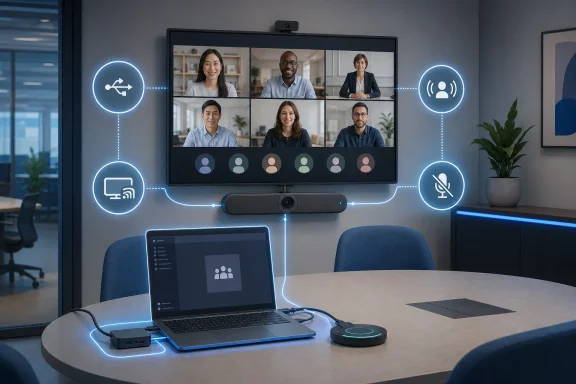
Room optimization mode is Microsoft’s attempt to make that improvisation less chaotic. When Teams detects room peripherals, it can automatically choose the appropriate audio and video devices, enable speaker recognition and shared display behavior, and turn off voice isolation. In other words, the Teams desktop client starts behaving less like a personal endpoint and more like a temporary room controller.
That is a subtle but important shift. Microsoft is acknowledging the meeting room that never made it into the capital budget: the focus room with a USB bar, the project space with a large display, the huddle room where someone’s laptop always becomes the meeting brain. These rooms are everywhere, and they are often where hybrid work either feels natural or falls apart.
The old shared display mode was useful, but it sounded like a display feature. The new name is broader and more honest. Microsoft is not merely deciding where content appears; it is deciding that Teams should understand when a user has crossed from personal meeting mode into room meeting mode.
Room optimization mode appears to fold that idea into a larger user experience. The roadmap item says the new mode replaces shared display mode, has a new location, and enables or disables room-specific features. That suggests Microsoft is trying to make the behavior more discoverable and more coherent, rather than hiding it behind a narrow scenario label.
The important part is not that Microsoft renamed a toggle. The important part is that it is bundling multiple decisions into a room-aware state. Device selection, speaker recognition, shared display, and voice isolation are not separate curiosities from the user’s perspective; they are the difference between a meeting that starts cleanly and one that begins with five minutes of “can everyone hear us?”
This is where Teams has often struggled. It has powerful meeting features, but many of them assume users know which meeting context they are in and which settings should follow. In real rooms, the first person to plug in a laptop is usually not thinking about acoustic models or room attribution. They are thinking about whether the remote participants can see the deck.
Automatic device selection is the obvious win. Anyone who has joined a call from a conference room knows the ritual: confirm the room speaker is selected, confirm the room microphone is selected, make sure the laptop mic is not still active, check whether the external camera is actually being used, and hope Windows has not decided that a monitor with no useful audio path is now the preferred speaker. Room optimization mode promises to compress that ritual into a recognizable state.
Speaker recognition is more ambitious. If Teams can use room audio intelligently, meetings can become more legible after the fact: who spoke, what was said, and which participant should be associated with a contribution. That matters for recaps, transcripts, Copilot-style summaries, and compliance workflows. But it also raises the stakes for correct setup, because a bad room configuration can pollute the record of a meeting rather than merely annoy participants in the moment.
Disabling voice isolation is another tell. Voice isolation makes sense when one person is using a headset or laptop microphone in a noisy environment. In a room, however, aggressive isolation can work against the goal of capturing multiple people naturally. Microsoft is effectively saying that the audio assumptions of a personal endpoint and a shared room are different enough that Teams should switch modes.
Hybrid work broke that neatness. Organizations added more small rooms, more flexible spaces, more shared desks, and more “good enough” collaboration corners. Many of those spaces did not justify a full Teams Rooms deployment, but they still needed to host real meetings with remote colleagues, customers, vendors, and interview candidates.
That is the opening room optimization mode is designed to fill. It does not replace Teams Rooms; it reduces the penalty for not having Teams Rooms everywhere. A laptop plus room peripherals becomes a more legitimate endpoint, not merely a workaround.
For IT departments, that is both helpful and dangerous. It helps because users are already doing this. A feature that makes BYOD rooms behave better can reduce tickets, support calls, and meeting friction. It is dangerous because every successful BYOD workaround can make it harder to argue for managed room systems where they are actually needed.
The distinction will matter. A two-person focus room with a certified USB device may be perfectly served by a laptop-driven Teams session. A boardroom, training room, or regulated meeting space still benefits from the predictability of a dedicated room account, managed firmware, admin visibility, and consistent user interface. Room optimization mode improves the floor; it does not raise every room to the ceiling.
The room optimization mode roadmap item sits alongside years of Microsoft investment in Teams Rooms, certified peripherals, Surface Hub, proximity join, intelligent speakers, and AI-driven meeting intelligence. The direction is clear: meetings are no longer just calls. They are data-producing collaboration sessions, and the quality of that data depends heavily on the room.
That is why a mundane-sounding feature like room optimization mode deserves attention. If Teams misidentifies the microphone, the meeting is bad. If it misattributes speakers, the recap is less useful. If it applies personal audio processing to a shared room, the remote experience suffers. If it fails to switch into the right display behavior, the local room and remote attendees see different versions of the meeting.
Microsoft is trying to collapse those decisions into a mode users can understand. The term “room optimization” may be bland, but it is more accurate than “shared display.” It says the client is optimizing the meeting for a place, not just a screen.
Shared display mode was easy to miss because most users do not think in terms of display modes. They think in terms of joining a meeting from a room. If the setting is surfaced closer to the join flow, device controls, or meeting-room context, it could become part of normal behavior instead of a troubleshooting trick known mainly to power users and IT staff.
Microsoft has spent the last few years simplifying parts of Teams while also stuffing more capability into the client. That tension shows up everywhere. Users want fewer buttons, but enterprises want more policy hooks. Microsoft wants Teams to feel automatic, but admins want predictable behavior and documentation. Room optimization mode sits squarely in that tension.
A better location could also signal that Microsoft wants users to intentionally switch into or confirm a room state. Full automation is convenient, but room setups vary wildly. A room may have a display but no shared camera. It may have a speakerphone used only for audio. It may have peripherals that Windows recognizes generically but Teams cannot confidently classify as room devices. The best user experience will probably combine detection with a visible escape hatch.
If Microsoft gets the placement right, room optimization mode becomes a plain-English answer to a common user problem. If it gets the placement wrong, it becomes another Teams setting that admins explain in screenshots after a bad executive meeting.
Teams can do better when peripherals are known to Microsoft as room devices. Certified hardware gives the software stronger hints. But BYOD rooms are often assembled from whatever procurement, facilities, or a department head bought at the time. The user sees a room; the operating system sees a collection of endpoints.
That means administrators should treat room optimization mode as an improvement to test, not a magic layer to assume. The feature is listed as in development, with General Availability planned for August 2026, so details may change before release. But the practical preparation is already clear: standardize room peripherals where possible, name devices clearly, document expected behavior, and train support teams to recognize when Teams has entered room optimization mode.
There is also a policy question. Some organizations may welcome automatic room behavior everywhere. Others may want to limit room-specific features in sensitive spaces or on unmanaged devices. The roadmap entry does not spell out admin controls, and Microsoft may clarify those closer to rollout. Until then, IT should assume that user experience and governance will need to meet somewhere in the middle.
That is useful in hybrid work because remote participants often lose the nuance of in-room conversation. “Someone in the room said we should delay the migration” is less useful than a transcript that attributes the point to the application owner, security lead, or project sponsor. Good speaker recognition can make hybrid meetings less biased toward remote attendees with individual microphones.
But recognition also brings privacy and trust questions. Employees may be comfortable with transcription in some contexts and uneasy with identity-linked meeting records in others. Organizations will need clear policies on enrollment, consent, retention, and where speaker-attributed data flows. A feature that makes meetings more productive can also make them feel more surveilled if rolled out carelessly.
Room optimization mode does not create these questions by itself. Teams already has transcription, recording, recaps, and a growing set of AI-assisted meeting features. But by improving the BYOD room path, Microsoft potentially expands the number of rooms where those features work well enough to become routine. That is the real governance shift.
In a room, the same feature can become a liability. If several people are speaking from different seats, the software should not treat every voice except the loudest or nearest as background noise. A room microphone is supposed to capture the room. Voice isolation is supposed to isolate the user.
That is why disabling voice isolation in a room-specific mode is not a footnote. It shows Microsoft acknowledging that collaboration software has been optimized heavily around the individual knowledge worker, even when the meeting itself is shared and physical. The room is not just a bigger personal endpoint. It is a different acoustic and social environment.
For Windows users, this distinction matters because the Teams desktop client sits atop the operating system’s own device stack. Windows can expose devices, drivers can add processing, hardware can apply its own noise reduction, and Teams can layer additional effects. The wrong combination can make a premium room device sound worse than a cheap headset. Room optimization mode is Microsoft’s attempt to put a more coherent application-level decision on top of that stack.
Teams Rooms still has structural advantages. It offers a dedicated interface, room calendar integration, centralized management, purpose-built hardware, and a more predictable experience for walk-up meetings. In larger or more important spaces, those advantages are not luxuries; they are the reason the meeting starts on time.
Room optimization mode instead targets the long tail. It is for the rooms that are real enough to need better behavior but not formal enough to deserve full room infrastructure. That category is growing, especially as offices become more flexible and less tied to assigned desks.
The competitive angle is also worth noting. Zoom, Google Meet, Cisco, and hardware vendors have all chased the same problem: how to make small rooms usable without turning every space into an AV project. Microsoft’s advantage is that Teams already lives on the laptop most corporate users bring into the room. Its challenge is that Windows hardware diversity makes automatic behavior harder to guarantee.
The first candidates are BYOD huddle spaces with USB cameras, speakerphones, soundbars, or displays. These are the rooms where users already expect Teams to “just know” what they meant. If the new mode works well, those rooms may suddenly feel more polished. If it works inconsistently, they may generate confusing support reports: Teams changed my devices, the room sounded different, speaker recognition appeared, or voice isolation disappeared.
Support teams should also be ready for language drift. Users who never heard of shared display mode may notice room optimization mode because the name is more visible or because the control moves. Documentation, help desk scripts, and quick-start guides should use the new terminology once Microsoft finalizes the experience.
Security and compliance teams should pay attention too. Anything that affects speaker recognition and meeting attribution touches records, retention, and user expectations. Even if the feature is primarily a user-experience improvement, its outputs may feed the systems that matter most to legal, HR, and regulated business units.
Still, the timing is plausible. The modern workplace has moved past the emergency remote-work phase and into a more durable hybrid pattern. The meeting features that mattered in 2020 were about making remote calls bearable. The features that matter now are about making mixed physical and digital rooms fair, intelligible, and manageable.
Room optimization mode belongs to that second era. It is not flashy. It is not a new AI assistant, a new meeting layout, or a new device category. It is a glue feature, and glue features often determine whether expensive collaboration ecosystems feel integrated or merely assembled.
For WindowsForum readers, the Windows angle is practical. Teams desktop is where user behavior, Windows device enumeration, USB and HDMI hardware, drivers, corporate policy, and Microsoft’s cloud meeting stack collide. When that collision is handled well, nobody notices. When it is handled badly, the meeting starts late and IT gets blamed.
A few concrete points should guide how IT teams read the change:
 Microsoft Turns the Laptop Into a Room System, Whether IT Planned It or Not
The classic meeting-room split used to be clean. Either a space had a managed Teams Rooms device, with its own account, certified peripherals, admin policies, update rings, and support path, or it was just a room with a screen, a speakerphone, and a cable. The first was infrastructure; the second was improvisation.Room optimization mode is Microsoft’s attempt to make that improvisation less chaotic. When Teams detects room peripherals, it can automatically choose the appropriate audio and video devices, enable speaker recognition and shared display behavior, and turn off voice isolation. In other words, the Teams desktop client starts behaving less like a personal endpoint and more like a temporary room controller.
That is a subtle but important shift. Microsoft is acknowledging the meeting room that never made it into the capital budget: the focus room with a USB bar, the project space with a large display, the huddle room where someone’s laptop always becomes the meeting brain. These rooms are everywhere, and they are often where hybrid work either feels natural or falls apart.
The old shared display mode was useful, but it sounded like a display feature. The new name is broader and more honest. Microsoft is not merely deciding where content appears; it is deciding that Teams should understand when a user has crossed from personal meeting mode into room meeting mode.
Shared Display Mode Was a Clue, Not the Destination
Shared display mode emerged from a familiar hybrid-work pain point. A user joins a Teams meeting from a laptop connected to a meeting-room display and room peripherals, and Teams needs to avoid the usual mess: duplicate audio, feedback loops, awkward camera selection, and content that appears in the wrong place. The feature helped Teams detect a room-like setup and adapt accordingly.Room optimization mode appears to fold that idea into a larger user experience. The roadmap item says the new mode replaces shared display mode, has a new location, and enables or disables room-specific features. That suggests Microsoft is trying to make the behavior more discoverable and more coherent, rather than hiding it behind a narrow scenario label.
The important part is not that Microsoft renamed a toggle. The important part is that it is bundling multiple decisions into a room-aware state. Device selection, speaker recognition, shared display, and voice isolation are not separate curiosities from the user’s perspective; they are the difference between a meeting that starts cleanly and one that begins with five minutes of “can everyone hear us?”
This is where Teams has often struggled. It has powerful meeting features, but many of them assume users know which meeting context they are in and which settings should follow. In real rooms, the first person to plug in a laptop is usually not thinking about acoustic models or room attribution. They are thinking about whether the remote participants can see the deck.
The Real Product Is Context Detection
Microsoft’s bet is that Teams can infer enough from connected peripherals to act intelligently. If a known room device is attached, Teams can treat the environment differently. That is the kind of automation users tend to love when it works and distrust immediately when it does not.Automatic device selection is the obvious win. Anyone who has joined a call from a conference room knows the ritual: confirm the room speaker is selected, confirm the room microphone is selected, make sure the laptop mic is not still active, check whether the external camera is actually being used, and hope Windows has not decided that a monitor with no useful audio path is now the preferred speaker. Room optimization mode promises to compress that ritual into a recognizable state.
Speaker recognition is more ambitious. If Teams can use room audio intelligently, meetings can become more legible after the fact: who spoke, what was said, and which participant should be associated with a contribution. That matters for recaps, transcripts, Copilot-style summaries, and compliance workflows. But it also raises the stakes for correct setup, because a bad room configuration can pollute the record of a meeting rather than merely annoy participants in the moment.
Disabling voice isolation is another tell. Voice isolation makes sense when one person is using a headset or laptop microphone in a noisy environment. In a room, however, aggressive isolation can work against the goal of capturing multiple people naturally. Microsoft is effectively saying that the audio assumptions of a personal endpoint and a shared room are different enough that Teams should switch modes.
Huddle Rooms Are the Hybrid Workplace’s Unmanaged Surface Area
The enterprise meeting room used to be a procurement category. You bought the display, codec, camera, touch controller, room license, and support plan. The experience was expensive, but the ownership model was clear.Hybrid work broke that neatness. Organizations added more small rooms, more flexible spaces, more shared desks, and more “good enough” collaboration corners. Many of those spaces did not justify a full Teams Rooms deployment, but they still needed to host real meetings with remote colleagues, customers, vendors, and interview candidates.
That is the opening room optimization mode is designed to fill. It does not replace Teams Rooms; it reduces the penalty for not having Teams Rooms everywhere. A laptop plus room peripherals becomes a more legitimate endpoint, not merely a workaround.
For IT departments, that is both helpful and dangerous. It helps because users are already doing this. A feature that makes BYOD rooms behave better can reduce tickets, support calls, and meeting friction. It is dangerous because every successful BYOD workaround can make it harder to argue for managed room systems where they are actually needed.
The distinction will matter. A two-person focus room with a certified USB device may be perfectly served by a laptop-driven Teams session. A boardroom, training room, or regulated meeting space still benefits from the predictability of a dedicated room account, managed firmware, admin visibility, and consistent user interface. Room optimization mode improves the floor; it does not raise every room to the ceiling.
Microsoft Is Smoothing the Mess It Also Helped Create
Teams has become the gravitational center of Microsoft’s collaboration stack. Meetings, chat, webinars, phone, files, apps, transcripts, AI summaries, and device experiences all orbit the same client. That integration is powerful, but it also means the desktop app is increasingly asked to understand physical space.The room optimization mode roadmap item sits alongside years of Microsoft investment in Teams Rooms, certified peripherals, Surface Hub, proximity join, intelligent speakers, and AI-driven meeting intelligence. The direction is clear: meetings are no longer just calls. They are data-producing collaboration sessions, and the quality of that data depends heavily on the room.
That is why a mundane-sounding feature like room optimization mode deserves attention. If Teams misidentifies the microphone, the meeting is bad. If it misattributes speakers, the recap is less useful. If it applies personal audio processing to a shared room, the remote experience suffers. If it fails to switch into the right display behavior, the local room and remote attendees see different versions of the meeting.
Microsoft is trying to collapse those decisions into a mode users can understand. The term “room optimization” may be bland, but it is more accurate than “shared display.” It says the client is optimizing the meeting for a place, not just a screen.
The New Location May Matter More Than the New Name
The roadmap entry notes that room optimization mode has a new location. That detail sounds administrative, but discoverability is often the difference between a useful Teams feature and a buried Teams feature.Shared display mode was easy to miss because most users do not think in terms of display modes. They think in terms of joining a meeting from a room. If the setting is surfaced closer to the join flow, device controls, or meeting-room context, it could become part of normal behavior instead of a troubleshooting trick known mainly to power users and IT staff.
Microsoft has spent the last few years simplifying parts of Teams while also stuffing more capability into the client. That tension shows up everywhere. Users want fewer buttons, but enterprises want more policy hooks. Microsoft wants Teams to feel automatic, but admins want predictable behavior and documentation. Room optimization mode sits squarely in that tension.
A better location could also signal that Microsoft wants users to intentionally switch into or confirm a room state. Full automation is convenient, but room setups vary wildly. A room may have a display but no shared camera. It may have a speakerphone used only for audio. It may have peripherals that Windows recognizes generically but Teams cannot confidently classify as room devices. The best user experience will probably combine detection with a visible escape hatch.
If Microsoft gets the placement right, room optimization mode becomes a plain-English answer to a common user problem. If it gets the placement wrong, it becomes another Teams setting that admins explain in screenshots after a bad executive meeting.
Automatic Audio Is a Support Miracle Until It Picks the Wrong Device
The promise of automatic device selection is obvious. The risk is just as obvious to anyone who has supported conference rooms: rooms are messy, and Windows device naming can be absurd. A USB audio bar, HDMI display, Bluetooth speaker, docking station, and laptop microphone may all present themselves as plausible meeting devices.Teams can do better when peripherals are known to Microsoft as room devices. Certified hardware gives the software stronger hints. But BYOD rooms are often assembled from whatever procurement, facilities, or a department head bought at the time. The user sees a room; the operating system sees a collection of endpoints.
That means administrators should treat room optimization mode as an improvement to test, not a magic layer to assume. The feature is listed as in development, with General Availability planned for August 2026, so details may change before release. But the practical preparation is already clear: standardize room peripherals where possible, name devices clearly, document expected behavior, and train support teams to recognize when Teams has entered room optimization mode.
There is also a policy question. Some organizations may welcome automatic room behavior everywhere. Others may want to limit room-specific features in sensitive spaces or on unmanaged devices. The roadmap entry does not spell out admin controls, and Microsoft may clarify those closer to rollout. Until then, IT should assume that user experience and governance will need to meet somewhere in the middle.
Speaker Recognition Pushes the Feature Beyond Convenience
The most consequential phrase in the roadmap description may be “speaker recognition.” That moves room optimization mode from meeting convenience into the broader Microsoft 365 intelligence layer. Once Teams knows not just that someone spoke, but who spoke, the meeting becomes more searchable, attributable, and actionable.That is useful in hybrid work because remote participants often lose the nuance of in-room conversation. “Someone in the room said we should delay the migration” is less useful than a transcript that attributes the point to the application owner, security lead, or project sponsor. Good speaker recognition can make hybrid meetings less biased toward remote attendees with individual microphones.
But recognition also brings privacy and trust questions. Employees may be comfortable with transcription in some contexts and uneasy with identity-linked meeting records in others. Organizations will need clear policies on enrollment, consent, retention, and where speaker-attributed data flows. A feature that makes meetings more productive can also make them feel more surveilled if rolled out carelessly.
Room optimization mode does not create these questions by itself. Teams already has transcription, recording, recaps, and a growing set of AI-assisted meeting features. But by improving the BYOD room path, Microsoft potentially expands the number of rooms where those features work well enough to become routine. That is the real governance shift.
Voice Isolation Reveals the Personal-Device Bias of Modern Collaboration Apps
Voice isolation has become one of those features users expect without thinking about it. It promises to suppress keyboard clatter, background talk, fans, dogs, and the ambient noise of modern work. On a laptop or headset, that is often exactly what people want.In a room, the same feature can become a liability. If several people are speaking from different seats, the software should not treat every voice except the loudest or nearest as background noise. A room microphone is supposed to capture the room. Voice isolation is supposed to isolate the user.
That is why disabling voice isolation in a room-specific mode is not a footnote. It shows Microsoft acknowledging that collaboration software has been optimized heavily around the individual knowledge worker, even when the meeting itself is shared and physical. The room is not just a bigger personal endpoint. It is a different acoustic and social environment.
For Windows users, this distinction matters because the Teams desktop client sits atop the operating system’s own device stack. Windows can expose devices, drivers can add processing, hardware can apply its own noise reduction, and Teams can layer additional effects. The wrong combination can make a premium room device sound worse than a cheap headset. Room optimization mode is Microsoft’s attempt to put a more coherent application-level decision on top of that stack.
Teams Rooms Still Owns the High Ground
It would be easy to read room optimization mode as an attack on dedicated Teams Rooms systems. It is better understood as a complement, and perhaps as a funnel. Microsoft knows not every collaboration space will get a managed room appliance, but it also knows that a good BYOD experience can create demand for more consistent rooms later.Teams Rooms still has structural advantages. It offers a dedicated interface, room calendar integration, centralized management, purpose-built hardware, and a more predictable experience for walk-up meetings. In larger or more important spaces, those advantages are not luxuries; they are the reason the meeting starts on time.
Room optimization mode instead targets the long tail. It is for the rooms that are real enough to need better behavior but not formal enough to deserve full room infrastructure. That category is growing, especially as offices become more flexible and less tied to assigned desks.
The competitive angle is also worth noting. Zoom, Google Meet, Cisco, and hardware vendors have all chased the same problem: how to make small rooms usable without turning every space into an AV project. Microsoft’s advantage is that Teams already lives on the laptop most corporate users bring into the room. Its challenge is that Windows hardware diversity makes automatic behavior harder to guarantee.
Admins Should Read the Roadmap as a Deployment Warning
Because the feature is still marked in development, the right response is not panic. It is preparation. August 2026 is close enough that organizations using Teams heavily should start thinking about where this mode will show up and which rooms are likely to trigger it.The first candidates are BYOD huddle spaces with USB cameras, speakerphones, soundbars, or displays. These are the rooms where users already expect Teams to “just know” what they meant. If the new mode works well, those rooms may suddenly feel more polished. If it works inconsistently, they may generate confusing support reports: Teams changed my devices, the room sounded different, speaker recognition appeared, or voice isolation disappeared.
Support teams should also be ready for language drift. Users who never heard of shared display mode may notice room optimization mode because the name is more visible or because the control moves. Documentation, help desk scripts, and quick-start guides should use the new terminology once Microsoft finalizes the experience.
Security and compliance teams should pay attention too. Anything that affects speaker recognition and meeting attribution touches records, retention, and user expectations. Even if the feature is primarily a user-experience improvement, its outputs may feed the systems that matter most to legal, HR, and regulated business units.
The August Rollout Will Test Microsoft’s Room Instincts
Microsoft’s current roadmap target is General Availability in August 2026 for Worldwide standard multi-tenant customers. As always with Microsoft 365 roadmap dates, that should be treated as a plan rather than a promise. Features can slip, roll out gradually, change names, or arrive with tenant-level variation.Still, the timing is plausible. The modern workplace has moved past the emergency remote-work phase and into a more durable hybrid pattern. The meeting features that mattered in 2020 were about making remote calls bearable. The features that matter now are about making mixed physical and digital rooms fair, intelligible, and manageable.
Room optimization mode belongs to that second era. It is not flashy. It is not a new AI assistant, a new meeting layout, or a new device category. It is a glue feature, and glue features often determine whether expensive collaboration ecosystems feel integrated or merely assembled.
For WindowsForum readers, the Windows angle is practical. Teams desktop is where user behavior, Windows device enumeration, USB and HDMI hardware, drivers, corporate policy, and Microsoft’s cloud meeting stack collide. When that collision is handled well, nobody notices. When it is handled badly, the meeting starts late and IT gets blamed.
The Rooms Microsoft Is Really Designing For
The clearest lesson from roadmap item 564912 is that Microsoft is designing for the rooms organizations actually have, not just the rooms in glossy deployment diagrams. That means laptop-led meetings, mixed peripherals, partial standardization, and users who expect software to infer context with minimal ceremony.A few concrete points should guide how IT teams read the change:
- Room optimization mode is scheduled to replace shared display mode in Teams desktop rather than sit beside it as a separate legacy option.
- The feature is currently planned for General Availability in August 2026 for Worldwide standard multi-tenant Microsoft 365 customers.
- Teams will be able to use connected room peripherals as a signal to select audio and video devices and adjust room-specific meeting behavior.
- Speaker recognition support makes the feature relevant to transcripts, recaps, and meeting intelligence rather than only live-call convenience.
- Disabling voice isolation in room contexts is a sensible acknowledgement that shared spaces need different audio assumptions than individual laptop calls.
- Organizations should test the feature in real huddle rooms before assuming it will behave consistently across every dock, display, speakerphone, and camera combination.
References
- Primary source: Microsoft 365 Roadmap
Published: 2026-06-24T23:15:55.6812517Z
Microsoft 365 Roadmap | Microsoft 365
The Microsoft 365 Roadmap lists updates that are currently planned for applicable subscribers. Check here for more information on the status of new features and updates.www.microsoft.com
- Official source: support.microsoft.com
Use shared display mode in meeting rooms | Microsoft Support
Bring your own device (BYOD) to a meeting room and plug it into a television to enter shared display mode for Microsoft Teams.support.microsoft.com - Official source: learn.microsoft.com
New VDI solution for Teams - Microsoft Teams | Microsoft Learn
Learn about Teams for Virtualized Desktop Infrastructure (VDI) 2.0.learn.microsoft.com - Official source: techcommunity.microsoft.com
Microsoft Teams Rooms and Devices: Microsoft Ignite 2023 | Microsoft Community Hub
At Microsoft, we never stop looking for new ways to break down the barriers between those working in the office and those working remotely. This week at... techcommunity.microsoft.com
- Official source: cdn-dynmedia-1.microsoft.com
- Related coverage: techradar.com
'Goodbye Together mode, hello simplified meeting layouts': Microsoft Teams is finally ditching its virtual room views in a farewell to a proper relic of the lockdown days | TechRadar
Microsoft is retiring Teams Together Modewww.techradar.com
- Related coverage: windowscentral.com
Microsoft Teams is retiring Together mode, and I'll miss the quirky feature | Windows Central
The feature that rolled out during the pandemic is now being retired in favor of the traditional gallery view.www.windowscentral.com
