

Microsoft’s July 2026 Windows 11 security update is scheduled for Tuesday, July 14, and is expected to bring Point-in-time restore, expanded update pause controls, IPP-first printer setup, Widgets changes, networking fixes, and accessibility improvements to supported Windows 11 PCs. The headline is recovery, but the real story is control: Microsoft is trying to make Windows less brittle without giving up the servicing model that keeps the platform patched. As detailed in Microsoft’s Windows release health messaging and Release Preview notes, this is not a tiny Patch Tuesday payload with a few cosmetic toggles. It is a monthly update that behaves more like a miniature feature release.
For years, Windows Update has operated on a blunt bargain. Users get security fixes, driver updates, reliability work, and feature changes through the same machinery, and in return they accept the possibility that one cumulative update may fix ten problems while creating one new one. That bargain has generally favored security, but it has never been especially comforting to the person staring at a broken Bluetooth headset, a missing printer, or a boot loop the morning after an update.
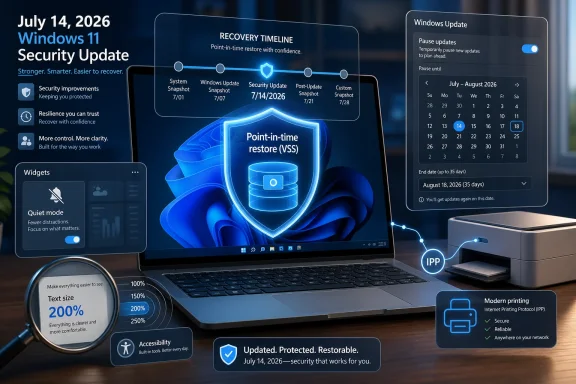
Point-in-time restore is Microsoft’s most direct acknowledgement that the servicing model needs a better escape hatch. According to Microsoft’s documentation, the feature can restore a Windows PC to a recent earlier state using restore points stored locally and captured through the Volume Shadow Copy Service. Unlike the old System Restore mental model, Microsoft is pitching this as a broader recovery mechanism that can include Windows, apps, settings, configurations, and local files.
That last point is what makes the feature consequential and potentially dangerous. A restore mechanism that rolls back the full local state is more useful when something goes wrong, but it also means users need to understand that “restore” is not the same as “magically fix only the broken bit.” If the PC returns to the state it was in yesterday, then yesterday’s state wins.
Microsoft says restore points are designed to cover the last 72 hours, with automatic capture on a default cadence of roughly once every 24 hours. For normal users, that is the sweet spot: recent enough to undo a bad update or misbehaving driver, short enough to avoid pretending that local snapshots are a full backup strategy.
The distinction matters because it reveals Microsoft’s actual constraint. This is not a one-time installer demanding a giant staging area. It is an always-on local snapshot system that needs enough breathing room to avoid turning recovery into the very thing that destabilizes a PC.
Microsoft’s configuration options show a maximum disk usage range that tops out at 50GB for restore snapshots. That does not mean every PC will immediately lose 50GB, but it does mean the company is reserving meaningful headroom for a feature whose whole purpose is to preserve a usable rollback state.
For modern desktops and premium laptops with 512GB or 1TB SSDs, the trade-off is easy to defend. For budget laptops, older tablets, school devices, and entry-level machines still living on cramped storage, it is harder. Those are often the devices most likely to need a reliable recovery path, yet they are also the devices least able to afford the storage tax.
This is where Microsoft’s consumer and enterprise priorities diverge. A home user with a 256GB SSD may experience Point-in-time restore as invisible insurance. An IT department managing thousands of endpoints will see storage consumption, VSS interactions, retention policies, BitLocker recovery workflows, and help desk scripts.
The new model is more automatic and more comprehensive. Microsoft’s Release Preview notes describe it as a way to roll back the PC, including apps, settings, and personal files, to a recent automatic restore point. That makes it feel closer to a device-level undo button than to the old registry-and-system-files safety net many Windows veterans remember.
There is still a catch. A comprehensive rollback cannot be perfectly selective. If a user downloads an important file, installs an app, changes a configuration, or edits local data after the selected restore point, the restore operation may reverse those changes. In other words, it can save a machine from a bad state by discarding the later state.
That is why this feature should be understood as a recovery layer, not a replacement for backup. OneDrive, File History, enterprise backup, endpoint management, and cloud sync still matter. Point-in-time restore is for fast local remediation, not disaster recovery after theft, drive failure, ransomware, or user error discovered weeks later.
That is still meaningful. It gives users and administrators a more practical calendar-based control instead of forcing them into vague “pause for X weeks” behavior. It also acknowledges a reality every sysadmin already knows: the right time to patch is not always the moment Windows first offers the update.
But Microsoft is not abandoning the security logic of Windows as a service. The company still wants patched systems, and it still treats monthly cumulative updates as the backbone of Windows security. The expanded pause control is a pressure valve, not a declaration of independence.
For home users, the value is obvious. A person working on a deadline, traveling, recording audio, presenting, or using specialized hardware gets a clearer way to avoid disruption. For managed environments, the value depends on policy: enterprise update rings, Windows Update for Business, Intune, WSUS, and third-party patching tools already provide richer controls than the consumer Settings app.
That is the right direction. The old Windows printer ecosystem has long been a museum of vendor utilities, aging drivers, network discovery weirdness, and install-time surprises. IPP-first setup will not make every printer painless, but it reduces the need for bespoke driver packages in the cases where standards-based printing is enough.
This also fits Microsoft’s longer-term move away from third-party printer driver dependence. The security argument is straightforward: print subsystems have historically been a rich target area, and minimizing unnecessary driver complexity reduces attack surface and support burden. The user-experience argument is just as important: printer installation should not feel like a driver archaeology project.
The best printer improvement is one most users never notice. If a network printer appears, installs cleanly, and prints without a vendor pop-up carnival, Windows has done its job.
The exact mix of accessibility features reaching broad availability can vary through Microsoft’s gradual rollout model, but the direction is consistent. Windows accessibility is becoming less like a separate toolkit and more like a set of first-class interface controls that evolve alongside the rest of the OS.
Granular zoom control is a good example because it sounds minor to users who do not need it. For someone managing vision strain, screen density, or a specific display setup, precise magnification is not a luxury. It is the difference between an accommodation that almost works and one that fits the workday.
Microsoft’s accessibility work also reveals a broader truth about Windows updates. The biggest features get the headlines, but the operating system improves through accumulation: a better announcement here, a smoother lens mode there, a display setting that finally behaves consistently across monitors.
That is a small retreat, and a welcome one. The Windows taskbar is valuable territory, and anything that behaves like it is grabbing attention has to earn that attention. Widgets often did not.
The new direction appears to be less “look at me” and more “open me when you want me.” That may not satisfy users who would rather remove Widgets entirely, but it is a more mature default. Windows should not feel like a desktop shell constantly trying to monetize peripheral vision.
The irony is that Widgets become more useful when they are less aggressive. A quiet dashboard for weather, calendar items, traffic, sports, stocks, or system-adjacent information has a place. A panel that opens because a cursor strayed too close to the taskbar feels like adware with official branding.
Bluetooth improvements are especially welcome because Windows Bluetooth remains a place where tiny inconsistencies become daily irritations. Microsoft says Windows now keeps microphone mute state in sync between the audio mixer and Bluetooth Hands-Free Profile behavior for headsets with mute buttons or indicators. That sounds narrow, but anyone who has been betrayed by a mismatched mute indicator during a meeting understands the value.
Networking fixes matter for the same reason. Microsoft’s Release Preview notes mention improved reliability in the Windows networking stack, including fewer bug checks related to Wi-Fi power and better cellular connectivity. For laptops that move between docks, VPNs, hotel Wi-Fi, mobile hotspots, and corporate networks, stability is not a feature. It is the baseline.
File Explorer improvements also continue the long, slow effort to make Windows 11’s shell feel less fragile under real workloads. Performance when handling large files, ISO mounting, cloud-backed folders, and path edge cases may not sound glamorous. But File Explorer is one of the few Windows components almost every user touches every day.
Enterprise IT will appreciate that restraint. A local restore mechanism that includes apps, settings, and files intersects with compliance, data retention, encryption, remote support, storage planning, and endpoint recovery procedures. It may also interact with other tools that rely on VSS, including backup and rollback products.
The BitLocker angle is another operational detail users should not ignore. Microsoft’s restore workflow documentation describes restoration through the Windows Recovery Environment and includes entering the BitLocker recovery key. In a well-managed environment, that is fine. In a home environment where the recovery key is buried in a Microsoft account the user cannot access during a crisis, it can become friction at precisely the wrong moment.
This does not make Point-in-time restore a bad feature. It makes it a serious feature. Serious recovery tools need planning, defaults, documentation, and user education, not just a reassuring toggle in Settings.
Point-in-time restore is Microsoft’s attempt to reduce the emotional cost of that risk. If users believe they can get back to a working state quickly, they are less likely to delay patches for weeks out of fear. That helps Microsoft, helps security teams, and helps the broader Windows ecosystem.
The danger is overpromising. A local snapshot feature cannot solve every bad update, every driver failure, every firmware problem, or every corrupted profile. It cannot replace an offline backup. It cannot protect against every scenario where a user needs files preserved exactly as they are now.
Still, a recoverable Windows is a more trustworthy Windows. That is the thesis of this update, whether Microsoft says it that bluntly or not.
 Microsoft Is Turning Patch Tuesday Into a Recovery Bet
For years, Windows Update has operated on a blunt bargain. Users get security fixes, driver updates, reliability work, and feature changes through the same machinery, and in return they accept the possibility that one cumulative update may fix ten problems while creating one new one. That bargain has generally favored security, but it has never been especially comforting to the person staring at a broken Bluetooth headset, a missing printer, or a boot loop the morning after an update.Point-in-time restore is Microsoft’s most direct acknowledgement that the servicing model needs a better escape hatch. According to Microsoft’s documentation, the feature can restore a Windows PC to a recent earlier state using restore points stored locally and captured through the Volume Shadow Copy Service. Unlike the old System Restore mental model, Microsoft is pitching this as a broader recovery mechanism that can include Windows, apps, settings, configurations, and local files.
That last point is what makes the feature consequential and potentially dangerous. A restore mechanism that rolls back the full local state is more useful when something goes wrong, but it also means users need to understand that “restore” is not the same as “magically fix only the broken bit.” If the PC returns to the state it was in yesterday, then yesterday’s state wins.
Microsoft says restore points are designed to cover the last 72 hours, with automatic capture on a default cadence of roughly once every 24 hours. For normal users, that is the sweet spot: recent enough to undo a bad update or misbehaving driver, short enough to avoid pretending that local snapshots are a full backup strategy.
The 200GB Threshold Is a Product Decision, Not Just a Storage Requirement
The widely repeated “200GB requirement” deserves careful wording. Microsoft’s documentation says devices with an OS volume size of 200GB or greater have Point-in-time restore turned on by default, while smaller devices may not get the feature enabled automatically. That is different from saying every PC must have 200GB of free space available before the feature can function.The distinction matters because it reveals Microsoft’s actual constraint. This is not a one-time installer demanding a giant staging area. It is an always-on local snapshot system that needs enough breathing room to avoid turning recovery into the very thing that destabilizes a PC.
Microsoft’s configuration options show a maximum disk usage range that tops out at 50GB for restore snapshots. That does not mean every PC will immediately lose 50GB, but it does mean the company is reserving meaningful headroom for a feature whose whole purpose is to preserve a usable rollback state.
For modern desktops and premium laptops with 512GB or 1TB SSDs, the trade-off is easy to defend. For budget laptops, older tablets, school devices, and entry-level machines still living on cramped storage, it is harder. Those are often the devices most likely to need a reliable recovery path, yet they are also the devices least able to afford the storage tax.
This is where Microsoft’s consumer and enterprise priorities diverge. A home user with a 256GB SSD may experience Point-in-time restore as invisible insurance. An IT department managing thousands of endpoints will see storage consumption, VSS interactions, retention policies, BitLocker recovery workflows, and help desk scripts.
This Is System Restore Rebuilt for the Cumulative Update Era
It is tempting to describe Point-in-time restore as “System Restore, but better.” That is broadly fair, but it undersells the shift. System Restore came from an era when Windows recovery was often a manual, control-panel-era exercise: create a restore point, install a driver, hope the rollback works if things go sideways.The new model is more automatic and more comprehensive. Microsoft’s Release Preview notes describe it as a way to roll back the PC, including apps, settings, and personal files, to a recent automatic restore point. That makes it feel closer to a device-level undo button than to the old registry-and-system-files safety net many Windows veterans remember.
There is still a catch. A comprehensive rollback cannot be perfectly selective. If a user downloads an important file, installs an app, changes a configuration, or edits local data after the selected restore point, the restore operation may reverse those changes. In other words, it can save a machine from a bad state by discarding the later state.
That is why this feature should be understood as a recovery layer, not a replacement for backup. OneDrive, File History, enterprise backup, endpoint management, and cloud sync still matter. Point-in-time restore is for fast local remediation, not disaster recovery after theft, drive failure, ransomware, or user error discovered weeks later.
The Update Pause Story Is More Limited Than the Hype
The July update also expands Windows Update pause controls, but the strongest version of the claim — that users can pause updates indefinitely — is not what Microsoft’s own release notes say. Microsoft describes a calendar experience in Windows Update settings that lets users choose an end date for pausing updates for up to 35 days. The important change is that users can extend the pause by selecting a different end date and re-pause updates as needed.That is still meaningful. It gives users and administrators a more practical calendar-based control instead of forcing them into vague “pause for X weeks” behavior. It also acknowledges a reality every sysadmin already knows: the right time to patch is not always the moment Windows first offers the update.
But Microsoft is not abandoning the security logic of Windows as a service. The company still wants patched systems, and it still treats monthly cumulative updates as the backbone of Windows security. The expanded pause control is a pressure valve, not a declaration of independence.
For home users, the value is obvious. A person working on a deadline, traveling, recording audio, presenting, or using specialized hardware gets a clearer way to avoid disruption. For managed environments, the value depends on policy: enterprise update rings, Windows Update for Business, Intune, WSUS, and third-party patching tools already provide richer controls than the consumer Settings app.
Printers Move Another Step Away From the Driver Swamp
The printer change sounds small until you remember the history of Windows printing. Starting with this update, new printer installations use Internet Printing Protocol by default when supported, according to Microsoft’s Release Preview notes. Microsoft frames this as part of a broader move toward Windows Ready Print and modernized driver selection.That is the right direction. The old Windows printer ecosystem has long been a museum of vendor utilities, aging drivers, network discovery weirdness, and install-time surprises. IPP-first setup will not make every printer painless, but it reduces the need for bespoke driver packages in the cases where standards-based printing is enough.
This also fits Microsoft’s longer-term move away from third-party printer driver dependence. The security argument is straightforward: print subsystems have historically been a rich target area, and minimizing unnecessary driver complexity reduces attack surface and support burden. The user-experience argument is just as important: printer installation should not feel like a driver archaeology project.
The best printer improvement is one most users never notice. If a network printer appears, installs cleanly, and prints without a vendor pop-up carnival, Windows has done its job.
Accessibility Improvements Show the Update Is Not Only About Failure Recovery
The July update’s accessibility changes are less dramatic than Point-in-time restore, but they may matter more day to day for the users who rely on them. Microsoft’s recent Insider notes include Magnifier improvements, including clearer screen-reader announcements, better behavior in lens mode, and more flexible zoom controls in testing.The exact mix of accessibility features reaching broad availability can vary through Microsoft’s gradual rollout model, but the direction is consistent. Windows accessibility is becoming less like a separate toolkit and more like a set of first-class interface controls that evolve alongside the rest of the OS.
Granular zoom control is a good example because it sounds minor to users who do not need it. For someone managing vision strain, screen density, or a specific display setup, precise magnification is not a luxury. It is the difference between an accommodation that almost works and one that fits the workday.
Microsoft’s accessibility work also reveals a broader truth about Windows updates. The biggest features get the headlines, but the operating system improves through accumulation: a better announcement here, a smoother lens mode there, a display setting that finally behaves consistently across monitors.
Widgets Quiet Down Because Microsoft Finally Heard the Room
Widgets have been one of Windows 11’s more confused surfaces: part glanceable dashboard, part MSN distribution channel, part weather button, part notification experiment. In the July update cycle, Microsoft says it is reducing interruptions by changing default behavior, minimizing notifications and taskbar badges, and stopping Widgets from opening on hover.That is a small retreat, and a welcome one. The Windows taskbar is valuable territory, and anything that behaves like it is grabbing attention has to earn that attention. Widgets often did not.
The new direction appears to be less “look at me” and more “open me when you want me.” That may not satisfy users who would rather remove Widgets entirely, but it is a more mature default. Windows should not feel like a desktop shell constantly trying to monetize peripheral vision.
The irony is that Widgets become more useful when they are less aggressive. A quiet dashboard for weather, calendar items, traffic, sports, stocks, or system-adjacent information has a place. A panel that opens because a cursor strayed too close to the taskbar feels like adware with official branding.
Reliability Work Is Where This Update Earns Its Keep
Beyond the marquee features, Microsoft’s notes point to networking, Bluetooth audio, File Explorer, display, search policy, WSL, and general reliability improvements. These are the changes that rarely generate excitement but often decide whether an update is remembered as “good” or “the one that broke my machine.”Bluetooth improvements are especially welcome because Windows Bluetooth remains a place where tiny inconsistencies become daily irritations. Microsoft says Windows now keeps microphone mute state in sync between the audio mixer and Bluetooth Hands-Free Profile behavior for headsets with mute buttons or indicators. That sounds narrow, but anyone who has been betrayed by a mismatched mute indicator during a meeting understands the value.
Networking fixes matter for the same reason. Microsoft’s Release Preview notes mention improved reliability in the Windows networking stack, including fewer bug checks related to Wi-Fi power and better cellular connectivity. For laptops that move between docks, VPNs, hotel Wi-Fi, mobile hotspots, and corporate networks, stability is not a feature. It is the baseline.
File Explorer improvements also continue the long, slow effort to make Windows 11’s shell feel less fragile under real workloads. Performance when handling large files, ISO mounting, cloud-backed folders, and path edge cases may not sound glamorous. But File Explorer is one of the few Windows components almost every user touches every day.
The Enterprise Default Tells You Microsoft Is Still Cautious
One of the most important details in Microsoft’s Point-in-time restore documentation is that the feature is off by default on enterprise-managed systems until Windows 11 version 26H2. That is a revealing caveat. Microsoft clearly believes in the feature, but it is not forcing the most operationally complex customers into it immediately.Enterprise IT will appreciate that restraint. A local restore mechanism that includes apps, settings, and files intersects with compliance, data retention, encryption, remote support, storage planning, and endpoint recovery procedures. It may also interact with other tools that rely on VSS, including backup and rollback products.
The BitLocker angle is another operational detail users should not ignore. Microsoft’s restore workflow documentation describes restoration through the Windows Recovery Environment and includes entering the BitLocker recovery key. In a well-managed environment, that is fine. In a home environment where the recovery key is buried in a Microsoft account the user cannot access during a crisis, it can become friction at precisely the wrong moment.
This does not make Point-in-time restore a bad feature. It makes it a serious feature. Serious recovery tools need planning, defaults, documentation, and user education, not just a reassuring toggle in Settings.
The Real Win Is Reducing Fear, Not Eliminating Risk
Windows users have learned to treat updates with a mix of resignation and suspicion. Most updates install cleanly, most machines keep working, and most complaints are not representative of the entire install base. But the downside of a broken update is so personal and immediate that trust is hard to rebuild.Point-in-time restore is Microsoft’s attempt to reduce the emotional cost of that risk. If users believe they can get back to a working state quickly, they are less likely to delay patches for weeks out of fear. That helps Microsoft, helps security teams, and helps the broader Windows ecosystem.
The danger is overpromising. A local snapshot feature cannot solve every bad update, every driver failure, every firmware problem, or every corrupted profile. It cannot replace an offline backup. It cannot protect against every scenario where a user needs files preserved exactly as they are now.
Still, a recoverable Windows is a more trustworthy Windows. That is the thesis of this update, whether Microsoft says it that bluntly or not.
July’s Windows 11 Update Rewards Users Who Prepare Before They Click
The practical lesson is not “install immediately and relax.” It is that Microsoft is giving Windows 11 users a better safety net, while also asking them to understand how that safety net behaves.- Users should check whether their OS drive is large enough for Point-in-time restore to be enabled by default.
- Users should confirm where their BitLocker recovery key is stored before they need it in Windows Recovery Environment.
- Administrators should test Point-in-time restore alongside existing VSS-based backup, rollback, and endpoint management tools.
- The new Windows Update pause experience gives users more calendar control, but Microsoft still describes the pause window as up to 35 days at a time.
- New printer installations should become cleaner on supported devices as Windows leans more heavily on IPP and Windows Ready Print.
- Point-in-time restore should be treated as fast local recovery, not as a substitute for proper backup.
References
- Primary source: iNews Zoombangla
Published: 2026-07-03T19:04:07.310381
Windows 11 July 2026 Update Arrives July 14 With Recovery and Control Features
Windows 11 July 14 update adds Point-in-Time Restore for rollback, indefinite update pause, printer improvements, and Magnifier upgrades.inews.zoombangla.com - Official source: learn.microsoft.com
Point-in-time restore for Windows | Microsoft Learn
documentation for point-in-time restore featurelearn.microsoft.com - Related coverage: windowscentral.com
Windows 11’s huge July 14 update is loaded with new features — these are the 13 that matter most | Windows Central
Windows 11's July 2026 update is bigger than expected, bringing a new recovery feature, long-requested update controls, and many improvements.www.windowscentral.com - Related coverage: windowslatest.com
Microsoft warns Windows 11 recovery feature uses up to 50GB of storage, but for a good cause
Windows 11 Point-in-time restore can use up to 50GB of storage, but the space isn't pre-reserved. Here's how it works and why it's worth it. www.windowslatest.com
- Related coverage: notebookcheck.net
Windows 11 KB5095093 Preview adds Point-in-time restore - Notebookcheck News
Microsoft launches Windows 11 optional preview update KB5095093 for versions 24H2 and 25H2, introducing Point-in-time restore and a Recycle Bin display patch. www.notebookcheck.net
- Official source: intowindows.com
How To Turn On Point In Time Restore In Windows 11
You are probably aware of, and have even used, the System Restore feature in Windows, which allows you to restore the system to a previous date withoutwww.intowindows.com
