

Use Winhance v26.06.12 now if you need repeatable Windows 10 x64 or Windows 11 configurations, because the June 12, 2026 release adds Builder Mode, autounattend.xml generation, and ChangeHistory.txt logging. Wait only if your current scripts already provide audited, tested deployment output. The practical verdict is straightforward: Winhance has moved beyond the familiar “debloat my PC” pitch and into the more serious territory of a setup builder.
The action plan should come first: open Winhance, switch to Builder Mode, choose the configuration you want, export a Winhance config or autounattend.xml, review the exported file, test it in a virtual machine or spare PC, and only then reuse it on a daily driver or deployment target. Do not treat the generated autounattend.xml as a casual convenience file. Treat it like deployment material: readable, testable, versionable, and risky if you skip validation.
That is the new question around Winhance. It is no longer just whether the tool can remove unwanted apps, centralize common tweaks, or make Windows feel cleaner. WindowsForum readers have already discussed Winhance as a C# rewrite of an earlier PowerShell-based graphical utility, as a free Windows 11 optimization tool, as a personalization and debloating dashboard, and as a way to bring scattered Windows settings into one place. With v26.06.12, the more important question is whether you trust its new workflow enough to sit beside—or in some cases partially replace—your existing PowerShell, Group Policy, provisioning, answer-file, and imaging habits.
For years, the Windows “debloat” category has been crowded with utilities that promise speed, privacy, cleanliness, or relief from the default Windows app loadout. Most of them live in a risky middle ground: too convenient to ignore, too opaque to fully trust. Winhance v26.06.12 does not magically solve that trust problem, but it changes the shape of it.
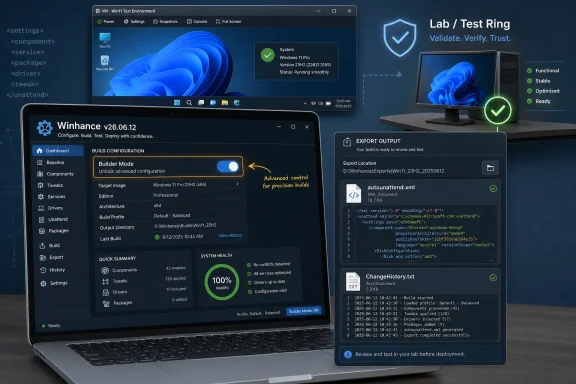
The important addition is Builder Mode. Instead of using Winhance only as a live tool that applies changes to the current PC, you can now use it to prepare a configuration for another deployment target. In plain English: you can sit at one machine, choose the Windows settings and app removals you want, and save the result as either a Winhance configuration file or an autounattend.xml for use elsewhere.
That matters because the safest Windows customization workflow is rarely “click around on the production machine until it looks right.” The safer model is to define the desired state, test it, record it, and repeat it. Winhance is now trying to participate in that model rather than merely dressing up the old one-click cleanup pattern.
WindowsForum’s earlier coverage helps explain why this release lands differently. In one user-facing report, Winhance was framed as a utility that had evolved from a PowerShell-based graphical interface into a more efficient C# application for enhancing and customizing Windows 10 and Windows 11. Another WindowsForum write-up presented it as a tool for users frustrated by unnecessary apps and features dragging down the Windows experience. A later Winhance 5 review described the power-user dilemma more directly: how to optimize, debloat, and personalize Windows without spending hours in native menus or gambling on brittle scripts.
Those reports were about convenience, consolidation, and cleanup. This release is about repeatability. That is a more demanding claim.
If you are an administrator, the answer is more conditional. Winhance now deserves evaluation in a lab because it can produce deployment artifacts instead of only performing local changes. But it should not replace established script stacks, endpoint management baselines, or imaging workflows until you have compared its output against your existing standards and verified that the generated configuration behaves consistently across your Windows versions.
The key split is between configuration design and configuration enforcement. Builder Mode improves the design phase: selecting settings without altering the current PC is a meaningful step forward. Enforcement still belongs in your test ring first, then your pilot group, then your broader fleet.
That distinction is where many tweak tools fail the enterprise smell test. They make a desired state easy to choose but hard to audit. Winhance’s new ChangeHistory.txt helps close part of that gap, though it does not by itself make the tool a full configuration management platform.
The supported workflow is simple: use Builder Mode to select the Winhance configuration you want, then save the result as either a Winhance configuration file or an autounattend.xml. The important part is that Builder Mode is designed for assembling the configuration without modifying the PC being used to create it. That is a meaningful difference for anyone who has ever kept a “clean admin workstation” specifically to avoid contaminating the machine used to prepare deployment material.
The autounattend.xml angle is particularly significant because answer files are a long-standing Windows deployment mechanism. Winhance is not inventing unattended setup. It is wrapping a more approachable configuration experience around an existing Windows installation pattern. That makes the tool more accessible to enthusiasts while giving admins something familiar enough to evaluate.
There is also a psychological shift here. When a utility asks to change the current machine, the user thinks like a tinkerer. When it asks to build a reusable file, the user starts thinking like an operator. That is the difference between “my Windows install feels cleaner” and “I can reproduce this Windows install next month.”
WindowsForum’s previous Winhance coverage already showed why that matters. The site’s reviews repeatedly returned to the same pain point: Windows users want control, but they do not want to spend an afternoon digging through Settings, uninstalling apps one by one, and trying to remember which privacy, notification, personalization, and service choices they made on the last install. Builder Mode gives that audience a more structured path.
That does not mean every change is automatically safe. A log is not a rollback guarantee, a compatibility test, or a vendor support contract. But it gives users and admins something they often lack after running cleanup tools: a record of what happened.
For enthusiasts, that can be the difference between “something broke after I optimized Windows” and “this specific setting changed before the issue appeared.” For IT pros, it provides a starting point for review, documentation, and internal change tracking. It is not a substitute for formal endpoint management logs, but it is better than a black box.
The ChangeHistory.txt feature also hints at a more mature development direction. Tools that expect to be used once on a personal PC often do not bother with receipts. Tools that expect to be used repeatedly across machines eventually need them.
WindowsForum’s earlier Winhance coverage made clear that users are not just chasing raw “debloat” for its own sake. They want a less chaotic Windows experience. One report focused on centralizing Windows notifications and debloating in one tool, describing the daily frustration of notifications that distract rather than help. Another review framed Winhance as an answer to bloated suites and one-trick utilities that fail to match real-world needs. A log file does not fix notifications or remove apps by itself, but it supports the same larger goal: making Windows changes understandable instead of mysterious.
A Winhance-generated autounattend.xml should be treated like deployment code. It should be versioned, reviewed, tested, and tied to a known Windows installation target. If you would not deploy a random PowerShell script across a fleet without reading and testing it, you should not deploy an answer file casually either.
For home users, the practical workflow is simple: build the configuration, generate the file, test the install path on non-critical hardware or a virtual machine, and keep a copy of the config that produced it. For admins, the workflow is stricter: compare the generated output against your current build documentation, confirm which changes overlap with policy, and decide whether Winhance is authoritative or merely a generator.
This is where Winhance could be genuinely useful even for shops that do not want it installed everywhere. You might use it as a design tool, a way to quickly assemble and export a repeatable baseline, while still enforcing the final state through your established management process. That is not a demotion; it may be the most realistic enterprise role for a tool in this category.
But open source is not the same thing as harmless. A transparent sharp tool is still a sharp tool. Registry changes, app removals, service changes, and installation-time automation can all create support issues if used without a test process.
The stronger argument for Winhance is not “it is open source, so trust it.” The stronger argument is “it is open enough, and now structured enough, to be evaluated like an internal tool.” That is a more serious claim, and v26.06.12 makes it more credible.
For WindowsForum readers, this distinction is crucial. The enthusiast instinct is to chase the newest tool; the admin instinct is to distrust everything until it survives the lab. Winhance’s latest release is interesting because it now speaks to both instincts, but it still needs to earn promotion from convenience utility to standard workflow.
A mature script stack usually has known behavior. It may be ugly, old, and full of comments written by people who left the company, but it has been tested by repetition. It also fits into surrounding systems: documentation, source control, help desk runbooks, device provisioning, endpoint security, and rollback habits.
Winhance’s advantage is usability. It lowers the friction of building a Windows baseline and makes the result more repeatable than manual tweaking. Its disadvantage is that admins must still understand exactly where it overlaps with policy, imaging, provisioning packages, WinGet usage, or whatever other system already owns Windows setup.
That makes Winhance v26.06.12 a candidate for consolidation, not immediate replacement. If your “script stack” is really a folder of half-remembered commands, old debloat scripts, and manual post-install checklists, Winhance may already be cleaner. If your stack is tested, versioned, and integrated, Winhance should first become an input to that system rather than its successor.
Builder Mode fits that life well. It lets the user define a preferred Windows shape once, then reuse it. That is a major improvement over the old routine of reinstalling Windows, hunting through Settings, removing apps, applying privacy choices, changing defaults, and trying to remember what was done last time.
ChangeHistory.txt also gives enthusiasts a safer way to learn. If a change causes an unwanted side effect, the log offers a clue trail. The tool still demands judgment, but it no longer leaves the user entirely dependent on memory.
The caveat is that “debloat” remains a loaded word. Removing unwanted apps is one thing; stripping Windows in ways that break expected features is another. Winhance may make the workflow cleaner, but users still need to resist the urge to treat every default component as hostile.
This is where WindowsForum’s prior reports are useful context. The site has covered Winhance as an “ultimate debloating” style tool, as a Windows optimization and personalization utility, and as a way to centralize distracting Windows notification controls. Those themes reflect real user demand. People want a less noisy, less cluttered, more personal Windows environment. The new release does not abandon that audience; it gives that audience a better way to repeat the choices that worked.
That approach avoids two common mistakes. The first is dismissing Winhance because it comes from the tweak-tool world. The second is overcorrecting and letting a convenience UI become your undocumented deployment standard.
The release’s strongest enterprise-friendly idea is that it separates selection from application. Builder Mode means an admin can explore and assemble without mutating the workstation in front of them. That is exactly the kind of safety boundary that makes a tool easier to bring into a test process.
But admins should watch the project’s next few releases closely. The meaningful questions are not cosmetic. Does config generation remain stable? Does the tool document changes clearly enough? Does the generated output behave predictably across Windows 10 x64 and Windows 11? Does the tool stay understandable as more options are added?
Those questions matter because Windows deployment is rarely just about one device. It is about repeatability under pressure: the new-hire laptop that has to be ready by Monday, the lab machine that needs to be rebuilt after testing, the family PC that you promised to “clean up,” or the small business fleet where one undocumented tweak can become five support tickets.
That is a tougher field. Scripted workflows can be peer-reviewed, stored in source control, diffed line by line, and run through automation. Winhance’s value is that it gives users a more approachable front end for choosing a desired Windows state, but it must coexist with the discipline those older methods enforce.
This is why the new logging feature matters. Winhance cannot credibly move upmarket if users cannot tell what it did. ChangeHistory.txt is not glamorous, but it is the kind of plumbing that makes the builder story believable.
It also explains why the next wave of Windows tweak tools will likely follow this direction. The old pitch was “make Windows faster.” The better pitch is “make Windows repeatable.” Winhance is early to that framing, and that is why this release deserves attention.
For a personal workflow, “disposable” might mean a spare laptop, a virtual machine, or a fresh install you are willing to redo. For an IT workflow, it means a lab device that resembles your real hardware and Windows version closely enough to reveal problems. The goal is not to prove that Winhance launches; the goal is to prove that the resulting Windows state is acceptable.
After the test, read ChangeHistory.txt. That file is now part of the workflow, not an afterthought. If the log contains changes you cannot explain, the configuration is not ready for reuse.
Only after that should Winhance touch a daily-use system. That may sound conservative for an enthusiast tool, but v26.06.12’s own strengths justify the caution. Once a tool can generate deployment artifacts, it deserves deployment discipline.
Builder Mode makes configuration safer to design. autounattend.xml export makes the result more useful before Windows is fully installed. ChangeHistory.txt makes the tool more accountable after changes happen. Together, those additions make Winhance much more than another utility in a crowded field.
The right move is not blind adoption and not reflexive waiting. Enthusiasts should start using it carefully now, especially for repeatable rebuilds. Admins should put it in the lab and judge it against their scripts, not against lesser tweak tools. If the next Windows customization wave is about reproducible setup rather than one-click cleanup, Winhance has already made the first serious move.
The action plan should come first: open Winhance, switch to Builder Mode, choose the configuration you want, export a Winhance config or autounattend.xml, review the exported file, test it in a virtual machine or spare PC, and only then reuse it on a daily driver or deployment target. Do not treat the generated autounattend.xml as a casual convenience file. Treat it like deployment material: readable, testable, versionable, and risky if you skip validation.
That is the new question around Winhance. It is no longer just whether the tool can remove unwanted apps, centralize common tweaks, or make Windows feel cleaner. WindowsForum readers have already discussed Winhance as a C# rewrite of an earlier PowerShell-based graphical utility, as a free Windows 11 optimization tool, as a personalization and debloating dashboard, and as a way to bring scattered Windows settings into one place. With v26.06.12, the more important question is whether you trust its new workflow enough to sit beside—or in some cases partially replace—your existing PowerShell, Group Policy, provisioning, answer-file, and imaging habits.
 Winhance Has Crossed From Tweak Tool Into Build System
For years, the Windows “debloat” category has been crowded with utilities that promise speed, privacy, cleanliness, or relief from the default Windows app loadout. Most of them live in a risky middle ground: too convenient to ignore, too opaque to fully trust. Winhance v26.06.12 does not magically solve that trust problem, but it changes the shape of it.The important addition is Builder Mode. Instead of using Winhance only as a live tool that applies changes to the current PC, you can now use it to prepare a configuration for another deployment target. In plain English: you can sit at one machine, choose the Windows settings and app removals you want, and save the result as either a Winhance configuration file or an autounattend.xml for use elsewhere.
That matters because the safest Windows customization workflow is rarely “click around on the production machine until it looks right.” The safer model is to define the desired state, test it, record it, and repeat it. Winhance is now trying to participate in that model rather than merely dressing up the old one-click cleanup pattern.
WindowsForum’s earlier coverage helps explain why this release lands differently. In one user-facing report, Winhance was framed as a utility that had evolved from a PowerShell-based graphical interface into a more efficient C# application for enhancing and customizing Windows 10 and Windows 11. Another WindowsForum write-up presented it as a tool for users frustrated by unnecessary apps and features dragging down the Windows experience. A later Winhance 5 review described the power-user dilemma more directly: how to optimize, debloat, and personalize Windows without spending hours in native menus or gambling on brittle scripts.
Those reports were about convenience, consolidation, and cleanup. This release is about repeatability. That is a more demanding claim.
The Immediate Answer Is Use It Carefully, Not Blindly
If you are an enthusiast rebuilding your own systems, Winhance v26.06.12 is worth using now—especially in Builder Mode. The safest first use is not to point it at your daily driver and apply every attractive toggle. The safer first use is to build a config, inspect what it represents, and test it on a spare machine or virtual machine.If you are an administrator, the answer is more conditional. Winhance now deserves evaluation in a lab because it can produce deployment artifacts instead of only performing local changes. But it should not replace established script stacks, endpoint management baselines, or imaging workflows until you have compared its output against your existing standards and verified that the generated configuration behaves consistently across your Windows versions.
The key split is between configuration design and configuration enforcement. Builder Mode improves the design phase: selecting settings without altering the current PC is a meaningful step forward. Enforcement still belongs in your test ring first, then your pilot group, then your broader fleet.
That distinction is where many tweak tools fail the enterprise smell test. They make a desired state easy to choose but hard to audit. Winhance’s new ChangeHistory.txt helps close part of that gap, though it does not by itself make the tool a full configuration management platform.
Builder Mode Is the Release’s Real Story
Builder Mode is the feature that changes Winhance’s audience. A debloater is useful after Windows is installed. A builder is useful before the installation becomes policy, habit, or image.The supported workflow is simple: use Builder Mode to select the Winhance configuration you want, then save the result as either a Winhance configuration file or an autounattend.xml. The important part is that Builder Mode is designed for assembling the configuration without modifying the PC being used to create it. That is a meaningful difference for anyone who has ever kept a “clean admin workstation” specifically to avoid contaminating the machine used to prepare deployment material.
The autounattend.xml angle is particularly significant because answer files are a long-standing Windows deployment mechanism. Winhance is not inventing unattended setup. It is wrapping a more approachable configuration experience around an existing Windows installation pattern. That makes the tool more accessible to enthusiasts while giving admins something familiar enough to evaluate.
There is also a psychological shift here. When a utility asks to change the current machine, the user thinks like a tinkerer. When it asks to build a reusable file, the user starts thinking like an operator. That is the difference between “my Windows install feels cleaner” and “I can reproduce this Windows install next month.”
WindowsForum’s previous Winhance coverage already showed why that matters. The site’s reviews repeatedly returned to the same pain point: Windows users want control, but they do not want to spend an afternoon digging through Settings, uninstalling apps one by one, and trying to remember which privacy, notification, personalization, and service choices they made on the last install. Builder Mode gives that audience a more structured path.
A Practical Mini Workflow: Build, Export, Validate, Then Deploy
Here is the cautious workflow readers should use before trusting Winhance output on anything important.- Open Winhance and choose Builder Mode.
Start by launching Winhance on a system you do not intend to modify. The point of Builder Mode is to assemble a configuration rather than immediately apply changes to the local machine. - Select the Windows options you actually want.
Work through the app removals, customization options, optimization choices, and Windows behavior settings deliberately. Avoid the “select everything” instinct. If you cannot explain why a setting belongs in your baseline, leave it out for the first pass. - Export the configuration.
Save the result as a Winhance configuration file if you want to reuse it inside Winhance. Export an autounattend.xml if your goal is to use the configuration during Windows setup. - Open the exported file before deployment.
Do not assume the export is correct because the UI looked right. Open the Winhance config or autounattend.xml in a text editor. Confirm that the file exists where you saved it, that it is not empty, and that the selections match what you intended. - Check the autounattend.xml structure.
If you exported autounattend.xml, verify that it is valid XML. At minimum, open it in a capable editor that highlights XML syntax problems. Confirm that the file is named exactlyautounattend.xmlwhen you intend to use it for unattended setup, and keep a copy with a versioned name elsewhere for your records. - Test on a virtual machine or spare PC.
Use a disposable Windows install target first. For home users, that can be a VM or spare laptop. For IT teams, it should be a lab machine that resembles the real hardware and Windows version you expect to deploy. - Review the result after setup.
Confirm that Windows installs correctly, expected apps and features are present or absent, required settings behave as intended, Windows Update still works, and any business-critical or personal must-have functions are intact. - Read ChangeHistory.txt after testing.
Treat the log as part of the review process. If it records changes you did not expect, your configuration needs another pass before it is reused. - Only then move to a real device or pilot group.
A config that works once in a VM is not automatically a fleet standard. For personal use, test before using it on your main PC. For administrators, move from lab to pilot to production.
ChangeHistory.txt Gives Winhance a Receipt, Not a Warranty
The addition of ChangeHistory.txt is easy to underrate because logging is not glamorous. But for Windows customization tools, logging is one of the dividing lines between a casual utility and an operational tool. Winhance v26.06.12 records setting changes and app install or removal activity, giving users a clearer trail than memory alone.That does not mean every change is automatically safe. A log is not a rollback guarantee, a compatibility test, or a vendor support contract. But it gives users and admins something they often lack after running cleanup tools: a record of what happened.
For enthusiasts, that can be the difference between “something broke after I optimized Windows” and “this specific setting changed before the issue appeared.” For IT pros, it provides a starting point for review, documentation, and internal change tracking. It is not a substitute for formal endpoint management logs, but it is better than a black box.
The ChangeHistory.txt feature also hints at a more mature development direction. Tools that expect to be used once on a personal PC often do not bother with receipts. Tools that expect to be used repeatedly across machines eventually need them.
WindowsForum’s earlier Winhance coverage made clear that users are not just chasing raw “debloat” for its own sake. They want a less chaotic Windows experience. One report focused on centralizing Windows notifications and debloating in one tool, describing the daily frustration of notifications that distract rather than help. Another review framed Winhance as an answer to bloated suites and one-trick utilities that fail to match real-world needs. A log file does not fix notifications or remove apps by itself, but it supports the same larger goal: making Windows changes understandable instead of mysterious.
The autounattend.xml Export Is Powerful Enough To Deserve Respect
The ability to generate autounattend.xml is where Winhance moves closest to deployment territory. An answer file can shape Windows setup in ways that are more foundational than a post-install cleanup pass. That power is useful, but it raises the stakes.A Winhance-generated autounattend.xml should be treated like deployment code. It should be versioned, reviewed, tested, and tied to a known Windows installation target. If you would not deploy a random PowerShell script across a fleet without reading and testing it, you should not deploy an answer file casually either.
For home users, the practical workflow is simple: build the configuration, generate the file, test the install path on non-critical hardware or a virtual machine, and keep a copy of the config that produced it. For admins, the workflow is stricter: compare the generated output against your current build documentation, confirm which changes overlap with policy, and decide whether Winhance is authoritative or merely a generator.
This is where Winhance could be genuinely useful even for shops that do not want it installed everywhere. You might use it as a design tool, a way to quickly assemble and export a repeatable baseline, while still enforcing the final state through your established management process. That is not a demotion; it may be the most realistic enterprise role for a tool in this category.
The Open-Source Angle Helps, But It Does Not Remove the Need for Testing
Winhance is open source and described by the project as a C# application for debloating, optimizing, and customizing Windows 10 and Windows 11. That openness matters. It gives technical users a path to inspect behavior, track changes, and understand the tool’s direction in a way that closed Windows “optimizer” suites often do not.But open source is not the same thing as harmless. A transparent sharp tool is still a sharp tool. Registry changes, app removals, service changes, and installation-time automation can all create support issues if used without a test process.
The stronger argument for Winhance is not “it is open source, so trust it.” The stronger argument is “it is open enough, and now structured enough, to be evaluated like an internal tool.” That is a more serious claim, and v26.06.12 makes it more credible.
For WindowsForum readers, this distinction is crucial. The enthusiast instinct is to chase the newest tool; the admin instinct is to distrust everything until it survives the lab. Winhance’s latest release is interesting because it now speaks to both instincts, but it still needs to earn promotion from convenience utility to standard workflow.
The Script Stack Is Still the Benchmark
The user’s real question is whether Winhance’s new config-building workflow is mature enough to replace an existing script stack. For most serious users, the answer today is: not wholesale. It may replace parts of the stack, especially the interactive selection and export process, but your current scripts probably still win on reviewability, integration, and institutional memory.A mature script stack usually has known behavior. It may be ugly, old, and full of comments written by people who left the company, but it has been tested by repetition. It also fits into surrounding systems: documentation, source control, help desk runbooks, device provisioning, endpoint security, and rollback habits.
Winhance’s advantage is usability. It lowers the friction of building a Windows baseline and makes the result more repeatable than manual tweaking. Its disadvantage is that admins must still understand exactly where it overlaps with policy, imaging, provisioning packages, WinGet usage, or whatever other system already owns Windows setup.
That makes Winhance v26.06.12 a candidate for consolidation, not immediate replacement. If your “script stack” is really a folder of half-remembered commands, old debloat scripts, and manual post-install checklists, Winhance may already be cleaner. If your stack is tested, versioned, and integrated, Winhance should first become an input to that system rather than its successor.
Enthusiasts Get a Cleaner Path to Repeatable PCs
For power users, the release is easier to recommend. The average Windows enthusiast is not maintaining a formal deployment pipeline. They are reinstalling Windows after hardware upgrades, helping family members clean up machines, or trying to keep several PCs consistent without turning setup into a weekend-long ritual.Builder Mode fits that life well. It lets the user define a preferred Windows shape once, then reuse it. That is a major improvement over the old routine of reinstalling Windows, hunting through Settings, removing apps, applying privacy choices, changing defaults, and trying to remember what was done last time.
ChangeHistory.txt also gives enthusiasts a safer way to learn. If a change causes an unwanted side effect, the log offers a clue trail. The tool still demands judgment, but it no longer leaves the user entirely dependent on memory.
The caveat is that “debloat” remains a loaded word. Removing unwanted apps is one thing; stripping Windows in ways that break expected features is another. Winhance may make the workflow cleaner, but users still need to resist the urge to treat every default component as hostile.
This is where WindowsForum’s prior reports are useful context. The site has covered Winhance as an “ultimate debloating” style tool, as a Windows optimization and personalization utility, and as a way to centralize distracting Windows notification controls. Those themes reflect real user demand. People want a less noisy, less cluttered, more personal Windows environment. The new release does not abandon that audience; it gives that audience a better way to repeat the choices that worked.
Admins Should Evaluate Winhance as a Generator Before Trusting It as a Standard
For sysadmins, the best near-term role for Winhance is as a builder and recorder, not necessarily as the final authority. Use it to generate a baseline candidate. Use ChangeHistory.txt to understand what changes occur. Then decide whether those choices belong in Winhance configs, answer files, scripts, policy, or endpoint management.That approach avoids two common mistakes. The first is dismissing Winhance because it comes from the tweak-tool world. The second is overcorrecting and letting a convenience UI become your undocumented deployment standard.
The release’s strongest enterprise-friendly idea is that it separates selection from application. Builder Mode means an admin can explore and assemble without mutating the workstation in front of them. That is exactly the kind of safety boundary that makes a tool easier to bring into a test process.
But admins should watch the project’s next few releases closely. The meaningful questions are not cosmetic. Does config generation remain stable? Does the tool document changes clearly enough? Does the generated output behave predictably across Windows 10 x64 and Windows 11? Does the tool stay understandable as more options are added?
Those questions matter because Windows deployment is rarely just about one device. It is about repeatability under pressure: the new-hire laptop that has to be ready by Monday, the lab machine that needs to be rebuilt after testing, the family PC that you promised to “clean up,” or the small business fleet where one undocumented tweak can become five support tickets.
The Real Competition Is Not Other Debloaters
Winhance is often discussed alongside other Windows optimization utilities, but v26.06.12 changes the competitive set. The more relevant comparison is now against hand-written PowerShell, Windows answer files, provisioning packages, imaging tools, WinGet-based app setup, and endpoint management baselines.That is a tougher field. Scripted workflows can be peer-reviewed, stored in source control, diffed line by line, and run through automation. Winhance’s value is that it gives users a more approachable front end for choosing a desired Windows state, but it must coexist with the discipline those older methods enforce.
This is why the new logging feature matters. Winhance cannot credibly move upmarket if users cannot tell what it did. ChangeHistory.txt is not glamorous, but it is the kind of plumbing that makes the builder story believable.
It also explains why the next wave of Windows tweak tools will likely follow this direction. The old pitch was “make Windows faster.” The better pitch is “make Windows repeatable.” Winhance is early to that framing, and that is why this release deserves attention.
This Is the Point Where You Build a Test Ring
The best way to use Winhance v26.06.12 is to treat it like a deployment candidate rather than a magic cleanup button. Start by downloading the current release from the project’s official channel, confirm you are working with v26.06.12, and use Builder Mode instead of applying changes directly to your main PC. Build the configuration you want, export it as a Winhance config or autounattend.xml, and then test the result somewhere disposable.For a personal workflow, “disposable” might mean a spare laptop, a virtual machine, or a fresh install you are willing to redo. For an IT workflow, it means a lab device that resembles your real hardware and Windows version closely enough to reveal problems. The goal is not to prove that Winhance launches; the goal is to prove that the resulting Windows state is acceptable.
After the test, read ChangeHistory.txt. That file is now part of the workflow, not an afterthought. If the log contains changes you cannot explain, the configuration is not ready for reuse.
Only after that should Winhance touch a daily-use system. That may sound conservative for an enthusiast tool, but v26.06.12’s own strengths justify the caution. Once a tool can generate deployment artifacts, it deserves deployment discipline.
The June 2026 Release Rewards Cautious Early Adopters
The practical guidance is narrower than the hype and more positive than the skeptics might expect.- Use Winhance v26.06.12 now if you want to create repeatable Windows 10 x64 or Windows 11 setups without manually changing the machine used to design them.
- Start in Builder Mode, because its biggest safety benefit is creating a Winhance config or autounattend.xml without modifying the current PC.
- Review the exported Winhance config or autounattend.xml before using it anywhere important.
- Treat autounattend.xml output as deployment material that should be tested before it is trusted on important systems.
- Use ChangeHistory.txt as part of your audit trail after applying changes, installing apps, removing apps, or testing a configuration.
- Do not replace a mature, tested script stack immediately; evaluate Winhance first as a generator, recorder, and possible simplification layer.
- Watch the next releases for stability in config generation, logging clarity, and deployment consistency before standardizing on it broadly.
Frequently Asked Questions
Should I use Winhance v26.06.12 on my main PC immediately?
Not as your first move. Use Builder Mode first, export a config or autounattend.xml, review the result, and test it on a virtual machine or spare PC. Once you know the configuration behaves the way you expect, then consider using it on your main system.What is the biggest change in Winhance v26.06.12?
Builder Mode is the biggest change because it lets you assemble a reusable configuration without directly changing the PC you are sitting at. The autounattend.xml export and ChangeHistory.txt logging make that workflow more useful for repeatable installs and review.Is Winhance now a replacement for PowerShell scripts?
For most serious users, no—not immediately. It may replace some manual selection work or help generate a baseline, but mature PowerShell scripts still have advantages in source control, review, automation, and institutional knowledge. Winhance is best evaluated first as a generator and documentation aid.Is autounattend.xml safe to use?
It can be useful, but it should not be treated casually. An autounattend.xml file can influence Windows setup, so review it, confirm it is valid XML, test it in a VM or lab device, and keep a known-good copy before relying on it.What should I check after exporting autounattend.xml?
Confirm that the file is present, named correctly, readable, and structurally valid XML. Then test it with the Windows version you actually plan to install. After installation, confirm that apps, settings, updates, and expected Windows features behave correctly.What does ChangeHistory.txt do for me?
It gives you a record of Winhance-related changes, including setting changes and app install or removal activity. It is not a rollback system or a guarantee that every change is safe, but it gives you a useful trail when reviewing or troubleshooting.Is Winhance only for debloating?
No. WindowsForum’s earlier coverage often discussed Winhance through the lens of debloating, customization, notifications, and personalization, but v26.06.12 makes the repeatable setup angle much more important. The tool is still useful for cleanup-minded users, but Builder Mode pushes it toward configuration building.Should administrators standardize on Winhance now?
Administrators should test it, not standardize on it blindly. Put it in a lab, compare its output with existing scripts and policies, and decide whether it belongs in your deployment process. For now, its strongest role is likely as a configuration builder and review aid.Winhance Is Becoming the Tool Its Category Always Needed
The Windows tweak-tool market has always had a credibility problem. Too many utilities promised speed and control while hiding the operational cost: undocumented changes, hard-to-reproduce setups, and no clean way to answer the inevitable question of what changed. Winhance v26.06.12 does not erase that history, but it points in the right direction.Builder Mode makes configuration safer to design. autounattend.xml export makes the result more useful before Windows is fully installed. ChangeHistory.txt makes the tool more accountable after changes happen. Together, those additions make Winhance much more than another utility in a crowded field.
The right move is not blind adoption and not reflexive waiting. Enthusiasts should start using it carefully now, especially for repeatable rebuilds. Admins should put it in the lab and judge it against their scripts, not against lesser tweak tools. If the next Windows customization wave is about reproducible setup rather than one-click cleanup, Winhance has already made the first serious move.
References
- Primary source: winhance.net
Winhance - Windows Enhancement Utility
Winhance is an easy-to-use tool designed to help you debloat, optimize, and customize your Windows 10 or 11 system. Enhance your Windows experience by effortlessly removing unwanted features, improving performance and allowing customization.winhance.net
- Independent coverage: github.com
GitHub - memstechtips/Winhance: Application designed to optimize, customize and enhance your Windows experience. · GitHub
Application designed to optimize, customize and enhance your Windows experience. - memstechtips/Winhance github.com
- Independent coverage: windowscentral.com
Winhance debloater update brings WinUI 3 to match Windows 11 | Windows Central
Updates to Winhance for Windows PCs migrate the app to the WinUI 3 framework to blend with Windows 11's menu styling, offering batch bloatware removal and more.www.windowscentral.com - Independent coverage: mefcl.com
- Independent coverage: newreleases.io
memstechtips/Winhance v25.04.27 on GitHub
New release memstechtips/Winhance version v25.04.27 Winhance Release #4 - v25.04.27 on GitHub. newreleases.io
- Independent coverage: memstechtips.com
Winhance: Free Windows 10/11 Enhancement Utility (Open Source)
Winhance is a free, open-source Windows enhancement utility that debloats, optimizes, and customizes Windows 10 and 11. Remove Edge, disable telemetry, create custom ISOs.memstechtips.com
- Independent coverage: winhance.com.cn
WinHance下载 - 开源免费的 Windows 系统优化与 AI 隐私控制工具丨winhance汉化版
WinHance 是一款免费、开源的 Windows 10/11 系统优化工具。集软件管理、系统优化、界面定制、AI 隐私控制于一体,让 Windows 焕然一新。www.winhance.com.cn - Independent coverage: sourceforge.net
Winhance
Download Winhance for free. Application designed to optimize and enhance your Windows experience. Winhance is a Windows enhancement utility designed to debloat, optimize, and customize Windows 10 and 11 systems. Built as a C# application, it provides a user-friendly interface that allows users...sourceforge.net - Independent coverage: lucasgraphic.com
Winhance: Smarter Debloat and Tuning for Windows 10 and 11 | LucasGraphic
Winhance is a free Windows tool that debloats, optimizes and customizes your system with clear toggles and integrated app installation.lucasgraphic.com
- Independent coverage: vladan.fr
Winhance: The Free Windows 11 Enhancement Utility That Actually Delivers Control Back to Users - ESX Virtualization
If you have been running Windows 11 for any length of time, you already know the story. The OS arrives packed with telemetry, pre-installed apps you willwww.vladan.fr
