

Paul Thurrott’s “task-view” attachment page, published July 8, 2026 as part of the Windows 11 Field Guide’s multitasking material, puts a small but revealing Windows control back in view: Task View, the interface that exposes open windows and virtual desktops. That may sound too slight to merit attention, especially for a page that registered no visible social traction at publication. But Task View is one of those Windows features whose importance is inversely proportional to its marketing weight: Microsoft rarely sells Windows on it, yet power users and IT departments quietly depend on it every day. The story here is not that a screenshot exists; it is that Windows 11’s productivity model still depends on a feature many users either ignore, disable, or misunderstand.
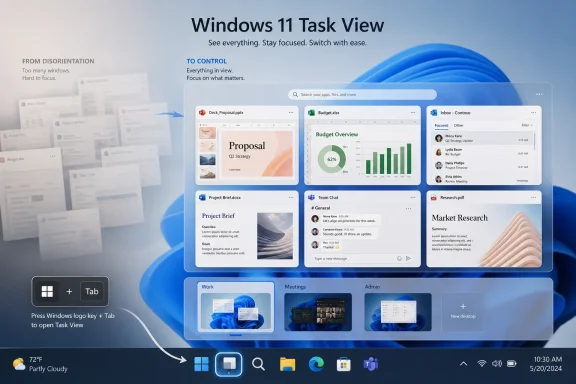
Task View has always lived in an awkward middle ground. It is not as instantly legible as the taskbar, not as flashy as Snap layouts, and not as deeply ingrained as Alt+Tab. Yet it is the one interface in Windows 11 that tries to answer a broader question: what am I doing right now, and where does it belong?
Microsoft’s own support material describes Task View as part of Windows’ multitasking system, alongside multiple desktops, keyboard shortcuts, snapping, and Alt+Tab behavior. That framing matters. Task View is not merely a button on the taskbar; it is the visual index of a working session, a place where open windows stop being scattered rectangles and start becoming a navigable map.
Thurrott’s source page is tiny, almost comically so: a title, a byline, a publication date, and the surrounding scaffolding of a larger Windows 11 Field Guide. But the context gives it weight. The page sits under multitasking, not personalization or “getting started,” which is where casual Windows features usually go to be forgotten. Task View belongs in the chapter about how Windows users actually get work done.
The deeper point is that Windows 11’s interface has spent years trying to reconcile two different models of computing. One is the old Windows model: taskbar, windows, desktop, icons, and an assumption that the user knows where everything is. The other is the modern workspace model: apps grouped by activity, context preserved across sessions, and visual affordances that make a crowded machine feel less chaotic. Task View is where those models meet.
Microsoft’s support guidance points users to the Task View icon or the Windows key plus Tab shortcut to see open windows and manage desktops. It also explains that users can close desktops from the Task View interface and configure whether Alt+Tab shows windows from every desktop or only the current one. Those options turn Task View from a visual switcher into a policy of attention.
The distinction matters because most Windows users do not actually need more features. They need fewer collisions. They need a way to keep a Teams call, a browser research session, a PowerShell window, a PDF, and a half-written document from collapsing into the same cognitive pile. Task View is Microsoft’s built-in answer, even if it is an answer the company has never explained with the force it deserves.
That is also why disabling the Task View button can be a mistake in managed environments. IT administrators often strip taskbars down in the name of simplicity, especially on shared PCs, kiosks, classrooms, and task-worker machines. But a simpler taskbar is not always a simpler desktop. If users are juggling too many windows, removing the one obvious visual map of that clutter may simply move the confusion elsewhere.
There is a difference between hiding a feature and reducing complexity. Task View is often treated as the former. In many workflows, it is one of the few built-in tools Windows offers for the latter.
A virtual desktop is not simply “another desktop.” It is a promise that work can be separated by context rather than by monitor count or window minimization. A user can keep communication apps on one desktop, creative work on another, administrative tools on a third, and personal browsing away from everything else. In theory, this reduces visual noise. In practice, it only works if users understand what moves, what persists, and what does not.
That is where Task View becomes the teaching surface. Without it, virtual desktops are invisible state. A user can switch desktops with keyboard shortcuts and suddenly feel as if windows disappeared. With Task View, the system becomes inspectable. The user can see the desktops, understand which windows live where, and recover from accidental context switches.
Microsoft’s support pages correctly describe the mechanics: open Task View, create or close desktops, move between them, and configure related multitasking behavior in Settings. But the practical lesson is bigger than the how-to. Virtual desktops are most useful when treated as a small number of durable workspaces, not as an endlessly multiplying escape hatch.
The Windows desktop has always encouraged accumulation. Open one more browser tab. Leave one more Explorer window. Keep one more app “just in case.” Task View provides a countermeasure, but only when users apply discipline. More desktops do not automatically mean more organization; sometimes they just mean clutter has acquired rooms.
That division is not always obvious because all three features deal with open windows. A user can switch apps with Alt+Tab, pick windows visually in Task View, or arrange them with Snap layouts. The overlap is real, but the intent is different. The most productive Windows setups use all three, with each one solving a different problem.
This is where much of the mainstream coverage of Windows multitasking tends to flatten the story. A guide may explain how to create a desktop or how to snap a window, but the user’s real question is not “which button do I press?” It is “which tool should I use when my screen has become a mess?”
Task View answers that question at the level of situation awareness. It is what you use when you do not merely want the next app, but want to understand the session. It gives shape to the chaos before you decide whether to switch, move, close, or reorganize.
Alt+Tab, by contrast, is muscle memory. It is brilliant when the working set is small and recent. It becomes less brilliant when the user has twenty windows open, multiple browser profiles, a remote desktop session, and three desktops. At that point, speed can become churn.
Snap is more visual and more deliberate. It helps when the problem is layout: a document beside a browser, a spreadsheet beside a chat, a terminal beside documentation. But Snap does not know why those windows belong together. Task View is the place where the user can impose that meaning.
That tradeoff is worth remembering. A cleaner Task View is easier to understand, and in a privacy-conscious enterprise environment, fewer activity-history surfaces are easier to defend. But the older concept had a bolder thesis: the operating system should help users return not just to windows, but to work.
Windows 11 does some of that through app persistence, recent files, browser history, cloud sync, and Microsoft 365 integration. But those systems are distributed across apps and services. Task View remains local and immediate. It does not try to be a memory palace. It tries to be a map of the current state.
That limitation is also its strength. In an operating system increasingly filled with cloud hooks, account prompts, AI surfaces, widgets, recommendations, and commercial affordances, Task View is refreshingly utilitarian. It does not sell anything. It does not recommend content. It does not ask for a subscription. It shows the work.
For WindowsForum readers, that is not a small point. The most durable Windows features are often the ones that fade into operational trust. File Explorer, Task Manager, the Run dialog, Event Viewer, the system tray, Remote Desktop, and Task View all belong to that tradition. They are not glamorous, but they make the machine governable.
But the documentation is thin on strategy. It does not really teach users how to design a multitasking setup. It does not say when one desktop is enough, when a second desktop helps, or when a user has gone too far and built a maze. That is the gap a field guide can fill.
Thurrott’s Windows 11 Field Guide has long been useful because it treats Windows as a lived-in environment rather than a list of features. That editorial approach matters here. Task View is not a release-note item. It is a daily-use control that either disappears into habit or disappears entirely.
The best Windows guidance tells users not just what a feature does, but what problem it is meant to solve. Task View solves disorientation. It is for the moment when the taskbar is too dense, Alt+Tab is too fast, and the desktop no longer reflects the structure of the work. It gives users a reset point short of closing everything.
That is especially important as Windows 11 continues to push more ambient surfaces into the shell. Search is no longer just local search. Start is not merely a launcher. Widgets, Copilot-adjacent experiences, cloud storage prompts, and account services all compete for attention. Against that trend, Task View is one of the few shell features whose entire purpose is to reduce friction rather than add another feed.
That makes it a candidate for internal productivity guidance. Organizations often spend money on collaboration platforms, note-taking systems, project management tools, browser extensions, and monitor upgrades while ignoring the built-in operating system behaviors that determine whether employees can keep their work straight. Task View sits in that overlooked layer.
The value is highest in roles where users move between distinct contexts but do not need a full virtual machine or separate Windows account. Help desk analysts can separate ticket queues from remote support sessions. Finance users can isolate reporting from email and browser research. Developers can keep documentation, terminals, and test environments apart from communication tools. Managers can divide meeting surfaces from actual work.
None of that requires exotic configuration. It requires a shared vocabulary: “Desktop 1 is communication,” “Desktop 2 is active work,” “Desktop 3 is admin tools,” or whatever scheme fits the role. The key is that the scheme should be simple enough to remember and consistent enough to support.
Admins should also be cautious about over-prescribing. Mandating five desktops for every employee is the fastest way to turn a helpful feature into theater. The better model is to teach two or three repeatable patterns, then let users adapt them.
That is why Task View must be treated as an orientation feature first. If users know to press Windows+Tab when something feels missing, they can recover. If they do not, virtual desktops become indistinguishable from a glitch.
This is also why administrators should think carefully before enabling or encouraging multiple desktops in environments with shared devices or low computer literacy. The feature is powerful, but it assumes a user understands that the desktop itself can have multiple states. That is natural to power users and alien to others.
The same issue appears in multi-monitor setups. Users already struggle to distinguish between windows that are minimized, behind other windows, on another monitor, on another virtual desktop, or open in a different browser profile. Task View helps with some of that, but it cannot solve every form of spatial confusion. Good training still matters.
There is also a support implication. When a user says “my window disappeared,” the first troubleshooting step is often to check the taskbar or Alt+Tab. In a Windows 11 environment where virtual desktops are common, Task View belongs in that first tier of diagnosis. The question is no longer only “is the app running?” It is also “which desktop owns it?”
That gap is real. Microsoft’s built-in tools are designed for broad usability, not every demanding workflow. Task View is intentionally simple: open, inspect, switch, create, close, move. For many users, that is enough. For developers, traders, video editors, system administrators, and multi-monitor obsessives, it may feel underpowered.
But simplicity is also why Task View belongs in the default Windows experience. A feature that every employee can learn in two minutes is more deployable than a feature that satisfies only the most demanding 5 percent of users. Windows needs both kinds of tools, but the operating system shell must privilege the one that does not require a manual.
The better criticism of Task View is not that it is too simple. It is that Windows does too little to reveal why it matters. The button sits on the taskbar looking like another icon. The shortcut is easy to forget. The relationship between desktops, taskbar behavior, and Alt+Tab settings is discoverable but not self-explanatory.
That is where editorial guides still matter in an age of official documentation and AI answers. A support page can tell you what a switch does. A good field guide tells you why you might care.
Yet its subject is central to whether Windows 11 feels manageable. The operating system’s productivity story is not only about new silicon, AI features, or cloud-connected services. It is about whether a user sitting in front of a messy desktop can regain control without breaking concentration.
Task View does that in a way that is almost anti-modern. It does not promise intelligence. It does not infer intent. It does not summarize the work. It simply exposes the structure of the session and lets the user decide what belongs where.
That is increasingly valuable. The more Windows adds surfaces that try to predict, recommend, or assist, the more important it becomes to preserve surfaces that merely clarify. Task View is one of those surfaces. Its modesty is the point.
A sane setup starts small. Keep the Task View button visible if you are learning the feature. Use Windows+Tab when you feel lost. Create one additional desktop for a clearly separate context, not for every app. Then adjust Alt+Tab and taskbar behavior only after you understand whether cross-desktop visibility helps or distracts you.
For most users, the winning pattern will be boring: one main desktop, one communications or meetings desktop, and perhaps one project-specific desktop when work becomes intense. That is enough to create separation without turning the operating system into a floor plan. If you need more than that, you may also need more explicit tooling.
Administrators should think the same way. The goal is not to maximize use of Task View. The goal is to reduce support friction and improve focus with a feature already present on the machine.
Windows 11’s future will keep moving toward AI assistance, cloud-connected workflows, and deeper integration with Microsoft’s services, but Task View points in the opposite and equally necessary direction: local, immediate, user-controlled clarity. If Microsoft wants Windows to remain credible as a professional operating system, it should not only preserve that model; it should teach it better, make it harder to overlook, and treat the humble map of open work as a first-class part of the Windows experience.
 Task View Is Windows’ Least Glamorous Productivity Bet
Task View has always lived in an awkward middle ground. It is not as instantly legible as the taskbar, not as flashy as Snap layouts, and not as deeply ingrained as Alt+Tab. Yet it is the one interface in Windows 11 that tries to answer a broader question: what am I doing right now, and where does it belong?Microsoft’s own support material describes Task View as part of Windows’ multitasking system, alongside multiple desktops, keyboard shortcuts, snapping, and Alt+Tab behavior. That framing matters. Task View is not merely a button on the taskbar; it is the visual index of a working session, a place where open windows stop being scattered rectangles and start becoming a navigable map.
Thurrott’s source page is tiny, almost comically so: a title, a byline, a publication date, and the surrounding scaffolding of a larger Windows 11 Field Guide. But the context gives it weight. The page sits under multitasking, not personalization or “getting started,” which is where casual Windows features usually go to be forgotten. Task View belongs in the chapter about how Windows users actually get work done.
The deeper point is that Windows 11’s interface has spent years trying to reconcile two different models of computing. One is the old Windows model: taskbar, windows, desktop, icons, and an assumption that the user knows where everything is. The other is the modern workspace model: apps grouped by activity, context preserved across sessions, and visual affordances that make a crowded machine feel less chaotic. Task View is where those models meet.
The Button Is Optional, but the Mental Model Is Not
The Task View button can be shown or hidden from the taskbar. That makes it feel disposable. In practice, the button is just one entrance into a deeper system that includes Windows+Tab, multiple desktops, and the ability to move work between contexts.Microsoft’s support guidance points users to the Task View icon or the Windows key plus Tab shortcut to see open windows and manage desktops. It also explains that users can close desktops from the Task View interface and configure whether Alt+Tab shows windows from every desktop or only the current one. Those options turn Task View from a visual switcher into a policy of attention.
The distinction matters because most Windows users do not actually need more features. They need fewer collisions. They need a way to keep a Teams call, a browser research session, a PowerShell window, a PDF, and a half-written document from collapsing into the same cognitive pile. Task View is Microsoft’s built-in answer, even if it is an answer the company has never explained with the force it deserves.
That is also why disabling the Task View button can be a mistake in managed environments. IT administrators often strip taskbars down in the name of simplicity, especially on shared PCs, kiosks, classrooms, and task-worker machines. But a simpler taskbar is not always a simpler desktop. If users are juggling too many windows, removing the one obvious visual map of that clutter may simply move the confusion elsewhere.
There is a difference between hiding a feature and reducing complexity. Task View is often treated as the former. In many workflows, it is one of the few built-in tools Windows offers for the latter.
Windows 11 Turned Virtual Desktops Into a Mainstream Feature Without Fully Teaching Them
Virtual desktops have existed in Windows for long enough that they no longer feel novel, but Windows 11 made them feel more native. Microsoft’s public learning material presents multiple desktops as a way to stay organized, with Task View serving as the doorway for creating, switching, renaming, and closing those desktops. That is the right idea, but it undersells the behavioral change required.A virtual desktop is not simply “another desktop.” It is a promise that work can be separated by context rather than by monitor count or window minimization. A user can keep communication apps on one desktop, creative work on another, administrative tools on a third, and personal browsing away from everything else. In theory, this reduces visual noise. In practice, it only works if users understand what moves, what persists, and what does not.
That is where Task View becomes the teaching surface. Without it, virtual desktops are invisible state. A user can switch desktops with keyboard shortcuts and suddenly feel as if windows disappeared. With Task View, the system becomes inspectable. The user can see the desktops, understand which windows live where, and recover from accidental context switches.
Microsoft’s support pages correctly describe the mechanics: open Task View, create or close desktops, move between them, and configure related multitasking behavior in Settings. But the practical lesson is bigger than the how-to. Virtual desktops are most useful when treated as a small number of durable workspaces, not as an endlessly multiplying escape hatch.
The Windows desktop has always encouraged accumulation. Open one more browser tab. Leave one more Explorer window. Keep one more app “just in case.” Task View provides a countermeasure, but only when users apply discipline. More desktops do not automatically mean more organization; sometimes they just mean clutter has acquired rooms.
Task View, Alt+Tab, and Snap Are Not Rivals
Windows 11’s multitasking stack is easiest to understand as three different instruments, not three competing ways to do the same thing. Alt+Tab is for fast switching. Snap is for spatial arrangement. Task View is for orientation.That division is not always obvious because all three features deal with open windows. A user can switch apps with Alt+Tab, pick windows visually in Task View, or arrange them with Snap layouts. The overlap is real, but the intent is different. The most productive Windows setups use all three, with each one solving a different problem.
| Windows multitasking surface | Primary job | Best fit | Where it can mislead users |
|---|---|---|---|
| Task View | Shows open windows and manages desktops | Regaining orientation across busy workspaces | Users may treat it as just another app switcher |
| Alt+Tab | Quickly switches between recent windows | Moving between a small number of active apps | Cross-desktop behavior can feel confusing if not configured |
| Snap | Arranges windows on screen | Side-by-side work and repeatable layouts | It organizes space, not projects |
| Multiple desktops | Separates work contexts | Dividing work, personal, admin, and communication tasks | Too many desktops can hide rather than reduce clutter |
Task View answers that question at the level of situation awareness. It is what you use when you do not merely want the next app, but want to understand the session. It gives shape to the chaos before you decide whether to switch, move, close, or reorganize.
Alt+Tab, by contrast, is muscle memory. It is brilliant when the working set is small and recent. It becomes less brilliant when the user has twenty windows open, multiple browser profiles, a remote desktop session, and three desktops. At that point, speed can become churn.
Snap is more visual and more deliberate. It helps when the problem is layout: a document beside a browser, a spreadsheet beside a chat, a terminal beside documentation. But Snap does not know why those windows belong together. Task View is the place where the user can impose that meaning.
The Missing Timeline Still Haunts Windows 11
One reason Task View feels oddly underexplained in Windows 11 is that it inherited a role from Windows 10 while losing part of its old identity. In the Windows 10 era, Task View was associated not only with window switching and virtual desktops, but also with Timeline, the activity-history feature Microsoft later moved away from. Windows 11’s Task View is cleaner, but also less ambitious.That tradeoff is worth remembering. A cleaner Task View is easier to understand, and in a privacy-conscious enterprise environment, fewer activity-history surfaces are easier to defend. But the older concept had a bolder thesis: the operating system should help users return not just to windows, but to work.
Windows 11 does some of that through app persistence, recent files, browser history, cloud sync, and Microsoft 365 integration. But those systems are distributed across apps and services. Task View remains local and immediate. It does not try to be a memory palace. It tries to be a map of the current state.
That limitation is also its strength. In an operating system increasingly filled with cloud hooks, account prompts, AI surfaces, widgets, recommendations, and commercial affordances, Task View is refreshingly utilitarian. It does not sell anything. It does not recommend content. It does not ask for a subscription. It shows the work.
For WindowsForum readers, that is not a small point. The most durable Windows features are often the ones that fade into operational trust. File Explorer, Task Manager, the Run dialog, Event Viewer, the system tray, Remote Desktop, and Task View all belong to that tradition. They are not glamorous, but they make the machine governable.
Microsoft’s Documentation Gets the Mechanics Right and the Culture Wrong
Microsoft’s support guidance is accurate in the way support pages usually are: it tells users where to click, which shortcut to press, and which settings affect behavior. It explains how multiple desktops work, how to close a desktop, and how users can decide whether Alt+Tab shows windows across desktops. That is useful, especially for users who have never deliberately used Task View before.But the documentation is thin on strategy. It does not really teach users how to design a multitasking setup. It does not say when one desktop is enough, when a second desktop helps, or when a user has gone too far and built a maze. That is the gap a field guide can fill.
Thurrott’s Windows 11 Field Guide has long been useful because it treats Windows as a lived-in environment rather than a list of features. That editorial approach matters here. Task View is not a release-note item. It is a daily-use control that either disappears into habit or disappears entirely.
The best Windows guidance tells users not just what a feature does, but what problem it is meant to solve. Task View solves disorientation. It is for the moment when the taskbar is too dense, Alt+Tab is too fast, and the desktop no longer reflects the structure of the work. It gives users a reset point short of closing everything.
That is especially important as Windows 11 continues to push more ambient surfaces into the shell. Search is no longer just local search. Start is not merely a launcher. Widgets, Copilot-adjacent experiences, cloud storage prompts, and account services all compete for attention. Against that trend, Task View is one of the few shell features whose entire purpose is to reduce friction rather than add another feed.
The Enterprise Value Is Standardization, Not Novelty
For IT departments, Task View is not exciting because it is new. It is useful because it is standard, built in, and teachable. No extra agent, no third-party window manager, no per-user license, no synchronization dependency, and no support burden beyond explaining what the button does.That makes it a candidate for internal productivity guidance. Organizations often spend money on collaboration platforms, note-taking systems, project management tools, browser extensions, and monitor upgrades while ignoring the built-in operating system behaviors that determine whether employees can keep their work straight. Task View sits in that overlooked layer.
The value is highest in roles where users move between distinct contexts but do not need a full virtual machine or separate Windows account. Help desk analysts can separate ticket queues from remote support sessions. Finance users can isolate reporting from email and browser research. Developers can keep documentation, terminals, and test environments apart from communication tools. Managers can divide meeting surfaces from actual work.
None of that requires exotic configuration. It requires a shared vocabulary: “Desktop 1 is communication,” “Desktop 2 is active work,” “Desktop 3 is admin tools,” or whatever scheme fits the role. The key is that the scheme should be simple enough to remember and consistent enough to support.
Admins should also be cautious about over-prescribing. Mandating five desktops for every employee is the fastest way to turn a helpful feature into theater. The better model is to teach two or three repeatable patterns, then let users adapt them.
Action checklist for admins
- Decide whether the Task View button should remain visible on managed taskbars for knowledge-worker and support roles.
- Document the Windows+Tab shortcut in internal onboarding and productivity materials.
- Standardize a simple two- or three-desktop workflow for teams that routinely juggle unrelated tasks.
- Review multitasking settings, especially whether Alt+Tab and taskbar behavior should show windows from all desktops or only the current one.
- Include Task View troubleshooting in help desk scripts for users who report “missing” windows after accidentally switching desktops.
- Avoid replacing Task View with third-party tools unless users need persistent layouts or advanced window-management behavior Windows does not provide.
The Risk Is Hidden State
The most common failure mode for Task View and multiple desktops is not data loss. It is hidden state. Users think something has vanished because it is on another desktop. They think an app closed because it is not visible in the current workspace. They lose confidence because the machine appears to have changed context without explanation.That is why Task View must be treated as an orientation feature first. If users know to press Windows+Tab when something feels missing, they can recover. If they do not, virtual desktops become indistinguishable from a glitch.
This is also why administrators should think carefully before enabling or encouraging multiple desktops in environments with shared devices or low computer literacy. The feature is powerful, but it assumes a user understands that the desktop itself can have multiple states. That is natural to power users and alien to others.
The same issue appears in multi-monitor setups. Users already struggle to distinguish between windows that are minimized, behind other windows, on another monitor, on another virtual desktop, or open in a different browser profile. Task View helps with some of that, but it cannot solve every form of spatial confusion. Good training still matters.
There is also a support implication. When a user says “my window disappeared,” the first troubleshooting step is often to check the taskbar or Alt+Tab. In a Windows 11 environment where virtual desktops are common, Task View belongs in that first tier of diagnosis. The question is no longer only “is the app running?” It is also “which desktop owns it?”
Power Users Want Persistence, but Windows Gives Them Orientation
The frustration many advanced users have with Windows multitasking is that the operating system often stops just short of where they want it to go. Task View shows desktops, but it is not a full workspace manager in the way some Linux desktop environments or third-party tools can be. Snap arranges windows, but users often want layouts that persist more predictably across restarts, monitor changes, and docking states.That gap is real. Microsoft’s built-in tools are designed for broad usability, not every demanding workflow. Task View is intentionally simple: open, inspect, switch, create, close, move. For many users, that is enough. For developers, traders, video editors, system administrators, and multi-monitor obsessives, it may feel underpowered.
But simplicity is also why Task View belongs in the default Windows experience. A feature that every employee can learn in two minutes is more deployable than a feature that satisfies only the most demanding 5 percent of users. Windows needs both kinds of tools, but the operating system shell must privilege the one that does not require a manual.
The better criticism of Task View is not that it is too simple. It is that Windows does too little to reveal why it matters. The button sits on the taskbar looking like another icon. The shortcut is easy to forget. The relationship between desktops, taskbar behavior, and Alt+Tab settings is discoverable but not self-explanatory.
That is where editorial guides still matter in an age of official documentation and AI answers. A support page can tell you what a switch does. A good field guide tells you why you might care.
A Small Page Points to a Larger Windows 11 Truth
The Thurrott page itself is not a blockbuster. It is an attachment page titled “task-view,” by Paul Thurrott, dated July 8, 2026, with no visible share momentum in the source material. In the churn of Windows coverage, that is the kind of page most readers would never encounter directly.Yet its subject is central to whether Windows 11 feels manageable. The operating system’s productivity story is not only about new silicon, AI features, or cloud-connected services. It is about whether a user sitting in front of a messy desktop can regain control without breaking concentration.
Task View does that in a way that is almost anti-modern. It does not promise intelligence. It does not infer intent. It does not summarize the work. It simply exposes the structure of the session and lets the user decide what belongs where.
That is increasingly valuable. The more Windows adds surfaces that try to predict, recommend, or assist, the more important it becomes to preserve surfaces that merely clarify. Task View is one of those surfaces. Its modesty is the point.
What Windows Users Should Actually Change
The practical lesson is not that everyone should become a virtual-desktop maximalist. It is that Windows users should stop treating Task View as decorative. If you use Windows 11 for real work, it should be part of your navigation vocabulary.A sane setup starts small. Keep the Task View button visible if you are learning the feature. Use Windows+Tab when you feel lost. Create one additional desktop for a clearly separate context, not for every app. Then adjust Alt+Tab and taskbar behavior only after you understand whether cross-desktop visibility helps or distracts you.
For most users, the winning pattern will be boring: one main desktop, one communications or meetings desktop, and perhaps one project-specific desktop when work becomes intense. That is enough to create separation without turning the operating system into a floor plan. If you need more than that, you may also need more explicit tooling.
Administrators should think the same way. The goal is not to maximize use of Task View. The goal is to reduce support friction and improve focus with a feature already present on the machine.
The Workbench Hidden in the Shell
Task View’s usefulness comes down to a few concrete realities:- It is the clearest built-in way to see open windows and virtual desktops together.
- It is most valuable when users are disoriented, not merely switching between two apps.
- Multiple desktops work best as a small number of named or remembered contexts.
- Alt+Tab, Snap, and Task View solve different multitasking problems and should not be treated as substitutes.
- IT teams should teach Windows+Tab as a recovery shortcut for “lost” windows.
- Hiding the Task View button may simplify the taskbar while making the working session harder to understand.
Windows 11’s future will keep moving toward AI assistance, cloud-connected workflows, and deeper integration with Microsoft’s services, but Task View points in the opposite and equally necessary direction: local, immediate, user-controlled clarity. If Microsoft wants Windows to remain credible as a professional operating system, it should not only preserve that model; it should teach it better, make it harder to overlook, and treat the humble map of open work as a first-class part of the Windows experience.
References
- Primary source: thurrott.com
Published: 2026-07-08T22:10:08.966648
Loading…
www.thurrott.com - Official source: support.microsoft.com
How to Multitask in Windows - Microsoft Support
Learn how to multitask in Windows with this comprehensive guide. Discover the best tips and tricks for using Alt+Tab, Task View (Win+Tab), multiple desktops, and the Snap feature to enhance your productivity and efficiently manage multiple tasks and applications. Whether you're a...support.microsoft.com - Official source: microsoft.com
Loading…
www.microsoft.com - Related coverage: windowscentral.com
What are Virtual Workspaces on Windows 11 and how to use them | Windows Central
Here's how to manage Hyper-V, Sandbox, and other virtualization features directly from the Settings app using the new Virtual Workspaces page in Windows 11.www.windowscentral.com - Official source: learn.microsoft.com
Windows 11 overview for administrators | Microsoft Learn
Learn more about Windows 11. Read about the features IT professionals and administrators should know about Windows 11, including security, apps, the new desktop, and deploying and servicing PCs.learn.microsoft.com - Related coverage: scscc.club
Loading…
www.scscc.club
