

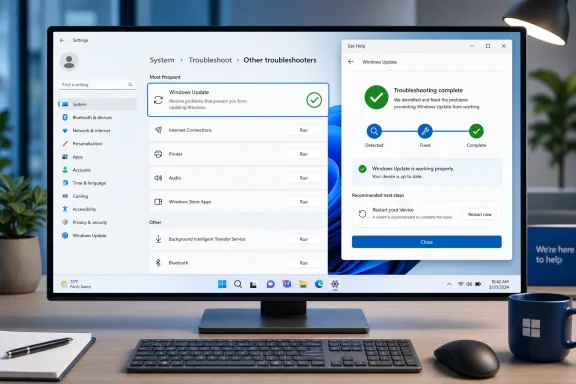
The Windows Update troubleshooter in Windows 11 is available through Microsoft’s Get Help app and through Settings > System > Troubleshoot > Other troubleshooters. Use it when updates will not download or install, repeatedly fail, remain stuck, or return an error code. These instructions cover current Windows 11 Home, Pro, Enterprise, and Education editions; organization-managed PCs may restrict access through policy.
Complete these checks first so the diagnostic can test Windows Update under normal conditions:
You can also try one normal update scan:
If Get Help requests a Microsoft account, you can use a personal Microsoft account or a Microsoft work or school account. Account requirements can vary depending on the support feature being accessed.
Do not use the Windows 10 path shown in older instructions. In Windows 11, the supported Settings path is:
Settings > System > Troubleshoot > Other troubleshooters
Some updates are installed in stages. After restarting, return to Settings > Windows Update and select Check for updates again until no additional applicable updates appear.
If the update fails again, record the new error code. The error can change after the troubleshooter corrects one part of the problem, and the new code may identify the remaining cause more accurately.
If Repair is unavailable or does not work, use Reset:
Settings > System > Troubleshoot > Other troubleshooters
If Windows Update is not listed:
Administrators can review the recommended troubleshooting policy under:
Computer Configuration > System > Troubleshooting and Diagnostics > Microsoft Support Diagnostic Tool > Troubleshooting: Allow users to access recommended troubleshooting for known problems
Microsoft documents policy values that can disable troubleshooting, limit it to critical problems, prompt users, notify users, apply fixes silently, or allow users to select their own troubleshooting behavior. Do not change organization policy on your own unless you administer the device.
Microsoft has deprecated the Microsoft Support Diagnostic Tool, or MSDT, which powered legacy inbox troubleshooters. The Windows Update troubleshooter is among the troubleshooters redirected to the Get Help platform. Current Windows 11 support instructions use Get Help or the troubleshooter entry in Settings.
This does not mean every old MSDT command immediately fails on every Windows build. It means MSDT is no longer the supported consumer route and can be removed or unavailable depending on the Windows version.
 Before running the troubleshooter
Complete these checks first so the diagnostic can test Windows Update under normal conditions:- Save your work and close unnecessary applications.
- Connect the PC to a stable internet connection.
- Plug a laptop or tablet into power.
- Disconnect from a VPN temporarily unless your organization requires it.
- Make a note of the update name and any error code shown under Settings > Windows Update.
- Confirm that you can restart the PC after troubleshooting.
You can also try one normal update scan:
- Open Start > Settings.
- Select Windows Update.
- Select Check for updates.
- Install anything offered.
- Restart if Windows requests it.
Run the Windows Update troubleshooter through Get Help
Get Help is Microsoft’s current app-based troubleshooting platform and the preferred starting point on Windows 11.- Open Start.
- Type
get help. - Select Get Help from the search results.
- Select the search box in Get Help.
- Enter:
windows update troubleshooter - Submit the search.
- Follow the prompts displayed by Get Help.
- If the app asks for permission to run diagnostics, select Yes.
- Allow the scan to finish without closing Get Help.
- Apply any suggested correction or follow the additional instructions shown.
If Get Help requests a Microsoft account, you can use a personal Microsoft account or a Microsoft work or school account. Account requirements can vary depending on the support feature being accessed.
Run the troubleshooter from Windows 11 Settings
Windows 11 Settings provides a direct route to the Windows Update troubleshooter. On current versions, this route may hand the troubleshooting process over to Get Help.- Right-click Start and select Settings.
You can also press Windows key + I. - Select System in the left pane.
- Select Troubleshoot.
- Select Other troubleshooters.
- Find Windows Update under Most frequent.
- Select Run next to Windows Update.
- Approve any diagnostic prompt that appears.
- Follow the on-screen instructions.
- Restart the PC after the troubleshooter finishes.
Do not use the Windows 10 path shown in older instructions. In Windows 11, the supported Settings path is:
Settings > System > Troubleshoot > Other troubleshooters
Verify that the repair worked
Running the troubleshooter does not install the failed update by itself. Restart Windows and perform a new update scan.- Open Start > Power.
- Select Restart.
- Sign back in after Windows starts.
- Open Settings.
- Select Windows Update.
- Select Check for updates.
- Allow Windows to download and install all applicable updates.
- Restart again if prompted.
Some updates are installed in stages. After restarting, return to Settings > Windows Update and select Check for updates again until no additional applicable updates appear.
If the update fails again, record the new error code. The error can change after the troubleshooter corrects one part of the problem, and the new code may identify the remaining cause more accurately.
If Get Help does not open
Repair Get Help before attempting more invasive Windows Update repairs.- Open Settings.
- Select Apps > Installed apps.
- Find Get Help.
- Select the three-dot menu beside it.
- Select Advanced options, if available.
- Select Repair.
- Wait for the repair to finish.
- Open Get Help and search for
windows update troubleshooteragain.
If Repair is unavailable or does not work, use Reset:
Warning: Resetting an app deletes that app’s local data and restores its settings to their defaults. It does not reset Windows or delete your personal documents.
- Return to Settings > Apps > Installed apps > Get Help > Advanced options.
- Select Reset.
- Confirm the reset.
- Open Get Help again.
- Repeat the Windows Update troubleshooter search.
If the troubleshooter is missing from Settings
First confirm that you are looking in the Windows 11 location:Settings > System > Troubleshoot > Other troubleshooters
If Windows Update is not listed:
- Restart Windows.
- Open Settings > Windows Update.
- Select Check for updates.
- Install any available servicing or cumulative updates.
- Restart the PC.
- Check Settings > System > Troubleshoot > Other troubleshooters again.
- If it remains unavailable, open Get Help directly and search for
windows update troubleshooter.
Administrators can review the recommended troubleshooting policy under:
Computer Configuration > System > Troubleshooting and Diagnostics > Microsoft Support Diagnostic Tool > Troubleshooting: Allow users to access recommended troubleshooting for known problems
Microsoft documents policy values that can disable troubleshooting, limit it to critical problems, prompt users, notify users, apply fixes silently, or allow users to select their own troubleshooting behavior. Do not change organization policy on your own unless you administer the device.
If Windows Update still fails
The troubleshooter is a first-line fix, not a guarantee that every update problem can be repaired automatically. Work through these checks before resetting Windows Update components or reinstalling Windows.Restart and try the scan again
- Save your work.
- Select Start > Power > Restart.
- Open Settings > Windows Update.
- Select Check for updates.
Check the network connection
- Open Settings > Network & internet.
- Confirm that Wi-Fi or Ethernet shows a connected state.
- Open a trusted website to test internet access.
- Disconnect a third-party VPN temporarily.
- Return to Settings > Windows Update and select Check for updates.
Check available storage
Low storage can prevent Windows from downloading, staging, or installing an update.- Open Settings > System > Storage.
- Review the available storage on the Windows drive.
- Select Cleanup recommendations.
- Review each proposed category carefully.
- Select only the files you are comfortable deleting.
- Select Clean up.
- Restart and retry Windows Update.
For low-space update errors, Windows may display Fix issues on the Windows Update page and offer to use external storage. If you use an external drive for this purpose, back up important files on that drive first.Warning: Review Downloads, Recycle Bin, and other personal-file categories before deleting anything. Cleanup recommendations can include files you intended to keep.
Disconnect unnecessary hardware
Microsoft recommends removing external equipment that is not required for basic operation when diagnosing update failures.- Shut down or safely disconnect external drives, memory cards, docks, printers, and other unnecessary accessories.
- Keep the display, keyboard, mouse, internet connection, and power connected.
- Restart Windows.
- Run the troubleshooter again.
- Check for updates.
Run the troubleshooter a second time
The first run may fix one condition and expose another.- Restart the PC.
- Open Settings > System > Troubleshoot > Other troubleshooters.
- Select Run next to Windows Update.
- Complete the diagnostic.
- Restart again.
- Check for updates.
Do not use old MSDT or Easy Fix instructions
Avoid older tutorials that tell you to launch the Windows Update troubleshooter withmsdt.exe, download an Easy Fix package, run a legacy troubleshooting cabinet, or use PowerShell troubleshooting-pack commands.Microsoft has deprecated the Microsoft Support Diagnostic Tool, or MSDT, which powered legacy inbox troubleshooters. The Windows Update troubleshooter is among the troubleshooters redirected to the Get Help platform. Current Windows 11 support instructions use Get Help or the troubleshooter entry in Settings.
This does not mean every old MSDT command immediately fails on every Windows build. It means MSDT is no longer the supported consumer route and can be removed or unavailable depending on the Windows version.
Know when the troubleshooter is not the right tool
The Windows Update troubleshooter is intended for problems downloading, detecting, and installing Windows updates. Use a more specific repair path when:- Windows Update reports that the PC does not meet Windows 11 hardware requirements.
- A feature update is being withheld because Microsoft has placed a compatibility safeguard on the device.
- The error identifies a specific incompatible driver or application.
- An organization manages updates through Windows Server Update Services, Microsoft Intune, or another management platform.
- Windows cannot start normally.
- The update installed successfully but caused a separate driver, startup, or application problem.
- The same update continues failing after two troubleshooter runs, restarts, storage checks, and network checks.
winver, and the Get Help diagnostic result. Use those details with Microsoft support’s error-specific Windows Update guidance. On a work or school PC, provide the same information to the IT administrator so they can check update policy, deployment status, and compatibility controls.References
- Primary source: Technobezz
Published: 2026-07-14T18:45:15.208000+00:00
How to Use the Windows Update Troubleshooter in Windows 11 | Technobezz
Use the Windows Update troubleshooter in Windows 11 through Get Help, Settings, or Microsoft Support when updates fail.www.technobezz.com - Official source: support.microsoft.com
Windows Update Troubleshooter - Microsoft Support
Learn how to run Windows Update Troubleshooter to resolve errors downloading or installing Windows updates.support.microsoft.com
