

Windows 11 users should start help from taskbar search, support.microsoft.com/windows, or Settings via the Get Help link, then choose Get Help for guided fixes, Quick Assist for trusted remote help, troubleshooters for common repairs, community forums for pattern-matching, or direct support when self-service fails. That is the practical answer, but it is also the larger shift: Windows help is no longer a single destination. It is a routing problem. The fastest fix now depends less on knowing where Microsoft hides documentation and more on choosing the right lane before frustration turns into random clicking.
To get help quickly in Windows 11, use this order. First, click the taskbar search box and type a plain-English description of the problem, such as “printer not working,” “Windows Update stuck,” or “Bluetooth won’t connect.” Second, open Get Help by searching Start for “Get Help,” or use the Get Help link inside Settings when Windows presents it. Third, if the issue is a common Windows fault, run the suggested troubleshooter inside Get Help rather than hunting for an old standalone repair utility. Fourth, if another person needs to see or control the PC, open Start > All apps > Quick Assist and use that built-in remote-help path with someone you trust.
That sequence matters because Microsoft has quietly turned Windows support into a layered workflow. The old mental model was simple: search the web, find a support page, hope it applies, and maybe end up on a forum thread from a different Windows era. The new model is more structured, but also more conditional. Windows 11 help is split across search, Settings, Get Help, Quick Assist, community answers, and Microsoft contact options, and each one solves a different kind of problem.
The most important change is not that Windows 11 has more help options. Windows has always had too many help options. The change is that Microsoft’s official support path now nudges users into a triage system before they ever reach a human being.
Microsoft’s own Windows help guidance points users toward three front doors: taskbar search, the Windows support site, and the Get Help link inside Settings. That is not accidental. Taskbar search is for fast discovery, the support website is for broader documentation, and Get Help is the app-based workflow that can move from an explanation to a troubleshooter to a support handoff.
For ordinary users, that can feel like fragmentation. For IT pros, it looks more like a decision tree. If the machine is basically usable, the fastest path is probably Get Help. If the user cannot describe the problem clearly, search can surface the setting or support topic they need. If someone technical needs to inspect the desktop, Quick Assist becomes the shortest line between “I don’t know what I’m seeing” and “let me look.”
The trap is treating all help paths as interchangeable. They are not. A forum thread is useful when a problem smells like hardware compatibility, upgrade eligibility, or a weird edge case. A Microsoft troubleshooter is useful when the issue falls into a known class of repairs. Quick Assist is useful when the problem cannot be explained well in text. Direct support is useful when ownership, account status, warranty, or product entitlement matters.
That is the routing discipline Windows users now need. The question is no longer “where is help?” The question is “what kind of help is this problem asking for?”
If the user is trying to find a feature, taskbar search is the right first move. Type the thing they want to do, not the name of the control panel they think contains it. Windows search is not just a launcher; Microsoft explicitly positions it as one of the main entry points for finding apps, files, settings, and help from the web.
If the problem is a common system malfunction, Get Help is the better first stop. Open Start, type “Get Help,” and launch the app. Describe the issue in plain English, then follow the guided path the app presents. If Get Help offers a troubleshooter, run it before escalating elsewhere.
If the user is already inside Settings and Windows shows a Get Help link, use it. That link is context. A generic web search for “Windows 11 sound not working” may return ten years of partially relevant advice; a Get Help route launched from the relevant Settings area has a better chance of starting in the right support lane.
If another person is helping, use Quick Assist rather than improvising with screenshots, phone photos, or vague descriptions. In Windows 11, open Start > All apps > Quick Assist. The helper and the person receiving help both start Quick Assist, exchange the security code as prompted, and the person receiving help approves screen sharing or control.
This is also where safe computing habits matter. Quick Assist is powerful because it lets another person see or control a PC. That means it should be used only with someone the user knows and trusts, or with an official support channel the user intentionally contacted. The tool is not the problem; the identity of the helper is the security boundary.
That centralization is useful because many Windows problems begin as ambiguity. Is this a driver issue, a setting, an account problem, a Windows Update problem, or a third-party app issue? Users rarely know at the beginning. Get Help is designed to narrow the issue before sending them somewhere else.
This is where Microsoft’s support strategy becomes clearer. The company is not trying to make every user read documentation. It is trying to steer users through a guided support funnel. The app can show explanations, suggest automated troubleshooters, point to community discussions, and present direct support options when the self-service path is not enough.
For WindowsForum readers, the practical effect is mixed. On one hand, a centralized hub can cut down on the old ritual of bouncing between outdated forum posts and generic support articles. On the other hand, it makes the Get Help app itself a dependency. If the app is missing, broken, blocked, or confusing, the user may feel as though Windows has moved the door after removing the old sign.
That is why the support website still matters. If Get Help does not load or the PC is not cooperating, support.microsoft.com/windows remains the fallback for browsing Windows support content and contact paths. The workflow is layered, not app-only.
The old model treated repair tools as things you fetched. The new model treats them as steps inside a guided workflow. Instead of searching for a utility, downloading it, running it, and wondering whether it is still current, Windows 11 users are supposed to describe the problem in Get Help and run the available troubleshooter from there.
For home users, this is cleaner. It reduces the chance of downloading the wrong utility, following stale advice, or using an unsupported tool. For sysadmins, it is more complicated. A cloud-assisted, app-mediated troubleshooter is not the same thing as a predictable local repair workflow that can be documented, scripted, or repeated exactly across a fleet.
That distinction is important. Get Help can be the right path for a single troubled PC. It is not automatically the right path for a managed estate where support teams need logging, reproducibility, change control, and known-good remediation steps. The tool may solve the user’s problem, but the support organization still has to decide whether that fix becomes a documented procedure.
In practice, troubleshooters should be treated as first-response tools. They are worth running when the issue is common, contained, and not obviously caused by a recent deployment or policy change. They should not replace proper diagnosis when multiple machines fail in the same way after an update, configuration change, driver rollout, or application deployment.
Quick Assist is best when the problem is visual, procedural, or hard for the user to describe. A user stuck at an unfamiliar sign-in screen, staring at a printer dialog, or unsure which update message matters is often not helped by another article. They need someone to see what they see.
This is why Quick Assist continues to matter even in a world of guided troubleshooters. Automation can repair known failure modes. It cannot always interpret the context of a confused user, a half-completed setup flow, or a machine that has wandered into a state no one can summarize cleanly. Sometimes support is not about the fix; it is about shared visibility.
But Quick Assist should not become a lazy substitute for support hygiene. If the same problem keeps requiring remote intervention, it deserves a documented fix. If users repeatedly need help with the same setting, the issue may be training, policy, deployment design, or user interface confusion. Quick Assist closes the immediate gap, but it should also create a signal for IT.
The security angle is equally direct. Because Quick Assist is a remote-control tool, support teams should teach users the rule before the emergency: do not accept remote help from strangers, do not enter codes from unsolicited callers, and do not grant control unless you initiated the support interaction or trust the helper. A built-in tool is still dangerous in the wrong social context.
A user asking whether an older i5 laptop can handle Windows 11 while multitasking is not just asking for a support article. They are asking about lived performance, hardware age, expectations, upgrade tradeoffs, and whether “slow” means storage, memory pressure, background apps, unsupported hardware, or something else. That is exactly the kind of ambiguity where community discussion can add value.
The same applies to upgrade uncertainty, installation blocks, account screens during setup, WSL curiosity, and “will I need to reinstall my apps?” anxieties. These are not always single-error-code problems. They are decision problems. Microsoft can document paths; communities can describe consequences.
That does not make forums superior to official support. It makes them different. A forum is a good place to compare symptoms, sanity-check assumptions, and find others who have walked the same path. It is a poor place to verify account ownership, warranty status, subscription entitlement, or anything requiring access to Microsoft’s systems.
For WindowsForum readers, the ideal workflow is hybrid. Use Get Help and Microsoft troubleshooters for structured diagnosis. Use Quick Assist when a trusted helper needs eyes on the machine. Use community discussion when the issue involves judgment, hardware context, upgrade planning, or a pattern that official documentation does not capture well.
Direct support makes sense when the problem depends on identity, entitlement, billing, account recovery, device support, or a failure that persists after the guided paths have been tried. It also matters when the user needs an answer only Microsoft can provide. A community cannot reset an account, validate a support entitlement, or speak authoritatively for Microsoft’s backend systems.
The mistake is escalating too late with no evidence. If you are going to contact support, arrive with the problem already narrowed. Note what you searched, what Get Help suggested, which troubleshooter ran, what changed, and whether Quick Assist or another helper observed the issue. A short, accurate timeline is often more useful than a long emotional description.
That is not bureaucracy for its own sake. It is how you avoid being sent back through the same first-tier script. The better the initial routing, the less likely the user is to repeat the same restart-and-check cycle.
For IT teams, this becomes a documentation habit. When a support case begins, capture the route: search, Settings, Get Help, troubleshooter, Quick Assist, community research, direct support. That sequence tells future technicians what has already been attempted and whether the issue is isolated or recurring.
A useful internal support note can be very short. For “I can’t find a setting,” use taskbar search. For “something common is broken,” use Get Help. For “I need you to look at my screen,” use Quick Assist. For “I’m planning an upgrade or comparing experiences,” use community discussion. For “my account, subscription, or entitlement is involved,” use direct support.
This is also a better model for family tech support. Many WindowsForum readers are the unofficial help desk for relatives, neighbors, and friends. Telling someone to open Quick Assist from Start > All apps > Quick Assist is simpler than asking for a stream of screenshots. Telling them to start in Get Help for a printer or update issue is safer than asking them to download random utilities from search results.
The larger lesson is that Windows 11 support is now more procedural than locational. The help path is part of the fix. Choose badly, and the same issue becomes a maze. Choose well, and the user may never need to leave the first tool.
Windows 11 users need a stopping rule. If a taskbar search finds the setting, stop. If Get Help runs a troubleshooter and the problem disappears, stop. If Quick Assist lets a trusted helper resolve the issue, stop and write down what changed. If none of those paths work, escalate with notes rather than continuing to improvise.
This is where enthusiasts can help less experienced users most. The best support is not always the cleverest command or the deepest registry fix. Often it is preventing the user from turning one problem into three by trying unrelated advice from old posts and search snippets.
Microsoft’s move toward Get Help and integrated troubleshooters is not perfect. It can feel opaque, especially for people who prefer standalone tools and local control. But the direction is clear. Windows help is becoming a workflow, and users who understand that workflow will solve problems faster than users who treat every support surface as a search box with a different logo.
To get help quickly in Windows 11, use this order. First, click the taskbar search box and type a plain-English description of the problem, such as “printer not working,” “Windows Update stuck,” or “Bluetooth won’t connect.” Second, open Get Help by searching Start for “Get Help,” or use the Get Help link inside Settings when Windows presents it. Third, if the issue is a common Windows fault, run the suggested troubleshooter inside Get Help rather than hunting for an old standalone repair utility. Fourth, if another person needs to see or control the PC, open Start > All apps > Quick Assist and use that built-in remote-help path with someone you trust.
That sequence matters because Microsoft has quietly turned Windows support into a layered workflow. The old mental model was simple: search the web, find a support page, hope it applies, and maybe end up on a forum thread from a different Windows era. The new model is more structured, but also more conditional. Windows 11 help is split across search, Settings, Get Help, Quick Assist, community answers, and Microsoft contact options, and each one solves a different kind of problem.
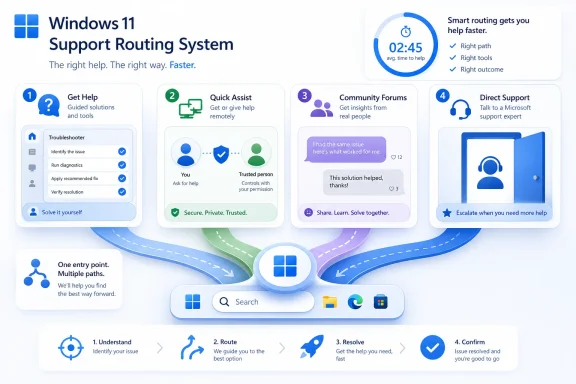 Microsoft Has Turned Help Into a Triage System
The most important change is not that Windows 11 has more help options. Windows has always had too many help options. The change is that Microsoft’s official support path now nudges users into a triage system before they ever reach a human being.Microsoft’s own Windows help guidance points users toward three front doors: taskbar search, the Windows support site, and the Get Help link inside Settings. That is not accidental. Taskbar search is for fast discovery, the support website is for broader documentation, and Get Help is the app-based workflow that can move from an explanation to a troubleshooter to a support handoff.
For ordinary users, that can feel like fragmentation. For IT pros, it looks more like a decision tree. If the machine is basically usable, the fastest path is probably Get Help. If the user cannot describe the problem clearly, search can surface the setting or support topic they need. If someone technical needs to inspect the desktop, Quick Assist becomes the shortest line between “I don’t know what I’m seeing” and “let me look.”
The trap is treating all help paths as interchangeable. They are not. A forum thread is useful when a problem smells like hardware compatibility, upgrade eligibility, or a weird edge case. A Microsoft troubleshooter is useful when the issue falls into a known class of repairs. Quick Assist is useful when the problem cannot be explained well in text. Direct support is useful when ownership, account status, warranty, or product entitlement matters.
That is the routing discipline Windows users now need. The question is no longer “where is help?” The question is “what kind of help is this problem asking for?”
The Fastest Path Starts With the Symptom, Not the Tool
A Windows 11 support session should start with the symptom in front of the user, not with a preferred destination. That sounds obvious until you watch someone spend half an hour in a browser searching for an answer that Windows could have surfaced from Settings in two clicks.If the user is trying to find a feature, taskbar search is the right first move. Type the thing they want to do, not the name of the control panel they think contains it. Windows search is not just a launcher; Microsoft explicitly positions it as one of the main entry points for finding apps, files, settings, and help from the web.
If the problem is a common system malfunction, Get Help is the better first stop. Open Start, type “Get Help,” and launch the app. Describe the issue in plain English, then follow the guided path the app presents. If Get Help offers a troubleshooter, run it before escalating elsewhere.
If the user is already inside Settings and Windows shows a Get Help link, use it. That link is context. A generic web search for “Windows 11 sound not working” may return ten years of partially relevant advice; a Get Help route launched from the relevant Settings area has a better chance of starting in the right support lane.
If another person is helping, use Quick Assist rather than improvising with screenshots, phone photos, or vague descriptions. In Windows 11, open Start > All apps > Quick Assist. The helper and the person receiving help both start Quick Assist, exchange the security code as prompted, and the person receiving help approves screen sharing or control.
This is also where safe computing habits matter. Quick Assist is powerful because it lets another person see or control a PC. That means it should be used only with someone the user knows and trusts, or with an official support channel the user intentionally contacted. The tool is not the problem; the identity of the helper is the security boundary.
Get Help Is the Hub Microsoft Wants You to Use
The Get Help app is now Microsoft’s central support hub for Windows 11 users. It brings together tutorials, FAQs, community forums, troubleshooters, and direct support paths in one place. The easiest way to open it is still the most old-fashioned Windows move: press Start, type “Get Help,” and launch the app.That centralization is useful because many Windows problems begin as ambiguity. Is this a driver issue, a setting, an account problem, a Windows Update problem, or a third-party app issue? Users rarely know at the beginning. Get Help is designed to narrow the issue before sending them somewhere else.
This is where Microsoft’s support strategy becomes clearer. The company is not trying to make every user read documentation. It is trying to steer users through a guided support funnel. The app can show explanations, suggest automated troubleshooters, point to community discussions, and present direct support options when the self-service path is not enough.
For WindowsForum readers, the practical effect is mixed. On one hand, a centralized hub can cut down on the old ritual of bouncing between outdated forum posts and generic support articles. On the other hand, it makes the Get Help app itself a dependency. If the app is missing, broken, blocked, or confusing, the user may feel as though Windows has moved the door after removing the old sign.
That is why the support website still matters. If Get Help does not load or the PC is not cooperating, support.microsoft.com/windows remains the fallback for browsing Windows support content and contact paths. The workflow is layered, not app-only.
The Old Recovery Assistant Has Given Way to Built-In Troubleshooters
One of the clearest signs of Microsoft’s shift is the status of the Microsoft Support and Recovery Assistant. Microsoft says it has been replaced by troubleshooters integrated into Get Help. That is a small sentence with large consequences for anyone who remembers downloading separate fix-it tools for recurring Windows and Microsoft app problems.The old model treated repair tools as things you fetched. The new model treats them as steps inside a guided workflow. Instead of searching for a utility, downloading it, running it, and wondering whether it is still current, Windows 11 users are supposed to describe the problem in Get Help and run the available troubleshooter from there.
For home users, this is cleaner. It reduces the chance of downloading the wrong utility, following stale advice, or using an unsupported tool. For sysadmins, it is more complicated. A cloud-assisted, app-mediated troubleshooter is not the same thing as a predictable local repair workflow that can be documented, scripted, or repeated exactly across a fleet.
That distinction is important. Get Help can be the right path for a single troubled PC. It is not automatically the right path for a managed estate where support teams need logging, reproducibility, change control, and known-good remediation steps. The tool may solve the user’s problem, but the support organization still has to decide whether that fix becomes a documented procedure.
In practice, troubleshooters should be treated as first-response tools. They are worth running when the issue is common, contained, and not obviously caused by a recent deployment or policy change. They should not replace proper diagnosis when multiple machines fail in the same way after an update, configuration change, driver rollout, or application deployment.
Quick Assist Is for Human Ambiguity, Not Routine Maintenance
Quick Assist remains the built-in remote-help tool in Windows 11, and Microsoft’s documented path is straightforward: Start > All apps > Quick Assist. It can also be found through Windows search, which is often faster when talking a user through the process over the phone.Quick Assist is best when the problem is visual, procedural, or hard for the user to describe. A user stuck at an unfamiliar sign-in screen, staring at a printer dialog, or unsure which update message matters is often not helped by another article. They need someone to see what they see.
This is why Quick Assist continues to matter even in a world of guided troubleshooters. Automation can repair known failure modes. It cannot always interpret the context of a confused user, a half-completed setup flow, or a machine that has wandered into a state no one can summarize cleanly. Sometimes support is not about the fix; it is about shared visibility.
But Quick Assist should not become a lazy substitute for support hygiene. If the same problem keeps requiring remote intervention, it deserves a documented fix. If users repeatedly need help with the same setting, the issue may be training, policy, deployment design, or user interface confusion. Quick Assist closes the immediate gap, but it should also create a signal for IT.
The security angle is equally direct. Because Quick Assist is a remote-control tool, support teams should teach users the rule before the emergency: do not accept remote help from strangers, do not enter codes from unsolicited callers, and do not grant control unless you initiated the support interaction or trust the helper. A built-in tool is still dangerous in the wrong social context.
Community Support Still Wins Where Official Paths Are Too Narrow
There is a reason WindowsForum threads continue to exist alongside Microsoft’s official support stack. Official tools are good at known problems. Communities are good at messy patterns.A user asking whether an older i5 laptop can handle Windows 11 while multitasking is not just asking for a support article. They are asking about lived performance, hardware age, expectations, upgrade tradeoffs, and whether “slow” means storage, memory pressure, background apps, unsupported hardware, or something else. That is exactly the kind of ambiguity where community discussion can add value.
The same applies to upgrade uncertainty, installation blocks, account screens during setup, WSL curiosity, and “will I need to reinstall my apps?” anxieties. These are not always single-error-code problems. They are decision problems. Microsoft can document paths; communities can describe consequences.
That does not make forums superior to official support. It makes them different. A forum is a good place to compare symptoms, sanity-check assumptions, and find others who have walked the same path. It is a poor place to verify account ownership, warranty status, subscription entitlement, or anything requiring access to Microsoft’s systems.
For WindowsForum readers, the ideal workflow is hybrid. Use Get Help and Microsoft troubleshooters for structured diagnosis. Use Quick Assist when a trusted helper needs eyes on the machine. Use community discussion when the issue involves judgment, hardware context, upgrade planning, or a pattern that official documentation does not capture well.
Direct Support Is the Escalation Path, Not the Starting Line
Direct support still has a role, but it should not be the first click for every Windows 11 annoyance. Microsoft’s support stack is designed to absorb common issues before a human gets involved. Users may dislike that, but it reflects the reality of supporting Windows at global scale.Direct support makes sense when the problem depends on identity, entitlement, billing, account recovery, device support, or a failure that persists after the guided paths have been tried. It also matters when the user needs an answer only Microsoft can provide. A community cannot reset an account, validate a support entitlement, or speak authoritatively for Microsoft’s backend systems.
The mistake is escalating too late with no evidence. If you are going to contact support, arrive with the problem already narrowed. Note what you searched, what Get Help suggested, which troubleshooter ran, what changed, and whether Quick Assist or another helper observed the issue. A short, accurate timeline is often more useful than a long emotional description.
That is not bureaucracy for its own sake. It is how you avoid being sent back through the same first-tier script. The better the initial routing, the less likely the user is to repeat the same restart-and-check cycle.
For IT teams, this becomes a documentation habit. When a support case begins, capture the route: search, Settings, Get Help, troubleshooter, Quick Assist, community research, direct support. That sequence tells future technicians what has already been attempted and whether the issue is isolated or recurring.
The Support Stack Changes How IT Should Coach Users
The Windows 11 help model asks users to make decisions they may not be equipped to make. That is where IT departments and power users can reduce pain. The goal is not to teach everyone everything about Windows; it is to teach them which door to open first.A useful internal support note can be very short. For “I can’t find a setting,” use taskbar search. For “something common is broken,” use Get Help. For “I need you to look at my screen,” use Quick Assist. For “I’m planning an upgrade or comparing experiences,” use community discussion. For “my account, subscription, or entitlement is involved,” use direct support.
This is also a better model for family tech support. Many WindowsForum readers are the unofficial help desk for relatives, neighbors, and friends. Telling someone to open Quick Assist from Start > All apps > Quick Assist is simpler than asking for a stream of screenshots. Telling them to start in Get Help for a printer or update issue is safer than asking them to download random utilities from search results.
The larger lesson is that Windows 11 support is now more procedural than locational. The help path is part of the fix. Choose badly, and the same issue becomes a maze. Choose well, and the user may never need to leave the first tool.
The Real Upgrade Is Knowing When to Stop Clicking
The risk in any layered support system is that users keep moving sideways. They search, open a support page, jump into Get Help, browse a forum, try a random setting, ask a chatbot, open Quick Assist, and then forget what happened. By the time they contact support, the machine has changed and the story is muddy.Windows 11 users need a stopping rule. If a taskbar search finds the setting, stop. If Get Help runs a troubleshooter and the problem disappears, stop. If Quick Assist lets a trusted helper resolve the issue, stop and write down what changed. If none of those paths work, escalate with notes rather than continuing to improvise.
This is where enthusiasts can help less experienced users most. The best support is not always the cleverest command or the deepest registry fix. Often it is preventing the user from turning one problem into three by trying unrelated advice from old posts and search snippets.
Microsoft’s move toward Get Help and integrated troubleshooters is not perfect. It can feel opaque, especially for people who prefer standalone tools and local control. But the direction is clear. Windows help is becoming a workflow, and users who understand that workflow will solve problems faster than users who treat every support surface as a search box with a different logo.
The Route Through Windows 11 Help Is Now the Skill
The practical lesson is simple: match the support path to the problem before doing anything invasive. One minute spent routing the issue correctly can save an hour of duplicate advice, irrelevant searches, and avoidable escalation.- Use taskbar search first when the goal is to find a setting, app, file, or plain-English help result quickly.
- Open Get Help from Start search when the problem is a common Windows issue that may have a guided fix, FAQ, tutorial, troubleshooter, community route, or direct support option.
- Run troubleshooters inside Get Help when they are offered, because Microsoft says the older Support and Recovery Assistant path has been replaced by troubleshooters integrated into Get Help.
- Use Quick Assist from Start > All apps > Quick Assist when a trusted person needs to view or control the PC to understand the problem.
- Use community discussion when the issue is about upgrade judgment, hardware behavior, real-world experience, or symptoms that do not fit cleanly into Microsoft’s official categories.
- Escalate to direct support when self-service has failed or when the issue involves accounts, entitlement, device support, or something only Microsoft can verify.
References
- Primary source: learn.microsoft.com
Use Quick Assist to help users | Microsoft Learn
Learn how IT Pros can use Quick Assist to help users.learn.microsoft.com - Independent coverage: support.microsoft.com
About Get Help | Microsoft Support
Learn about the Windows Get Help app, including what it does and how to launch it.support.microsoft.com - Primary source: WindowsForum
Windows 11 - need help for window 11 | Windows Forum
The thread discusses troubleshooting a slow-running laptop with an Intel i5 5th generation processor, with the original poster seeking advice on install...windowsforum.com
