

Copy and paste not working in Windows 11 is usually caused by a single app, a browser permission, a keyboard shortcut problem, Clipboard history, a remote-session setting, or damaged Windows components. This guide covers Windows 11 home and work/school PCs, including Microsoft Edge, Google Chrome, Microsoft Store apps, desktop programs, and Remote Desktop connections.
Before changing settings, find out whether the failure affects Windows generally or only one program or website.
Also test these alternatives:
To clear existing clipboard data:
If Repair is unavailable or does not help:
For Microsoft 365 for the web and similar web apps, use the normal Windows shortcuts first: Ctrl+C, Ctrl+X, and Ctrl+V. In Chromium-based browsers, Ctrl+Shift+V may paste plain text where the website supports it.
For the built-in Remote Desktop Connection client:
Do not enable clipboard or drive redirection when connecting to an unknown remote PC or when opening an unexpected
Warning: Keep the PC connected to AC power and the internet throughout the reinstall. Back up important files first, even though this method is designed to preserve them.
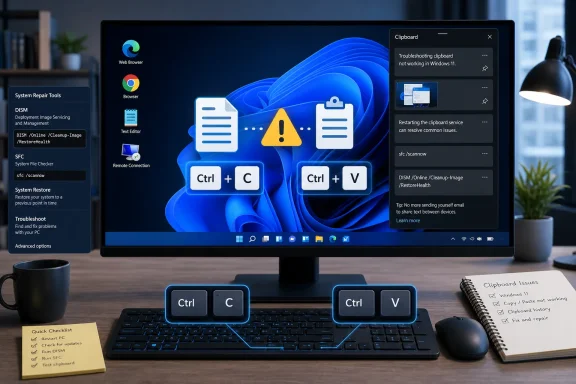 Confirm where copy and paste fails
Before changing settings, find out whether the failure affects Windows generally or only one program or website.- Open Notepad.
- Type
clipboard test. - Select the text and press Ctrl+C.
- Press Enter, then press Ctrl+V.
Also test these alternatives:
- Right-click selected content and choose Copy, then right-click the destination and choose Paste.
- Press Ctrl+Insert to copy.
- Press Shift+Insert to paste.
- Use Ctrl+X to cut, then Ctrl+V to paste.
Restart Windows and test the clipboard
A restart closes apps that may be holding the clipboard or interfering with it.- Save open work.
- Select Start > Power > Restart.
- After sign-in, repeat the Notepad test.
Turn on and clear Clipboard history
Clipboard history is not required for ordinary Ctrl+C and Ctrl+V, but enabling and clearing it can resolve problems with the Windows key+V clipboard panel and remove bad clipboard entries.- Press Windows logo key+V.
- If Windows displays a setup prompt, select Turn on.
- Copy a short line of text.
- Press Windows logo key+V again.
- Select the copied item to paste it.
- Select Start > Settings > System > Clipboard.
- Turn on Clipboard history.
To clear existing clipboard data:
- Go to Start > Settings > System > Clipboard.
- Under Clear clipboard data, select Clear.
- Return to Notepad and test copying and pasting again.
Fix copy and paste in one app
If copying and pasting works in Notepad but not in one Windows application, repair that application rather than changing Windows-wide settings.- Close the affected app.
- Go to Start > Settings > Apps > Installed apps.
- Find the app, select its More options button (…), then choose Advanced options if available.
- Select Repair.
- Reopen the app and test copy and paste.
If Repair is unavailable or does not help:
- Return to the app’s Advanced options page.
- Select Reset.
- Open the app and sign in again if required.
- Search for and open Control Panel.
- Select Programs > Programs and Features.
- Right-click the affected program.
- Select Repair. If Repair is not available, select Change and follow the program’s repair prompts.
Allow clipboard access in Edge or Chrome
Use this section only when copy and paste fails on a particular website while other sites and desktop apps work. A website may need permission to read from the clipboard, especially for buttons such as “Paste code,” “Paste from clipboard,” or similar web-app features.Microsoft Edge
- Open the affected site.
- Select the site information icon to the left of the address bar.
- Open the site permissions or permissions settings.
- Find Clipboard.
- Change it to Allow if the site is trusted.
- Reload the page and test again.
Google Chrome
- Open the affected site.
- Select the site controls icon to the left of the address bar.
- Open the site’s permissions or settings.
- Find Clipboard.
- Allow clipboard access for the trusted site.
- Reload the page and test.
For Microsoft 365 for the web and similar web apps, use the normal Windows shortcuts first: Ctrl+C, Ctrl+X, and Ctrl+V. In Chromium-based browsers, Ctrl+Shift+V may paste plain text where the website supports it.
Check the keyboard and shortcut path
If right-click Copy and Paste work but keyboard shortcuts fail, Windows is probably receiving no usable shortcut combination.- Test Ctrl+Insert for Copy and Shift+Insert for Paste.
- Test with another keyboard, if available.
- Check whether the Ctrl, C, V, Shift, and Insert keys feel stuck, intermittently fail, or have debris around them.
- If you use a laptop, test both left and right Ctrl keys.
- Disconnect external keyboards, macro pads, game controllers, and keyboard-management software temporarily, then test again.
- Select Start > Settings > Windows Update.
- Select Check for updates.
- Install available updates.
- Restart when prompted.
Check Remote Desktop clipboard settings
Copy and paste between a local PC and a remote desktop is controlled separately from the normal Windows clipboard.For the built-in Remote Desktop Connection client:
- Close the remote session.
- Search Windows for Remote Desktop Connection and open it.
- Select Show Options.
- Open the Local Resources tab.
- Under Local devices and resources, make sure Clipboard is selected.
- Reconnect and test by copying a short line of text in each direction.
Do not enable clipboard or drive redirection when connecting to an unknown remote PC or when opening an unexpected
.rdp file. Redirection can expose local clipboard content and other device resources to the remote system.Repair Windows system files
Use system-file repair when copy and paste fails in multiple programs, the issue survives a restart, and the earlier steps did not resolve it.- Install pending Windows updates and restart.
- Search for Command Prompt.
- Right-click Command Prompt and select Run as administrator.
- Select Yes if Windows asks for permission.
- Run this command:
DISM.exe /Online /Cleanup-image /Restorehealth - Wait for DISM to finish. It can take several minutes.
- Run this command:
sfc /scannow - Do not close the Command Prompt window until verification reaches 100%.
- Restart Windows and test copy and paste in Notepad.
Reinstall the current Windows version without removing apps or files
If system-file repair does not help, Windows 11 includes a repair reinstall option through Windows Update. This is a fix, not a reset: it reinstalls the current Windows version while preserving installed apps, personal files, and settings.Warning: Keep the PC connected to AC power and the internet throughout the reinstall. Back up important files first, even though this method is designed to preserve them.
- Go to Start > Settings > System > Recovery.
- Under Fix problems using Windows Update, select Reinstall now.
- Choose whether Windows may restart the PC automatically 15 minutes after installation completes.
- Select OK to begin.
- Allow Windows to download and install the repair version of the current update.
- Restart if Windows does not restart automatically.
- Test copying and pasting in Notepad, File Explorer, and the previously affected app or site.
References
- Primary source: Technobezz
Published: 2026-07-18T17:39:25.286000+00:00
Copy Paste Not Working in Windows 11? How to Fix It (2026) | Technobezz
Copy paste not working Windows 11? Fix shortcuts, Clipboard history, browser permissions, app issues, keyboard checks, and Windows repair.www.technobezz.com - Official source: learn.microsoft.com
Copy and Paste Not Working on a Remote Desktop - Microsoft Q&A
I have a client who cannot copy and paste across her remote desktop session. I'm able to do so fine on mine. Both connections are set up exactly the same (so Clipboard is ticked on both, drives ticked, etc.). It also works fine one other people's…learn.microsoft.com
