Microsoft Teams’ planned inline search will let users type an @mention in the compose box and insert an existing file, chat, channel, or meeting without leaving the message they are drafting. Before the feature reaches general availability in September 2026, administrators should treat it as a permissions and information-governance change—not a cosmetic shortcut—and test what recipients can actually open after a result is inserted.
Microsoft 365 Roadmap item 564612 lists the feature as in development. Published June 1 and updated June 2, 2026, the roadmap entry targets Teams desktop, Mac, and web clients in Worldwide Standard Multi-Tenant environments; mobile is not currently listed.
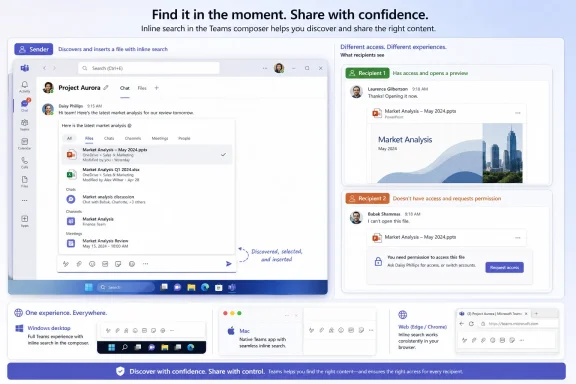
The expected workflow is deliberately compact. A user begins writing a Teams message, invokes an @mention, searches for a file, chat, channel, or meeting, selects a result, and inserts that reference into the draft without navigating away from the compose box.
That removes several small but consequential steps: opening another Teams area, finding the item, copying a link or name, returning to the original conversation, and pasting it. Microsoft’s broader Teams work has already been pushing search closer to the user’s current context, including the changes covered in WindowsForum’s June 2026 Teams update reporting and Microsoft 365 Copilot’s meeting search by topic and keyword.
The administrative significance is that users will encounter old content at precisely the moment they are deciding what to share. Documents buried in channel libraries, earlier chats, dormant channels, and past meetings may become easier to surface and reference in active conversations.
Microsoft has not yet published enough detail to document every interaction. The roadmap does not explain the precise trigger syntax, how results will be ranked, what metadata will appear during selection, or exactly how each inserted object will render after the message is sent. It also does not say whether users can filter searches by object type or tenant boundary.
Those omissions belong in a pilot plan. Administrators should not build training around screenshots, menu names, or sent-message behavior until Microsoft documents or releases the actual client experience.
That distinction becomes more important when discovery is embedded into message composition. A user may be able to find a document because they have access to it, but the people receiving the new message may belong to a different channel, chat, group, or external-access context.
Microsoft’s roadmap description does not state that selecting an inline-search result changes its permissions. Until Microsoft explicitly says otherwise, IT should train users to treat the inserted result as a reference to an existing object, not as proof that every recipient has access.
This creates several likely support scenarios:
Administrators should use the period before September to review where collaboration depends on broad, inherited, or poorly understood access. The objective is not to lock down every document; it is to reduce surprises when previously obscure content becomes convenient to reference.
A practical readiness checklist should include:
Search visibility and content authorization are different questions. A clean troubleshooting script should ask whether the sender could find the object, whether it was inserted successfully, whether the message rendered correctly, and whether each recipient could open it. Combining those stages into a generic “Teams sharing failed” ticket will waste time.
Organizations using sensitivity labels should therefore test expectations rather than assume the compose box will provide a complete governance explanation. The most important question is whether the streamlined workflow could make a user believe that a searchable item is appropriate for the destination conversation simply because Teams offered it as a result.
Pilot testing should include labeled and unlabeled content with different recipient populations. Administrators should record whether users can recognize restricted material before selection, what happens after insertion, and how the experience differs for recipients without the required access.
Training should reinforce that discovery is not a classification decision. Users still need to consider whether the destination chat or channel is suitable for the information, even when Teams makes the source item effortless to locate.
Start with common internal workflows. Ask a project manager to reference a document from a project channel inside a group chat, have an employee insert a prior meeting into a follow-up conversation, and test whether a user can distinguish similarly named channels or files in the search results.
Then add permission friction. Use content with view-only, review, edit, and cannot-download settings, and compare the sender’s experience with what each recipient sees after the message is posted.
Finally, test organizational boundaries. Include users who are not members of the referenced channel and, where permitted by organizational policy, guest or external participants. The goal is to establish whether the client provides enough context for users to predict access failures before sending.
For each scenario, capture five outcomes:
A short user guide should tell employees to verify the destination audience, check whether external participants are present, and confirm that recipients can access sensitive or restricted files. It should also explain that inserting a chat, channel, meeting, or file does not necessarily reproduce all of that object’s contents inside the new message.
Administrators should avoid calling every inserted object a newly shared item until Microsoft documents the final behavior. “Referenced” or “inserted” is safer language because it does not imply that Teams changed membership or file permissions.
Support documentation should also state that mobile is not included in the currently announced platform list. A user may receive or encounter references on a phone, but Microsoft has only listed desktop, Mac, and web support for the inline-search feature itself. The final cross-client behavior remains something to watch during rollout.
There is also no confirmed tenant control, rollout switch, policy name, or admin-center configuration in the supplied information. IT teams should watch the Microsoft 365 Message Center and Microsoft’s Teams documentation for rollout timing, controls, licensing clarification, and finalized client behavior.
The immediate work does not depend on those missing details. Organizations can already inspect Teams-related SharePoint and OneDrive permissions, improve guidance for external collaboration, define labeled-content pilot cases, and prepare support staff to separate search failures from access failures.
By September 2026, the visible change may be only an @mention inside the Teams compose box. The operational change is larger: existing work will become easier to surface at the exact moment users are addressing a new audience, making old permission decisions part of every new message.
Microsoft 365 Roadmap item 564612 lists the feature as in development. Published June 1 and updated June 2, 2026, the roadmap entry targets Teams desktop, Mac, and web clients in Worldwide Standard Multi-Tenant environments; mobile is not currently listed.
 Search Moves Into the Moment of Sharing
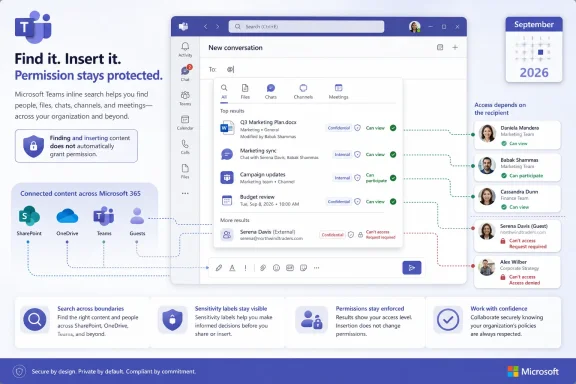
The expected workflow is deliberately compact. A user begins writing a Teams message, invokes an @mention, searches for a file, chat, channel, or meeting, selects a result, and inserts that reference into the draft without navigating away from the compose box.That removes several small but consequential steps: opening another Teams area, finding the item, copying a link or name, returning to the original conversation, and pasting it. Microsoft’s broader Teams work has already been pushing search closer to the user’s current context, including the changes covered in WindowsForum’s June 2026 Teams update reporting and Microsoft 365 Copilot’s meeting search by topic and keyword.
The administrative significance is that users will encounter old content at precisely the moment they are deciding what to share. Documents buried in channel libraries, earlier chats, dormant channels, and past meetings may become easier to surface and reference in active conversations.
Microsoft has not yet published enough detail to document every interaction. The roadmap does not explain the precise trigger syntax, how results will be ranked, what metadata will appear during selection, or exactly how each inserted object will render after the message is sent. It also does not say whether users can filter searches by object type or tenant boundary.
Those omissions belong in a pilot plan. Administrators should not build training around screenshots, menu names, or sent-message behavior until Microsoft documents or releases the actual client experience.
An @Mention Should Not Be Treated as an Access Grant
Teams does not use a single storage and permission model for every file users encounter. Channel files reside in the team’s SharePoint-backed storage, while files uploaded to one-to-one and group chats are stored in the uploader’s OneDrive for Business and shared with the chat participants.That distinction becomes more important when discovery is embedded into message composition. A user may be able to find a document because they have access to it, but the people receiving the new message may belong to a different channel, chat, group, or external-access context.
Microsoft’s roadmap description does not state that selecting an inline-search result changes its permissions. Until Microsoft explicitly says otherwise, IT should train users to treat the inserted result as a reference to an existing object, not as proof that every recipient has access.
This creates several likely support scenarios:
- A file appears correctly in a sent message, but one or more recipients receive an access-denied prompt.
- A channel can be referenced, but a recipient is not a member of that team or channel.
- A prior chat or meeting can be found by the sender, but its content is not available to everyone in the destination conversation.
- A OneDrive-hosted chat file remains dependent on the uploader’s sharing configuration.
- An external or guest user sees a reference without receiving the same access as internal recipients.
Permission Hygiene Becomes a September Task
Microsoft’s existing Teams file-sharing workflows expose options including edit, review, view, and cannot-download. Inline search does not make those choices new, but it can make their consequences much more visible because users will be able to rediscover and insert content with less friction.Administrators should use the period before September to review where collaboration depends on broad, inherited, or poorly understood access. The objective is not to lock down every document; it is to reduce surprises when previously obscure content becomes convenient to reference.
A practical readiness checklist should include:
- Review representative SharePoint-backed team libraries for membership, inherited access, and files that were shared beyond the expected team audience.
- Examine OneDrive for Business sharing practices around files uploaded into one-to-one and group chats.
- Confirm that help-desk staff can distinguish a Teams search problem from a SharePoint or OneDrive permission problem.
- Identify business areas that regularly collaborate with guests, external users, contractors, or users from separate teams.
- Test files configured for edit, review, view, and cannot-download access rather than testing only standard editable documents.
- Document an escalation path for content that can be found by a sender but cannot be opened by a recipient.
Search visibility and content authorization are different questions. A clean troubleshooting script should ask whether the sender could find the object, whether it was inserted successfully, whether the message rendered correctly, and whether each recipient could open it. Combining those stages into a generic “Teams sharing failed” ticket will waste time.
Sensitivity Labels Need Real-World Testing
The supplied roadmap information does not explain how sensitivity labels will be represented in inline results or sent messages. It does not establish whether users will see a warning before inserting protected content, whether label names will be visible, or how prominently restrictions will appear during selection.Organizations using sensitivity labels should therefore test expectations rather than assume the compose box will provide a complete governance explanation. The most important question is whether the streamlined workflow could make a user believe that a searchable item is appropriate for the destination conversation simply because Teams offered it as a result.
Pilot testing should include labeled and unlabeled content with different recipient populations. Administrators should record whether users can recognize restricted material before selection, what happens after insertion, and how the experience differs for recipients without the required access.
Training should reinforce that discovery is not a classification decision. Users still need to consider whether the destination chat or channel is suitable for the information, even when Teams makes the source item effortless to locate.
Build the Pilot Around Work, Not a Demo
A pilot that proves an administrator can insert one accessible Word document into an internal chat will reveal very little. The meaningful tests are the ones that cross Teams’ underlying collaboration boundaries.Start with common internal workflows. Ask a project manager to reference a document from a project channel inside a group chat, have an employee insert a prior meeting into a follow-up conversation, and test whether a user can distinguish similarly named channels or files in the search results.
Then add permission friction. Use content with view-only, review, edit, and cannot-download settings, and compare the sender’s experience with what each recipient sees after the message is posted.
Finally, test organizational boundaries. Include users who are not members of the referenced channel and, where permitted by organizational policy, guest or external participants. The goal is to establish whether the client provides enough context for users to predict access failures before sending.
For each scenario, capture five outcomes:
- The sender can or cannot locate the expected object.
- The search result provides enough information to select the correct object.
- The object is inserted without disrupting the draft.
- The sent message clearly represents the referenced item.
- Intended recipients can open it with the expected permissions.
Training Should Warn Against the “It Appeared, So It Is Safe” Assumption
Microsoft’s value proposition is reduced context switching, and users will understand that immediately. Training should spend less time advertising convenience and more time explaining the limits of that convenience.A short user guide should tell employees to verify the destination audience, check whether external participants are present, and confirm that recipients can access sensitive or restricted files. It should also explain that inserting a chat, channel, meeting, or file does not necessarily reproduce all of that object’s contents inside the new message.
Administrators should avoid calling every inserted object a newly shared item until Microsoft documents the final behavior. “Referenced” or “inserted” is safer language because it does not imply that Teams changed membership or file permissions.
Support documentation should also state that mobile is not included in the currently announced platform list. A user may receive or encounter references on a phone, but Microsoft has only listed desktop, Mac, and web support for the inline-search feature itself. The final cross-client behavior remains something to watch during rollout.
September Is a Target, Not a Guaranteed Switch Date
Roadmap item 564612 targets general availability in September 2026 for Worldwide Standard Multi-Tenant customers. As with other Microsoft 365 roadmap dates, administrators should plan around that window without treating it as an immutable deployment appointment.There is also no confirmed tenant control, rollout switch, policy name, or admin-center configuration in the supplied information. IT teams should watch the Microsoft 365 Message Center and Microsoft’s Teams documentation for rollout timing, controls, licensing clarification, and finalized client behavior.
The immediate work does not depend on those missing details. Organizations can already inspect Teams-related SharePoint and OneDrive permissions, improve guidance for external collaboration, define labeled-content pilot cases, and prepare support staff to separate search failures from access failures.
By September 2026, the visible change may be only an @mention inside the Teams compose box. The operational change is larger: existing work will become easier to surface at the exact moment users are addressing a new audience, making old permission decisions part of every new message.
References
- Primary source: techcommunity.microsoft.com
- Independent coverage: mc.merill.net
RM564612 - Microsoft Teams: Inline search in compose box | Microsoft 365 Message Center Archive
Teams enables search directly within the compose box using @mentions, allowing you to quickly find and insert Files, Chats, Channels, and Meetings without leaving your message.…mc.merill.net - Independent coverage: microsoft.com
Microsoft 365 Roadmap | Microsoft 365
The Microsoft 365 Roadmap lists updates that are currently planned for applicable subscribers. Check here for more information on the status of new features and updates.www.microsoft.com
- Independent coverage: download.microsoft.com
- Independent coverage: adoption.microsoft.com
- Independent coverage: roadmapwatch.com