

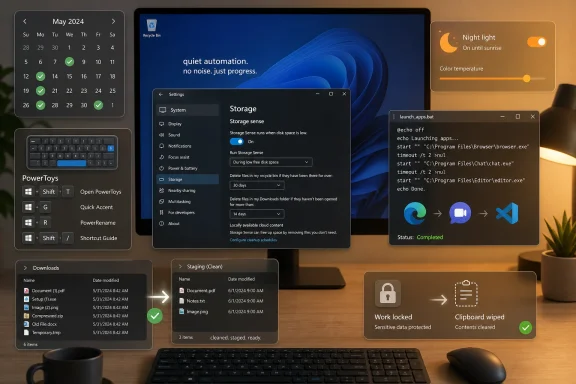
MakeUseOf’s latest Windows productivity guide argues that five low-friction automations—Storage Sense cleanup, PowerToys text shortcuts, batch-file app launching, scheduled Night light, and lock-triggered clipboard clearing—can run quietly on Windows 10 and Windows 11 PCs after a few minutes of setup. The bigger story is not that Windows suddenly became a no-code automation platform. It is that Microsoft has scattered enough small levers across Settings, PowerToys, Task Scheduler, and old command-line plumbing that the average PC can now remove a surprising amount of daily friction without a subscription service or a corporate endpoint suite. The catch, as usual with Windows, is that the best features often live three menus deep, behind names that sound more like maintenance chores than time savers.
The MakeUseOf piece lands because it describes a recognizably modern Windows problem: the operating system is powerful, but its power is distributed like a junk drawer. There is no single “Automate my PC” dashboard where a user can tell Windows to clean stale files, paste canned text, launch a workspace, dim the screen at sunset, and forget copied passwords. Instead, each function lives in a different era of Windows design.
Storage Sense belongs to the Settings-app future. Task Scheduler belongs to the MMC-console past. Batch files belong to the DOS ancestry that refuses to die because it remains useful. PowerToys, meanwhile, is Microsoft’s odd halfway house between official product and enthusiast toolkit: not quite part of Windows, not quite third-party software, but increasingly essential for anyone who wants the OS to behave like it was designed by people who type for a living.
That fragmentation is why small automations feel more impressive than they technically are. None of these tricks requires elite scripting ability. Yet together they expose a truth Microsoft rarely markets directly: Windows is already full of event triggers, retention policies, shell commands, keyboard hooks, and user-session signals. The productivity gain comes from connecting them to boring habits.
This is also where the article’s premise deserves a little skepticism. “Save hours every week” is plausible for the right user, especially someone who types repeated text, starts the same apps each morning, or manually prunes downloads. But these automations are not magic. They save time by eliminating tiny repeated decisions, and the real benefit may be less stopwatch efficiency than reduced cognitive drag.
Storage Sense is Microsoft’s attempt to turn that behavior into policy. On Windows 10 and Windows 11, it can automatically remove temporary files, empty the Recycle Bin after a chosen period, and, if explicitly configured, delete files in Downloads that have not been opened for a specified number of days. That last caveat matters. Microsoft does not normally treat Downloads as disposable unless the user says so, which is the right default for a folder that often contains tax forms, software licenses, and documents people have not yet moved elsewhere.
The MakeUseOf recommendation—delete Downloads items that have not been opened for more than 30 days—is sensible for users who treat Downloads as a transient landing zone. It is less sensible for users who use Downloads as a filing cabinet, which many do precisely because browsers and apps keep sending files there. Automation is only as smart as the folder semantics behind it.
The practical risk is not that Storage Sense will run amok in the manner of a malware cleaner. The risk is that it will faithfully enforce a rule that does not match the user’s behavior. A file can be important and unopened for 30 days. A downloaded installer for a licensed application, a warranty PDF, or a client attachment may sit untouched until the moment it is urgently needed.
That does not make the automation bad. It means Storage Sense works best when paired with a habit: move anything durable out of Downloads and into Documents, OneDrive, a project folder, or an archive location. Once Downloads becomes a staging area rather than a memory palace, automatic cleanup stops being scary and starts being liberating.
For IT pros, this distinction is familiar. Retention policies are powerful because they remove discretion at scale, but they are dangerous when applied to data whose lifecycle has not been defined. Home users are now being handed miniature versions of the same policy decisions enterprises have wrestled with for years.
PowerToys Keyboard Manager can remap keys and shortcuts, including shortcuts that output text. That makes it useful for the kind of phrases people type with depressing regularity: shipping addresses, support replies, invoice language, email sign-offs, meeting blurbs, and names or terms that autocorrect always seems to vandalize. The productivity case is obvious. The accuracy case is stronger.
Repeated typing is not merely slow; it creates opportunities for tiny mistakes. An address typo, a malformed legal phrase, or an inconsistent support response can cost more than the seconds it took to type. A reliable shortcut turns repeated language into a controlled artifact. That is not glamorous automation, but it is precisely the sort of thing computers should do.
There are limitations. PowerToys needs to be installed and running. Shortcut choices can collide with app shortcuts, Windows shortcuts, or vendor-specific keys. The Copilot key, which MakeUseOf’s author mentions repurposing, is especially interesting because Microsoft and PC makers are trying to reserve more physical keyboard space for AI entry points. Users, unsurprisingly, may decide that a key is more valuable as a personal automation trigger than as a portal to Microsoft’s current strategic narrative.
That quiet repurposing is telling. The productivity revolution on Windows is often not about adding more AI. It is about reclaiming input surfaces from defaults that do not match the user’s workflow. A key that inserts a precise address, launches a tool, or triggers a known action may be more valuable than a key that opens a chat interface the user did not ask for.
The concept is simple: place a script in the Startup folder or run it manually, and let Windows open a defined set of applications. Add pauses between heavy programs so they do not all fight for CPU, disk, and network at once. Use the
There is an argument that users should not need this. Windows 11 has Snap layouts, virtual desktops, startup apps, session restore behavior in some applications, and increasingly cloud-synced app states. Yet none of those quite replaces the certainty of saying: launch these five things, in this order, with this delay. The batch file is boring because it is explicit.
That explicitness is also why administrators still appreciate simple scripts. A batch file is readable. It can be copied, edited, versioned, and explained. It does not require a cloud account, a workflow subscription, or an automation runtime that changes its branding every fiscal year. For a single user or a small office, it is often enough.
The danger is overloading it. Launching too many apps at sign-in can make a PC feel worse, not better, especially on older hardware or devices with slow storage. The MakeUseOf advice to add timeouts is not cosmetic. It is the difference between a smooth ramp-up and a boot storm that makes the user stare at a frozen desktop while everything demands attention at once.
There is a broader lesson here: automation should reduce waiting, not concentrate it. If a startup script merely moves five manual delays into one large system delay, it has not improved the morning. The best version staggers work in a way that lets the PC become useful sooner, even as the rest of the workspace continues loading.
The evidence around blue light, sleep, and screens is messier than consumer tech advice often suggests. Screen brightness, bedtime habits, mental stimulation, work stress, and notification behavior all matter. A warmer display will not magically undo three hours of late-night email. Still, Night light is a low-cost intervention that reduces one obvious signal of daytime: a bright, cool-toned panel blasting the user at midnight.
Windows’ implementation is good precisely because it can be forgotten. Once scheduled, it turns a deliberate act—remembering to change display warmth—into an environmental default. That is what useful automation does. It does not demand virtue every evening; it changes the conditions under which bad habits occur.
There are trade-offs. Color-sensitive work should not be done under Night light without awareness. Designers, photographers, video editors, and anyone checking brand colors need to know whether the display is being warmed by software. But for writing, browsing, email, administration consoles, and general productivity, the downside is minimal.
This is also an example of Windows becoming more context-aware without becoming invasive in any meaningful way. Location-based scheduling uses the device’s location settings to align the display with local sunset and sunrise. Users who dislike location services can set fixed hours instead. The important part is that Windows can adapt to the day without the user manually babysitting another toggle.
The classic clipboard was ephemeral enough that many users did not think much about it. Clipboard history changes the model. The whole point is persistence across multiple copied items. That turns the clipboard from a momentary transfer mechanism into a small local memory store.
MakeUseOf’s proposed solution is to clear the clipboard when the workstation locks, using Task Scheduler and a command that pipes empty content into
The tricky part is the trigger. Windows can log workstation lock and unlock events, but relevant auditing may need to be enabled before Task Scheduler can reliably respond to those events. That moves the setup from casual Settings adjustment into administrative territory. It is still manageable, but the audience changes: this is no longer “click one toggle”; it is “understand what event logs are doing.”
There is also a nuance the original framing risks compressing. Clearing the active clipboard and clearing clipboard history are related but not always identical in user expectation, and Windows behavior can vary depending on settings and implementation details. Anyone handling truly sensitive data should test the automation rather than assume the command achieved every desired wipe. Security automation that is not verified becomes theater.
Even so, the instinct is correct. The clipboard is one of the most under-discussed local security surfaces on consumer PCs. Password managers, browsers, remote desktop tools, and admin portals all train users to copy secrets as a convenience. Windows then makes copied material easy to retrieve. A lock-triggered purge is an imperfect but practical mitigation, especially on shared, office, lab, or family machines.
That flexibility is easy to underrate in an era when software vendors increasingly prefer sealed experiences. On many modern platforms, automation is either hidden behind Shortcuts-style visual workflows, locked behind enterprise management tools, or constrained by mobile security models. Windows remains comparatively porous. A user can still wire a system event to a command, place a script in a startup folder, or install a Microsoft utility that intercepts keyboard shortcuts across applications.
This porosity is both strength and liability. It empowers users who understand cause and effect. It confuses users who expect every useful feature to be discoverable and safe by default. Microsoft has never fully solved that tension, and Windows 11’s polished surfaces do not eliminate the older machinery underneath.
The MakeUseOf article succeeds because it treats small automations as quality-of-life improvements rather than as a programming contest. That matters. Too much Windows automation advice assumes the reader wants to become a PowerShell hobbyist. Many users do not. They want the Downloads folder cleaned, the right apps opened, the display warmed, the same phrase typed correctly, and copied secrets forgotten.
The irony is that Windows has long been capable of all this. The missing layer is editorial, not technical: someone has to translate the machinery into habits. “Use Storage Sense as a Downloads retention policy” is more meaningful than “configure storage cleanup.” “Clear the clipboard when you lock your PC” is more compelling than “create an event-triggered scheduled task.”
That does not mean organizations should reject these ideas. It means they should formalize them. Storage Sense can be managed. Clipboard behavior can be addressed through policy, user training, and endpoint security practices. Standard workspaces can be launched through approved scripts, packaged shortcuts, or device management. Display settings can be documented for roles where color accuracy matters.
The security example is especially relevant. If an organization worries about clipboard leakage, a user-created scheduled task is a clue, not a complete program. The deeper questions are whether clipboard history should be enabled, whether sensitive apps should restrict clipboard operations, whether remote sessions are exposing copied data, and whether password managers are configured to clear copied secrets after short intervals.
PowerToys also sits in an interesting administrative gray area. It is a Microsoft project, widely used by power users, and increasingly polished. But it is not the same as a built-in Windows control surface with long-established enterprise policy expectations for every feature. In managed environments, allowing PowerToys may be reasonable; allowing arbitrary shortcut remaps without documentation may not be.
The principle is simple: personal automation optimizes for the person; enterprise automation must optimize for predictability. The same trick can be brilliant on one machine and reckless across five thousand.
None of these gaps is catastrophic. Together, they form the low-grade friction that defines everyday computing. A user does not rage-quit Windows because they typed their address again or opened Slack manually. They simply spend another sliver of attention on something the computer could have handled.
That is why small automations are more important than their humble mechanics suggest. They change the relationship between the user and the machine. The PC becomes less of a passive surface waiting for commands and more of an environment shaped around recurring intent.
Microsoft often talks about productivity in grand terms: AI assistants, cloud integration, intelligent search, cross-device continuity. Those efforts may matter, but the MakeUseOf list is a reminder that productivity is frequently local, specific, and unglamorous. A saved minute at sign-in, an avoided typo, a cleaned folder, and a clipboard that forgets secrets can be more tangible than another sidebar promising to summarize the web.
The company’s challenge is not that Windows lacks automation primitives. It is that users discover them through articles, forum posts, and accidents rather than through a coherent experience. Power users enjoy the scavenger hunt. Ordinary users should not have to.
The future of Windows productivity probably will not be one perfect automation app that unifies every setting, script, shortcut, and event trigger. It will be a gradual contest between Microsoft’s polished, AI-forward vision of assistance and the older Windows tradition of letting users wire things together themselves. The best PCs will use both, but the lesson from these five quiet automations is that the most valuable assistant may still be the one that runs silently, does the boring thing correctly, and never asks for attention.
 Windows Productivity Is Still Hiding in Plain Sight
The MakeUseOf piece lands because it describes a recognizably modern Windows problem: the operating system is powerful, but its power is distributed like a junk drawer. There is no single “Automate my PC” dashboard where a user can tell Windows to clean stale files, paste canned text, launch a workspace, dim the screen at sunset, and forget copied passwords. Instead, each function lives in a different era of Windows design.Storage Sense belongs to the Settings-app future. Task Scheduler belongs to the MMC-console past. Batch files belong to the DOS ancestry that refuses to die because it remains useful. PowerToys, meanwhile, is Microsoft’s odd halfway house between official product and enthusiast toolkit: not quite part of Windows, not quite third-party software, but increasingly essential for anyone who wants the OS to behave like it was designed by people who type for a living.
That fragmentation is why small automations feel more impressive than they technically are. None of these tricks requires elite scripting ability. Yet together they expose a truth Microsoft rarely markets directly: Windows is already full of event triggers, retention policies, shell commands, keyboard hooks, and user-session signals. The productivity gain comes from connecting them to boring habits.
This is also where the article’s premise deserves a little skepticism. “Save hours every week” is plausible for the right user, especially someone who types repeated text, starts the same apps each morning, or manually prunes downloads. But these automations are not magic. They save time by eliminating tiny repeated decisions, and the real benefit may be less stopwatch efficiency than reduced cognitive drag.
Storage Sense Turns File Hygiene Into a Retention Policy
The Downloads folder has become the attic of the Windows PC. It collects installers, PDFs, exported invoices, driver packages, zip files, images, meeting attachments, and mystery documents whose filenames made sense for exactly eight minutes. Users know it should be cleaned; almost nobody wants to perform the archaeological dig.Storage Sense is Microsoft’s attempt to turn that behavior into policy. On Windows 10 and Windows 11, it can automatically remove temporary files, empty the Recycle Bin after a chosen period, and, if explicitly configured, delete files in Downloads that have not been opened for a specified number of days. That last caveat matters. Microsoft does not normally treat Downloads as disposable unless the user says so, which is the right default for a folder that often contains tax forms, software licenses, and documents people have not yet moved elsewhere.
The MakeUseOf recommendation—delete Downloads items that have not been opened for more than 30 days—is sensible for users who treat Downloads as a transient landing zone. It is less sensible for users who use Downloads as a filing cabinet, which many do precisely because browsers and apps keep sending files there. Automation is only as smart as the folder semantics behind it.
The practical risk is not that Storage Sense will run amok in the manner of a malware cleaner. The risk is that it will faithfully enforce a rule that does not match the user’s behavior. A file can be important and unopened for 30 days. A downloaded installer for a licensed application, a warranty PDF, or a client attachment may sit untouched until the moment it is urgently needed.
That does not make the automation bad. It means Storage Sense works best when paired with a habit: move anything durable out of Downloads and into Documents, OneDrive, a project folder, or an archive location. Once Downloads becomes a staging area rather than a memory palace, automatic cleanup stops being scary and starts being liberating.
For IT pros, this distinction is familiar. Retention policies are powerful because they remove discretion at scale, but they are dangerous when applied to data whose lifecycle has not been defined. Home users are now being handed miniature versions of the same policy decisions enterprises have wrestled with for years.
PowerToys Makes the Keyboard Feel Less Like a Typewriter
The text-expansion recommendation is the most immediately useful of the five, but also the one that reveals the weirdness of Windows’ current productivity stack. Windows itself still does not include a first-class, systemwide text expansion tool in the way many users would expect. Microsoft Word has AutoCorrect. Some apps have snippets. Windows has clipboard history. But if you want a short trigger to become a full address, disclaimer, greeting, or reusable phrase across apps, PowerToys is where Microsoft has been putting the interesting work.PowerToys Keyboard Manager can remap keys and shortcuts, including shortcuts that output text. That makes it useful for the kind of phrases people type with depressing regularity: shipping addresses, support replies, invoice language, email sign-offs, meeting blurbs, and names or terms that autocorrect always seems to vandalize. The productivity case is obvious. The accuracy case is stronger.
Repeated typing is not merely slow; it creates opportunities for tiny mistakes. An address typo, a malformed legal phrase, or an inconsistent support response can cost more than the seconds it took to type. A reliable shortcut turns repeated language into a controlled artifact. That is not glamorous automation, but it is precisely the sort of thing computers should do.
There are limitations. PowerToys needs to be installed and running. Shortcut choices can collide with app shortcuts, Windows shortcuts, or vendor-specific keys. The Copilot key, which MakeUseOf’s author mentions repurposing, is especially interesting because Microsoft and PC makers are trying to reserve more physical keyboard space for AI entry points. Users, unsurprisingly, may decide that a key is more valuable as a personal automation trigger than as a portal to Microsoft’s current strategic narrative.
That quiet repurposing is telling. The productivity revolution on Windows is often not about adding more AI. It is about reclaiming input surfaces from defaults that do not match the user’s workflow. A key that inserts a precise address, launches a tool, or triggers a known action may be more valuable than a key that opens a chat interface the user did not ask for.
The Batch File Refuses to Retire Because It Solves Real Problems
The batch-file workspace launcher is the oldest trick in the group, and that is why it deserves respect. A.bat file that starts Chrome, Slack, Visual Studio Code, Outlook, a terminal, or line-of-business tools is not modern. It is not elegant. It is also exactly the kind of solution that keeps working because Windows has preserved command-line compatibility across decades.The concept is simple: place a script in the Startup folder or run it manually, and let Windows open a defined set of applications. Add pauses between heavy programs so they do not all fight for CPU, disk, and network at once. Use the
start command correctly so paths with spaces behave. The result is a crude but effective morning routine for the machine.There is an argument that users should not need this. Windows 11 has Snap layouts, virtual desktops, startup apps, session restore behavior in some applications, and increasingly cloud-synced app states. Yet none of those quite replaces the certainty of saying: launch these five things, in this order, with this delay. The batch file is boring because it is explicit.
That explicitness is also why administrators still appreciate simple scripts. A batch file is readable. It can be copied, edited, versioned, and explained. It does not require a cloud account, a workflow subscription, or an automation runtime that changes its branding every fiscal year. For a single user or a small office, it is often enough.
The danger is overloading it. Launching too many apps at sign-in can make a PC feel worse, not better, especially on older hardware or devices with slow storage. The MakeUseOf advice to add timeouts is not cosmetic. It is the difference between a smooth ramp-up and a boot storm that makes the user stare at a frozen desktop while everything demands attention at once.
There is a broader lesson here: automation should reduce waiting, not concentrate it. If a startup script merely moves five manual delays into one large system delay, it has not improved the morning. The best version staggers work in a way that lets the PC become useful sooner, even as the rest of the workspace continues loading.
Night Light Is a Health Feature Masquerading as a Display Toggle
Scheduling Night light is the least “automation nerd” recommendation and perhaps the most mainstream. It does not require scripting. It does not involve security logs. It is a simple display behavior: shift the screen toward warmer colors in the evening, either on a custom schedule or around sunset and sunrise.The evidence around blue light, sleep, and screens is messier than consumer tech advice often suggests. Screen brightness, bedtime habits, mental stimulation, work stress, and notification behavior all matter. A warmer display will not magically undo three hours of late-night email. Still, Night light is a low-cost intervention that reduces one obvious signal of daytime: a bright, cool-toned panel blasting the user at midnight.
Windows’ implementation is good precisely because it can be forgotten. Once scheduled, it turns a deliberate act—remembering to change display warmth—into an environmental default. That is what useful automation does. It does not demand virtue every evening; it changes the conditions under which bad habits occur.
There are trade-offs. Color-sensitive work should not be done under Night light without awareness. Designers, photographers, video editors, and anyone checking brand colors need to know whether the display is being warmed by software. But for writing, browsing, email, administration consoles, and general productivity, the downside is minimal.
This is also an example of Windows becoming more context-aware without becoming invasive in any meaningful way. Location-based scheduling uses the device’s location settings to align the display with local sunset and sunrise. Users who dislike location services can set fixed hours instead. The important part is that Windows can adapt to the day without the user manually babysitting another toggle.
Clipboard Automation Exposes the Security Gap Between Convenience and Memory
The clipboard-clearing trick is the most security-minded recommendation and the one most likely to make cautious readers pause. Windows clipboard history, invoked with Win+V when enabled, is genuinely useful. It is also a place where sensitive material can linger: passwords, recovery codes, account numbers, employee data, internal URLs, customer details, and snippets from documents that were never meant to persist.The classic clipboard was ephemeral enough that many users did not think much about it. Clipboard history changes the model. The whole point is persistence across multiple copied items. That turns the clipboard from a momentary transfer mechanism into a small local memory store.
MakeUseOf’s proposed solution is to clear the clipboard when the workstation locks, using Task Scheduler and a command that pipes empty content into
clip. The idea is sound: lock events are natural security boundaries. If the user is stepping away, anything copied during the session should not remain conveniently browsable for the next person who touches the keyboard.The tricky part is the trigger. Windows can log workstation lock and unlock events, but relevant auditing may need to be enabled before Task Scheduler can reliably respond to those events. That moves the setup from casual Settings adjustment into administrative territory. It is still manageable, but the audience changes: this is no longer “click one toggle”; it is “understand what event logs are doing.”
There is also a nuance the original framing risks compressing. Clearing the active clipboard and clearing clipboard history are related but not always identical in user expectation, and Windows behavior can vary depending on settings and implementation details. Anyone handling truly sensitive data should test the automation rather than assume the command achieved every desired wipe. Security automation that is not verified becomes theater.
Even so, the instinct is correct. The clipboard is one of the most under-discussed local security surfaces on consumer PCs. Password managers, browsers, remote desktop tools, and admin portals all train users to copy secrets as a convenience. Windows then makes copied material easy to retrieve. A lock-triggered purge is an imperfect but practical mitigation, especially on shared, office, lab, or family machines.
The Real Automation Layer Is Not a Product
What ties these five examples together is not one Microsoft strategy. It is the persistence of Windows as a layered operating system. Settings, PowerToys, Task Scheduler, shell commands, event logs, startup folders, and display services all coexist. The result is messy, but it is also unusually flexible.That flexibility is easy to underrate in an era when software vendors increasingly prefer sealed experiences. On many modern platforms, automation is either hidden behind Shortcuts-style visual workflows, locked behind enterprise management tools, or constrained by mobile security models. Windows remains comparatively porous. A user can still wire a system event to a command, place a script in a startup folder, or install a Microsoft utility that intercepts keyboard shortcuts across applications.
This porosity is both strength and liability. It empowers users who understand cause and effect. It confuses users who expect every useful feature to be discoverable and safe by default. Microsoft has never fully solved that tension, and Windows 11’s polished surfaces do not eliminate the older machinery underneath.
The MakeUseOf article succeeds because it treats small automations as quality-of-life improvements rather than as a programming contest. That matters. Too much Windows automation advice assumes the reader wants to become a PowerShell hobbyist. Many users do not. They want the Downloads folder cleaned, the right apps opened, the display warmed, the same phrase typed correctly, and copied secrets forgotten.
The irony is that Windows has long been capable of all this. The missing layer is editorial, not technical: someone has to translate the machinery into habits. “Use Storage Sense as a Downloads retention policy” is more meaningful than “configure storage cleanup.” “Clear the clipboard when you lock your PC” is more compelling than “create an event-triggered scheduled task.”
Where IT Pros Should Draw the Line
For individual enthusiasts, these automations are mostly harmless if tested. For business environments, they require more caution. A cleanup rule that is convenient on a personal laptop can become a support ticket generator if deployed thoughtlessly across a department. A startup script that works for a developer may be inappropriate on a shared kiosk or virtual desktop. Keyboard remaps can confuse help desks when a user’s machine no longer behaves like the documented baseline.That does not mean organizations should reject these ideas. It means they should formalize them. Storage Sense can be managed. Clipboard behavior can be addressed through policy, user training, and endpoint security practices. Standard workspaces can be launched through approved scripts, packaged shortcuts, or device management. Display settings can be documented for roles where color accuracy matters.
The security example is especially relevant. If an organization worries about clipboard leakage, a user-created scheduled task is a clue, not a complete program. The deeper questions are whether clipboard history should be enabled, whether sensitive apps should restrict clipboard operations, whether remote sessions are exposing copied data, and whether password managers are configured to clear copied secrets after short intervals.
PowerToys also sits in an interesting administrative gray area. It is a Microsoft project, widely used by power users, and increasingly polished. But it is not the same as a built-in Windows control surface with long-established enterprise policy expectations for every feature. In managed environments, allowing PowerToys may be reasonable; allowing arbitrary shortcut remaps without documentation may not be.
The principle is simple: personal automation optimizes for the person; enterprise automation must optimize for predictability. The same trick can be brilliant on one machine and reckless across five thousand.
The Five-Minute Fixes Reveal a Bigger Windows Design Debt
These automations are useful because they compensate for design gaps. Downloads cleanup exists because file acquisition is effortless while file triage is not. Text shortcuts matter because Windows lacks a simple native snippet layer. Batch launchers persist because app sessions and workspaces remain inconsistent. Night light scheduling matters because users work against their own circadian interests. Clipboard clearing matters because convenience features often outpace security hygiene.None of these gaps is catastrophic. Together, they form the low-grade friction that defines everyday computing. A user does not rage-quit Windows because they typed their address again or opened Slack manually. They simply spend another sliver of attention on something the computer could have handled.
That is why small automations are more important than their humble mechanics suggest. They change the relationship between the user and the machine. The PC becomes less of a passive surface waiting for commands and more of an environment shaped around recurring intent.
Microsoft often talks about productivity in grand terms: AI assistants, cloud integration, intelligent search, cross-device continuity. Those efforts may matter, but the MakeUseOf list is a reminder that productivity is frequently local, specific, and unglamorous. A saved minute at sign-in, an avoided typo, a cleaned folder, and a clipboard that forgets secrets can be more tangible than another sidebar promising to summarize the web.
The company’s challenge is not that Windows lacks automation primitives. It is that users discover them through articles, forum posts, and accidents rather than through a coherent experience. Power users enjoy the scavenger hunt. Ordinary users should not have to.
The Quiet Wins Worth Stealing From MakeUseOf’s Setup
The useful way to read this list is not as a commandment to enable all five automations immediately. It is as a menu of places where Windows can stop asking you to repeat yourself. Start with the behavior that annoys you weekly, not the trick that sounds cleverest.- Storage Sense is worth enabling for Downloads only if that folder is a temporary inbox rather than a long-term archive.
- PowerToys text shortcuts deliver the fastest payoff for anyone who repeatedly types addresses, signatures, templates, or support replies.
- A batch-file launcher works best when it staggers heavy applications instead of turning sign-in into a resource stampede.
- Night light scheduling is a simple default that can reduce evening screen harshness, but color-sensitive work still requires awareness.
- Clipboard clearing on lock is a smart security habit, but it should be tested carefully if clipboard history and sensitive workflows are involved.
The future of Windows productivity probably will not be one perfect automation app that unifies every setting, script, shortcut, and event trigger. It will be a gradual contest between Microsoft’s polished, AI-forward vision of assistance and the older Windows tradition of letting users wire things together themselves. The best PCs will use both, but the lesson from these five quiet automations is that the most valuable assistant may still be the one that runs silently, does the boring thing correctly, and never asks for attention.
References
- Primary source: MakeUseOf
Published: Wed, 27 May 2026 21:00:18 GMT
These 5 Windows automations run silently in the background and save hours every week
I set up 5 Windows automations and forgot they existed — that's the point, and they made my life so much easier. www.makeuseof.com
- Official source: learn.microsoft.com
Remap Keys and Shortcuts with PowerToys Keyboard Manager | Microsoft Learn
Learn how to remap keyboard keys and shortcuts using PowerToys Keyboard Manager. Customize your Windows keyboard layout and create custom shortcuts for improved productivity.learn.microsoft.com - Official source: support.microsoft.com
Manage drive space with Storage Sense - Microsoft Support
How to use Storage Sense to free up hard drive space on your Windows device.support.microsoft.com - Related coverage: techradar.com
How to remap keys in Windows 11 with PowerToys Keyboard Manager | TechRadar
We show how the Keyboard Manager in PowerToys can be used to remap your keyboard and create custom shortcutswww.techradar.com - Official source: microsoft.com
How to Remap Your Keyboard | Microsoft Windows
Find out how to remap your keyboard on a Windows 11 device. Learn why some PC users like to change their keyboard outputs to improve productivity.www.microsoft.com
- Related coverage: techrepublic.com
How to remap keys using Windows 10 PowerToys Keyboard Manager - TechRepublic
Version 18 of Windows 10 PowerToys includes a new app called Keyboard Manager. We show you how to access it and how to use it to remap your standard keyboard.www.techrepublic.com
- Related coverage: howtogeek.com
All Microsoft's PowerToys for Windows 10 and 11, Explained
Have you seen the latest PowerToys for Windows 10 and 11 yet? www.howtogeek.com
- Related coverage: windowscentral.com
Windows 11 gets auto dark mode via Microsoft PowerToys | Windows Central
PowerToys now lets Windows 11 switch between light and dark mode automatically at sunrise and sunset.www.windowscentral.com
