

How-To Geek’s June 2026 rundown of six Shift-key shortcuts for Windows 11 highlights a deceptively simple truth: Microsoft’s desktop still hides some of its fastest workflows behind keyboard habits most users never develop. The shortcuts themselves are not new in spirit, and several predate Windows 11 by many years. But their continued usefulness says something important about Windows in 2026: the fastest route through the operating system is often the one Microsoft does the least to advertise.
The Shift key is usually treated as a modifier for typing, not navigation. That framing undersells it. In Windows, Shift is less a “capital letter” key than a signal to the shell, File Explorer, browsers, and boot environment that the user wants the alternate path — the more dangerous path, the more direct path, or the path that assumes competence.
That is the tension running through these shortcuts. They are powerful because they bypass friction, and they are obscure because bypassing friction is exactly where consumer operating systems get nervous.
The modern Windows 11 interface is full of softened edges, simplified menus, and deliberate pauses. The Start menu has been rebuilt, Settings continues to absorb Control Panel territory, and the right-click menu was redesigned to hide the clutter that accumulated across decades of shell extensions. Yet underneath that surface, Windows still behaves like an operating system with a long institutional memory.
Shift is one of the keys that exposes that memory. Hold it while deleting, clicking, right-clicking, restarting, or tab-switching, and Windows often reveals a faster but less obvious branch of behavior. It is not always discoverable, but it is usually consistent once learned.
That distinction matters for enthusiasts and administrators. Discoverable interfaces are good for first-run confidence, but repeat work lives or dies by muscle memory. The user who knows Shift+Delete, Shift+right-click, or Shift+Restart is not merely saving a second here and there. They are avoiding modal detours that compound over a day of file cleanup, troubleshooting, browser recovery, or system maintenance.
The How-To Geek list works because it sits at the intersection of the ordinary and the expert. None of the shortcuts require scripting, Group Policy, registry edits, or a third-party launcher. They are already sitting on the keyboard, waiting for a user to stop treating Shift as a typography key.
That sounds reckless until you consider the workloads where the Recycle Bin is not a safety feature but a staging area for clutter. Large temporary exports, machine-learning model outputs, duplicate video files, local build artifacts, ISO images, and VM leftovers can consume tens or hundreds of gigabytes. Sending those files to the Recycle Bin often just moves the problem from one folder to another.
The shortcut is not a replacement for backups, and it is not a virtue test for “power users.” It is a tool for moments when the user has already made the decision and does not want Windows to pretend otherwise. In that sense, Shift+Delete is one of the most honest commands in the system: it removes the intermediate fiction that deletion is always tentative.
The practical caution is simple. Use it when the file is reproducible, redundant, or genuinely unwanted. Do not use it as a reflex on documents, source files, photos, financial records, or anything whose value may not be obvious at the moment of deletion. Speed is useful only when the destination is correct.
Sort by name, and Shift+click becomes a fast way to grab alphabetized batches. Sort by date modified, and it becomes a time-based cleanup tool. Sort by size, and it becomes a quick way to isolate the files most responsible for a full drive.
That last use case is especially relevant on modern Windows systems. SSDs are faster and cheaper than they used to be, but laptops still ship with constrained internal storage, and creative workflows can generate bulky files faster than users expect. File Explorer’s sort controls plus Shift+click can turn a messy cleanup job into a deliberate selection operation.
The same pattern appears outside File Explorer as well. Many mail clients, web apps, document managers, and admin consoles respect Shift-click range selection. That makes it less a Windows trick than a desktop convention — one that remains worth teaching because touch-first and mobile-first interfaces have trained many users to think in individual taps rather than ranges.
This is one of those shortcuts whose value is psychological as much as mechanical. Accidentally closing a tab can be a small panic, especially when the page was buried inside a research trail, admin portal, checkout flow, ticket queue, or documentation search. Ctrl+Shift+T turns that mistake from an interruption into a trivial undo.
The shortcut also reflects a broader change in what “desktop productivity” means. Twenty years ago, the canonical Windows recovery shortcut might have been about undoing a file operation or switching between local applications. Today, recovering a browser tab may be more important than recovering a Notepad window.
Microsoft’s own Edge inherits this convention rather than trying to replace it. That is the right call. Some shortcuts become valuable precisely because they are cross-platform and cross-application. The user does not want a Windows-specific browser recovery gesture; they want the same command to work wherever the work happens.
This is a small refinement, but small refinements are the point. Keyboard-driven workflows are not built from spectacular commands. They are built from shaving off moments of hesitation, especially in situations where the user already knows where they want to go.
The reverse shortcut becomes more useful as the desktop gets busier. Developers may have an IDE, terminal, browser, documentation window, chat app, virtual machine console, and file manager open at once. Administrators may be jumping between remote sessions, dashboards, ticketing systems, and PowerShell. In those contexts, Alt+Tab without reverse navigation is like a carousel with no back button.
Windows 11’s task switcher has also evolved to include Edge tabs depending on system settings, which can make the switcher feel more crowded. Whether that integration is helpful or noisy depends on the user, but the principle holds: once the switcher contains more surfaces, directional control matters more.
Holding Shift while right-clicking can expose the fuller context menu or additional commands, depending on the build, context, and application. The exact behavior has shifted as Microsoft has adjusted Windows 11, but the underlying point is stable: Shift is one of the ways experienced users tell Windows, “Do not simplify this for me.”
That matters because the context menu is not just a menu. It is the place where Windows users build habits around file paths, terminals, compression tools, version-control integrations, media utilities, security scanners, and developer workflows. When Microsoft changes that surface, it is not merely rearranging furniture. It is touching years of learned behavior.
The strongest example is “Copy as path,” a command that looks niche until you need it constantly. For anyone working in terminals, scripts, deployment tools, logs, or support tickets, copying a fully qualified path is far cleaner than manually navigating folder trees or fighting spaces in directory names. Likewise, opening a terminal or PowerShell window at a folder location can remove a surprising amount of friction.
Windows 11’s simplified menu was meant to reduce clutter, but clutter is subjective. One user’s noise is another user’s daily toolchain. Shift+right-click is a compromise, but also an admission: the simplified surface is not enough for everyone.
Holding Shift while selecting Restart changes the operation. Instead of performing a normal reboot, Windows enters the recovery and advanced startup environment, where users can reach troubleshooting options, startup settings, system recovery tools, and firmware settings on supported hardware. From there, the path to UEFI is slower in clicks but more predictable in outcome.
That predictability is the real gain. Firmware access is not something most users need daily, but when they need it, they often need it because something else is wrong. They may be changing boot order, enabling virtualization, disabling Secure Boot for a specific test, recovering from a driver problem, or entering Safe Mode. Missing a one-second keypress window in that moment is not merely annoying; it adds uncertainty to an already brittle task.
For administrators and support-minded users, Shift+Restart is also easier to explain than “try tapping F2 repeatedly immediately after the vendor logo appears, unless your machine uses Delete or F12.” It turns a manufacturer-specific guessing game into a Windows-mediated route. That is exactly the kind of boring reliability that good troubleshooting depends on.
Keyboard Manager can remap keys and shortcuts, and it can scope some shortcut remaps to particular applications. That makes it useful for users trying to normalize mismatched keyboards, reclaim awkward keys, work around laptop layouts, or build app-specific command habits. It is also a practical answer to the reality that no default shortcut scheme can satisfy everyone.
But PowerToys also exposes a boundary in Microsoft’s Windows strategy. The company wants Windows to be simpler and more approachable by default, while still retaining enough depth for enthusiasts and IT pros. Instead of putting every advanced option into Settings, Microsoft increasingly leaves some of that flexibility in tools like PowerToys.
That is not necessarily bad. PowerToys can move faster than core Windows, and its audience is more tolerant of complexity. But it does mean the most customizable version of Windows is not the out-of-box version. It is Windows plus the extra Microsoft utility that many normal users will never know exists.
Keyboard shortcuts are inherently hard to surface. Menus can show commands. Buttons can carry labels. Settings pages can include descriptions. But a modifier key’s alternate behavior is often invisible until someone teaches it, writes about it, or the user stumbles into it by accident.
Microsoft has tried to soften this with shortcut guides, help pages, tooltips, and PowerToys utilities, but the broader problem remains. Windows contains an enormous amount of capability that is not organized as a curriculum. Users learn fragments from coworkers, articles, forum posts, YouTube videos, and muscle memory inherited from older versions.
That is why articles like this continue to resonate. They are not merely “tips and tricks” filler. They are informal documentation for the operating system as actually used. The manual exists in pieces, distributed across the web, because the product itself rarely pauses to teach its most efficient paths.
That assumption is increasingly rare in mainstream consumer software. Many modern interfaces hide file systems, abstract away local state, smooth over errors, and replace explicit commands with guarded flows. Some of that is good design. Much of it prevents accidental damage. But it can also make the computer feel less like a tool and more like a supervised appliance.
Windows has never fully crossed that line, and its awkwardness is partly why enthusiasts remain attached to it. The same system that nudges users toward OneDrive, Microsoft accounts, simplified menus, and cloud-connected defaults still lets them permanently delete files with a two-key gesture, open recovery options from the Start menu, and summon legacy command surfaces with a modifier key.
That contradiction can be maddening. It is also the operating system’s enduring strength. Windows is full of compromises because its audience is full of conflicting needs: home users, gamers, developers, accountants, students, sysadmins, hardware vendors, enterprise fleets, and hobbyists all inhabit the same platform.
Windows will keep changing around these shortcuts. Menus will be redesigned, PowerToys will evolve, Settings will absorb more legacy tools, and Microsoft will continue looking for ways to make the desktop feel cleaner to new users without alienating the people who live in it all day. But the Shift key is a reminder that the deepest productivity gains are not always shipped as features with banners and release notes; sometimes they are the quiet alternate routes that turn a familiar operating system back into a sharp instrument.
The Shift key is usually treated as a modifier for typing, not navigation. That framing undersells it. In Windows, Shift is less a “capital letter” key than a signal to the shell, File Explorer, browsers, and boot environment that the user wants the alternate path — the more dangerous path, the more direct path, or the path that assumes competence.
That is the tension running through these shortcuts. They are powerful because they bypass friction, and they are obscure because bypassing friction is exactly where consumer operating systems get nervous.
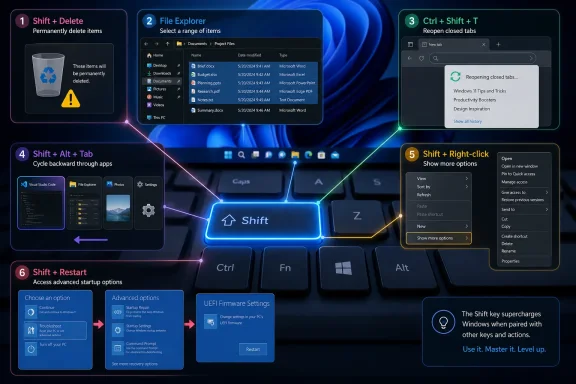 Windows Still Rewards the User Who Knows the Old Chords
The modern Windows 11 interface is full of softened edges, simplified menus, and deliberate pauses. The Start menu has been rebuilt, Settings continues to absorb Control Panel territory, and the right-click menu was redesigned to hide the clutter that accumulated across decades of shell extensions. Yet underneath that surface, Windows still behaves like an operating system with a long institutional memory.Shift is one of the keys that exposes that memory. Hold it while deleting, clicking, right-clicking, restarting, or tab-switching, and Windows often reveals a faster but less obvious branch of behavior. It is not always discoverable, but it is usually consistent once learned.
That distinction matters for enthusiasts and administrators. Discoverable interfaces are good for first-run confidence, but repeat work lives or dies by muscle memory. The user who knows Shift+Delete, Shift+right-click, or Shift+Restart is not merely saving a second here and there. They are avoiding modal detours that compound over a day of file cleanup, troubleshooting, browser recovery, or system maintenance.
The How-To Geek list works because it sits at the intersection of the ordinary and the expert. None of the shortcuts require scripting, Group Policy, registry edits, or a third-party launcher. They are already sitting on the keyboard, waiting for a user to stop treating Shift as a typography key.
The Dangerous Shortcut Is Also the Honest One
Shift+Delete is the shortcut most likely to make cautious users flinch, and for good reason. A normal delete operation sends a file to the Recycle Bin, where it can be restored if the user changes their mind. Shift+Delete bypasses that safety net and asks Windows to permanently delete the selected item, subject to the confirmation prompts and storage behavior of the system.That sounds reckless until you consider the workloads where the Recycle Bin is not a safety feature but a staging area for clutter. Large temporary exports, machine-learning model outputs, duplicate video files, local build artifacts, ISO images, and VM leftovers can consume tens or hundreds of gigabytes. Sending those files to the Recycle Bin often just moves the problem from one folder to another.
The shortcut is not a replacement for backups, and it is not a virtue test for “power users.” It is a tool for moments when the user has already made the decision and does not want Windows to pretend otherwise. In that sense, Shift+Delete is one of the most honest commands in the system: it removes the intermediate fiction that deletion is always tentative.
The practical caution is simple. Use it when the file is reproducible, redundant, or genuinely unwanted. Do not use it as a reflex on documents, source files, photos, financial records, or anything whose value may not be obvious at the moment of deletion. Speed is useful only when the destination is correct.
File Explorer’s Best Selection Trick Is Still the Least Glamorous
Shift+click is the kind of shortcut that looks too mundane to celebrate until you watch someone select 80 files one at a time. In File Explorer, selecting one item and then Shift-clicking another selects the continuous range between them. The range follows the current sort order, which makes the feature more powerful than it first appears.Sort by name, and Shift+click becomes a fast way to grab alphabetized batches. Sort by date modified, and it becomes a time-based cleanup tool. Sort by size, and it becomes a quick way to isolate the files most responsible for a full drive.
That last use case is especially relevant on modern Windows systems. SSDs are faster and cheaper than they used to be, but laptops still ship with constrained internal storage, and creative workflows can generate bulky files faster than users expect. File Explorer’s sort controls plus Shift+click can turn a messy cleanup job into a deliberate selection operation.
The same pattern appears outside File Explorer as well. Many mail clients, web apps, document managers, and admin consoles respect Shift-click range selection. That makes it less a Windows trick than a desktop convention — one that remains worth teaching because touch-first and mobile-first interfaces have trained many users to think in individual taps rather than ranges.
Browsers Made Shift a Recovery Tool
Ctrl+Shift+T is not really a Windows shortcut, but it belongs in any Windows productivity conversation because the browser is now one of the primary Windows workspaces. Chrome, Edge, Firefox, and other modern browsers use the shortcut to reopen recently closed tabs. Press it once and the most recent tab returns; press it repeatedly and the browser walks backward through closed tabs.This is one of those shortcuts whose value is psychological as much as mechanical. Accidentally closing a tab can be a small panic, especially when the page was buried inside a research trail, admin portal, checkout flow, ticket queue, or documentation search. Ctrl+Shift+T turns that mistake from an interruption into a trivial undo.
The shortcut also reflects a broader change in what “desktop productivity” means. Twenty years ago, the canonical Windows recovery shortcut might have been about undoing a file operation or switching between local applications. Today, recovering a browser tab may be more important than recovering a Notepad window.
Microsoft’s own Edge inherits this convention rather than trying to replace it. That is the right call. Some shortcuts become valuable precisely because they are cross-platform and cross-application. The user does not want a Windows-specific browser recovery gesture; they want the same command to work wherever the work happens.
Alt+Tab Needed a Reverse Gear
Alt+Tab is one of the oldest and most recognizable Windows shortcuts, but its default behavior has an annoyance baked into it: repeated presses move forward through the switcher. Overshoot the target, and the user either keeps cycling or reaches for the mouse. Shift+Alt+Tab adds the reverse gear.This is a small refinement, but small refinements are the point. Keyboard-driven workflows are not built from spectacular commands. They are built from shaving off moments of hesitation, especially in situations where the user already knows where they want to go.
The reverse shortcut becomes more useful as the desktop gets busier. Developers may have an IDE, terminal, browser, documentation window, chat app, virtual machine console, and file manager open at once. Administrators may be jumping between remote sessions, dashboards, ticketing systems, and PowerShell. In those contexts, Alt+Tab without reverse navigation is like a carousel with no back button.
Windows 11’s task switcher has also evolved to include Edge tabs depending on system settings, which can make the switcher feel more crowded. Whether that integration is helpful or noisy depends on the user, but the principle holds: once the switcher contains more surfaces, directional control matters more.
The Context Menu Fight Was Really About Trust
Shift+right-click is the shortcut that best captures Windows 11’s design conflict. Microsoft simplified the context menu in Windows 11, reducing the sprawl of legacy commands and third-party shell entries behind a cleaner first-level menu. Many users appreciated the visual cleanup; many power users hated the extra click required to reach commands that used to be immediately available.Holding Shift while right-clicking can expose the fuller context menu or additional commands, depending on the build, context, and application. The exact behavior has shifted as Microsoft has adjusted Windows 11, but the underlying point is stable: Shift is one of the ways experienced users tell Windows, “Do not simplify this for me.”
That matters because the context menu is not just a menu. It is the place where Windows users build habits around file paths, terminals, compression tools, version-control integrations, media utilities, security scanners, and developer workflows. When Microsoft changes that surface, it is not merely rearranging furniture. It is touching years of learned behavior.
The strongest example is “Copy as path,” a command that looks niche until you need it constantly. For anyone working in terminals, scripts, deployment tools, logs, or support tickets, copying a fully qualified path is far cleaner than manually navigating folder trees or fighting spaces in directory names. Likewise, opening a terminal or PowerShell window at a folder location can remove a surprising amount of friction.
Windows 11’s simplified menu was meant to reduce clutter, but clutter is subjective. One user’s noise is another user’s daily toolchain. Shift+right-click is a compromise, but also an admission: the simplified surface is not enough for everyone.
Shift+Restart Turns a Race Into a Route
Restarting into firmware settings used to involve a familiar ritual: reboot the PC and hammer Delete, F2, F12, Esc, or whatever key the manufacturer assigned before Windows started loading. On fast modern hardware, that timing window can feel absurdly short. Add Fast Startup, external keyboards, unusual firmware behavior, or remote troubleshooting, and the old ritual becomes unreliable.Holding Shift while selecting Restart changes the operation. Instead of performing a normal reboot, Windows enters the recovery and advanced startup environment, where users can reach troubleshooting options, startup settings, system recovery tools, and firmware settings on supported hardware. From there, the path to UEFI is slower in clicks but more predictable in outcome.
That predictability is the real gain. Firmware access is not something most users need daily, but when they need it, they often need it because something else is wrong. They may be changing boot order, enabling virtualization, disabling Secure Boot for a specific test, recovering from a driver problem, or entering Safe Mode. Missing a one-second keypress window in that moment is not merely annoying; it adds uncertainty to an already brittle task.
For administrators and support-minded users, Shift+Restart is also easier to explain than “try tapping F2 repeatedly immediately after the vendor logo appears, unless your machine uses Delete or F12.” It turns a manufacturer-specific guessing game into a Windows-mediated route. That is exactly the kind of boring reliability that good troubleshooting depends on.
PowerToys Is Where Microsoft Lets Enthusiasts Finish the Job
The How-To Geek piece ends by pointing users toward PowerToys Keyboard Manager, and that recommendation is telling. Windows includes a large number of built-in shortcuts, but it still does not offer a broad, native interface for ordinary users to remap arbitrary keys and shortcuts across the OS. PowerToys fills that gap as Microsoft’s semi-official playground for power users.Keyboard Manager can remap keys and shortcuts, and it can scope some shortcut remaps to particular applications. That makes it useful for users trying to normalize mismatched keyboards, reclaim awkward keys, work around laptop layouts, or build app-specific command habits. It is also a practical answer to the reality that no default shortcut scheme can satisfy everyone.
But PowerToys also exposes a boundary in Microsoft’s Windows strategy. The company wants Windows to be simpler and more approachable by default, while still retaining enough depth for enthusiasts and IT pros. Instead of putting every advanced option into Settings, Microsoft increasingly leaves some of that flexibility in tools like PowerToys.
That is not necessarily bad. PowerToys can move faster than core Windows, and its audience is more tolerant of complexity. But it does mean the most customizable version of Windows is not the out-of-box version. It is Windows plus the extra Microsoft utility that many normal users will never know exists.
The Productivity Story Is Really a Discoverability Failure
The most interesting thing about these shortcuts is not that they exist. It is that many competent Windows users still do not know them. That is a discoverability problem, and Windows has been living with it for decades.Keyboard shortcuts are inherently hard to surface. Menus can show commands. Buttons can carry labels. Settings pages can include descriptions. But a modifier key’s alternate behavior is often invisible until someone teaches it, writes about it, or the user stumbles into it by accident.
Microsoft has tried to soften this with shortcut guides, help pages, tooltips, and PowerToys utilities, but the broader problem remains. Windows contains an enormous amount of capability that is not organized as a curriculum. Users learn fragments from coworkers, articles, forum posts, YouTube videos, and muscle memory inherited from older versions.
That is why articles like this continue to resonate. They are not merely “tips and tricks” filler. They are informal documentation for the operating system as actually used. The manual exists in pieces, distributed across the web, because the product itself rarely pauses to teach its most efficient paths.
The Shift Key Is a Small Argument Against App-Store Computing
There is also a cultural reason these shortcuts feel satisfying. They belong to a model of computing where the user is assumed to be able to operate the machine, not merely consume from it. Shift+Delete, Shift+right-click, and Shift+Restart all assume a user who can make consequential choices.That assumption is increasingly rare in mainstream consumer software. Many modern interfaces hide file systems, abstract away local state, smooth over errors, and replace explicit commands with guarded flows. Some of that is good design. Much of it prevents accidental damage. But it can also make the computer feel less like a tool and more like a supervised appliance.
Windows has never fully crossed that line, and its awkwardness is partly why enthusiasts remain attached to it. The same system that nudges users toward OneDrive, Microsoft accounts, simplified menus, and cloud-connected defaults still lets them permanently delete files with a two-key gesture, open recovery options from the Start menu, and summon legacy command surfaces with a modifier key.
That contradiction can be maddening. It is also the operating system’s enduring strength. Windows is full of compromises because its audience is full of conflicting needs: home users, gamers, developers, accountants, students, sysadmins, hardware vendors, enterprise fleets, and hobbyists all inhabit the same platform.
Six Shortcuts, One Bigger Lesson for Windows 11
The practical lesson is not that every user should memorize every Shift shortcut. The better lesson is that Windows productivity still rewards learning a few reliable alternate paths and using them deliberately. These are not magic tricks; they are pressure valves for common friction points.- Shift+Delete is best reserved for files you are certain you do not need to recover, especially large temporary or reproducible files that would only bloat the Recycle Bin.
- Shift+click is one of the fastest ways to select a continuous range of files, messages, or list items when the current sort order already groups what you need.
- Ctrl+Shift+T is the browser recovery command every Windows user should know, because accidental tab closure is now a normal part of desktop work.
- Shift+Alt+Tab makes application switching less wasteful by letting users move backward through open windows instead of looping through the entire switcher.
- Shift+right-click remains a useful escape hatch for users who need fuller context-menu commands than Windows 11’s simplified menu wants to show first.
- Shift+Restart is the civilized route into advanced startup and firmware troubleshooting when the old “press the key during boot” routine is too unreliable.
Windows will keep changing around these shortcuts. Menus will be redesigned, PowerToys will evolve, Settings will absorb more legacy tools, and Microsoft will continue looking for ways to make the desktop feel cleaner to new users without alienating the people who live in it all day. But the Shift key is a reminder that the deepest productivity gains are not always shipped as features with banners and release notes; sometimes they are the quiet alternate routes that turn a familiar operating system back into a sharp instrument.
References
- Primary source: How-To Geek
Published: Wed, 24 Jun 2026 13:45:17 GMT
6 Shift key shortcuts that speed up Windows 11 way more than you'd expect
The Shift key will save you more time than you expect. www.howtogeek.com
- Related coverage: windowscentral.com
After years of forgetting Windows shortcuts, I finally found a method that makes them stick — and it’s surprisingly simple | Windows Central
PowerToys' Shortcut Guide makes it easier to discover Windows 11 keyboard shortcuts with a new context-aware experience.www.windowscentral.com - Official source: learn.microsoft.com
Remap Keys and Shortcuts with PowerToys Keyboard Manager | Microsoft Learn
Learn how to remap keyboard keys and shortcuts using PowerToys Keyboard Manager. Customize your Windows keyboard layout and create custom shortcuts for improved productivity.learn.microsoft.com - Official source: support.microsoft.com
Windows startup settings | Microsoft Support
Learn how to change Windows startup settings, including enabling Safe Mode.support.microsoft.com - Related coverage: techradar.com
How to remap keys in Windows 11 with PowerToys Keyboard Manager | TechRadar
We show how the Keyboard Manager in PowerToys can be used to remap your keyboard and create custom shortcutswww.techradar.com - Official source: microsoft.com
How to Remap Your Keyboard | Microsoft Windows
Find out how to remap your keyboard on a Windows 11 device. Learn why some PC users like to change their keyboard outputs to improve productivity.www.microsoft.com
