

Windows users setting up a new PC should change seven defaults immediately after installation: Storage Sense, Find My Device, default apps, power mode, OneDrive backup, privacy permissions, and Clipboard History, because each setting affects how Windows manages space, data, battery life, recovery, and daily workflow. The defaults are not wrong so much as generic. They are tuned for Microsoft’s ecosystem, broad hardware compatibility, and a lowest-common-denominator setup path. A good Windows installation begins when the out-of-box experience ends.
That is the uncomfortable truth behind every “new PC checklist.” Windows 11 is polished enough that many people can sign in, click through setup, and start working. But the system you get after installation is still a negotiation between convenience, telemetry, cloud services, app promotion, power management, and security assumptions. The first half-hour after setup is when you decide whether Windows will behave like your computer or like a Microsoft-managed endpoint with your name on it.
Microsoft has spent years trying to make Windows setup feel less like a technical process and more like onboarding to a service. That is not inherently sinister. A Microsoft account can unlock device recovery, app purchases, OneDrive sync, password recovery, and cross-device settings, all of which are genuinely useful to many users.
But this service-first model means a clean installation is not neutral. It arrives with defaults that assume you may want cloud backup, personalized experiences, recommended content, synchronized data, automatic cleanup, location-based recovery, and Microsoft’s own apps in prominent positions. Some of those defaults are protective. Others are promotional. A few are simply compromises designed for users who will never open Settings again.
That is why the best post-installation changes are not obscure registry edits or performance “hacks.” They are the mainstream controls Microsoft already exposes, often buried just deep enough that casual users miss them. The point is not to fight Windows. The point is to make its assumptions explicit.
Windows has always accumulated debris. Installer leftovers, update remnants, cached thumbnails, temporary files, delivery optimization data, browser downloads, and forgotten Recycle Bin contents all eat into the same partition that Windows Update later needs to service the OS. Users usually notice only when an update fails, a game refuses to install, or File Explorer starts showing a red capacity bar.
Storage Sense does not replace a disciplined storage strategy, and it is not a magic fix for a device that shipped with too little storage. But it is safer than the old ritual of deleting folders by instinct. It works through supported cleanup categories and can be configured conservatively, which matters for users who do not want Windows purging downloads too aggressively.
The practical setting is simple: enable it under System > Storage, then open its configuration rather than leaving it at a vague default. A sensible approach is to let it clear temporary files automatically, empty the Recycle Bin after 30 days, and treat the Downloads folder carefully unless you are confident nothing important lives there. For OneDrive users, the cloud-file cleanup settings deserve special attention because “available online” is not the same as “gone,” but it can feel that way when you are offline.
For IT administrators, the consumer-facing toggle also hints at a larger truth. Storage maintenance is no longer a once-a-year cleanup chore. In a Windows world of cumulative updates, feature enablement packages, app stores, and cloud sync clients, storage pressure is operational risk. Turning on Storage Sense is a small act of preventive maintenance.
That last condition is the entire story. Recovery features are boring until the day they are priceless, and by then they cannot be retroactively enabled. A new laptop is exactly when Find My Device should be considered, particularly for students, travelers, consultants, and anyone who works in public spaces.
Still, this is not a free lunch. Location tracking, even when account-bound and security-oriented, is location tracking. Users who turn it on are allowing Windows and their Microsoft account to participate in a periodic device-location workflow. Many will judge that trade worthwhile; some will not.
The important move is to decide consciously. If the machine is a desktop workstation bolted under a desk, Find My Device may add little. If it is a laptop that leaves the house, the balance changes. The right answer depends less on ideology than on the value of the data and the mobility of the device.
Find My Device should also not become a substitute for real endpoint security. BitLocker or device encryption, Windows Hello, strong account recovery options, and a tested backup plan matter more than a map pin after theft. Location may help you find the machine. Encryption helps ensure the finder cannot casually browse it.
Windows ships with Microsoft apps for many common file types and protocols, and some of them are perfectly competent. Edge is a capable browser. Photos can handle ordinary image viewing. Media Player is adequate for basic playback. The problem is not that these defaults exist; it is that Windows has often treated defaults as a strategic surface rather than a user preference.
Changing default apps after installation is therefore partly about efficiency and partly about sovereignty. If you use Firefox, Chrome, Vivaldi, or Brave, set it deliberately. If you prefer VLC for video, IrfanView or XnView for images, Adobe Acrobat or another PDF reader for documents, make those associations explicit. If your work depends on a code editor, set source files to open there instead of in the wrong lightweight viewer.
Microsoft has improved this process compared with the most frustrating early Windows 11 builds, but it is still worth walking through Apps > Default apps and checking the file types and protocols that matter. Browser defaults are the obvious target, but the real gains often come from the accumulated friction of small files opening in the wrong place.
On shared or managed systems, default apps also affect support. A help desk that standardizes PDF handling, browser choice, and mail links reduces confusion. A family PC set up with the right defaults prevents the familiar “why did this open in that?” complaint. Defaults are policy by another name; if you do not set them, the vendor has.
Power mode lets users bias the system toward performance, battery life, or a balanced middle ground. On a laptop, that choice changes how aggressively Windows manages CPU behavior, background activity, and energy use. On modern hardware, the difference may be subtle during web browsing and dramatic during sustained workloads such as compiling code, rendering video, gaming, or running virtual machines.
The trap is assuming “Best performance” is always better. On a thin laptop, it can mean more heat, more fan noise, and less time away from the charger, while the actual performance improvement may appear only in short bursts. Conversely, “Best power efficiency” can make a machine feel oddly sluggish if you are trying to do heavy work on battery.
The sane default for many users remains Balanced, but that does not mean the setting should be ignored. A gaming laptop plugged into the wall deserves a different posture from an ultraportable in a meeting. A workstation used for long CPU-heavy jobs should not be silently optimized for battery behavior it does not need. The setting is not a one-time moral choice; it is a workload choice.
This is also where Windows’ broader hardware story becomes visible. Microsoft can provide the control, but OEM firmware, driver quality, cooling design, and processor generation shape the result. A power-mode toggle on a poorly cooled laptop cannot repeal physics. It can only tell Windows which compromise to prefer.
For many users, this is excellent. A spilled coffee, dead SSD, stolen laptop, or botched reinstall no longer automatically destroys years of documents and photos. Files appear on a second PC with little effort. The Desktop stops being a dangerous junk drawer that exists only on one machine.
But OneDrive’s convenience has edges. Free storage is limited, and users can hit that limit quickly with photos, videos, game captures, project files, or large archives. Sync conflicts can confuse people who do not understand what changed where. Corporate users may face data-governance rules that make personal cloud sync inappropriate. Privacy-sensitive users may not want personal folders replicated to a cloud account by default.
The post-installation move is not necessarily “turn it on” or “turn it off.” It is to open OneDrive settings and decide which folders belong in the backup set. Documents may be essential; Pictures may be too large; Desktop may be chaos. A user who makes that decision deliberately will have fewer surprises than one who discovers months later that a cloud quota warning has become a permanent part of Windows.
There is also a vocabulary problem. Microsoft calls it backup, and in ordinary user terms that is close enough. But sync is not the same as a historical, versioned, offline backup strategy. Delete a synced file in the wrong place and that deletion can propagate. OneDrive can help recover from many failures, but it should not be the only protection for irreplaceable data.
Some data collection is required for Windows to function securely and reliably. Crash diagnostics, update health signals, and threat-protection telemetry can improve the ecosystem. The mistake is pretending that every enabled setting is equally necessary or that every user has the same tolerance for data sharing.
The first pass should focus on app permissions. Camera and microphone access deserve scrutiny on any laptop. Location should be limited to apps that genuinely need it. Contacts, calendar, call history, messaging, and account information should not be casually available to software installed in a hurry. This is not paranoia; it is basic compartmentalization.
The second pass should focus on personalization and advertising. The advertising ID allows apps to deliver more personalized ads across the Windows environment. Recommendations and tailored experiences may be useful to some users, but they also blur the line between helpful setup guidance and commercial targeting. If you bought the PC, you should not have to accept every personalization feature as rent.
The third pass belongs to diagnostics and activity history. Microsoft’s controls vary by edition, region, account type, and policy state, and enterprise administrators often manage them centrally. Home users still have meaningful switches to review, especially optional diagnostic data and activity-related settings. The goal is not to make Windows silent; modern operating systems are not silent. The goal is to reduce unnecessary sharing.
The feature is especially useful because copying is often destructive in practice. You copy a command, then accidentally copy a word, then have to go back and find the command again. Clipboard History turns that single-slot buffer into a small working memory for the operating system.
Cross-device clipboard sync extends the idea further by letting copied content move between supported devices tied to the same account. That can be convenient if you regularly work across a desktop and laptop. It can also be exactly the kind of invisible data movement that makes security teams nervous.
The security issue is not theoretical. Clipboards often contain passwords, recovery codes, API keys, private messages, customer data, screenshots, and fragments of documents. A local clipboard history already expands the window in which sensitive copied material remains accessible. Cloud sync expands the boundary again.
That does not mean Clipboard History is bad. It means it should be enabled with intent. Many users should turn on local history and leave cross-device sync off unless they truly need it. People handling secrets, regulated data, or administrator credentials should be even more cautious, and may prefer dedicated password managers and secure note tools over a general-purpose clipboard buffer.
How much junk should the system clean automatically? Should this device report its location for recovery? Which apps do I trust as defaults? Should the machine favor endurance or speed? Which folders belong in the cloud? How much diagnostic and personalization data am I comfortable sharing? Should copied data persist and sync?
Those are not niche enthusiast questions. They are the basic terms of using a modern PC. Microsoft’s defaults are one possible answer, optimized for broad adoption and service integration. Your answers may differ, especially if you care about privacy, administer multiple machines, travel with a laptop, or use Windows for professional work.
This is where the old tweaking culture and the new Windows model diverge. A decade ago, performance advice often meant disabling services, gutting startup entries, and chasing dubious registry tweaks. Today, the better advice is less theatrical: configure the supported settings that govern storage, identity, sync, permissions, and power. The gains are less dramatic in a benchmark and more obvious over months of use.
That is the real lesson of the modern Windows setup ritual: the operating system is no longer just installed, it is negotiated. Microsoft will keep pushing Windows toward account integration, cloud recovery, AI-assisted recommendations, and service-driven defaults, because that is where the platform is going. The best users and administrators can do is meet that future with eyes open, toggles reviewed, and a clear sense of which conveniences are worth the data, battery, storage, and control they cost.
That is the uncomfortable truth behind every “new PC checklist.” Windows 11 is polished enough that many people can sign in, click through setup, and start working. But the system you get after installation is still a negotiation between convenience, telemetry, cloud services, app promotion, power management, and security assumptions. The first half-hour after setup is when you decide whether Windows will behave like your computer or like a Microsoft-managed endpoint with your name on it.
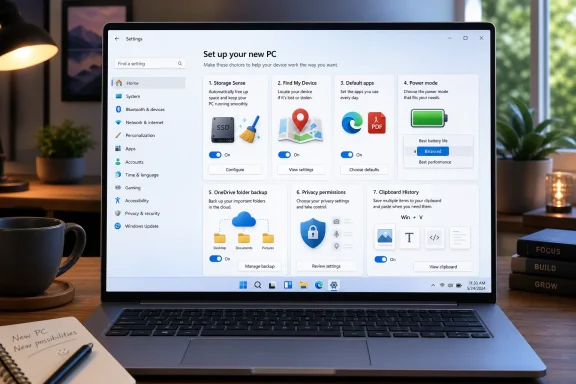 The Out-of-Box Experience Is a Starting Line, Not a Finish Line
Microsoft has spent years trying to make Windows setup feel less like a technical process and more like onboarding to a service. That is not inherently sinister. A Microsoft account can unlock device recovery, app purchases, OneDrive sync, password recovery, and cross-device settings, all of which are genuinely useful to many users.But this service-first model means a clean installation is not neutral. It arrives with defaults that assume you may want cloud backup, personalized experiences, recommended content, synchronized data, automatic cleanup, location-based recovery, and Microsoft’s own apps in prominent positions. Some of those defaults are protective. Others are promotional. A few are simply compromises designed for users who will never open Settings again.
That is why the best post-installation changes are not obscure registry edits or performance “hacks.” They are the mainstream controls Microsoft already exposes, often buried just deep enough that casual users miss them. The point is not to fight Windows. The point is to make its assumptions explicit.
Storage Sense Is the Cleanup Tool Windows Should Have Enabled More Aggressively
The least glamorous setting on the list may be the one that prevents the most future annoyance. Storage Sense automatically removes certain temporary files, empties Recycle Bin contents after a chosen interval, and can manage locally cached cloud files. On systems with small SSDs, especially 128GB or 256GB laptops still common in budget and education markets, that quiet housekeeping matters.Windows has always accumulated debris. Installer leftovers, update remnants, cached thumbnails, temporary files, delivery optimization data, browser downloads, and forgotten Recycle Bin contents all eat into the same partition that Windows Update later needs to service the OS. Users usually notice only when an update fails, a game refuses to install, or File Explorer starts showing a red capacity bar.
Storage Sense does not replace a disciplined storage strategy, and it is not a magic fix for a device that shipped with too little storage. But it is safer than the old ritual of deleting folders by instinct. It works through supported cleanup categories and can be configured conservatively, which matters for users who do not want Windows purging downloads too aggressively.
The practical setting is simple: enable it under System > Storage, then open its configuration rather than leaving it at a vague default. A sensible approach is to let it clear temporary files automatically, empty the Recycle Bin after 30 days, and treat the Downloads folder carefully unless you are confident nothing important lives there. For OneDrive users, the cloud-file cleanup settings deserve special attention because “available online” is not the same as “gone,” but it can feel that way when you are offline.
For IT administrators, the consumer-facing toggle also hints at a larger truth. Storage maintenance is no longer a once-a-year cleanup chore. In a Windows world of cumulative updates, feature enablement packages, app stores, and cloud sync clients, storage pressure is operational risk. Turning on Storage Sense is a small act of preventive maintenance.
Find My Device Is Useful Only If You Accept the Trade
A lost laptop is not just missing hardware. It is a missing browser profile, cached email, local documents, authentication tokens, and possibly the only copy of files that were supposed to be backed up later. Find My Device is Microsoft’s answer to that panic: it can record the last known location of a Windows 10 or Windows 11 device tied to a Microsoft account, provided the device is online, location services are enabled, and the feature was turned on before the machine disappeared.That last condition is the entire story. Recovery features are boring until the day they are priceless, and by then they cannot be retroactively enabled. A new laptop is exactly when Find My Device should be considered, particularly for students, travelers, consultants, and anyone who works in public spaces.
Still, this is not a free lunch. Location tracking, even when account-bound and security-oriented, is location tracking. Users who turn it on are allowing Windows and their Microsoft account to participate in a periodic device-location workflow. Many will judge that trade worthwhile; some will not.
The important move is to decide consciously. If the machine is a desktop workstation bolted under a desk, Find My Device may add little. If it is a laptop that leaves the house, the balance changes. The right answer depends less on ideology than on the value of the data and the mobility of the device.
Find My Device should also not become a substitute for real endpoint security. BitLocker or device encryption, Windows Hello, strong account recovery options, and a tested backup plan matter more than a map pin after theft. Location may help you find the machine. Encryption helps ensure the finder cannot casually browse it.
Default Apps Are Where Microsoft’s Ecosystem Ambitions Meet User Patience
Default-app settings are not merely cosmetic. They determine which browser opens a link, which mail client handles an address, which photo viewer launches from File Explorer, and which media player becomes the path of least resistance. That is why default apps have been a recurring battleground in modern Windows.Windows ships with Microsoft apps for many common file types and protocols, and some of them are perfectly competent. Edge is a capable browser. Photos can handle ordinary image viewing. Media Player is adequate for basic playback. The problem is not that these defaults exist; it is that Windows has often treated defaults as a strategic surface rather than a user preference.
Changing default apps after installation is therefore partly about efficiency and partly about sovereignty. If you use Firefox, Chrome, Vivaldi, or Brave, set it deliberately. If you prefer VLC for video, IrfanView or XnView for images, Adobe Acrobat or another PDF reader for documents, make those associations explicit. If your work depends on a code editor, set source files to open there instead of in the wrong lightweight viewer.
Microsoft has improved this process compared with the most frustrating early Windows 11 builds, but it is still worth walking through Apps > Default apps and checking the file types and protocols that matter. Browser defaults are the obvious target, but the real gains often come from the accumulated friction of small files opening in the wrong place.
On shared or managed systems, default apps also affect support. A help desk that standardizes PDF handling, browser choice, and mail links reduces confusion. A family PC set up with the right defaults prevents the familiar “why did this open in that?” complaint. Defaults are policy by another name; if you do not set them, the vendor has.
Power Mode Is the Hidden Performance Slider Most Users Forget Exists
Windows power management has to serve too many masters. It must support fanless tablets, thin-and-light laptops, gaming rigs, enterprise notebooks, workstations, and desktops that never touch a battery. The result is a default power profile that is usually reasonable and often not ideal.Power mode lets users bias the system toward performance, battery life, or a balanced middle ground. On a laptop, that choice changes how aggressively Windows manages CPU behavior, background activity, and energy use. On modern hardware, the difference may be subtle during web browsing and dramatic during sustained workloads such as compiling code, rendering video, gaming, or running virtual machines.
The trap is assuming “Best performance” is always better. On a thin laptop, it can mean more heat, more fan noise, and less time away from the charger, while the actual performance improvement may appear only in short bursts. Conversely, “Best power efficiency” can make a machine feel oddly sluggish if you are trying to do heavy work on battery.
The sane default for many users remains Balanced, but that does not mean the setting should be ignored. A gaming laptop plugged into the wall deserves a different posture from an ultraportable in a meeting. A workstation used for long CPU-heavy jobs should not be silently optimized for battery behavior it does not need. The setting is not a one-time moral choice; it is a workload choice.
This is also where Windows’ broader hardware story becomes visible. Microsoft can provide the control, but OEM firmware, driver quality, cooling design, and processor generation shape the result. A power-mode toggle on a poorly cooled laptop cannot repeal physics. It can only tell Windows which compromise to prefer.
OneDrive Backup Is Either a Safety Net or a Surprise Bill
OneDrive backup is one of the most consequential setup choices in Windows because it changes the meaning of familiar folders. Desktop, Documents, and Pictures are not just local places anymore when folder backup is enabled. They become synchronized locations tied to a Microsoft account.For many users, this is excellent. A spilled coffee, dead SSD, stolen laptop, or botched reinstall no longer automatically destroys years of documents and photos. Files appear on a second PC with little effort. The Desktop stops being a dangerous junk drawer that exists only on one machine.
But OneDrive’s convenience has edges. Free storage is limited, and users can hit that limit quickly with photos, videos, game captures, project files, or large archives. Sync conflicts can confuse people who do not understand what changed where. Corporate users may face data-governance rules that make personal cloud sync inappropriate. Privacy-sensitive users may not want personal folders replicated to a cloud account by default.
The post-installation move is not necessarily “turn it on” or “turn it off.” It is to open OneDrive settings and decide which folders belong in the backup set. Documents may be essential; Pictures may be too large; Desktop may be chaos. A user who makes that decision deliberately will have fewer surprises than one who discovers months later that a cloud quota warning has become a permanent part of Windows.
There is also a vocabulary problem. Microsoft calls it backup, and in ordinary user terms that is close enough. But sync is not the same as a historical, versioned, offline backup strategy. Delete a synced file in the wrong place and that deletion can propagate. OneDrive can help recover from many failures, but it should not be the only protection for irreplaceable data.
Privacy Settings Are a Tour of Windows’ Real Business Model
The Privacy & security section of Settings is where Windows most clearly reveals its dual identity: local operating system and cloud-connected service. Diagnostic data, advertising ID, activity history, app permissions, speech features, inking and typing personalization, location, camera, microphone, contacts, calendar access, and account info all live somewhere in this maze.Some data collection is required for Windows to function securely and reliably. Crash diagnostics, update health signals, and threat-protection telemetry can improve the ecosystem. The mistake is pretending that every enabled setting is equally necessary or that every user has the same tolerance for data sharing.
The first pass should focus on app permissions. Camera and microphone access deserve scrutiny on any laptop. Location should be limited to apps that genuinely need it. Contacts, calendar, call history, messaging, and account information should not be casually available to software installed in a hurry. This is not paranoia; it is basic compartmentalization.
The second pass should focus on personalization and advertising. The advertising ID allows apps to deliver more personalized ads across the Windows environment. Recommendations and tailored experiences may be useful to some users, but they also blur the line between helpful setup guidance and commercial targeting. If you bought the PC, you should not have to accept every personalization feature as rent.
The third pass belongs to diagnostics and activity history. Microsoft’s controls vary by edition, region, account type, and policy state, and enterprise administrators often manage them centrally. Home users still have meaningful switches to review, especially optional diagnostic data and activity-related settings. The goal is not to make Windows silent; modern operating systems are not silent. The goal is to reduce unnecessary sharing.
Clipboard History Is a Productivity Feature With a Security Footnote
Clipboard History is one of those Windows features that feels obvious after you enable it. Instead of losing the previous copied item every time you press Ctrl+C, you can press Win+V and choose from a short history of recent clipboard entries. For writers, developers, researchers, support technicians, and spreadsheet-heavy workers, this is a real workflow upgrade.The feature is especially useful because copying is often destructive in practice. You copy a command, then accidentally copy a word, then have to go back and find the command again. Clipboard History turns that single-slot buffer into a small working memory for the operating system.
Cross-device clipboard sync extends the idea further by letting copied content move between supported devices tied to the same account. That can be convenient if you regularly work across a desktop and laptop. It can also be exactly the kind of invisible data movement that makes security teams nervous.
The security issue is not theoretical. Clipboards often contain passwords, recovery codes, API keys, private messages, customer data, screenshots, and fragments of documents. A local clipboard history already expands the window in which sensitive copied material remains accessible. Cloud sync expands the boundary again.
That does not mean Clipboard History is bad. It means it should be enabled with intent. Many users should turn on local history and leave cross-device sync off unless they truly need it. People handling secrets, regulated data, or administrator credentials should be even more cautious, and may prefer dedicated password managers and secure note tools over a general-purpose clipboard buffer.
The Seven-Setting Ritual Works Because It Forces a Decision
The appeal of a checklist is speed. Click here, toggle that, move on. But the deeper value of these seven settings is that they force the user to answer seven questions Windows otherwise answers on their behalf.How much junk should the system clean automatically? Should this device report its location for recovery? Which apps do I trust as defaults? Should the machine favor endurance or speed? Which folders belong in the cloud? How much diagnostic and personalization data am I comfortable sharing? Should copied data persist and sync?
Those are not niche enthusiast questions. They are the basic terms of using a modern PC. Microsoft’s defaults are one possible answer, optimized for broad adoption and service integration. Your answers may differ, especially if you care about privacy, administer multiple machines, travel with a laptop, or use Windows for professional work.
This is where the old tweaking culture and the new Windows model diverge. A decade ago, performance advice often meant disabling services, gutting startup entries, and chasing dubious registry tweaks. Today, the better advice is less theatrical: configure the supported settings that govern storage, identity, sync, permissions, and power. The gains are less dramatic in a benchmark and more obvious over months of use.
The Post-Install Checklist Microsoft Accidentally Made Necessary
Before a new Windows installation becomes muscle memory, these are the concrete changes worth making:- Turn on Storage Sense and configure its cleanup schedule so temporary files and Recycle Bin clutter do not quietly consume the system drive.
- Enable Find My Device on laptops and other mobile PCs if the value of recovery outweighs the location-sharing trade-off.
- Set default apps for browsers, PDFs, images, media, mail, and work files before Windows habits form around the wrong tools.
- Adjust power mode based on how the machine is actually used, rather than assuming the factory default matches your workload.
- Review OneDrive folder backup carefully so important files are protected without accidentally syncing folders that are too large, too sensitive, or better kept local.
- Audit privacy and app-permission settings early, especially camera, microphone, location, advertising ID, optional diagnostics, and activity-related controls.
That is the real lesson of the modern Windows setup ritual: the operating system is no longer just installed, it is negotiated. Microsoft will keep pushing Windows toward account integration, cloud recovery, AI-assisted recommendations, and service-driven defaults, because that is where the platform is going. The best users and administrators can do is meet that future with eyes open, toggles reviewed, and a clear sense of which conveniences are worth the data, battery, storage, and control they cost.
References
- Primary source: TweakTown
Published: 2026-06-23T01:10:13.522344
7 Windows settings to change right after installation for better privacy, security, and performance
Change these seven Windows settings after installation to improve your PC's privacy, security, and overall performance quickly and easily. www.tweaktown.com
- Official source: learn.microsoft.com
Configure Storage Sense in Windows | Microsoft Learn
Learn how to configure Storage Sense, a Windows feature that helps manage disk space by automatically cleaning up temporary files and unused content.learn.microsoft.com - Official source: support.microsoft.com
Manage drive space with Storage Sense - Microsoft Support
How to use Storage Sense to free up hard drive space on your Windows device.support.microsoft.com - Official source: microsoft.com
Windows 11 Specs and System Requirements | Microsoft Windows
View Windows 11 specs, system requirements, and features from Microsoft. Learn about the device specifications, versions, and languages available for Windows 11.www.microsoft.com - Related coverage: windowscentral.com
7 ways your Microsoft account integrates with Windows 11 | Windows Central
Check out the seven ways your online account integrates with the operating system.www.windowscentral.com - Related coverage: actsmartit.com
