

Windows 11 users can finally move beyond static desktops: whether you want a lightweight, free solution or a polished, interactive experience, animated wallpapers are easier to adopt than ever — and there’s a clear split between a nascent native option appearing in Insider builds and a mature third‑party ecosystem that already delivers powerful, battery‑aware live backgrounds.
Animated wallpapers — short looping videos, interactive WebGL scenes, or shader‑based visualizers — were once a niche curiosity (Windows Vista’s DreamScene) and later a third‑party domain. Over the last few years, community tools like Lively Wallpaper and Wallpaper Engine filled that gap, offering efficient playback, multi‑monitor support, and built‑in pause rules for gaming and battery life. The How2shout guide that prompted this feature roundup gives a practical, user‑focused tour of these options and highlights the current reality: third‑party apps are the practical choice for most users today, while Microsoft’s native video wallpaper experiments are visible only in Insider preview builds.
This article expands on that guide with verification of key technical claims, step‑by‑step setup instructions for the most practical tools, performance tuning advice, and security/enterprise cautions so readers can safely adopt animated desktops on Windows 11.
Microsoft’s native experiment in Insider builds points toward an eventual first‑party solution, but it is still preview‑grade and should not be treated as enterprise guidance yet. In the meantime, pick a trusted app, prefer store or official releases, enable pause rules, match resolutions to your displays, and test on representative hardware before committing to animated desktops for work or presentations. With those precautions, moving wallpapers can enhance your Windows 11 desktop without compromising performance or security.
Source: How2shout How to Get Moving Wallpapers on Windows 11: Guide to Animated Desktops
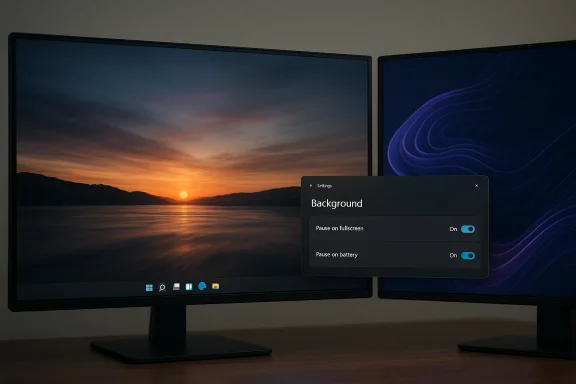 Background / Overview
Animated wallpapers — short looping videos, interactive WebGL scenes, or shader‑based visualizers — were once a niche curiosity (Windows Vista’s DreamScene) and later a third‑party domain. Over the last few years, community tools like Lively Wallpaper and Wallpaper Engine filled that gap, offering efficient playback, multi‑monitor support, and built‑in pause rules for gaming and battery life. The How2shout guide that prompted this feature roundup gives a practical, user‑focused tour of these options and highlights the current reality: third‑party apps are the practical choice for most users today, while Microsoft’s native video wallpaper experiments are visible only in Insider preview builds.This article expands on that guide with verification of key technical claims, step‑by‑step setup instructions for the most practical tools, performance tuning advice, and security/enterprise cautions so readers can safely adopt animated desktops on Windows 11.
Native Windows 11 support: what’s real and what’s preview
What’s appearing in Insider builds
Recent Insider previews of Windows 11 have shown an experimental native video wallpaper capability: a user‑visible Background picker that can accept common video file types and apply them as looping wallpapers. Independent reporting and early testers have observed support for MP4, MKV, MOV, AVI, WMV, M4V and WebM formats in those preview builds — but this remains a preview/hidden capability and is not shipped to the stable channel for general users yet. Two independent coverage threads corroborate the discovery: one detailed piece reporting the feature’s presence in Dev/Beta preview builds and another hands‑on guide describing how enthusiasts enabled it using experimental tooling. Both make the same practical point: the feature is present in certain Insider builds but not yet a stable, supported setting for everyday users. Treat these findings as early preview behavior rather than production guidance.How enthusiasts are enabling it (and why you should be cautious)
Community instructions show the feature can be toggled in some Insider builds with tools like ViVeTool (an open community tool that enables hidden or experimental OS flags). Typical steps used by testers include enabling a specific feature ID and then restarting Explorer or the PC to expose the new "Video" option in Settings > Personalization > Background. Those steps are useful for testers running non‑production devices but are not recommended for primary work machines — Insider builds and enabled flags can change system behavior, create instability, or break compatibility with apps.What remains unverified / caution
- Build numbers and exact feature IDs reported by community sleuths can vary between articles and social posts; Insider labels and internal IDs are subject to change as Microsoft iterates. Treat any specific build number as preview‑grade and verify it against the current Windows Insider release notes before attempting to enable hidden flags.
- Microsoft has not yet published official documentation, enterprise policies, or Group Policy controls for native video wallpapers. Enterprises should not rely on native video wallpaper functionality until it ships in stable channels with formal support and management controls.
Third‑party solutions: mature, flexible, and practical today
For most Windows 11 users, third‑party apps remain the fastest, most reliable path to animated desktops. Two names dominate the discussion: Lively Wallpaper (free, open‑source) and Wallpaper Engine (paid, feature‑rich). Both implement the practical features that make animated wallpapers usable daily: pause on fullscreen, pause on battery, per‑wallpaper quality limits, multi‑monitor handling, and support for many media types.Lively Wallpaper — the best free starting point
Lively is an actively maintained open‑source app built with WinUI 3 that supports:- Video files (MP4, MKV, AVI, MOV, WebM) and GIFs
- Web pages and embedded YouTube links as wallpaper
- Shadertoy GLSL shaders and small Unity/Godot projects
- Smart pause logic (fullscreen, battery, remote desktop) and per‑wallpaper FPS limits
- Install path (quick):
- Open Microsoft Store and search “Lively Wallpaper,” or download the official installer from the project’s GitHub releases page.
- Launch Lively; use the built‑in Library or click the “+” to add local videos, GIFs, or paste a URL to use web content.
- Tweak performance: enable “Pause when battery” and set FPS limits for laptop use.
Wallpaper Engine — the power user option
Wallpaper Engine (Steam) is the industry standard for depth and community content. Key strengths:- Massive Steam Workshop library (hundreds of thousands to millions of wallpapers)
- Editor for interactive and reactive scenes (WebGL, particle effects, scripting)
- Integrations: RGB lighting (Razer Chroma, Corsair iCUE) and Android companion app
- Robust performance rules: pause on fullscreen, per‑wallpaper quality settings, multi‑monitor profiles
- Install path (quick):
- Buy and install Wallpaper Engine via Steam.
- Browse the Workshop, click Subscribe to download a wallpaper, then Apply it.
- Use the Performance settings to enable Pause/Stop on fullscreen apps and on battery.
Alternative / emergency methods
VLC Media Player: a quick hack
VLC can play a video "as wallpaper" from the Video menu (Video > Set as Wallpaper). It’s a useful trick for temporary displays or demonstrations but has major limitations:- VLC must remain open (and often focused) for the wallpaper to persist.
- Desktop icons can disappear or be covered while VLC is active.
- No automatic pausing for fullscreen apps or battery conservation.
This is a viable short‑term workaround but not suitable for daily use.
Other apps to consider
- DeskScapes (Stardock): polished effects and filters, paid.
- RainWallpaper / Push Video Wallpapers: alternatives with varying feature sets.
- Rainmeter: not a wallpaper engine per se, but useful for animated widgets/skins.
Performance, battery, and system impact — realistic expectations
Animated wallpapers consume resources, but modern implementations minimize the cost when managed properly.- Typical ranges (empirical community testing):
- Simple hardware‑decoded video loops (1080p, H.264): very low CPU, small GPU percentage (often 1–5% on modern desktops).
- Interactive WebGL, shader, or real‑time 3D scenes: moderate to noticeable GPU usage (can be 10%+ on older GPUs).
- 4K video loops: substantially higher GPU memory and decoding cost than 1080p loops.
- Prefer MP4 (H.264/H.265) or WebM for efficient playback.
- Match wallpaper resolution to your display (use 1080p for 1080p monitors).
- Use short looped clips (10–60 seconds) to keep file sizes reasonable.
- Enable app options: Pause on fullscreen, Pause on battery, and limit FPS.
- For laptops, enable “Pause on battery” or switch to a static wallpaper when you need longer unplugged runtime.
Multi‑monitor and display tips
- Per‑display vs. spanning:
- Use “Per‑Display” for unique wallpapers per monitor.
- Use “Span” to stretch a single wallpaper across monitors — note that spanning may sometimes interfere with pause detection for fullscreen apps; test your setup.
- Refresh‑rate matching: if monitors run at different refresh rates, expect subtle animation timing differences; prefer per‑monitor wallpapers for consistent motion.
- GPU budgeting: running different animated wallpapers on multiple displays multiplies resource load; prefer single animated wallpaper spanning displays if GPU headroom is limited.
Security, privacy, and enterprise considerations
- Source trust: download Lively from the Microsoft Store or the official GitHub releases page; obtain Wallpaper Engine from Steam. Avoid third‑party repackaged executables.
- Web‑rendered content: wallpapers that load web pages or shader URLs execute JavaScript and may perform network requests. Treat web wallpapers like any webpage and avoid untrusted URLs. Lively uses a Chromium‑based renderer; Wallpaper Engine runs HTML content in sandboxed contexts but user content is not vetted beyond community moderation — exercise caution.
- Corporate policy: managed machines may block non‑Store installs or disallow wallpaper changes via Group Policy. IT teams should evaluate background services and network activity before permitting live wallpaper tools in enterprise images.
Step‑by‑step: Set a moving wallpaper the safe way (Lively — free)
- Open Microsoft Store and search for Lively Wallpaper, or download the official release from GitHub. Use the Store edition to avoid SmartScreen installer friction.
- Install and run Lively. The app presents a Library of built‑in wallpapers.
- To add your own: click the “+” (Add) button → choose Browse (local video/GIF) or Enter URL (YouTube / web). Provide a title and click OK.
- Set performance rules: Settings > Performance → enable Pause on Fullscreen and Pause on Battery; set an FPS limit (30 FPS is a good balance).
- Minimize to tray — Lively will run quietly in the background and resume when appropriate.
Step‑by‑step: Wallpaper Engine (paid, deep customization)
- Purchase Wallpaper Engine on Steam and install it.
- Launch the app and browse the Workshop for wallpapers that match your taste. Click Subscribe on any wallpaper to download it.
- Select a downloaded wallpaper and click Apply. Open Settings > Performance and enable Pause on Fullscreen and Pause on Battery for optimal gaming and laptop behavior.
Troubleshooting — common problems and fixes
- Wallpaper disappears after reboot: ensure the wallpaper app is set to start with Windows (Task Manager > Startup) and that any required background service is allowed. Lively and Wallpaper Engine provide startup options.
- Fullscreen apps don’t pause the wallpaper: verify pause rules are enabled; spanning across monitors can cause pause detection edge cases — test with a single display to isolate.
- Wallpaper audio keeps playing: mute the wallpaper in-app or configure videos to be silent before adding them. Both Lively and Wallpaper Engine have mute controls.
- Antivirus false positives (Lively installer): prefer the Microsoft Store version or download directly from official GitHub releases and run an AV scan. Community reports show most warnings are false positives tied to installer behavior, not malicious code, but always verify downloads.
Critical analysis: strengths, risks, and the right choice
Strengths- Third‑party tools are mature and practical right now: Lively provides a free, open, efficient solution for most users; Wallpaper Engine provides professional‑grade variety and creation tools for enthusiasts.
- Both apps incorporate intelligent pause rules that largely eliminate gaming slowdowns and offer battery‑aware settings for laptops. This design makes animated wallpapers practical — not just aesthetic novelties.
- Native Windows experimentation indicates Microsoft is listening; a future first‑party option could simplify workflow and lower compatibility risk if shipped to stable channels.
- Native support in Insider builds is preview‑level: feature IDs, exact format support, and management controls are not finalized. Enabling hidden flags is only advised on test machines.
- Web‑rendered wallpapers execute web content. That’s powerful but introduces network and script execution risks — treat web wallpapers like web pages and avoid untrusted sources.
- Enterprise and managed environments: lack of Group Policy controls or signed enterprise packages for native video wallpapers (and some third‑party installers) requires extra care before deployment in business settings.
- If you want a free, safe, and practical solution today: install Lively from the Microsoft Store and configure pause/battery rules.
- If you want the biggest library and deepest customization and don’t mind paying a small one‑time fee: Wallpaper Engine on Steam is the premium choice.
- If you want a native experience later: follow Windows Insider announcements and wait for a stable rollout rather than running preview flags on your daily machine.
Conclusion
Animated wallpapers are no longer just gimmicks; when implemented with sensible defaults — hardware decoding, pause rules for fullscreen and battery, and per‑wallpaper FPS/resolution limits — they can add personality without claiming unacceptable system resources. For most Windows 11 users right now, Lively Wallpaper is the recommended, free starting point: it’s open source, feature‑rich, and lightweight. For enthusiasts who want the ultimate variety and maker tools, Wallpaper Engine remains the standout paid option.Microsoft’s native experiment in Insider builds points toward an eventual first‑party solution, but it is still preview‑grade and should not be treated as enterprise guidance yet. In the meantime, pick a trusted app, prefer store or official releases, enable pause rules, match resolutions to your displays, and test on representative hardware before committing to animated desktops for work or presentations. With those precautions, moving wallpapers can enhance your Windows 11 desktop without compromising performance or security.
Source: How2shout How to Get Moving Wallpapers on Windows 11: Guide to Animated Desktops
