

Backing up Windows 11 to a network drive is one of the most cost‑effective and flexible ways to protect your personal files, system images, and recovery points without relying solely on cloud services — this guide explains why a network backup belongs in every Windows 11 user’s toolbox, walks through the practical step‑by‑step methods to back up to a NAS or shared folder, and gives tested recommendations for security, verification, and automation.
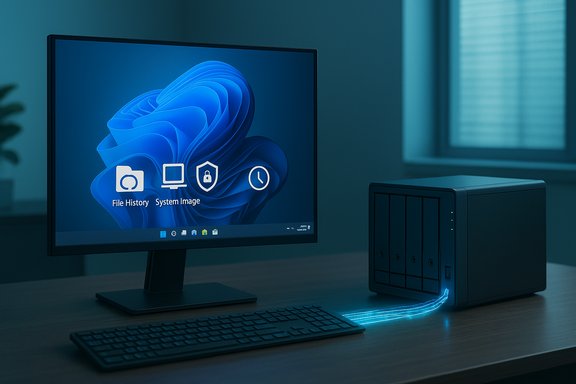
Network backups let you store copies of your data on another computer, a Network‑Attached Storage (NAS) device, or a dedicated file server reachable over SMB (the typical \Server\Share UNC path). This approach combines the convenience of centralised storage with the speed and capacity of on‑premises drives, making it ideal for large photo/video libraries, multiple PCs in a household, or small office environments where bandwidth, privacy, or cost make cloud backup impractical. Windows still supports multiple built‑in ways to push data to a network location: File History (file‑level continuous/versioned backups), Backup and Restore (System Image) (full system images that can be saved to a network share), administrative utilities such as wbadmin for scripted images, and robust file‑copy tools like Robocopy for custom, incremental workflows. Practical how‑to steps and user‑focussed instructions for File History and system images remain available in Microsoft's support documentation and mainstream Windows guides.
Example (one‑time run for a network share):
Example Robocopy command for robust incremental backups:
Source: baonghean.vn https://baonghean.vn/en/sao-luu-windows-11-ra-o-mang-huong-dan-bao-ve-du-lieu-10310674.html
 Background / Overview
Network backups let you store copies of your data on another computer, a Network‑Attached Storage (NAS) device, or a dedicated file server reachable over SMB (the typical \Server\Share UNC path). This approach combines the convenience of centralised storage with the speed and capacity of on‑premises drives, making it ideal for large photo/video libraries, multiple PCs in a household, or small office environments where bandwidth, privacy, or cost make cloud backup impractical. Windows still supports multiple built‑in ways to push data to a network location: File History (file‑level continuous/versioned backups), Backup and Restore (System Image) (full system images that can be saved to a network share), administrative utilities such as wbadmin for scripted images, and robust file‑copy tools like Robocopy for custom, incremental workflows. Practical how‑to steps and user‑focussed instructions for File History and system images remain available in Microsoft's support documentation and mainstream Windows guides. Why choose a network drive for Windows 11 backups?
- Centralised storage for multiple devices — keep one copy for all family or office PCs.
- Scalability — NAS devices often offer multi‑TB capacity and RAID protection.
- Performance — local network (ideally wired Gigabit or 10GbE) is far faster than most consumer internet uploads for large datasets.
- Control and privacy — you retain physical custody of the drives and can apply local encryption policies.
- Hybrid flexibility — combine local network backups with selective cloud sync (OneDrive) for offsite redundancy.
What Windows offers: the comparison at a glance
File History (file‑level, versioned)
- Purpose: Protects user libraries (Documents, Desktop, Pictures, Music, Videos) and any folders you add to libraries with frequent snapshots and version history.
- Network support: File History can be pointed at a network share; it stores incremental copies and allows restoring previous versions of files.
Backup and Restore / System Image (full disk image)
- Purpose: Creates a full system image that includes Windows, installed programs, and system settings — useful for disaster recovery or restoring a machine to an exact prior state.
- Network support: The legacy Backup and Restore (Windows 7) wizard still supports saving system images to a network location (UNC path), though Microsoft no longer actively develops it. Use it if you need a one‑to‑one restore.
WBAdmin (command line)
- Purpose: Powerful, scriptable image backups and restores with fine control. Designed for automation and integration with Task Scheduler.
- Network support: wbadmin accepts UNC network paths as backup targets and supports credentials; ideal for scheduled, unattended system images.
Robocopy + Task Scheduler (file‑level automation)
- Purpose: Fast, resilient file copying with options for mirroring, multithreading, logging and retry behavior — ideal for bespoke backups to a mapped network drive or UNC path.
- Network support: Works with any reachable SMB share; script it and schedule with Task Scheduler for reliable automation.
Preparing the network destination — prerequisites and best practices
Before you start, confirm these practical prerequisites:- The network share must be reachable from the Windows 11 PC (test with \Server\Share in File Explorer). Use wired Ethernet for large datasets whenever possible.
- The backup target should be formatted with NTFS (recommended) or another Windows‑friendly filesystem. FAT32 is unsuitable for large files; exFAT lacks permission semantics.
- Ensure the account used for backups has read/write permissions on the share. When using scheduled tasks, prefer a service account (domain or local account with a strong password) rather than an interactive user’s credentials. Plain‑text passwords in scripts are a security risk.
- If you use BitLocker on the system drive, remember that system images and some transfers may require temporarily suspending BitLocker or decrypting target volumes depending on the tool.
- Confirm adequate free space: system images need at least the used space on your C: drive; File History needs space for multiple versions. Plan for growth and retention.
Step‑by‑step: Set up File History to a network drive (easy, versioned backups)
File History is the easiest path for continuous, versioned protection of personal files.- Create or confirm a network share on your NAS / server (e.g., \NAS01\Backups\UserFiles) and ensure the backup account has full access.
- In Windows 11, open Control Panel → System and Security → Save backup copies of your files with File History. If File History is not visible, search the Start menu for “File History.”
- Click “Select drive” and choose the network location. If Windows asks to move existing backups, decide whether to consolidate or start fresh.
- Turn on File History. Open Advanced settings or More options to:
- Set backup frequency (e.g., every 15 minutes to hourly).
- Set retention policy (Keep saved versions: Forever or until space is needed).
- Add or remove folders (add folders by including them in a Library, or add via the File History options).
- Verify the first backup completes — larger initial backups may take time depending on network speed.
- Test restore: right‑click a folder → Restore previous versions or use File History’s “Restore personal files” to browse the timeline and recover a sample file.
Step‑by‑step: Create a system image to a network share (full‑disk recovery)
Use this when you want a bootable snapshot of the whole system.- Open Control Panel → Backup and Restore (Windows 7) → Create a system image. Yes, it’s the legacy tool, but it still works for a complete image.
- Select “On a network location” and specify the UNC path (e.g., \Server\ImageBackups\PCName). Provide credentials if prompted.
- Choose the volumes to include (C: is automatically selected for system image). Confirm the required space and start the backup.
- When finished, optionally create a recovery USB or system repair disc so you can boot into Windows Recovery Environment and run “System Image Recovery.”
Automating full images with wbadmin (advanced, scriptable)
WBAdmin is Microsoft’s supported command‑line engine for images and works well for scheduled jobs.Example (one‑time run for a network share):
- Command pattern: wbadmin start backup -backupTarget:\Server\Share -include:C: -allCritical -quiet
- To target the network share via a mapped drive, map the share first or specify the UNC path directly; wbadmin accepts UNC targets.
- Create a batch file that maps the share (net use) and runs wbadmin, then deletes the mapping.
- Use Task Scheduler → Create Task… to run the script with highest privileges, choose the service account to run the task, and set triggers (weekly/daily).
- Test the batch manually before scheduling and check Task Scheduler logs for failures.
Robocopy + Task Scheduler: flexible file‑level backup to a network destination
Robocopy excels at fast, resumable file copying and offers options ideal for backups (multithreading, logging, mirror vs incremental modes).Example Robocopy command for robust incremental backups:
- Create a script (C:\Scripts\backup-documents.bat):
- set "src=C:\Users\YourName\Documents"
- set "dst=\NAS01\Backups\YourName\Documents"
- robocopy "%src%" "%dst%" /MIR /MT:16 /R:3 /W:5 /LOG:"C:\Scripts\Logs\docs-backup.log" /TEE
- Schedule it in Task Scheduler to run at a quiet hour with the “Run whether user is logged on or not” option and a service account.
Mapping a network drive reliably and handling credentials
Map the share to a drive letter for convenience or script paths directly with UNC:- GUI: File Explorer → This PC → More → Map network drive → Choose letter and \Server\Share → Optionally check “Reconnect at sign‑in” and “Connect using different credentials.”
- Command line: net use Z: \Server\Share /user
 OMAIN\UserName /persistent:yes
 - PowerShell: New-PSDrive -Name Z -PSProvider FileSystem -Root \Server\Share -Persist -Credential (Get-Credential)
- Credential collisions: Windows can only use one set of credentials per remote server; if you connect to \NAS01 with different usernames, you may see “access denied” until you disconnect previous sessions. Use a single service account for scheduled backups when possible.
Verifying backups and testing restores — do this before you need it
- For File History: restore a random file version to a different folder and open it. Use File History’s “Restore personal files” to browse the timeline.
- For system images: create and boot from a recovery USB, then perform a test restore to a spare drive or VM to validate the image.
- For Robocopy jobs: inspect logs and verify exit codes; sample files (open a few) and compare sizes and timestamps.
- Monitor free space and retention: schedule an audit (script or NAS built‑in alert) to warn when backups approach capacity.
- Network availability and share permissions.
- Task Scheduler history and Windows Event logs for wbadmin, Robocopy, or File History events.
- Whether the account’s password changed or service account was disabled.
Security, encryption, and ransomware considerations
- Network shares should be on devices that support access controls and encryption at rest. Enterprise NAS devices offer volume encryption and snapshot capabilities — use them where possible.
- Keep the backup target isolated from casual write access. If ransomware compromises a PC, mapped backups that are writable from that PC can also be encrypted. Use NAS snapshots or backup workflows that keep multiple historic, immutable copies where possible.
- Use strong, unique credentials for NAS shares and prefer domain service accounts for scheduled backups; avoid embedding plain text passwords in scripts.
Troubleshooting common errors when backing up to a network drive
- “Access denied” when writing to share: verify share NTFS permissions and that there are no conflicting active sessions using different credentials. Disconnect existing network sessions (net use * /delete) if needed.
- WBAdmin fails with VSS errors: Volume Shadow Copy Service errors may indicate insufficient free space or VSS provider conflicts; check Event Viewer and run vssadmin list writers to diagnose.
- File History won’t see the share: ensure the share allows SMB2/SMB3 and that network discovery is enabled; sometimes older NAS devices require firmware updates to interoperate reliably with modern Windows clients.
- Large backup is extremely slow: use wired Gigabit (100 MB/s real‑world) or faster links for big transfers; for very large datasets, copy to an external drive and then import to the NAS as a fallback.
Practical, conservative backup strategy recommendations
- Use a 3‑2‑1 inspired approach adapted for home/small office:
- Keep at least three copies of important data.
- Store backups on two different media types (local NAS + external drive).
- Keep one copy offsite or in the cloud (OneDrive or another encrypted cloud service) for disaster recovery.
- Combine File History for fast file‑level restores with weekly system images for complete recovery.
- Automate with wbadmin or Robocopy + Task Scheduler and validate jobs weekly.
- Protect your backup target with snapshots or versioning on the NAS to defend against accidental deletion or ransomware.
- Keep recovery media (Windows recovery USB) updated and test restores on a spare drive annually.
When built‑in tools aren’t enough
For power users, IT pros, or small businesses with complex needs (bare‑metal recovery, application‑consistent VM snapshots, or enterprise encryption), third‑party backup suites that integrate with NAS providers (Synology Active Backup for Business, Veeam, Macrium Reflect, Acronis) provide advanced features, scheduled image verification, and centralized management. These are recommended when you need automation beyond what wbadmin and File History can safely, reliably provide.Conclusion
Backing up Windows 11 to a network drive is a practical, high‑value strategy for protecting files and systems while keeping control of your data. Use File History for continuous, versioned protection of personal files, Backup and Restore or wbadmin for full system images, and Robocopy for flexible, scriptable file‑level workflows. Prioritise proper share permissions, NTFS on targets, secure credentials, and periodic verification — then automate and test. Microsoft’s documentation and community guides provide the nuts‑and‑bolts steps to get started, and a disciplined, layered backup plan will save hours of recovery work and avoid the worst data‑loss scenarios.Source: baonghean.vn https://baonghean.vn/en/sao-luu-windows-11-ra-o-mang-huong-dan-bao-ve-du-lieu-10310674.html
