

NVIDIA’s driver ecosystem for Windows 10 remains the single most important piece of software you install on a gaming or creative PC: it controls performance, stability, security, and access to features like DLSS, Reflex, and hardware-accelerated capture. This feature explains how to safely download the best NVIDIA drivers for Windows 10, how GeForce Experience (and its successor apps) fit into the workflow, which download channels to trust, and practical, technician-grade steps to install, verify, and—if necessary—roll back drivers without turning your system into a troubleshooting rabbit hole.
Windows 10 remains widely used on gamer and workstation systems, and NVIDIA recently published a clear support plan that extends Game Ready and Studio driver support for Windows 10 through October 2026, with security updates continuing beyond that on a reduced cadence. This extension matters: it means Windows 10 users will continue receiving mainstream feature and performance updates for another year before driver support shifts to a quarterly security-only model. Community and vendor guidance consistently point to three core truths:
Beta drivers can provide early access to features or fixes, but they are not recommended for production or stability-critical systems. For competitive play or professional work, prefer WHQL-signed Game Ready or Studio drivers.
Source: Born2Invest https://born2invest.com/?b=style-230837312/
 Background
Windows 10 remains widely used on gamer and workstation systems, and NVIDIA recently published a clear support plan that extends Game Ready and Studio driver support for Windows 10 through October 2026, with security updates continuing beyond that on a reduced cadence. This extension matters: it means Windows 10 users will continue receiving mainstream feature and performance updates for another year before driver support shifts to a quarterly security-only model. Community and vendor guidance consistently point to three core truths:- Use the vendor (NVIDIA) or your OEM as the primary download source for drivers.
- Prefer WHQL or vendor-signed packages for production machines.
- Keep a rollback and recovery plan (restore point, saved driver installers, or system image) before changing graphics drivers.
Overview: What “best” driver means in 2026
“Best” is not always the newest. For NVIDIA on Windows 10, the best driver depends on three priorities:- If you want day‑one optimizations for new games and the latest feature set (DLSS, Frame Generation, RTX improvements), choose the latest Game Ready Driver from NVIDIA.
- If you use creative applications and want stability validated for content‑creation workloads, prefer the Studio Driver branch.
- If you're on a laptop, prioritize the OEM‑packaged driver the laptop vendor ships—these are tuned for power, thermals, and integrated system features. Community guides repeatedly recommend OEM packages first for notebooks.
Why trust the official NVIDIA download channels (and why avoid mirrors)
NVIDIA distributes:- Full Game Ready and Studio drivers through its official download portal and regional download pages.
- Support documentation and hotfix packages via its Customer Care pages when urgent mitigations are required.
- The GeForce/ NVIDIA app for automatic notifications and convenience installs.
- Drivers are privileged kernel‑level components. Repackaged installers can modify INFs, include unwanted bundles, or break digital signing enforcement.
- Community reporting shows repackaged or “one‑click” driver updaters frequently introduce mismatches and stability problems.
GeForce Experience vs manual driver install: which to use?
GeForce Experience (and the new NVIDIA app) is convenient: it notifies, downloads, and can install drivers with minimal interaction; it also provides game profile optimizations, ShadowPlay capture, and driver rollback in some versions. But it has limits and occasional issues:- The app may fail to download or install drivers in some configurations, requiring a manual installer. Community threads document intermittent download or install failures in the app.
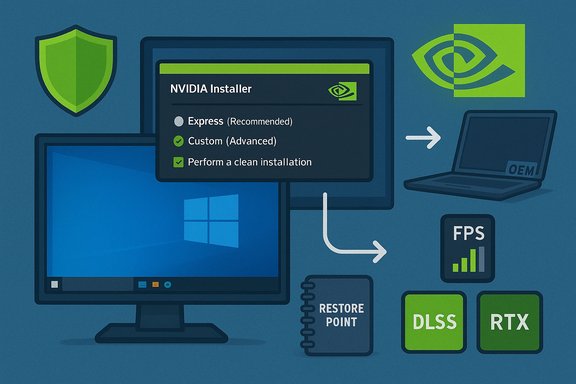
- Some users prefer the manual route to control the install type (Custom → Perform a clean installation) and to avoid optional software components.
- Desktop users who want simplicity: use the NVIDIA app for notifications but fall back to the manual download page when the app misbehaves.
- Creators or enterprise machines: use Studio drivers or OEM-supplied packages, and install manually after verifying the release notes.
- Laptops: always check the OEM support site first; if the OEM lists a newer certified driver, use it.
Safety checklist before you update any NVIDIA driver (two-minute prep)
- Create a System Restore point or a full image backup.
- Note your current driver version (Device Manager → Display adapters → Driver tab).
- Download the new installer and keep the previous working installer on another drive.
- Close overlays, capture utilities, and antivirus before installing.
- Prefer Custom → Perform a clean installation when the installer offers it.
Step‑by‑step: Safe manual NVIDIA driver install (Windows 10)
- Identify your GPU model and OS (Settings → System → About; Device Manager → Display adapters).
- Visit NVIDIA’s official Download Drivers page; select Product Type, Series, Product and Windows 10 (64‑bit) then click Search.
- Read the driver release notes on the download page to confirm it includes the fixes or features you need.
- Download the driver package and save it locally.
- Reboot into normal desktop, exit overlays, then run the driver installer as Administrator.
- Select Custom (Advanced) and check Perform a clean installation.
- Reboot after the installer prompts and verify Device Manager reflects the new driver version.
- Check the OEM support site for a certified package for your laptop model.
- Extract the NVIDIA package and, as a last resort, install from Device Manager → Have Disk if the INF contains your hardware ID. Be cautious: manual INF installs are a fallback and carry risk.
When to use a hotfix or beta driver — and when not to
Hotfixes are targeted, rapid-response packages intended to fix a single, urgent issue (for example, a severe performance regression after a Windows update). They undergo an abbreviated QA cycle and are distributed through NVIDIA’s Customer Care pages rather than the app. Use them only if you are experiencing the specific, documented problem.Beta drivers can provide early access to features or fixes, but they are not recommended for production or stability-critical systems. For competitive play or professional work, prefer WHQL-signed Game Ready or Studio drivers.
Verifying results after installation: objective, repeatable checks
- Capture baseline metrics before the update: average FPS and 1% lows (use CapFrameX, PresentMon, or NVIDIA FrameView).
- After install, re-run the same benchmark or game scenario and compare averages and lows rather than relying on single-frame FPS numbers.
- For creative workloads, test a representative export or render pass and compare times and image fidelity.
Rollback and recovery: what to do if the driver breaks your system
- If system boot succeeds but graphics are unstable: use Device Manager → Roll Back Driver.
- If you encounter black screens or boot failures: boot into Safe Mode and run Display Driver Uninstaller (DDU) to remove driver remnants, then reinstall the previous driver. DDU is widely recommended by communities and tech guides but should be used carefully—always back up first.
- If Windows Update keeps pushing an older driver that interferes with your test, use Microsoft’s “Show or hide updates” troubleshooter to block that update while you evaluate.
Special considerations for legacy GPUs (e.g., GeForce GT 710 and older)
Legacy cards often have different driver families and, in some cases, limited Windows 10 targeting. Community workflows for GT 710 and other older cards emphasize:- Prefer OEM drivers on laptops.
- If the NVIDIA installer refuses the card, check the INF and consider a manual install only if the INF contains your hardware ID.
Privacy, telemetry, and the GeForce Experience app
GeForce Experience historically offered convenience at the cost of optional telemetry: driver updates, automatic game optimization, and capture features require some level of network access. NVIDIA now provides an updated app that integrates many features from the old GeForce Experience and the Control Panel; it also allows many features without mandatory sign-in depending on the app version. Users who prefer minimal telemetry can opt for manual driver downloads and avoid installing the optional app components.Troubleshooting common problems and proven fixes
- Installer says “not compatible”: confirm hardware ID in the INF or use OEM driver.
- App fails to download drivers: download the manual installer from NVIDIA’s download page and reinstall the app later if desired. Community reports show this workaround works when the app's downloader misbehaves.
- After upgrade, color banding, flicker, or performance regressions: consider hotfixes from NVIDIA Customer Care or roll back and report to NVIDIA with DxDiag details if the issue persists. Hotfixes are targeted and should be installed only when you match the documented symptoms.
Cross‑checks and verifications performed for this feature
- NVIDIA’s official support and download pages confirm the ability to download standalone drivers and that the GeForce/NVIDIA app is optional for manual downloads.
- NVIDIA’s published Windows 10 support plan documents the extended support timeline through October 2026 and the shift to reduced cadence after that date.
- Community and Windows‑forum archives provide consistent best-practice advice on clean installs, DDU usage, and OEM preference for laptop drivers. These community resources were consulted to create step-by-step procedures and trouble-shooting checklists.
Practical recommendations — concise, actionable guidance
- For gamers: Use the latest Game Ready Driver from NVIDIA’s site unless you depend on an OEM laptop package; create a restore point and perform a clean install.
- For creators: Prefer Studio Drivers for validated application compatibility; test new drivers on a non‑production machine first.
- For laptop users: Always prioritize the OEM’s driver unless you have a strong reason to prefer NVIDIA’s generic package. OEM drivers often include firmware and power/thermal tuning that generic drivers do not.
- For legacy hardware: Verify INF compatibility, keep older installers archived, and consider hardware upgrade if security/stability matters long-term.
- For IT teams: Stage driver updates, automate rollback procedures, and treat driver updates as part of your overall patch validation process.
Conclusion
Downloading the “best” NVIDIA driver for Windows 10 is primarily a question of intent: speed and new features, or stability and validated workflows. NVIDIA’s official channels provide both the latest Game Ready and Studio drivers and the option to install manually without the GeForce app, while OEM packages remain the safer choice for laptops. Always prepare a rollback plan, verify drivers with objective tests, and avoid repackaged installers or third‑party driver tools. For users who follow these rules—download from NVIDIA/OEM, use clean-install options, and validate with benchmarks—driver updates will be a performance win rather than a reliability risk.Source: Born2Invest https://born2invest.com/?b=style-230837312/
