

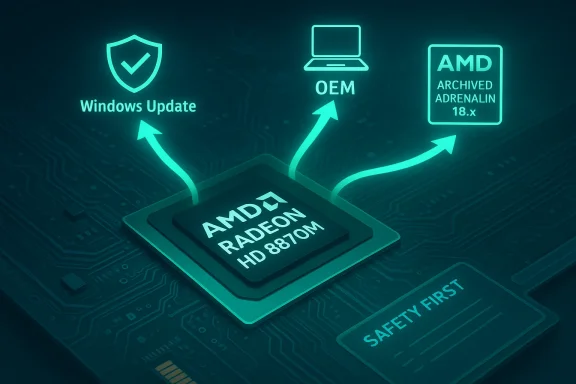
If you still own a laptop with an AMD Radeon HD 8870M and are running Windows 10, the safest and most practical path to a working, stable display stack is to choose a vendor-approved or Microsoft‑signed driver rather than chasing repackaged archives — in practice that usually means using the AMD archived Adrenalin packages that explicitly list the HD 8870M, an OEM-supplied driver from your laptop maker, or the Microsoft-supplied legacy driver delivered through Windows Update.
The AMD Radeon HD 8870M is a 2013‑era mobile GPU built on AMD’s GCN 1.0 architecture. It shipped with up to 2 GB of GDDR5 and 640 shader cores, and it was positioned for midrange gaming and multimedia tasks in notebooks of that generation. The card is now in a legacy category: AMD moved 8000M family support to an archival model years ago while modern Adrenalin drivers stopped active feature development for these older chips. Tech spec references remain useful for setting realistic expectations about performance and compatibility. At the same time, the Windows ecosystem changed materially after Microsoft ended mainstream Windows 10 support on October 14, 2025. That end‑of‑support milestone increases the long‑term risk of running older OS/drivers because vendors are less likely to perform OS‑specific QA and securws 10 going forward. For anyone maintaining an older laptop, that risk needs to factor into the choice of where to source drivers and whether to keep using Windows 10.
Every driver choice for legacy mobile GPUs is a trade‑off between features and risk. Prioritize provenance: prefer Microsoft‑signed or OEM packages; use AMD’s archived Adrenalin builds only when you need legacy features and can accept the technical and security caveats.
Source: Born2Invest https://born2invest.com/?b=style-231932612/
 Background
The AMD Radeon HD 8870M is a 2013‑era mobile GPU built on AMD’s GCN 1.0 architecture. It shipped with up to 2 GB of GDDR5 and 640 shader cores, and it was positioned for midrange gaming and multimedia tasks in notebooks of that generation. The card is now in a legacy category: AMD moved 8000M family support to an archival model years ago while modern Adrenalin drivers stopped active feature development for these older chips. Tech spec references remain useful for setting realistic expectations about performance and compatibility. At the same time, the Windows ecosystem changed materially after Microsoft ended mainstream Windows 10 support on October 14, 2025. That end‑of‑support milestone increases the long‑term risk of running older OS/drivers because vendors are less likely to perform OS‑specific QA and securws 10 going forward. For anyone maintaining an older laptop, that risk needs to factor into the choice of where to source drivers and whether to keep using Windows 10. Overview: what “best driver” means for HD 8870M on Windows 10
“Best driver” is coolder mobile GPUs like the HD 8870M, there are three practical driver objectives:- Stability and security (highest priority for daily use): Use the Microsoft‑signed driver supplied through Windows Update or your OEM driver package. These are signed, cataloged, and least likely to break the boot/display stack.
- Maximum feature parity (Catalyst/Adrenalin utilities, legacy UVD features): Use AMD’s archived Adrenalin/Catalyst installers — but only if the package lists your exact hardware VID/PID in its INF and you are comfortable with manual installation steps. These packages may include Catalyst Control Center or legacy runtime features but were designed for older kernels and may require extra steps to install .
- Ease of use (laptop-specific tuning): When available, an OEM driver ct laptop model often provides the best balance between functionality and safety because it may contain vendor‑specific thermal, power, and hybrid‑graphics support.
Hardware snapshot: Radeon HD 8870M (why drivers matter)
- GPU: Venus (Venus XT mobile variant)
- Stream processors: 640
- Memory: 2 GB GDDR5
- Memory bus: 128‑bit
- Typical clocks: ~725–775 MHz (boost)
- Release: April 2013; generation: HD 8800M (GCN 1.0).
Where legitimate drivers come from (and wh
Trustworthy driver sources (ranked by safety):- Microsoft Update / Windows Update (preferred first step). Provides signed, cataloged drivers suitable for desktop and basic acceleration. It is often the least risky route for older GPUs.
- OEM / laptop vendor download page. Branded installers are tuned for hybrid graphics, thermal/power behavior, and special firmware. If the vendor publishes a Windows 10 driver for your model, use it.
- AMD official downloads (archived Adrenalin / Catalyst packages). AMD maintains legacy downloads for older families; for HD 8870M there are Adrenalin 2018-era packages and older C archives. Use these only when you verify INF entries and are prepared for manual or advanced installation steps.
- rchives (TechPowerUp, Guru3D) — secondary. Useful for historical packages and INF references, but always verify checksums and avoid repackaged “driver shops.” Community logs show repackaged installers sometimes include modified INFs or unsigned binaries.
Which AMD packages are relevant for HD 8870M right now
AMD’s archived support pages list Adrenalin Edition drivers from 2018 that explicitly target HD 8000M family mobile GPUs, including several 18.8.x and 18.9.x builds. For many Windows 10 users the useful historical builds include:- Adrenalin Edition 18.9.2 (and nearby 18.9.x releases) — documented on AMD’s previous drivers page for the HD 8870M. These are often the last modern installers that still reference Windows 10 support in package contents.
- Catalyst / Legacy 14.x packages for Windows 8 and earlier — useful reference if an OEM package for a laptop uses older Catalyst installers. These packages predate Adrenalin and are typically intended for Windows 7/8 kernels.
Step‑by‑step: a conservative, recommended installation workflow
This workflow minimizes risk for Wi an HD 8870M. Do these steps in order.- Inventory and backups
- Copy the GPU Hardware Id: Device Manager → Display adapters → right‑click → Properties → Details → Hardware Ids (copy PCI\VEN_1002&DEV_xxxx).
- Create a System Restore point and, if possible, a full diss to the display stack can make systems unbootable.
- Try Windows Update first (recommended)
- Settings → Windows Update → Check for updates → View optional updates → Driver updates.
- If Windows Update supplies a Microsoft‑signed Radeon driver, install it and validate basic functionality (resolution, multi‑monitor, video playback). This is the lowest‑risk fix.
- Check the OEM / laptop vendor support page
- If your laptop maker (Dell, HP, Lenovo, ASUS, etc. lists a Windows 10 driver for your exact model, prefer that package — it may include switchable‑graphics and power tuning. Install and validate.
- If you need more femanual/legacy install (advanced users only)
- Boot to Safe Mode and run Display Driver Uninstaller (DDU) to remove residual AMD/ATI driver traces. Community guides repeatedly recommend DDU before attempting legacy installers.
- Download the archived AMD package that explicitly lists HD 8870M (fo.9.2 as listed on AMD’s page) and extract it. Do not run the GUI unless the package documents Windows 10 support and your INF includes the device ID.
- Inspect the extracted Display.Driver*.inf for your hardware ID. If the INF lists your VID/PID, use Device Manager → Update driver → Browe pick → Have Disk → point to the extracted INF and install only the display driver (avoid optional components). If INF lacks your device ID, do not edit it unless you can re‑sighe security risk.
- Validate and stabilize
- Reboot into normal mode and test. If Windows Update automatically reverts a manual install, temporarily pause/disable updates while you validate the driver, then re‑enable updates. Community threads document Windows Update reapplying Microsoft drivers as a common trap.
- Rollback plan
- Keep your DDU logs and the disk image. If the display stack becomes unusable, boot into Safe Mode and restore the image or Use Device Manager → Roll Back Driver if available.
Common problems and practical fixes
- Installer aborts with “This device is not supported”: The package’s INF does not list your hardware VID/PID. Fix: uss Update; avoid INF edits unless you can sign drivers.
- Catalyst/Adrenalin UI appears but Device Manager shows “Microsoft Basic Display Adapter”: This indicates a partial install; run DDU in Safe Mode and retry the proper package.
- Installation freezes or system crash during install: Community reports show certain Adrenalin builds can freeze on particular laptop models during GUI installsreeze, use DDU, then try a manual INF install or an OEM package instead. Documented user reports exist on AMD’s community forums describing installation freezes with 8870M on some Dell systems.
- Driver signature and Secure Boot: Many older Catalyst packages lack modern signing metadata. Installing them may require temporarily disabling signature enforcement—acceptable only for short tests on non‑critical machines. Do not disable Secure Boot permanently on production devices.
Performance and feature trade‑offs
- Expect basic desktop and video playback to work with Microsoft‑signed or OEM drivers; advanced Catalyst features (CrossFire tuning, old UVD runtime bits, or Catalyst Control Center functionality) may be limited or unavailable on later Windows 10 kernels. Don’t expect modern Adrenalin features or frequent pons for new games.
- Driver updates will not appreciably increase raw shader performance; they mainly restore codec offload, fixed bugs, and control utilities. If you need modern codec acceleration (HEVC 10‑bit, AV1), or meaningful gaming perfdware upgrade is the most cost‑effective and long‑term solution.
Security and lifecycle risks (important)
- Microsoft ended Windows 10 support ohat means no routine security updates for the OS and an increased risk when running kernel‑level legacy drivers on an out‑of‑support OS. Vendors may stop testing drivers against Windows 10, and new driver releases are unlikely for legacy product lines. Plan upgrades or mitigations when security matters.
- Graphics drivers operate at kernel level and historically have been an attack surface for privilege escalation. Prefer Microsoft‑signed drivers or OEM packages. Avoid repackaged installers from unverified third parties.
Quick‑reference “best choices” (practical cheat sheet)
- If you want the least risk and you only need a working desktop: Accept the Microsoft driver offered by Windows Update (install via Windows Update → Optional driver updates).
- If you want OEM tuning for hybrid graphics or laptop‑specific features: Use the driver package on your laptop maker’s support page for the exact model.
- If you need Catalyst/Adrenalin features and are comfortable with advanced steps: Use AMD’s archived Adrenalin 18.9.x drivers that list HD 8870M, verify the INF contains your device ID, and perform a clean install after DDU.
- If an installer consistently freezes on GUI install: Try the manual INF “Have Disk” method after using DDU, or look for an OEM variant of the same package — community threads document GUI install freezes on some models and show that manual installs or OEM packages can succeed where an automated installer fails.
What to do if you can’t get a working driver
- Confirm the GPU hardware ID in Device Manager (copy PCI\VEN_1002&DEV_xxxx).
- Try Windows Update and OEM driver as first options.
- If those fail and you must proceed, test on a non‑critical machine: use DDU in Safe Mode, extract AMD’s archived package, confirm INF entry, and install via Device Manager → Have Disk.
- If the machine remains unstable or the install consistently fails, accept the Microsoft ability or consider upgrading hardware. Running a modern, supported GPU and OS will usually be cheaper and far safer than extended troubleshooting on EOL hardware.
Critical analysis: strengths, limitations, and risks
Strengths- AMD’s archived Adrenalin drivers provide the best chance to restore legacy features for HD 8870M where INF entries exist; these packages are the vendor‑supplied binaries and should be treated as the canonical source for legacy functionality.
- Microsoft’s signed legacy drivers via Windows Update are the safest option for users who need stability and signed code, and they minimize the security surface of an aging OS.
- Legacy drivers were not developed or QA’d for modern Windows 10 kernel changes after 2018–2022; some features and utilities can be broken or unreliable on newer Windows 10 builds.
- The GPU’s hardware limits mean driver updates will not produce modern gaming performance; driver choices mainly affect feature parity and stability.
- Installing unsigned or repackaged d to kernel‑level malware or stability issues. Community moderation logs repeatedly warn against third‑party repackagers that modify INFs or bundle unsigned binaries.
- Running Windows 10 past its October 14, 2025 end‑of‑support date increases the security risk if you must use legacy drivers for ongoing productivity — consider ESU for a controlled transition or plan an upgrade to Windows 11 or newer hardware.
Closing recommendation (concise)
- For most users: use Windows Update (Microsoft‑signed driver) or your OEM driver for the laptop model. This gives the best balance of stability and safety.
- For advanced users who require Catalyst/Adrenalin utilities: use AMD’s archived Adrenalin 18.9.x packages that explicitly list the HD 8870M, verify the INF contains your device ID, and perform a clean install after running DDU — treat this as an advanced, test‑first operation only.
- If you depend on your laptop for security‑sensitive work, consider upgrading hardware and moving to a supported OS rather than extending life with legacy drivers; the combination of a legacy GPU and an out‑of‑support OS increases operational risk.
Every driver choice for legacy mobile GPUs is a trade‑off between features and risk. Prioritize provenance: prefer Microsoft‑signed or OEM packages; use AMD’s archived Adrenalin builds only when you need legacy features and can accept the technical and security caveats.
Source: Born2Invest https://born2invest.com/?b=style-231932612/
