

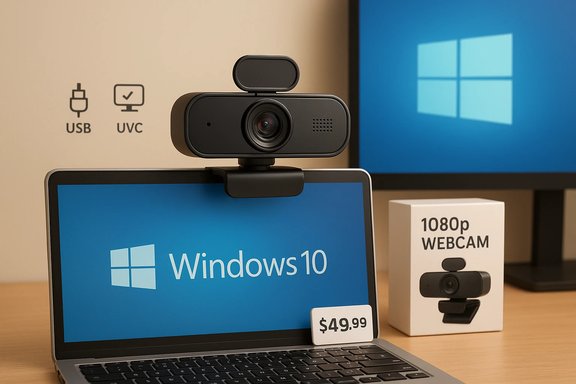
If you’re shopping the “PC 1080P Webcam with Mic” listings on Amazon that promise plug‑and‑play compatibility with Windows 10 and free shipping, the short version is this: you can get perfectly serviceable video‑call performance for less than $50, reliable 1080p/30fps clarity for most meeting scenarios, and a built‑in microphone good enough for casual calls — but you must pick carefully, expect compromises compared with dedicated studio cameras, and validate seller claims (especially about free shipping, software features, and warranty) before checkout.
Background / Overview
The product description you supplied — a typical Amazon product headline promising “Free Shipping PC 1080P Webcam with Mic. USB Camera for Video Calling Recording Video Conference Online Teaching Business Meeting Compatible with Computer Desktop” — reflects the most common, best‑selling webcam category in 2024–2026: inexpensive USB webcams that advertise Full HD (1920×1080) at 30fps, a built‑in microphone, and Windows compatibility. These devices are geared toward everyday video calling and online teaching rather than professional streaming or high‑end content creation. Many of the budget models ship with a privacy cover, wide‑angle lenses, and “noise cancelling” mic claims; the fidelity of those features varies dramatically between brands.The short product copy also included standard cookie/privacy text about “technical storage or access … used exclusively for statistical purposes.” That phrasing is a common cookie‑consent boilerplate used on many commercial pages; it does not affect the product specification but should remind buyers that vendor and marketplace pages routinely collect analytics and require scrutiny of privacy settings when installing companion software or drivers.
Practical reality check: manufacturer specifications and independent reviews are the reliable sources for performance claims — marketplace product pages can be useful but are often incomplete or inconsistent about frame rates, mic pickup distance, and lighting performance. Where possible, verify camera specs on the vendor’s official product pages and cross‑check with professional reviews and forum reports.
What a “1080p webcam with mic” really delivers
What “1080p” means in real use
- 1080p (1920×1080) at 30fps is the typical marketing promise for Full HD webcams. It means the camera sensor and firmware can output 1080‑pixel vertical resolution; many cameras do so reliably at 30 frames per second. Manufacturer pages confirm this for mainstream models. For example, Logitech’s C920 family lists 1080p@30fps as the maximum video capture mode.
- Real‑world caveat: compression, USB bus bandwidth, lighting conditions and ISP restrictions often mean conferencing apps downscale video. You’ll typically get full 1080p in local recordings or streaming apps that accept higher bitrate capture; in meetings the app and network usually determine final visible quality. Independent reviews and roundup tests show the C920 remains the “best overall” 1080p webcam for standard use because of its consistent exposure and software support.
Microphone expectations
- Most integrated mics on budget webcams are omnidirectional, intended for conversational pickup at 1–3 meters. Built‑in noise suppression and AGC (automatic gain control) are common in vendor specs, but they don’t replace a dedicated external microphone for podcasting or professional voice work.
- Vendor pages and manuals are the authoritative reference for mic pickup distance and supported audio features; consult them if you rely on on‑device noise reduction or beamforming. For example, Anker’s PowerConf lineup documents dual‑mic noise cancellation and voice pickup characteristics in its product notes.
Windows 10 compatibility and drivers
- Most modern USB webcams present as USB Video Class (UVC) devices and work plug‑and‑play with Windows 10’s built‑in drivers. This means you usually do not need vendor drivers for basic video and audio. Logitech explicitly lists UVC support for older C920 models.
- Advanced features (software tuning, firmware updates, AI background removal) are provided through vendor software that may have Windows 10 installers or system requirements; review those pages before buying if software features matter.
Top picks by category (practical, Windows‑focused recommendations)
Below are tested and well‑documented picks across price points and use cases. Each entry references the vendor/spec pages and a second, independent review or roundup where possible.1) Best overall value — Logitech C920 family (C920 / C920e)
- Why it matters: decades of driver stability, consistent 1080p/30fps image, decent stereo mic, and broad app compatibility. The C920 lineup remains the standard “works everywhere” webcam for Windows users. Specs validated by Logitech show 1080p@30fps, RightLight exposure tuning and UVC plug‑and‑play behavior.
- Strengths: reliable colors and exposure under mixed lighting; vendor software options; sturdy clip and optional tripod mount.
- Weaknesses: no 60fps modes, not ideal for high‑motion streaming or DSLR‑level quality.
2) Best budget buy (under $50) — NexiGo N60 (and similar brands)
- Why it matters: delivers 1080p@30fps, privacy shutter and noise‑cancelling mic at very low prices. NexiGo’s official spec list confirms 1920×1080 @30fps, a built‑in noise‑cancelling microphone and wide compatibility with Windows 10.
- Strengths: low cost, privacy cover, wide field of view for group calls.
- Weaknesses: simpler sensors and optics than premium models; limited low‑light performance.
3) Best for business / hybrid work — Anker PowerConf C200 / C300
- Why it matters: midrange cameras with stronger mic arrays, adaptive light sensors, and vendor management software for firmware and configuration. Anker documents 2K and 1080p operation across products and provides an AnkerWork/PowerConf software suite for settings and firmware.
- Strengths: strong value for conference rooms and personal desks; good mic behavior; privacy shutter.
- Weaknesses: firmware and software issues have been reported by users on forums, so confirm update behavior and return policies. (See Troubleshooting section.
4) Best for intelligent framing and tracking — OBSBOT Tiny (Tiny SE / Tiny 2)
- Why it matters: these cameras include motorized pan/tilt or AI‑tracking that keeps the subject centered. Review coverage highlights the Tiny SE’s tracking at a low price for this feature set.
- Strengths: excellent if you move during a presentation; multi‑mode framing.
- Weaknesses: fewer models offer 4K; motorized elements add cost and moving parts.
5) Smartphone alternative — Windows “Connected Camera” / Phone‑as‑webcam
- Why it matters: if you already own a modern smartphone with a good camera, Windows (and third‑party apps) supports using the phone as a webcam, sometimes delivering better visuals than low‑end USB cams. Community and documentation outline USB native webcam modes for some phones or wireless Phone Link/Connected camera flows. This is a practical upgrade path for users avoiding separate hardware.
Buying checklist: what to confirm before you buy on Amazon
- True resolution and frame rate: verify 1920×1080 @30fps on the vendor site (not only the Amazon title).
- Microphone type: omnidirectional vs directional, and advertised noise‑cancellation features. Handled in vendor specs.
- UVC / plug‑and‑play support: ensures the webcam will work without driver installs on Windows 10.
- Privacy shutter: useful for always‑on camera privacy.
- Mounting and tripod support: if you need flexible positioning.
- Return policy and warranty: marketplace sellers differ; a reliable return window matters for hardware.
- Shipping claims: “Free shipping” is often promotional and varies by seller, buying region, Prime eligibility and purchase price. Confirm shipping options at checkout — the marketplace listing alone is not a guarantee of merchant service.
- Seller reputation and reviews: watch for repeated reports of DOA units, camera artifacts, or missing accessories.
Windows 10 setup and configuration (step‑by‑step)
- Plug the camera into an available USB 2.0 or 3.0 port (avoid unpowered hubs for first tests).
- Open Settings → Privacy → Camera and ensure “Allow apps to access your camera” is turned on for the apps you intend to use.
- Launch the Windows Camera app for a quick plug‑and‑play sanity check — it uses the OS video stack and will show whether Windows recognizes the device.
- If Windows does not show video:
- Open Device Manager → Cameras (or Sound, video and game controllers) and verify a “USB Video Device” or the vendor name appears.
- If a driver error is visible, choose “Update driver” → “Browse my computer” → “Let me pick from a list” → select the in‑box UVC (“USB Video Device”) driver as a fallback.
- Install vendor software only if you need advanced features, firmware updates, or face‑tracking—follow the vendor’s instructions and keep vendor tools up to date. Vendor pages list supported Windows versions and software downloads.
Troubleshooting: common Windows 10 issues and fixes
Budget webcams largely work plug‑and‑play, but problems arise. The community and enterprise troubleshooting guides converge on the same practical steps.Symptom: black preview in Camera/Zoom/Teams
- Quick steps:
- Close every app that may access the camera (Teams, Zoom, browser tabs, LogiTune/Logi Options, OBS).
- Test Camera app alone to isolate the issue.
- Switch the camera driver to the Windows in‑box UVC driver (Device Manager → Update driver → pick “USB Video Device”). Microsoft and vendor communities recommend this as a safe fallback.
- Advanced diagnostic:
- Check for “Frame Server” issues: the Windows Media Foundation Frame Server can sometimes interfere; community guides show toggling EnableFrameServerMode in the registry as a diagnostic step (back up the registry first). This is a diagnostic workaround and not an official vendor fix.
Symptom: no audio or poor mic quality
- Confirm default input device in Sound settings.
- Test with Windows Voice Recorder or the Camera app.
- If echo or distortion occurs, try other apps to determine whether it’s app‑specific (some apps implement or strip noise cancellation differently). Anker and other vendors document software interactions and firmware versions that can affect mic behavior; user reports on forums have flagged firmware updates that changed auto‑white balance or UVC descriptors — always confirm you’re running recommended firmware.
Symptom: intermittent disconnects, flicker, or dropped frames
- Avoid sharing a single USB root hub across multiple cameras or high‑bandwidth USB devices — USB bus saturation causes dropped frames. Use separate ports or a powered hub with independent controllers. Community guides commonly recommend using dedicated ports when capturing video.
- Turn off “Allow the computer to turn off this device to save power” on USB root hubs and camera device power settings in Device Manager.
When to escalate
- If several machines fail to see the camera, test the hardware on a second PC to rule out a defective unit.
- Gather diagnostic logs (Get‑PnpDevice output, Event Viewer entries, installed update history) before contacting vendor support; these are the typical evidence sets vendors request. Enterprise guides outline how to collect these logs for escalation.
Privacy, security, and practical risks
- Any webcam connected to a PC increases the system’s privacy attack surface. Keep these points in mind:
- Physical shutter or privacy cover is the simplest and most effective defense — use it when the camera is not needed.
- Audit which apps can access the camera in Windows privacy settings periodically and remove unnecessary permissions.
- Vendor software that requires deep system access (kernel drivers or unsigned drivers) can increase risk; prefer signed, well‑maintained software and avoid obscure driver installers. Community guidance cautions against disabling driver signature enforcement to install drivers.
- If a device requires firmware updates, read the change log — some users report regressions after firmware updates (auto white balance or USB compatibility changes). Check vendor forums and reviews for any red flags before large rollouts.
How to read user reviews and marketplace claims (a short primer)
- Verify specific claims on the manufacturer’s official product page rather than relying solely on the marketplace product title or image.
- Look for technical detail in reviews (sample recordings, lighting conditions, FPS tests) — screenshots and short videos included by reviewers are more honest than one‑line positive reviews.
- Watch for patterns in negative reviews: multiple reports of DOA units, microphone echo across many buyers, or consistent software breakage after updates are stronger signals than isolated complaints.
- Shipping and warranty claims are merchant‑dependent; confirm seller identity, warehouse location, and returns policy before ordering.
Short buying scenarios (use cases)
- If you need a no‑frills, reliable camera for daily video calls on Windows 10: get a Logitech C920/C920e if your budget permits — it’s the safe, widely‑supported choice.
- If you need the cheapest workable camera for classes or occasional calls: look at NexiGo, Aukey, or similar budget models; confirm the vendor page for 1080p/30fps and expected mic behavior.
- If you present while moving (teaching demos, fitness classes): consider a tracking camera such as OBSBOT Tiny series or higher‑end AI‑capable webcams (Insta360 Link family) — they cost more but improve viewer experience.
- If you already have a recent smartphone: try the Windows connected camera or a DroidCam/DroidCam‑like solution — often the easiest way to upgrade image quality without buying dedicated hardware.
Final appraisal: what to expect from the Amazon “1080P Webcam with Mic” market
- Strengths: you can get very good value — dependable 1080p performance and a usable mic for meetings — for a low price. Vendor sites and independent reviews confirm that the combination of plug‑and‑play UVC support plus vendor management software gives Windows 10 users predictable results with mainstream models.
- Risks: marketplace titles and photos can mislead about features (60fps, true 1080p in all apps, or “noise cancelling” that’s only an algorithmic label). Firmware and software updates occasionally introduce regressions; community threads document specific examples and step‑by‑step workarounds for Windows 10. Plan for a quick sanity test after unboxing and retain the return option.
- Practical recommendation: for the majority of Windows 10 users buying on Amazon, pick a recognized vendor model (Logitech, Anker, NexiGo, OBSBOT), confirm the exact model number and specs on the vendor site, and test immediately. If advanced features or better audio fidelity are required, budget for a higher‑tier camera or pair a decent USB mic with a budget webcam.
This analysis is grounded in vendor technical pages and independent product roundups and community troubleshooting guidance. Manufacturer specifications (Logitech C920 family, NexiGo N60, Anker PowerConf C200), plus recent review coverage of tracking and AI‑assisted cameras, support the recommendations and the practical setup and troubleshooting steps above. Where marketplace text or a supplied source link could not be validated, treat the marketplace claims (free shipping, bundled software, or seller warranties) as conditional until confirmed at checkout.
Source: Born2Invest https://born2invest.com/?b=style-246958112/
