

If you own a Samsung Galaxy and want an immediate, measurable improvement in everyday responsiveness, battery behavior, and privacy, changing a handful of system settings will deliver the biggest payoff without buying new hardware.
Samsung’s One UI is highly configurable and, in recent generations, has layered many convenience features on top of Android. That means defaults are designed for the broadest audience, not for speed, battery longevity, or privacy-minded power users. A small set of toggles—navigation, notifications, display resolution, side‑key behavior, and Samsung-specific tools—control large parts of the user experience. Changing them is low-risk, reversible, and often delivers an instantly snappier phone.
The approach below synthesizes a practical how‑to with a critical assessment of trade‑offs and risks. It reflects the steps many reviewers and power users take out of the box, and verifies technical claims against Samsung’s documentation and independent reviews where applicable.
Samsung’s specs confirm QHD+ panels and the trade‑off between quality and battery; reputable reviews validate that modern Galaxy flagships pair efficient displays and chips so that many users still get all‑day battery life even at max resolution. If battery life becomes a concern, revert to FHD+ during long days.
Samsung’s own support pages describe this exact option and list the available long‑press assignments (digital assistant, Bixby, power menu). Reassigning is straightforward and reversible.
Samsung’s support pages explain AOD options, including Auto, Always, Tap to show, and scheduling. The guidance notes that options vary by device and One UI release. You can also remove background artwork for a purely black AOD that halves incremental display draw.
For users of Samsung’s latest flagships—whose hardware (QHD+ panels, Snapdragon 8 Elite silicon, and Gorilla Armor 2 glass) can support higher settings while remaining efficient—selective enabling of richer features (higher resolution, AOD always on) makes sense. Confirm your device’s battery profile after each change and adjust the settings set to match how you use the phone. Manufacturer documentation and independent reviews back these adjustments and explain the device‑level trade‑offs. Adopt the changes gradually, measure results, and keep a short rollback note—this keeps your phone fast, private, and personalized without losing the conveniences that make Galaxy phones compelling.
Source: ZDNET Own a Samsung phone? I changed 10 settings to give it an instant performance boost
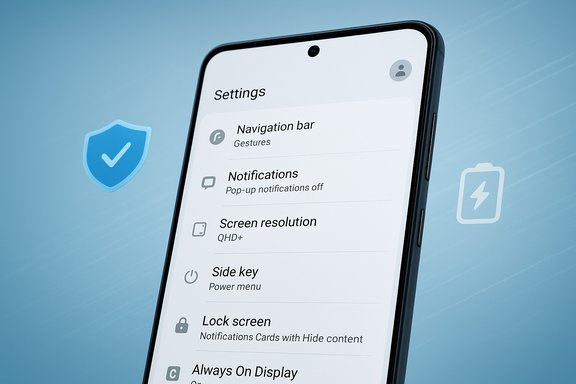 Background — why a few settings matter
Samsung’s One UI is highly configurable and, in recent generations, has layered many convenience features on top of Android. That means defaults are designed for the broadest audience, not for speed, battery longevity, or privacy-minded power users. A small set of toggles—navigation, notifications, display resolution, side‑key behavior, and Samsung-specific tools—control large parts of the user experience. Changing them is low-risk, reversible, and often delivers an instantly snappier phone.The approach below synthesizes a practical how‑to with a critical assessment of trade‑offs and risks. It reflects the steps many reviewers and power users take out of the box, and verifies technical claims against Samsung’s documentation and independent reviews where applicable.
Overview: the ten (plus one) settings that give the most impact
- Disable intrusive pop-up notifications
- Switch from three‑button navigation to gestures
- Set the display to the highest available resolution when you need visual fidelity
- Reassign the side key to a power menu
- Choose the lock‑screen notification style and hide sensitive content
- Sign into a Samsung account for ecosystem features (and understand the trade‑offs)
- Install Good Lock for deep customization (optional, advanced)
- Remove or disable unused preinstalled apps (bloatware)
- Tweak the home screen layout and icon palette for faster access
- Make Always On Display useful by changing its display behavior
- Bonus: revert the One UI notification/quick settings split if you prefer the older unified panel
1. Turn off pop‑up notifications
Why it helps
Floating pop‑ups interrupt reading, typing, and games. Turning them off reduces distraction and prevents mid‑task context switching, which improves perceived performance and focus.How to do it
- Open Settings → Notifications.
- Select Notification pop‑up style (or App notifications) depending on One UI version.
- Choose Apps to show as brief (or Apps to show as brief/detailed) and toggle off All apps or toggle off individual apps.
Trade‑offs
- You may miss time‑sensitive alerts (delivery windows, two‑factor codes). For those, keep a small set of apps allowed to pop up.
- Some apps offer granular in‑app notification settings; verify both OS and app controls.
2. Switch to gesture navigation
Why it helps
Gesture navigation reduces on‑screen clutter and can feel faster once you adapt—swipes replace button presses and reclaim screen space. On larger phones, gestures reduce thumb travel and speed common actions.How to do it
- Settings → Display → Navigation bar.
- Select Swipe gestures and, if offered, use More options to tune sensitivity or hide gesture hints.
Trade‑offs
- Gestures require a brief learning curve.
- Some apps and accessories (S Pen interactions, certain launchers) may interact differently with gestures—test the change for a few days before committing.
3. Set the screen to the highest (QHD+) resolution when you need it
Why it helps
Higher resolution delivers sharper text, improved detail in photos and maps, and a clearly better viewing experience for content creation or media consumption. On modern Galaxy flagships, the efficiency gains in chipset and display tech mean QHD+ is often practical for everyday use if battery is marginally higher priority for you.How to do it
Settings → Display → Screen resolution → choose the highest option (QHD+ / 3120 × 1440 where available).Samsung’s specs confirm QHD+ panels and the trade‑off between quality and battery; reputable reviews validate that modern Galaxy flagships pair efficient displays and chips so that many users still get all‑day battery life even at max resolution. If battery life becomes a concern, revert to FHD+ during long days.
Trade‑offs
- Higher resolution uses more GPU and display power—expect a small battery hit.
- If you prioritize maximum screen time (all‑day heavy use), use adaptive resolution or FHD+ and selectively enable QHD+ for content tasks.
4. Change the side key (long‑press) to the power menu
Why it helps
Manufacturers often assign virtual assistants to the long‑press action; that’s handy for some, but many users prefer a traditional power menu (power off, restart, emergency). Remapping reduces accidental invocations of an assistant and gives direct access to power features.How to do it
Settings → Advanced features → Side button (or Side key) → Long press → set to Power off menu.Samsung’s own support pages describe this exact option and list the available long‑press assignments (digital assistant, Bixby, power menu). Reassigning is straightforward and reversible.
Trade‑offs
- If you use the assistant regularly, you’ll lose the single‑press convenience for that function.
- The Quick settings power icon is still available as an alternate path for powering off.
5. Tweak lock‑screen notifications and hide sensitive content
Why it helps
One UI has moved through multiple lock‑screen notification styles. The options—Dot, Icons, Cards—determine how much information appears without unlocking. Choosing Cards (or Icons + hide content) makes notifications readable while preserving privacy.How to do it
- Settings → Lock screen and AOD → Notification style (or Lock screen notifications).
- Select Cards (or Icons if you prefer) and toggle Hide content to prevent message previews.
Trade‑offs
- Cards reveal sender and message snippets if you choose Show content—use Hide content when privacy is critical.
- Behavior can vary slightly across One UI versions; check the lock‑screen settings after major updates.
6. Sign in or sign up for a Samsung account — understand the benefits and trade‑offs
Why it helps
A Samsung account unlocks several integrated features: Samsung Wallet, Samsung Passwords, Galaxy Store purchases, Galaxy Themes, cloud backup, and seamless device transfers. If you move between Galaxy phones, Samsung account sync simplifies migration.Benefits
- Access to ecosystem features (themes, Galaxy Store, Samsung Cloud‑based backup).
- Seamless phone‑to‑phone data transfer and device restoration.
- Samsung password manager and wallet features tied to your account.
Trade‑offs & privacy considerations
- A Samsung account centralizes your device data with Samsung—review account security (2FA) and privacy settings.
- If cross‑platform password sync is more important than Galaxy‑centric services, using Google Password Manager with cross‑device support may be preferable.
7. Install Good Lock (optional, for advanced customization)
Why it helps
Good Lock is Samsung’s customization platform with modular plugins (Home Up, NavStar, One Hand Operation+, Keys Café) that let you restore or extend UI behaviors beyond the stock settings. For example, Good Lock can reinstate older navigation gestures, add precise home‑screen tweaks, and give fine control over Quick Settings.How to get it
- Install Good Lock from the Galaxy Store (in many regions) or check the Galaxy Store from your phone. Several reputable outlets document availability and popular modules; Good Lock and its modules have amassed millions of downloads.
Useful modules
- Home Up — home‑screen and app‑drawer tweaks
- One Hand Operation+ — edge gestures and one‑hand convenience
- NavStar — advanced navigation bar options
- NotiStar — notification filtering and rules
Caveats
- Good Lock module compatibility can lag during major One UI updates; check module updates after installing a new One UI version. Community threads show some modules update later in beta cycles.
- Good Lock’s modules are powerful and can change expected behaviors—use them selectively and back up settings if you depend on a specific layout.
8. Uninstall or disable bloatware
Why it helps
Preinstalled apps and vendor overlays consume background RAM, can run services, and trigger notifications. Removing or disabling unused apps frees storage, reduces background CPU and network activity, and often improves battery life.How to do it
- Settings → Apps → choose the app → Uninstall or Disable.
- For apps that can’t be fully removed, use Disable and revoke background permissions.
Risks
- Some preinstalled apps are tied to system functions; do not disable apps unless you are certain they are optional.
- Disabling vendor system apps may alter integration features (Samsung TV controller, OEM‑specific cloud sync).
9. Customize the home screen for reachability and speed
Why it helps
A clean, thumb‑optimized home screen reduces navigation time. Using a denser icon grid and useful widgets (Calendar, Notes, Shortcuts) means fewer taps to the commonly used actions.Recommended tweaks
- Settings → Wallpaper and style → Color palette → apply wallpaper tones to app icons for a cohesive look.
- Use a 5×5 grid (or denser) so frequently used apps fall within comfortable thumb reach.
- Add a translucent or low‑contrast Calendar widget to surface events without stealing attention.
Trade‑offs
- Denser grids reduce spacing and may feel cluttered to some users—tune to taste.
- Custom icon palettes aren’t perfect; some third‑party icons may not match.
10. Make Always On Display (AOD) practical — change “Tap to show” to “Always” (or schedule)
Why it helps
AOD gives you glanceable time, date, and notifications without waking the phone. For many modern displays, an always‑on clock uses very little power, especially if you prefer a black background and minimal content.How to do it
Settings → Lock screen and AOD → Always On Display → set to Always (or choose Auto / As scheduled).Samsung’s support pages explain AOD options, including Auto, Always, Tap to show, and scheduling. The guidance notes that options vary by device and One UI release. You can also remove background artwork for a purely black AOD that halves incremental display draw.
Trade‑offs
- AOD increases small, constant display activity; if battery life is your absolute priority, choose Tap to show or schedule it for daytime use.
- On some foldables and device variants, AOD options differ (cover screens, for instance).
Bonus: revert the split Notification / Quick Settings panel to the unified “Together” view
Why it helps
One UI introduced a split where Quick Settings and Notifications are accessed from different parts of the top screen. Many users prefer the older unified approach (Quick Settings and Notifications together) for faster multi‑tile access.How to revert
- Swipe down from the top right to open the Quick settings.
- Tap the Pencil/Edit icon → Panel settings → choose Together to return to the combined layout.
How I tested these changes (and how you can measure results)
A single setting may feel subjective, so validate changes with simple measurements and a short trial period.- Baseline measurement (before changes)
- Note battery drain per hour during normal use (screen on time / total battery % over a 3–4 hour window).
- Count average taps to reach three common actions: open camera, reply to messages, toggle Wi‑Fi.
- Observe notification interruptions per hour.
- Apply a single change (e.g., disable pop‑up notifications).
- Retest the same three metrics over the same usage span.
- Repeat for the next change.
Critical analysis — strengths, limitations, and risks
Strengths of these tweaks
- Low friction and reversible: almost every setting can be changed back.
- Immediate perceived speed gains: fewer UI distractions and a streamlined navigation method make the phone feel faster.
- Battery management: targeted AOD, adaptive resolution, and disabling background apps reduce continuous power draw.
- Privacy improvement: lock‑screen content hiding and per‑app notification rules secure sensitive information.
Limitations
- These tweaks are not hardware upgrades. If your phone has limited RAM or a slow storage subsystem, the gains are perceptual rather than raw computational speed.
- Some One UI behaviors change between versions. Good Lock modules and certain UI options can lag after major One UI updates; check module compatibility with beta/stable releases and update Good Lock modules accordingly.
- Apple‑style UI changes in One UI updates (notification panel split, new AOD behaviors) can frustrate users who prefer older flows. Samsung usually exposes toggles for many of these changes, but occasionally a version change removes or repositions an option.
Risks and cautions
- Don’t uninstall system apps unless you trust the consequence: uninstalling connectivity or system UI components can break features.
- Some Good Lock modules change core behaviors—document your preferred settings before installing multiple modules.
- If you rely on instant notifications for security (2FA) or work, be conservative when disabling pop‑ups or background activity.
Configuration presets — recommended starting points
- Balanced (everyday users)
- Gestures enabled, QHD+ off (FHD+), AOD scheduled, pop‑ups disabled except for messaging and bank apps, side key set to Power menu, Good Lock not installed.
- Power user (performance + polish)
- Gestures enabled, QHD+ on for media, Good Lock with Home Up and One Hand Operation+ installed, side key to Power menu, lock screen cards enabled with Hide content, uninstall unused OEM apps.
- Privacy-first
- Pop‑ups disabled, lock screen set to Cards + Hide content, only essential apps allowed to show content on lock screen, Samsung account configured with 2FA, disable background permissions for sensitive apps.
Final verdict
Small, intentional changes in One UI hone the polished foundation Samsung builds with each Galaxy generation. Switching to gestures, tailoring notifications, using Good Lock for targeted tweaks, and choosing display and AOD behavior all deliver meaningful day‑to‑day improvements. These are low‑risk moves that prioritize productivity, battery life, and privacy without sacrificing features.For users of Samsung’s latest flagships—whose hardware (QHD+ panels, Snapdragon 8 Elite silicon, and Gorilla Armor 2 glass) can support higher settings while remaining efficient—selective enabling of richer features (higher resolution, AOD always on) makes sense. Confirm your device’s battery profile after each change and adjust the settings set to match how you use the phone. Manufacturer documentation and independent reviews back these adjustments and explain the device‑level trade‑offs. Adopt the changes gradually, measure results, and keep a short rollback note—this keeps your phone fast, private, and personalized without losing the conveniences that make Galaxy phones compelling.
Source: ZDNET Own a Samsung phone? I changed 10 settings to give it an instant performance boost
