

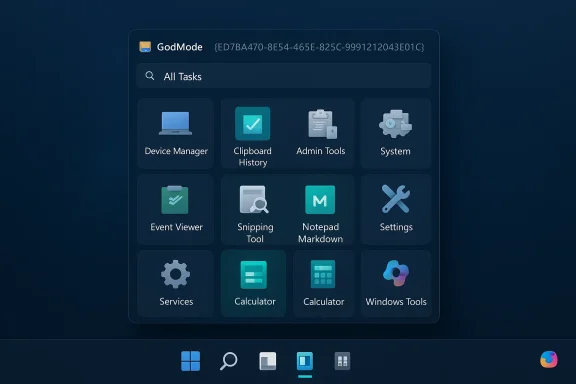
God Mode is not a secret backdoor — it’s a practical, time‑saving Explorer shell trick that opens a searchable, consolidated “All Tasks” view of hundreds of Windows 11 settings, and it’s one of several under‑the‑radar tools that can supercharge productivity for power users, IT pros, and curious tinkerers. Many of these hidden features live behind small toggles, shell namespaces, or optional Store updates, and once enabled they replace repetitive menu-hunting with one‑click access and predictable workflows. This feature guide explains what these tools actually do, how to use them safely, and which ones deserve a permanent place in your troubleshooting toolkit.
Windows 11 ships with a mix of modern Settings surfaces and legacy Control Panel applets that haven’t fully migrated to the new UI. That split leaves useful controls scattered across multiple interfaces — a problem the community has solved with a mix of built‑in toggles, keyboard shortcuts, and lightweight shell tricks. Microsoft also delivers many quality‑of‑life improvements via the Microsoft Store and incremental updates, which can make a feature’s availability dependent on OS build, app version, or Insider channel. The net effect: hundreds of small productivity wins are present on many machines today, but discoverability is inconsistent.
Source: Analytics Insight Best Windows 11 Hidden Tools You Must Try Now
 Background
Windows 11 ships with a mix of modern Settings surfaces and legacy Control Panel applets that haven’t fully migrated to the new UI. That split leaves useful controls scattered across multiple interfaces — a problem the community has solved with a mix of built‑in toggles, keyboard shortcuts, and lightweight shell tricks. Microsoft also delivers many quality‑of‑life improvements via the Microsoft Store and incremental updates, which can make a feature’s availability dependent on OS build, app version, or Insider channel. The net effect: hundreds of small productivity wins are present on many machines today, but discoverability is inconsistent.What “God Mode” really is (and why it still matters)
The technical essence: a shell namespace
“God Mode” is shorthand for the Windows All Tasks shell namespace. Explorer renders a folder whose name ends with the special GUID {ED7BA470-8E54-465E-825C-99712043E01C} as the consolidated All Tasks list rather than a normal directory. The folder aggregates Control Panel applets, administrative consoles, and many Settings links into one searchable view. It is not an exploit or privilege escalation — actions that require elevation will still trigger UAC as usual.Why power users still reach for it
God Mode reduces friction when hunting obscure settings during troubleshooting sessions. Instead of traversing nested Settings pages or remembering legacy applet names, you can scroll or search an alphabetical index. Technicians use it to build quick launchsets (Device Manager, Event Viewer, Disk Management, Services) and to create shortcuts for repeated tasks. The exact number of items you see varies by Windows build and installed components — many users report roughly 200+ entries, but treat that as an approximation.Create God Mode safely (two recommended ways)
- Create a special folder:
- Right‑click the Desktop → New → Folder.
- Rename it exactly to GodMode.{ED7BA470-8E54-465E-825C-99712043E01C} and press Enter.
- The icon will switch to a Control Panel style; open it to view All Tasks.
- Use a shortcut to avoid label quirks:
- Right‑click → New → Shortcut.
- Use target: C:\Windows\explorer.exe shell:::{ED7BA470-8E54-465E-825C-99712043E01C}.
- Pin the shortcut to the taskbar or Start for persistent one‑click access.
Extended GodMode and third‑party wrappers
If the raw folder view is useful but a little clumsy, community tools provide enhancements: searchable indexes, favorites, saved query sets, and tray integration. One such utility, Extended GodMode, wraps the All Tasks content in a searchable, portable EXE that supports saved searches and a tray quick‑launch. These utilities can materially speed repeated troubleshooting flows — but they are third‑party binaries and should be vetted before use (VirusTotal scans, digital signature checks, and using trusted download mirrors are sensible precautions). The Extended GodMode release history and feature list have been documented by independent outlets and vendor pages.- Strengths: searchable favorites, portable workflows, tray shortcuts for quick access.
- Risks: supply‑chain and binary authenticity concerns; no central enterprise management built in.
- Recommendation: carry such utilities on a vetted USB toolkit and avoid installing them fleet‑wide without change control.
Built‑in Windows 11 hidden productivity helpers
Windows 11 includes several lesser‑known but high‑value features that should be in every power user’s mental toolkit.Clipboard History and Sync (Win + V)
- What it does: stores up to 25 recent clipboard entries (text, images) and supports cross‑device sync via Microsoft account.
- How to enable: press Win + V and toggle Clipboard History on.
- Practical tip: pin frequently used items and disable cloud sync on machines that handle sensitive content.
Snipping Tool OCR & Screen Recording
- What it does: built‑in OCR can extract text from screenshots; Snipping Tool also supports screen recording.
- Why it matters: replaces many third‑party capture/OCR workflows for documentation and bug reports.
- Availability note: some advanced functions are delivered via Microsoft Store updates or Insider channels; update the Snipping Tool from the Store.
Snap Layouts, Title Bar Window Shake, and Snap Groups
- What they do: quick window tiling and a “shake” gesture to minimize distractions (shake the title bar to minimize other windows).
- How to access: hover the maximize button or use Windows + Z for Snap Layouts; enable Title Bar Window Shake under System → Multitasking.
- Why it helps: reorganizes workspace quickly, beneficial for multi‑monitor or developer workflows.
Calculator mini‑mode, Notepad Markdown, and Always‑on‑Top tools
- Calculator now includes always‑on‑top mini mode and advanced scientific/graphing functions via its menu.
- Notepad has a Markdown preview and formatting tools in recent Store updates.
- These small app upgrades shave seconds off frequent tasks and reduce reliance on external utilities.
File Explorer: small tweaks, big wins
File Explorer hides useful, low‑risk features that reduce set‑up friction and daily overhead.- Restore previous folder windows at logon: File Explorer → three‑dot menu → Options → View tab → enable Restore previous folder windows at logon. Ideal for session continuity.
- Drag‑and‑drop phone access: with Link to Windows or appropriate phone pairing, Android devices can appear in Explorer for wireless drag‑and‑drop transfers. Performance depends on Wi‑Fi quality.
- File Explorer’s “New+” templates: create templates for recurring folder structures via the New+ menu to bootstrap project folders quickly (availability varies by update).
PowerToys, Workspaces, and launcher tools
Microsoft PowerToys remains the premier community‑supported toolkit for power users. Recent additions such as PowerToys Workspaces let you save and reopen groups of apps, files, and browser tabs as a cohesive session. PowerToys Run provides a fast launcher, and FancyZones gives customizable window layouts beyond the built‑in snap options. These tools are free, actively maintained, and tailored to power workflows.- Install from the official PowerToys distribution and keep it updated.
- Use Workspaces for project context switching (e.g., design, coding, meetings), then combine with Snap Groups for layout persistence.
Windows 11’s newer AI features: convenience with caveats
Windows 11 increasingly embeds AI into apps like Photos, Snipping Tool, and Copilot. These features can automate mundane tasks but require careful consideration.- Photos Generative Erase: lets you remove objects from images with generative fill. Great for quick fixes but not always perfect on complex backgrounds. Confirm whether processing runs locally or in the cloud before using on sensitive images.
- Copilot: integrated AI assistant that can summarize content, help with writing, or surface quick system commands. Copilot capabilities and availability vary by hardware (some features target “Copilot+ PCs”) and app versions.
Taskbar and keyboard shortcuts that save seconds every day
Keyboard-driven workflows add up. These lesser‑used shortcuts and mouse tricks are worth mastering.- Win + number (1–9): launch or switch to the corresponding pinned taskbar app.
- Shift + Win + number: open a new instance of that app.
- Win + V: open Clipboard History.
- Win + . (period): emoji and symbols picker.
- Hover over the speaker icon and use the mouse wheel to adjust volume quickly.
- Win + T: focus the taskbar for keyboard navigation.
These gestures are consistent across builds and are daily productivity multipliers when used habitually.
Security, privacy, and when hidden tools become risky
Hidden tools and shell tricks are useful, but they come with predictable hazards.- Misapplied settings: God Mode exposes powerful controls; inexperienced users can accidentally change critical settings (power plans, encryption, services) without understanding downstream effects. Test changes on a non‑production machine and document any registry or service modifications.
- Third‑party binaries: Extended GodMode and similar portable tools are convenient but require supply‑chain hygiene — verify signatures and scan downloads. Avoid installing unsigned utilities across an enterprise without procurement review.
- AI features: confirm whether an AI feature sends data to cloud services. If your work handles regulated or sensitive data, disable cloud processing or avoid using AI features for that content until you can verify the processing model and retention policy.
- Feature availability and variability: Microsoft stages updates. If a feature is missing, check the Microsoft Store, Windows Update, and Insider release notes rather than assuming removal. Feature behavior may differ across OEM images and enterprise policies.
Practical workflows: build a fast troubleshooting kit
Below are recommended sequences for different roles. Each step is reversible and designed to reduce repetitive clicks.For the solo power user: daily productivity setup
- Enable Clipboard History (Win + V) and pin frequently used snippets.
- Create a God Mode shortcut and pin it to Start for occasional deep tweaks.
- Install PowerToys and configure FancyZones and Workspaces for your common multi‑app layouts.
- Update Snipping Tool, Photos, Notepad, and Calculator from the Store to get the latest features.
For IT technicians: a portable first‑response toolkit
- Add an Extended GodMode EXE (vetted copy) to your tool USB for saved searches and favorites.
- Create desktop shortcuts to Device Manager, Event Viewer, Disk Management, and Services from the All Tasks view.
- Maintain a small PowerShell script set that automates frequently repeated fixes (network reset, service restarts) instead of relying on manual GUI clicks. Document every script and require admin approval for mass deployment.
Step‑by‑step: a quick God Mode troubleshooting recipe
- Create the shortcut: Right‑click Desktop → New → Shortcut → Target: C:\Windows\explorer.exe shell:::{ED7BA470-8E54-465E-825C-99712043E01C} → Name it “All Tasks.”
- Pin to taskbar or Start for one‑click access.
- Open All Tasks → drag Device Manager, Event Viewer, Disk Management, and Services to the Desktop to create persistent shortcuts for your toolkit.
- For repeatable checks, use the saved searches or favorites functionality if you choose Extended GodMode, but keep the EXE on a verified toolkit and scan it before execution.
Final assessment: which hidden tools are “must‑try” and why
- God Mode (All Tasks shortcut): must‑try for anyone who scratches their head at buried settings; high benefit, minimal risk when used correctly.
- Clipboard History (Win + V): immediate daily productivity gains for writers, devs, and anyone who pastes repeatedly.
- Snipping Tool OCR & Screen Recorder: replaces several third‑party capture tools and speeds documentation workflows.
- PowerToys Workspaces & FancyZones: essential for multi‑app workflows and restoring session contexts quickly.
- Extended GodMode (third‑party wrapper): valuable for technicians who need saved searches and tray access — vet before use.
- Photos generative erase and Copilot: powerful for casual edits and quick assistance; verify local vs cloud processing before using on sensitive content.
Conclusion
Windows 11 contains a surprising number of hidden productivity levers: shell namespaces like God Mode, built‑in app upgrades (Clipboard History, Snipping Tool OCR, Notepad Markdown), PowerToys enhancements, and emerging AI features that can automate mundane tasks. Each tool trades a tiny bit of discoverability for large day‑to‑day savings. For technicians and power users, the right mix of God Mode shortcuts, PowerToys Workspaces, and Clipboard management will repay the modest time spent learning them. For organizations, third‑party wrappers are useful in sandboxed toolkits but should be governed by procurement and change control. Use these features to reduce clicks, replace brittle scripts with repeatable workflows, and reclaim minutes every day — but always verify processing and install provenance before introducing third‑party binaries or cloud‑assisted AI into sensitive workflows.Source: Analytics Insight Best Windows 11 Hidden Tools You Must Try Now
