

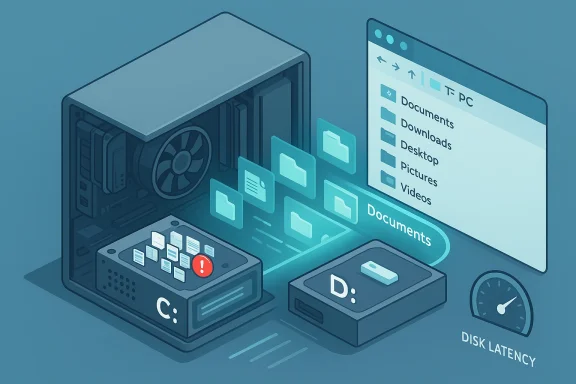
When I moved my Windows user folders off my nearly full system SSD onto a second, larger SSD, my PC didn’t suddenly bench higher—but it felt noticeably snappier under real-world load because the storage contention that had been causing stutters and long waits simply disappeared. keUseOf piece that inspired this experiment describes a common scenario: Windows remains capable and efficient, but when the system (C drive becomes the battleground for OS tasks, downloads, cloud sync, game updates, and everyday file I/O, everything starts to behave sluggishly under concurrent pressure. The author’s simple fix was to move large user folders (Documents, Downloads, Desktop, Pictures, Videos) to another drive using Windows’ built-in Location tab, which preserves permissions and system mappings. That change freed space on the system SSD, reduced write pressure, and eliminated I/O contention—producing a tangible improvement in responsiveness during heavy multitasking.
In this feature I’lique, verify the technical claims against primary sources, explain why free space and workload separation matter for SSD-driven Windows systems, highlight gotchas (OneDrive, apps with hard-coded paths, drive-letter fragility), and give a practical, safe checklist so readers can decide whether and how to try this for themselves.
Windows performs many background tasks that access storage: indexing, thumbnail generation, pagefile activity, system updates, Microsoft Store installs, and user-facing apps like browsers and cloud sync clients. When many of those tasks target the same physical drive, they contend for the drive’s limited ability to perform random reads/writes and queued operations. That contention manifests as high disk queue lengths, long I/O latency, and perceived sluggishness—even when CPU and RAM aren’t fully taxed.
Moving user folders separates the working set (where large, write-heavy files live) from the system set (OS files, program files, temporary data, and the pagefile). That reduces simultaneous mixed-workload I/O on the OS drive and gives Windows and system services cleaner access to low-latency storage, which is why the author’s system became more responsive under load. The MakeUseOf article walks through this in plain terms and recommends using the native Location tab to relocate folders safely.
Microsoft documents this behavior and prs for moving known folders; using the Location tab is the supported way to change the official path for standard user folders (Documents, Pictures, Desktop, etc.), and Microsoft’s troubleshooting guidance explains how Windows tracks and manages those personal-folder locations.
The MakeUseOf author emphasizes this exact point: using shortcuts or manual copy operations “causes real damage” because apps may recreate folders on C:, backups can break, and folder redirections can be effectively lost during updates. That practical advice aligns with Microsoft’s troubleshooting article explaining failed relocations and the registry keys involved.
A few specific cautions:
Follow the Windows-native method, verify OneDrive and other sync clients first, use a fast destination drive, and keep a tested backup before you begin. If you do these things, you’ll frequently gain the smoother, less fraught experience the MakeUseOf author reported—without reinstalling Windows or chasing noisy “debloat” tricks.
Conclusion
Separating your OS and working data is simple, measurable, and often overlooked. The performance boost comes not from miraculous speed increases but from preventing Windows and your storage from fighting each other for the same scarce resource. Use the supported tools, pick the right destination, and treat cloud sync and legacy apps with caution—do that, and you’ll have a faster-feeling PC precisely when it matters most.
Source: MakeUseOf I moved my Windows user folders to another drive and my PC got faster
drive becomes the battleground for OS tasks, downloads, cloud sync, game updates, and everyday file I/O, everything starts to behave sluggishly under concurrent pressure. The author’s simple fix was to move large user folders (Documents, Downloads, Desktop, Pictures, Videos) to another drive using Windows’ built-in Location tab, which preserves permissions and system mappings. That change freed space on the system SSD, reduced write pressure, and eliminated I/O contention—producing a tangible improvement in responsiveness during heavy multitasking.In this feature I’lique, verify the technical claims against primary sources, explain why free space and workload separation matter for SSD-driven Windows systems, highlight gotchas (OneDrive, apps with hard-coded paths, drive-letter fragility), and give a practical, safe checklist so readers can decide whether and how to try this for themselves.
 Background: why moving user folders matters (and what it actually fixes)
Windows performs many background tasks that access storage: indexing, thumbnail generation, pagefile activity, system updates, Microsoft Store installs, and user-facing apps like browsers and cloud sync clients. When many of those tasks target the same physical drive, they contend for the drive’s limited ability to perform random reads/writes and queued operations. That contention manifests as high disk queue lengths, long I/O latency, and perceived sluggishness—even when CPU and RAM aren’t fully taxed.Moving user folders separates the working set (where large, write-heavy files live) from the system set (OS files, program files, temporary data, and the pagefile). That reduces simultaneous mixed-workload I/O on the OS drive and gives Windows and system services cleaner access to low-latency storage, which is why the author’s system became more responsive under load. The MakeUseOf article walks through this in plain terms and recommends using the native Location tab to relocate folders safely.
Microsoft documents this behavior and prs for moving known folders; using the Location tab is the supported way to change the official path for standard user folders (Documents, Pictures, Desktop, etc.), and Microsoft’s troubleshooting guidance explains how Windows tracks and manages those personal-folder locations.
The technical reality: free space matters on SSDs (and why)
The most important technical claim in the original piece is that free space matters more than raw peak speed once an SSD approaches full capacity. That is correct—and it’s rooted in how SSDs manage flash memory.- SSD controllers rely on spare free blocks (over-provisioning and TRIMed space) to perform garbage collection, wear leveling, and efficient writes. When free space dwindles, the controller is forced to perform more read–modify–write cycles and compaction, which increases write amplification and reduces sustained write performance.
- Modern drives add multi-tier caching (DRAM for mapping tables, SLC or pseudo‑SLC caches for fast bursts) that masks poor sustained write performance for typical desktop bursts. But those caches can be exhausted under sustained mixed workloads or when the drive is nearly full, revealing lower sustained throughput and higher latency. AnandTech’s reviews and technical write-ups explain the role of SLC caches and how performance degrades once the cache and spare area are taxed.
Why you should move folders the Windows-native way (and what to avoid)
Not all approaches to “moving” user data are equal. The two common methods people try are:- Dragging or copy-and-paste the folder in File Explorer, or creating a manual junction/symlink.
- Using the folder’s Properties → Location → Move… interface (the Windows-native method).
The MakeUseOf author emphasizes this exact point: using shortcuts or manual copy operations “causes real damage” because apps may recreate folders on C:, backups can break, and folder redirections can be effectively lost during updates. That practical advice aligns with Microsoft’s troubleshooting article explaining failed relocations and the registry keys involved.
OneDrive, Known Folder Move, and cloud sync — the messy middle
Cloud sync complicates folder relocation. If Desktop or Documents are already being redirected to OneDrive (via OneDrive’s Known Folder Move or policies), moving those same folders manually or into other synced paths can produce conflicts or broken redirects. Microsoft provides a formal Known Folder Move (KFM) approach built into OneDrive for redirecting Desktop, Documents, and Pictures to the cloud and warns administrators to roll this out carefully to avoid huge network spikes as large libraries upload. For consumers, the practical takeaway is: check OneDrive settings and backup policies before moving folders, or use OneDrive’s Manage backup / Known Folder Move flow if you want these folders protected in the cloud.A few specific cautions:
- If you move a folder into a OneDrive-synced path inadvertently, OneDrive may treat the data as part of its sync set, causing large uploads and potential re-sync churn. That can mask the performance benefit you expected and create bandwidth/disk load.
- Some enterprise KFM deployments use Group Policy or Intune to silently redirect folders; mixing manual moves and corporate policies can create unexpected results, so coordinate with IT in managed environments.
- Certain applications (legacy apps, poorly written installers) hard-code C:\ paths or make assumptions about location. After a move, these apps may still put configuration files on C: or misbehave; in extreme cases you’ll have to update their settings or reinstall them. The MakeUseOf article and community reports both highlight this as a known friction point.
Where you will and won’t see gains
Not every machine benefits equally from moving user folders. The primary scenarios that are likely to show noticeable improvements are:- Systems with a small or nearly full system SSD where background sync, downloads, or large local filess.
- Machines where active workloads (video editing, large archives, many concurrent downloads, or big game updates) and the OS share the same physical drive.
- Setups where the system SSD lacks a large DRAM cache, a sizeable SLC write cache, or generous over‑provisioning—budget QLC drives can suffer more when full.
- Your OS drive has ample free space (e.g., you keep >20–25% free), or it’s an enterprise-grade SSD with large caches and over-provisioning that cushions mixed workloads.
- You move folders to a slower mechanical HDD—then browsing, thumbnails, or opening large directories may become slower overall, and perceived responsiveness can degrade. The Mes this: the destination matters.
How to move user folders safely — step-by-step (Windows-native method)
Follow this checklist and perform steps in order to minimize risk.- Prepare
- Back up critical files (cloud, external drive, or image). This is precautionary, not panic.
- Ensure the destination drive is reliable and has the capacity you need. Prefer an internal SSD or fast NVMe; avoid unpluggable external drives for Desktop/Documents.
- Create destination folders
- In File Explorer, on the destination drive (for example D, create a folder structure like D:\Users[YourUser]\Documents, D:\Users[YourUser]\Downloads, etc.
- Use the Location tab
- Open File Explorer → This PC → Right-click the known folder (Documents) → Properties → Location tab → Click Move… → Select the folder you created on the destination drive → Apply → When prompted, choose Yes to move existing files. Repeat for Downloads, Desktop, Pictures, Videos, Music as desired. Microsoft documents exactly this flow, and the Location tab is the supported way to change these personal-folder locations.
- Verify Windows recognizes the new paths
- Right-click the folder again → Properties → confirm the Location field shows the new path. Optionally sign out and back in to ensure Explorer and other services update.
- Check OneDrive
- If you use OneDrive, open OneDrive settings → Backup → Manage backup and verify whether Known Folder Move is enabled, or reconfigure Known Folder Move to avoid duplicate migrations. For enterprise-managed machines, consult IT before changing KFM/Group Policy settings.
- Update app settings where necessary
- Review big apps and launchers (Steam, Epic, Adobe, Lightroom, Office autosave paths) to confirm they now point to the right folders or to change their default save locations as wanted.
- nd disk queues
- Use Task Manager and Resource Monitor (Disk tab) to check for improved latency and lower disk queue lengths during your typical heavy-workload scenarios. If performance is unchanged, review whether the destination drive is slower than your system drive.
Troubleshooting and gotchas
- If the Location tab disappears for a folder or operations fail, Microsoft’s support articles show registry locations (HKEY_CURRENT_USER\Software\Microsoft\Windows\CurrentVersion\Explorer\User Shell Folders) you can inspect—but editing the registry is advanced and you should back up the registry first. Microsoft documents workarounds for failed relocations.
- Don’t move hidden system-managed folders like AppData. Those contain application-specific data to be relocated via the Location tab; moving them can break software and updates. The Location-tab technique is designed for standard libraries (Documents, Pictures, etc.) only.
- Drive letter changes can break relocated folder setups. If you later change drive letters or remove the destination drive, apps and Windows may revert or lose access. If you must change drive letters, plan to move the folders back or re-point them immediately.
- Some legacy or poorly designed apps use absolute C:\ paths or write to AppData in unexpected ways. After relocating, test critical workflows (e.g., mail clients, IDEs, games) and be ready to update app-specific settings or reinstall to the desired location.
Practical recommendations (checklist)
- If your system SSD is under 60–70% full and you don’t see slowdowns, moving folders is optional; maintain 10–20% free space and keep Trim enabled.
- If your system SSD is within 10–15% run concurrent downloads/cloud sync/game installs, move Downloads (first) and then Documents/Pictures to a secondary SSD using the Location tab. That yields the highest ROI.
- Use a fast secondary SSD for relocated folders; moving them to a mechanical HDD may reduce responsiveness for some tasks.
- For users of OneDrive: use OneDrive’s Known Folder Move functionality if you want cloud protection and a seamless redirect—check OneDrive settings first to avoid duplicate moves and bandwidth spikes.
- Measure before and after using Resource Monitor and Task Manager to verify you’ve reduced disk queue lengths and max latency during your normal workload.
Critical analysis: strengths, lilved questions
Strengths- The approach targets the real-world cause of many perceived slowdowns—mixed I/O contention—and solves it with a low-risk, reversible Windows-native feature. That makes it an excellent first-line fix for many users. The MakeUseOf article correctly highlights the practical payoff and emphasizes using the Location tab to avoid long-term problems.
- The underlying storage science supports the recommendation: SSD controllers rely on spare capacity and active caching to sustain performance, and freeing space or separating workloads restores the controller’s ability to manage writes efficiently. Technical sources from AnandTech and SSD whitepapers explain pseudo‑SLC caching, DRAM mapping, and over‑provisioning benefits.
- The speed improvement is situational: if you move folders to a slow drive or an unreliable external disk, you can make things worse. The benefit is less about raw benchmark numbers and more about preventing pathological contention during heavy use. The MakeUseOf author was explicit about this distinction—feelings of snappiness improved, but synthetic benchmarks did not.
- Cloud sync systems, enterprise policies, and badly coded apps remain a source of friction. Known Folder Move and OneDrive policies can clash with manual moves or folder-redirection histories, and some real-world reports show that desktop.ini, previous redirections, or leftover registry entries can block automated moves. Administrators and power users should test and proceed carefully.
- Claims like “you must leave X% free to maintain good performance” are inherently dependent on drive model, fircapacity. Some guides recommend 10–25% free space; industry whitepapers and reviewer testing show that modern controllers mitigate this need somewhat, but lower free space always increases the risk of degraded sustained performance. Treat specific percentage rules as guidance rather than universal law. For concrete expectations, check your drive’s vendor documentation and real-world benchmarks for similar models.
Final verdict: should you do it?
If your system SSD is frequently near capacity and your day-to-day experience includes pauses when downloads, cloud sync, or game updates run, moving your heavy user folders to a second internal SSD—done with Windows’ Location tab—is a low-risk, high-value step that often restores real-world responsiveness. It’s not a silver bullet for every performance problem, but it’s an efficient, reversible, and vendor‑supported way to reduce I/O contention and reclaim breathing room for the OS.Follow the Windows-native method, verify OneDrive and other sync clients first, use a fast destination drive, and keep a tested backup before you begin. If you do these things, you’ll frequently gain the smoother, less fraught experience the MakeUseOf author reported—without reinstalling Windows or chasing noisy “debloat” tricks.
Conclusion
Separating your OS and working data is simple, measurable, and often overlooked. The performance boost comes not from miraculous speed increases but from preventing Windows and your storage from fighting each other for the same scarce resource. Use the supported tools, pick the right destination, and treat cloud sync and legacy apps with caution—do that, and you’ll have a faster-feeling PC precisely when it matters most.
Source: MakeUseOf I moved my Windows user folders to another drive and my PC got faster
