

Bose remains one of theadphonese easiest brand names to recommend when shoppers ask for comfortable noise‑cancelling headphones that “just work” with a Windows PC — but the mundane reality for Windows 10 users is more nuanced. This feature brings together verified pairing how‑tos, model recommendations for Windows 10 compatibility, shipping and purchase considerations, and an actionable troubleshooting checklist you can follow end‑to‑end. The goal: get reliable stereo audio for music and video, preserve usable microphone quality for meetings, and avoid the common Windows traps that turn a simple pairing into a support ticket.
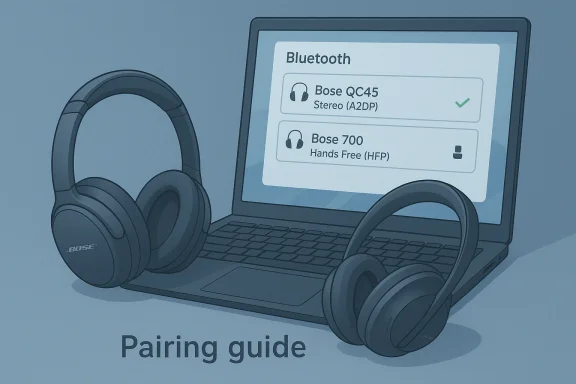
Bluetooth audio on Windows 10 is governed by two different legacy profiles that still matter today: A2DP (Advanced Audio Distribution Profile) for high‑quality stereo playback, and HFP/HSP (Hands‑Free/Headset Profile) for two‑way audio and microphone support. Windows 10 creates separate endpoints for these profiles, and when the system or an app opens the headset microphone, Windows can switch the device into the lower‑fidelity Hands‑Free mode — often producing the familiar “muffled” or mono voice and poor music quality during calls. This behavior is well documented in Windows’ Bluetooth audio guidance and in community troubleshooting that repeatedly surfaces the same trade‑offs and fixes. A second reality: codec support and modern improvements like LE Audio (LC3) and “super‑wideband stereo” are largely a Windows 11 story. Windows 10 generally does not expose newer codec/LE Audio features, so any improvement that lets stereo audio and a high‑quality microphone coexist without compromise is typically unavailable on Windows 10 machines unless vendor drivers and hardware explicitly add support. Expect Windows 10 users to rely on the same A2DP/HFP trade‑off unless you upgrade your OS, Bluetooth radio drivers, or use USB alternatives.
The most valuable takeaway for Windows 10 users is a procedural one: follow a disciplined pairing process, confirm audio endpoints after pairing, keep firmware and drivers up to date from vendor/OEM sources, and be prepared to use a wired or USB mic fallback for mission‑critical calls. This approach minimizes surprises and turns the typical “pair it and forget it” expectation into a reliable reality.
Conclusion
For shoppers looking for “best Bose headphones for Windows 10” with free shipping deals, choose a model based on whether you prioritize music and ANC (QC45), conference calls and mic performance (Bose 700), or value with broad compatibility (QC35 II). Follow the step‑by‑step pairing and troubleshooting guidance in this feature to avoid the common Windows traps, and prefer OEM/vendor drivers and firmware updates rather than generic third‑party utilities. When used with the recommended procedural safeguards — explicit endpoint selection, driver updates, and a USB mic fallback — Bose headphones provide an excellent Windows 10 experience that balances comfort, noise cancellation, and sound quality.
Source: Born2Invest https://born2invest.com/?b=style-308639612/
 Background / Overview
Bluetooth audio on Windows 10 is governed by two different legacy profiles that still matter today: A2DP (Advanced Audio Distribution Profile) for high‑quality stereo playback, and HFP/HSP (Hands‑Free/Headset Profile) for two‑way audio and microphone support. Windows 10 creates separate endpoints for these profiles, and when the system or an app opens the headset microphone, Windows can switch the device into the lower‑fidelity Hands‑Free mode — often producing the familiar “muffled” or mono voice and poor music quality during calls. This behavior is well documented in Windows’ Bluetooth audio guidance and in community troubleshooting that repeatedly surfaces the same trade‑offs and fixes. A second reality: codec support and modern improvements like LE Audio (LC3) and “super‑wideband stereo” are largely a Windows 11 story. Windows 10 generally does not expose newer codec/LE Audio features, so any improvement that lets stereo audio and a high‑quality microphone coexist without compromise is typically unavailable on Windows 10 machines unless vendor drivers and hardware explicitly add support. Expect Windows 10 users to rely on the same A2DP/HFP trade‑off unless you upgrade your OS, Bluetooth radio drivers, or use USB alternatives. Which Bose headphones are best for Windows 10?
Short answer: pick a Bose model that matches your priorities (music fidelity + ANC, conference calls, or wired fallback) and plan for Windows 10’s profile constraints. The most relevant Bose models today for PC use are:- Bose QuietComfort 45 (QC45) — strong battery life, excellent comfort, straightforward Bluetooth pairing, and a practical button layout. Good all‑rounder for media and long sessions.
- Bose Noise Cancelling Headphones 700 (Bose 700) — best for people who need a more premium call experience and better microphone arrays for conferencing. Comes with advanced voice pickup and optional bundled UC/USB adapters in certain SKUs.
- Bose QuietComfort 35 II (QC35 II) — a proven classic with wide compatibility and a long track record on Windows 10; still an outstanding pick if found at a discount. The QC35 II remains comfortable and reliable in many setups.
How to connect Bose headphones to a Windows 10 PC — step‑by‑step
The following sequence combines vendor best practices and Windows’ expected flows. It works reliably for QC35 II, QC45, Bose 700 and similar Bluetooth headsets.- Charge the headset to at least 30% and reboot your PC.
- Put the headset into Bluetooth pairing mode (model‑specific — typically hold the power/Bluetooth button for 5–7 seconds until an LED flashes or a voice prompt confirms pairing).
- On Windows 10: Settings → Devices → Bluetooth & other devices → Add Bluetooth or other device → Bluetooth. Select your Bose device name when it appears. If Windows asks for a PIN, try 0000.
- After pairing, open Control Panel → Sound (mmsys.cpl). Look for two endpoints if present: the Stereo (A2DP) device and a Hands‑Free endpoint. Set the Stereo endpoint as the default playback device for music and media. If you need the headset mic, set the Hands‑Free endpoint as the communications device in the app or Windows Sound settings.
- If you use conferencing apps, set the audio input and output explicitly inside Teams/Zoom/Discord to the correct Bose endpoint — Windows’ default routing sometimes chooses the wrong one.
Quick diagnostics when pairing fails
- Ensure the headset is in pairing mode and close to the PC. Reboot both devices if needed.
- Toggle Bluetooth Off/On in Windows and retry. For devices with Swift Pair support, accept the Swift Pair prompt if it appears.
- If the headset pairs but no audio plays, open the Sound control panel and set the A2DP Stereo endpoint as the Default Device. If only Hands‑Free audio shows, try disabling Hands‑Free Telephony temporarily to force A2DP (note: this disables the mic).
Troubleshooting: the reliable checklist (prioritized)
When audio quality collapses or the mic doesn’t work, follow this prioritized troubleshooting path — each step moves from quick wins to deeper fixes.1) Quick checks (5 minutes)
- Confirm headset battery and pairing mode.
- In Windows 10, right‑click the speaker icon → Open Sound settings → select the Bluetooth device as Output/Input. Some apps override Windows defaults, so restart the app after changing settings.
2) Avoid the A2DP/HFP trap (5–10 minutes)
If music goes muffled after you join a call, the system likely switched to the Hands‑Free profile. Options:- Use a separate microphone for calls.
- Temporarily disable Hands‑Free Telephony under Devices and Printers → right‑click the device → Properties → Services to force A2DP (disables headset mic). Treat this as a workaround.
3) Update drivers and firmware (10–30 minutes)
- Update the PC Bluetooth driver from the OEM (Dell/HP/Lenovo) or the chipset vendor (Intel/Broadcom). Avoid generic “driver updater” utilities.
- Update headset firmware through Bose’s official update channels (Bose Music app / Bose Updater for PC where available). Firmware changes fix pairing quirks in many real‑world reports.
4) Power management and services (5–15 minutes)
- Device Manager → Bluetooth adapter → Power Management → uncheck “Allow the computer to turn off this device to save power.”
- Restart Windows Audio and Windows Audio Endpoint Builder services if they’re hung. These items are common culprits for intermittent dropouts.
5) Advanced fixes (30–90 minutes)
- Remove and re‑pair the headset. Perform a factory reset on the headset if the vendor documents it.
- Uninstall entries under “Audio inputs and outputs” and “Sound, video and game controllers” in Device Manager and reboot to force redetection. Only delete driver software if you have a known‑good driver to reinstall offline.
6) When the built‑in radio is flaky: try a USB dongle
A modern USB Bluetooth dongle with up‑to‑date chipset drivers can resolve codec and profile negotiation problems on older internal radios. Users commonly report this as a reliable fix when onboard radios fail.Shipping, price and “free shipping” considerations
Many shoppers search for Bose headphones with “free shipping” or steep discounts. Pricing and promotions change frequently; always confirm the seller’s return policy and warranty handling before buying. A few practical purchasing notes:- Buy from reputable retailers or directly from Bose to simplify warranty claims and firmware support. Promotions or third‑party sellers can offer deep discounts, but returns and firmware support may be harder to manage.
- For managed corporate laptops, check whether company policy restricts Microsoft Store downloads or driver changes before attempting firmware/driver updates that require administrative privileges. Some fixes (installing vendor companion apps or Store components) can be blocked on managed devices. Community guidance flags this as a frequent support friction point.
Critical analysis: strengths, risks and what vendors omit
Strengths of Bose on Windows 10
- Bose hardware is comfortable, well built, and generally provides strong noise cancellation and sound tuning out of the box. QC45 and Bose 700 in particular balance battery life and call quality effectively for most users.
- Vendor apps and firmware updates exist to address pairing or microphone issues, and Bose offers UC (unified communications) variants or USB adapters for better corporate call handling.
Common gaps and user risks
- Short how‑tos and deal posts often omit the systemic A2DP vs HFP trade‑off and the driver/firmware dependencies that cause the majority of real support cases. Readers following short pairing lists without the context may be surprised when call quality degrades or stereo audio collapses. Independent community testing and Microsoft documentation make this clear — it’s not a Bose defect alone, it’s how Windows 10 historically handles Bluetooth audio.
- Managed enterprise devices can block the necessary driver or Store changes that fix many problems. Attempting unsupported driver rollbacks or using third‑party driver utilities on corporate machines can create larger issues. The recommended approach is to coordinate with IT and use OEM or vendor‑provided driver packages.
- Claims implying that Bluetooth 5.x = LE Audio compatibility are conditional and sometimes incorrect. LE Audio requires stack and radio support beyond simply advertising Bluetooth 5.x. On Windows 10 the practical benefit of LE Audio is minimal; it’s primarily part of the Windows 11 upgrade path. Treat blanket claims about LE Audio benefits on Windows 10 as unverified until the PC vendor supports it.
Practical recommendations (copy‑ready)
- If you need reliable stereo music and occasional calls: buy the QC45 and use the laptop’s internal mic or a small USB mic for calls to avoid the A2DP/HFP compromise.
- If your primary use is frequent video conferencing in noisy environments: prefer Bose 700 or a UC bundle with USB Link to guarantee the best call experience on Windows 10.
- If you already own QC35 II or similar older Bose models: keep firmware updated via the Bose app and rely on wired fallback or a USB dongle if Bluetooth behavior becomes unreliable. Community reports show many QC35 II issues on Windows 10 can be remediated with firmware updates and driver updates, but a wired fallback is the quickest “mission‑critical” fix.
- For managed corporate laptops: coordinate with IT before changing drivers or installing Store apps; use USB adapters certified for UC when possible.
Step‑by‑step recovery recipe — a single session you can follow now
- Fully charge the headset and reboot your Windows 10 PC.
- Remove the headset under Settings → Devices → Bluetooth & other devices → click the headset → Remove device.
- Reset the headset’s pairing list (model procedure in vendor docs).
- Update the PC’s Bluetooth driver from the OEM website (not a generic updater).
- Pair the headset again via Settings → Add Bluetooth device.
- Open Control Panel → Sound → set the Stereo endpoint as the Default Device. If you need the mic and audio quality collapses, use a USB mic or uncheck Hands‑Free Telephony as a diagnostic.
Final verdict
Bose headphones remain a strong, practical choice for Windows 10 users when matched to realistic expectations. They deliver comfort, reliable noise cancellation, and competitive battery life; certain models (Bose 700) also give better microphone pickup for conferencing. However, Windows 10’s Bluetooth audio model (A2DP vs HFP) and the PC’s Bluetooth driver remain the limiting factors for a flawless, always‑on experience. Buyers who depend on consistent conferencing performance should plan for either UC‑certified options, a USB audio adapter, or an external microphone as a straightforward mitigation.The most valuable takeaway for Windows 10 users is a procedural one: follow a disciplined pairing process, confirm audio endpoints after pairing, keep firmware and drivers up to date from vendor/OEM sources, and be prepared to use a wired or USB mic fallback for mission‑critical calls. This approach minimizes surprises and turns the typical “pair it and forget it” expectation into a reliable reality.
Conclusion
For shoppers looking for “best Bose headphones for Windows 10” with free shipping deals, choose a model based on whether you prioritize music and ANC (QC45), conference calls and mic performance (Bose 700), or value with broad compatibility (QC35 II). Follow the step‑by‑step pairing and troubleshooting guidance in this feature to avoid the common Windows traps, and prefer OEM/vendor drivers and firmware updates rather than generic third‑party utilities. When used with the recommended procedural safeguards — explicit endpoint selection, driver updates, and a USB mic fallback — Bose headphones provide an excellent Windows 10 experience that balances comfort, noise cancellation, and sound quality.
Source: Born2Invest https://born2invest.com/?b=style-308639612/
