

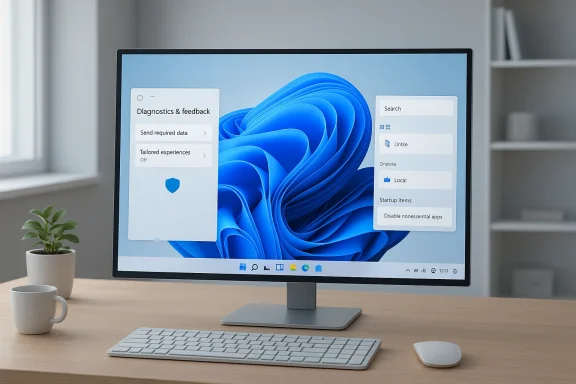
Windows 11 ships with a lot of useful features — and an equal amount of defaults that many power users call intrusive, noisy, or wasteful. After a fresh install it can feel like an advertisement platform that happens to run an operating system. The six changes below address the biggest practical complaints: remove Copilot and its background footprint, stop in‑OS ads and lock‑screen junk, silence OneDrive prompts and automatic sync, minimize telemetry, trim startup apps, and remove Bing web results from the built-in search. Each section explains what the setting does, how to change it safely, why it improves privacy or performance, and what risks or maintenance to expect when Microsoft updates the OS.
Windows 11 has increasingly folded cloud services and AI features into core shell elements: Copilot, integrated AI surfaces in built‑in apps, OneDrive folder backups, and search results that reach out to Bing by default. For many users this amounts to unwanted background activity, extra network traffic, and frequent prompts to sign in or buy subscriptions. The good news is most of these behaviors are controllable without third‑party “cleaners” — but there are caveats: registry edits, service changes, or uninstalling inbox apps may be reversed by future updates, and some corporate or education devices are governed by policies that prevent changes. Community projects and one‑click scripts exist to automate deeper removals, but running untrusted scripts for system‑level changes carries real risk and should be treated cautiously.
For users who value privacy and a minimal desktop, the outcome is worth the few minutes of setup and periodic maintenance. For organizations, the path is to apply supported Group Policy or MDM settings and document the expected state so updates don’t create drift. Avoid one‑click “debloat” scripts unless you can read and verify every operation they perform and you have a tested rollback plan.
By applying these six focused changes you can turn a default Windows 11 install from a noisy, cloud‑centric experience into a calmer, more private, and more responsive workspace — while remaining prepared for the update cycles and trade‑offs that come with a modern OS.
Source: How-To Geek Windows 11 was barely usable until I changed these 6 default settings
 Background / Overview
Windows 11 has increasingly folded cloud services and AI features into core shell elements: Copilot, integrated AI surfaces in built‑in apps, OneDrive folder backups, and search results that reach out to Bing by default. For many users this amounts to unwanted background activity, extra network traffic, and frequent prompts to sign in or buy subscriptions. The good news is most of these behaviors are controllable without third‑party “cleaners” — but there are caveats: registry edits, service changes, or uninstalling inbox apps may be reversed by future updates, and some corporate or education devices are governed by policies that prevent changes. Community projects and one‑click scripts exist to automate deeper removals, but running untrusted scripts for system‑level changes carries real risk and should be treated cautiously. Rip out Copilot (or neutralize it)
What Copilot does and why people remove it
Microsoft’s Copilot is an integrated AI assistant surfaced in the taskbar and inside many built‑in apps. For users who don’t use it, Copilot adds background processes, launches automatically for some accounts, and increases the OS’s telemetry surface. Administrators and privacy‑conscious users have scrambled for ways to remove or disable it. Recent Insider updates have added policy controls to make removal more manageable for managed devices, but limitations remain: uninstallation can be restricted by whether the app was used recently or how it was installed.How to disable or remove Copilot (practical options)
- Easiest (safe, reversible): hide the Copilot button in Settings → Personalization → Taskbar (turn the Copilot button off). This prevents accidental activation without altering system files.
- Uninstall the Copilot app from Settings → Apps → Installed apps (right‑click → Uninstall). This removes the user‑facing app but might leave built‑in Copilot integrations in other apps.
- PowerShell / Appx removal (admin): in an elevated PowerShell session you can list and remove Appx packages: Get‑AppxPackage -AllUsers CoPilot | Remove‑AppxPackage -AllUsers. If a package is provisioned for new users, Remove‑AppxProvisionedPackage may be required. Use these with care and reboot to verify results.
- Enterprise / admin policy: newer Insider builds expose a Group Policy (RemoveMicrosoftCopilotApp / Windows AI policy) that lets admins uninstall Copilot under strict conditions (device edition, install state, and recent use). This is rolling through Insider channels and will likely change before broad release.
- Deeper removals & scripts: community tools bundle registry changes, package removals, and update blockers to remove Copilot surfaces and related AI inbox apps. These can be very effective but make significant system changes; always audit code, run in a test VM first, and keep a full system backup.
Risks and maintenance
Removing Copilot can break integrations in apps that expect the Copilot service to exist, and Windows updates often re‑provision components. If you rely on Microsoft support or enterprise configuration, removing inbox apps may complicate troubleshooting. For a low‑risk routine, hide the UI and disable autostart; escalate to uninstall or scripts only if comfortable with rollback strategies.Disable in‑OS ads, lock‑screen “Bing wallpaper” and app promos
Why it matters
Out of the box Windows surfaces recommendations, “tips,” and Spotlight/Bing content in the lock screen and Start menu. That leads to popups, occasional network downloads, and a desktop that feels like a storefront. Turning these off reduces background network activity and removes distracting content.Settings to change (quick)
- Settings → Privacy & security → Turn off the “Show me suggested content in the Settings app”, advertising ID personalization, and any “Tailored experiences/Personalized offers” options. These reduce in‑OS recommendations and ad personalization.
- Settings → Personalization → Lock screen → Change from Windows Spotlight to Picture (or None) and turn off “Get fun facts, tips, and more” to stop Bing wallpapers and promotional content from appearing.
- Settings → Personalization → Start → Turn off “Show recommendations” and related toggles to stop app promos on first run and after updates.
Why this improves usability
Disabling Spotlight and recommendations stops background wallpaper downloads and frequent UI prompts. For lower‑powered hardware the perceived responsiveness also improves because fewer UI elements are polling the network or updating thumbnails.Risks
Turning off tailored experiences may affect some convenience features (suggested troubleshooting steps and contextual tips). If you use Microsoft’s ecosystem intentionally, you might lose some minor convenience (e.g., personalized tips), but most users trade that for a calmer desktop.Disable or unlink OneDrive (stop the cloud nag)
What OneDrive does by default
OneDrive is integrated into File Explorer and prompts to back up Desktop, Documents, and Pictures. That’s convenient if you want cloud backups, but if you don’t use OneDrive it’s a source of sync activity, context‑menu clutter, and periodic “set up backup” nags.How to stop OneDrive safely
- Open the OneDrive cloud icon from the notification area → Help & Settings → Settings → Account → Unlink this PC. This stops automatic syncing and keeps your local files intact.
- To stop the app from launching at login, open Task Manager → Startup and disable Microsoft OneDrive. This prevents background processes on boot.
- To remove OneDrive from File Explorer prompts, open File Explorer → three dots → Options → View tab → uncheck Show sync provider notifications (or use the registry key ShowSyncProviderNotifications = 0 under HKCU\SOFTWARE\Microsoft\Windows\CurrentVersion\Explorer\Advanced to stop provider notifications).
- If you prefer, OneDrive can be uninstalled via Settings → Apps → Installed Apps, but on some Windows SKUs it’s a built‑in component and Windows Update may re‑install or re‑enable it.
Important cautions
Unlinking preserves files but does not delete OneDrive copies stored in the cloud. If you later re‑link, synchronization may move files unexpectedly — copy important files locally before unlinking if you’re unsure. Enterprise devices may have OneDrive policies enforced; changing them can conflict with IT policy.Minimize telemetry and tracking — measured, reversible steps
What telemetry settings are available
Microsoft categorizes diagnostic data as Required (formerly Basic) and Optional (formerly Full). You can configure diagnostics via Settings → Privacy & security → Diagnostics & feedback or via enterprise policy using the AllowTelemetry registry value under HKEY_LOCAL_MACHINE\SOFTWARE\Policies\Microsoft\Windows\DataCollection. Microsoft documents these controls and the difference between required and optional diagnostic data.Practical steps to reduce telemetry
- Settings → Privacy & security → Diagnostics & feedback → Choose Send required diagnostic data (the lowest user‑selectable option) and turn off Tailored experiences / Personalized offers. This reduces optional data collection.
- If you manage a Home device and want a local enforcement, create the registry key (requires care): HKEY_LOCAL_MACHINE\SOFTWARE\Policies\Microsoft\Windows\DataCollection\AllowTelemetry = 0 (or 1 for Basic required data). Group Policy controls exist for Pro/Enterprise. Use the Diagnostic Data Viewer to inspect what’s being sent.
- Stop the Connected User Experiences and Telemetry service (service name: DiagTrack) if you accept the trade‑offs. Open services.msc → find “Connected User Experiences and Telemetry” (DiagTrack) → Stop and set Startup type = Disabled. This is a blunt but effective measure to stop the telemetry service from running locally. Multiple independent guides document this service name and method.
Trade‑offs and legal/enterprise notes
Completely disabling telemetry can reduce Microsoft’s ability to diagnose problems and, in enterprise scenarios, break managed monitoring. The AllowTelemetry policy is enforced differently on corporate/education devices, and some censorship or security features rely on diagnostic channels. In regulated environments, STIGs and compliance guides dictate telemetry settings — follow those guidelines for managed fleets.Tweak startup apps and background processes
Why startup control matters
The number of apps that auto‑start determines initial memory pressure and boot responsiveness. Reducing the startup list is one of the highest‑impact, lowest‑risk tweaks to make Windows feel snappier.How to trim startup apps
- Press Ctrl+Shift+Esc → Startup tab. Sort by Startup impact and disable nonessential items (Copilot, OneDrive, Xbox, Teams, cloud updaters). Disable only apps you recognize; do not disable antivirus, disk encryption, or backup agents unless you understand the consequences.
- For Universal/Store apps, go to Settings → Apps → Installed apps → Advanced options → Background apps permissions → set to Never where appropriate. This prevents UWP apps from running invisible tasks.
Extra: measure before & after
Use Task Manager and a stopwatch to measure cold boot and app launch times before and after changes. Change one thing at a time and keep a restore point in case you need to revert.Turn off Bing in Windows Search (registry & group policy)
The problem
The Windows search box can return web results powered by Bing by default. Many users prefer purely local desktop search for privacy and speed.The common (registry) fix
- Registry path: HKEY_CURRENT_USER\Software\Microsoft\Windows\CurrentVersion\Search
- Create or modify a DWORD (32‑bit) value named BingSearchEnabled and set it to 0. A restart (or Explorer restart) typically applies the change. This is the most commonly circulated tweak to stop web results from Windows Search. Many reputable how‑to guides document the same registry change and offer a command‑line alternative (reg add …).
Group Policy alternative
For Pro/Enterprise users, use gpedit.msc → User Configuration → Administrative Templates → Windows Components → Search → enable the policies: Do not allow web search and Don’t search the web or display web results in Search. This is preferable in managed environments.Important caveat: behavior can change with updates
Historically Microsoft has changed how these registry flags are honored, and some Windows updates have ignored or overridden them on certain builds. If you rely on this tweak, re‑check after feature updates. Documentation and community reports show the registry approach has worked widely, but not universally; expect to reapply or switch to a policy for enterprise scenarios.A practical, safe checklist to make Windows "calmer" (ordered steps)
- Create a System Restore point and a full image backup (Macrium Reflect, built‑in recovery drive).
- Disable Copilot UI: Settings → Personalization → Taskbar → turn off Copilot. Test for any breakage.
- Unlink OneDrive: OneDrive icon → Settings → Account → Unlink this PC. Disable OneDrive in Task Manager Startup.
- Stop search highlights & Bing search: Settings → Privacy & security → Search permissions → Turn off Search highlights. If you want web results fully off, apply the BingSearchEnabled registry DWORD = 0 (HKCU path) or apply GPO for managed devices.
- Set Diagnostics & feedback to Required only and turn off Tailored experiences. Delete diagnostic data if desired. Consider adding AllowTelemetry via Policies if you need stricter local policy (enterprise guidance required).
- Open services.msc and (optionally) set Connected User Experiences and Telemetry (DiagTrack) to Disabled if you accept the trade‑offs.
- Task Manager → Startup: disable high‑impact apps you don’t use (Copilot, OneDrive, Xbox, Office autoupdaters, Teams). Reboot and validate.
Critical analysis — gains, limits, and risks
- Strengths: These changes produce immediate, measurable wins in perceived speed (fewer network‑driven UI elements, fewer background processes at boot) and privacy (less optional telemetry and personalization). They are generally reversible through Settings or by restoring registry changes, and they don’t require third‑party “optimizers.”
- Limits: Microsoft’s servicing model can re‑provision inbox packages or reset specific registry keys when major feature updates are applied. Some removals (especially Appx provisioned packages) are fragile and may be reinstalled by Windows Update. Group Policy and modern provisioning complicate behavior on corporate devices. Expect occasional re‑checks after feature updates.
- Risks: Editing the registry and disabling services carries risk if done without backups. Stopping telemetry services or uninstalling components can impact diagnostics, recovery, and specialized integrations (Windows Sandbox, Microsoft Defender cloud reporting, enterprise analytics). Running community scripts that alter Component‑Based Servicing or install update blockers can leave a system in a state Microsoft doesn’t officially support and may affect security updates. Always audit scripts and test in a VM first.
- Support implications: If you need vendor or Microsoft support, be prepared to re‑enable certain features for troubleshooting. Enterprise administrators should use sanctioned Group Policy/Intune controls rather than undocumented registry hacks for predictable management.
Final verdict and recommended attitude
Out of the box, Windows 11’s defaults err toward discovery, personalization, and cloud integration — useful for many users, distracting for others. The six changes above reclaim control: hiding/uninstalling Copilot, stopping lock‑screen and Start ads, unlinking OneDrive, reducing telemetry, disabling unnecessary startup apps, and removing Bing from search. Most of these actions are low risk when done methodically: back up, change one setting at a time, and keep an eye on behavior after feature updates.For users who value privacy and a minimal desktop, the outcome is worth the few minutes of setup and periodic maintenance. For organizations, the path is to apply supported Group Policy or MDM settings and document the expected state so updates don’t create drift. Avoid one‑click “debloat” scripts unless you can read and verify every operation they perform and you have a tested rollback plan.
By applying these six focused changes you can turn a default Windows 11 install from a noisy, cloud‑centric experience into a calmer, more private, and more responsive workspace — while remaining prepared for the update cycles and trade‑offs that come with a modern OS.
Source: How-To Geek Windows 11 was barely usable until I changed these 6 default settings
