

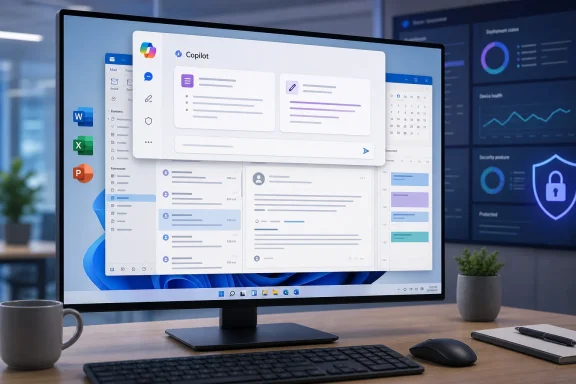
Microsoft is preparing to give classic Outlook for Windows a new, more prominent Microsoft 365 Copilot entry point, extending an interface pattern already seen in other Outlook experiences and in Word, Excel, and PowerPoint. The planned change is not primarily about adding a brand-new AI feature to email; it is about changing where and how users begin using Copilot, positioning it above the active work surface so the assistant can present context-aware actions without forcing users to hunt through ribbon commands, menus, or scattered side panels.
The feature, listed as Microsoft 365 Roadmap ID 567007, remains marked In development as of July 22, 2026. Microsoft has assigned a general-availability target of August 2026 for classic Outlook on desktop, with planned availability in Current Channel and General Availability environments across commercial, GCC, GCC High, and DoD cloud instances. As with every roadmap item, that target should be read as a deployment intention rather than an unconditional promise that every tenant and desktop will receive the experience on the same day.
For Windows users and IT teams that have stayed with classic Outlook, the announcement matters because it signals that Microsoft is still investing in the long-established Win32 client even as it promotes the new Outlook for Windows. More importantly, it reflects Microsoft’s larger strategy for Copilot: shifting from isolated, feature-specific AI buttons toward a consistent assistant layer embedded across the Microsoft 365 desktop application suite.
The core concept is simple. Instead of presenting Copilot as a collection of separate commands spread across Outlook’s interface, Microsoft is introducing an entry point that sits above the work users are doing and draws on the context below it.
In classic Outlook, that context might include:
For classic Outlook users, the practical result should be a clearer starting point for asking Copilot to help with the task directly in front of them. The experience is designed to keep the assistant near the content rather than requiring a switch to a different app, browser tab, or unrelated pane.
That does not mean every Copilot capability will suddenly become available to every Outlook user. The new entry point is a user-interface and workflow change, not a statement that Copilot licensing, security requirements, supported account types, or tenant policies have disappeared.
This makes the new Copilot entry point more than a cosmetic update. It is an acknowledgement that organizations cannot always move their entire workforce to a new client on Microsoft’s preferred schedule.
For employees, this could lower the learning curve. A user who understands where to find Copilot while editing a Word document should not have to rediscover it while working through an inbox. Likewise, a user accustomed to receiving contextual suggestions in PowerPoint or Excel may find the Outlook implementation more intuitive than an older arrangement of isolated Copilot controls.
For IT departments, common UI patterns can simplify rollout communications, training materials, support documentation, and help-desk triage. A standard entry point is easier to explain than a separate instruction set for every Microsoft 365 app.
In email, context is particularly valuable. A mailbox contains conversations, deadlines, commitments, stakeholders, attachments, meeting decisions, and often a large amount of ambiguity. The difference between a generic AI chatbot and an in-app assistant is supposed to be the assistant’s ability to recognize which message, thread, draft, or calendar item is relevant to the current task.
Common Copilot-assisted Outlook workflows include:
That distinction is central to the product design. The more effectively Copilot can translate user intent into context-appropriate options, the less the interface becomes a barrier.
A unified Copilot entry point offers an alternative. Rather than requiring users to remember whether a function belongs under Home, Message, Review, or a dedicated Copilot control, the assistant becomes a stable destination from which relevant actions can be discovered.
This can be especially useful in classic Outlook, where the interface has a large number of established controls and screen layouts vary significantly across users. Reading panes, navigation panes, To Do Bar settings, custom ribbons, add-ins, and multi-window behavior can all affect where a user expects to find an action.
The promise is not merely a cleaner layout. It is a reduction in interaction overhead.
That coverage is notable. Government cloud inclusion often matters to organizations that cannot simply assume a commercial-cloud feature will arrive on the same terms in restricted environments.
In practical terms, an organization may see several outcomes during August 2026:
Organizations should plan for the feature, but they should not make business-critical process changes based solely on a roadmap listing.
In broad terms, users need to be signed into their Microsoft 365 applications with an eligible work or school account and have the appropriate organization-assigned entitlement. A personal Microsoft account and an enterprise Microsoft 365 Copilot account should not be treated as interchangeable identities or experiences.
A user may see a Copilot-related interface but still encounter limitations because of:
The assistant’s usefulness in Outlook depends on having enough relevant context to process the task. It also depends on Microsoft 365 service connectivity and the organization’s configuration choices. The interface may look local to the desktop application, but the intelligence behind it is part of a cloud-connected service model.
Microsoft’s stated model is that Copilot honors existing organizational permissions. In other words, it is not meant to give a user access to email, files, chats, or meetings they could not otherwise access.
The new Outlook entry point does not create that governance problem. It can, however, make it more urgent.
Before expanding Copilot availability, organizations should review:
Users should review generated output before sending it, particularly when messages involve:
A large inbox often forces users to switch constantly between reading, searching, writing, scheduling, and checking related documents. A well-designed AI layer can reduce the number of steps required to move from message overload to a useful action.
That could be especially valuable for:
That does not eliminate the need for training. Copilot in Excel should not be used exactly like Copilot in Outlook, because the work context is different. Still, common entry points, common terminology, and similar prompt experiences can make the suite feel more coherent.
For organizations investing in Microsoft 365 Copilot at scale, this coherence may matter as much as any single capability.
The risk is not limited to visual preference. Any prominent AI entry point may generate questions about cost, data usage, privacy, availability, and why one employee sees a feature another does not.
The better implementation is one that treats Copilot as a productivity tool with clear boundaries. Organizations should set expectations for responsible use, explain where human review is essential, and make it clear that speed does not excuse inaccurate or inappropriate communication.
Test scenarios should include a long internal project thread, an external customer conversation, a sensitive labeled message, a meeting follow-up, a shared mailbox response, a delegated calendar workflow, and a thread with attached files. These cases are more likely to reveal gaps in permissions, user understanding, policy enforcement, or feature reliability than a simple one-message test.
That shift does not make the familiar Outlook interface obsolete. Rather, it changes the role of the interface. The ribbon, panes, folders, search tools, and message controls remain essential, while Copilot aims to operate as an adaptive layer that helps users traverse them more efficiently.
A strong Copilot integration needs to support both worlds without making either one harder.
If the rollout feels intrusive, inconsistent, poorly governed, or confusingly licensed, it could deepen skepticism among organizations that already see Copilot as expensive, uneven, or difficult to operationalize.
The August rollout will therefore be watched not just as an Outlook design update, but as another measure of Microsoft’s ability to make AI assistance feel dependable in the applications where business work actually happens.
For users, the potential benefit is simpler access to summarization, drafting, communication support, and work-aware assistance. For organizations, the release offers a chance to standardize Copilot training and reduce differences between classic Outlook, modern Outlook endpoints, and the rest of the Microsoft 365 suite.
The caveats are equally important. Roadmap ID 567007 is still in development, August 2026 remains a planned availability window rather than a guaranteed deployment day, and the experience will continue to depend on licensing, identity, mailbox configuration, policy, and prudent data governance. The new entry point may make Copilot easier to reach, but it does not remove the need for human review or solve underlying permission problems.
Ultimately, this release is about making Copilot less of a destination and more of a continuous part of work. For classic Outlook users who have waited for a more integrated Microsoft 365 Copilot experience, that is a notable step forward—provided Microsoft delivers the consistency, reliability, and administrative clarity that enterprise Windows environments require.
The feature, listed as Microsoft 365 Roadmap ID 567007, remains marked In development as of July 22, 2026. Microsoft has assigned a general-availability target of August 2026 for classic Outlook on desktop, with planned availability in Current Channel and General Availability environments across commercial, GCC, GCC High, and DoD cloud instances. As with every roadmap item, that target should be read as a deployment intention rather than an unconditional promise that every tenant and desktop will receive the experience on the same day.
For Windows users and IT teams that have stayed with classic Outlook, the announcement matters because it signals that Microsoft is still investing in the long-established Win32 client even as it promotes the new Outlook for Windows. More importantly, it reflects Microsoft’s larger strategy for Copilot: shifting from isolated, feature-specific AI buttons toward a consistent assistant layer embedded across the Microsoft 365 desktop application suite.
 Overview: A Unified Copilot Surface Comes to Classic Outlook
The core concept is simple. Instead of presenting Copilot as a collection of separate commands spread across Outlook’s interface, Microsoft is introducing an entry point that sits above the work users are doing and draws on the context below it.In classic Outlook, that context might include:
- The email message currently open in a reading pane or inspector window
- A long email conversation and its participants
- A draft reply in progress
- Calendar information related to a meeting or appointment
- The user’s existing Microsoft 365 work context, subject to account permissions and licensing
- The broader task of catching up, composing, refining, or acting on a message
For classic Outlook users, the practical result should be a clearer starting point for asking Copilot to help with the task directly in front of them. The experience is designed to keep the assistant near the content rather than requiring a switch to a different app, browser tab, or unrelated pane.
That does not mean every Copilot capability will suddenly become available to every Outlook user. The new entry point is a user-interface and workflow change, not a statement that Copilot licensing, security requirements, supported account types, or tenant policies have disappeared.
Why Classic Outlook Still Matters
Classic Outlook for Windows remains a critical client in large organizations, particularly those with complex add-in portfolios, mature desktop management practices, regulated environments, shared mailbox workflows, and deeply established Exchange configurations. While Microsoft’s new Outlook has become the company’s modern Windows client, classic Outlook continues to serve many enterprise scenarios where change must be deliberate and carefully validated.This makes the new Copilot entry point more than a cosmetic update. It is an acknowledgement that organizations cannot always move their entire workforce to a new client on Microsoft’s preferred schedule.
The enterprise reality behind the old and new Outlook divide
For many businesses, classic Outlook is not simply an older interface. It is tied to practical operational needs:- Legacy COM and VSTO add-ins that have not yet been replaced
- Bespoke workflow integrations for records management, CRM, legal review, and document handling
- Heavily managed Windows desktop images
- Familiar ribbon-based workflows used by large employee populations
- Dependence on advanced mail and calendar behavior that needs testing before migration
- Compliance environments where feature parity and cloud availability must be confirmed carefully
A consistency play across Microsoft 365
The broader consistency goal is just as important as the Outlook-specific release. Microsoft says the experience is already present across other Outlook endpoints and in Word, Excel, and PowerPoint. That means the same broad visual and behavioral model is becoming a cross-application convention.For employees, this could lower the learning curve. A user who understands where to find Copilot while editing a Word document should not have to rediscover it while working through an inbox. Likewise, a user accustomed to receiving contextual suggestions in PowerPoint or Excel may find the Outlook implementation more intuitive than an older arrangement of isolated Copilot controls.
For IT departments, common UI patterns can simplify rollout communications, training materials, support documentation, and help-desk triage. A standard entry point is easier to explain than a separate instruction set for every Microsoft 365 app.
What “Above Your Work” Means in Practice
Microsoft’s description of Copilot sitting above the work and understanding the context beneath it points to a design philosophy that goes beyond a conventional chat button. The intended model is one in which the application can offer assistance based on the task state without requiring users to manually copy, paste, select, or describe every detail.In email, context is particularly valuable. A mailbox contains conversations, deadlines, commitments, stakeholders, attachments, meeting decisions, and often a large amount of ambiguity. The difference between a generic AI chatbot and an in-app assistant is supposed to be the assistant’s ability to recognize which message, thread, draft, or calendar item is relevant to the current task.
Potential workflows for Outlook users
Microsoft has not published an exhaustive final command list for Roadmap ID 567007, so it would be premature to treat the entry-point announcement as a guarantee of particular buttons or prompts. However, the direction aligns with existing Microsoft 365 Copilot capabilities in Outlook, which include assistance with email comprehension and communication.Common Copilot-assisted Outlook workflows include:
- Summarizing an email thread to identify decisions, requests, and unresolved items
- Drafting a reply based on the active conversation
- Adjusting tone and length before sending a message
- Identifying potential action items from an exchange
- Creating clearer follow-up communication
- Preparing for a meeting by bringing relevant mail and work context into view
- Coaching the writer on clarity, sentiment, or phrasing
That distinction is central to the product design. The more effectively Copilot can translate user intent into context-appropriate options, the less the interface becomes a barrier.
Less interface hunting, more task continuity
Microsoft’s productivity applications have historically accumulated commands over many years. The ribbon remains powerful, but its strength can also become a usability challenge: capabilities are organized by tabs, groups, contextual modes, and administrative customizations. Adding AI features one by one risks making that problem worse.A unified Copilot entry point offers an alternative. Rather than requiring users to remember whether a function belongs under Home, Message, Review, or a dedicated Copilot control, the assistant becomes a stable destination from which relevant actions can be discovered.
This can be especially useful in classic Outlook, where the interface has a large number of established controls and screen layouts vary significantly across users. Reading panes, navigation panes, To Do Bar settings, custom ribbons, add-ins, and multi-window behavior can all affect where a user expects to find an action.
The promise is not merely a cleaner layout. It is a reduction in interaction overhead.
Expected Availability and What the Roadmap Does — and Does Not — Guarantee
Microsoft’s roadmap entry places the feature in Current Channel and General Availability, with a planned general-availability date of August 2026. The scope includes the worldwide standard multi-tenant cloud as well as GCC, GCC High, and DoD.That coverage is notable. Government cloud inclusion often matters to organizations that cannot simply assume a commercial-cloud feature will arrive on the same terms in restricted environments.
Rollout timing will not be perfectly uniform
A roadmap date should never be mistaken for a universal on-switch. Microsoft 365 features commonly arrive in stages, and visibility can depend on service-side rollout timing, the Office update channel, the installed build, tenant configuration, licensing, feature controls, and regional cloud availability.In practical terms, an organization may see several outcomes during August 2026:
- Some users receive the new entry point first through normal Current Channel servicing.
- Other users receive it later as Microsoft expands deployment.
- Managed devices remain behind until their approved Microsoft 365 Apps build is deployed.
- Government cloud tenants may follow a different operational cadence despite being included in the roadmap scope.
- Users may need to restart Outlook or install pending Microsoft 365 updates before an interface change becomes visible.
“In development” remains an important qualifier
Roadmap ID 567007 is explicitly marked In development, not rolled out or launched. Microsoft can revise feature details, change the rollout sequence, narrow availability, or move the target date. This is particularly relevant for a UI-led Copilot release, where the final implementation may evolve based on telemetry, accessibility testing, performance data, and feedback from early deployment rings.Organizations should plan for the feature, but they should not make business-critical process changes based solely on a roadmap listing.
Licensing, Account Type, and Technical Prerequisites
The arrival of a new Copilot entry point does not automatically grant Copilot functionality to every person using classic Outlook. Microsoft 365 Copilot experiences remain dependent on the organization’s licensing model, identity configuration, Microsoft 365 Apps deployment, and policy controls.In broad terms, users need to be signed into their Microsoft 365 applications with an eligible work or school account and have the appropriate organization-assigned entitlement. A personal Microsoft account and an enterprise Microsoft 365 Copilot account should not be treated as interchangeable identities or experiences.
The difference between entry points and entitlement
This distinction is easy to overlook. An entry point is the place in the interface where Copilot can be opened. Entitlement determines whether the user can access the intended features, and what grounding data or work-aware functionality applies.A user may see a Copilot-related interface but still encounter limitations because of:
- Missing or incorrect license assignment
- An unsupported subscription combination
- Sign-in with the wrong account
- Disabled connected experiences
- Tenant-level restrictions on Copilot Chat or Microsoft 365 Copilot
- Conditional Access policies
- Device-based licensing scenarios that do not support the needed experience
- Exchange mailbox or service configuration issues
Exchange Online remains central
Microsoft 365 Copilot in Outlook is fundamentally tied to cloud productivity services. Organizations with on-premises Exchange dependencies, hybrid environments, unusual mailbox configurations, or restricted network access should validate functionality in a controlled pilot rather than assuming that the presence of a UI entry point proves end-to-end readiness.The assistant’s usefulness in Outlook depends on having enough relevant context to process the task. It also depends on Microsoft 365 service connectivity and the organization’s configuration choices. The interface may look local to the desktop application, but the intelligence behind it is part of a cloud-connected service model.
Security, Privacy, and Permission Boundaries
Any feature that makes it easier to ask questions across email and work context deserves careful security scrutiny. Copilot’s convenience is based on its capacity to retrieve and synthesize information from Microsoft 365 data that the user can access. That can be helpful, but it also puts existing permission problems into sharper focus.Microsoft’s stated model is that Copilot honors existing organizational permissions. In other words, it is not meant to give a user access to email, files, chats, or meetings they could not otherwise access.
Copilot does not repair oversharing
The important operational caveat is that Copilot can make already accessible information easier to find, summarize, and connect. If SharePoint sites, OneDrive folders, Teams channels, shared mailboxes, or Microsoft 365 groups have been over-permissioned, AI assistance may expose the consequences of that over-permissioning more visibly.The new Outlook entry point does not create that governance problem. It can, however, make it more urgent.
Before expanding Copilot availability, organizations should review:
- Broad SharePoint and OneDrive sharing permissions
- Old collaboration spaces with stale membership
- Shared mailbox access controls
- Sensitive mail and document labeling practices
- Data loss prevention policies
- Retention and eDiscovery expectations
- Employee training around sensitive prompts and generated content
- Administrative controls for Copilot access and agents
Human review remains non-negotiable
Copilot can summarize, draft, classify, and propose actions, but it should not be treated as an autonomous authority. Email is especially unforgiving because a seemingly polished draft can still include an inaccurate statement, omit a key condition, misread a conversation’s tone, or imply a commitment that the sender did not intend to make.Users should review generated output before sending it, particularly when messages involve:
- Legal, contractual, or regulatory obligations
- Pricing, commitments, and deadlines
- Human resources matters
- Security incidents
- Executive communications
- Customer disputes
- Financial decisions
- Sensitive personal information
Benefits for Everyday Outlook Work
The strongest argument for the new Copilot entry point is not that it makes Outlook look newer. It is that email remains one of the most context-heavy and interruption-prone parts of modern work.A large inbox often forces users to switch constantly between reading, searching, writing, scheduling, and checking related documents. A well-designed AI layer can reduce the number of steps required to move from message overload to a useful action.
Better access to high-value assistance
The redesign could make important Copilot capabilities easier to discover. Traditional feature discoverability depends on users knowing where to look; contextual entry points can bring assistance closer to the moment it is needed.That could be especially valuable for:
- Employees who receive high volumes of email
- Managers coordinating teams and approvals
- Sales and account teams handling long customer threads
- Project managers monitoring commitments
- Executives and assistants preparing briefings
- Support teams sorting requests and follow-ups
- Knowledge workers who frequently switch between Outlook and Office documents
A common mental model across apps
Consistency across Outlook, Word, Excel, and PowerPoint has a second-order benefit: it encourages users to learn one interaction model rather than a collection of disconnected AI features.That does not eliminate the need for training. Copilot in Excel should not be used exactly like Copilot in Outlook, because the work context is different. Still, common entry points, common terminology, and similar prompt experiences can make the suite feel more coherent.
For organizations investing in Microsoft 365 Copilot at scale, this coherence may matter as much as any single capability.
Risks: UI Change Can Create Support and Adoption Friction
A more visible Copilot surface can improve discoverability, but it can also create new friction. Users who rely on stable desktop layouts may initially find the change disruptive, especially in classic Outlook deployments that have been customized extensively.The risk is not limited to visual preference. Any prominent AI entry point may generate questions about cost, data usage, privacy, availability, and why one employee sees a feature another does not.
Common support challenges to expect
Help desks and Microsoft 365 administrators should anticipate questions such as:- Why does Copilot appear in one Outlook client but not another?
- Why is the entry point missing on my managed Windows device?
- Why can I open Copilot but not use work-grounded features?
- Why does a colleague see different suggestions?
- Is Copilot reading every email in my mailbox?
- Can the feature be disabled for certain users or groups?
- Does the UI change affect existing Outlook add-ins or ribbon customizations?
- Is the feature available in our government cloud tenant yet?
Avoid treating the feature as a productivity mandate
There is also a cultural risk in deploying Copilot too aggressively. If employees interpret AI assistance as a mandatory replacement for judgment, thoughtful communication can suffer. Teams may overuse generated language, send less personal replies, or become dependent on summaries without reviewing source material.The better implementation is one that treats Copilot as a productivity tool with clear boundaries. Organizations should set expectations for responsible use, explain where human review is essential, and make it clear that speed does not excuse inaccurate or inappropriate communication.
What IT Administrators Should Do Before August
The roadmap announcement gives IT teams a useful window to prepare. Because the feature is an entry-point change rather than a separately installed application, the most important work is likely to be validation, governance, communication, and support readiness.A practical preparation checklist
- Confirm Copilot licensing and target groups.
Identify which users are entitled to Microsoft 365 Copilot and which users are expected to have only limited or different Copilot experiences. - Review classic Outlook deployment status.
Determine which Microsoft 365 Apps update channels and builds are deployed across Windows devices, including any groups that intentionally defer feature updates. - Pilot the experience in a representative environment.
Test with users who rely on shared mailboxes, delegated access, add-ins, Outlook rules, archives, sensitivity labels, and complex calendar workflows. - Validate policy behavior.
Confirm that tenant settings, privacy controls, Conditional Access, and Copilot management policies produce the intended user experience. - Review data governance.
Use the rollout as an opportunity to assess overly broad permissions, unmanaged sharing, and sensitive-data handling practices. - Update help-desk knowledge articles.
Document the expected location of the new entry point, eligibility criteria, troubleshooting steps, and escalation paths. - Prepare concise end-user communication.
Explain that the interface is changing, clarify who is eligible, and reinforce that Copilot output requires review before use. - Monitor adoption and feedback.
Watch for usability issues, unexpected behavior, accessibility concerns, and confusion between classic Outlook, new Outlook, and Outlook on the web.
Test real-world workflows, not just the button
A successful pilot should not stop after confirming that the new Copilot control appears. The meaningful question is whether the experience helps users complete representative tasks safely and effectively.Test scenarios should include a long internal project thread, an external customer conversation, a sensitive labeled message, a meeting follow-up, a shared mailbox response, a delegated calendar workflow, and a thread with attached files. These cases are more likely to reveal gaps in permissions, user understanding, policy enforcement, or feature reliability than a simple one-message test.
The Bigger Microsoft 365 Strategy
This classic Outlook update fits a broader transition in Microsoft 365 from traditional application features toward AI-mediated workflows. For decades, productivity applications were built around explicit commands: click a button, choose an option, enter information, and repeat. Copilot adds another layer, where users can state an outcome and receive suggested next steps.That shift does not make the familiar Outlook interface obsolete. Rather, it changes the role of the interface. The ribbon, panes, folders, search tools, and message controls remain essential, while Copilot aims to operate as an adaptive layer that helps users traverse them more efficiently.
From commands to intent
The most consequential change is conceptual. Users will increasingly interact with Microsoft 365 in two ways:- By using traditional controls for precise, repeatable actions
- By describing a goal and allowing Copilot to propose an approach
A strong Copilot integration needs to support both worlds without making either one harder.
Why the classic client is a strategic proving ground
If Microsoft can deliver a coherent Copilot experience in classic Outlook without disrupting the reliability and familiarity that enterprise users value, it strengthens the case that the company’s AI strategy can coexist with long-lived desktop software.If the rollout feels intrusive, inconsistent, poorly governed, or confusingly licensed, it could deepen skepticism among organizations that already see Copilot as expensive, uneven, or difficult to operationalize.
The August rollout will therefore be watched not just as an Outlook design update, but as another measure of Microsoft’s ability to make AI assistance feel dependable in the applications where business work actually happens.
Conclusion
The new Copilot entry point in classic Outlook is a meaningful, if understated, Microsoft 365 development. It brings the established Windows desktop email client closer to the company’s emerging cross-app Copilot model: an assistant that stays visible above the current work, understands surrounding context, and surfaces useful actions without scattering AI controls throughout the interface.For users, the potential benefit is simpler access to summarization, drafting, communication support, and work-aware assistance. For organizations, the release offers a chance to standardize Copilot training and reduce differences between classic Outlook, modern Outlook endpoints, and the rest of the Microsoft 365 suite.
The caveats are equally important. Roadmap ID 567007 is still in development, August 2026 remains a planned availability window rather than a guaranteed deployment day, and the experience will continue to depend on licensing, identity, mailbox configuration, policy, and prudent data governance. The new entry point may make Copilot easier to reach, but it does not remove the need for human review or solve underlying permission problems.
Ultimately, this release is about making Copilot less of a destination and more of a continuous part of work. For classic Outlook users who have waited for a more integrated Microsoft 365 Copilot experience, that is a notable step forward—provided Microsoft delivers the consistency, reliability, and administrative clarity that enterprise Windows environments require.
References
- Primary source: Microsoft 365 Roadmap
Published: 2026-07-22T22:41:54.4134574Z
Microsoft 365 Roadmap | Microsoft 365
The Microsoft 365 Roadmap lists updates that are currently planned for applicable subscribers. Check here for more information on the status of new features and updates.www.microsoft.com
- Official source: support.microsoft.com
Copilot buttons are missing in classic Outlook for Windows | Microsoft Support
This article describes the issue regarding Copilit buttons missing in classic Outlook for Windowssupport.microsoft.com
