

Before enabling Claude in Chrome on a work PC, make the go/no-go decision first: use Google Chrome only, confirm an eligible paid Claude plan, start on low-risk sites, keep approval prompts on, block prohibited workflows in policy, and decide which sites Claude must never touch.
Claude in Chrome is not just another chatbot in a sidebar. It is a browser agent that can read pages, click, type, and navigate inside the same work surfaces where employees handle credentials, tickets, documents, customer records, dashboards, and admin portals.
Claude in Chrome is a Chrome-only beta. Anthropic says it is available in beta for paid Claude plans — Pro, Max, Team, and Enterprise — on the Chrome web browser. Team and Enterprise admins can apply organization-level controls such as allowlists and blocklists. If your workplace standardizes on Edge, Brave, Vivaldi, mobile browsers, locked-down virtual desktops, or unmanaged portable browsers, this should be an IT-reviewed pilot rather than an employee experiment.
Use this checklist before the first real work task:
For a work PC, the minimum compatibility check is simple: use Google Chrome, keep it updated, and do not assume that a Chrome extension will behave identically in a Chromium cousin. If your organization blocks extension installation, uses managed browser policies, or standardizes on another browser, that is not an obstacle to work around. It is a signal that Claude in Chrome belongs in a managed pilot.
The second check is account eligibility. Anthropic says Claude in Chrome is available in beta for Pro, Max, Team, and Enterprise plans. For Team and Enterprise environments, Anthropic also describes organization-level controls that can restrict site access through allowlists and blocklists. So if the extension cannot be used, check the account plan, the organization’s settings, and whether the target site is blocked by policy. Do not treat an employee’s personal paid account as an acceptable substitute for enterprise approval.
The third check is browser condition. Anthropic’s troubleshooting guidance points to outdated Chrome, conflicting extensions, site permissions, and organization-level blocks as things to check when actions fail. That is not surprising. A browser agent depends on page interaction, extension permissions, browser APIs, and the current shape of the web page. A stale or heavily modified browser can turn a simple task into a mystery.
For individual users, the first run should be intentionally boring. Update Chrome, close extra tabs, avoid sensitive sites, use Ask before acting, and ask Claude to do something reversible. The first session is not the time to prove that an AI agent can run your workday. It is the time to learn how it asks for permission, what it can see, where it hesitates, and how easily you can stop it.
WindowsForum readers have been here before in a lower-stakes form. In older Chrome discussions, members asked about bookmark extensions after moving from Firefox, Chrome add-ons that would not install or work as expected, sudden interface changes after updates, network access failures, and browser crashes after fresh Windows installs. Those reports add a useful troubleshooting lesson: the browser is rarely a clean lab environment. It is a working profile full of extensions, policies, updates, security tools, user habits, and old assumptions. Claude in Chrome enters that same crowded space, but with a more serious twist. It is not just adding a button or bookmark tool; it can act inside pages.
Anthropic’s permission wording is plain enough that users should learn it before using the extension:
Broader site trust should be treated like an exception, not a lifestyle. If a site gets Always allow actions on this site, it should be on a short list, reviewed frequently, and removed when the reason expires. Do not let old approvals become invisible standing access.
The exact path matters because cleanup is part of safe use: click the Claude extension icon, click the three dots in the upper-right corner of the side panel, then choose Settings → Permissions. Under Your approved sites, review which sites have always-allow status, revoke permissions for specific websites, and check permission history.
This is the same shift WindowsForum’s earlier Claude coverage pointed toward. In the forum’s discussion of “Claude in Chrome and Claude Code,” the notable change was Anthropic putting Claude directly into browser and terminal workflows rather than keeping the assistant isolated in chat. In the related enterprise-focused discussion of Claude for Chrome, the useful policy point was that assistants are moving from answering questions to clicking, filling, and navigating like a human user. That is the right frame: permissions are no longer a setup detail. They are an operational control.
Start with sites and workflows involving:
That distinction matters. “Be careful” pushes responsibility onto the last employee in the chain, usually at the worst possible moment. “This workflow is blocked” gives help desks, managers, and security teams a clear rule to enforce.
The exact red-zone list will vary by organization, but the principle should not. If a normal human mistake on the site could create a security incident, privacy incident, compliance problem, unauthorized purchase, access change, or financial loss, Claude should not have broad permission there. In many cases, it should not be used there at all.
That does not mean every risk is centrally solved. A workplace still needs policy:
WindowsForum’s enterprise Claude discussion is useful here because it frames the extension as part of a broader move from AI that answers questions to AI that acts in the browser. That move may be productive, but it is not automatically safe. Safety comes from scoping, supervision, policy, and revocation.
That makes the work PC less controlled than many users assume. Password managers, ad blockers, privacy tools, script blockers, grammar checkers, coupon add-ons, developer tools, accessibility tools, translation extensions, security plug-ins, and productivity overlays can all alter what Chrome presents. Some are essential. Some are questionable. All can affect the surface Claude is trying to operate on.
The right answer is not to disable everything forever. It is to test in a known-good environment before trusting Claude in a heavily customized daily profile. A dedicated Chrome profile with approved extensions, limited site access, and test accounts gives users and admins a clearer picture of what is actually failing.
This is where WindowsForum’s older Chrome troubleshooting posts add a concrete reminder. Members have reported Chrome network access failures on Windows, add-ons that would not work, surprise UI changes after browser updates, and crashes after fresh installs. Those are not Claude-specific policy sources, but they are useful operational evidence that browser behavior often depends on the whole local setup, not just the browser name.
For Claude in Chrome, that messiness matters. “Claude cannot click the button” may be a browser version issue, a site permission issue, a conflicting extension, a page overlay, an organization-level restriction, or a task the assistant should not be doing. Help desks should not treat every failure as a model problem.
That matters because Claude in Chrome works alongside the user while looking at web content. The same capability that lets it summarize a page or navigate a workflow also exposes it to hostile, irrelevant, stale, or confusing instructions embedded in that workflow. The agent is not reading a clean prompt in isolation. It is operating in the wild.
The practical rule is simple: do not let Claude act autonomously on pages that combine untrusted text with privileged access. Webmail, customer-submitted tickets, support queues, shared documents, vendor portals, issue trackers, and code-review systems need special care because they often mix outside instructions with inside authority.
For developers and IT pros, the same logic applies to code-adjacent work. A browser agent that reads an issue tracker, opens a repository, checks CI status, and drafts a change request may be useful. But if those pages include secrets, attacker-controlled text, deployment controls, or permission settings, the workflow needs tight limits. “Draft, but do not submit” is safer than “handle this.” “Summarize this selected page” is safer than “fix the account.”
First-phase workflows should be repetitive, visible, and reversible:
Training is part of the pilot. Employees need to understand that “Claude can see this page” and “Claude can safely act on this page” are different claims. They also need to know that refusal messages, approval prompts, and blocked actions are not bugs to route around. They are part of the safety design.
The most productive users will be the ones who learn constrained prompts:
A support script should start with these checks:
This is where power users and security teams actually want the same thing. Users want Claude to work reliably. Admins want to prevent accidental data exposure and unauthorized action. Both goals are served by a boring, repeatable checklist.
Claude in Chrome is not just another chatbot in a sidebar. It is a browser agent that can read pages, click, type, and navigate inside the same work surfaces where employees handle credentials, tickets, documents, customer records, dashboards, and admin portals.
Claude in Chrome is a Chrome-only beta. Anthropic says it is available in beta for paid Claude plans — Pro, Max, Team, and Enterprise — on the Chrome web browser. Team and Enterprise admins can apply organization-level controls such as allowlists and blocklists. If your workplace standardizes on Edge, Brave, Vivaldi, mobile browsers, locked-down virtual desktops, or unmanaged portable browsers, this should be an IT-reviewed pilot rather than an employee experiment.
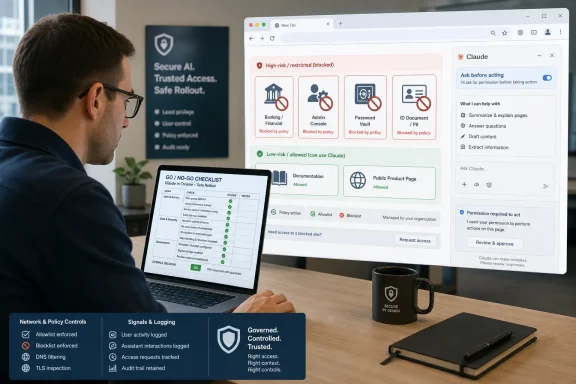 Quick First-Run Checklist
Use this checklist before the first real work task:- Confirm the browser
- Use Google Chrome, not another Chromium-based browser.
- Do not test from mobile.
- Confirm account eligibility
- Claude in Chrome is a beta for paid Claude plans: Pro, Max, Team, and Enterprise.
- For Team or Enterprise environments, confirm that your organization has not blocked the feature and that any required organization controls allow the site you want to use.
- Update Chrome
- Start from a current Chrome build.
- If actions fail, browser freshness is one of the first things to check.
- Start with a low-risk site
- Do not begin in banking, HR, admin consoles, source control, customer records, password managers, ticket queues, webmail, or financial systems.
- Use a documentation page, public product page, or other reversible workflow first.
- Use conservative permissions
- Choose Ask before acting during the first week.
- Prefer Allow this action over Always allow actions on this site until the site has been tested.
- Grant broader site trust only after testing and only for specific low-risk domains.
- Know where to revoke site trust
- Open the Claude extension.
- Click the three dots in the upper-right corner of the Claude side panel.
- Go to Settings → Permissions.
- Review Your approved sites and revoke any site that no longer needs “always allow” access.
- Test in a controlled browser environment
- Close unnecessary tabs.
- Be alert for extensions that change pages, intercept clicks, inject overlays, rewrite links, manage passwords, translate content, or block scripts.
- Block prohibited workflows entirely
- Do not merely warn users to “be careful” around sensitive actions.
- Policy should block Claude-assisted workflows involving sensitive credit card or ID data, untrusted downloads, security permission changes, financial trades, and other high-consequence actions.
The Safe First Run Starts Before the Extension Opens
The first decision is whether the machine should run Claude in Chrome at all. Anthropic describes Claude in Chrome as a Chrome-web-browser beta for paid Claude plans. That matters in corporate environments where “Chrome” often means a messy mix of Google Chrome, Microsoft Edge, Brave, Vivaldi, unmanaged personal browsers, kiosk sessions, remote desktops, and locked-down enterprise images.For a work PC, the minimum compatibility check is simple: use Google Chrome, keep it updated, and do not assume that a Chrome extension will behave identically in a Chromium cousin. If your organization blocks extension installation, uses managed browser policies, or standardizes on another browser, that is not an obstacle to work around. It is a signal that Claude in Chrome belongs in a managed pilot.
The second check is account eligibility. Anthropic says Claude in Chrome is available in beta for Pro, Max, Team, and Enterprise plans. For Team and Enterprise environments, Anthropic also describes organization-level controls that can restrict site access through allowlists and blocklists. So if the extension cannot be used, check the account plan, the organization’s settings, and whether the target site is blocked by policy. Do not treat an employee’s personal paid account as an acceptable substitute for enterprise approval.
The third check is browser condition. Anthropic’s troubleshooting guidance points to outdated Chrome, conflicting extensions, site permissions, and organization-level blocks as things to check when actions fail. That is not surprising. A browser agent depends on page interaction, extension permissions, browser APIs, and the current shape of the web page. A stale or heavily modified browser can turn a simple task into a mystery.
For individual users, the first run should be intentionally boring. Update Chrome, close extra tabs, avoid sensitive sites, use Ask before acting, and ask Claude to do something reversible. The first session is not the time to prove that an AI agent can run your workday. It is the time to learn how it asks for permission, what it can see, where it hesitates, and how easily you can stop it.
WindowsForum readers have been here before in a lower-stakes form. In older Chrome discussions, members asked about bookmark extensions after moving from Firefox, Chrome add-ons that would not install or work as expected, sudden interface changes after updates, network access failures, and browser crashes after fresh Windows installs. Those reports add a useful troubleshooting lesson: the browser is rarely a clean lab environment. It is a working profile full of extensions, policies, updates, security tools, user habits, and old assumptions. Claude in Chrome enters that same crowded space, but with a more serious twist. It is not just adding a button or bookmark tool; it can act inside pages.
The Permission Model Is the Product
Most extensions ask for permissions and then fade into the toolbar. Claude in Chrome is different because the permission boundary is central to the product. The important question is not simply “Do I trust Claude?” It is: Do I trust Claude on this site, for this task, in this session, while I am watching?Anthropic’s permission wording is plain enough that users should learn it before using the extension:
- Ask before acting: Claude creates a plan and asks for approval before executing.
- Act without asking: Claude takes actions without asking for permission.
- Allow this action: permission for a single action only.
- Always allow actions on this site: ongoing permission for that website.
- Decline: prevents Claude from taking the action.
Broader site trust should be treated like an exception, not a lifestyle. If a site gets Always allow actions on this site, it should be on a short list, reviewed frequently, and removed when the reason expires. Do not let old approvals become invisible standing access.
The exact path matters because cleanup is part of safe use: click the Claude extension icon, click the three dots in the upper-right corner of the side panel, then choose Settings → Permissions. Under Your approved sites, review which sites have always-allow status, revoke permissions for specific websites, and check permission history.
This is the same shift WindowsForum’s earlier Claude coverage pointed toward. In the forum’s discussion of “Claude in Chrome and Claude Code,” the notable change was Anthropic putting Claude directly into browser and terminal workflows rather than keeping the assistant isolated in chat. In the related enterprise-focused discussion of Claude for Chrome, the useful policy point was that assistants are moving from answering questions to clicking, filling, and navigating like a human user. That is the right frame: permissions are no longer a setup detail. They are an operational control.
Block the Red-Zone Workflows, Not Just the Red-Zone Sites
Every workplace pilot needs a red-zone list. The purpose is not to slow down harmless tasks. It is to make sure the browser agent never gets normalized in places where a wrong click, copied secret, mistaken upload, or unauthorized setting change becomes an incident.Start with sites and workflows involving:
- Banking, payments, payroll, investment platforms, and trading systems.
- Crypto wallets, exchanges, and recovery workflows.
- Password managers and secrets vaults.
- Identity documents, government IDs, and sensitive verification flows.
- HR systems containing employee records.
- Customer records, regulated data, medical data, legal files, or financial records.
- Cloud admin portals and device-management consoles.
- Identity providers, access-control panels, and permission-management pages.
- Source repositories or CI systems that expose secrets, deployment controls, or production access.
- Ticketing systems that routinely contain credentials, screenshots, logs, internal URLs, customer data, or emergency access instructions.
- Webmail and messaging tools where outside instructions can appear beside internal authority.
That distinction matters. “Be careful” pushes responsibility onto the last employee in the chain, usually at the worst possible moment. “This workflow is blocked” gives help desks, managers, and security teams a clear rule to enforce.
The exact red-zone list will vary by organization, but the principle should not. If a normal human mistake on the site could create a security incident, privacy incident, compliance problem, unauthorized purchase, access change, or financial loss, Claude should not have broad permission there. In many cases, it should not be used there at all.
Enterprise Controls: What Anthropic Provides vs. What You Should Decide
Keep the enterprise story tight. Anthropic says Team and Enterprise admins can configure controls that affect permissions, including allowlists that restrict Claude to approved sites and blocklists that prevent access to specific sites regardless of user permissions. Anthropic also says that if a user cannot access a site with Claude, organization restrictions may be the reason.That does not mean every risk is centrally solved. A workplace still needs policy:
- Which users are allowed to use Claude in Chrome?
- Which accounts are approved for company work?
- Which sites are approved?
- Which actions are forbidden?
- Which data types are off limits?
- Who reviews approved sites?
- When must a permission be revoked?
- How are unexpected actions reported?
WindowsForum’s enterprise Claude discussion is useful here because it frames the extension as part of a broader move from AI that answers questions to AI that acts in the browser. That move may be productive, but it is not automatically safe. Safety comes from scoping, supervision, policy, and revocation.
What to Do If Claude in Chrome Is Blocked
If Claude in Chrome will not launch, cannot access a site, or fails before taking action, do not immediately assume the model is broken. Work through the blocking causes in order:- Confirm you are using Google Chrome
- Claude in Chrome is for the Chrome web browser.
- Do not troubleshoot Edge, Brave, Vivaldi, Opera, or mobile as if they are supported targets.
- Update Chrome
- Restart Chrome after updating.
- Retry on a simple, low-risk page.
- Check the account
- Confirm the user is on a paid Claude plan that Anthropic lists for the beta: Pro, Max, Team, or Enterprise.
- For Team or Enterprise, confirm that the organization allows the feature and allows the target site.
- Check Claude permissions
- Open the Claude extension.
- Click the three dots in the upper-right corner.
- Go to Settings → Permissions.
- Review approved sites, revoked sites, and permission history.
- Check Chrome extension conflicts
- Temporarily test in a clean or managed Chrome profile.
- Pay special attention to ad blockers, privacy tools, password managers, script blockers, page translators, grammar tools, coupon extensions, security extensions, and developer overlays.
- Check organization policy
- If you see a message that a site is blocked by organization policy, contact your admin.
- Do not try to bypass a work policy with a personal profile or unmanaged browser.
- Retry smaller
- Ask Claude to summarize the visible page before asking it to click, fill, or navigate.
- If summarizing works but action fails, the problem may be site permission, page structure, extension interference, or a blocked action.
Extension Conflicts Are Not Just Bugs Anymore
Anthropic identifies conflicting extensions as a possible cause of failed actions. On an ordinary browser, that might mean a button looks odd or a page does not load correctly. With a browser agent, it can mean the assistant sees a different page than the user expects, cannot click accurately, or behaves unpredictably because another extension has changed the environment.That makes the work PC less controlled than many users assume. Password managers, ad blockers, privacy tools, script blockers, grammar checkers, coupon add-ons, developer tools, accessibility tools, translation extensions, security plug-ins, and productivity overlays can all alter what Chrome presents. Some are essential. Some are questionable. All can affect the surface Claude is trying to operate on.
The right answer is not to disable everything forever. It is to test in a known-good environment before trusting Claude in a heavily customized daily profile. A dedicated Chrome profile with approved extensions, limited site access, and test accounts gives users and admins a clearer picture of what is actually failing.
This is where WindowsForum’s older Chrome troubleshooting posts add a concrete reminder. Members have reported Chrome network access failures on Windows, add-ons that would not work, surprise UI changes after browser updates, and crashes after fresh installs. Those are not Claude-specific policy sources, but they are useful operational evidence that browser behavior often depends on the whole local setup, not just the browser name.
For Claude in Chrome, that messiness matters. “Claude cannot click the button” may be a browser version issue, a site permission issue, a conflicting extension, a page overlay, an organization-level restriction, or a task the assistant should not be doing. Help desks should not treat every failure as a model problem.
Prompt Injection Sounds Exotic; the Failure Mode Is Ordinary Work
The phrase prompt injection can make the risk sound like a research lab problem. In the browser, it is more mundane. A page, ticket, email, shared document, support thread, or vendor portal may contain instructions that a human recognizes as content but an AI agent may treat as relevant context.That matters because Claude in Chrome works alongside the user while looking at web content. The same capability that lets it summarize a page or navigate a workflow also exposes it to hostile, irrelevant, stale, or confusing instructions embedded in that workflow. The agent is not reading a clean prompt in isolation. It is operating in the wild.
The practical rule is simple: do not let Claude act autonomously on pages that combine untrusted text with privileged access. Webmail, customer-submitted tickets, support queues, shared documents, vendor portals, issue trackers, and code-review systems need special care because they often mix outside instructions with inside authority.
For developers and IT pros, the same logic applies to code-adjacent work. A browser agent that reads an issue tracker, opens a repository, checks CI status, and drafts a change request may be useful. But if those pages include secrets, attacker-controlled text, deployment controls, or permission settings, the workflow needs tight limits. “Draft, but do not submit” is safer than “handle this.” “Summarize this selected page” is safer than “fix the account.”
The Best Pilot Looks Disappointingly Narrow
A good pilot should feel almost underwhelming. Pick a small group, use updated Google Chrome, confirm eligible paid accounts, start with low-risk sites, require Ask before acting, document what breaks, and clean up permissions after every session.First-phase workflows should be repetitive, visible, and reversible:
- Summarizing public documentation.
- Comparing non-sensitive public product pages.
- Extracting non-sensitive information from approved web apps.
- Drafting text based on content the user intentionally selects.
- Navigating low-risk internal documentation.
- Preparing a form draft without submitting it.
- Payments or purchases.
- Identity verification.
- Passwords, tokens, keys, or secrets.
- Security settings.
- Admin consoles.
- Financial trades.
- Customer records.
- Regulated data.
- Unknown downloads.
- Production deployment controls.
- Anything that cannot be easily reversed.
Training is part of the pilot. Employees need to understand that “Claude can see this page” and “Claude can safely act on this page” are different claims. They also need to know that refusal messages, approval prompts, and blocked actions are not bugs to route around. They are part of the safety design.
The most productive users will be the ones who learn constrained prompts:
- “Summarize this page.”
- “Find the relevant section, but do not click anything.”
- “Draft a reply; I will review and send it.”
- “Fill a draft only; do not submit.”
- “Compare these two public pages.”
- “List the steps you would take before doing anything.”
- “Handle this account problem.”
- “Fix the billing issue.”
- “Update the permissions.”
- “Complete the trade.”
- “Download whatever is needed.”
- “Take care of this ticket.”
The Help-Desk Checklist Should Be Written Now
The best time to publish a support checklist is before the first wave of confused tickets. Claude in Chrome has enough moving parts that several different failures can look identical to the user.A support script should start with these checks:
- Is the user in Google Chrome?
- Is Chrome current?
- Is the user on a paid Claude plan listed for the beta?
- For Team or Enterprise, is the feature allowed by the organization?
- Is the current site allowed by organization policy?
- Is the current site approved in Claude’s extension permissions?
- Is the task blocked by workplace policy?
- Are other extensions changing the page?
- Does the task work after refresh?
- Does a smaller, lower-risk task work?
- Does it work in a clean or managed Chrome profile?
- Were any temporary permissions granted during troubleshooting?
- Were those permissions revoked afterward?
This is where power users and security teams actually want the same thing. Users want Claude to work reliably. Admins want to prevent accidental data exposure and unauthorized action. Both goals are served by a boring, repeatable checklist.
Practical Policy Language for Workplaces
A useful workplace policy should be plain enough that employees understand it and specific enough that help desks can enforce it. For example:- Claude in Chrome may be used only in Google Chrome and only by approved users.
- Claude in Chrome may be used only with approved accounts, not personal accounts for company work.
- Claude in Chrome may be used only on approved low-risk sites during the pilot.
- Ask before acting is required during the pilot.
- Always allow actions on this site may be used only on approved low-risk sites.
- Claude in Chrome must not be used for financial trades, banking transactions, payroll changes, credit card handling, identity-document handling, security permission changes, password-manager workflows, secrets management, production admin actions, or downloads from untrusted sources.
- Claude in Chrome must not be granted broad site trust on red-zone sites.
- Users must not route around refusals, approval prompts, or blocked workflows.
- Temporary permissions granted for testing must be revoked after the test.
- Any unexpected action, data exposure, or policy bypass must be reported like a security incident.
What Windows Users Should Actually Do
For an individual Windows user on a work PC, the safest approach is:- Use only Google Chrome.
- Do not attempt to use Claude in Chrome on mobile or another Chromium browser.
- Confirm your paid Claude plan is eligible for the beta.
- If this is a company machine, ask whether your organization has approved the extension.
- Start on a low-risk site.
- Use Ask before acting.
- Prefer Allow this action for early testing.
- Do not grant broad trust to sensitive work systems.
- Avoid webmail, customer tickets, admin portals, HR tools, finance systems, source repositories with secrets, and password managers.
- Watch every action.
- Keep final submission, deletion, purchase, permission change, or security decision in human hands.
- Review and remove permissions after testing through Claude extension icon → three dots → Settings → Permissions → Your approved sites.
- Decide whether the extension is allowed before users decide for you.
- Use a pilot group.
- Prefer allowlisted sites.
- Use managed Chrome profiles where practical.
- Block red-zone workflows in policy.
- Document extension conflicts and browser requirements.
- Train users on constrained prompts.
- Create a help-desk script.
- Require cleanup of test permissions.
- Review the pilot before expanding.
Frequently Asked Questions
Is Claude in Chrome just another chatbot extension?
No. The key difference is action. A normal chatbot mainly answers questions. Claude in Chrome can assist inside the browser by reading, navigating, clicking, and typing in supported workflows. That makes permission choices and site selection much more important.Does Claude in Chrome work in Edge, Brave, Vivaldi, or other Chromium browsers?
No. Treat it as a Chrome-only beta. It is for the Chrome web browser, not other Chromium browsers or mobile devices. Use Google Chrome if you are testing it.Which Claude accounts are eligible?
Anthropic says Claude in Chrome is available in beta for paid Claude plans: Pro, Max, Team, and Enterprise. In Team and Enterprise environments, organization controls may also affect whether the feature or a specific site is available.Should I use it on a work PC?
Only if your organization allows it. A work PC may contain authenticated access to internal systems, customer data, admin tools, tickets, documents, and regulated records. If there is no policy yet, use that as a reason to pause rather than improvise.What should I test first?
Start with low-risk, reversible tasks: summarizing public documentation, comparing public pages, drafting text you will review, or navigating non-sensitive internal documentation. Do not begin with finance, HR, identity, security, production, or customer-record workflows.Should I grant broad site permissions?
Not at first. Use Ask before acting during early testing and prefer Allow this action for individual actions. Grant Always allow actions on this site only to approved low-risk sites, and review those approvals regularly.Where do I review or revoke Claude site permissions?
Open the Claude extension, click the three dots in the upper-right corner of the side panel, then choose Settings → Permissions. Under Your approved sites, review sites with always-allow status and revoke permissions for any site that no longer needs access.What sites should be off limits?
At minimum, block use on banking, trading, payroll, password managers, identity documents, cloud admin consoles, device-management tools, security permission pages, source repositories containing secrets, HR systems, and high-sensitivity customer records. Ticketing systems and webmail also deserve caution because they can mix outside instructions with internal access.What if Claude refuses or asks for confirmation?
Do not treat that as a bug. Refusals and confirmation prompts are part of the safety model. If a workflow is blocked by policy or by the assistant’s safeguards, do not route around it with broader permissions or a vaguer prompt.What if Claude cannot click or complete an action?
Check the basics first: Google Chrome, current browser version, eligible paid account, organization controls, site permission, page refresh, and conflicting extensions. If the browser profile is heavily customized, test in a cleaner managed profile before assuming the assistant is the problem.What if my organization blocks Claude in Chrome?
Stop and ask your admin. A block may be intentional because the site, account, browser profile, or workflow is not approved. Do not bypass organization policy with a personal account, personal browser profile, unmanaged extension install, or alternate Chromium browser.Can employees use personal Claude accounts for company work?
That should be a company policy decision, not an individual workaround. For work data, use only accounts and browser profiles your organization has approved. If the company has not approved personal accounts for company work, do not use them to bypass Team or Enterprise controls.Is “Act without asking” safe?
It may be convenient, but it is not the right default for a work pilot. Use Ask before acting first. Consider less restrictive modes only after the site, workflow, data type, and permission cleanup process are understood.Why are WindowsForum’s older Chrome troubleshooting threads relevant?
They are not policy sources for Claude. Their value is practical: Windows users have long seen Chrome behavior affected by extensions, updates, add-ons, profiles, network conditions, and local configuration. Claude in Chrome depends on that same browser environment, so troubleshooting has to include the whole setup, not just the AI assistant.References
- Primary source: support.claude.com
Get started with Claude in Chrome | Claude Help Center
support.claude.com
- Independent coverage: anthropic.com
Piloting Claude in Chrome | Claude by Anthropic
We're piloting Claude in Chrome to test browser-based AI capabilities while addressing prompt injection risks and building the safety measures needed before wider release. www.anthropic.com - Independent coverage: support.anthropic.com
開始在 Chrome 中使用 Claude | Anthropic Help Center
- Independent coverage: claude.com
Claude for Chrome | Claude by Anthropic
Bring Claude's AI assistance to your browser. Ask questions, analyze data, automate tasks, and navigate sites in Chrome. Works with Claude Code and Desktop.claude.com - Independent coverage: pcworld.com
Anthropic launches Claude AI agent extension for Chrome | PCWorld
Claude for Chrome is an AI agent that performs actions on your behalf. It's currently in a limited pilot phase.www.pcworld.com - Independent coverage: prophetchrome.com
Best Chrome Extensions for Claude AI in 2026 (Tested) | Prophet
5 Chrome extensions that bring Claude into your browser — 5 picks tested May 2026. Compare Prophet, Anthropic's official Claude in Chrome, Monica, Sider, and Harpa across Claude models, browser automation, and pricing.prophetchrome.com
- Primary source: WindowsForum
Claude in Chrome and Claude Code: AI Agents Across Browser and Terminal | Windows Forum
Anthropic’s decision to put Claude directly into the browser with a Chrome extension—available now to paid subscribers—marks a clear inflection point in how...windowsforum.com
