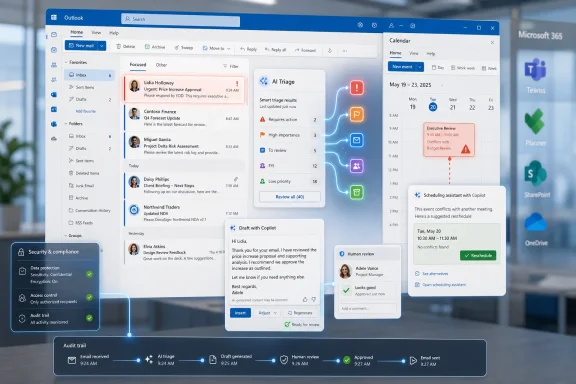
Microsoft is expanding Copilot in Outlook in 2026 with AI tools for summarizing unread mail, drafting replies, organizing inbox rules, preparing meetings, and coordinating calendars inside Microsoft 365 for users with the required Copilot licensing. The pitch is simple: Outlook should stop being a container for work and start acting like a control surface for it. But the real story is not that Microsoft has added another AI button to email. It is that the company is trying to make Outlook the place where Microsoft 365 Copilot proves it can do more than generate prose.
For decades, Outlook has been the place where work arrives before anyone has decided what kind of work it is. A message might be a decision, a meeting request, a document review, a customer escalation, a compliance risk, or a social nicety pretending to be urgent. The burden has always been on the user to classify, prioritize, respond, file, and remember.
Copilot’s newest Outlook push takes aim at that burden. Instead of treating email as a chronological pile, Microsoft wants the inbox to become a conversational interface. Ask what matters, ask what needs a reply, ask which messages are urgent, ask Copilot to draft the response, and then let the calendar absorb the consequences.
That is a meaningful shift because Outlook is not just another Microsoft 365 app. It is the daily nerve center for many organizations, especially those that still run on Exchange, Teams, SharePoint, OneDrive, and Office documents. If Copilot works well in Outlook, it has access to the richest seam of work context Microsoft owns.
The danger, of course, is the same as the opportunity. An AI system that can summarize unread messages, infer priorities, draft replies, create meeting agendas, and adjust calendars is no longer merely assisting with text. It is beginning to intermediate the flow of attention itself.
Microsoft’s own examples emphasize exactly that pain point. Copilot can surface what arrived since yesterday afternoon, identify messages that appear to need action, and condense long threads into the practical essence of who said what and what remains unresolved. That is the kind of low-friction use case that makes generative AI feel less like a science project and more like a feature.
But summaries are only the first layer. The more consequential move is that Copilot can turn those summaries into next actions: draft a reply, suggest a tone, prepare a follow-up, or create a meeting from a thread. The old Outlook showed you the queue. The new Outlook wants to help decide what the queue means.
That distinction matters because summarization by itself does not change how work is managed. It simply makes reading faster. The bigger claim is that Outlook can become a workspace where communication, scheduling, and task preparation collapse into one loop.
Copilot in Outlook builds on that by letting users give direct instructions for drafts. A manager can ask for a concise high-priority response. A project lead can request a status update based on a thread. A support worker can ask for a customer-facing reply that includes known action items while avoiding internal shorthand.
The value is not only speed. It is the reduction of what might be called micro-friction: the small but cumulative effort of deciding how to phrase the next message, whether to include caveats, how formal to be, and how much history to restate. At enterprise scale, shaving a few minutes from each repetitive email can become meaningful.
Still, this is where judgment remains essential. A drafted reply is not a decision. It is a proposed communication. The more Outlook makes draft generation feel seamless, the more organizations will need to reinforce the old rule in a new setting: the sender owns the message, even if the machine wrote the first version.
Copilot can help prioritize meetings, suggest when invitations might be declined, and identify cases where an asynchronous update could replace a live call. That may sound like standard productivity advice, but embedding it into Outlook changes the friction. The assistant is not speaking in generalities; it can see the user’s actual schedule, meeting load, relationships, and surrounding context inside Microsoft 365.
Meeting preparation is another important piece. Copilot can generate agendas with discussion points, risks, open questions, and action items. In theory, that turns the calendar entry from a passive block of time into a prepared work object.
This is where the feature set begins to look less like “AI in email” and more like “AI as an operations layer.” Outlook has long known when meetings happen. Copilot is being positioned to understand why they happen, what should be discussed, and whether the meeting deserves to happen at all.
Automating them inside Outlook gives those boundaries more force. A recurring focus block is easy to override when it is just a blue rectangle on a calendar. It becomes harder to ignore when the system treats it as a standing preference and helps defend it.
For individual users, this could be one of the most useful parts of the whole Copilot experience. The average professional does not need an AI to write Shakespearean email. They need help preventing Tuesday from becoming an uninterrupted series of context switches.
For organizations, however, calendar automation raises governance questions. If Copilot starts recommending declines, delegations, or asynchronous alternatives, managers will need to decide whether those recommendations reflect individual productivity goals, team norms, or company policy. The AI can suggest a better calendar, but it cannot resolve workplace politics.
This is not a small usability matter. The modern Microsoft 365 workday is fragmented across Outlook, Teams, Word, Excel, PowerPoint, SharePoint, OneDrive, Planner, Loop, and browser tabs. Every transition costs attention. Every tool boundary creates a chance to postpone the task.
Chat-based scheduling attacks that fragmentation by turning the user’s intent into the starting point. Instead of opening the calendar, checking availability, composing an invite, adding an agenda, and returning to the conversation, the user asks for the outcome. Copilot then handles the intermediate steps, at least to the extent Microsoft allows it.
That “to the extent” is important. In business software, full automation often stops at the edge of responsibility. Drafting, suggesting, and preparing are easier to justify than silently committing users to meetings, sending sensitive messages, or changing schedules without review. Microsoft’s challenge is to make Copilot feel useful without making it feel reckless.
The word can be overused, and vendors have an obvious incentive to make every assistant sound like a tireless digital employee. But in Outlook, the concept is not empty. Email and calendars are full of repeatable, semi-structured work: triage this, reply to that, schedule the follow-up, prepare for the meeting, protect focus time, find the relevant document.
Those tasks are not glamorous, but they are exactly where enterprise AI may become sticky. Most workers do not need an AI that can write a sonnet about quarterly planning. They need one that can remember the quarterly planning thread, extract unresolved items, and draft a sane agenda before 9 a.m.
This also explains why Microsoft is pushing Copilot across the Microsoft 365 graph rather than treating it as a standalone chatbot. A generic chatbot can produce fluent text. Outlook Copilot can potentially act on the context that makes the text useful.
Copilot’s ability to identify urgent communications will therefore be judged less by its best demos than by its edge cases. Does it distinguish between loud and important? Does it understand that a terse “Can we talk?” from a particular person may outrank a marked-high-importance newsletter? Does it surface the email that contains a hidden blocker rather than the thread with the most recent activity?
This is where the Microsoft 365 context advantage should help. Copilot can be grounded in emails, meetings, calendar preferences, relationships, and files the user already has permission to access. In principle, that gives it more signal than a standalone assistant pasted into a mail client.
But priority is also subjective. Two people in the same thread may have different obligations. An executive assistant, a developer, a lawyer, and a sales manager will all define “urgent” differently. The more Copilot adapts to individual workflows, the more useful it becomes — and the harder it may be for IT to explain exactly why it made a recommendation.
Natural language changes the access model. A user can ask Copilot to move newsletters to a folder, tag messages from certain senders as high priority, or create rules that reflect actual work habits. The automation becomes conversational rather than procedural.
This is one of the more underrated parts of the Copilot pitch. If AI helps users express rules they already wanted but never configured, it could make Outlook cleaner without requiring everyone to become an Outlook power user. The inbox would not merely be summarized; it would be reshaped.
There is a catch: bad rules can hide important mail. Any automation that moves, tags, or deprioritizes messages needs transparency and easy reversal. The ideal Copilot rule is not a mysterious decision by the machine but a visible configuration the user can inspect, edit, and disable.
Microsoft’s general position is that Copilot operates within existing Microsoft 365 permissions and security boundaries. That matters, but it does not end the conversation. If permissions are already too broad, Copilot can make overexposure more visible and more consequential by retrieving and summarizing information users technically can access but rarely would have found manually.
Recent reporting about Copilot-related handling of confidential emails also reinforces the point that governance cannot be treated as a checkbox. Even if bugs are fixed and controls are improved, the episode illustrates the stakes: AI assistants in productivity suites interact with the very material organizations most want to protect.
That does not mean companies should reject Copilot outright. It means deployment has to look like an IT project, not a novelty rollout. Sensitivity labels, data loss prevention, mailbox permissions, audit logging, user education, and pilot groups all matter more when the assistant can traverse the work graph.
This matters for WindowsForum readers because Outlook is not one product experience anymore. There is classic Outlook, new Outlook, Outlook on the web, Outlook for Mac, mobile Outlook, consumer Outlook, enterprise Outlook, and various Copilot availability tiers. Features can differ by platform, tenant, region, license, and rollout channel.
That fragmentation can create confusion inside organizations. One user may see a Copilot button in a thread, another may only access Copilot through chat, and another may have no access at all. Help desks will need to understand not just what Copilot can do, but where it is supposed to appear.
Microsoft’s long-term direction is clear: Copilot is becoming a premium layer across Microsoft 365. But the day-to-day reality will remain uneven for a while. Admins should expect a period in which user expectations are set by demos that do not perfectly match deployed reality.
That strategy is both obvious and powerful. Microsoft does not need to persuade workers to adopt a new productivity environment from scratch. It needs to persuade them that the existing environment has become more intelligent.
Outlook may be the most important test because it sits at the intersection of communication and commitment. A Word document can be rewritten. A spreadsheet can be analyzed. But an email can create an obligation, and a calendar event can consume scarce time. Mistakes in Outlook have social and operational consequences.
That is why the product’s success will depend on more than model quality. Users need controls, explanations, and confidence. They need to understand when Copilot is summarizing, when it is inferring, when it is acting from explicit instruction, and when it is merely suggesting.
Developers, engineers, designers, and operations teams may see more mixed results. If their real work lives in GitHub, Jira, ServiceNow, Slack, Teams channels, terminal windows, or specialized line-of-business systems, Outlook Copilot will help with communication but may not become the primary workflow engine. The assistant is strongest where the work graph is already inside Microsoft 365.
The quality of organizational data will also determine outcomes. Copilot cannot reliably summarize what was never written down, prepare from documents stored outside its reach, or infer priorities from chaotic calendars and inconsistent permissions. AI does not magically fix information architecture. It often reveals how messy that architecture has become.
That may be Copilot’s most uncomfortable contribution. By trying to make sense of inboxes and calendars, it will expose broken habits: meetings with no agenda, emails with unclear ownership, documents scattered across storage silos, and permissions granted for convenience rather than principle.
That does not erase the concerns many power users have had about the new Outlook. Classic Outlook earned loyalty because it was dense, configurable, and deeply integrated into established workflows. The new Outlook has sometimes felt to skeptics like a thinner client wrapped around cloud assumptions.
Copilot complicates that debate. If the most valuable new features arrive first or work best in modern Outlook experiences, Microsoft gains a stronger migration lever than interface cleanup or support deadlines. Users may not move because they love the new client. They may move because the intelligence layer is there.
For IT departments, that creates a familiar trade-off. Standardizing on newer clients can simplify feature rollout and support Microsoft’s roadmap. But moving too quickly can alienate users who depend on legacy add-ins, offline workflows, shared mailbox habits, or power-user features that do not translate cleanly.
The reason is simple: work communication carries intent. A reply does not merely contain words; it represents a stance. A meeting invite does not merely occupy time; it signals priority. Declining a meeting, delegating attendance, or sending a terse answer can alter relationships.
Copilot can help formulate and accelerate those actions, but the user remains accountable for them. That division of labor is likely to persist even as features become more capable. The most successful version of Outlook Copilot is not the one that hides the human. It is the one that gives the human a faster, clearer review path.
This is especially important for regulated industries. Legal, healthcare, finance, government, and education users will need a conservative posture around anything that drafts or summarizes sensitive content. The practical question is not whether AI can help. It is where the approval boundary sits.
That may sound bureaucratic, but unmanaged AI adoption often creates its own bureaucracy later. If every user invents a private system for AI-assisted triage, teams may discover that messages are being interpreted, prioritized, and answered inconsistently. The inbox gets smarter, but the organization gets less predictable.
A better approach is to define a few high-value scenarios first. For example, a sales team might use Copilot to summarize customer threads before account reviews. A project management office might use it to prepare meeting agendas and follow-ups. An executive team might use it to protect focus blocks and identify decisions awaiting approval.
The technology is flexible enough to invite experimentation. That is useful. But flexibility without norms can produce confusion, especially when AI-generated summaries start standing in for firsthand reading.
The Copilot features in Outlook are not revolutionary because any single one of them is unprecedented. Summaries, drafts, rules, agendas, and scheduling assistance have appeared in various forms before. What is different is Microsoft’s attempt to combine them inside the dominant enterprise productivity environment.
That combination is the point. A summary becomes more useful when it can lead to a reply. A reply becomes more useful when it can reference documents. A meeting becomes more useful when it has an agenda. A calendar becomes more useful when it can defend focus time.
If Microsoft can make those transitions feel natural, Outlook may finally become less like a place where work accumulates and more like a place where work is processed.
 Microsoft Is Turning the Inbox Into a Command Line for Work
For decades, Outlook has been the place where work arrives before anyone has decided what kind of work it is. A message might be a decision, a meeting request, a document review, a customer escalation, a compliance risk, or a social nicety pretending to be urgent. The burden has always been on the user to classify, prioritize, respond, file, and remember.Copilot’s newest Outlook push takes aim at that burden. Instead of treating email as a chronological pile, Microsoft wants the inbox to become a conversational interface. Ask what matters, ask what needs a reply, ask which messages are urgent, ask Copilot to draft the response, and then let the calendar absorb the consequences.
That is a meaningful shift because Outlook is not just another Microsoft 365 app. It is the daily nerve center for many organizations, especially those that still run on Exchange, Teams, SharePoint, OneDrive, and Office documents. If Copilot works well in Outlook, it has access to the richest seam of work context Microsoft owns.
The danger, of course, is the same as the opportunity. An AI system that can summarize unread messages, infer priorities, draft replies, create meeting agendas, and adjust calendars is no longer merely assisting with text. It is beginning to intermediate the flow of attention itself.
The Email Summary Is the Easy Demo, Not the Endgame
The headline feature is still the one that sells best in a demo: Copilot can summarize unread emails and long threads into shorter overviews. For anyone who opens Outlook after a flight, a sick day, or a morning of meetings, the appeal is obvious. Nobody wants to spend the first hour of the day excavating context from thirty partial conversations.Microsoft’s own examples emphasize exactly that pain point. Copilot can surface what arrived since yesterday afternoon, identify messages that appear to need action, and condense long threads into the practical essence of who said what and what remains unresolved. That is the kind of low-friction use case that makes generative AI feel less like a science project and more like a feature.
But summaries are only the first layer. The more consequential move is that Copilot can turn those summaries into next actions: draft a reply, suggest a tone, prepare a follow-up, or create a meeting from a thread. The old Outlook showed you the queue. The new Outlook wants to help decide what the queue means.
That distinction matters because summarization by itself does not change how work is managed. It simply makes reading faster. The bigger claim is that Outlook can become a workspace where communication, scheduling, and task preparation collapse into one loop.
Drafting Replies Pushes AI Into the Social Layer of Work
Email drafting has always been one of the most natural fits for generative AI. Much of professional communication is not creative writing; it is tone management, compression, politeness, and context reuse. “Confirm the next steps,” “decline politely,” “ask for the missing file,” and “make this sound less annoyed” are exactly the kinds of instructions a language model can handle.Copilot in Outlook builds on that by letting users give direct instructions for drafts. A manager can ask for a concise high-priority response. A project lead can request a status update based on a thread. A support worker can ask for a customer-facing reply that includes known action items while avoiding internal shorthand.
The value is not only speed. It is the reduction of what might be called micro-friction: the small but cumulative effort of deciding how to phrase the next message, whether to include caveats, how formal to be, and how much history to restate. At enterprise scale, shaving a few minutes from each repetitive email can become meaningful.
Still, this is where judgment remains essential. A drafted reply is not a decision. It is a proposed communication. The more Outlook makes draft generation feel seamless, the more organizations will need to reinforce the old rule in a new setting: the sender owns the message, even if the machine wrote the first version.
Calendar Intelligence Is Where the Productivity Claim Gets Serious
Email overload is annoying, but calendar overload is often more destructive. A cluttered inbox can be triaged asynchronously; a cluttered calendar consumes the day in fixed blocks. Microsoft’s newer Outlook Copilot features therefore make a bigger promise when they move from reading mail to optimizing time.Copilot can help prioritize meetings, suggest when invitations might be declined, and identify cases where an asynchronous update could replace a live call. That may sound like standard productivity advice, but embedding it into Outlook changes the friction. The assistant is not speaking in generalities; it can see the user’s actual schedule, meeting load, relationships, and surrounding context inside Microsoft 365.
Meeting preparation is another important piece. Copilot can generate agendas with discussion points, risks, open questions, and action items. In theory, that turns the calendar entry from a passive block of time into a prepared work object.
This is where the feature set begins to look less like “AI in email” and more like “AI as an operations layer.” Outlook has long known when meetings happen. Copilot is being positioned to understand why they happen, what should be discussed, and whether the meeting deserves to happen at all.
Focus Time Becomes a Policy, Not a Personal Hope
One of the more practical ideas in the new Copilot framing is custom calendar instructions. Users can ask Copilot to preserve recurring focus time, decline meetings outside working hours, remove canceled events, or shape the calendar around personal preferences. In a healthier workplace, those are basic boundaries. In many real workplaces, they are aspirational.Automating them inside Outlook gives those boundaries more force. A recurring focus block is easy to override when it is just a blue rectangle on a calendar. It becomes harder to ignore when the system treats it as a standing preference and helps defend it.
For individual users, this could be one of the most useful parts of the whole Copilot experience. The average professional does not need an AI to write Shakespearean email. They need help preventing Tuesday from becoming an uninterrupted series of context switches.
For organizations, however, calendar automation raises governance questions. If Copilot starts recommending declines, delegations, or asynchronous alternatives, managers will need to decide whether those recommendations reflect individual productivity goals, team norms, or company policy. The AI can suggest a better calendar, but it cannot resolve workplace politics.
Chat-Based Scheduling Is Microsoft’s Bet Against App Switching
The integration of Copilot Chat with Outlook calendar functions is part of a larger Microsoft strategy: reduce the need to jump between apps. If a user can ask Copilot to find a time, suggest slots, create an invite, and coordinate with colleagues from within a chat interface, Outlook becomes less of a static application and more of a work orchestration layer.This is not a small usability matter. The modern Microsoft 365 workday is fragmented across Outlook, Teams, Word, Excel, PowerPoint, SharePoint, OneDrive, Planner, Loop, and browser tabs. Every transition costs attention. Every tool boundary creates a chance to postpone the task.
Chat-based scheduling attacks that fragmentation by turning the user’s intent into the starting point. Instead of opening the calendar, checking availability, composing an invite, adding an agenda, and returning to the conversation, the user asks for the outcome. Copilot then handles the intermediate steps, at least to the extent Microsoft allows it.
That “to the extent” is important. In business software, full automation often stops at the edge of responsibility. Drafting, suggesting, and preparing are easier to justify than silently committing users to meetings, sending sensitive messages, or changing schedules without review. Microsoft’s challenge is to make Copilot feel useful without making it feel reckless.
The Agentic Language Signals a Bigger Ambition
Microsoft has increasingly described Copilot experiences as agentic, meaning they are intended to perform multi-step tasks rather than answer one-off prompts. In Outlook, that shift is visible in features that do not merely summarize a thread but help turn it into a reply, meeting, agenda, or calendar action.The word can be overused, and vendors have an obvious incentive to make every assistant sound like a tireless digital employee. But in Outlook, the concept is not empty. Email and calendars are full of repeatable, semi-structured work: triage this, reply to that, schedule the follow-up, prepare for the meeting, protect focus time, find the relevant document.
Those tasks are not glamorous, but they are exactly where enterprise AI may become sticky. Most workers do not need an AI that can write a sonnet about quarterly planning. They need one that can remember the quarterly planning thread, extract unresolved items, and draft a sane agenda before 9 a.m.
This also explains why Microsoft is pushing Copilot across the Microsoft 365 graph rather than treating it as a standalone chatbot. A generic chatbot can produce fluent text. Outlook Copilot can potentially act on the context that makes the text useful.
The Hidden Test Is Whether Copilot Understands Priority
The hardest part of inbox management is not summarizing text. It is understanding priority. A short email from a senior customer can matter more than a long thread with ten internal replies. A message with no obvious urgency can still be important because of timing, politics, legal exposure, or a promise made in a meeting three weeks earlier.Copilot’s ability to identify urgent communications will therefore be judged less by its best demos than by its edge cases. Does it distinguish between loud and important? Does it understand that a terse “Can we talk?” from a particular person may outrank a marked-high-importance newsletter? Does it surface the email that contains a hidden blocker rather than the thread with the most recent activity?
This is where the Microsoft 365 context advantage should help. Copilot can be grounded in emails, meetings, calendar preferences, relationships, and files the user already has permission to access. In principle, that gives it more signal than a standalone assistant pasted into a mail client.
But priority is also subjective. Two people in the same thread may have different obligations. An executive assistant, a developer, a lawyer, and a sales manager will all define “urgent” differently. The more Copilot adapts to individual workflows, the more useful it becomes — and the harder it may be for IT to explain exactly why it made a recommendation.
Natural Language Rules Could Finally Make Outlook Automation Usable
Outlook rules have existed for years, but many users never build anything beyond the simplest filters. The interface is powerful enough, yet it has always asked users to think like administrators: conditions, exceptions, folders, categories, flags. That is not how most people think when they are drowning in email.Natural language changes the access model. A user can ask Copilot to move newsletters to a folder, tag messages from certain senders as high priority, or create rules that reflect actual work habits. The automation becomes conversational rather than procedural.
This is one of the more underrated parts of the Copilot pitch. If AI helps users express rules they already wanted but never configured, it could make Outlook cleaner without requiring everyone to become an Outlook power user. The inbox would not merely be summarized; it would be reshaped.
There is a catch: bad rules can hide important mail. Any automation that moves, tags, or deprioritizes messages needs transparency and easy reversal. The ideal Copilot rule is not a mysterious decision by the machine but a visible configuration the user can inspect, edit, and disable.
Security Teams Will Read the Fine Print Before They Read the Hype
For home users and enthusiasts, Copilot in Outlook may look like a convenience layer. For enterprise IT, it is also a permissions, compliance, retention, and data-loss-prevention question. The assistant is only useful because it can inspect sensitive work data. That is exactly why administrators will be cautious.Microsoft’s general position is that Copilot operates within existing Microsoft 365 permissions and security boundaries. That matters, but it does not end the conversation. If permissions are already too broad, Copilot can make overexposure more visible and more consequential by retrieving and summarizing information users technically can access but rarely would have found manually.
Recent reporting about Copilot-related handling of confidential emails also reinforces the point that governance cannot be treated as a checkbox. Even if bugs are fixed and controls are improved, the episode illustrates the stakes: AI assistants in productivity suites interact with the very material organizations most want to protect.
That does not mean companies should reject Copilot outright. It means deployment has to look like an IT project, not a novelty rollout. Sensitivity labels, data loss prevention, mailbox permissions, audit logging, user education, and pilot groups all matter more when the assistant can traverse the work graph.
The Licensing Wall Shapes Who Actually Gets the Future
Another practical constraint is licensing. The most powerful Copilot in Outlook features generally require an eligible Microsoft 365 Copilot license or related paid plan. That means the experience described in Microsoft’s demos will not appear uniformly across every Outlook user’s screen.This matters for WindowsForum readers because Outlook is not one product experience anymore. There is classic Outlook, new Outlook, Outlook on the web, Outlook for Mac, mobile Outlook, consumer Outlook, enterprise Outlook, and various Copilot availability tiers. Features can differ by platform, tenant, region, license, and rollout channel.
That fragmentation can create confusion inside organizations. One user may see a Copilot button in a thread, another may only access Copilot through chat, and another may have no access at all. Help desks will need to understand not just what Copilot can do, but where it is supposed to appear.
Microsoft’s long-term direction is clear: Copilot is becoming a premium layer across Microsoft 365. But the day-to-day reality will remain uneven for a while. Admins should expect a period in which user expectations are set by demos that do not perfectly match deployed reality.
Outlook’s Evolution Mirrors Microsoft’s Larger AI Strategy
The Outlook changes fit a broader pattern across Microsoft 365. Copilot is not being sold as a separate destination. It is being woven into the places where employees already work: Word for drafting, Excel for analysis, PowerPoint for presentation building, Teams for meetings, and Outlook for communication and scheduling.That strategy is both obvious and powerful. Microsoft does not need to persuade workers to adopt a new productivity environment from scratch. It needs to persuade them that the existing environment has become more intelligent.
Outlook may be the most important test because it sits at the intersection of communication and commitment. A Word document can be rewritten. A spreadsheet can be analyzed. But an email can create an obligation, and a calendar event can consume scarce time. Mistakes in Outlook have social and operational consequences.
That is why the product’s success will depend on more than model quality. Users need controls, explanations, and confidence. They need to understand when Copilot is summarizing, when it is inferring, when it is acting from explicit instruction, and when it is merely suggesting.
The Productivity Gain Is Real, but It Will Not Be Evenly Distributed
The workers most likely to benefit first are those whose jobs already revolve around Outlook. Executives, managers, consultants, sales teams, project leads, HR staff, legal coordinators, and support managers all live in email and calendars. For them, even modest improvements in triage and meeting preparation can compound quickly.Developers, engineers, designers, and operations teams may see more mixed results. If their real work lives in GitHub, Jira, ServiceNow, Slack, Teams channels, terminal windows, or specialized line-of-business systems, Outlook Copilot will help with communication but may not become the primary workflow engine. The assistant is strongest where the work graph is already inside Microsoft 365.
The quality of organizational data will also determine outcomes. Copilot cannot reliably summarize what was never written down, prepare from documents stored outside its reach, or infer priorities from chaotic calendars and inconsistent permissions. AI does not magically fix information architecture. It often reveals how messy that architecture has become.
That may be Copilot’s most uncomfortable contribution. By trying to make sense of inboxes and calendars, it will expose broken habits: meetings with no agenda, emails with unclear ownership, documents scattered across storage silos, and permissions granted for convenience rather than principle.
The New Outlook Becomes Harder to Avoid
Microsoft’s Copilot work also strengthens the case for the new Outlook, even among users who remain attached to classic Outlook. Many AI-forward features are easier for Microsoft to deliver in the newer client model, where web technologies, cloud services, and Microsoft 365 integration are central to the experience.That does not erase the concerns many power users have had about the new Outlook. Classic Outlook earned loyalty because it was dense, configurable, and deeply integrated into established workflows. The new Outlook has sometimes felt to skeptics like a thinner client wrapped around cloud assumptions.
Copilot complicates that debate. If the most valuable new features arrive first or work best in modern Outlook experiences, Microsoft gains a stronger migration lever than interface cleanup or support deadlines. Users may not move because they love the new client. They may move because the intelligence layer is there.
For IT departments, that creates a familiar trade-off. Standardizing on newer clients can simplify feature rollout and support Microsoft’s roadmap. But moving too quickly can alienate users who depend on legacy add-ins, offline workflows, shared mailbox habits, or power-user features that do not translate cleanly.
Human Review Is Not a Temporary Training Wheel
A tempting but wrong way to view Copilot is as an assistant that will become fully autonomous once the models improve. In email and calendar work, human review is not just a limitation of immature AI. It is part of the product’s trust model.The reason is simple: work communication carries intent. A reply does not merely contain words; it represents a stance. A meeting invite does not merely occupy time; it signals priority. Declining a meeting, delegating attendance, or sending a terse answer can alter relationships.
Copilot can help formulate and accelerate those actions, but the user remains accountable for them. That division of labor is likely to persist even as features become more capable. The most successful version of Outlook Copilot is not the one that hides the human. It is the one that gives the human a faster, clearer review path.
This is especially important for regulated industries. Legal, healthcare, finance, government, and education users will need a conservative posture around anything that drafts or summarizes sensitive content. The practical question is not whether AI can help. It is where the approval boundary sits.
The Inbox Is Becoming a Test of Organizational Discipline
The companies that get the most from Copilot in Outlook will not simply be the ones that buy licenses. They will be the ones that treat the rollout as a change in work practice. Users need prompt patterns, escalation rules, review expectations, and a shared understanding of what Copilot should and should not do.That may sound bureaucratic, but unmanaged AI adoption often creates its own bureaucracy later. If every user invents a private system for AI-assisted triage, teams may discover that messages are being interpreted, prioritized, and answered inconsistently. The inbox gets smarter, but the organization gets less predictable.
A better approach is to define a few high-value scenarios first. For example, a sales team might use Copilot to summarize customer threads before account reviews. A project management office might use it to prepare meeting agendas and follow-ups. An executive team might use it to protect focus blocks and identify decisions awaiting approval.
The technology is flexible enough to invite experimentation. That is useful. But flexibility without norms can produce confusion, especially when AI-generated summaries start standing in for firsthand reading.
Microsoft’s Most Persuasive Argument Is Time
Despite all the caveats, Microsoft has one argument that is difficult to dismiss: time. Email and meetings consume enormous portions of the professional workday, and much of that consumption is administrative rather than creative. Any tool that can safely reduce that load deserves attention.The Copilot features in Outlook are not revolutionary because any single one of them is unprecedented. Summaries, drafts, rules, agendas, and scheduling assistance have appeared in various forms before. What is different is Microsoft’s attempt to combine them inside the dominant enterprise productivity environment.
That combination is the point. A summary becomes more useful when it can lead to a reply. A reply becomes more useful when it can reference documents. A meeting becomes more useful when it has an agenda. A calendar becomes more useful when it can defend focus time.
If Microsoft can make those transitions feel natural, Outlook may finally become less like a place where work accumulates and more like a place where work is processed.
The Outlook Copilot Shift in Plain Terms
The useful way to judge these features is not by asking whether they make Outlook look futuristic. It is by asking whether they remove specific bits of work that users actually resent doing. The answer, in many cases, is yes — provided the organization has the licensing, governance, and data hygiene to support it.- Copilot’s email summaries are most valuable when they turn unread threads into decisions, not when they merely shorten long messages.
- Drafted replies can reduce communication friction, but users remain responsible for tone, accuracy, and intent.
- Calendar optimization may be more important than inbox triage because meetings consume time in ways email usually does not.
- Natural language rules could make Outlook automation accessible to users who never learned traditional rule-building.
- Security and compliance teams should treat Outlook Copilot as a data-access surface, not just a productivity feature.
- The experience will vary by license, platform, tenant configuration, and Microsoft’s staged rollout schedule.
References
- Primary source: Geeky Gadgets
Published: 2026-06-03T13:17:12.253719
A Guide to Outlook's 2026 Copilot Chat and Calendar Updates - Geeky Gadgets
Learn to use Microsoft 365 Copilot as your AI assistant in Outlook to draft emails, manage schedules, and boost daily productivity.www.geeky-gadgets.com - Official source: learn.microsoft.com
What is Microsoft 365 Copilot? | Microsoft Learn
Learn about what Microsoft 365 Copilot is and common Copilot features in Microsoft 365 apps, like Word, Excel, PowerPoint, and Teams. This article answers common questions about Copilot, including what is Copilot, how Copilot works, and the benefits of using Copilot.learn.microsoft.com - Official source: support.microsoft.com
Create a meeting agenda with Copilot in Outlook | Microsoft Support
Learn how Copilot helps you quickly create a draft agenda from a meeting invitation in Outlook.support.microsoft.com - Official source: microsoft.com
Microsoft 365 Copilot—Personal Plans | Microsoft 365
Unlock new capabilities, build your skills, and uncover worlds of possibility with Copilot in Microsoft 365.www.microsoft.com
- Official source: techcommunity.microsoft.com
Copilot in Outlook: New agentic experiences for email and calendar | Microsoft Community Hub
In Outlook, Copilot helps you go from intent to execution across email and calendar—without losing context or creating extra steps. Copilot in Outlook is... techcommunity.microsoft.com
- Related coverage: makeuseof.com
My 3 Favorite Ways to Use Copilot in Outlook
With Copilot, you’re not just sending emails—you’re sending smarter, more effective communication. www.makeuseof.com
- Related coverage: windowscentral.com
Microsoft 365 Copilot Chat summarized confidential emails | Windows Central
Microsoft confirms a Copilot bug that exposed and summarized confidential emails, bypassing security policies.www.windowscentral.com - Official source: cdn-dynmedia-1.microsoft.com
</rdf:Alt> </dc:title> <dc:creator> <rdf:Seq> <rdf:li>Ryan Fowles
PDF documentcdn-dynmedia-1.microsoft.com
- Official source: marketingassets.microsoft.com
- Related coverage: aldridge.com
Microsoft copilot in outlook & teams
</rdf:Alt> </dc:description> <dc:creator> <rdf:Seq> <rdf:li>Mason Conealdridge.com
- Related coverage: bcaafc.com