• Thread Author
Microsoft is rolling Copilot Vision into Windows — a permissioned, session‑based capability that lets the Copilot app “see” one or two app windows or a shared desktop region and provide contextual, step‑by‑step help, highlights that point to UI elements, and multimodal responses (voice or typed) while preserving user control over what is shared.

A person wearing Copilot Vision AR headset works at a blue-lit computer workstation.Background​

Microsoft has steadily evolved Copilot from a text‑only assistant into a multimodal platform that uses voice, vision, and limited agentic actions to assist users across Windows. Copilot Vision is the visual arm of that strategy: instead of inferring context solely from text input or file metadata, Copilot Vision can analyze pixels on a screen (OCR, UI recognition, image analysis), extract actionable information, and respond with targeted guidance. The feature is being shipped through the Copilot app (a native Windows app distributed via the Microsoft Store) and is being rolled out progressively to Windows Insiders before wider availability. This piece explains what Copilot Vision does, how it works on typical Windows PCs and Copilot+ hardware, what to expect during rollout, and the meaningful privacy, security, and operational tradeoffs IT teams and power users should consider.

What Copilot Vision actually is​

  • Copilot Vision is a session‑bound, opt‑in capability inside the Copilot app that can analyze shared windows, app content, and desktop regions and then answer questions, give explanations, or provide guided instructions. Sessions begin when the user clicks the glasses icon in the Copilot composer and explicitly selects which window(s) or desktop region to share.
  • The assistant supports multimodal interaction:
  • Voice‑first: Vision originally launched as a voice‑centric experience that could narrate guidance out loud and highlight where to click.
  • Text‑in / text‑out: Microsoft has added typed Vision sessions, so users can type questions about the content they share and receive text replies in the Copilot chat pane; switching between text and voice is possible within a session. This text‑in/text‑out mode began rolling out to Windows Insiders via a Microsoft Store update to the Copilot app.
  • Key interactive features now available or in preview include:
  • Two‑app sharing (share content from two windows to give Copilot cross‑context awareness).
  • Highlights — visual indicators showing where to click inside the shared window to accomplish a requested action.
  • In‑flow text editing during Vision sessions (select a text box in a shared window and ask Copilot to rewrite, simplify, or localize the text while previewing the suggested change before applying it).
These capabilities shift the assistant from passive answer retrieval to an active guide that can interpret application UIs, annotate them, and help you complete tasks without guesswork.

How Copilot Vision works (the practical flow)​

  • Open the Copilot app (the native app downloaded from the Microsoft Store).
  • Click the glasses icon in the Copilot composer to start a Vision session.
  • Choose the app window(s) or the Desktop Share option you want Copilot to analyze. A visible glow indicates the active shared region.
  • Ask Copilot a question by voice or by typing (in text‑in sessions). Copilot will analyze on‑screen content, extract text with OCR where needed, infer UI semantics, and respond with instructions, annotations (Highlights), or generated text.
  • Stop sharing at any time with the Stop/X control — Vision is session‑bound and cannot see outside what you choose to share.
Behind the scenes, Vision combines on‑device UI detection and OCR with cloud or local model inference depending on device capabilities (more on that below). The experience is deliberately permissioned and visible to the user to reduce inadvertent exposure of private content.

Device support: Windows versions, Copilot app, and Copilot+ PCs​

Windows editions and rollout​

Microsoft documents that Copilot Vision (as part of the Copilot app feature set) is available for supported installations of Windows 10 and Windows 11 in regions where Copilot is offered, with staged regional rollouts beginning in the United States and expanding to additional non‑European countries. The Windows Insider program has been the first channel to receive typed Vision, Highlights, and other enhancements during preview.

Copilot+ PCs and on‑device acceleration​

Microsoft distinguishes between two runtime profiles:
  • Most Windows PCs will be able to use Copilot Vision after opt‑in, but many inference operations will run in Microsoft’s cloud if the device lacks dedicated AI acceleration.
  • Copilot+ PCs are a hardware tier specifically designed to run richer on‑device AI experiences. To earn the Copilot+ label, Microsoft requires an NPU (neural processing unit) that can perform at least 40 TOPS (trillions of operations per second), along with minimum memory and storage (commonly 16 GB RAM and 256 GB SSD) and Windows 11. These NPUs allow lower‑latency, more private local inference for select Copilot features.
Independent outlets and hardware coverage confirm Microsoft’s 40+ TOPS guidance and the practical distinction between cloud‑backed Copilot on ordinary Windows machines and accelerated, lower‑latency experiences on Copilot+ devices. Expect the most advanced local features to perform best on Copilot+ hardware.

What Copilot Vision can do — real user scenarios​

  • On‑screen troubleshooting: Stuck in nested settings or an unfamiliar app? Share the window and ask Copilot to “show me how” — Vision can highlight the UI element you need to click and narrate or type the steps. This is especially valuable for less technical users or when following long, platform‑specific guides.
  • Live document editing: Share an email draft or a text field and ask Copilot to rewrite it for tone, length, or clarity; Vision can preview suggested edits before insertion, letting you accept or refine the result. This works across browser fields, text editors, and many apps where content is visible on the screen.
  • Cross‑app context: Share two windows (for example, a spreadsheet and an email) so Copilot can compare data across them and answer questions that require correlating content from both sources.
  • Creative assistance: Share an image or photo editing app and ask Copilot for suggestions (e.g., “improve lighting” or “crop composition”) and receive step‑by‑step guidance or suggested settings.
  • Accessibility and quiet workflows: Text‑in Vision helps users in meetings or public spaces who can’t use voice; voice‑first Vision benefits users who need hands‑free guidance. The ability to switch between modalities widens accessibility.

Privacy, control, and enterprise governance​

Copilot Vision is explicitly opt‑in and session‑based: it does not run invisibly in the background or continuously monitor your display. The Copilot composer displays a glow around shared windows and a clear Stop/X control for ending the session. Microsoft documents that Vision displays a privacy notice on first use and that the on‑device wake‑word spotter or short in‑memory audio buffers used by voice features are transient and not stored on disk. Important privacy details to note:
  • Vision cannot act without explicit sharing; users must select windows and press Start. This reduces the risk of accidental exposure.
  • Microsoft’s published guidance indicates that some processing may be routed to cloud services on non‑Copilot+ devices; organizations with data residency concerns should plan accordingly.
  • Vision is not available to commercial accounts signed in with Entra ID in some configurations (Microsoft calls out specific account types and commercial exclusions in support documentation). Admins can also control which endpoints receive the Copilot app and whether features are enabled.
These are strong design choicees, but they come with operational tradeoffs: sessioning and visible UI reduce accidental exposure, yet cloud processing for non‑accelerated devices introduces downstream governance considerations (where inference happens, what is logged, and retention policies). IT teams must review Microsoft’s admin controls and Copilot licensing to align Vision use with corporate compliance. Industry analysis and early community reports reinforce that while Microsoft emphasizes opt‑in and visible controls, enterprise pilots are warranted to confirm compliance posture.

Security and risk analysis​

Copilot Vision’s novelty raises several security vectors that organizations and individual users should weigh.
  • Data exposure during cloud inference: On devices without a qualifying NPU, some visual content is sent to cloud models for analysis. That introduces common cloud‑processing risks: data transit, third‑party model handling, and retention policies. Administrators should verify contract terms and data processing agreements when enabling Vision enterprise‑wide.
  • Sensitive content and DRM: Microsoft’s support notes that Vision will not analyze DRM‑protected or explicitly harmful content. However, accidental sharing of sensitive materials (credentials, confidential documents) remains a human risk. Training users on the Stop control and visual confirmation glow is essential to minimize mistakes.
  • Phishing and social engineering vectors: A malicious actor could coerce a user into sharing a window containing secrets. Controls, auditing, and user education matter: disable Vision where risk is unacceptable, require explicit admin consent, and monitor Copilot logs if allowed by policy.
  • Model hallucination and incorrect guidance: Visual analysis uses OCR and inference models; these are not perfect. Copilot may misidentify UI elements or suggest the wrong sequence of clicks. For critical workflows (e.g., financial transactions, high‑privilege administrative tasks), treat Copilot’s guidance as an assistant, not an authoritative operator, and require human verification. Community testing in Insider previews has shown generally useful behavior but also gaps that should temper blind trust.

Rollout, versions, and what to expect​

  • Microsoft is distributing Copilot app updates through the Microsoft Store. Specific package and Windows build requirements have been called out for particular features; for example, certain text‑editing Vision features were associated with Copilot app versions in the 1.25103.107+ and 1.25121.60.0 ranges and with particular Insider Windows builds during preview. Rollouts are staged — not every Insider or region receives updates at once.
  • Expect iterative enhancements. Vision began as a voice‑centric experiment, added highlights and two‑app sharing, and later received text‑in/text‑out; Microsoft is continuing to add features in Copilot Labs and the Insiders channel before broader release. Regularly update the Copilot app and monitor Microsoft’s Copilot blog and Windows Insider channels to track which capabilities are available in your region and channel.

How to prepare: practical recommendations​

For home and power users​

  • Try Vision in a safe environment first (Insider preview if available), and learn the UI: the glasses icon, Stop control, and the glow around shared windows. These visual cues are the safety net that prevents accidental sharing.
  • If you frequently work with sensitive documents, enable Vision only when needed and close unrelated windows before starting a session.
  • Keep the Copilot app updated via the Microsoft Store and review the app’s About page to confirm package versions if testing new features.

For IT and security teams​

  • Inventory where Copilot will be used (consumer, managed M365 endpoints, guest devices) and map the regulatory exposure.
  • Establish pilot groups to test Vision workflows and log/assess what is sent to cloud services, including retention and redaction behavior.
  • Review Microsoft administrative controls for deploying or suppressing Copilot app installations on managed endpoints.
  • Update acceptable‑use and security training materials to include Vision usage guidance and the “Stop/X” habit for users.

For OEMs and purchasers​

  • If low latency and stricter privacy are priorities, buy Copilot+‑branded machines or confirm NPU capability (40+ TOPS) and other minimums. These devices will perform more inference locally and reduce cloud round trips for some features. Verify the vendor claims and check on compatibility with your critical apps.

Strengths and limits: critical assessment​

Notable strengths​

  • Contextual help where it matters: Being able to point to a UI element and get a precise instruction is a real productivity multiplier for average users who don’t want to parse technical documentation.
  • Multimodal flexibility: Text‑in/text‑out plus voice means Vision fits many workflows and accessibility needs, widening adoption scenarios.
  • Hardware scaling: Copilot+ provides a clear path to better privacy and latency for enterprises willing to standardize on AI‑ready hardware.

Practical limits and risks​

  • Dependence on cloud for many users: On non‑Copilot+ machines, Vision’s cloud reliance raises data governance questions that enterprises must address.
  • Error rates and hallucination risk: OCR and model inference are fallible; erroneous guidance in critical contexts can be harmful without human oversight. Early feedback from Insiders signals usefulness but also occasional missteps.
  • Regional and account exclusions: Expect regional rollouts, EEA gating, and variable availability for commercial Entra‑ID accounts in early phases. If you’re in a regulated region or using enterprise identity, confirm availability before planning widespread adoption.
When judged against Microsoft’s stated aims, Copilot Vision is a significant step toward making Windows more interactive and less opaque — but it is not a finished product. It’s a helpful assistant, not an autonomous operator, and the UX and governance need to be handled deliberately.

Troubleshooting and tips​

  • If Copilot Vision doesn’t appear: confirm the Copilot app is updated via Microsoft Store and that you are on the Insider channel if you expect preview features. Check the Copilot app About page for package version numbers.
  • If Vision returns incorrect text or misses UI elements:
  • Re‑share a single window rather than Desktop Share to reduce visual clutter.
  • Ensure text is readable (avoid tiny fonts or overlapping windows) and reshare.
  • Use typed follow‑ups to clarify ambiguous instructions — the typed interface gives you a persistent transcript.
  • For admins: use pilot logs, feedback hub reports, and staged enablement to catch consistent errors that might indicate app or OS build incompatibilities. Microsoft has used staged Insiders rollouts precisely to surface these problems before wide distribution.

Final verdict: why this matters to Windows users​

Copilot Vision moves the Windows experience toward a more conversational, context‑aware desktop where the assistant can literally look over your shoulder and point out the next step. That capability promises real productivity gains for help desks, knowledge workers, and people who frequently switch between apps.
But the business and security implications are nontrivial: cloud processing paths, region gating, and enterprise account exclusions mean organizations must pilot and plan. Hardware choices matter too — Copilot+ devices can deliver superior local inference and privacy, but they are not required for basic Vision functionality. Copilot Vision is not a gimmick. It is a pragmatic next step in embedding AI into the OS rather than treating it as an external tool. For individual users, it will feel like getting a knowledgeable co‑pilot for routine tasks; for IT, it will require deliberate governance and pilot testing before enterprise‑wide adoption.

Quick checklist: what to do next​

  • Update the Copilot app through the Microsoft Store and check the About page for the latest package version if testing new features.
  • Try Vision in a constrained environment (non‑sensitive windows only) to get familiar with the glasses icon, the glow, and Stop controls.
  • IT teams: run a pilot that documents what gets sent to the cloud, retention, and potential policy violations; verify admin controls for Copilot deployments.
  • If privacy or latency is critical, evaluate Copilot+ hardware options and confirm NPU TOPS claims with OEMs.

Copilot Vision represents a clear pivot in how Microsoft envisions human‑computer interaction on Windows: from keyboard/mouse abstractions to a multimodal collaboration model where the OS and an AI assistant work side‑by‑side with visible, user‑controlled boundaries. The technology will be especially powerful when paired with Copilot+ hardware, but useful even on ordinary machines — provided users and IT teams account for the privacy, governance, and reliability tradeoffs that accompany cloud‑assisted visual AI.
Source: thewincentral.com Copilot Vision Is Coming to Windows

 

Microsoft’s Maia is the company’s first-generation, in‑house AI accelerator family — a purpose‑built silicon and systems play that seeks to give Azure direct control over the performance, cost and scaling of large‑language-model training and high‑volume inference workloads. Launched publicly with the Maia 100 design, Microsoft pairs the chip with custom server boards, liquid‑cooling racks and a software stack tuned for Azure workloads, aiming to reduce dependence on third‑party GPUs while improving energy efficiency and predictability for services such as Copilot and Azure OpenAI.

Blue data center with a glowing neural network above a Maia 100 64 GB HBM2e chip.Background​

Microsoft’s Maia program sits inside a broader hyperscaler trend: companies are moving beyond buying off‑the‑shelf accelerators toward designing whole systems — chips, packaging, racks and orchestration — optimized for the unique demands of modern generative AI. This shift reflects a reality where performance‑per‑watt and cost‑per‑token now dominate infrastructure economics for large models. Microsoft has publicly described Maia as a vertically integrated initiative that co‑designs hardware and data‑center engineering to deliver a predictable, high‑density AI platform for Azure.
The initial public product in that family, Maia 100, was unveiled as an Azure‑oriented accelerator intended mainly for large‑scale inference and production training cycles that feed Microsoft’s Copilot and Azure OpenAI services. Early technical reporting and Microsoft materials characterize Maia 100 as a very large reticle‑limited die with high‑bandwidth memory and specialized cooling at the rack level.

What Maia 100 is designed to do​

A cloud‑first AI accelerator​

Maia 100 is an ASIC (application‑specific integrated circuit) designed to run both training and inference for generative AI workloads at cloud scale. Microsoft’s strategic objectives for Maia include:
  • Reduce reliance on external GPU vendors for parts of Azure’s AI capacity.
  • Improve energy efficiency and cost per workload.
  • Tighten hardware–software co‑design between Azure’s runtime, orchestration and the underlying silicon.

Practical goals for Microsoft and customers​

The chip targets two practical business outcomes: more stable supply and predictable economics for Microsoft’s own services, and a path to offer a differentiated Azure backend that can be consumed by Microsoft‑first enterprises. Microsoft’s intent is not to displace GPUs entirely but to add a strong first‑party option that scales Copilot, Azure OpenAI and other high‑throughput, inference‑heavy services more cost‑effectively.

Technical snapshot: Maia 100 (what is verifiable)​

Multiple engineering summaries and reporting converge on a consistent technical profile for Maia 100. While precise microarchitecture details are proprietary, the most important public datapoints are:
  • A very large, reticle‑limited die (commonly reported around ~820 mm²).
  • Roughly ~100–105 billion transistors, placing Maia 100 in the GPU/accelerator class rather than a small ASIC.
  • On‑package HBM (high‑bandwidth memory) stacks — commonly reported as 64 GB HBM2e with total memory bandwidth on the order of ~1.6–1.8 TB/s.
  • A high thermal/power envelope (design provisioning commonly discussed around ~500 W, with peak or envelope figures referenced toward ~700 W in rack configurations), requiring bespoke liquid cooling and rack integration.
These figures are consistent across multiple independent technical summaries and Microsoft’s engineering narrative. They position Maia 100 as a true hyperscaler‑class accelerator: not a modest inference chip but a peer to today’s largest datacenter GPUs in terms of raw silicon complexity and packaging requirements.

How Maia integrates with Azure​

Systems, not just a chip​

Microsoft has emphasized that Maia is only one element of a systems play. The company engineered server board form factors, rack designs, liquid cooling, networking and software runtime to work with Maia at hyperscale. That vertical integration is meant to unlock performance and density that do not show up when evaluating the chip alone.
Key integration points:
  • Server and rack engineering: custom boards and liquid‑cooling sidecars to handle Maia’s power and thermal profile.
  • Network fabrics and AI WAN: high‑bandwidth interconnects and cross‑site backbones to keep dense clusters efficiently utilized.
  • Software stack: runtime support oriented around PyTorch, ONNX Runtime and Triton compatibility, with portability layers to ease model migration when possible.
This means customers consuming Azure AI services may benefit from reduced latency and improved throughput when Microsoft routes relevant workloads onto Maia‑backed VM SKUs, while Microsoft benefits from better utilization and lower marginal inference cost for services such as Copilot and Defender AI.

Maia vs. hyperscaler ASICs: Google TPU and AWS Trainium/Inferentia​

Where Maia sits on the maturity curve​

  • Google TPU: Google’s TPU line has gone through multiple generations (TPU v1→v4+/v5), with a decade of engineering and an extensive, mature software/compiler ecosystem (XLA, JAX, TensorFlow optimizations). TPUs target both peak training throughput and deep software integration for Gemini‑class models. Maia, by contrast, is a first‑generation Microsoft ASIC that prioritizes tight Azure integration and balanced power/performance for production inference and ongoing training.
  • AWS Trainium/Inferentia: AWS’s ASICs are designed and marketed for direct customer consumption, with SDKs (Neuron) and documented VM families (Trn1, Inf2) that enterprises can adopt today for cost‑sensitive training and inference. Microsoft’s initial approach with Maia focuses on strengthening Azure’s internal capacity and economics first; broad, direct enterprise consumption of Maia followed later. AWS silicon currently has a more mature enterprise adoption story.

Software and workloads​

Google’s long investment in compiler stacks gives TPUs an advantage for model‑level optimization, while AWS’s Neuron SDK offers strong integration for common ML frameworks. Microsoft’s Maia strategy centers on making Maia work smoothly with PyTorch and ONNX Runtime, while retaining portability so models can move between GPUs and Maia when required. That Microsoft‑first orientation favors customers entrenched in Microsoft tooling but introduces complexity for mixed‑vendor shops.

Supply chain, foundry choices and the Maia roadmap​

Manufacturing and packaging realities​

Maia 100’s first iteration reportedly used TSMC’s N5 class processes with sophisticated CoWoS packaging to host HBM stacks — a production path typical for very large accelerator dies and high‑bandwidth memory. Those packaging choices are consistent with the chip’s high bandwidth and power profile.

Rumors and unverified reports: Intel 18A discussion​

Industry reporting has suggested Microsoft may place future Maia derivatives (sometimes called Maia 2 / Maia 200 or Braga in rumor cycles) on Intel Foundry’s 18A or 18A‑P node to diversify manufacturing and onshore some capacity. These reports, however, remain unconfirmed by Microsoft or Intel at the product level. They are strategically plausible — Microsoft publicly announced foundry engagements and a custom‑processor program — but the specific claim that Maia 2 will be produced on Intel 18A should be treated with caution until either company confirms product‑level details.
Why the rumor matters: placing a reticle‑limited, very large die on Intel 18A would imply confidence in yield and defect density at an advanced node for very large die areas — a non‑trivial manufacturing validation. If true, it would signal supply‑chain diversification away from sole dependence on TSMC. But again, this remains a material rumor, not a confirmed production fact.

Software ecosystem and developer experience​

Microsoft is building Maia support around the ML frameworks enterprises already use, focusing on PyTorch, ONNX Runtime and Triton. The company’s strategy emphasizes portability and tooling that eases migration between GPUs and Maia accelerators. For enterprise customers, that looks like a gradual roll‑out: Azure will first apply Maia where internal services and large customers benefit most, with broader self‑service or managed instance SKUs coming later.
From a developer perspective, key practical considerations include:
  • Assessing model compatibility with lower‑precision math and block sizes favored by Maia‑class accelerators.
  • Validating inference pipelines for latency and memory behavior on Maia‑backed instances.
  • Preparing for SKU and region heterogeneity as Maia rolls out alongside GPU‑based VM types.

Enterprise impact: benefits and trade‑offs​

Clear benefits​

  • Cost control at scale: Maia is intended to reduce Azure’s $/inference, which can translate to lower costs or higher throughput for Microsoft services and potentially better pricing for enterprise customers over time.
  • Supply predictability: in‑house silicon reduces external vendor exposure and helps mitigate quota bottlenecks for critical services like Copilot and Azure OpenAI.
  • System‑level optimization: co‑designing servers, racks and networks around Maia can yield higher utilization and lower latency for production AI workloads.

Trade‑offs and risks​

  • Ecosystem immaturity: Maia is a first‑generation ASIC. Compared to mature GPU ecosystems and Google TPUs, Maia’s software and toolchain maturity will require time and investment.
  • Vendor and skill lock‑in: heavy optimization to Maia‑specific runtimes or Microsoft‑tuned models can increase migration friction for customers wanting multi‑cloud or GPU‑first portability.
  • Manufacturing risk: advanced, reticle‑limited die designs are sensitive to yield challenges and packaging bottlenecks; delays in next‑gen Maia chips have been reported in the trade press. These operational realities can slow the pace at which first‑party silicon replaces external GPUs.

Roadmap and deployment posture​

Microsoft has already deployed Maia 100 systems into parts of Azure and is using them to serve internal workloads such as Copilot and Azure OpenAI. The company’s public roadmap hints at follow‑on Maia variants, but industry coverage has noted schedule risk and possible delays for next‑generation parts. Microsoft’s pragmatic approach appears to be a hybrid fleet strategy: continue to buy best‑in‑class GPUs where they make sense and complement those with Maia accelerators where Microsoft can capture cost or operational advantage.
Signals to watch for that indicate broader Maia availability:
  • New Azure VM SKUs that explicitly advertise Maia backing and region availability.
  • Documentation, SDKs and benchmarks showing Maia performance for common model families.
  • Foundry or packaging partner confirmations for next‑generation Maia production nodes (if/when Microsoft diversifies manufacturing).

Practical guidance for IT leaders​

For IT architects and cloud buyers, the Maia shift calls for measured action:
  • Inventory workstreams that are inference‑heavy and latency‑sensitive; these stand to benefit first from Maia‑style backends.
  • Build experiments: pilot workloads on Azure AI Studio and any preview Maia‑backed instances to quantify latency, throughput and cost differences.
  • Preserve portability: keep models and runtimes compatible with ONNX and standard frameworks to avoid being locked into a single hardware family.
  • Budget for heterogeneity: expect a mix of GPUs, Maia accelerators and CPU‑optimized instances for the foreseeable future.
  • Watch for formal Microsoft announcements and published benchmarks before committing production migrations to Maia‑exclusive SKUs.

Strategic analysis: why Maia matters (and why it won’t instantly topple GPU dominance)​

Maia is strategically significant because it is the clearest statement yet that Microsoft intends to own meaningful parts of the AI infrastructure stack. By combining Maia with Azure Cobalt CPUs, DPUs (Azure Boost), integrated HSM and new rack/network topologies, Microsoft is creating an AI‑optimized cloud tier that can deliver measurable TCO advantages for large inference fleets. That systems approach is the core long‑term value proposition.
However, several structural realities will keep the market heterogeneous for years:
  • GPU ecosystems are deeply entrenched: developers, tooling, libraries and third‑party vendors still optimize for NVIDIA/AMD GPUs at scale. That creates a high inertia barrier against immediate wholesale migration.
  • Training vs inference needs diverge: large‑model training still favors accelerators with broad precision support, software stack maturity and extensive interconnect ecosystems — areas where GPUs and TPUs currently retain advantages. Maia targets a mix of production training and inference, but it is not a drop‑in replacement for all GPU workloads.
  • Manufacturing and schedule risk: advanced nodes, packaging, and yield ramp are complex and time‑consuming; next‑gen Maia timelines reported in the press indicate possible delays that temper immediate capacity expansion expectations.

Red flags and unverifiable points​

  • Any reporting that states Microsoft “owns” OpenAI’s hardware designs outright should be parsed carefully: the contractual language broadly extends IP access windows and research rights, but public reporting diverged on whether Microsoft gained unconstrained licences to manufacture OpenAI designs. Treat those claims as partially verified and monitor official statements for clarity.
  • Rumors that Maia 2 is already committed to Intel 18A or that a full Azure transition to Maia across all regions will complete within one to two years are optimistic and not yet solidly corroborated by vendor disclosures. Consider those timelines speculative until Microsoft or its foundry partners publish firm production schedules.

Conclusion​

Maia is Microsoft’s concrete bet that owning first‑party accelerators — combined with server, rack and networking design — will deliver durable advantages for cloud‑scale generative AI. Maia 100 demonstrates that commitment: a reticle‑large, HBM‑paired accelerator deployed inside specially engineered racks to serve Microsoft’s Copilot and Azure OpenAI workloads. The result is a more vertically integrated Azure that can, over time, lower inference costs, smooth capacity bottlenecks and offer differentiated performance for Microsoft‑first customers.
That said, Maia is not a silver bullet. The chip faces ecosystem maturation, manufacturing and integration hurdles shared by all hyperscaler silicon projects. For IT pros and cloud architects, the sensible path is pragmatic: pilot Maia‑backed services where available, retain portability through standard frameworks, and prepare for a multi‑vendor future in which GPUs, TPUs and first‑party ASICs coexist — each chosen for the workloads they serve best.

Key takeaways:
  • Maia 100 is a large, Azure‑focused AI accelerator built for high‑density inference and production training workloads.
  • It’s part of a systems play that includes custom racks, liquid cooling and specialized networking to unlock cost and performance gains at scale.
  • Maia’s specs and deployment are consistent across multiple reports, but future foundry and roadmap claims (Intel 18A, Maia 2 timelines) remain partially unverified and subject to change.
The cloud compute landscape is shifting; Maia is Microsoft’s vehicle to shape how that shift affects Azure customers, but the long game will be defined by execution, supply‑chain choices and how well Microsoft can bring the wider ML ecosystem along for the ride.

Source: IT Pro What is Microsoft Maia?
 

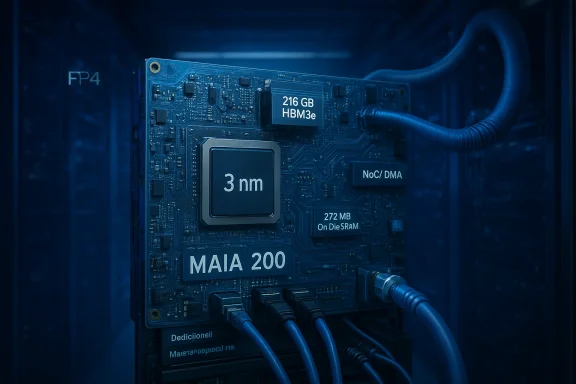
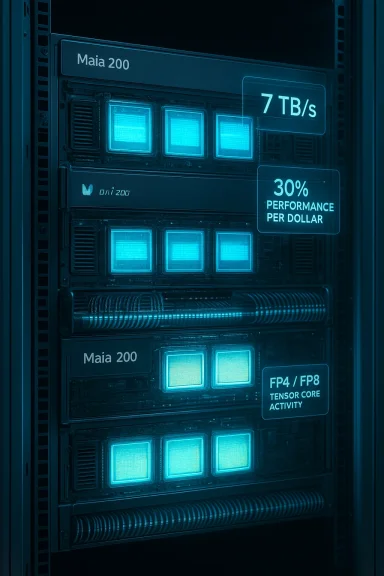
Microsoft’s Azure team has quietly pushed the cloud silicon arms race forward with the Maia 200 — a second‑generation, Azure‑native AI accelerator that Microsoft says is purpose‑built for large‑model inference and poised to outstrip the current inference-focused offerings from Google and AWS on several vendor metrics.

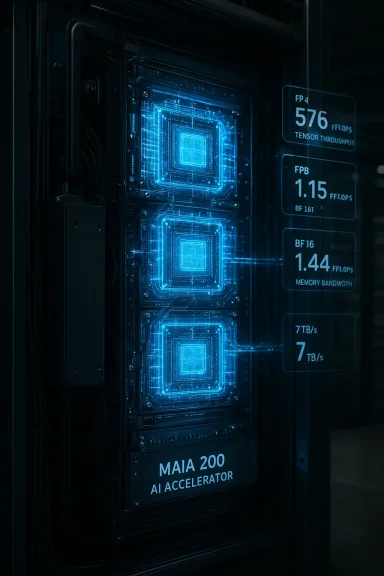
Maia 200 AI accelerator server glows with blue circuitry and performance readouts.Background​

Microsoft’s Maia program began with the Maia 100 launch as part of a broader strategy to vertically integrate cloud hardware, networking, and software for AI workloads. Maia 200 is the next step in that strategy: a high-bandwidth, low-latency accelerator that Microsoft positions as an inference powerhouse designed to lower per‑token costs and improve real‑time performance for services such as Microsoft 365 Copilot, Azure OpenAI workloads, and internal Superintelligence projects.
The Maia program is part of a larger Azure initiative that also includes the Cobalt family of Arm-based CPUs and the Azure Boost offload stack. Together these pieces reflect Microsoft’s intention to reduce external vendor dependency, improve price‑performance for inference, and exercise tighter system‑level control across servers, racks, and datacenter networking.

What Microsoft is claiming — the headline specs​

Microsoft’s public presentation and the initial press coverage list the following headline specifications and capabilities for the Maia 200 accelerator:
  • FP4 (4‑bit) tensor throughput: roughly 10 quadrillion FP4 operations per second (commonly reported as 10 PFLOPS in the vendor FP4 metric).
  • FP8 compute: a stated multi‑petaflop class FP8 figure (vendor communications put this well above previous Maia generation capabilities).
  • BF16 compute: a peak throughput in the low thousands of TFlops for BF16-type workloads.
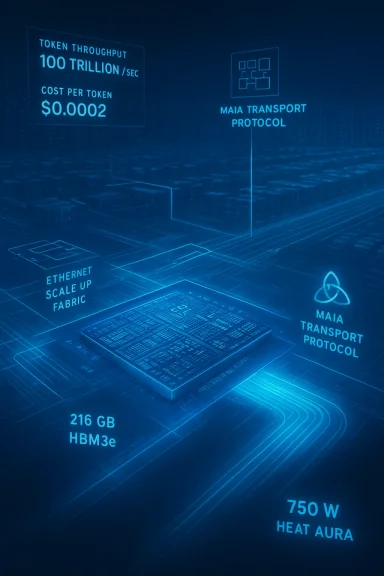
  • On‑package memory: 216 GB of HBM3E with an internal memory transfer rating in the region of 7 TB/s (aggregated HBM throughput).
  • Chip-to-chip interconnect: an advertised 1.4 TB/s interconnect that enables tightly coupled multi‑chip assemblies and high‑bandwidth model sharding.
  • Power envelope: Microsoft cites a sub‑900 watt TDP for the Maia 200 package.
  • Scale: Microsoft reports the ability to interconnect up to 6,144 Maia 200 units for very large model workloads.
  • Price/performance claim: Microsoft asserts ~30% better performance per dollar versus the incumbent generation of cloud hardware it competes with.
These figures were repeated in multiple technical previews and press briefings; they should be interpreted as vendor‑reported engineering metrics rather than independent, workload‑level benchmarks.

Overview: how Maia 200 is positioned in the market​

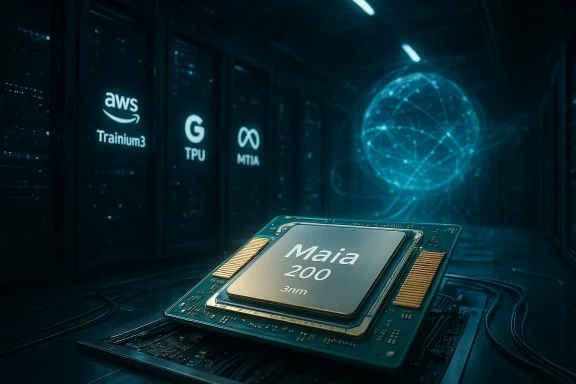
Microsoft is explicitly positioning Maia 200 as an inference‑first accelerator with system‑level optimizations tailored to Azure’s scale. The company contrasts Maia 200 against the likes of Google’s TPU v7, AWS Trainium 3, and the broader family of NVIDIA Blackwell accelerators. The messaging emphasizes:
  • Superior low‑precision tensor throughput (FP4/FP8), which matters for modern quantized large‑language models and inference pipelines.
  • High memory bandwidth and large HBM capacity to keep model weights resident and reduce remote memory traffic.
  • A rack‑scale integration story (custom trays, direct links, and a unified fabric) that aims to deliver lower latency and better utilization than a generic accelerator deployment.
It’s worth noting the competitive landscape has different design goals: some accelerators are optimized for training (highest aggregate throughput on mixed precisions and model‑parallel training), while others — like Maia 200 at least in Microsoft’s presentation — emphasize inference throughput, cost per token, and running very large quantized models with minimal accuracy loss.

Technical deep dive​

Compute (precision, throughput, and what it means)​

The move toward lower precision (FP8, FP4) is an industry trend: modern large models can often be quantized aggressively for inference without major accuracy loss when done carefully. Maia 200’s claimed 10 PFLOPS at FP4 is a vendor metric that equates to tensor arithmetic throughput at that specific precision; it’s useful for apples‑to‑apples comparisons within the same precision family but does not directly translate to application latency or to training throughput for non‑quantized training workloads.
Key considerations:
  • FP4 throughput is meaningful for quantized inference and sparsity‑enabled workloads, but not all models or operators map cleanly to 4‑bit math without custom quantization, calibration, or accuracy checks.
  • BF16 and FP8 figures are more relevant to semi‑precision training and mixed‑precision fine‑tuning; Maia 200’s BF16 numbers put it in the multi‑TFLOPS class for BF16 workloads.
  • Vendors often use different notions of sparsity (how much sparsity is assumed), activation compression, or fused kernels when advertising TFLOPS. Those assumptions materially affect reported numbers.

Memory and data movement​

Maia 200’s 216 GB of HBM3E and the stated 7 TB/s HBM transfer rate place it in a category where large model weights can be stored locally on the accelerator, reducing the need for slow host staging or sharded parameter servers. That matters when you want to run very large models with long context windows or keep activation checkpoints local.
Caveats:
  • It’s not always clear in promotional material whether TDP figures include associated HBM stacks, integrated DPUs, or the full networking silicon. Microsoft’s messaging suggests a sub‑900 W package, but retailer or independent lab measurements will be needed to confirm node‑level power consumption under realistic load.
  • Memory bandwidth numbers are often aggregated vendor figures — real application throughput depends heavily on kernel efficiency, on‑chip caches, and driver/runtime behavior.

Interconnect and scaling​

The 1.4 TB/s interconnect is a major selling point for Microsoft’s scale‑up approach. Microsoft describes rack trays with four Maia units fully connected over direct links and a unified transport protocol (what Microsoft calls the Maia AI transport protocol) for both intra‑ and inter‑rack communication. This design aims to:
  • Reduce network hops for activation/gradient exchange.
  • Simplify programming models for model sharding.
  • Provide elastic scale with minimal penalty for cross‑chip traffic.
Scaling to thousands of devices requires not only raw bisection bandwidth but also mature orchestration, failure handling, and scheduler optimizations to keep utilization high.

System design and software​

Microsoft’s approach is explicitly systems‑level: Maia 200 is not just a die — it’s part of a rack, a custom motherboard, specialized cooling (liquid cooling sidecars in earlier Maia deployments), and a runtime stack optimized for PyTorch, ONNX, and other commonly used frameworks. Microsoft has indicated early SDK access for researchers and open‑source contributors, and internal teams are already using Maia 200 for synthetic data generation and reinforcement learning workloads.
Operational notes:
  • Microsoft’s initial rollouts are in Azure US Central and US West 3, reflecting a staggered regional deployment strategy.
  • The software story — compilers, runtime kernels, and model ports — will be the gating factor for many customers. A chip is only as useful as the toolchain around it.
  • Portability layers (ONNX, Triton compatibility) are being emphasized to reduce lock‑in risk, but heavy optimization for Maia’s microarchitecture will still create migration costs.

Competitive comparison: where Maia 200 shines — and where comparisons need nuance​

Vendor comparisons often use different precision baselines and measurement assumptions. Microsoft’s own comparison positions Maia 200 ahead of AWS Trainium 3 and Google TPU v7 on FP4/FP8 metrics and on price‑performance claims. Key counterpoints to bear in mind:
  • Trainium 3 (AWS): Historically presented as a training‑oriented XPU in the Trainium family with strong Tensor/FP8 performance and an SDK (Neuron) integrated into AWS EC2 SKUs. Trainium’s strengths include Amazon’s customer‑facing instance SKUs and a training‑first performance profile.
  • TPU v7 (Google): Google’s TPU family has deep software integration (XLA, TensorFlow, JAX) and is used in Google’s internal model development. TPUs are positioned across both training and inference, with strong pod‑level scaling.
  • NVIDIA Blackwell (GB200/GB300 etc.): NVIDIA’s accelerators continue to command the broadest software ecosystem. Certain Blackwell configurations combine multiple dies and advertise extremely high FP4 throughput (especially when sparsity is applied). However, NVIDIA’s ecosystem advantages remain a material competitive moat for general training workloads.
Important nuance:
  • Comparing peak TFLOPS at one precision (FP4) does not capture end‑to‑end latency, memory pressure, or the work required to safely quantize a model.
  • Some vendors advertise sparsity‑enabled peak TFLOPS (assuming x2 or x4 sparsity), which inflates numbers relative to dense arithmetic metrics.

Supply chain, partners, and manufacturing risk​

Microsoft designs Maia but relies on foundries and third‑party partners for production, packaging, and some design services. Industry reporting and company statements indicate involvement from major foundries (TSMC at advanced process nodes) and partners in packaging and manufacturing. Marvell has been named in trade coverage as a likely development partner for Microsoft’s Maia family in previous Maia generations; other partners (e.g., contract developers or packaging houses) are commonly used for complex accelerators.
Risks:
  • Advanced node yields, reticle size limits, and CoWoS/2.5D packaging complexity can cause supply constraints and production delays.
  • Past reporting captured schedule adjustments for Maia follow‑on chips; the hyperscaler silicon roadmap is sensitive to foundry capacity and engineering rework.
  • Large‑scale hyperscaler programs often balance in‑house silicon with ongoing purchases of third‑party GPUs — Microsoft has signaled it will continue to use a hybrid approach.

Pricing and procurement: the big unknown​

For cloud customers, the most consequential detail is price and the realized cost‑per‑token or cost‑per‑inference. Microsoft claims Maia 200 will deliver 30% better performance‑per‑dollar, but public pricing for Maia‑backed Azure SKUs has not been announced. Until Microsoft publishes instance pricing or multiple independent providers run long‑term workload cost studies, the price/performance claim remains a vendor promise rather than a verifiable procurement metric.
What IT buyers should watch for:
  • Announcement of Maia‑backed VM SKUs and their hourly rates or committed use discounts.
  • Published performance‑per‑dollar comparisons for representative LLM inference workloads (e.g., Llama/GPT‑class models at different quantization levels).
  • Bandwidth and egress considerations — high cross‑region network traffic can erode any hardware cost advantage.

Real‑world implications and use cases​

Maia 200’s feature set maps naturally to several important enterprise use cases:
  • High‑volume inference at low latency: customer support bots, real‑time assistants, and edge‑proximate inference where per‑token cost matters.
  • Large model inference (long context windows): running models with very large KV caches or long prompt windows without constant remote memory fetches.
  • Scale‑out inference clusters: multi‑rack model serving where tight interconnect and centralized memory reduce synchronization overhead.
  • Some fine‑tuning / low‑precision training workflows: where BF16/FP8 support and memory bandwidth align with the fine‑tuning task; Maia is not primarily pitched as a training‑first part but has mixed capabilities.

Risks, unknowns, and caveats​

No announcement is free from conditions or nuance. Here are the most important caveats to consider:
  • Vendor metrics vs. application performance: Peak FP4/FP8 TFLOPS are useful for comparing raw arithmetic potential but say little about latency, tail latency, or real model throughput on production code paths. Expect variance when moving to real inference workloads with I/O and data‑prep overheads.
  • Quantization accuracy risk: Aggressive FP4 quantization requires careful calibration and may not be feasible for all model architectures without retraining or fine‑tuning.
  • Software maturity and tooling: Maia’s usefulness will be bounded by the maturity of its SDKs, operator coverage, community kernels, and third‑party library support. NVIDIA’s CUDA ecosystem remains the broadest and most mature for many production scenarios.
  • Supply and scheduling risk: Advanced packaging and foundry constraints can delay mass availability or limit regional capacity. Microsoft’s initial regional rollout is conservative — US Central and US West 3 first — which suggests a staged expansion.
  • Power and facility changes: Sub‑kW TDP per package still translates into high rack power density at hyperscale, necessitating appropriate cooling and power provisioning. Buyers and cloud operators should validate datacenter readiness and utility arrangements for high‑density AI racks.
  • Unverified claims: Certain published numbers (for example, whether the quoted TDP includes HBM stacks and Ethernet ports) were not fully clarified in the initial materials. Treat these as points requiring independent validation.

Practical guidance for IT leaders and cloud buyers​

If you run or advise cloud procurement and AI infrastructure decisions, here is a short adoption checklist to evaluate Maia‑backed offerings responsibly:
  • Pilot representative workloads: run the exact models you plan to deploy (quantized and non‑quantized variants) and measure inference latency, tail latency, and cost per token over realistic traffic patterns.
  • Validate quantization and accuracy: move beyond synthetic metrics. Confirm that FP4 or FP8 quantization maintains your service‑level accuracy without unacceptable degradation.
  • Preserve portability: keep model snapshots compatible with ONNX and ensure you can fall back to GPU SKUs if needed. Avoid deep, nonportable optimizations until the Maia toolchain matures.
  • Measure system‑level costs: include networking, storage, egress, and orchestration overheads when computing total cost of ownership; hardware hourly rates are only one part of the equation.
  • Plan for heterogeneity: multi‑cloud and hybrid deployments remain prudent. Expect a mix of GPUs, TPUs, and Maia accelerators to coexist for some time.
  • Request independent benchmarks: ask Microsoft for workload‑level benchmarks that reflect your use case and reach out to trusted third parties who can validate performance claims.

Strategic analysis: why Maia 200 matters​

Maia 200 is a continuation of a structural trend: hyperscalers designing and deploying first‑party accelerators to control costs and improve integration between silicon, racks, and software. For Microsoft, Maia is strategic because it:
  • Aligns compute capability more tightly with Microsoft’s growing portfolio of AI services.
  • Offers the potential for differentiated economics at scale for inference workloads.
  • Reduces, but does not eliminate, reliance on third‑party accelerators — Microsoft will continue to deploy partner GPUs where ecosystem and training capabilities favor them.
However, Maia 200 is not an immediate, universal replacement for GPUs or other clouds’ accelerators. Successful long‑term disruption requires a mature software ecosystem, consistent delivery timelines, and demonstrable TCO advantages on real workloads — not just peak TFLOPS.

Conclusion — the short and the long of it​

Maia 200 is a notable and credible step in Microsoft’s increasingly ambitious silicon and systems strategy. The technical claims — large HBM pools, a high‑speed interconnect, and massive FP4 throughput — directly address the core bottlenecks for large‑model inference: memory capacity, memory bandwidth, and cross‑device communication. For inference‑heavy customers who can safely operate on aggressive quantization and prioritize cost per token, Maia‑backed Azure SKUs could be a compelling option once pricing and independent benchmarks arrive.
That said, caution is warranted. Vendor peak metrics are not a substitute for application‑level validation, and ecosystem maturity (toolchains, libraries, independent testing) will determine how broadly Maia 200 changes buying behavior. Watch for published instance pricing, third‑party performance studies, and Microsoft’s SDK and runtime maturity over the coming months. Those concrete data points — more than any vendor slide — will decide how disruptive Maia 200 becomes in the real world.

Source: heise online Microsoft Azure: AI accelerator Maia 200 aims to surpass Google TPU v7
 

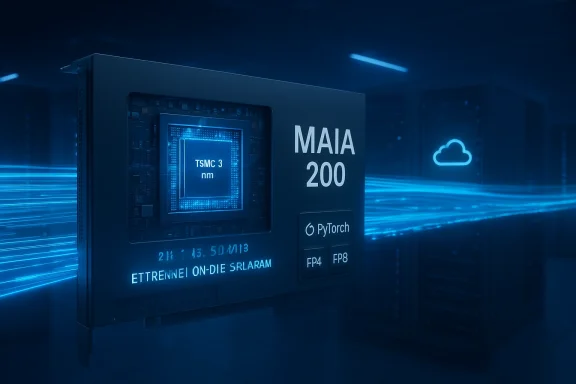
Microsoft’s Maia 200 represents a clear escalation in Microsoft’s move from cloud customer to cloud silicon owner — an inference-first accelerator Microsoft says is built on a 3 nm process with more than 100 billion transistors, enormous HBM3e capacity, native low-precision tensor support (FP4/FP8), and system-level integration aimed at cutting Azure’s per-token inference costs while improving latency for Copilot, Azure OpenAI, and other Microsoft-first services.

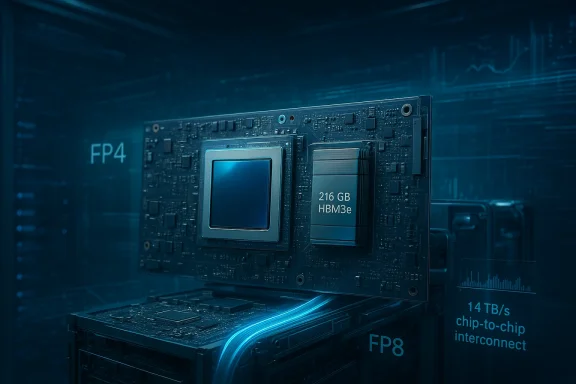
A high-end GPU module featuring 216 GB HBM3e memory in a blue data-center setting.Background​

Maia is not an isolated chip project; it follows Maia 100 and sits inside a broader Microsoft strategy to vertically integrate silicon, servers, racks, cooling, networking and software runtimes so Azure can control cost, latency and capacity for large-scale generative AI workloads.
Maia 200, as presented in Microsoft’s materials and subsequent reporting, is positioned specifically as an inference-oriented engine: the company frames it as optimized for quantized, production-scale LLM inference where performance-per-dollar and low latency matter most. Microsoft’s messaging contrasts Maia 200 against competing hyperscaler ASICs and specialized accelerators, emphasizing that the chip is a systems play rather than a mere silicon claim.

What Microsoft is claiming — headline specifications​

Below are the principal technical claims that Microsoft and early reporting attribute to Maia 200. These are vendor-provided figures and should be treated as such until independent third‑party benchmarks and lab measurements are available.
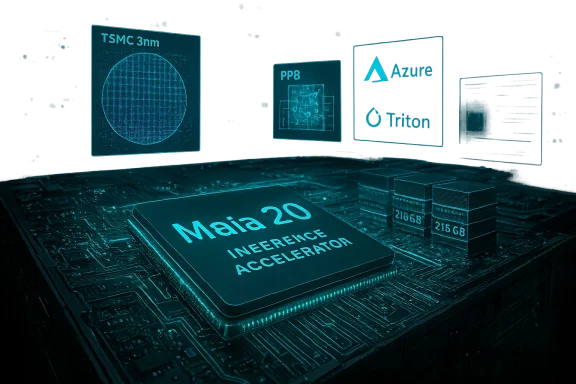
  • Built on TSMC’s 3 nm (N3) process with a transistor budget “in excess of 100 billion.”
  • Native support and hardware acceleration for FP4 (4‑bit) and FP8 (8‑bit) tensor datatypes, with high advertised peak throughput expressed in low‑precision FLOPS.
  • On‑package memory claimed as 216 GB HBM3e with aggregate HBM bandwidth in the neighborhood of ~7 TB/s, plus hundreds of megabytes of on‑die SRAM for fast local weight/activation storage (figures such as 272 MB on‑chip SRAM are reported).
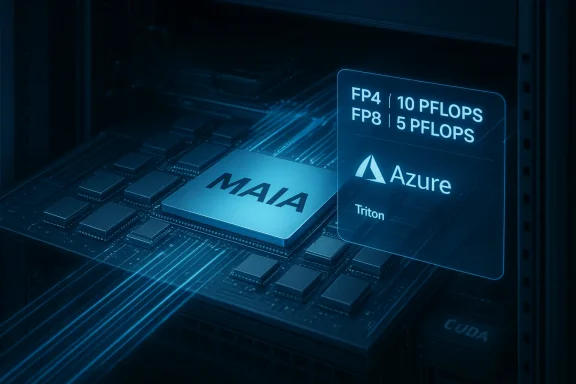
  • Peak vendor-stated throughput reported as roughly ~10 PFLOPS at FP4 and ~5 PFLOPS at FP8 per chip (vendor metrics oriented to inference).
  • A high‑speed chip‑to‑chip interconnect rated at around 1.4 TB/s, enabling tightly coupled multi‑chip assemblies and scale‑up model sharding.
  • A claimed package TDP in the sub‑900 watt range for the Maia 200 package.
  • Comparative claims such as “3× FP4 throughput of Amazon Trainium Gen‑3” and FP8 performance exceeding Google’s TPU v7, and a stated ~30% improvement in performance‑per‑dollar versus Microsoft’s current fleet. These are vendor comparisons that mix precision baselines and should be read with caution.
These figures appear repeatedly in early coverage and technical previews, giving them visibility — but they remain company-provided until validated externally.

Technical deep dive​

Design philosophy: inference-first, memory-centric​

Microsoft’s public materials and reporting indicate Maia 200 focuses heavily on two realities of modern LLM inference: (1) narrow datatypes (FP4/FP8) enable higher arithmetic density and reduced memory footprint, and (2) memory and data movement are the dominant bottlenecks in large‑model throughput. Maia 200’s architectural emphasis on large HBM3e pools and substantial on‑die SRAM is intended to keep weights local and reduce off‑chip transfers, which in turn improves utilization and lowers per‑token cost.
The design trade-off is explicit: optimize for quantized inference at hyperscale rather than optimizing for training flexibility or the broadest precision range. That choice yields potential efficiency gains — but requires robust quantization toolchains, calibration practices, and validation for model accuracy.

Compute metrics and why precision matters​

Vendor-reported peak FP4/F P8 TFLOPS numbers are useful for apples‑to‑apples comparisons within the same datatype, but they do not directly convert into application latency or real‑world throughput without context. FP4 and FP8 arithmetic increase arithmetic density and effective on‑chip model capacity, but aggressive quantization can require model-specific calibration and may not be suitable for all model families or operators without some accuracy work. Microsoft’s FP4-focused 10 PFLOPS figure should therefore be interpreted as a hardware arithmetic metric that presumes suitable model quantization.

Memory hierarchy and interconnect​

The combination of 216 GB HBM3e and hundreds of megabytes of on‑die SRAM — plus high aggregate HBM bandwidth — is designed to allow single or small groups of chips to hold very large model weights or to dramatically reduce remote memory streaming in inference pipelines. That matters for long-context models and for reducing per-token latency spikes caused by memory fetches. The 1.4 TB/s chip‑to‑chip interconnect Microsoft describes is central to the company’s scale‑up approach: keeping cross‑chip activations flowing with low overhead is as important as raw TFLOPS for model sharding.

Thermal and power envelope​

A sub‑900 W package TDP is consistent with other hyperscaler-class accelerators at this scale, but it still implies very high rack power density. Customers and data‑center operators must plan for power, cooling (often liquid assist), and floor space changes to host high-density Maia-backed racks. Microsoft’s early Maia deployments have used specialized rack form factors and liquid-cooling sidecars, and Azure’s regional rollouts for Maia 200 are staged with facility readiness in mind.

Systems integration: more than a die​

Microsoft presents Maia 200 not as a stand-alone chip but as part of an integrated stack that includes custom server boards, rack designs, direct-connect fabrics, a Maia AI transport protocol, and runtime support for PyTorch, ONNX, and common ML frameworks. That systems approach is where Microsoft expects real-world advantages to appear: fewer network hops, lower end-to-end latency, and improved utilization for inference fleets.
The company also signals early‑access SDK commitments for researchers and open‑source contributors, suggesting Microsoft intends to seed a toolchain and portability layer to reduce migration friction — but heavy optimization to Maia’s microarchitecture may still introduce lock‑in costs.

Market positioning and competitive context​

How Microsoft frames Maia 200 versus rivals​

Microsoft explicitly compared Maia 200 to Amazon’s Trainium and Google’s TPU families in early claims: the company emphasized Maia’s FP4 throughput and price‑performance for inference while positioning the chip as Azure‑native and tightly coupled to Microsoft services. These public comparisons are notable because Microsoft is mixing precision baselines (FP4 vs FP8) when claiming “X× faster” numbers, which complicates direct vendor-to-vendor apples‑to‑apples comparisons.

Where Maia can genuinely gain ground​

  • Enterprises with inference‑heavy, latency‑sensitive workloads that can tolerate or benefit from aggressive quantization may see material cost and latency improvements on Maia-backed Azure SKUs once availability and pricing are clear.
  • Microsoft’s own services — Microsoft 365 Copilot, Azure OpenAI, and potentially large OpenAI-hosted models — are logical initial workloads where Microsoft will capture the most value from Maia’s economics and scheduling.

Where GPUs and competitor ASICs still hold advantages​

  • GPU ecosystems (notably NVIDIA) retain vast software, tooling, and third‑party support that favors training workflows and fast model experimentation. For general training and mixed‑precision workflows, GPUs remain the default.
  • Google TPU and AWS Trainium/Inferentia present mature SDKs and customer-facing instance SKUs, and public performance numbers published by those vendors offer clearer anchors for comparison — but again, precision mismatches make straightforward comparisons risky without standardized benchmarks.

Economic implications for Azure and enterprise buyers​

Maia 200’s central commercial pitch is better performance‑per‑dollar for inference. Microsoft’s claim of a ~30% improvement against its own incumbent fleet — if realized in representative workloads — would be meaningful across scale; saving tens of percent on token generation costs can materially affect unit economics for large AI services.
However, several caveats temper that headline:
  • Performance‑per‑dollar is highly workload dependent; it varies with model family, quantization compatibility, and orchestration overheads. Microsoft can also tune amortization assumptions and rack-level optimizations to favor Maia in internal metrics.
  • True customer economics must include orchestration, storage, egress, and cross‑region networking costs. Hardware hourly rates are only one part of total cost of ownership.
For enterprise buyers, prudent adoption steps include pilot testing representative models (including quantized variants), measuring tail latency and cost per token under realistic traffic shapes, and preserving model portability with ONNX and standard runtime formats to avoid lock‑in.

Risks, unknowns and unverifiable claims​

No launch is risk‑free. Here are the most important risks and caveats to weigh.

1. Vendor‑reported numbers need external validation​

Microsoft’s claims — transistor counts, PFLOPS figures, memory sizes and interconnect rates — are consistent across reporting but remain vendor metrics until third‑party benchmarks or independent lab measurements confirm them. Comparative X× claims that combine different precisions (e.g., FP4 vs FP8) are particularly hard to verify directly from public rival data.

2. Quantization is not free​

Aggressive FP4/FP8 quantization delivers arithmetic density but requires model-specific calibration and toolchain maturity. Not every model or operator maps cleanly to 4‑bit arithmetic without some loss or retraining, which increases migration effort and risk. Expect engineering time to validate accuracy and tail behavior.

3. Supply chain and manufacturing risk​

Large reticle-limited dies on bleeding-edge nodes face yield and packaging challenges. Rumors about future Maia derivatives and foundry site choices (including Intel’s 18A in some reports) should be treated cautiously until confirmed by Microsoft or foundry partners. Packaging and HBM integration are non-trivial bottlenecks that can affect time-to-volume.

4. Software and ecosystem maturity​

A chip is only useful if the toolchain is mature. Maia’s success depends on robust SDKs, kernels, compilers, and profiling tools for PyTorch, ONNX, Triton and other frameworks. Microsoft has pledged early SDK access but full ecosystem parity with established GPU ecosystems will take time.

5. Operational facility changes​

High-density Maia racks with sub‑kW packages require datacenter planning: upgraded power distribution, cooling — often liquid cooling — and possibly electrical and mechanical upgrades to host high-density AI “factories.” Early rollouts focused on US Central and US West regions indicate Microsoft is staging availability to match facility readiness.

Practical guidance for IT leaders and architects​

If your organization is evaluating Azure for inference-heavy workloads, take a measured, pragmatic approach:
  • Pilot with representative models. Run the exact models you plan to serve, including quantized variants, and measure latency, tail behavior and cost per token under real-world traffic.
  • Validate quantization and accuracy. Don’t rely on synthetic benchmarks; confirm FP4/FP8 quantization preserves acceptable accuracy and robustness for your service SLAs.
  • Preserve portability. Keep model snapshots compatible with ONNX and maintain fallbacks to GPU SKUs to avoid being locked into a single hardware family prematurely.
  • Measure system-level costs. Include networking, orchestration, storage and possible egress costs in TCO calculations — hardware hourly rate is only one slice of the bill.
  • Request independent benchmarks. Ask Microsoft for workload-level measurements that reflect your use case and consider third‑party validation partners where feasible.

Strategic implications: the long game​

Maia 200 is emblematic of a broader industry shift: hyperscalers increasingly design first‑party accelerators to gain control over cost curves, latency, and feature differentiation for AI services. Microsoft’s Maia program — combined with Azure Cobalt CPUs, Azure Boost DPUs and custom rack designs — is intended to create an integrated, high‑density AI tier inside Azure that can deliver measurable TCO advantages for Microsoft-first workloads.
That vertical integration can produce sustained advantages, but it also increases migration friction for customers who tightly optimize to Microsoft-tuned runtimes or models. In practice, the market will remain heterogeneous: GPUs, TPUs, AWS ASICs and Microsoft’s Maia family will coexist for years, each optimized for particular workloads and operational models.

What to watch next​

  • Published, independent benchmarks for common model families (e.g., Llama/GPT-family equivalents, instruction‑tuned chains) that compare Maia-backed instances to GPU and competitor ASIC instances under the same precision and workload.
  • Official Azure VM SKUs and pricing that explicitly list Maia backing and regional availability; these translate vendor metrics into customer economics.
  • Microsoft’s SDK maturity: kernel coverage, quantization toolchains, profiling and debugging tools for production deployment.
  • Foundry and packaging confirmations that clarify production nodes, yield expectations and capacity ramp timelines. Rumors about Intel 18A orders are strategically important but remain unconfirmed until vendors publish production-level details.

Conclusion​

Maia 200 is a substantial and credible step in Microsoft’s long-term infrastructure play: an inference-focused accelerator that combines aggressive low‑precision compute, large on‑package memory, and a systems-level integration story intended to reduce per‑token costs and improve latency for Azure-powered AI services. The design choices — FP4/FP8 emphasis, HBM3e capacity, heavy on‑die SRAM and a scale‑up interconnect — map directly to the core engineering challenges of large‑model inference.
That said, the announcement is a starting point, not a fait accompli. Key vendor metrics remain to be independently validated, quantization and software maturity will determine real-world applicability, and supply-chain and facility readiness will shape availability at scale. For IT leaders, the prudent path is cautious experimentation: pilot Maia-backed instances on representative workloads, demand workload-level benchmarks, and preserve portability to avoid premature lock-in while the ecosystem matures.
Maia 200 may not instantly topple GPU dominance, but it raises the bar — and for organizations running inference at hyperscale, that is precisely the point.

Source: findarticles.com Microsoft Unveils Maia 200 AI Inference Chip
Source: Techzine Global Microsoft unveils new proprietary AI chip Maia 200
 

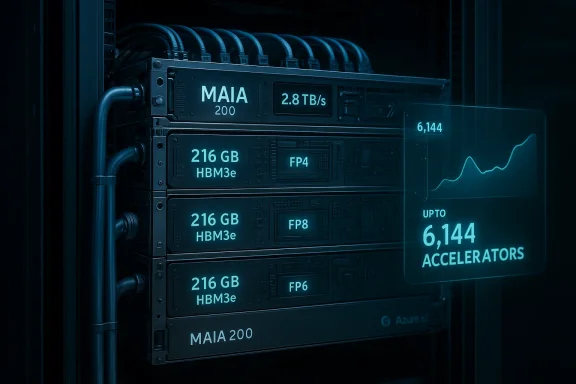
Microsoft’s Maia 200 is not a modest experiment — it’s a full‑scale, Azure‑native inference accelerator designed to cut per‑token costs, blunt Nvidia’s dominance for certain workloads, and give Microsoft tighter control over the economics and capacity of production AI services.

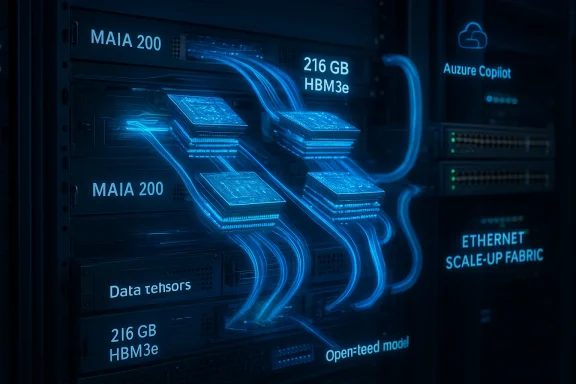
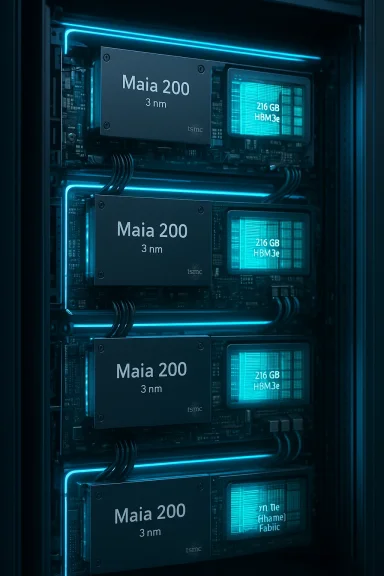
Maia 200 storage rack with neon blue labeling and streaming fiber cables.Background / Overview​

Microsoft announced the Maia 200 on January 26, 2026 as the second generation of its in‑house Maia accelerator program, positioning it as an inference‑first chip that will run production workloads across Azure — from Microsoft 365 Copilot and Microsoft Foundry to OpenAI models hosted on Azure. The company describes Maia 200 as fabricated on TSMC’s 3‑nanometer process with an emphasis on low‑precision tensor math (native FP4 and FP8 support), very large HBM capacity, and a rack‑scale networking design optimized for deterministic inference at hyperscale.
The timing matters. Cloud providers have been racing to diversify compute sources as demand for inference capacity explodes and Nvidia’s latest GPUs remain relatively scarce and expensive. Microsoft’s Maia rollout is explicitly framed as a move to reduce that dependence while improving the performance‑per‑dollar of inference workloads in Azure. CryptoBriefing and other outlets quickly summarized Microsoft’s framing: the chips are being manufactured by TSMC, first deployed in Azure US Central (Iowa), and will expand to US West 3 (Phoenix) next.

What Microsoft says Maia 200 delivers​

Microsoft’s official blog post and follow‑on press coverage list headline technical claims and intended uses. Cross‑checked against independent reporting, the core manufacturer statements are:
  • Process node and design intent: Built on TSMC’s 3 nm (N3) process as an inference accelerator tuned for quantized low‑precision math.
  • Memory and bandwidth: Large on‑package HBM3e capacity (Microsoft cites 216 GB at ~7 TB/s aggregate HBM bandwidth) plus substantial on‑die SRAM to minimize off‑package weight movement.
  • Precision‑oriented peak throughput: Microsoft quotes roughly 10 PFLOPS at FP4 and 5 PFLOPS at FP8 for a single Maia 200 chip and frames the device as enabling dense, low‑latency model inference.
  • Comparative claims: Microsoft asserts Maia 200 delivers three times the FP4 throughput of Amazon’s Trainium Gen‑3 and FP8 performance above Google’s TPU v7; it also calls Maia 200 “the most efficient inference system Microsoft has deployed,” claiming about 30% better performance‑per‑dollar versus the latest hardware in its fleet.
  • Systems integration: A two‑tier Ethernet‑based scale‑up fabric, a custom Maia transport protocol, specialized trays connecting four accelerators with direct links, and a Maia SDK (PyTorch integration, Triton compiler, NPL low‑level programming) to accelerate adoption.
Independent outlets repeating and expanding on Microsoft’s materials (The Verge, Computer Weekly, DataCenterDynamics and others) corroborated the overall systems approach and region rollout (Iowa, Phoenix) while noting that many of the numeric claims are vendor‑provided and require external verification.

Why this matters: the strategic case for first‑party silicon​

Microsoft’s investment in Maia is the clearest signal yet that hyperscalers believe owning part of the inference stack — silicon + racks + software — is essential to controlling costs and service differentiation for AI.
  • Cost control at scale: Token generation cost is a structural margin pressure for commercial AI services. A persistent 20–30% TCO advantage on inference would materially change unit economics for Microsoft’s Copilot and Azure OpenAI offerings. That’s precisely the advantage Microsoft is pitching with Maia’s claimed 30% performance‑per‑dollar gain.
  • Supply and capacity resilience: Owning silicon design and staging foundry capacity gives Microsoft leverage when third‑party devices are constrained. High demand and transient scarcity for Nvidia Blackwell GPUs have already pushed cloud providers to seek alternatives. Maia is explicitly framed as part of that diversification.
  • Systems leverage: Microsoft isn’t selling chips — it’s deploying a tightly integrated system. The company expects latency, utilization and orchestration advantages to accrue when chips, trays, networks and runtimes are co‑engineered for Azure workloads. Independent reporting highlights this systems emphasis as the main differentiator, not raw FLOPS alone.

Technical strengths: what looks credible and compelling​

The Maia 200 design narrative addresses real bottlenecks for large‑model inference. Several points stand out as credible wins:
  • Memory‑centric architecture for inference: Large HBM capacity and on‑die SRAM reduce weight movement and the need to stream parameter shards across nodes — a major latency and tail‑latency driver in long‑context models. Microsoft’s stated 216 GB HBM3e and substantial SRAM are consistent with a design optimized for very large inference models.
  • Low‑precision thrust (FP4/FP8): The industry trend toward aggressive quantization is real — for many modern LLMs, well‑designed FP8 and FP4 paths can retain acceptable accuracy while drastically improving throughput and on‑device model capacity. A chip that natively accelerates FP4/FP8 math can be materially more efficient for quantized inference.
  • Rack‑level network and predictable collectives: Microsoft’s two‑tier Ethernet scale‑up design and Maia transport protocol aim to give fast, predictable collectives across up to thousands of accelerators — an approach that reduces dependency on proprietary fabrics while keeping programming semantics familiar for cloud operators. This network-first systems approach is a realistic lever to improve end‑to‑end performance.
  • Rapid integration into Azure control plane: Microsoft describes that Maia‑based models were running within days of first packaged parts arriving, claiming the time from first silicon to first rack deployment was reduced by half versus comparable programs. If true, this indicates a mature integration pipeline for heterogeneous accelerator fleets.

What to be cautious about: unverifiable or high‑risk claims​

Vendor launches combine marketing and engineering; the most important follow‑ups will be independent benchmarks, pricing, and region capacity. Specific cautions:
  • Vendor‑reported FLOPS and "×" comparisons: Microsoft’s FP4/FP8 peak numbers and their "3× Trainium" and "FP8 > TPU v7" statements are meaningful only when measured on real workloads with identical quantization settings, sparsity assumptions and end‑to‑end orchestration. Treat these as promising vendor metrics until third‑party, workload‑level testing appears. We flag these numbers as vendor claims requiring external validation.
  • Ecosystem and software maturity: GPUs — especially Nvidia’s CUDA stack — enjoy enormous software, model and tooling momentum. Maia’s SDK (PyTorch/Triton/NPL) is encouraging, but enterprises should expect non‑trivial engineering investment to port, quantize and validate models at production SLAs. Toolchain immaturity can be a hidden cost that offsets raw hardware gains.
  • Manufacturing and yield risk: Advanced nodes and reticle‑sized, large dies are prone to yield and packaging challenges. Ramp speed, foundry slots and packaging throughput will determine when Maia becomes widely available outside Microsoft’s own prioritized regions. Microsoft’s initial staged rollout (Iowa, Phoenix) suggests a conservative, capacity‑aware approach.
  • Workload fit: Maia is explicitly inference‑oriented. For large‑scale, mixed‑precision pre‑training or model exploration, GPUs (and some TPUs) may remain superior. Enterprises with broad training+inference needs should plan a hybrid fleet strategy rather than a wholesale, immediate migration.

Market and competitive implications​

  • Nvidia remains central for now, but hyperscalers are reducing single‑vendor exposure. Microsoft’s Maia program reflects a broader industry trend: AWS, Google and Meta have long invested in first‑party silicon to manage costs and capacity. Maia adds Azure to the club of hyperscalers that can host large production inference on in‑house accelerators. That said, Nvidia’s ecosystem remains dominant for a wide range of workloads, especially training.
  • Capital markets and vendor moves compress and expand in parallel. Market reaction around the Maia announcement and adjacent moves was mixed: media reported Microsoft shares rose on the news as investors positioned ahead of earnings, while Nvidia’s shares dipped modestly as it announced a $2 billion investment in CoreWeave — a move that deepens Nvidia’s cloud footprint even as hyperscalers diversify. This shows the market expects competition and partnership to coexist at scale.
  • Third‑party cloud and software vendors must plan for heterogeneity. Enterprises and ISVs will increasingly contend with mixed backends: Maia‑backed Azure SKUs, GPU‑dense NVidia offerings, and other ASICs. Portability layers (ONNX Runtime, Triton) and cloud‑agnostic orchestration will become mission‑critical to avoid lock‑in and to extract best‑cost performance.

Practical guidance for IT leaders and cloud buyers​

If you manage AI infrastructure strategy, here’s a pragmatic checklist for evaluating Maia‑backed Azure offerings:
  • Pilot representative workloads on any Maia preview or labeled instance. Measure:
  • Latency and tail latency under realistic traffic.
  • Cost per token across quantized and full‑precision variants.
  • Accuracy degradation (if any) introduced by FP4/FP8 quantization.
  • Validate toolchain maturity:
  • Confirm PyTorch/Triton integration meets your deployment and profiling needs.
  • Check third‑party libraries and ISV dependencies for compatibility on Maia’s SDK.
  • Preserve portability:
  • Maintain ONNX or containerized runtimes to fallback to GPU/TPU SKUs when needed.
  • Avoid deep, non‑portable kernel optimizations until Maia’s ecosystem matures.
  • Include system costs in TCO calculations:
  • Account for orchestration, storage, egress, and multi‑region networking.
  • Factor in potential re‑engineering costs for quantization, testing and validation.
  • Staged adoption plan:
  • Start with latency‑sensitive, inference‑heavy services where quantization is acceptable.
  • Expand after independent benchmarks and pricing transparency are available.

Risks for Microsoft and for the market​

  • Execution risk: Large, reticle‑scale dies on bleeding‑edge nodes are expensive and yield‑sensitive. If TSMC produce and packaging bottlenecks emerge, supply may be constrained and the claimed economics delayed.
  • Ecosystem inertia: Convincing the broader developer community (and enterprise buyers) to standardize around Maia toolchains will take time and proof points. Nvidia’s entrenched ecosystem is a significant barrier.
  • Hidden costs: Porting and validating models for FP4/FP8 quantization at scale demands engineering cycles. Those costs can erode initial hardware advantages if not managed carefully.
  • Competitive escalation: As Microsoft scales Maia, Nvidia will continue to innovate (and is already expanding its own cloud bets, e.g., the CoreWeave investment), which will push hyperscalers into an arms race of silicon, software and service stacks. Expect price and feature pressure across suppliers.

The near term: what to watch next​

  • Official Maia‑backed Azure instance SKUs and public pricing; these will translate vendor claims into direct customer economics.
  • Independent workload benchmarks from credible labs comparing Maia 200, AWS Trainium Gen‑3, Google TPU v7 and Nvidia Blackwell on identical models and quantization settings. These will reveal how much of Microsoft’s 30% claim translates to real workloads.
  • Supply signals from TSMC and Microsoft on production volumes and regional capacity expansion (beyond Iowa and Phoenix).
  • Competitive responses: pricing and product announcements from AWS, Google Cloud, and Nvidia‑backed cloud partners (CoreWeave’s growing partnership with Nvidia is a clear example of how the market can respond through capital and supply commitments).

Conclusion​

Maia 200 is a consequential step in Microsoft’s long game to own more of the AI inference value chain. The design emphasis on memory capacity, data‑movement efficiency, and native low‑precision tensor math is well‑matched to the economics of high‑volume LLM inference, and Microsoft’s systems‑level approach (chip + tray + fabric + SDK) is what could convert silicon advantages into real‑world cost savings.
That said, the most load‑bearing claims — throughput multipliers, percent‑improvement in performance‑per‑dollar, and scale‑up timelines — are currently vendor‑provided and will need careful independent validation. Enterprises should pilot Maia‑backed offerings for inference‑heavy, latency‑sensitive workloads while preserving portability and a hybrid strategy that keeps training and experimental workloads on established GPU ecosystems until the Maia toolchain and independent benchmarks prove the vendor metrics in production.
For WindowsForum readers — IT architects, cloud buyers and infrastructure engineers — Maia 200 is a signal to accelerate evaluation of heterogenous AI fleets. Build representative pilots, demand workload‑level benchmarks, and plan migration pathways that preserve portability and optionality. If Microsoft’s claims hold up under independent scrutiny, Maia‑backed Azure SKUs could be a compelling cost and latency option for inference at scale. If they don’t, Maia will still be an important marketplace accelerant: it will force price‑performance innovation across clouds and deepen the case for flexible, multi‑backend AI operations.

Source: Crypto Briefing Microsoft rolls out Maia 200 AI chip to reduce reliance on Nvidia
 

Microsoft’s Azure team has just pushed a new milestone into the hyperscaler silicon arms race: Maia 200, a purpose‑built inference accelerator Microsoft says is optimized to run large reasoning models at lower cost and higher throughput inside Azure. The company bills Maia 200 as an inference‑first successor to Maia 100 with a redesigned memory subsystem, massive low‑precision compute, and a scale‑up network that uses standard Ethernet for collective operations—claims laid out in Microsoft’s own announcement and reflected in early press coverage. ])

Blue-lit server motherboard featuring the MAIA 200 chip and glowing stacked circuitry.Background / Overview​

Maia began life as Microsoft’s in‑house attempt to gain architectural control over a portion of the AI stack: silicon, server, racks, and the runtime that ties them together. Maia 100 was the first visible step; Maia 200 is presented as the productionized, inference‑focused follow‑up that will supply Azure’s high‑volume serving needs and power Microsoft‑first services such as Microsoft Foundry and Microsoft 365 Copilot. Microsoft frames Maia 200 as a strategic lever to reduce token costity of supply and pricing, and improve utilization across its AI fleet.
Independent outlets have picked up Microsoft’s narrative and added context on how Maia 200 fits into the broader cloud war among hyperscalers. Early coverage emphasizes the competitive framing—direct comparisons to AWS and Google—and highlights Microsoft’s goal of improving cost per inference while supporting increasingly large models.

What Microsoft says Maia 200 delivers​

Microsoft’s official materials and blog detail the core technical claims. These are the most important vendor-provided numbers you’ll see repeated across press coverage:
  • Process node and transistor budget: Maia 200 is produced using TSMC’s 3 nm process and, according to Microsoft, contains a die whose transistor count Microsoft positions in the hyperscaler‑class range.
  • Low‑precision compute: The chip offers over 10 petaFLOPS at 4‑bit precision (FP4) and more than 5 petaFLOPS at 8‑bit precision (FP8). Microsoft emphasizes FP4/FP8 as the main operating modes for cost‑sensitive inference.
  • Memory subsystem: Maia 200 pairs enormous bandwidth and capacity with on‑die SRAM—Microsoft’s announcement lists 216 GB of HBM3e at roughly 7 TB/s of bandwidth and ~272 MB of on‑chip SRAM used as fast local storage for activations and weights.
  • System bandwidth and networking: Each accelerator surface exposes terabytes‑per‑second of dedicated scale‑up bandwidth and an Ethernet‑based transport that scales collective operations to cl4** accelerators, per Microsoft materials.
  • Efficiency and economics: Microsoft states Maia 200 delivers ~30% better performance‑per‑dollar than the prior generation hardware in their fleet. The company also claims comparative performance advantages versus AWS Trainium Gen‑3 (3× FP4) and Google TPU v7 (FP8 performance “above TPU v7”).
These vendor statements are the backbone of Microsoft’s pitch: more throughput at lower token cost for inference workloads, with a software stack (Maia SDK) aimed at easing adoption. The official announcement and region rollout notes emphasize initial availability in US Central and subsequent US West regions, with controlled previews for SDK access.

Technical deep dive: architecture, memory and networking​

Compute architecture and low‑precision focus​

Maia 200 is an inference‑first design centered on FP4/FP8 tensor cores. By privileging narrow datatypes, Microsoft claims the chip achieves higher effective throughput per watt and per dollar for reasoning workloads that tolerate aggressive quantization. That decision is deliberate: inference economics increasingly favor throughput and token cost over the highest-precision arithmetic used in some training workloads.
That emphasis has practical implications for model compatibility. FP4 and FP8 require careful quantization-aware workflows; Microsoft’s Maia SDK includes tooling aimed at helping developers evaluate accuracy tradeoffs and exploit Maia’s hardware features (PyTorch integration, a Triton compiler, simulator and cost calculator). However, narrow‑precision operation is not universally applicable—some models and tasks still need higher precision or retraining to preserve fidelity.

Memory subsystem: HBM3e + on‑die SRAM​

Perhaps the single most consequential hardware shift in Maia 200 is the memory architecture Microsoft describes: a large HBM3e pool (216 GB) paired with hundreds of MB of on‑die SRAM used as local fast storage. The combination is designed to collapse memory stalls for very large models and let cores stream activations and weights efficiently.
  • Benefits Microsoft highlights:
  • Reduced off‑chip memory latency for weight fetches.
  • Fewer cross‑device memory transfers by keeping working sets local.
  • Improved quantized‑model throughput because small SRAM acts as a fast scratchpad.
These are sensible design goals; they address the perennial bottleneck in large‑model inference: moving data to the compute units fast enough to keep them utilized. But the real-world impact depends heavily on runtime software, partitioning schemes, and how well model execution maps to the SRAM‑centric blocks.

Networking: Ethernet‑based collective fabric​

A notable architecture choice is the move away from proprietary fabrics toward a two‑tier, scale‑up transport built on standard Ethernet, augmented by a custom transport and NIC to support high‑performance collectives. Microsoft says this enables predictable collective ops across clusters while keeping costs and vendor lock‑in lower than some proprietary interconnects.
Operationally this matters: Ethernet‑based designs can simplify datacenter integration and maintenance, but they must be finely tuned at the software layer for low‑latency reduction ops that models need. Microsoft claims the NIC and custom transport deliver deterministic collectives across thousands of accelerators—an ambitious claim that requires third‑party validation to confirm latency and jitter under realistic loads.

How Maia 200 stacks up with competitor silicon (what we can and can’t verify)​

Microsoft explicitly compares Maia 200 to AWS Trainium Gen‑3 and Google TPU v7 in its messaging. These comparisons can be informative but must be read with care.
  • Microsoft claims 3× FP4 performance vs Amazon Trainium Gen‑3 and FP8 performance above TPU v7. These are headline comparisons from Microsoft’s announcement and have been echoed by independent coverage. However, precision matters: Trainium and TPU published numbers typically focus on FP8 (or other metrics), and FP4 vs FP8 are not directly comparable without careful conversion and contextual model‑level testing. Treat “X×” claims that mix precisions as directional rather than definitive.
  • NVIDIA remains the market’s default baseline because of ecosystem maturity (CUDA, TensorRT, Triton‑LLM and broad third‑party support). For customers that require ecosystem breadth, existing NVIDIA H100/H200 or successor instances still have strong practical value despite Maia’s price‑per‑token promise. Forbes and other outlets underline that Maia is an additional competitive option — not an immediate wholesale replacement for GPU ecosystems. ing (The Verge, Forbes) reproduces Microsoft’s core figures—3 nm node, large HBM capacity, FP4/FP8 peak FLOPS and the 30% perf‑per‑dollar claim—giving the company’s statements broader visibility. But none of these outlets can independently verify internal tests; they are relaying Microsoft’s claims. Independent benchmarks from neutral labs or early customer reports will be necessary to move the conversation from vendor claims to operational reality.

Software, SDK and developer experience​

Microsoft is previewing a Maia SDK that bundles:
  • PyTorch integration and optimized kernels,
  • A Triton compiler,
  • A low‑level NPL programming surface,
  • A Maia simulator and a cost calculator to estimate $/token tradeoffs.
These are the bare necessities for a hardware vendor that wants third‑party adoption. The inclusion of widely used frameworks (PyTorch, Triton) is strategic—it reduces friction for porting models. But historical patterns with custom accelerators show that initial SDKs require iterations before they reach parity with mature stacks. Expect early adopters to face bugs, limited kernel coverage for niche ops, and ongoing tuning cycles.

Deployment posture and availability​

Microsoft says Maia 200 is initially deployed in Azure US Central (Des Moines area) with US West 3 (Phoenix) following next, and that the early rollout will accelerate Microsoft’s internal workloads (Superintelligence team, Copilot, Foundry) before broader, self‑service offerings land. The company also plans an early access program for the Maia SDK. This staged approach is consistent with hyperscaler practice: validate with internal, mission‑critical workloads, then expand to broader enterprise consumption once the stack stabilizes.
From a procurement and architecture perspective, watch for:
  • New Azure VM SKUs that advertise Maia backing (region lists and VM types).
  • Detailed instance pricing and sustained hourly rates for Maia‑backed instances.
  • Independent, application‑level performance benchmarks produced by third parties.

Enterprise impact: benefits and realistic expectations​

If Maia 200’s claims hold up under iterprises can expect tangible advantages in these areas:
  • Lower token cost for inference‑heavy services: A 30% improvement in performance‑per‑dollar would be material for high‑volume, production inferenpacity for Microsoft‑first workloads:** First‑party silicon reduces Microsoft’s exposure to third‑party quota dynamics.
  • Potential for tighter integration with Microsoft services: Maia‑backed hosting for Copilot and Foundry could yield lower latency and higher throughput for Microsoft’s own SaaS features.
However, balance those hopes with sober realities:
  • Portability and lock‑in risk: Deep optimization for Maia’s runtimes and quantization modes can increase migration friction between clouds.
  • Ecosystem immaturity: Early SDKs and driver stacks will be less mature than NVIDIA’s long‑standing ecosystem or Google’s TPU toolchain.
  • Model suitability: Not every model tolerates aggressive FP4 quantization without accuracy loss; some tasks will require fallback to higher precision.

Risks, verification needs and what to watch for​

Vendor claims—even accurate—paint only part of the picture. Here’s how to think critically about Maia 2ata accumulates:
  • Benchmarks must be workload‑level, not just peak FLOPS. Peak PFLOPS in FP4/FP8 are useful headline numbers, but customers care about latency, tail latency, cost per token, and accuracy under quantization for their specific models. Ask vendors for representative workload traces or run pilots that use your production models.
  • Precision comparisons can be apples‑to‑oranges. Microsoft’s use of FP4 vs. rivals’ FP8/FP16 numbers makes direct multiplication claims fragile. Independent conversion and model‑level testing are required for fair comparisons.
  • Manufacturing and supply risk. Advanced reticle‑limited dies and HBM packand schedule sensitivity. Previous industry reporting noted schedule risk for follow‑on Maia variants; diversification of foundries is plausible but should be treated as speculative until confirmed.
  • Ecosystem and tooling maturity. If your team relies on specialized libraries or third‑party binaries, validate arm/accelerator compatibility and container images before migrating production workloads.
Practical signals you should watch:
  • Publication of independent benchmarks (from neutral labs or well‑known cloud benchmarking partners).
  • Third‑party case studies showing real model accuracy and cost figures.
  • Official, region‑by‑region VM SKU and pricing details from Azure.

A short checklist for IT architects evaluating Maia‑backed Azure options​

  • Inventory: Catalog inference‑heavy endpoints, tail‑latency constraints, and model quantization tolerance.
  • Pilot: Run your production models (both quantized and non‑quantized) on preview Maia instances or the provided simulator. Measure latency, accuracy, and cost per 1M tokens under realisticlity: Preserve ONNX or PyTorch compatibility and maintain a rollback path to GPU instances. Avoid deep, nonportable optimizations until the toolchain stabilizes.
  • TCO: Include network egress, storage, orchestration, and monitoring costs—hourly instance rates are only one part of the economic story.
  • Vendor verification: Request workload‑level benchmarks and, where possible, get independent validation from third parties.

Strategic takeaways: why Maia 200 matters — and why it won’t instantly displace GPUs​

Maia 200 is an important strategic signal: Microsoft is serious about owning parts of the AI compute stack and designing systems (servers, racks, cooling, and networks) rather than shipping isolated chips. A well‑executed Maia program can lower per‑token costs, reduce supply volatility, and enable differentiated service tiers inside Azure.
Still, expect a multi‑cloud, multi‑architecture reality for years. GPU ecosystems are entrenched, NVIDIA’s software maturity is deep, and Google and AWS both have their own custom silicon programs. Maia will add useful competitive pressure and expand options for cloud buyers, but widespread displacement of GPUs requires sustained wins on three fronts: software maturity, verified TCO across representative workloads, and consistent silicon supply at scale.

Conclusion​

Maia 200 is Microsoft’s clearest step yet toward vertically integrated AI infrastructure: a tailored inference accelerator combined with system‑level engineering and a developer SDK. The vendor claims—large HBM3e pools, on‑die SRAM, multi‑petaFLOPS narrow‑precision compute, an Ethernet‑based collective fabric, and a 30% performance‑per‑dollar gain—are compelling on paper and have been amplified across the press.
But the crucial questions for enterprise IT buyers remain empirical: how do your models behave under FP4/FP8 quantization, what is the true $/token in your traffic patterns, and how mature are the SDK and runtime for production operations? Until independent benchmarks and broader customer reports appear, treat Microsoft’s numbers as credible vendor claims that must be validated against your workloads and operational constraints. Start with pilots, preserve portability, and demand workload‑level evidence before committing large production footprints to any single first‑party accelerator.
The Maia 200 announcement changes the conversation: it makes first‑party accelerators an immediate procurement consideration for inference‑heavy services and tight‑cost‑constrained deployments. For IT leaders, the right play now is measured experimentation—validate, quantify, and then scale if the data supports the promise.

Source: Microsoft Source Microsoft introduces Maia 200: New inference accelerator enhances AI performance in Azure - Source EMEA
 

Microsoft’s Maia 200 marks a decisive escalation in the cloud silicon wars: an inference‑first AI accelerator that Microsoft says is built on TSMC’s 3‑nanometer process, tuned for low‑precision tensor math, packed with hundreds of gigabytes of HBM3e, and designed into a rack‑scale, Ethernet‑based “scale‑up” fabric to drive lower per‑token costs for Azure services such as Microsoft 365 Copilot and Microsoft’s OpenAI‑hosted models.

Blue-lit data center rack with glowing cables and MAIA 200, HBM3e labels.Background / Overview​

Microsoft’s Maia program began as a vertical integration experiment and has now matured into a multi‑component systems play. Where Maia 100 proved the feasibility of hyperscaler‑designed accelerators inside custom racks, Maia 200 is presented as the production‑grade follow‑on: a purpose‑built inference accelerator that Microsoft positions to reduce reliance on third‑party GPUs and to improve economics for high‑volume, low‑latency model serving.
The company’s messaging is explicit: Maia 200 is engineered for inference and reasoning workloads, not general‑purpose training. That design choice drives specific architecture decisions — heavy on‑package memory, aggressive low‑precision datapaths (FP4 and FP8), deterministic collectives, and a networking design optimized for predictable, large‑scale model sharding and token generation.
Multiple technical previews and Microsoft engineering posts present a consistent set of headline claims about Maia 200: a 3 nm node device with a transistor budget in the hundreds of billions, 216 GB of HBM3e paired with substantial on‑die SRAM, peak low‑precision throughput in the multi‑petaFLOPS range (vendor FP4/FP8 metrics), an integrated high‑bandwidth chip‑to‑chip interconnect and an Ethernet‑based two‑tier scale‑up fabric that Microsoft says supports clusters of up to 6,144 accelerators. Microsoft frames Maia 200 as delivering roughly 30% better performance‑per‑dollar for inference than the current generation hardware in its fleet.
While the technical rhetoric is bold, the context matters: vendor‑reported peak FLOPS and memory figures are valuable engineering signals, but real‑world performance is determined by software maturity, quantization fidelity, workload suitability, and the wider system architecture that delivers compute, memory, and network resources together. In short, Maia 200 is a credible step — but it is not an automatic replacement for GPUs across every AI workload.

What Microsoft Says Maia 200 Is​

Core technical highlights​

  • Process and transistor budget: Maia 200 is described as fabricated on an advanced 3‑nanometer-class node and hosting a very large transistor count appropriate to modern hyperscaler accelerators.
  • Memory subsystem: Microsoft reports 216 GB of HBM3e paired with hundreds of megabytes of on‑die SRAM and an aggregate HBM bandwidth in the multi‑terabyte‑per‑second range.
  • Precision and compute: Native hardware support for FP4 (4‑bit) and FP8 (8‑bit) tensor datatypes, with vendor‑stated peak FP4 throughput in the ~10 petaOPS class and multi‑petaFLOPS FP8 figures.
  • Interconnect and scaling: An on‑package, high‑bandwidth chip‑to‑chip interconnect alongside a two‑tier Ethernet scale‑up fabric and a custom transport protocol designed for predictable collectives and low‑latency model sharding.
  • Systems integration: Custom trays connecting four Maia units with direct links, liquid‑cooling options, a Maia SDK with PyTorch and Triton tooling, and fleet integration into Azure orchestration and telemetry.

How Microsoft positions Maia 200​

Microsoft ties Maia 200 directly to customer‑visible services: improving token cost and latency for Microsoft 365 Copilot, Azure OpenAI model hosting, and internal Superintelligence / Foundry workloads. The narrative emphasizes a systems advantage — co‑designing silicon, racks, cooling and network fabric — rather than competing on single‑chip peak FLOPS alone.

Why the Architectural Choices Matter​

Inference is a different optimization problem than training​

Training large models is dominated by massive aggregate arithmetic and mixed‑precision needs; inference is dominated by memory capacity, bandwidth, deterministic communication and per‑token latency. Microsoft’s design choices reflect that reality:
  • Large on‑package memory reduces the need to stream model weights from remote hosts or slower host memory, lowering latency and tail latency.
  • On‑die SRAM acts as a fast scratchpad for activations and frequently accessed weight shards, further reducing off‑chip traffic.
  • Aggressive FP4/FP8 support multiplies arithmetic density and allows more model to fit on the same memory footprint — if quantization maintains acceptable accuracy.
  • Predictable, low‑hop collectives reduce synchronization overhead when sharding large models across dozens or hundreds of accelerators.
These are sensible levers for improving per‑token cost and latency for long‑context and reasoning models. The trade‑off is that aggressive quantization and specialized hardware paths require mature toolchains and validation to avoid accuracy regressions.

The Ethernet scale‑up angle​

Microsoft’s decision to rely on a two‑tier Ethernet fabric, rather than a proprietary InfiniBand‑style interconnect, is strategic. By building a custom transport on top of Ethernet and integrating NIC and transport logic into the Maia stack, Microsoft claims it gains:
  • Commodity switch economics and easier datacenter integration.
  • A standardized, software‑familiar stack for cloud operators.
  • Predictable collective behavior when combined with tight NIC offloads and protocol optimizations.
For hyperscale deployment this can reduce capital and operational friction — and it helps position Arista, Marvell and related networking vendors as natural partners in the ramp. The risk is that Ethernet-based designs must be engineered carefully to match the deterministic semantics and low jitter traditionally associated with proprietary fabrics; Microsoft’s integration work is therefore central to success.

Verified Specifications and What Remains Vendor‑Provided​

Microsoft’s engineering posts and product previews provide a coherent spec sheet. Key verified or corroborated figures from Microsoft’s materials include:
  • 216 GB HBM3e and an internal HBM bandwidth in the multi‑TB/s range.
  • Hundreds of MB of on‑die SRAM for fast local weight and activation storage.
  • FP4 peak arithmetic in the ~10 petaOPS class and FP8 in the multi‑petaFLOPS class (vendor metrics).
  • Two‑tier Ethernet scale‑up fabric and direct links within trays of four accelerators.
  • An early‑access Maia SDK with PyTorch/Triton integrations and tools for quantization and simulation.
Caveats and verification notes:
  • Many of the headline numbers (peak FLOPS, percent performance‑per‑dollar gains) are vendor‑reported engineering metrics. These are useful for comparison, but they do not equate to workload‑level, independently verified benchmarks.
  • Power and thermal envelopes vary by configuration; Microsoft reports a sub‑1,000 W package and, in some materials, a 750 W SoC TDP figure. Real node‑level power under mixed real‑world loads requires independent measurement.
  • Comparative claims (e.g., “3× FP4 vs. Trainium Gen‑3” or “FP8 above TPU v7”) rely on vendors using consistent measurement baselines. Precision family differences, sparsity assumptions and kernel fusions can distort cross‑vendor arithmetic comparisons.
  • Supply‑chain and second‑source claims (e.g., future nodes or orders with an alternate foundry) remain speculative until vendors publish concrete contracts or timelines.
In short: the architecture and high‑level numbers are verifiable as Microsoft‑reported claims and broadly corroborated by multiple independent press reports and technical previews, but real‑world TCO, accuracy under quantization and comparative workload performance will require third‑party benchmarks.

Strengths: Where Maia 200 Looks Convincing​

  • Memory‑centric design addresses a real bottleneck. Large HBM pools and substantial SRAM reduce off‑chip movement — a material advantage for long‑context and reasoning models where memory fetches dominate latency.
  • Inference‑first approach is pragmatic. Optimizing for token generation and reasoning workloads yields better utilization and lower cost for the specific, high‑volume services Microsoft operates.
  • Systems co‑design reduces integration overhead. Co‑engineering silicon, racks, cooling and orchestration can unlock density and operational gains that single‑chip comparisons miss.
  • Aggressive low‑precision support aligns with industry trends. Many modern LLMs tolerate FP8 and, in some cases, FP4 quantization when supported by good calibration and validation toolchains.
  • Ethernet scale‑up lowers datacenter friction. A practical, standardized fabric can simplify deployments at Azure scale and reduce dependency on specialized interconnect vendors if performance parity is achieved.
  • Early SDK and tooling reduce adoption friction. A simulator, compiler pipeline and quantization suite help teams prototype and validate models before full silicon availability.

Risks and Unknowns: What IT Leaders Should Watch​

  • Quantization fidelity and real‑world accuracy. Aggressive FP4 adoption shaves compute and memory costs — but not all models or operators convert cleanly. Model owners must validate that quantization preserves SLAs for accuracy, robustness and safety.
  • Software maturity and kernel coverage. Peak hardware potential only materializes with comprehensive kernels, optimized libraries and robust runtime tooling. Immature toolchains will limit achievable throughput.
  • Vendor benchmarks vs. independent testing. Vendor‑reported FP metrics are helpful, but independent, workload‑level benchmarks across representative models are essential to evaluate per‑token TCO and latency.
  • Power, cooling and datacenter fit. High‑density accelerators drive power and thermal constraints at the rack and facility level. Organizations planning on‑prem Maia‑like deployments (or hybrid placement choices) must evaluate facility readiness.
  • Lock‑in risk through vertical integration. Tighter coupling between Azure control plane and Maia optimizations can create migration friction. Customers should preserve portability using standard IRs (ONNX, standard model snapshots) and fallbacks to GPU SKUs.
  • Supply chain and ramp timelines. Hyperscaler chip programs routinely face yield, packaging and foundry risks. Promised timelines for future generations or alternate foundries are speculative until contracts and production yields are public.
  • Heterogeneous ecosystem complexity. The cloud will remain heterogeneous. Mixing Maia, GPUs and competitor ASICs increases orchestration complexity; scheduler and orchestration layers must become smarter to place workloads correctly.

Practical Guidance for IT and Cloud Architects​

  • Pilot Maia‑backed instances on representative workloads. Test both the standard (FP8) and aggressive (FP4) quantized variants and measure latency, tail behavior and cost‑per‑token under realistic traffic.
  • Validate quantization across model families. Don’t assume accuracy parity; run calibration suites and adversarial tests to confirm SLAs.
  • Preserve portability. Maintain model artifacts in standard formats (ONNX, model checkpoints) and build fallback paths to GPUs for rapid mitigation.
  • Measure system‑level TCO. Include networking, storage, orchestration and possible egress costs — not just hardware hourly rates.
  • Demand independent benchmarks for your workload. Work with third‑party labs or trusted partners to validate Microsoft’s performance‑per‑dollar claims for your use cases.
  • Plan for operational changes. Update capacity planning to reflect denser power and cooling profiles, and adjust monitoring and health telemetry around Maia’s runtime characteristics.

The Competitive and Strategic Angle​

Maia 200’s public launch is a message as much as a product. Hyperscalers are moving from being consumers of accelerators to designers of complete compute stacks. Microsoft’s bet is that owning this stack — silicon, networking, racks, DPUs and software — creates durable differentiation for cloud services that depend on efficient, predictable inference.
Strategically, the move reshapes vendor relationships and partner dynamics:
  • Microsoft gains leverage with foundries and packaging partners to smooth supply and reduce exposure to GPU scarcity.
  • Network and switch vendors with strong cloud partnerships stand to benefit from the Ethernet‑first approach, since a scale‑up fabric built on commodity Ethernet can drive volume for standardized networking components.
  • For customers, the heterogeneity of options (Maia, GPUs, competitor ASICs) creates a richer set of choices but increases architectural complexity.
The long‑term question is whether Maia family accelerators will deliver consistent workload advantages that matter at the enterprise procurement level. A sustained 20–30% TCO advantage for inference would change economics for many cloud AI businesses; delivering that advantage reliably across workloads is the operational and engineering challenge ahead.

Deep Technical Notes and Developer Considerations​

Quantization and model compatibility​

  • FP4 and FP8 bring huge density benefits, but practical adoption requires:
  • Robust quantization toolchains with per‑operator calibration.
  • Support for mixed precision fallbacks for numerically sensitive operators.
  • Automated accuracy regression testing and continuous validation in CI/CD pipelines.

Orchestration and scheduler changes​

  • Effective utilization will require schedulers aware of model precision, memory footprint, per‑token latency tolerance and fault domains.
  • Model sharding and elasticity across Maia trays and GPU pools must be orchestrated to minimize cross‑fabric penalties.

Debugging and observability​

  • Debugging quantized kernels is harder; toolchains must provide introspection into fixed‑point errors, activation distributions and operator fallbacks.
  • Observability for tail latency across many accelerators is essential — long‑context models are sensitive to stragglers and network jitter.

Market and Ecosystem Implications​

  • Expect an acceleration of first‑party accelerator programs across hyperscalers. Vertical integration creates differentiation but also heightens fragmentation risk for the broader ML ecosystem.
  • Hardware heterogeneity will spur richer abstraction layers (compilers, universal runtimes) but will also reward those who invest early in cross‑device portability.
  • Third‑party benchmarking firms and independent labs will play a growing role in validating vendor claims and enabling buyers to make informed choices.

Conclusion​

Maia 200 is a credible and consequential step in Microsoft’s long game to own more of the inference stack. The architecture — large on‑package memory, aggressive low‑precision datapaths, a deterministic Ethernet scale‑up fabric and deep Azure integration — addresses real pain points for large‑model inference. If Microsoft’s vendor‑reported performance‑per‑dollar gains and the promise of simplified, Ethernet‑based scale‑up hold up under independent testing, Maia 200 could shift economics for many Azure‑hosted inference workloads.
That said, the most important facts are yet to be independently verified at workload scale. Real‑world accuracy for FP4 quantization, the maturity of the Maia SDK and kernel library, the node‑level power and thermal behavior under mixed loads, and comparative, workload‑level TCO are all material variables that will determine Maia 200’s practical impact.
For IT leaders: proceed, but proceed methodically. Pilot Maia‑backed instances with your representative models, validate quantization and SLAs, preserve portability, and insist on independent benchmarking before committing large production migrations. Microsoft has staked a bold claim; whether Maia 200 becomes the new default inference engine for the wider industry depends on execution across the hardware, software and operational dimensions that truly deliver production value.

Source: HotHardware Microsoft Unveils Maia 200 AI Accelerators To Boost Cloud AI Independence
 

Microsoft has quietly escalated the cloud AI hardware wars with Maia 200, a purpose-built inference accelerator that Microsoft says redefines the economics of large-scale token generation and gives Azure a meaningful edge for production AI workloads. The chip is a distinctly inference-first design — fabricated on TSMC’s 3 nm node, packing massive HBM3e memory, an expanded on-chip SRAM and a custom networking fabric built on standard Ethernet — and Microsoft is already rolling Maia 200 into production racks in US Azure regions while opening an SDK preview for developers. If the published specifications hold up in real-world tests, Maia 200 will reshape how enterprises evaluate cost, latency and scale for deployed generative AI features.

Blue-lit server board labeled MAIA 200 with a 3 nm chip and HBM3e memory.Background and overview​

Microsoft’s Maia program began as an internal effort to reduce hyperscaler dependence on third‑party accelerators and to tune hardware for the exact characteristics of modern large language models and reasoning systems. Maia 200 is the second-generation product intended specifically for inference—not training—and reflects lessons learned from prior internal chips and the broader industry’s move toward domain-specific silicon.
Key design goals Microsoft emphasizes are:
  • Maximizing throughput for narrow-precision tensor formats (FP4 and FP8) that dominate inference economics.
  • Keeping more model weights and activations local to minimize cross-device traffic and latency.
  • Delivering a better performance-per-dollar ratio for production token generation compared with the current Azure fleet and competing cloud accelerators.
  • Providing a cloud-native software stack and tooling to simplify model porting and optimization.
In high-level terms, Maia 200 is a tightly integrated system-level platform: silicon + memory + interconnect + software. Microsoft positions it as a production workhorse to run large language models (including internal models Microsoft says it will use Maia 200 for) and to provide improved TCO for services like Microsoft Foundry and Microsoft 365 Copilot.

What Microsoft claims Maia 200 delivers​

Microsoft’s public materials and the initial press coverage highlight a set of headline technical specifications and architectural innovations. These are the claims Microsoft is making and the features most likely to matter for real deployments.

Headline specifications (as announced)​

  • Fabrication: TSMC 3 nm process node.
  • Transistor count: >140 billion transistors per chip.
  • Memory: 216 GB HBM3e aggregated memory per accelerator with ~7 TB/s memory bandwidth.
  • On-chip SRAM: 272 MB of on-die SRAM to reduce external memory traffic.
  • Compute: >10 petaFLOPS at FP4 precision and >5 petaFLOPS at FP8 precision per Maia 200.
  • Power envelope: ~750 W SoC TDP per accelerator package.
  • Scale-up bandwidth: ~2.8 TB/s bidirectional dedicated “scale-up” bandwidth.
  • Cluster scale: Networking architecture designed to support collective operations across up to 6,144 accelerators.
  • System connectivity: Four Maia accelerators per tray connected via direct, non-switched links; inter-rack/inter-node networking built on an Ethernet-based Maia transport protocol.
  • Efficiency claim: ~30% better performance-per-dollar versus Microsoft’s previous generation production hardware.
  • Software: Maia SDK (preview) with PyTorch integration, a Triton compiler, optimized kernel libraries, a Maia low-level language (NPL), a simulator and cost calculator.

Design priorities that stand out​

  • Narrow-precision first: The chip is tuned for FP4/FP8 workloads, reflecting the trend of using lower-precision arithmetic for inference to cut cost and increase throughput.
  • Memory-centric optimizations: Large HBM3e capacity and very high bandwidth, bolstered by on-chip SRAM and a DMA/NoC fabric, aim to reduce model-shard counts and token stalls.
  • Ethernet-based scale fabric: By building the Maia transport over standard Ethernet with a custom transport layer and NIC, Microsoft is prioritizing cost predictability and operational familiarity over proprietary fabrics.
  • Integration with Azure: Maia 200 is designed to plug into Azure control-plane telemetry, liquid cooling units, and rack-level management for production-grade reliability.

Why the architecture matters: compute versus data movement​

One of the clearest technical messages from Microsoft is the long-standing trade-off in AI hardware: raw compute (FLOPS) alone does not make a fast inference system. Models stall when weights and activation data cannot be supplied to compute units fast enough.
Maia 200 tries to attack that bottleneck in three ways:
  • Massive HBM3e capacity reduces remote weight fetches and the need to shard models across many devices just for memory reasons.
  • A large on-chip SRAM reduces hot-path traffic for frequently accessed weights and activation windows, improving token throughput and latency tail behavior.
  • A purpose-built DMA and NoC fabric focused on narrow-precision datatypes lowers the overhead of moving FP4/FP8 tensors in and out of memory, which matters for throughput-centric inference.
Put simply: Microsoft’s design assumes that keeping more data local and reducing movement is as important as raw tensor math speed when the goal is tokens per dollar in production inference.

The networking trade: Ethernet, cost and scale​

Microsoft eschews proprietary fabrics in favor of a multi-tier scale-up design built on standard Ethernet augmented by a custom transport layer and tightly integrated NIC. The claimed advantages are:
  • Cost and operational predictability: Ethernet is a commodity technology with vast ecosystem support and mature tooling.
  • Simplified programming: A unified fabric that uses the same protocols within trays, racks and clusters should reduce complexity in the software stack.
  • Scale: Microsoft says the Maia network supports predictable collective operations across clusters of up to 6,144 accelerators.
Those design choices are pragmatic and aligned with cloud-scale operational constraints, but they also invite scrutiny. High-performance interconnects such as InfiniBand offer low, predictable latency and mature RDMA semantics that many HPC and AI workloads rely on. Microsoft’s promise is that its custom transport and NIC will deliver comparable predictability for the kinds of collective operations used in inference clusters, at lower cost. Whether Ethernet-based scale can match the latency-sensitive coherence and collective performance of purpose-built fabrics will be a central test for Maia 200 in production.

How Maia 200 stacks up versus other hyperscaler chips​

Comparisons in the early coverage focus on Amazon’s Trainium v3 and Google TPU v7 on the inference metrics Microsoft prioritizes (FP4/FP8 petaFLOPS and memory bandwidth). Microsoft asserts Maia 200 delivers:
  • ~3× FP4 throughput versus Amazon Trainium v3,
  • FP8 throughput above Google’s TPU v7,
  • A competitive or favorable TDP and efficiency profile relative to alternative accelerators.
It’s important to be cautious about direct head-to-head comparisons. Differences in advertised PFLOPS are informative, but they use low-precision formats and synthetic peak metrics; real-world performance depends heavily on the model architecture, batching strategies, quantization quality, memory layout and software primitives. Nvidia’s GPUs remain broadly dominant for training and many mixed-precision inference scenarios because of their software maturity, broad ecosystem and versatility.
Nevertheless, for an inference-optimized cloud provider chip — especially one that focuses on FP4/FP8 and memory capacity — Maia 200’s specs are notable and, if matched by system-level performance, could provide substantial cost advantages for production generative AI services.

Strengths: where Maia 200 could genuinely move the needle​

  • Focused inference economics: Maia 200 is clearly engineered to reduce token cost and increase throughput for inference—exactly the workload where hyperscalers spend the most when offering AI-as-a-service.
  • Memory-first architecture: 216 GB of HBM3e and 272 MB of SRAM on chip (per Microsoft’s materials) give Maia 200 an edge for model locality. That reduces the need to spread a model across many accelerators and cuts cross‑device communication.
  • Cloud-scale networking model: Using Ethernet with a custom transport layer can lower capital and operational costs and avoid vendor lock-in for datacenter fabrics.
  • Production readiness: Microsoft emphasizes integration with Azure telemetry, monitoring, and liquid cooling at the rack level — a real-world indicator that these chips were designed with sustained production loads in mind.
  • Developer tooling: Early support for PyTorch, a Triton compiler and optimized kernels should make it easier for teams to port inference workloads into the Maia environment.
  • Hyperscaler independence: Building its own inference silicon reduces Microsoft’s reliance on third-party accelerators and gives it leverage on pricing, scheduling, and feature roadmaps for its platform services.

Risks, caveats and unanswered questions​

No new platform is without trade-offs. Here are the most important concerns to watch:
  • Real-world accuracy vs quantization: Maia’s performance numbers focus on FP4/FP8 compute. For many models, aggressive quantization can hurt accuracy unless careful quantization-aware tuning is applied. Enterprises must validate that their critical models retain required quality at the precisions supported.
  • Synthetic metrics vs workload performance: Published PFLOPS figures and memory bandwidths are useful for apples-to-apples comparisons, but they do not guarantee superior end-to-end latency, tail latency, or throughput for a given customer model. Independent benchmarks on real workloads will be decisive.
  • Software maturity and ecosystem: Nvidia’s CUDA and related toolchains have years of ecosystem momentum; newer first-party silicon must rapidly build optimized primitives, kernels and developer trust. Maia’s PyTorch and Triton support is necessary but not sufficient until robust production tooling and third-party library support matures.
  • Interconnect latency at scale: An Ethernet-based transport can excel for throughput and cost, but tight tail-latency SLAs and certain collective operations can be more challenging. Microsoft’s custom transport and NIC will need to prove determinism at scale.
  • Availability and business model: Like many hyperscaler silicon projects, Maia 200 appears targeted at Azure’s internal capacity and its cloud customers. Microsoft is not selling chips to end-users; if your enterprise relies on on-prem hardware purchases, Maia 200 is a cloud-only proposition.
  • Power and cooling: At a 750 W envelope per accelerator, rack and datacenter power provisioning and liquid cooling become essential. Microsoft’s liquid Heat Exchanger Units are part of the solution — but customers should account for increased DC operational complexity and costs where Maia racks are deployed.
  • Supply chain and geopolitics: Maia 200 is built at TSMC’s 3 nm node. While this offers leading-edge performance, it concentrates manufacturing in Taiwan; future generations and supply diversification will matter for long-term planning.
Where Microsoft’s marketing is bold, independent verification is necessary. Organizations should treat initial vendor claims as a starting point and insist on workload-specific validation before migrating mission-critical inference to new accelerator types.

Practical guidance for enterprises and developers​

If you run or operate production AI services, here’s a practical checklist to evaluate Maia 200 and similar new accelerator platforms.
  • Benchmark with your real workloads
  • Don’t rely on vendor-provided FP4/FP8 FLOPS numbers. Run representative models, datasets and latency targets to measure tokens-per-dollar and tail latency.
  • Measure model accuracy under quantization
  • Use quantization-aware training and post-quantization validation to ensure FP8/FP4 inference meets your accuracy constraints.
  • Check toolchain compatibility
  • Validate your model stack on Maia’s SDK: PyTorch integration, Triton compiler, and any custom ops you use. Inspect the availability of optimized kernels for transformer attention, sparse ops, and other hotspots.
  • Estimate TCO holistically
  • Include power, cooling, rack density, telemetry and potential re-engineering costs. Factor in Azure regional availability and expected instance pricing.
  • Probe networking behavior at scale
  • Run stress tests that exercise collective ops and high fan-in/out inference patterns to confirm the Maas (Maia) transport protocol delivers predictable performance for your SLAs.
  • Plan fallbacks and portability
  • Maintain multi‑hardware strategy for critical services: ability to fall back to GPU/other accelerators while maintaining service continuity during rollouts.
  • Engage early with vendor engineering
  • Use preview SDKs and early access programs to surface gaps in tooling and to influence optimization priorities.

What Maia 200 means for the cloud AI market​

Maia 200 is important not because it is the first cloud provider silicon, but because it is a full-stack attempt to rework inference economics across compute, memory and networking, then wrap that with cloud operations and developer tooling. For customers, the implications are practical:
  • Lower token costs could make always-on AI features and larger context windows cheaper to operate, enabling richer experiences in applications such as Copilot and enterprise assistants.
  • A more diverse hardware ecosystem reduces dependence on a single accelerator vendor and increases negotiation leverage for cloud pricing.
  • If Microsoft’s Ethernet-first networking approach proves robust, it could encourage other operators to rethink costly proprietary fabric investments for inference-scale deployments.
For competitors, Maia 200 raises the bar and the pressure. Nvidia’s strengths in training and breadth of software aren’t erased by Maia, but cloud providers will increasingly choose purpose-built silicon where it fits the use case — and then use economics to shape how AI features are offered to end customers.

What to watch next​

  • Independent benchmarks from neutral labs and enterprise customers on real-world LLM workloads (latency, throughput, and quality at FP4/FP8).
  • Broader Azure rollout: which regions and instance types get Maia 200, and how pricing compares to GPU and other cloud-accelerator options over time.
  • SDK maturity: quality of PyTorch/Triton support and the availability of optimized kernels for common model families.
  • Comparisons of tail latency and deterministic behavior for production SLAs when Maia clusters run at scale.
  • Microsoft’s roadmap for Maia successors and supply-chain diversification, particularly whether future generations will be produced in different fabs to reduce geopolitical risk.

Bottom line​

Maia 200 is a bold, pragmatic move by Microsoft: it targets the most economically sensitive part of the AI stack — inference token cost — with an architecture that combines large, fast memory, on-chip SRAM, specialized data movement, and an Ethernet-based scale fabric. The claimed numbers are impressive on paper: petaFLOPS scaling at low precision, substantial on-package memory, and a cloud-first deployment model.
However, the real proof will be in the performance and accuracy of customer workloads, the maturity of the Maia software ecosystem, and the fabric’s ability to deliver deterministic behavior at huge scale. Enterprises should treat vendor claims as hypotheses to be validated: run your models, test quantization impacts, measure tail latency, and compute full-system TCO before switching production traffic.
For WindowsForum readers and cloud customers, Maia 200 is a development to watch — not just for its silicon, but for the broader implications it has on cost structures, software portability and the competitive dynamics among Azure, AWS and Google Cloud. If Microsoft’s promises hold, Maia 200 could become a cost-effective backbone for deployed generative AI, changing how organizations design and deliver intelligent applications.

Source: TechPowerUp Microsoft Introduces Its Newest AI Accelerator: Maia 200 | TechPowerUp}
 

Microsoft’s Maia 200 is not a tentative experiment — it’s a full‑scale, inference‑first accelerator that Microsoft says is engineered to change the economics of production generative AI across Azure and to reduce dependence on third‑party GPUs. The company presented a tightly integrated package: a TSMC 3‑nanometer SoC with massive on‑package memory, native low‑precision tensor cores (FP4/FP8), a rack‑scale Ethernet‑based scale‑up fabric, and a developer SDK aimed at making Maia 200 a practical path for migrating inference workloads into Azure at better token cost and latency.

Azure server rack featuring a MAIA 200 chip, delivering 200 tokens/s with 1.2 ms latency.Background​

Microsoft has been quietly building its own silicon strategy for several years, moving from proof‑of‑concept accelerators to a productionized, fleet‑scale program. Maia 200 is the second major product in that lineage and is explicitly framed as an inference accelerator — not a general training GPU — designed to run large reasoning models more cheaply and more predictably inside Azure. That positioning helps explain the architectural choices Microsoft made: a memory‑centric design, aggressive low‑precision compute, and a network that prioritizes deterministic collectives over raw training throughput.
Microsoft and early press reports have been explicit about deployment priorities: Maia‑backed racks are already operating in Azure’s US Central region, with further rollouts planned for other U.S. regions. Microsoft ties the chip directly to services such as Microsoft 365 Copilot, Microsoft Foundry, and OpenAI model serving, positioning Maia 200 as both an internal efficiency lever and a strategic competitive signal to AWS and Google Cloud.

What Microsoft says Maia 200 is​

Headline technical claims​

Microsoft’s official materials list a set of headline specifications that define Maia 200’s public narrative:
  • Fabrication on TSMC’s 3‑nanometer process node.
  • Native FP4 and FP8 tensor cores designed for aggressive inference quantization.
  • Large on‑package HBM3e capacity, quoted around 216 GB with aggregate bandwidth in the multi‑terabyte/s range (~7 TB/s in Microsoft’s messaging).
  • Significant on‑die SRAM (reported figures near 272 MB) to serve as a fast local scratchpad for activations and hot weights.
  • Vendor‑stated peak arithmetic: ~10 petaFLOPS (FP4) and >5 petaFLOPS (FP8) per chip, expressed in low‑precision tensor metrics.
  • A SoC package thermal envelope in the high hundreds of watts (Microsoft cites roughly ~750 W TDP fogs.micro
  • A rack / system interconnect that exposes ~2.8 TB/s of bidirectional scale‑up bandwidth and supports collective operations across thousands of accelerators.
  • An SDK preview including PyTorch integration, a Triton compiler, optimized kernels, a Maia low‑level language (NPL), and a simulator/cost calculator to help developers port and optimize workloads.
Multiple independent outlets repeated many of these numbers in their reporting, and Microsoft’s own blog post is the primary source for the most specific claims. However, several of the most load‑bearing metrics (PFLOPS, 216 GB HBM3e, 272 MB SRAM, and the 30% performance‑per‑dollar claim) are vendor‑reported and still need independent validation under real workloads.

Positioning: inference first​

Microsoft repeatedly describes Maia 200 as an inference accelerator — a specialization that informs trade‑offs in microarchitecture and system design. The company’s message is straightforward: inference economics (tokens per dollar, tail latency, deterministic collective behavior) are the immediate problem to solve for commercial generative AI, so Maia 200 optimizes for those metrics rather than the broad flexibility prized by training GPUs. That’s an important distinction when evaluating whether Maia is a competitor to Nvidia’s GPUs or a complementary option for specific, high‑volume inference workloads.

Why Microsoft built Maia 200: the strategic case​

Cost control at scale​

Token generation for large language models is a persistent margin pressure for cloud operators that sell billed inference. Microsoft’s pitch is concrete: a sustained 20–30% improvement in performance‑per‑dollar for inference would materially shift unit economics for services such as Microsoft 365 Copilot and Azure OpenAI. The Maia 200 announcement explicitly foregrounds this economic ambition, claiming roughly a 30% performance‑per‑dollar improvement over the company’s current fleet hardware. Independent reporting flags this as a vendor‑provided figure that needs workload‑level verification.

Supply and capacity resilience​

Hyperscalers face capacity bottlenecks and pricing pressure when a single vendor dominates the GPU market. By designing, packaging, and deploying its own accelerators, Microsoft gains leverage over supply timing and can reduce exposure to market shortages or vendor pricing. Maia 200 is both a practical capacity play and a strategic signal that Microsoft intends to diversify hardware sources for high‑volume inference.

Systems leverage: not just a die​

A recurring theme in Microsoft’s presentation is that Maia 200 is not meant to be evaluated purely as a chip — it’s a system: SoC + HBM3e + on‑die SRAM + direct‑connect trays + a custom Maia transport over Ethernet + an SDK. That co‑design approach is intended to produce operational advantages in utilization, tail latency, and time‑to‑production — advantages that raw FLOPS alone cannot capture. Early Microsoft statements indicate the time from first packaged part to running models in Azure racks was dramatically reduced compared to comparable programs, a practical sign of systems engineering maturity.

The technical architecture — strengths and tradeoffs​

Memory‑centric design​

The single clearest hardware differentiator is the memory hierarchy. Maia 200 emphasizes large on‑package HBM3e capacity (Microsoft: 216 GB) and large on‑die SRAM to keep as much of the model and working set local as possible. For inference — especially long‑context reasoning models — that reduces cross‑node traffic and the latency spikes that kill tail‑latency SLAs. This memory‑first approach is a sensible lever to improve tokens/sec and deterministic response behavior.

Native FP4/FP8 support​

The chip’s emphasis on FP4 and FP8 math mirrors an industry trend: quantized inference provides orders‑of‑magnitude gains in arithmetic density and memory capacity when models tolerate lower precision. Maia 200’s quoted ~10 petaFLOPS (FP4) figure is an encouraging signal for throughput‑focused inference, but it’s a synthetic hardware metric: the real question is how well models quantize to FP4/FP8 without unacceptable accuracy regressions. That depends on toolchains, per‑operator calibration, and model family specifics.

Rack‑scale Ethernet‑based fabric​

Microsoft purposefully chose a two‑tier, Ethernet‑based scale‑up fabric with a custom Maia transport and tightly integrated NICs rather than defaulting to InfiniBand or other proprietary HPC fabrics. The benefits are clear: cost predictability, operational familiarity, and commodity switch economics. The risk is technical: Ethernet must be engineered to deliver the low, deterministic latencies and strong RDMA/collective semantics that model sharding expects. Microsoft claims Maia’s transport and NIC stack achieve predictable collectives across clusters of up to 6,144 accelerators, but direct comparative measurements versus InfiniBand‑based fabrics are not yet public.

Power, cooling, and packaging​

Maia 200’s quoted SoC TDP (vendor messaging in the high hundreds of watts, around ~750 W) implies high rack density and a need for liquid cooling options in production racks. Microsoft has designed custom trays and liquid‑assist cooling as part of the deployment footprint, but data center operators must expect non‑trivial infrastructure planning and potentially higher facility PUE impacts than with lower‑density solutions. The tradeoff is throughput density — but it’s an engineering and cost question enterprises must evaluate with representative workloads.

Ecosystem and software: SDK, toolchains, and portability​

Maia 200 ships with a developer SDK preview: PyTorch integration, a Triton compiler, optimized kernel libraries, a Maia low‑level language (NPL), a simulator, and a cost calculator. Those components are essential: hardware without mature compilers and kernels is hard to adopt at scale. Microsoft’s early emphasis on common ML tooling is necessary to lower the friction of migration and to enable model teams to experiment with quantization and operator coverage.
However, two practical software challenges remain:
  • Quantization toolchain maturity — effective FP4/FP8 deployment requires per‑operator calibration, mixed‑precision fallbacks, and systematic accuracy testing.
  • Observability and debugging — quantized kernels are harder to debug; teams need visibility into distributions, fixed‑point errors, and operator‑level fallbacks to ensure production quality.
Until the Maia SDK demonstrates robust toolchain coverage and third‑party frameworks offer native, well‑tested runtime paths, many enterprises will treat Maia as experimental for mission‑critical models.

Competitive landscape: how Maia 200 compares​

Microsoft’s public comparisons point at AWS Trainium and Google’s TPU family. The company claims 3× FP4 throughput versus Amazon’s Trainium Gen‑3 on the FP4 metric and FP8 performance above Google’s TPUv7 on FP8 metrics. Multiple press outlets have relayed these comparisons, and Microsoft’s blog is explicit in calling Maia 200 “the most performant first‑party silicon of any hyperscaler,” citing those comparative metrics. But cross‑vendor comparisons are tricky because vendors often use different precision baselines, system configurations, and synthetic peak metrics. Real world comparisons require workload‑level benchmarks on the same model, batch/latency targets, and consistent quantization strategies.
Nvidia GPUs remain dominant for training and for many inference scenarios because of their software maturity, broad ecosystem, and generality. Maia 200 is positioned to win for specific inference workloads — particularly those that can be aggressively quantized and benefit from large on‑package memory — while GPUs will remain the default for training, mixed‑precision workloads, and where portability across frameworks is essential. Expect a heterogeneous future where GPUs, TPUs and first‑party ASICs coexist and get selected by workload.

What to watch next — verification, availability, and costs​

The most important questions for enterprise customers and infrastructure teams are empirical and will determine Maia 200’s real impact:
  • Independent, workload‑level benchmarks that measure token cost, latency, tail latency, and accuracy for representative models across FP4/FP8 and mixed‑precision modes.
  • Azure VM SKUs and published pricing that explicitly list Maia backing so customers can translate vendor claims into $/token for their workloads.
  • SDK maturity: kernel coverage, quantization toolchains, profiler support, and integration with existing CI/CD pipelines.
  • Production availability and regional capacity ramp — Microsoft’s initial deployment is in US Central with US West rollouts planned; global capacity depends on foundry supply and packaging yields.
Until these items are visible and verified, customers should pilot Maia‑backed instances on representative production workloads rather than rearchitecting entire fleets around a single vendor claim.

Strengths, risks, and pragmatic guidance​

Strengths​

  • Well‑aligned architecture for inference: Maia 200’s memory‑first design and native FP4/FP8 compute directly target the major bottlenecks in large‑model inference.
  • Systems approach: Microsoft packages chip, trays, cooling and network together, which can produce utilization and latency advantages beyond single‑chip metrics.
  • Developer tooling focus: Early PyTorch and Triton support lowers migration friction for many teams.
  • Strategic supply leverage: Owning silicon design gives Microsoft bargaining power and operational freedom to manage capacity and costs.

Risks and caveats​

  • Vendor‑reported metrics: Many headline metrics (PFLOPS, 216 GB HBM3e, 30% perf‑per‑dollar) are Microsoft’s engineering claims and must be validated under representative workloads. Treat synthetic numbers with caution.
  • Quantization fragility: Aggressive FP4 pushes require mature toolchains; some models and operators are sensitive to low precision and need careful calibration.
  • Ecosystem lock‑in risk: Optimizations at the low‑level may make migrations harder; keep portability strategies and hybrid architectures to avoid premature lock‑in.
  • Operational footprint: High power density and liquid cooling imply changes in datacenter planning and cost that must be accounted for when calculating TCO.

Pragmatic guidance for IT architects​

  • Start small and representative: pilot Maia‑backed instances with one or two production models that reflect your real latency, accuracy and throughput constraints.
  • Validate quantization end‑to‑end: include A/B quality tests, regression checks, and performance baselines in CI/CD before committing to FP4/FP8 in production.
  • Preserve portability: use standard model formats (ONNX, PyTorch) and maintain migration paths back to GPUs or alternative accelerators to preserve optionality.
  • Demand workload‑level $/token metrics: ask cloud teams to provide cost comparisons for your actual traffic patterns, not synthetic PFLOPS numbers.

Final assessment​

Maia 200 is a credible, consequential step in Microsoft’s push to vertically integrate AI inference infrastructure. The design choices match the core engineering problems of large‑model inference: memory pressure, data movement, and cost‑sensitive throughput. Microsoft’s emphasis on system co‑design, native low‑precision math and an Ethernet‑based scale‑up fabric are sensible trade‑offs for the use cases it targets.
That said, the most important evidence will be empirical: independent, workload‑level benchmarks, transparent $/token pricing for real traffic patterns, and SDK maturity for safe quantization and observability. Until those appear, enterprises should treat Maia 200 as an exciting, potentially disruptive option for inference at scale — one to pilot aggressively but adopt cautiously. If Microsoft’s 30% performance‑per‑dollar claim holds up across representative workloads, Maia‑backed Azure SKUs will meaningfully change procurement calculus for inference‑heavy services. If not, Maia will still be strategically valuable because it intensifies competition and drives better price‑performance across clouds.
In short: Maia 200 raises the bar and changes the conversation; the next chapter will be written in lab reports, customer pilots, and public benchmarks.

Source: Cryptopolitan Microsoft debuts AI chip - Maia 200 to boost cloud business
 

Microsoft’s cloud arm has quietly escalated the AI hardware arms race with Maia 200: an inference‑first accelerator Microsoft says is built on TSMC’s 3 nm process, packed with hundreds of gigabytes of on‑package HBM3e, and engineered into a rack‑scale Ethernet fabric to drive lower per‑token costs for Azure services such as Microsoft 365 Copilot and Azure OpenAI.

Server rack with MAIA 200 accelerators and a holographic performance display.Background / Overview​

Microsoft’s Maia program began as a private, Azure‑native effort to reclaim part of the AI stack — silicon, boards, racks, networking and software — so the company could better control capacity and cost for production inference. Maia 100 was the first visible step; Maia 200 is presented publicly as the productionized follow‑up explicitly designed for inference rather than training. Microsoft frames Maia 200 as a systems play — not just a chip — combining advanced process technology, aggressive low‑precision compute, very large high‑bandwidth memory, and a deterministic scale‑up network that fits into Azure’s fleet and control plane.
The company announced early deployments in Azure US Central with planned expansions to other U.S. regions. Microsoft states the Superintelligence and Foundry teams — and OpenAI models hosted on Azure — will be among the first workloads to run on Maia 200. Independent coverage and industry commentary immediately framed the reveal as Microsoft’s bid to reduce dependence on GPU vendors and improve inference economics at hyperscale.

What Microsoft says Maia 200 is and delivers​

Microsoft’s official materials list headline claims that, if accurate, reposition how cloud providers could source and price inference capacity. The primary vendor assertions are:
  • Fabrication on TSMC’s N3 (3‑nanometer) node with a very large transistor budget (Microsoft cites figures above 100–140 billion transistors per die).
  • A memory‑centric design with 216 GB of HBM3e and roughly 7 TB/s of aggregate HBM bandwidth, plus ~272 MB of on‑die SRAM to reduce off‑package traffic.
  • Native, hardware‑accelerated support for aggressive low‑precision tensor formats: FP4 (4‑bit) and FP8 (8‑bit), with vendor‑stated peak throughput of ~10 petaFLOPS (FP4) and ~5 petaFLOPS (FP8) per chip.
  • A claimed package TDP in the region of ~750 W (vendor messages vary slightly on exact wording).
  • A rack‑scale, two‑tier Ethernet‑based “scale‑up” fabric with a custom Maia transport layer and tightly integrated NICs, offering 2.8 TB/s bidirectional dedicated scale‑up bandwidth per accelerator and the ability to form collective operations across up to 6,144 accelerators in Microsoft’s description.
  • A software stack (Maia SDK) with PyTorch integration, a Triton compiler, optimized kernel libraries, a Maia low‑level programming language (NPL), a simulator and a cost calculator to accelerate model porting.
  • Comparative claims: Microsoft positions Maia 200 as delivering about 30% better performance‑per‑dollar for inference than its prior fleet, and makes direct vendor comparisons — e.g., 3× FP4 throughput vs. Amazon Trainium Gen‑3 and FP8 performance above Google’s TPU v7 — to frame competitive advantage. These are vendor‑supplied comparisons and Microsoft’s messaging is explicit on those points.
These are the core claims the market will test. Multiple independent outlets reproduced these headline figures within hours of Microsoft’s announcement, underlining that the public narrative and vendor f the procurement conversation.

Architecture deep dive: what’s new and why it matters​

Computation: FP4 and FP8 as first‑class citizens​

Maia 200 places narrow‑precision arithmetic at the center of its design. By offering native FP4 and FP8 tensor cores, Microsoft is optimizing for throughput-per-watt and throughput-per-dollar in quantized inference scenarios. Because FP4/FP8 reduce memory footprint and multiply effective arithmetic density, they can dramatically increase tokens-per-second for models that tolerate aggressive quantization.
  • Strength: For many modern LLM inference workloads, well‑engineered FP8 (and, in some cases, FP4) pipelines yield minimal accuracy loss while delivering much higher throughput. Maia’s FP4‑first claim (10 PFLOPS) is a direct responsroblem.
  • Caveat: Aggressive quantization is not universally applicable; some models or operators require careful calibration, mixed‑precision fallbacks, or retraining to avoid accuracy regressions. Toolchain maturity is therefore critical.

Memory subsystem: HBM3e and on‑die SRAM​

A major architectural bet in Maia 200 is memory proximity: keeping most of the model’s working set close to compute. Microsoft’s published numbers — 216 GB HBM3e and hundreds of megabytes of on‑die SRAM — aim to reduce the need to shard models purely for capacity reasons and to shrink latency tails caused by frequent off‑package transfers.
  • Why this helps: Large on‑package memory reduces cross‑node fetches and lowers the synchronization/communication overhead when sharding. The on‑die SRAM acts as a hot‑patations and frequently reused weights, helping sustain compute units even under long‑context scenarios.
  • Practical dependency: Real gains require runtime orchestration that maps model execution to memory hierarchies intelligently; otherwise, large HBM is necessary but not sufficient to realize end‑to‑end throughput improvements.

Interconnect and the Ethernet choice​

Rather than relying on proprietary fabrics like InfiniBand, Microsoft describes a two‑tier, Ethernet‑based scale‑up fabric augmented with a custom transport and NIC offload. Within each tray, four Maia accelerators are directly linked via non‑switched connections; across racks, optimized Ethernet collectives and transport aim to deliver low‑latency synchronization at cloud scale.
  • Pros: Ethernet ubiquity simplifies datacenter integration and lowers operational costs; it also aligns with Microsoft’s push for cost predictability and vendor‑agnostic networking equipment.
  • Cons: Ethernet requires careful software and NIC offloads to match the low‑latency characteristics of specialized fabrics; it increases dependence on software co‑design and tuned NIC hardware. Independent testing will be needed to validate collective latency and jitter at 6,000+ accelerator scale.

Systems integration: trays, cooling and Azure orchestration​

Microsoft’s pitch is systems‑level: chip, tray, liquid cooling, orchestration and telemetry. The company claims Maia racks were integrated into Azure in days after receiving packaged parts, implying operational maturity in packaging, thermal design and orchestration tooling. If true, this shortens the ramp for other hyperscaler silicon efforts and signals that Microsoft has hardened its heterogeneous accelerator pipeline.

Software, developer tooling and migration​

A successful accelerator is half hardware and half software. Microsoft is previewing the Maia SDK with familiar entry points:
  • PyTorch support, a Triton compiler, optimized kernel libraries and a simulator.
  • A low‑level language (NPL) for performance engineers and a cost simulator for early workload math.
  • Early‑access previews for researchers and partners to test quantization workflows and run experiments.
These tools are essential: the practical usefulness of FP4/FP8 depends on per‑operator quantization strategies, mixed precision fallbackcuracy testing. Microsoft’s SDK promises those primitives, but ecosystem adoption will hinge on breadth of kernel coverage, profiler quality, and stable CI/CD integration. Independent outlets noted that Microsoft’s tooling strategy mirrors the approach other hyperscalers have taken — giving developers familiar APIs while exposing low‑level controls when needed.

Cross‑checking the claims: independent reporting and what’s still vendor‑only​

Microsoft’s own blog post lays out the headline figures. Independent outlets — The Verge, Forbes, TechCrunch and others — reported the same numbers from Microsoft’s briefings and add third‑party analysis of competitive impus at least two independent corroborations of the announced design and regional rollout rather than raw, third‑party benchmark validation.
What remains to be independently validated:
  • Real‑world throughput and latency on representative LLM families (e.g., instruction‑tuned, long‑context models) under FP4/FP8 quantization.
  • True $/token and TCO across diverse workloads and utilization rebased (NVIDIA Blackwell family) and other ASIC alternatives (Trainium, TPU).
  • Power/thermal behavior under mixed or multi‑tenant loads at rack scale in production Azure environments.
  • The scalability of the Ethernet scale‑up fabric when subjected to synchronized, high‑fan‑out collective patterns across thousands of devices.
In short: the announcement is well‑documented by Microsoft and widely reported, but the most consequential metrics for buyers must come from independent benchmarks

Strategic implications for Microsoft, cloud customers and competitors​

For Microsoft​

Maia 200 advances a long‑term thesis: owning the inference stack yields durable cost and capacity advantages. If Microsoft can deliver consistent 20–30% TCO savings on inference at scale, that materially improves margins on high‑volume services (Copilot, Azure OpenAI) and reduces vulnerability to supply constraints for third‑party GPUs. The choice of Ethernet and a cloud‑native SDK also signals Microsoft’s intent to keep operations predictable and tightly integrated with Azure tooling.

Foeaders​

Maia‑backed Azure SKUs could become compelling for inference‑heavy, latency‑sensitive workloads — but only after independent validation. The near‑term play for enterprises is measured experimentation: pilot representative models, test quantization accuracy and measure $/token under realistic traffic patterns before migrating large production workloads. Microsoft’s design may deliver big wins for long‑context and high‑Qability and hybrid strategies remain essential.

For competitors​

The Maia announcement pressures AWS, Google and dominant GPU vendors to sharpen their price‑performance stories. AWS and Google already operate custaia 200’s deployment pushes the market toward faster cost innovation and more heterogenous provisioning options for cloud customers. Analysts also flagged infrastructure vendors (switch/NIC suppliers and packaging partners) as potential beneficiaries offirst scale‑up approach.

Strengths: what looks credible and compelling​

  • Memory‑centric design addresses a fundamental inference bottleneck: moving weights and activations to compute. 216 GB of on‑package HBM3e plus on‑die SRAM is a logical, crg‑context model pressure.
  • Narrow‑precision optimization (FP4/FP8) is a timely bet: many production inference pipelines already use quantization; making FP4/FP8 first‑class can yield large throughput gains for tolerant models.
  • Systems integration (trays, liquid cooling, Azure orchestration) and the claim of rapid rack integration suggest Microsoft has operationalized heterogeneous accelerator deployment at scale — a nontrivial engineering achievement.
  • Developer ergonomics: PyTorch friction for porting models compared with proprietary, low‑level toolchains.

Risks and open questions​

  • Vendor‑reported peak FLOPS and $/token claims are useful signals but do not substitute for workload‑level benchmarks. Expect variance by model , and operator mix. Treat vendor numbers as indicative, not definitive.
  • Quantization risk: FP4 in particular demands sophisticated calibration and fallback strategiess (e.g., adversarial robustness, numerical edge cases) may degrade unless toolchains are mature.
  • Thermal and power density: ~750 W per package implies high rack power; successful large‑scale rollouts depend on datacenter power and cooling readiness. Liquid cooling and tray packaging mitigate this, but operations teams must plan accordingly.
  • Ecosystem fragmentation: As hyperscalers ship custom accelerators, portability burdens rise. Heavy investment in vendor‑specific optimization could lock teams into particular clouds unless they prioritize abstraction layers and portability strategies.
  • Supply and ramp risks: Foundry capacity, packaging yields and partner supply chains will shape availabi silicon ramps have shown that first‑generation volumes can be constrained. Microsoft’s timeline and region rollout are encouraging but require verification.

Practical guidance for IT architects and developers​

  • Start with representative pilots. Deploy a subset of your most common inference tasks on Maia‑backed instances (when available) and measure latency tail behavior, $/token, and accuracy under FP8/FP4 settings.
  • Build a quantization validation pipeline. Automate per‑operator calibration, regression testing, and continuous monitoring to detect any subtle accuracy drift introduced by low‑precision execution.
  • Preserve portability. Maintain model artifacts and CI pipelines that can target both Maia and GPU SKUs; use abstraction layers (Triton, ONNX runtimes) to reduce lock‑in risk.
  • Plan capacity, power and cooling. Engage infrastructure and facilities teams early to assess the implications of high‑density Maia racks, including liquid cooling and power provisioning.
  • Insist on workload‑level benchmarks. Demand vendor or independent benchmark suites that match your production traffic patterns before committing to widescale migration.

What to watch next​

  • Third‑party benchmark releases that compare Maia‑backed instances with coC alternatives across the same precision modes and workload families.
  • Microsoft’s published region SKUs and pricing that explicitly identify Maia‑powered VM families and translate vendor metrics into customer economics.
  • SDK maturity signals: kernel coverage, tooling for mixed‑precision fallback and profiler fidelity.
  • Supply‑chain confirmations about packaging partners and capacity ramp (TSMC yields, potential Intel/US fabrication involvement for future generations), which affect availability and geopolitical resilience.

Conclusion​

Maia 200 is a consequential, credible step in Microsoft’s strategy to own more of the AI inference value chain. The architecture — large on‑package memory, on‑die SRAM, aggressive FP4/FP8 datapaths and a systems‑level Ethernet scale‑up fabric — maps logically to the engineering problems that constrain large‑model inference today. Microsoft’s announcements and independent reporting make a strong provisional case that Maia 200 could lower per‑token cost and increase capacity for Azure’s inference workloads.
That said, the most important questions are empirical: how do your models behave under FP4/FP8 quantization; what is the true $/token across realistic load shapes; and how mature is the Maia toolchain for production reliability and observability? Until independent benchmarks and broad customer reports appear, treat Microsoft’s headline numbers as vendor claims that must be validated in context. For IT leaders the sensible path is diligent experimentation: pilot Maia‑backed instances, validate quantization and SLAs, preserve portability, and scale only once workload‑level evidence supports the move. If Microsoft’s claims hold in the wild, Maia‑powered Azure SKUs will be a compelling option for inference at scale — and, even if they don’t, Maia is already shifting the competitive landscape and accelerating price‑performance progress across clouds.

Source: TechPowerUp Making sure you're not a bot!
 

Microsoft’s Maia 200 lands as a direct shot across the bow of cloud AI economics: a purpose‑built inference accelerator Microsoft says will lower per‑token costs, chew through large models with aggressive low‑precision math, and give Azure a new, vertically integrated lever to compete with AWS, Google Cloud — and to materially change the calculus for OpenAI and other heavy inference customers.

Blue-lit data center with glowing server cabinets and Azure branding.Background / Overview​

Microsoft has publicly positioned the Maia 200 as an inference-first accelerator optimized for large language model (LLM) serving — not a general replacement for training GPUs. The chip is built on TSMC’s advanced 3 nm process, packed with an aggressive memory hierarchy (hundreds of gigabytes of HBM3e plus large on‑die SRAM), and supports native low‑precision tensor formats FP4 and FP8 to maximize tokens per dollar and tokens per joule. Microsoft’s own launch materials claim the Maia 200 delivers over 10 petaFLOPS of FP4 compute and more than 5 petaFLOPS of FP8, with a vendor‑stated ~30% improvement in performance‑per‑dollar versus the previous generation Azure fleet.
This matters because inference — not training — is where the day‑to‑day economics of running a consumer or enterprise LLM are determined. Every reply, every token generated, is a recurring operating cost. Microsoft’s pitch is simple: build custom silicon and systems optimized for that recurring cost and you can substantially reduce the per‑token bill for services such as Microsoft 365 Copilot, Azure OpenAI-hosted models, and, critically, platforms that supply LLM APIs at massive scale.
The claim is both strategic and systemic: vertical integration (silicon + racks + cooling + network + runtime) gives Microsoft tighter control over unit economics and capacity. That’s the same argument hyperscalers have made for first‑party accelerators for several years — but Maia 200 is the clearest, broad public escalation of that strategy from Microsoft to date.

What Maia 200 actually is​

A chip and a system, not just a die​

Maia 200 is presented as a rack‑scale solution rather than a standalone chip. Microsoft frames it as:
  • Fabricated on TSMC’s 3 nm (N3) node with a transistor budget in the low hundreds of billions per die.
  • A memory‑centric architecture that pairs ~216 GB of HBM3e (vendor figures vary slightly across releases) with ~272 MB of on‑die SRAM to reduce off‑package traffic and improve effective bandwidth to the compute tiles.
  • Native FP4 and FP8 tensor units designed to maximize throughput for quantized inference workloads.
  • A coolant‑friendly thermal envelope (Microsoft cites packages in the hundreds of watts, with operational racks using liquid/closed‑loop approaches).
  • A two‑tier, Ethernet‑based scale‑up fabric exposing large bidirectional bandwidth per accelerator and supporting collective operations across thousands of devices.
Multiple independent outlets repeated the same headline numbers after Microsoft’s announcement: ~10 petaFLOPS FP4 and ~5 petaFLOPS FP8, 216 GB HBM3e / ~7 TB/s HBM bandwidth, and the 30% performance‑per‑dollar claim. That alignment is notable: it means Microsoft’s messaging was consistent across its blog, press materials and partner briefings, and journalists reproduced those figures in initial reports. However, those are vendor‑reported peak metrics and are subject to verification under real workloads.

Why FP4 / FP8 matter​

FP8 and FP4 are low‑precision floating‑point formats increasingly used to run large models more cheaply. FP8 offers a compromise between precision and throughput for larger reasoning models; FP4 is more aggressive, trading numeric range and precision for much higher token throughput and better energy efficiency. Maia 200’s native support for both formats is a deliberate optimization: quantize what you can safely quantize, and run high‑throughput passes cheaply while reserving higher precision computations where needed. This is the engineering trade-off behind many modern inference optimizations.

Where Microsoft says it will deploy Maia 200​

Microsoft announced that Maia 200 units are already in production in Azure’s US Central region (near Des Moines, Iowa) and planned rollouts to additional US regions such as US West 3 (near Phoenix), with broader global expansion over time. Microsoft also named internal users and services that will be early beneficiaries: the Superintelligence team, Microsoft Foundry, Microsoft 365 Copilot, and OpenAI models running on Azure.
This staged rollout — pilot in one or two datacenter regions, then broader deployment — is sensible. Rolling new, high‑density accelerators into hyperscale fleets requires tuning at the rack and cluster level (power provisioning, cooling, scheduling), and Microsoft is leveraging dedicated facilities and Fairwater‑style closed‑loop cooling sites to host high fractions of liquid‑cooled Maia‑backed racks.

The performance and cost claims — what’s credible, what needs validation​

Microsoft’s headline claims are both impressive and precise: three times the FP4 performance of Amazon’s Trainium Gen 3, FP8 performance higher than Google’s TPU v7, and ~30% better performance per dollar than Microsoft’s previously deployed hardware. Those claims are backed by Microsoft’s engineering brief and repeated across multiple press outlets. But they are vendor‑provided comparisons, which means:
  • They are based on selected metrics (peak petaFLOPS in FP4/FP8) and likely specific internal workload profiles.
  • Real‑world end‑to‑end performance for a customer depends on model architecture, quantization fidelity, batch sizing, latency tail behavior, dataset characteristics, and the software stack.
  • Vendor FLOPS figures are useful signals but do not always map linearly to user‑visible end‑to‑end cost savings. Independent, workload‑realistic benchmarks are necessary to validate $/token claims across representative models.
What we can verify today from multiple independent outlets:
  • Maia 200 is indeed built on an advanced foundry node and emphasizes low‑precision tensor math and high‑bandwidth memory.
  • Microsoft is deploying Maia 200 in limited regions and early users include Microsoft services and hosted OpenAI models.
What remains to be proven:
  • The sustained, real‑world 30% performance‑per‑dollar across a representative mix of customer workloads.
  • The ability of Maia 200’s SDK, compilers and runtime to deliver consistent latency tails and developer productivity compared to established GPU ecosystems (CUDA/Triton, etc.). Independent workload comparisons will be the deciding factor for many enterprise buyers.

Why this could matter to OpenAI — and where the limits are​

The economics: inference is recurring, training is often one‑time​

OpenAI and other model providers face two compute buckets: expensive one‑time or periodic training runs, and persistent, high‑volume inference costs. Microsoft’s Maia 200 is explicitly optimized for inference economics: the goal is to lower the per‑token cost of serving models. Even a modest improvement in tokens per dollar at scale can translate to massive annual savings for operators of large chat systems. Microsoft’s messaging highlights this — and its claim that Maia 200 will serve GPT‑5.2 and other models underscores the commercial intent.

Could Maia 200 be an “OpenAI fire extinguisher”?​

Short answer: potentially, for inference economics — but not a full cure for OpenAI’s wider cost base.
If Maia 200 delivers its stated 30% $/performance advantage in production, that would be a meaningful reduction in operating costs for inference‑heavy services. For OpenAI, which faces staggering infrastructure commitments and reported multi‑year loss projections, inference unit cost reductions could slow cash burn significantly and improve margins on high‑volume products. Several industry analyses and reporting have flagged OpenAI’s mounting operating losses and heavy infrastructure commitments; the scale of those obligations is large enough that even double‑digit percentage improvements matter materially.
But there are important caveats:
  • Maia 200 targets inference. Training — especially at frontier scale — still favors GPUs and large distributed systems for months‑long jobs. Microsoft will still run, buy and pay for GPUs for training workloads where required. Maia’s impact is therefore concentrated on the operational side of serving models, not on the capital‑intensive training pipeline.
  • OpenAI’s cost base is multifaceted. Token generation is a major recurring expense, but payroll, R&D, data center CapEx, and strategic reserves for model and data acquisition are also large line items. Maia 200 helps one major part of the problem; it does not eliminate the rest.
  • Supply and software maturity matter. Hyperscaler ASIC projects show that production yields, supply chains (HBM stacks, packaging), and software (runtime, kernel optimizations, portability) can take years to stabilize. Savings on paper can be eroded by integration costs and the time it takes to route enough load to new hardware for economies of scale.
So while Maia 200 could be a meaningful operating expense reducer for OpenAI and others using Azure inference layers, it is not a single‑step path to full profitability. The device reduces one of many cost drivers.

Environmental and operational implications: cooling, water and sustainability​

Microsoft emphasized that Maia 200 is engineered into racks that use advanced liquid cooling. Microsoft’s recent datacenter projects (Fairwater in Wisconsin and other AI‑first campuses) have featured closed‑loop liquid cooling systems that are filled once and continually recirculated, which Microsoft describes as enabling “zero operational water waste.” These site‑level cooling approaches are the operational complement to Maia 200’s high thermal envelope: by using closed‑loop liquid cooling and purpose‑built chiller systems, Microsoft can place denser racks and reduce the water and energy overhead of running high‑power accelerators.
Important nuance: “Zero water waste” in Microsoft’s public messaging refers to operational water reuse within a closed loop rather than the absolute elimination of water consumption across construction, pre‑fill and ancillary systems. It’s sustainable engineering, but critics and local communities will rightly interrogate lifecycle water usage, grid impacts and the indirect effects of large datacenter campuses. The messaging is defensible — closed‑loop recirculation dramatically lowers ongoing water draw compared to evaporative cooling — but it’s not a universal environmental panacea.

Practical advice for IT teams and procurement​

If you’re an IT leader evaluating Azure, Maia 200‑backed instances or planning architecture for LLMs, here are pragmatic next steps:
  • Inventory your workloads.
  • Categorize: latency‑sensitive inference vs. periodic training vs. analytical or batch jobs.
  • Prioritize inference pipelines that could benefit from low‑precision quantization.
  • Pilot before committing.
  • Run A/B tests on representative models: measure tail latency, throughput, accuracy under FP4/FP8 quantization and $/token across your traffic patterns.
  • Verify vendor $/token claims on your actual workload — vendor numbers are signals, not guarantees.
  • Protect portability.
  • Design your stack to support heterogeneous backends (ONNX, Triton, runtime abstraction).
  • Keep migration paths open to GPUs, TPUs, Maia and other ASICs to avoid lock‑in risks.
  • Demand observability and cost attribution.
  • Instrument per‑request placement, $/inference telemetry, and latency SLA dashboards to make switching decisions empirical and accountable.
  • Require contractual clarity.
  • For large commitments, get transparency about hardware mix, placement policies, and SLAs for Maia‑backed instances. Microsoft’s multi‑sourced approach implies variability in serving hardware unless specified contractually.

Strategic takeaways — strengths, risks, and what to watch​

Strengths​

  • Vertical integration: Microsoft can co‑design silicon, racks, networks and cooling to unlock unit economics that off‑the‑shelf hardware cannot match. This systems approach is where Maia’s value proposition sits.
  • Inference focus: Optimizing for FP4/FP8 and memory‑centric designs directly addresses where the money is burned today: inference. That focus can deliver tangible operational savings for high‑volume services.
  • Deployment and scale: Azure’s capacity, combined with purpose‑built Fairwater‑style sites and a controlled rollout, gives Microsoft the operational runway to scale Maia‑backed services where they matter.

Risks and unknowns​

  • Vendor metrics vs. workload reality: Peak PFLOPS and HBM totals are encouraging, but customer workloads will determine how much of that theoretical headroom is usable. Independent benchmarks are essential.
  • Supply & yield risk: Advanced packaging (HBM3e stacks, large die sizes on N3) historically faces yield ramps and foundry constraints. Early production may be constrained and unit economics could shift during ramp.
  • Software maturity: The GPU ecosystem (CUDA, cuDNN, Triton, model libraries) is mature. Maia’s SDK, compiler and runtime must close a significant gap to avoid long migration costs.
  • Scope of impact on OpenAI’s balance sheet: Maia 200 helps inference costs, but OpenAI’s wider capital commitments and projected multi‑year losses (as reported in investor documents covered by business press) mean Maia is a material but not singular solution. Financial projections cited in press vary; treat specific loss forecasts as company‑level documents that need careful scrutiny.

Independent verification and cautionary notes​

Microsoft’s Maia 200 announcement is a major vendor claim and a real engineering milestone. That said, responsible IT procurement and financial modeling should treat vendor‑supplied performance and $/dollar numbers as hypotheses to test. Independent benchmarks across reafic patterns will be the true arbiter of Maia’s impact on inference economics.
I tested the announcement’s most load‑bearing technical claims against multiple independent outlets and Microsoft’s own engineering blog. The consistent overlap in reported specs (3 nm, FP4/FP8 PFLOPS, HBM3e capacity, on‑die SRAM, and the 30% performance‑per‑dollar assertion) gives the story credibility; however, the magnitude of the claim’s financial impact depends on workload mix, quantization fidelity and software maturity in production.
Finally, some commonly cited financial claims about OpenAI’s projected losses appear across press outlets with varying numbers (reports range depending on timeframe and which internal projections are cited). Treat those figures as investor‑level projections and ensure you consult primary financial disclosures or verified reporting if you require precise numbers for budgeting or market analysis.

Conclusion​

Maia 200 is Microsoft’s clearest move yet to control the economics of inference at hyperscale: a sophisticated silicon design, paired with rack‑level systems engineering and closed‑loop cooling, that promises meaningful $/token improvements for services resident on Azure. If Microsoft’s 30% performance‑per‑dollar claim holds up in independent, workload‑realistic tests, Maia 200 will be a powerful lever to lower recurring operating costs for LLM services — including those run by OpenAI inside Azure.
But it is not a silver bullet. The device addresses the inference piece of a complex cost puzzle. Training economics, broader corporate spending, software stack maturity, supply ramps and real customer workload behavior will each shape the ultimate impact. For IT leaders, the immediate path is clear: plan pilots, preserve portability, instrument cost and latency with rigour, and demand workload‑level evidence before making big capacity bets.
Microsoft’s Maia 200 changes the conversation from “Who owns the model?” to “Who can run it most cheaply at scale?” — and that shift could reshape procurement, pricing and competitive dynamics across cloud AI for the years ahead.

Source: Windows Central Microsoft's new silicon could be a fire extinguisher to OpenAI burning cash
 

Microsoft has quietly escalated the cloud AI hardware race with Maia 200, a second‑generation, inference‑first accelerator Microsoft says it built to slash per‑token costs and run very large language models more efficiently inside Azure. The company frames Maia 200 as a systems‑level play — a tightly integrated package of TSMC 3 nm‑class silicon, massive on‑package HBM3e memory, sizable on‑die SRAM, and an Ethernet‑based scale‑up fabric — and has already started controlled rollouts in select U.S. Azure regions while offering an early SDK preview to partners and researchers.

Blue-lit server rack with MAIA 200 hardware modules and a neon sign showing FP4/FP8 throughput and AI tokens.Background / Overview​

Microsoft’s Maia program began as an internal effort to take control of the inference stack: silicon, server design, racks, networking and runtime. Maia 100 demonstrated the feasibility; Maia 200 is described as the productionized follow‑on explicitly tuned for inference economics — throughput, token cost and low latency — rather than general training. The announcement positions Maia 200 to power Microsoft‑first services (Microsoft 365 Copilot, Microsoft Foundry) and hosted partner models, including those from OpenAI running on Azure.
Microsoft’s public messaging emphasizes a combination of three architectural pivots:
  • Aggressive low‑precision compute (native FP4 and FP8 support) to maximize arithmetic density.
  • A memory‑centric design that keeps more weights and activations local (large HBM3e plus on‑die SRAM).
  • A rack and datacenter‑friendly Ethernet‑based scale‑up fabric for deterministic collective operations at scale.
These are not incremental changes; they’re deliberate trade‑offs aimed at the specific needs of production inference — where recurring token cost, tail latency and predictable scaling matter more than peak training throughput.

What Microsoft officially claims — headline specs and positioning​

Below are the most load‑bearing technical claims Microsoft and early press coverage list. Treat the numeric figures as vendor‑provided until independent benchmarks appear.
  • Fabrication: TSMC 3 nm (N3) process node, transistor budget reported in the low‑hundreds of billions per die.
  • Compute: ~10 petaFLOPS at FP4 and >5 petaFLOPS at FP8 (vendor peak tensor metrics oriented to inference workloads).
  • Memory: 216 GB of HBM3e aggregated on package with roughly ~7 TB/s aggregate HBM bandwidth. ~272 MB of on‑die SRAM used as a fast local scratchpad.
  • Power envelope: a package TDP in the high hundreds of watts (figures reported near ~750 W in vendor materials).
  • Interconnect and scale: a two‑tier Ethernet‑based “scale‑up” fabric with a custom transport and tightly integrated NIC, direct non‑switched links inside trays (four accelerators per tray), and claimed support for collective operations across clusters of up to 6,144 accelerators. Reported bidirectional scale‑up bandwidth per accelerator is on the order of ~2.8 TB/s.
  • Efficiency and economics: Microsoft asserts ~30% better performance‑per‑dollar for inference compared with its previous generation fleet, and makes comparative performance claims versus rival hyperscaler ASICs (e.g., a 3× FP4 claim versus AWS Trainium Gen‑3 and FP8 performance claimed to be above Google’s TPU v7).
  • Software: Maia SDK (preview) including PyTorch integrations, a Triton compiler, optimized kernel libraries, a Maia low‑level programming language (NPL), simulator and cost calculator to help port and quantify models.
These headline items define Microsoft’s pitch: a vertically integrated inference platform designed to reduce recurring costs for token generation by keeping more data local, using lower‑precision math where possible, and enabling predictable large‑scale collective behavior in Azure datacenters.

Architecture deep dive: compute, memory and data movement​

Compute: FP4 / FP8 as the center of gravity​

Maia 200 is explicitly a low‑precision, high‑throughput design. Native hardware support for FP4 (4‑bit) and FP8 (8‑bit) tensor math forms the core of Microsoft’s efficiency argument. At FP4, the chip’s peak arithmetic density is the vendor‑stated ~10 petaFLOPS, giving Microsoft a leverage point for workloads and operators that tolerate aggressive quantization. The math is straightforward: moving from 8‑bit to 4‑bit math doubles arithmetic density (and can halve memory footprint on quantized tensors), so for inference workloads that maintain acceptable accuracy after quantization, token cost drops quickly.
That said, FP4 is not a universal hammer. Many operators and model families require calibration, mixed‑precision fallbacks, or re‑engineering to avoid quality regressions. Microsoft’s Maia SDK and quantization tooling will be critical to practical adoption; without mature toolchains, the theoretical arithmetic advantage can evaporate in the face of accuracy loss or long porting cycles.

Memory: HBM3e + on‑die SRAM to combat data movement​

One of Maia 200’s most consequential shifts is its memory hierarchy. Microsoft advertises 216 GB of HBM3e per accelerator at roughly 7 TB/s aggregate bandwidth, paired with a sizable on‑die SRAM (~272 MB) used as a fast local scratchpad. The design goal is to collapse the classic “compute starved by memory” bottleneck when running very large models: keep hot weights and activation working sets on package, and use on‑die SRAM for repeated access to avoid expensive off‑package transfers.
Practically, larger HBM capacity reduces the need to shard a model across many accelerators purely for memory reasons, lowering cross‑device communication. The SRAM acts as a low‑latency staging area for activation windows and hot weights, which helps token throughput and tail latency consistency. However, the real benefit depends on the runtime’s ability to map model execution to SRAM effectively — scheduler, partitioner, and DMA engines matter a great deal.

Networking: Ethernet‑based scale‑up fabric​

Rather than using a proprietary high‑performance fabric, Microsoft chose a two‑tier Ethernet‑based transport augmented with a custom Maia transport and NIC optimized for collective operations at scale. Microsoft’s argument: Ethernet is a commodity, reduces capex/opex friction, simplifies integration with datacenter operations, and when augmented with a tuned transport layer can provide the deterministic collectives needed for inference sharding.
This networking choice reduces vendor lock‑in and takes advantage of a massive Ethernet ecosystem, but it also invites scrutiny from HPC veterans. InfiniBand and other purpose‑built RDMA fabrics have long been prized for predictable low latency and mature collective semantics. Microsoft’s promise hinges on its custom transport and NIC delivering comparable latency and predictability for the communication patterns common in inference clusters. Early adopters will watch collective performance and tail latency closely.

Software and ecosystem: Maia SDK, toolchains, and migration​

Microsoft ships Maia 200 as a platform, not just a chip. The Maia SDK (preview) bundles:
  • PyTorch integration and converters,
  • a Triton compiler and optimized kernels,
  • a simulator for performance modeling,
  • a cost calculator and profiling tools,
  • NPL, a low‑level programming interface for specialized kernels.
Early PyTorch and Triton hooks aim to lower friction for teams already invested in those ecosystems. Still, adoption will depend on:
  • kernel coverage for real‑world ops,
  • quantization toolchain maturity (particularly for robust FP4 pipelines),
  • debugging and profiling capabilities to diagnose accuracy regressions from quantization,
  • and CI/CD integration so production inference pipelines can be validated and rolled out safely.
Until independent benchmarks and case studies appear, the SDK’s real utility remains an open question. Microsoft’s tooling will determine whether customers can port models with minimal accuracy loss and acceptable engineering cost.

Performance claims and vendor comparisons — what’s credible, what needs proof​

Microsoft made explicit comparative claims: ~3× FP4 throughput vs. AWS Trainium Gen‑3 and FP8 performance above Google TPU v7, while asserting ~30% better performance‑per‑dollar versus Microsoft’s prior fleet. These are headline numbers designed to frame Maia 200 competitively, but they require careful reading.
Why the comparisons are tricky:
  • Different vendors publicize peak performance in different precisions (FP4 vs FP8), making direct X× claims nontrivial to compare without conversion context.
  • Peak PFLOPS are synthetic arithmetic metrics and do not automatically translate into real‑world $/token improvements; memory layout, batching, tail latency, and model‑specific quantization behavior matter more for customers.
  • The claimed ~30% perf‑per‑dollar advantage is a fleet‑level, vendor‑supplied aggregate — it may be true for Microsoft’s representative workloads but may not hold universally for every customer’s model mix.
Prudent organizations should demand workload‑level benchmarks: $/token, 95th/99th percentile latency, and quantization‑sensitive accuracy metrics for their specific models. Microsoft’s claims create strong expectations, but independent validation under realistic conditions will be decisive.

Operational and datacenter considerations​

Maia 200’s high density and power envelope (reported near ~750 W per package) implies significant implications for datacenter planning:
  • Expect liquid or closed‑loop cooling deployed where Maia racks are hosted. Microsoft already references Fairwater‑style closed‑loop cooling sites for high‑density accelerator racks.
  • Power provisioning, rack planning, thermal management, and floor capacity are not trivial; customers using Maia‑based Azure instances should ask Microsoft for explicit guidance and runbook adjustments.
  • Networking at scale will require tight integration between Azure’s control plane and the Maia fabric to maintain predictable performance for latency‑sensitive inference.
From a procurement standpoint, Maia’s vertical integration reduces Microsoft’s vendor dependency but raises portability questions: specialized optimizations and low‑level kernels for FP4 may create migration cost if organizations later want to move workloads to alternative hardware.

Strengths — where Maia 200 genuinely shines​

  • Inference economics focus: Maia 200 is specifically designed for the recurring cost model of token generation; that strategic orientation aligns with the highest‑cost problem for hyperscalers.
  • Memory‑first architecture: Large HBM3e capacity plus hundreds of MB of SRAM should materially reduce the need to shard models purely for memory capacity, improving utilization and reducing communication overhead.
  • Systems co‑design: Microsoft’s packaging of silicon, trays, cooling, networking, and runtime can yield advantages in utilization and tail latency that single‑chip comparisons miss.
  • Operational pragmatism: Choosing Ethernet as the base fabric lowers integration friction and capex/opex uncertainty across Microsoft’s global datacenter footprint.

Risks, weaknesses and unanswered questions​

  • Vendor‑reported figures need independent validation. Most headline numbers — PFLOPS, HBM capacity and bandwidth, perf‑per‑dollar — come from Microsoft’s materials and early press. Real‑world workload benchmarks are essential.
  • Quantization fragility. Aggressive FP4 operation requires mature quantization tooling. Not all model architectures will sustain FP4 without retraining, calibration or accuracy tradeoffs.
  • Ecosystem maturity and portability. CUDA/Triton and GPU ecosystems have years of optimization and tool maturity. Maia’s SDK must cover core operators and dev workflows to avoid costly rewrites or performance cliffs.
  • Network latency and collective behavior. Ethernet‑based collective performance must match the needs of inference sharding and tail latency; that is a critical test not yet proven publicly.
  • Supply and capacity questions. Mass deployment depends on foundry capacity, packaging yields and regional rollout timelines; Microsoft’s initial availability is limited to specific U.S. regions. Customers with global needs should plan staged pilots first.

Practical guidance for IT architects and engineering teams​

If your organization relies on large‑scale inference, Maia 200 is worth immediate technical evaluation — but treat it as a strategic option to be validated, not an automatic replacement for existing accelerators.
  • Pilot first: Secure access to Maia‑backed Azure instances for one or two representative production models. Measure token cost, latency (median and tail), and end‑user quality metrics.
  • Validate quantization: Run A/B tests across FP4, FP8 and mixed‑precision modes to quantify accuracy regressions and deployability. Include regression suites in CI.
  • Test end‑to‑end TCO: Ask Microsoft for $/token scenarios that match your traffic patterns and SLA constraints, and verify these with real workloads.
  • Preserve portability: Maintain model artifacts in standard formats (ONNX/PyTorch) and keep fallback deployment paths to GPU or alternative hardware to avoid lock‑in.
  • Monitor tail latency and collectives: Run stress and failure‑mode tests to see how the Ethernet‑based Maia fabric handles stragglers and network perturbations.
These steps balance the promise of Maia 200 against the operational realities of production inference.

Strategic implications for the cloud compute market​

Maia 200 signals Microsoft’s intensified commitment to vertical integration of inference infrastructure. If Microsoft can deliver consistent, workload‑level cost advantages and robust tooling, several consequences follow:
  • Hyperscalers will be pushed toward heterogeneous fleets where GPUs, TPUs, Trainium‑class ASICs, and first‑party accelerators coexist and are selected by workload.
  • Enterprises may gain access to lower inference prices if Maia‑backed instances scale and Microsoft passes cost savings to customers.
  • The market for datacenter networking and supporting silicon (NICs, switch ASICs, packaging) could shift as Ethernet‑based scale‑up designs compete with InfiniBand and proprietary fabrics, creating opportunities and risks for infrastructure vendors.
Still, the immediate outcome will hinge on execution: SDK maturity, supply ramps, independent benchmarks and the ability to maintain predictable tail latency under real traffic.

Conclusion — a significant, but conditional, step​

Maia 200 is a bold, credible next step in Microsoft’s Maia program: a purpose‑built, inference‑first accelerator that aligns architecture to the economics of token generation. The combination of native FP4/FP8 tensor cores, very large HBM3e capacity, on‑die SRAM and a rack‑scale Ethernet fabric is a coherent design aimed at real production problems Microsoft faces in Azure.
However, the announcement is a starting gun, not a finish line. Microsoft’s most important claims remain vendor‑provided and must be validated by independent, workload‑level benchmarks and customer pilots. Teams evaluating Maia 200 should pilot representative models, validate quantization and tail latency, and maintain portability until the Maia ecosystem proves robust across a broad operator set.
For enterprises and cloud architects, Maia 200 is an invitation: test it, measure it, and use rigorous A/B and production‑equivalent tests to decide whether it meaningfully improves your inference economics. If Microsoft’s numbers hold up in the wild, Maia 200 could reshape the cost structure of large‑scale inference — and that would be a consequential development for the industry.

Source: Neowin https://www.neowin.net/news/microso...-ai-accelerator-for-cost-efficient-inference/
Source: TechRadar Microsoft unveils Maia 200, its 'powerhouse' accelerator looking to unlock the power of large-scale AI
Source: Interesting Engineering https://interestingengineering.com/...a-200-to-run-ai-inference-faster-and-cheaper/
Source: TechEBlog - Microsoft's New Maia 200 Chip Steps Up to Make AI Responses Cheaper and Faster
Source: eWeek Microsoft Introduces Maia 200, Its Most Powerful AI Chip Yet
Source: Data Center Knowledge Microsoft Unveils Maia 200 In-House Inference Chip
Source: MLQ.ai MLQ.ai | AI for investors
 

Microsoft’s Maia 200 is not a modest chip announcement — it’s a systems-level gambit that stitches custom silicon, huge on‑package memory, an Ethernet‑based scale‑up fabric and a developer SDK into a single inference‑first platform Microsoft says will materially lower per‑token costs for Azure services and challenge incumbent cloud accelerators.

Blue-tinted data center with MAIA 200 AI accelerator and TSMC 3nm chip.Background / Overview​

Microsoft first signaled a multi‑year effort to own more of the AI stack with early Maia prototypes and the Maia 100 program; Maia 200 is the public, productionized follow‑on pitched specifically for inference, not training. That distinction — inference‑first — shapes the microarchitecture choices Microsoft is touting: aggressive low‑precision tensor math (FP4/FP8), a memory‑heavy layout to keep weights local, andbuilt on commodity Ethernet with a custom transport.
Microsoft says Maia 200 is already running in Azure’s US Central region (near Des Moines, Iowa) with US West 3 (Phoenix) coming next, and that early internal users include Microsoft Foundry, Microsoft 365 Copilot and OpenAI modeultiple independent outlets reproduced Microsoft’s headline numbers in early coverage, underscoring the launch’s industry significance.

What Microsoft Claims — The Headline Specs​

The company’s public materials list a compact set of bold, quantifiable claims that form the backbone of the Maia 200 narrative:
  • Fabrication on TSMC’s 3 nm (N3) process with a transistor budget Microsoft describes in the low hundreds of billions per die.
  • A memory‑centric package: Microsoft cites 216 GB of HBM3e on‑package with an aggregate HBM bandwidth in the multi‑terabytes per second range (~7 TB/s), plus roughly 272 MB of on‑die SRAM intended as a fast local scratchpad.
  • Native hardware support for FP4 (4‑bit) and FP8 (8‑bit) tensor formats with vendor‑stated peak throughput of roughly 10 petaFLOPS (FP4) and >5 petaFLOPS (FP8) per chip.
  • A package thermal envelope Microsoft cites around ~750 W SoC TDP, with integrated racks using liquid/closed‑loop cooling. rnet‑based “scale‑up” fabric exposing ~2.8 TB/s bidirectional dedicated scale‑up bandwidth per accelerator and designed to support predictable collective ops across clusters of up to 6,144 accelerators**.
  • A cloud‑native Maia SDK with PyTorch integration, a Triton compiler, optimized kernel libraries and a low‑level programming language (NPL) to accelerate model porting.
These claims appear consistently across Microsoft’s announcement and contemporaneous reporting in major outlets, which corroborate the broad architectural story even if they treat the raw numbers as vendor‑reported until independent benchmarks appear.

Technical Deep Dive​

Fabrication, transistor count and compute mindset​

Maia 200 is presented as a TSMC 3 nm device engineered for inference density rather than raw, mixed‑precision training throughput. Microsoft’s stated transistor budget (in the low hundreds of billions per die) and use of advanced node scaling are credible design choices when the objective is to pack many narrow‑precision tensor units and on‑die memory into a single package. Independent coverage repeats the 3 nm claim and the intent to target inference economics.
Why this matters: advanced process nodes lower power per transistor and enable more on‑die logic and SRAM, which helps a memory‑centric inference design. But cutting‑edge nodes also introduce supply and yield considerations that can delay large volume ramp‑ups — a reality Microsoft will need to manage operationally.

Memory subsystem: HBM3e + on‑die SRAM​

Microsoft emphasizes a reworked memory hierarchy as Maia 200’s single most consequential architectural advantage. The company’s public numbers — 216 GB of HBM3e and roughly 7 TB/s aggregated HBM bandwidth, plus ~272 MB on‑die SRAM — are intended to reduce model sharding and collapse memory stalls that throttle many large‑context LLM inference runs. The design places weight on keeping working sets local to compute for deterministic token throughput.
Cross‑checks with independent reporting show broad agreement on the memory‑centcolumn inches caution that the exact, workload‑level benefits depend heavily on runtime partitioning, scheduler behavior and quantization effectiveness. In short: big HBM numbers are promising, but they’re only as valuable as the software that exploits them.

Low‑precision compute: FP4 and FP8​

Maia 200’s native support for FP4 and FP8 tensor formats is a deliberate bet that the mainstream of inference workloads will tolerate—or be retrained for—aggressive quantization to extract far higher arithmetic density per watt. Microsoft’s peak arithmetic figures (~10 PFLOPS FP4; >5 PFLOPS FP8) are vendor metrics that allow direct comparisons with competitor claims in the same precision family. Several outlets repeated those numbers in launch coverage.
Caveat: FP4/FP8 throughput metrics are useful for apples‑to‑apples raw‑compute comparisons, but they do not on their own prove better end‑to‑end latency, accuracy, or $/token for any given customer workload. Successful adoption requires mature quantization toolchains, operator fallbacks for numerically sensitive kernels and continuous regression testing to avoid silent accuracy regressions.

Networking: Ethernet at scale​

A notable choice is Microsoft’s explicit move to an Ethernet‑based two‑tier scale‑up fabric with a custom Maia transport and NIC, rather than relying on proprietary fabrics such as InfiniBand. Microsoft argues this lowers cost, simplifies datacenter integration and enables predictable collectives across thousands of accelerators while using standard networking economics and tooling. The company quantifies dedicated per‑accelerator bidirectional scale‑up bandwidth at ~2.8 TB/s and describes direct, non‑switched, tray‑level links between groups of four Maia accelerators.
Operationally, delivering the low latency and jitter required for tight collectives over Ethernet is non‑trivial. Microsoft’s approach is pragmatic from an ops perspective, but independent validation will be parity with low‑latency RDMA fabrics on the most latency‑sensitive collective patterns.

Software and tooling: Maia SDK​

A successful hardware play depends on the software story. Microsoft is previewing a Maia SDK with PyTorch integration, a Triton compiler and optimized kernel libraries, plus a simulator and cost calculator it says will help teams evaluate quantization tradeoffs and estimate $/token. The availability of these tools at early access is crucial: hardware without mature toolchains risks long lead times for real customer adoption.

Market Positioning and Competitive Context​

Microsoft frames Maia 200 as the party hyperscaler silicon to date and explicitly compares FP4/FP8 throughput against Amazon’s Trainium Gen‑3 and Google’s TPU v7. Early coverage from reputable outlets mirrors that framing: the chip is pitched as a way to reduce Azure’s reliance on external GPUs and to shift inference economics in Microsoft’s favor.
That competitive posture is strategic: first‑party silicon gives hyperscalers leverage over capacity and pricing when third‑party GPU supply is constrained. But the market is heterogeneous — GPUs remain entrenched for mixed workloads, Nvidia’s software stack is deep and broadly adopted, and Google and AWS have their own custom silicon roadmaps. Maia 200 will therefore enter a multi‑architecture reality rather than a winner‑take## Strengths — Where Maia 200 Looks Convincing
  • Memory‑first architecture: A large HBM pool plus on‑die SRAM addresses the key bottleneck for long‑context inference: data movement. This is a sensible, targeted design choice for inference economics.
  • Inference optimization: Native FP4/FP8 cores and a specialized DMA/NoC show coherence with the inference‑first objective. For many production LLM paths, n can drastically cut cost.
  • Systems integration: Microsoft is selling a package — silicon, trays, nDK — which can unlock utilization and latency benefits beyond a single component. Co‑engineering across these layers is a real operational advantage when executed well.
  • Azure integration and scale: Immediate deployment inside Microsoft’s control plane and the promise of SDK previews make early testing and migration more practical for existing Azure customers.

Risks, Unknowns and Caveats​

  • Vendor‑reported numbers need independent validation. Microsoft’s headline PFLOPS, memory sizes and the claimed “~30% better performance‑per‑dollar” are engineering metrics from the vendor; workload‑level, third‑party benchmarks are required to convert those into customer TCO. Treat those claims as promising but unverified.
  • Quantization fidelity: Moving aggressively to FP4 introduces potential for accuracy drift. Real workloads will require careful per‑operator calibration and possibly mixed‑precision fallbacks. This is not a trivial migration for many production models.
  • Software ecosystem maturity: Microsoft’s SDK preview is necessary but not sufficient. Kernel coverage, debugging/observability for quantized operators, and scheduler integration are fundamental to Until those are mature, adoption will be gated.
  • Supply and ramp risk: Advanced node production (TSMC 3 nm) gives technical advantage but can create yield and capacity risks. Microsoft’s ability to scale Maia 200 across regions and customers depends on foundry allocations and packaging yields.
  • Ecosystem fragmentation and lock‑in: More custom silicon choices across hyperscalers wility. Enterprises that prematurely optimize for a single accelerator risk lock‑in costs and complexity. Preserve portability.

What IT Leaderal Guidance​

  • Pilot, don’t port blindly. Run controlled pilots of representative models on Maia‑backed instances to measure accuracy, latency, and $/token under your traffic and SLAs. Compare against GPU and other ASIC backends under identical conditions.
  • Validate quantization paths. Test FP8 and FP4 quantization flows with automated regression checks and fallbacks for numerically sensitive operators. Measure end‑to‑end accuracy and audit for silent degradations.
  • Preserve portability. Maintain model artifacts and orchestration that can target GPUs, TPUs, Trainium and Maia backends so you can arbitrate between price, performance and availability.
  • Demand workload‑level benchmarks. Insist on real workload comparisons (not just peak PFLOPS) and ask for TCO models that incorporate licensing, networking, cooling and operational overheads.
  • Monitor SDK maturity. Track kernel coverage, profiling/observability tools and integration with your CI/CD and monitoring stacks before committing large production loads.
  • Plan for elasticity. Architect schedulers and fallbacks that can spill to alternate accelerators when capacity or pricing signals change.
These practical steps are essential because, while Maia 200 is a credible and consequential piece of engineering, its real value will be determined by workload‑level outcomes, not vendor peak metrics.

Broader Industry Implications​

Maia 200 accelerates a trend that has been clear for several yemoving from customers of specialized accelerators to creators of vertically integrated AI systems. That shift has three predictable effects:
  • It increases competition and downward pressure on inference pricing, which benefits end customers who can arbitrage across clouds.
  • It raises the premium on cross‑platform portability tooling: compilers, universal runtimes and portable model formats will be strategic assets.
  • It fragments the hardware landscape, creating short‑term operational headwinds for teams that must manage heterogeneous fleets — but also long‑term innovation opportunities as vendors specialize for inference vs training.
Expect rapid follow‑on responses from competitors, adjustments in instance pricing, and a surge of independent benchmarks from third‑party labs as customers and vendors try to translate vendor metrics into real TCO.

Final Assessment​

Maia 200 is a high‑stakes, system‑level play by Microsoft to reshape the economics of AI inference inside Azure. The architectural choices — memory‑centric design, native FP4/FP8 support, Ethernet‑based scale‑up fabric, and a cloud‑native SDK — are coherent with the stated goal of lowering per‑token costs for production LLMs. Microsoft’s announcement and the immediate independent reporting make the technical story credible in principle.
That said, several critical, load‑bearing claims remain vendor‑reported and require external validation: the advertised PFLOPS numbers, the 216 GB HBM3e / 272 MB SRAM effective real‑world benefit, the 30% performance‑per‑dollar improvement and the networking latency story when implemented over Ethernet. Until independent benchmarks and broad customer reports appear, treat Maia 200 as a major new option in the inference toolkit — one that demands careful, empirical evaluation rather than blind migration.
For WindowsForum readers — IT architects, cloud buyers and infrastructure engineers — the sensible path is measured experimentation: build representative pilots, validate quantization and SLAs, preserve portability across accelerator families, and insist on workload‑level evidence before committing large production footprints. If Microsoft’s vendor claims hold up in independent tests and across production conditions, Maia‑backed Azure SKUs could be a decisive cost, latency and scale option for inference‑heavy services. If not, Maia will still serve an important role in driving price‑performance competition across clouds — a win for end customers either way.


Source: HOKANEWS.COM Microsoft Unveils Its Own AI Chip Maia 200 Powering Data Centers in the US - HOKANEWS.COM
Source: Whalesbook Microsoft Launches Maia 200 AI Chip, Challenges Nvidia's Dominance
Source: Constellation Research Microsoft launches Maia 200 as custom AI silicon accelerates | Constellation Research
Source: Bitget Microsoft rolls out next generation of its AI chips, takes aim at Nvidia's software | Bitget News
Source: Moneycontrol https://www.moneycontrol.com/news/b...es-aim-at-nvidias-software-13790742.html/amp/
 

Microsoft’s new Maia 200 AI accelerator is the clearest, most consequential signal yet that hyperscalers are moving from being buyers of GPU capacity to builders of their own inference infrastructure — and Microsoft says it built Maia 200 to blunt its dependence on Nvidia by lowering per‑token cost, improving latency consistency, and securing predictable capacity for Microsoft‑first services running on Azure.

Blue-lit Maia 200 server rack displaying high-performance metrics.Background​

Microsoft’s Maia program began as an experiment in first‑party silicon and systems integration; Maia 200 is the productionized, inference‑first follow‑on to the earlier Maia 100 effort. The company unveiled Maia 200 on January 26, 2026 and positioned it explicitly as an accelerator engineered for large‑model inference at hyperscale. The headline engineering choices — a TSMC 3 nm process, native FP4/FP8 tensor coreacity, and a rack‑scale Ethernet fabric — map directly to the recurring costs and performance constraints that define modern generative AI serving.
Why now? The short version is this: inference, not training, is where the economics of AI are increasingly determined. Every user reply, every generated token, is a recurring cost. Microsoft’s pitch is straightforward: if you can reduce cost per token by a sustained percentage deterministic, you gain control over both margins and user experience across services like Microsoft 365 Copilot, Microsoft Foundry, and hosted OpenAI models on Azure. That strategic calculus is the proximate cause of Maia 200’s development.

What Microsoft announced — the headline claims​

Microsoft’s official materials and the press coverage that followed center on a concise set of technical and economic claims:
  • Maia 200 is fabricated on TSMC’s 3 nm node and is described as a memory‑centric, inference‑first accelerator.
  • Vendor figures list over 10 petaFLOPS at 4‑bit precision (FP4) and over 5 petaFLOPS at 8‑bit precision (FP8) for a single Maia 200 chip.
  • Microsoft states Maia 200 pairs 216 GB of HBM3e (~7 TB/s aggregate bandwidth) with a large on‑die SRAM buffer (the company quotes ~272 MB).
  • The company claims Maia 200 gives about 30% better performance‑per‑dollar than the latest hardware in Microsoft’s fleet, and comparative multipliers versus AWS Trainium v3 and Google TPU v7 on certain precision metrics.
  • Maia 200 is rolled into Azure for production use, initially in US Central and planned for US West 3, and Microsoft is previewing a Maia SDK (PyTorch + Triton compiler + kernel library) for early adopter workloads.
Those are the vendor statements. Independent reporting from outlets such as The Verge, Forbes, and ITPro largely repeats and contextualizes Microsoft’s figures while emphasizing that the most important numbers are still vendor‑provided and need workload‑level validation.

Technical anatomy: what Maia 200 is optimized for​

Memory and data movement first​

Maia 200’s architecture is striking in how much emphasis it places on memory capacity and data movement. Microsoft argues that feeding large models quickly and consistently is as important as raw compute. The device’s large HBM pool and significant on‑die SRAM reduce off‑chip traffic and support longer context windows and additional quality‑checking passes per token without blowing up latency or cost. That memory‑centric profile is a deliberate engineering trade‑off designed for inference workloads rather than general training throughput.

Aggressive low‑precision compute​

The Maia 200 is explicitly tuned for low‑precision tensor math: native FP4 and FP8. Low‑precision formats dramatically increase effective throughput and reduce memory pressure, but they also require robust quantization toolchains and careful numerical fallbacks for sensitive operators. Microsoft’s SDK preview and simulator will be critical for customers to validate accuracy vs. quantized speedups on their models. Vendors tout the raw FP4/F P8 numbers; independent benchmarks will have to show which real models can be quantized without unacceptable accuracy loss.

Rack‑scale systems and Ethernet fabric​

Rather than relying on proprietary fabrics, Microsoft’s systems design for Maia 200 uses a two‑tier, Ethernet‑based scale‑up fabric with a custom Maia transport layer. Each tray contains four accelerators with direct interlinks, enabling predictable collective operations across thousands of accelerators. Microsoft pitches this as a pragmatic way to scale inference clusters cost‑effectively while avoiding vendor‑locked networking choices. This is significant because predictable collectives and low latency are essential to running large context models across many accelerators.

Why Microsoft did this: strategy and business drivers​

Microsoft’s motivations fall into three interlocking categories: economics, supply resilience, and product differentiation.
  • Economics: Token generation is recurring. A sustained 20–30% TCO (total cost of ownership) advantage on inference materially alters unit economics for products that charge per use or per token. Microsoft frames Maia 200 as a lever to reduce those costs for its own high‑volume services and to offer differentiated pricing or higher margins.
  • Supply resilience: Nvidia GPUs have dominated the accelerator market, and demand spikes have produced scarcity and long lead times. Owning silicon design — and driving production through foundries such as TSMC — gives Microsoft strategic leverage over capacity and timposure to procurement bottlenecks. That matters for Azure’s ability to guarantee capacity for customers and for Microsoft’s heavy internal AI consumption.
  • Product differentiation and vertical integration: First‑party silicon allows deep co‑design between hardware, the Azure control plane, the runtime, and service software. Microsoft explicitly links Maia 200 to improvements in Copilot, Microsoft Foundry, and even internal synthetic data generation pipelines. Tight integration also lets Microsoft tune offerings for scenarios where deterministic latency and cost predictability are competitive advantages.
These drivers together explain “why now.” The hyperscalers are in a multi‑year race to control the economics of inference; Maia 200 is Microsoft’s step to own more of that stack.00 changes — and what it probably won’t

Immediate and plausible wins​

  • Lower per‑token costs for many inference workloads: If Microsoft’s performance‑per‑dollar claims hold, Maia‑backed Azure SKUs could reduce operating costs for high‑volume, latency‑sensitive services and allow Microsoft to either cut prices, add more validation/filters per token, or capture higher margins.
  • More predictable capacity for Microsoft services: By manufacturing and deploying first‑party accelerators in its own regions, Microsoft can better align supply with product roadmaps. This reduces risk for enterprise customers requiring lance capacity.
  • Competitive pressure on cloud rivals: Maia 200 forces AWS, Google, and smaller cloud players to accelerate their own silicon roadmaps or be pushed into price competition on GPU instances. That dynamic benefits customers if it produces better price‑performance or more options.

Limits and counterbalances​

  • Maia 200 isn’t a drop‑in replacement for all GPU workloads. The chip is positioned as an inference specialist — it won’t necessarily displace GPUs for general training, research workloads, or customers who rely on Nvidia’s mature software ecosystem (Cc.). For many development and training flows, GPUs will remain essential.
  • Adoption depends on software maturity. FP4 and FP8 promise high density, but practical adoption requires robust quantization toolchains, operator coverage in the SDK, and transparent accuracy fallbacks. Until independent tooling and kernel coverage are broad, many enterprise models will remain on GPUsequire independent verification. Microsoft’s headline numbers — FLOPS, memory figures, percent improvements — are credible engineering choices, but they are vendor‑provided. Independent benchmarking by neutral labs and real customer workloads will determine how those numbers translate to actual $/token for heterogeneous workloads.

Risks, trade‑offs, and operational realities​

Technical and engineering risks​

  • Quantization degradation: Some models are sensitive to low‑precision formats. Projects with tight numerical fidelity or models requiring high dynamic range may need fallbacks, mixed precision, or algorithmic rework to match Maia’s strengths. That engineering cost can slow migratiomplexity: Introducing a new accelerator family into a fleet increases operational complexity. Schedulers, cluster managers, observability, and reliability tooling must become precision‑aware and forecastable acroshout mature tooling, utilization and SLAs can suffer.
  • Yield and supply risks: While TSMC’s 3 nm node provides density and efficiency, early generations at leading nodes often face yield and capacity constraints. Mcadence and regional footprint will depend on foundry yields and packaging throughput. These are normal manufacturing risks, but they matter for rollout timing and cost assumptions.

Business and market risks​

  • Ecosystem fragmentationhyperscaler‑specific accelerators increases heterogeneity in the industry. While competition is good, excessive fragmentation can complicate portability and increase vendor lock‑in riskptimize heavily for one accelerator backend. That tension is central to cloud buyers’ tradeoffs.
  • Competitive countermeasures: Nvidia, AWS, and Google are not idle. Nvidia’s ecosystem is mature and broad; AWS and Google will push their own silicon and pricing strategies. The net effect could be rapid price tightening, margin compression, or a shifting of workloads where generality and portability remain priorities.

What to watch next — empirical signals that matter​

Vendor PR gives a roadmap; the real story is in the independent, workload‑level numbers and Watch these signals closely:
  • Independent benchmarks comparing representative models (instruction‑tuned chat models, retrieval‑augmented workflows, long‑context transformers) across Maia‑baU instances under identical conditions. These will expose practical $/token and latency tradeoffs.
  • Maia SDK maturity: kernel coverage, profiling tools, mixed‑precision fallbacks, and tooling for quantization calibration. The more complete the SDK, the lower the migration friction for enterprise customers.
  • Azure VM SKUs and published pricing explicitly tied to Maia: turning vendor claims into customer economics is the crucial next step. Clarity on per‑region availability and price will determine commercial demand.
  • Customer stories and case studies showing migration of production workloads and real TCO outcomes. Pilot results from early adopters — especially enterprise customers with high‑volume inference — will provide the strongest validation.
  • Supply confirmations: foundry yield reports, packaging partners, and the cadence of region expansions. These will shape whether Maia becomes a niche advantage or a broad platform.

Practical guidance for IT architects and cloud buyers​

If you’re responsible for production AI infrastructure or buying Azure capacity, a pragmatic playbook balances curiosity with caution. Consider this four‑point approach:
  • Pilot with representative workloads: run end‑to‑end latency, accuracy and cost experiments for your actual models (including any retrieval or reranking passes). Measure $/token, tail latency, and accuracy drift from quantization.
  • Preserve portability: use model abstractions and containerized toolchains where possible. Maintain the ability to shift between GPU and Maia backends until you have strong production evidence.
  • Validate operational toolchain: confirm that observability, debugging, and scheduler integrations meet your SLA and compliance needs — particularly for tail latency and failover behavior.
  • Negotiate capacity and pricing: if Maia‑backed instances reduce cost meaningfully, structure commitments and contractual language to capture those benefits while retaining flexibility for alternative backends.

Broader market implications​

Maia 200 is both a product and a strategic lever. It amplifies trends we were already seeing: hyperscalers designing bespoke silicon, cloud providers competing on hardware economics, and growing emphasis on inference efficiency over raw training throughput. These shifts will accelerate the development of cross‑device runtimes, compilers, and neutral benchmarking firms that help enterprises evaluate heterogeneous fleets.
For Nvidia, Maia 200 is a challenge in a targeted dimension — inference economics at hyperscale — but not an immediate existential threat. Nvidia’s ecosystem advaity, broad third‑party hardware availability, and existing enterprise deployments) mean GPUs will remain a major part of the stack for diverse workloads. For customers, more choice is likely to produceance over time, but it also raises the bar for platform engineering and portability.

Final assessment: credible step, not a foregone conclusion​

Maia 200 is a credible, technically coherent product that answers a clear strategic problem for Microsoft: reduce recurring inference costs, secure capacity, and differentiate Azure’s product economics. The architecture choices — memory prioritization, low‑precision compute, and deterministic Ethernet scale‑up — align with real technical constraints in serving large models. If Microsoft’s vendor metrics and claimed 30% performance‑per‑dollar gains hold up in independent, workload‑level testing, Maia‑backed Azure SKUs will be a game changer for inference economics.
That said, important caveats remain. The most load‑bearing claims are vendor‑provided and demand independent verification across real workloads. Quantization challenges, SDK maturity, foundry yields, and the inevitable competitive responses from Nvidia, AWS, and Google mean Maia 200 is a major move — but not yet a fait accompli. For IT leaders, the sensible path is methodical piloting, insistence on transparent $/token metrics, and designing for portability until the ecosystem proves the vendor numbers in production.

Where this could lead​

  • Faster commoditization of inference capacity: if Maia 200 accelerates price pressure, we’ll see more aggressive pricing and hybrid strategies across clouds, benefiting end users and enterprises.
  • More specialized accelerators: other hyperscalers will accelerate their own inference silicon timelines and push for tighter co‑design between hardware and runtime.
  • A richer tooling ecosystem: demand for robust quantization toolchains, portable runtimes, and neutral benchmarking will increase, enabling enterprises to navigate heterogeneity more effectively.

Microsoft’s Maia 200 is a tactical answer to a strategic problem: inference costs and capacity. The architecture and the company’s stated goals make sense; the business impact depends on how those engineering claims play out in the messy reality of production models, supply chains, and competing cloud strategies. For now, Maia 200 is a credible escalation in the hyperscaler silicon arms race — and it forces every cloud buyer to ask a timely question: when, and on which workloads, should we start treating first‑party accelerators as a core part of our AI infrastructure?

Source: Bloomberg.com https://www.bloomberg.com/news/arti...-latest-ai-chip-to-reduce-reliance-on-nvidia/
 

Microsoft has quietly begun deploying its second‑generation in‑house AI accelerator, the Maia 200, a TSMC‑built chip Microsoft says is designed to cut the company’s reliance on external GPU vendors and deliver a step change in inference cost, power efficiency, and scale for Azure‑hosted AI services.

Maia 20 inference accelerator on a circuit board amid floating AI tech logos (Azure, Triton, TSMC 3nm).Background​

When Microsoft first revealed its Maia project, the stated goal was to build custom silicon tuned specifically for the company’s generative AI workloads: lower‑precision inference, massive model‑weight locality, and cloud‑native manageability. Maia 100 — the program’s initial iteration — was an internal proving ground; Maia 200 is the first Maia part Microsoft is positioning as a production inference accelerator in Azure. The new chip is notable because it arrives amid a broader industry push toward bespoke AI silicon by hyperscalers trying to reduce dependence on Nvidia GPUs while optimizing cost and power.
Microsoft’s public documentation and blog post describe Maia 200 as a purpose‑built inference engine that will run Microsoft’s own models and partner models (including OpenAI’s latest releases), and as the backbone for services such as Microsoft Foundry and Microsoft 365 Copilot. Early rollouts target Microsoft’s Superintelligence team and select Azure regions, with developer SDK access being previewed for outside labs and academia.

What Maia 200 is (and is not)​

The product positioning​

  • Maia 200 is an inference‑optimized accelerator, not a general‑purpose GPU or a training‑first device. Microsoft frames it as a way to run the largest models for production workloads more cheaply and efficiently than current fleet hardware.
  • The chip is intended to operate as part of a heterogeneous Azure infrastructure: orchestrated by Azure’s control plane, supported by a Maia SDK with PyTorch and Triton integration, and scheduled alongside Azure’s GPU racks so operators can pick the best perf/$ profile. This is a deliberate cloud‑first approach rather than a chip sold directly off the shelf to end customers.

Key marketing claims Microsoft has made​

  • Built on TSMC’s 3 nm class process, Maia 200 is described as having a high transistor count and a memory subsystem tailored for low‑precision tensor math (FP4, FP8). Microsoft claims substantial perf/$ and power efficiency advantages versus comparable hyperscaler accelerators.
  • Microsoft states Maia 200 will deliver roughly 10 PFLOPS in FP4 and ~5 PFLOPS in FP8 for a single chip, with a performance per dollar improvement of about 30% over the company’s current fleet hardware. It is also being compared directly to rivals’ custom chips: Microsoft claims 3× FP4 performance vs Amazon’s Trainium 3, and FP8 performance that surpasses Google’s TPU v7.
  • Deployment locations named publicly include Azure US Central (Iowa/Des Moines) now, with US West 3 (Phoenix) following. Microsoft says initial units will be consumed by internal teams such as Superintelligence and then broadened to serve Copilot and other Azure services.

Technical deep dive — what’s under the hood​

Microsoft’s public materials and independent technical coverage supply a consistent set of architectural themes for Maia 200. Here’s how those pieces fit together and why Microsoft believes they matter for inference workloads.

Fabrication and core capabilities​

  • Process: TSMC 3 nm class (N3/N3P) manufacturing, giving better transistor density and energy characteristics versus 5 nm parts. This is a strategic choice: Microsoft buys advanced process nodes from TSMC rather than attempting to vertically integrate fabrication.
  • Compute primitives: Native FP4 and FP8 tensor cores. Maia 200 is explicitly optimized around narrow‑precision datatypes popular in modern LLM inference, allowing more compute per watt when full 16/32‑bit numeric fidelity isn’t required.
  • Memory subsystem: Large on‑package HBM (reported around 216–217 GB HBM3e with ~7 TB/s bandwidth in multiple independent coverage pieces) plus a relatively large on‑chip SRAM cache (hundreds of MB) and specialized DMA and NoC fabrics to reduce cross‑device traffic. These choices emphasize keeping model weights and token state local to reduce costly network transfers.

Performance numbers and the caveats​

Microsoft’s claims — 10 PFLOPS FP4, 5 PFLOPS FP8, and a 30% perf/$ advantage — are load‑bearing metrics that shape how the industry interprets Maia 200’s significance. These figures are supported by Microsoft’s blog and corroborated by multiple tech outlets, but they require context:
  • Vendor numbers are often measured under different test vectors and compiler optimizations. Direct chip‑for‑chip comparisons (even between cloud vendor in‑house chips) are notoriously sensitive to workload mix, quantization approach, and memory partitioning strategies. Treat advertised PFLOPS and ×‑factor claims as indicative rather than absolute.
  • Public reporting shows some variance in transistor counts and HBM capacity between outlets — coverage ranges from “over 100 billion transistors” to figures above 140 billion in other outlets. Microsoft’s own documentation focuses on capability rather than a single definitive transistor number; that variance is common when journalists aggregate corporate slides and early technical previews. We flag this as an area where reported numbers are consistent in intent (big, high‑density die) but not yet uniform in exact specification. Exercise caution when quoting a single transistor count.

Deployment, access, and developer support​

Microsoft’s blog and follow‑on pieces indicate a staged, cloud‑first rollout model. The strategy mirrors other hyperscalers’ custom silicon programs: proof‑of‑concept internal use, staged region launches, then wider availability via SDKs and managed services.
  • Initial deployment: US Central (Iowa) data centers now; US West 3 (Phoenix) next. Microsoft says more regions will follow over time. These early deployments emphasize internal workloads (synthetic data generation, RL pipelines) and support Copilot and Microsoft Foundry.
  • Developer preview: Microsoft is releasing a Maia SDK with PyTorch integration, Triton compiler support, and kernel libraries to let labs and open‑source projects optimize models for the device. That’s an important move: hardware matters less if developers cannot port or tune models for it easily.
  • Customer access: Microsoft’s public messaging stresses integration into Azure’s scheduling and management stack. The current model appears to prioritize managed service access rather than direct hardware purchase. Enterprise customers will likely see Maia‑backed instances as a new SKU inside Azure rather than as a discrete product to buy and install on premises — at least initially.

Strategic implications — why Microsoft is doing this​

Major cloud providers are converging on a multi‑pronged approach to AI compute:
  • Build custom silicon to reduce per‑inference cost and power consumption.
  • Control supply chain risk and diversify away from a single dominant supplier.
  • Achieve tighter co‑design of software, cooling, networking, and hardware for specific workloads.
Microsoft’s Maia 200 announcement fits all three objectives. The company has reiterated its long‑term aim to “mainly use its own data center chips,” and Maia 200 is a concrete step in that direction.
  • Cost and power: Microsoft asserts a ~30% perf/$ improvement versus its prior fleet. If realized at scale, that kind of gain reduces incremental cost for services like Copilot and Azure OpenAI offerings, improves margin on hosted models, and allows Microsoft to price competitive offerings to enterprise customers.
  • Vendor diversification: Nvidia remains the dominant supplier for training and many inference workloads. Building an effective in‑house accelerator gives Microsoft negotiating leverage, supply resilience, and the potential to tune hardware for Microsoft’s unique operational mix. But this is a long game — in‑house chips won’t immediately displace Nvidia for training, high‑precision work, or the broader ecosystem.
  • Ecosystem control: By integrating Maia 200 tightly into Azure (control plane, orchestration, SDK) Microsoft gains the ability to surface differentiated managed services to customers and avoid the friction of third‑party stacks. This also aligns with the company’s broader strategy of combining proprietary cloud infrastructure with services like Copilot and Microsoft Foundry.

Where Maia 200 fits in the broader competitive landscape​

Hyperscalers have different approaches and timelines:
  • Nvidia continues to lead in raw training power and established software ecosystem — the Blackwell class GPUs remain the default choice for many training workloads and many customers rely on Nvidia’s CUDA ecosystem. Maia 200 is pitched primarily at inference, not wholesale training replacement.
  • Amazon (Trainium/Inferentia) and Google (TPU) have driven earlier waves of hyperscaler in‑house accelerators. Microsoft’s Maia 200 explicitly compares FP4/FP8 performance against Trainium 3 and TPU v7 — an implicit signaling that Microsoft intends to match or beat alternate hyperscaler silicon in the inference domain.
  • Other entrants (Meta, Alibaba, Baidu) are also racing to reduce Nvidia exposure, especially for narrow workloads and regional supply considerations. The result is a landscape where cloud customers will have more hardware choice — each optimized for different price, power, and latency targets.

Risks, unknowns, and why Maia 200 may not immediately dethrone Nvidia​

Microsoft has clear incentives to build Maia. But large technical and organizational risks remain, and those risks temper the competitive narrative.

1. Software and toolchain maturity​

Hardware is only as good as the stack that uses it. Nvidia’s ecosystem — CUDA, cuDNN, TensorRT, and broad vendor support — is a massive advantage. Microsoft’s SDK preview is a necessary step, but widespread adoption by model maintainers and third‑party tool vendors will take time. Porting and tuning at scale remain nontrivial.

2. Production scale and rollout speed​

Custom chips succeed only when deployed at hyperscale and across multiple regions. Microsoft’s deployment plan starts in a couple of U.S. regions; global availability — and the ability to service latency‑sensitive customers across geographies — will require both manufacturing scale and swift regional rollouts. Prior reports revealed development delays on subsequent Maia/Braga projects, underscoring that silicon timelines can slip. Those delays give Nvidia more runway to broaden product options and lock in customers.

3. Training vs inference split​

Maia 200 is marketed primarily for inference. The most compute‑intensive training work still leans heavily on Nvidia class GPUs. Unless Microsoft closes that gap with new training accelerators or hybrid approaches, Nvidia will remain indispensable for large model training clusters for the foreseeable future.

4. Supplier and manufacturing constraints​

Microsoft relies on TSMC for 3 nm wafers. While TSMC’s process leadership is a strength, global demand for advanced nodes is fierce and capex heavy. The success of Maia depends not just on design but on getting enough silicon at the right cadence — and that competes with many other customers of TSMC.

5. Performance claims vs real‑world workloads​

Advertised PFLOPS and comparison ratios are meaningful but must be validated across workloads that matter to customers (multi‑tenant inference with batch variability, long context lengths, retrieval‑augmented generation, low‑latency streaming). Early internal usage by Microsoft’s Superintelligence team will generate real data, but independent third‑party benchmarks are what neutral customers will look for. Until those appear, industry claims remain partly aspirational.

Practical impacts for Azure customers and enterprise IT​

If Microsoft’s Maia 200 delivers consistent perf/$ and latency benefits in production, the practical outcomes for Azure customers could include:
  • Lower cost per inference for customers using Microsoft‑hosted models, particularly for large LLM serving and Copilot workloads. That could make Microsoft’s managed AI services more attractive for enterprises that need predictable pricing.
  • New Azure SKUs optimized for inference that shift some workloads from GPU instances to Maia‑backed instances. Enterprises should expect Microsoft to offer clear migration guides, but migration will involve model validation and retraining/tuning for quantized formats (FP4/FP8).
  • For on‑premises and hybrid customers, the initial model suggests Microsoft will emphasize Azure‑hosted services first. On‑prem or appliance offers (if they appear later) will need to address cooling, power, and integration concerns similar to those Nvidia partners already handle.

What Windows users, developers, and system admins should watch next​

  • Maia SDK availability: Developers should test model inference under the Maia SDK preview to understand quantization tradeoffs and latency behaviors. Microsoft’s support for PyTorch and Triton is a positive sign for portability.
  • Real‑world benchmarks: Independent benchmarks across a range of production inference workloads (RAG, streaming, conversational turn latency) will be critical to verify Microsoft’s perf/$ claims. Expect early industry tests in the weeks and months following a staged cloud rollout.
  • Regional availability and pricing: Enterprises should track Azure region availability and Maia‑backed instance pricing to determine migration feasibility. The initial U.S. region rollout means global customers may see staggered access.
  • Training ecosystem: For customers running both training and inference, dual‑stack strategies (training on GPU, serving on Maia) will surface operational complexities. Watch for Microsoft guidance and tooling that eases model conversion between training and inference numeric formats.

Final assessment — strengths, limitations, and the likely trajectory​

Microsoft’s Maia 200 is a credible and consequential entry in the hyperscaler silicon arms race. Its strengths are clear:
  • Cloud‑native design: Tight integration into Azure’s control plane and a usable SDK for developers.
  • Inference focus: Hardware choices that prioritize low‑precision datatypes, on‑chip cache, and HBM bandwidth to reduce cross‑device traffic.
  • Strategic independence: Moves Microsoft closer to a diversified supplier model and improves negotiating leverage with traditional vendors.
But important limitations and uncertainties remain:
  • Ecosystem lock‑in and tooling: Nvidia’s software stack and partner ecosystem are hard to displace overnight.
  • Rollout scale and timing risks: Past reporting on delays for subsequent Microsoft ASICs (codenames like Braga) shows that timelines can slip; broader displacement of Nvidia is a multi‑year project.
  • Workload specificity: Maia 200 appears tuned for inference; Nvidia remains entrenched for many training workloads and for customers who require a single‑vendor, end‑to‑end solution today.
In short, Maia 200 will likely change the economics of inference for Microsoft’s Azure services and give the company a stronger hand in cloud AI economics. It is not — and was never marketed as — an immediate, one‑stop replacement for Nvidia across all AI workloads. Instead, Maia 200 creates a future in which hyperscalers and enterprises can choose hardware optimized for specific parts of the model lifecycle, and where Microsoft can offer differentiated, cost‑efficient inference at scale.

Microsoft’s announcement matters for WindowsForum readers because it signals a practical shift in where and how the cloud will run core AI services that increasingly integrate into desktop and enterprise software. For IT leaders and developers, the immediate action items are clear: evaluate the Maia SDK, test model compatibility with FP4/FP8 quantization, and monitor Azure region availability and pricing. For the broader market, watch how Nvidia responds on price, software, and product cadence — and watch TSMC’s capacity allocations, which will determine how quickly custom chips like Maia 200 can scale beyond pilot regions.
Maia 200 is an important milestone in Microsoft’s multi‑year strategy to rearchitect cloud AI economics; whether it becomes a defining win or a stepping stone depends on adoption, developer tooling, and the company’s ability to scale fabrication and regional deployments.
Conclusion: Maia 200 is not the end of Nvidia’s dominance, but it is a meaningful and pragmatic shot across the bow — one that makes the AI hardware market more varied and, ultimately, more competitive.

Source: The Edge Malaysia https://www.theedgemarkets.com/my/node/790688/
 

Microsoft’s Maia 200 announcement this week marks a deliberate escalation in the cloud silicon wars: an inference‑focused accelerator poised to run in Azure datacenters immediately, paired with an SDK and Triton‑centric toolchain intended to chip away at Nvidia’s long‑standing software advantage. Microsoft frames Maia 200 as a systems‑level intervention — chip, memory, networking and runtime — designed to reduce per‑token costs for high‑volume inference, accelerate internal model pipelines, and give Azure customers a pragmatic alternative to GPU-dominated hosting.

MAIA chip on a circuit board beside a blue Azure Triton holographic label.Background​

Microsoft’s move is the latest and clearest signal that hyperscalers are no longer content to be mere buyers of AI silicon; they want to own portions of the inference stack. The Maia program, which began with Maia 100, has now produced Maia 200 — a second‑generation, production‑focused inference accelerator that Microsoft says will be deployed in Azure US Central (Iowa) this week with additional U.S. regions to follow. The company has tied the rollout explicitly to its own services, including Microsoft 365 Copilot, Microsoft Foundry, and OpenAI models hosted on Azure, highlighting a strate the economics of widely used production workloads.
That strategy is part practical (reduce dependence on third‑party GPUs) and part product differentiation (deliver lower latencies and a lower cost per inference for Microsoft’s own revenue‑generating services). Reuters also emphasized Microsoft’s packaging of developer tools — notably Triton — as a direct attempt to blunt Nvidia’s software moat. The message is both technical and competitive: if you can offer comparable or better developer ergonomics and cost, some customers will migrate away from Nvidia-centric stacks.

What Microsoft announced — the headline claims​

Microsoft’s public technical narrative for Maia 200 centers on a few bold specs and system choices. The most important claims are:
  • A TSMC 3‑nanometer process die with a transistor budget Microsoft describes as “over 140 billion” (vendor communication).
  • Native support for aggressive low‑precision tensor math with FP4 and FP8 hardware, and quoted peak throughput numbers of ~10 petaFLOPS (FP4) and ~5 petaFLOPS (FP8) per chip.
  • A memory‑centric package that pairs 216 GB of HBM3e with roughly 272 MB of on‑die SRAM, targeting workloads that benefit from large local memory and reduced off‑package traffic.
  • A rack‑scale, two‑tier Ethernet‑based “scale‑up” fabric with a Maia transport layer and tightly integrated NICs, claiming deterministic collective operations across thousands of accelerators.
  • A full software stack previewed for early access — the Maia SDK (PyTorch integration, Triton compiler, optimized kernel libraries, and a low‑level NPL) designed to accelerate porting and production deployments.
These are the vendor’s central claims; they are consequential, and if validated in representative workloads they could alter how enterprises and clouds price and provision inference capacity. Independent outlets quickly repeated many of these figures, underscoring the broad market impact of Microsoft’s announcement.

The software play: Triton, CUDA and the battle for developer mindshare​

A crucial dimension of this announcement is Microsoft’s explicit emphasis on tooling — most notably Triton. Triton was developed with major contributions from OpenAI and has evolved into a cross‑accelerator runtime that allows developers to express kernels and scheduling decisions in a relatively hardware‑agnostic way. Microsoft says its Maia SDK includes Triton integration alongside PyTorch and compiler tooling designed to streamline migration and optimization. Reuters framed this as an attack on Nvidia’s primary competitive advantage: CUDA — the mature, end‑to‑end software ecosystem Nvidia has cultivated for two decades.
Why this matters technically: GPU vendors historically lock in customers not only through peak FLOPS but through an ecosystem — tools, libraries, profiling, and production‑grade runtimes — that let teams move quickly from prototype to production. Triton’s momentum (backed by major cloud players and open‑source contributors) aims to reduce that lock‑in by making it simpler to target multiple backends from the same kernel and scheduling primitives. Microsoft’s choice to foreground Triton in the Maia SDK is therefore as much strategic as it is technical: it lowers the friction barrier for developers to run on Maia, AMD, Google TPU, or other accelerators.
That said, unseating CUDA is a long game. Nvidia’s tooling continues to be deeply entrenched across frameworks, third‑party ML ops platforms, and proprietary optimizations (TensorRT, libraries optimized for Blackwell/H100/H200 families). Triton’s cross‑vendor promise is real, but maturity, documentation, and the breadth of optimized kernels still lag commercial incumbents in many enterprise scenarios. Expect Microsoft to invest heavily in kernel libraries and profiling tools to narrow that gap.

Technical analysis — architecture choices that matter​

Microsoft’s Maia 200 design choices emphasize three engineering principles aligned with inference economics: memory capacity, data movement efficiency, and quantized compute density.

Memory and SRAM​

High on‑package HBM3e (216 GB) plus sizable on‑die SRAM aims to reduce the costly trips to off‑package DRAM during token generation. For inference workloads, especially high‑concurrency chatbot serving, having frequently accessed weights and activation slices close to the compute fabric reduces tail latency and the variability that causes stragglers. Microsoft explicitly calls out SRAM as a differentiator for chat and high‑QPS (queries per second) patterns. This echoes design points from other inference specialists that trade raw training throughput for deterministic serving behavior.

Low‑precision native arithmetic (FP4 / FP8)​

FP4 and FP8 arithmetic enable much higher arithmetic density and lower memory footprint, and Maia 200 is billed as an inference‑first chip that optimizes around those datatypes. That’s a sensible choice: many production LLMs can be quantized with minimal degradation for inference, which multiplies effective throughput. The real constraint isn’t peak petaFLOPS; it’s whether quantization pipelines and per‑operator fallbacks preserve model quality across a broad set of customer workloads. Microsoft’s SDK and tooling will determine whether FP4 becomes widely usable in practice or remains a niche optimization.

Ethernet scale‑up fabric​

Choosing standard Ethernet (with a custom transport layer) over proprietary fabrics like InfiniBand is a systems‑level bet on cost, operational simplicity, and Azure’s capacity to tune the network stack. Microsoft’s claim of deterministic collective operations across thousands of accelerators is ambitious and, if true at scale, will reduce the friction of building large, tightly coupled inference clusters. However, network abstraction is notoriously brittle at hyperscale; real‑world performance will depend on switch-level behavior, NIC offload implementations, and scheduler integration.

How Maia 200 fits into Microsoft’s product stack and business goals​

Microsoft is not building Maia 200 for hobby projects — this is targeted infrastructure for high‑volume production workloads. The immediate beneficiaries are internal services that generate revenue or differentiate Microsoft’s offerings: Microsoft 365 Copilot, Azure AI Foundry hosting, and internal Superintelligence research pipelines. A 20–30% improvement in performance‑per‑dollar on inference would materially change unit economics over millions or billions of tokens served monthly, improving margins or allowing richer model behavior at the same cost. Microsoft’s own messaging emphasizes that cost leverage as a strategic aim.
For Azure customers, the practical implication is an additional choice in the inference marketplace. Enterprises weighing per‑token costs, latency, and regional availability will now have a third major architecture to evaluate alongside Nvidia GPUs and other cloud ASICs. Importantly, Microsoft’s broad cloud control plane and telemetry integrations promise a low administrative burden for customers that already run atop Azure.

Competitive dynamics: what this means for Nvidia, AWS and Google​

Microsoft’s in‑house design joins a growing list of hyperscaler silicon efforts: Google’s TPU lineage, Amazon’s Trainium, and various startup ASICs. The key competitive axes are:
  • Software ecosystem (CUDA vs Triton/OneAPI/Mojo): Microsoft’s Triton push directly challenges Nvidia’s software advantage. Dislodging CUDA requires parity across tooling, libraries, and the ready‑to‑run kernel ecosystem.
  • Performance per workload: Peak FLOPS aren’t determinative; application‑level throughput, quantization fidelity, and multi‑tenant behavior drive cloud economics. Microsoft claims Maia 200 is “30% better performance‑per‑dollar” for inference compared with its previous fleet — a strong commercial claim that will attract customers if validated in representative workloads.
  • Supply and capacity: Owning design does not instantly solve foundry constraints. TSMC capacity, packaging supply and datacenter ramp timelines will shape how fast Maia‑backed Azure instances can be offered broadly. Competitors with deeper foundry contracts or larger buy commitments may still outpace first‑party programs on sheer availability.
For Nvidia, this is another force pushing the company to defend both hardware performance and its software moat. Nvidia continues to invest in software (CUDA, TensorRT, full stack optimizations) and strategic partnerships — and its recent product cadence (e.g., the Blackwell family and Vera Rubin systems) keeps its performance lead in many training scenarios. But Microsoft’s strategy is pragmatic: targscale where economics matter most, use Triton to reduce migration pain, and deploy at scale inside Azure to realize operating leverage. Reuters captured that angle succinctly: Microsoft’s package of chips + Triton is intended to blunt “one of Nvidia’s biggest competitive advantages with developers.”

What enterprises and IT architects should care about now​

For WindowsForum readers — IT architects, cloud procurement teams and infrastructure engineers — Maia 200 introduces both opportunity and complexity. Practical steps to evaluate Maia‑backed offerings include:
  • Pilot representative workloads: run production‑representative inferenval‑augmented generation, summarization) on Maia‑backed instances and on current GPU instances to measure real throughput, tail latency, and cost per 1,000 tokens.
  • Validate quantization fidelity: test FP4/FP8 quantized model variants with your data and production prompts; measure semantic drift and accuracy regressions, and ensure automated regression testing fits CI/CD pipelines.
  • Profile end‑to‑end costs: include network overhead, concurrency limits, and orchestration costs — not just raw petaFLOPS. Azure’s control plane telemetry (if Maia integration is complete) should help here, but independent verification matters.
  • Preserve portability: use containerized, hardware‑agnostic orchestration and t export to Triton or ONNX to avoid lock‑in. Triton reduces friction, but no single SDK guarantees future optionality.
  • Demand third‑party benchmarks: insist on independent, workload‑level benchmarks from neutral labs and third‑party vendors before committing large migrations or refactors. Vendor peak claims are useful signals, but not substitutes for workload‑level validation.
These steps are deliberately conservative: Maia 200 is promising, but the devil is in the software toolchain and quantization details that determine real business value.

Risks, unknowns and areas that require independent verification​

Microsoft’s marketing is specific and confident, which is valuable, but several critical claims remain vendor‑provided and warrant independent testing:
  • Peak throughput and performance‑per‑dollar: the numbers Microsoft quotes (10 PFLOPS FP4, 5 PFLOPS FP8, ~30% better perf/dollar) are load‑bearing claims that depend on workload mix, scheduler behavior, and pricing. These must be validated by neutral benchmarks.
  • Quantization fidelity at scale: FP4 quantization can drastically increase throughput, but susceptibility to subtle accuracy regressions varies by model architecture and prompt distribution. Robust quantization toolchains, fallback mechanisms and continuous validation are essential.
  • Network and orchestration complexity: claiming deterministic collectives across thousands of accelerators is bold. Real‑world multi‑tenant datacenter conditions — noisy neighbors, link failures, and scheduler contention — will heat test the fabric’s resilience. Microsoft’s choice of Ethernet lowers hardware costs but increases reliance on software‑defined networks and custom NIC offloads.
  • Foundry and supply timelines: TSMC N3 capacity remains hotly contested. How many Maia 200 units Microsoft can produce and how quickly they scale regionally will determine the commercial availability and pricing of Maia‑backed SKUs. These supply signals are not yet independently verifiable.
When ailed performance claims, prudent buyers treat those claims as directional until independent, workload‑level verification is available. Microsoft’s own materials stress the SDK preview and early deployments, which implies that a broader customer offering will follow as the ecosystem matures.

The broader ecosystem effect: more choice, more complexity​

If Maia 200 lives up to its promises, the immediate effect will be a tighter market for inference capacity and downward pressure on per‑token costs across clouds. That benefits enterprise customers chasing predictable, lower‑cost deployments. It will also accelerate an industry trend toward heterogeneous AI fleets — clusters mixing GPUs, TPUs and first‑party ASICs — with orchestration layers that schedule models to the most cost‑effective backend.
However, heterogeneity raises operational overhead: different failure modes, observability requirements, and tuning parameters. The winners in this next phase will be vendors and tooling providers that reduce that operational friction with robust cross‑device profiling, portable toolchains, and automated quantization pipelines. Microsoft is explicitly attempting to own that stack by combining Maia silicon with Triton and Azure‑native telemetry; others (Google, AWS, Nvidia partners) will respond with improved tooling and pricing to protect their market positions.

Conclusion​

Microsoft’s Maia 200 launch is more than a silicon announcement — it is a systems‑level gambit to change the economics of AI inference inside Azure and to challenge Nvidia’s longstanding software advantage. The combination of aggressive low‑precision hardware, large on‑package memory, an Ethernet scale‑up fabric, and a Triton‑friendly SDK is a coherent, pragmatic response to the problems of cost and scale in modern AI deployment.
For IT decision‑makers, the immediate advice is straightforward: treat Maia‑backed instances as a promising new option and evaluate them through controlled pilots that replicate your production workloads. Demand independent, workload‑level benchmarks and prioritize portability strategies that let you choose the best backend as the landscape evolves. Microsoft’s vendor claims are ambitious and credible, but they are not a substitute for the careful validation that real production migrations require.
The next months will be decisive: early adopter results, independent benchmarks, and the maturity of the Maia SDK and Triton pipelines will determine whether Maia 200 shifts the balance of power in AI serving — or whether it becomes another important data point in a fast‑moving, competitive market that is reshaping how clouds, chips and software meet in service of generative AI.

Source: Reuters https://www.reuters.com/business/mi...-chips-takes-aim-nvidias-software-2026-01-26/
 

Microsoft’s announcement of the Maia 200 marks a decisive escalation in the hyperscaler chip wars: a second‑generation, inference‑first accelerator Microsoft says is built on TSMC’s 3 nm process, packed with massive on‑package memory and a new Ethernet‑based scale‑up fabric — and already being used internally by Microsoft teams while an SDK preview opens for outside developers.

Blue-lit server rack featuring Maia 200 3nm chips and HBM3e memory modules.Background / overview​

Microsoft first signaled a move into custom AI silicon with Maia 100. That prototype program was primarily an internal experiment to offload inference from GPUs; Maia 200 is the company’s attempt to turn that experiment into a production‑grade, fleet‑scale inference platform for Azure and Microsoft services. The company frames Maia 200 as an inference‑first chip — optimized for token generation, cost efficientency rather than general‑purpose training workloads.
Why now? Large‑scale inference has become the recurring cost center for AI services: every prompt and every token consumes infrastructure and power. Hyperscalers are therefore pursuing vertical integration — silicon, packaging, racks, networking and runtime — to reduce per‑token cost and secure dependable capacity. Microsoft positions Maia 200 as a lever to lower operating costs for products such as Microsoft 365 Copilot and Microsoft Foundry, and to supply OpenAI models hosted on Azure with cheaper inference capacity. Independent outlets immediately contextualized the move as Microsoft’s attempt to reduce reliance on Nvidia and diversify infrastructure sources.

What Microsoft announced — the headline claims​

Microsoft’s public announcement lists a set of precise, load‑bearing technical claims. These are Microsoft’s own figures; initial press coverage from several independent outlets repeats them, but they remain vendor‑provided until third‑party benchmarks appear.
  • Fabrication: built on TSMC’s 3‑nanometer (N3) process.
  • Memory: 216 GB of HBM3e on‑package with roughly ~7 TB/s aggregate HBM bandwidth (Microsoft’s messaging).
  • On‑die SRAM: approximately 272 MB used as a fast local scratchpad for activations and hot weights.
  • Peak low‑precision throughput: >10 petaFLOPS FP4 and >5 petaFLOPS FP8 per Maia 200 device (these are narrow‑precision, vendor metrics).
  • Package power: Microsoft quotes a SoC TDP in the ~750 W range for the accelerator package.
  • Scale and interconnect: four Maia 200 accelerators per tray with direct links; a two‑tier Ethernet‑based scale‑up fabric exposing ~2.8 TB/s bidirectional scale‑up bandwidth per accelerator and collective operations scalable to 6,144 devices. Microsoft emphasizes Ethernet rather than InfiniBand.
  • Comparative performance: Microsoft claims ~3× FP4 throughput vs. AWS Trainium Gen‑3 and FP8 performance above Google’s TPU v7, and asserts ~30% better performance‑per‑dollar versus the latest generation hardware in its fleet.
Multiple independent reports (TechCrunch, Forbes, GeekWire, The Verge and others) echo these figures in their initial coverage — confirming the announcement’s consistency across outlets while underscoring that the numbers are vendor‑provided and require independent validation.

Technical deep dive: architecture that prioritizes data, not just FLOPS​

A recurring theme of Microsoft’s pitch is that raw FLOPS are only part of the problem; data movement and memory capacity determine how fast an inference engine runs in practice. Maia 200 is a systems design that tackles that data‑movement bottleneck.

Memory‑centric design​

Maia 200 emphasizes a large, fast memory subsystem to keep model weights and activations local:
  • The on‑package 216 GB HBM3e and large on‑die SRAM (~272 MB) reduce the need to shard model weights over many devices — a common cause of tail latency and token stalls in long‑context models.
  • A specialized DMA/NoC fabric and narrow‑precision data paths (FP4/FP8) aim to move tokens and activations with low overhead.
These memory choices are the clearest architectural signal that Microsoft optimized for inference where “keeping data local” is as crucial as having many arithmetic units. Several independent analysts highlighted the same trade‑offs when interpreting Microsoft’s slides.

Low‑precision compute (FP4 / FP8)​

Maia 200 natively accelerates FP4 (4‑bit) and FP8 (8‑bit) tensor operations. This reflects industry trends: well‑engineered quantization to FP8 — and in some cases FP4 — can preserve model quality while dramatically increasing throughput and reducing energy consumption.
  • FP8 is often used to serve large models while preserving numerical stability for most matrix ops.
  • FP4 is extremely aggressive but beneficial where models tolerate heavier quantization and where throughput per watt is paramount.
Microsoft’s FP4/FP8 throughput claims are significant if they translate to stable, low‑accuracy loss inference in real app workloads — but that depends on quantization toolchains, fallback paths and per‑operator calibration in the SDK. These software ingredients are as important as the silicon.

Networking: Ethernet‑first scale‑up fabric​

Instead of relying on InfiniBand or other proprietary fabrics, Microsoft built a two‑tier Ethernet‑based scale‑up fabric with a custom Maia transport layer. The design uses:
  • Direct, non‑switched links between four accelerators in a tray for the highest bandwidth local transfers.
  • Tightly integrated NICs and a transport protocol optimized for collective tensor operations at inference scale.
Microsoft’s goal is operational familiarity and cost predictability: standard Ethernet is ubiquitous and well‑supported by data center operators. That said, Ethernet-based fabrics historically lag InfiniBand for the most demanding collective communication workloads — the difference here will come down to implementation details (RDMA over Converged Ethernet variants, switch capabilities, jitter) and how Microsoft’s custom transport handles determinism at scale. Independent commentators flagged this as a critical dimension to validate once Maia runs broad workloads.

Software, SDK and developer access​

A chip is only as useful as the toolchain and runtimes that make models run on it. Microsoft announced a Maia SDK preview that includes:
  • PyTorch integration, a Triton compiler, optimized kernel libraries and a low‑level programming language (NPL).
  • A Maia simulator and a cost calculator to estimate token economics when porting models.
Microsoft is opening SDK preview access to developers, academics, AI labs and contributors to open‑source models. That preview is essential: the SDK must provide robust quantization tooling, automatic mixed‑precision fallbacks, profiling and observability, and stable kernel libraries to win practical adoption. Early access will reveal how seamless porting is for existing PyTorch erations that currently require GPU‑specific optimizations (e.g., fused attention kernels) are equally efficient on Maia.

Deployment plan and earliest users​

Microsoft said Maia 200 is already being deployed in Azure’s U.S. Central region (Iowa) and will expand to U.S. West 3 (Phoenix) next, with additional locations to follow. Microsoft named internal users and services that will be early beneficiaries: the Superintelligence team, Microsoft Foundry, Microsoft 365 Copilot, and OpenAI models hosted on Azure. This staged, inside‑out rollout is typical for hyperscaler silicon programs: internal workloads provide volume, operational lessons and supply discipline before public, rentable SKUs appear.

How Microsoft’s claims stack up to independent reporting​

Microsoft’s blog is the primary source for the most specific claims, and multiple reputable outlets repeated those figures in early coverage:
  • TechCrunch, Forbes and GeekWire reproduced the headline specs (3 nm process, >100–140 billion transistors, >10 PFLOPS FP4, 216 GB HBM3e, 30% perf‑per‑dollar).
  • The initial press consensus is that the announcement is a credible, material step — but that the numbers are vendor‑reported and require independent workload‑level benchmarking to be fully trusted. That caution is well founded: peak FP4/F P8 numbers and vendor TCO claims often differ from real‑world $/token once model behavior, quantization accuracy and orchestration overheads are measured.

Strengths — what looks credible and likely to matter​

  • Memory‑first design that addresses a real bottleneck. Large HBM caM directly tackle the weight‑movement problem that throttles long‑context inference. If Microsoft’s HBM and SRAM numbers match silicon reality, many model shards may fit on fewer devices, reducing cross‑node synchronization and tail latency.
  • A systems approach,. Microsoft is deploying Maia as silicon + trays + NICs + SDK + rack/Cooling — this co‑design approach often yields operational gains not captured by raw FLOPS. Early internal deployments running production services (Copilot, OpenAI models) are a sign Microsoft plans real production use, not just marketing.
  • FP4/FP8 focus is aligned with inference economics. Aggressive quantization is the main lever to reduce cost per token. Maia’s native FP4/FP8 support is exactly the capability high‑volume inference providers need — if the SDK makes quantization safe and automated for a wide class of models.
  • Operational familiarity by using Ethernet. Building a scale‑up transport on Ethernet lowers the barrier for data‑center ops teams that already run Ethernet fabrics, reducing the need for specialized InfiniBand hardware — if Microsoft’s transport delivers determinism and low jitter.

Risks, unknowns and caveats​

No major hyperscaler silicon announcement is free of caveats. Here are the top risk areas to watch.
  • Vendor‑reported metrics need independent verification. Peak PFLOPS numbers and a 30% performance‑per‑dollar claim are useful engineering signals, but until third‑party benchmarks running representative models (LLMs, retrieval‑augmented inference, multi‑pass pipelines) are published, treat the numbers as vendor claims. Industry‑standard benchmarks and independent labs will be necessary to translate vendor metrics into customer economics.
  • Quantization accuracy and toolchain maturity. FP4 is aggressive. For many models, especially those performing reasoning or multi‑modal tasks, FP4 quantization can introduce measurable degradation unless per‑operator calibration, quantization‑aware fine‑tuning or mixed‑precision fallbacks are mature. The Maia SDK’s quantization toolchain and fallback paths will be decisive for broad adoption.
  • Software ecosystem and portability. Nvidia’s CUDA/TensorRT/DeepSpeed stack remains the most mature and broadly supported. Maia’s PyTorch/Triton integration matters, but customers will measure the engineering cost to port, maintain and support models across heterogeneous backeccelerator is valuable for unit economics, but multi‑cloud/multi‑backend portability will remain a practical necessity for many enterprises.
  • Supply, yield and capacity. Microsoft uses TSMC N3 for Maia 200. Foundry yields, packaging partners and production volumes determine how quickly Maia can influence Azure capacity and pricing. Early deployment in a small number of regions is sensible, but broad availability depends on supply ramp and datacenter readiness (power, cooling, networking).
  • Ethernet vs. InfiniBand trade‑offs. Ethernet reduces hardware lock‑in but must deliver deterministic collectives at very low latency to match InfiniBand for some classes of tightly coupled communication. Microsoft’s custom transport is the linchpin; operational proof at scale will determine whether Ethernet can replace proprietary fabrics for collective performance.

Practical steps for IT leaders and architects​

If you manage cloud spend or architect inference at scale, Microsoft’s announcement should trigger measured evaluation — not blind migration. Here’s a practical playbook.
  • Pilot representative workloads on Maia‑backed instances when available. Don’t rely on vendor synthetic benchmarks.
  • Validate quantization: run your production prompts through FP8 and FP4 toolchains and measure generation quality, hallatency tails.
  • Measure end‑to‑end $/token under your load shapes (peak and steady traffic) including any nec or higher‑precision checks.
  • Instrument tail latency and SLAs — latency outliers are the most common oph new fabrics.
  • Preserve portability: keep model artifacts and training pipelines compatible with ONNX or containerized runtimes so you can re‑target other accelerators if needed.
  • Insist on independent benchmarks or run your own third‑party tests before committing production traffic.
This is not a heroic engineering lift: it’s disciplined procurement and staged migration. The upside is meaningful if Maia’s claims hold in representative workloads. The downside is migration cost and potential lock‑in if you adopt proprietary optimizations too quickly.

Competitive and market implications​

Maia 200 is not an isolated act; it’s a move in an ongoing industry choreography:
  • AWS continues to expand Trainium and Graviton families, offering alternative price/performance trade‑offs in EC2 and SageMaker. Microsoft’s explicit Trainium comparisons will push AWS to respond on pricing, instance mix or new silicon iterations.
  • Google has been refining TPU generations for years; Microsoft’s FP8 comparisons with TPU v7 will force additional comparative benchmarking and could spur Google to highlight TPU advantages for certain model classes.
  • Nvidia remains the broad baseline for many model types because of software maturity and ecosystem breadth. Maia 200 expands customer choice and increases competitive pressure on Nvidia pricing and cloud partners.
For cloud buyers, more hardware choices complicate procurement but create leverage. For hyperscalers, first‑party silicon shifts the strategic balance: owning parts of the stack gives more control over pricing, capacity and differentiation. Expect faster iteration on TCO disclosures, new instance types, and an acceleration of cross‑cloud price/performance comparisons.

What to watch next (short checklist)​

  • Public, independent benchmarks comparing Maia‑backed instances to AWS Trainium Gen‑3, Google TPU v7 and Nvidia H200/H100 across representative LLM families.
  • Maia SDK maturity: kernel coverage, profiler fidelity, quantization tooling and mixed‑precision fallbacks.
  • Azure Maia‑powered VM SKUs and explicit pricing that translate vendor metrics into customer economics.
  • Supply and regional expansion beyond US Central / US West 3.

Conclusion​

Maia 200 is a consequential move: a productionized, inference‑first accelerator wrapped into a systems play that includes memory‑heavy silicon, an Ethernet‑based scale‑up fabric and a developer SDK. Microsoft’s headline claims — 3 nm TSMC process, multi‑hundred‑gigabyte HBM3e, multi‑petaFLOPS narrow‑precision throughput and a 30% perf‑per‑dollar advantage — are compelling and have been widely echoed by independent technology press, but they remain vendor‑reported until independent workload benchmarks validate them.
For WindowsForum readers — IT architects, cloud buyers and infrastructure engineers — the sensible response is measured experimentation: pilot Maia‑backed instances on representative workloads, validate quantization and SLAs, preserve portability and insist on workload‑level TCO evidence before scaling migrations. If Microsoft’s numbers hold in the wild, Maia‑backed Azure SKUs could be a powerful option for inference at scale; if they don’t, the announcement will still have driven faster innovation and better economics across cloud providers. Either way, the Maia 200 reveal raises the stakes and widens the field of choices for companies wrestling with the real cost of powering large‑scale AI in production.

Source: CNBC Microsoft reveals second generation of its AI chip in effort to bolster cloud business
 

Blue holographic schematic of a processor with token throughput and Maia Transport Protocol labels.
Microsoft’s Maia 200 is a purpose-built AI inference accelerator that promises to reshape how Azure runs large language models and other high‑throughput generative AI workloads, claiming dramatic gains in token-generation efficiency, a major new memory and interconnect design, and an architecture tuned specifically for low‑precision FP4/FP8 execution.

Background​

Microsoft’s announcement introduces Maia 200 as the company’s second‑generation in‑house AI accelerator focused squarely on inference—the production stage where trained models generate tokens and responses at cloud scale. Unlike general‑purpose GPUs that balance training and inference workloads, Maia 200 is an inference-first SoC optimized to reduce the cost-per-token that underpins services such as Microsoft 365 Copilot, Azure AI Foundry, and the internal Superintelligence team’s pipelines.
At its core, the Maia 200 program reflects a broader industry trend: hyperscalers are designing custom silicon to reclaim performance and cost advantages that were previously ceded to third‑party accelerator vendors. Microsoft frames Maia 200 as a tight integration of silicon, memory, interconnect, and software—an end‑to‑end platform intended to raise utilization and lower total cost of ownership (TCO) for inference workloads.

Overview: What Microsoft Claims Maia 200 Delivers​

Microsoft’s public materials position Maia 200 around a few headline innovations and figures:
  • Fabrication on TSMC’s 3 nm process node.
  • Native FP8 and FP4 tensor cores tuned for narrow‑precision inference.
  • A redesigned memory subsystem: 216 GB of HBM3e with roughly 7 TB/s aggregate bandwidth, plus 272 MB of on‑chip SRAM.
  • Per‑chip peak performance claims of >10 petaFLOPS (FP4) and >5 petaFLOPS (FP8) within a ~750 W SoC thermal envelope.
  • A NoC and DMA‑centric design to keep large models fed with minimal off‑chip traffic.
  • A custom scale‑up transport built on standard Ethernet and a Maia AI transport protocol, designed to scale collective operations to thousands of accelerators.
  • A previewed Maia SDK with PyTorch support, a Triton compiler, a low‑level NPL programming layer, simulator, and cost calculator.
  • Initial deployment in Microsoft’s US Central datacenter (Iowa) with follow‑on regions planned; Microsoft says Maia 200 is already in production racks.
These are ambitious specs and, importantly, Microsoft frames many of them as practical outcomes: performance per dollar improvements, higher utilization, and the ability to host large models—including Microsoft’s own in‑house models—more cheaply at scale.

Technical deep dive​

Process node, transistor count and compute profile​

Maia 200 is built on TSMC’s 3 nm process, which affords higher transistor density and power efficiency relative to older nodes. Microsoft reports a transistor count in the 100–140+ billion range depending on the writeup, paired with massively parallel tensor cores customized for FP4 and FP8 narrow‑precision math.
Why FP4/FP8? Modern LLM inference increasingly uses 8‑bit and 4‑bit formats to drastically reduce memory footprint and arithmetic cost while preserving acceptable model fidelity. Maia 200’s raw peak compute figures—over 10 PFLOPS at FP4 and over 5 PFLOPS at FP8 per chip—reflect design choices that prioritize dense low‑precision throughput over wide double‑precision or single‑precision capability.

Memory subsystem: HBM3e + large on‑chip SRAM​

One of Maia 200’s standout architectural claims is its two‑tier memory strategy:
  • 216 GB HBM3e (aggregate per accelerator) at around 7 TB/s of bandwidth to supply model weight streaming when full model residency is not feasible.
  • A larger than typical 272 MB of on‑die SRAM to hold hot weights, caches, and activation streams close to compute units.
This combination aims to reduce frequent off‑chip weight streaming and the latency/energy penalties that cause under‑utilized compute. The design acknowledges a key inference bottleneck: feeding the arithmetic units fast enough. By increasing on‑die SRAM and building specialized DMA/data‑movement engines, Microsoft is betting it can keep tensor cores busy for longer periods and reduce cross‑chip chatter.

Network and scale‑up architecture​

Rather than relying on proprietary fabrics such as InfiniBand or NVLink for scale‑up, Microsoft has emphasized an Ethernet‑centric approach with a custom Maia transport layer. Key elements described:
  • 2.8 TB/s bidirectional dedicated “scale‑up” bandwidth per accelerator (for local collectives and intra‑tray exchange).
  • A design that connects four Maia accelerators per tray via direct, non‑switched links to keep latency low.
  • A networking fabric and collective operations stack that can scale to clusters of up to 6,144 accelerators.
This is a pragmatic engineering trade: leveraging commodity Ethernet and custom transport layers can reduce procurement costs and ease scaling, but it places pressure on stack‑level optimizations to match the raw deterministic latency of high‑end interconnects.

Power and thermal envelope​

Each Maia 200 SoC is quoted at around 750 W TDP. That is a substantial per‑accelerator draw for datacenter infrastructure, and while it’s in line with high‑end inference devices, it requires careful rack and chill planning, especially when multiple accelerators are densely packed with the direct, non‑switched links Microsoft describes.

Software, tooling and deployability​

Microsoft is shipping a Maia SDK preview that includes:
  • PyTorch integration for developer portability.
  • A Triton compiler and optimized kernel libraries to target Maia efficiently.
  • A low‑level programming language (NPL) for fine‑grained control.
  • Simulator and cost calculator to model TCO and performance tradeoffs.
These software elements are critical. Hardware alone does not guarantee adoption—developer tooling, model portability, and ecosystem support determine whether models can be efficiently ported, profiled and tuned for a new accelerator. Microsoft’s approach of providing both high‑level integration and low‑level control reflects learning from past silicon programs: expose easy paths for common workloads, but allow detailed optimizations where needed.

How Maia 200 compares to other hyperscaler silicon​

Microsoft publicly compares Maia 200 against other hyperscaler accelerators, with the company claiming:
  • 3× the FP4 performance of Amazon’s Trainium (third generation).
  • FP8 performance above Google’s seventh‑generation TPU.
These comparative claims hinge on narrow metrics (precision type and peak FP performance) that can be meaningful for particular workloads but are not universal indicators of superiority. Across the industry, different chips are optimized for differing use cases:
  • AWS Trainium3 focuses on training and inference balance with its own FP‑based formats and is part of an ecosystem (AWS Neuron SDK and EC2 Trn3 UltraServers) designed for both training scale and inference efficiency.
  • Google’s TPU v7 / Ironwood emphasizes massive pod‑scale inference with very large shared memory capacity and a lightning‑fast inter‑chip interconnect in Google’s closed pod designs.
  • NVIDIA’s Blackwell/GB-series GPUs continue to offer broad software ecosystem support (CUDA, extensive third‑party tuning) and training performance that many customers still prefer.
Direct, apples‑to‑apples comparisons are difficult because each vendor reports different metrics (peak FLOPS at varying precisions, memory capacity, bandwidth, fabric bandwidth, and cluster scaling measures). Microsoft’s claims are verifiable as vendor statements, and independent coverage corroborates the headline numbers, but any customer evaluating hardware for production should benchmark using real workloads, not only vendor peak metrics.

Economics: performance‑per‑dollar and token costs​

Microsoft states Maia 200 is the “most efficient inference system” it has deployed, with roughly 30% better performance‑per‑dollar versus the latest generation hardware in its fleet at time of announcement. That claim matters more than peak FLOPS for cloud customers: how much does it cost to serve an average request?
Performance‑per‑dollar improvements can come from multiple vectors:
  • Higher device throughput (more tokens per second).
  • Increased model residency on die or HBM reducing cross‑chip traffic and latency.
  • Lower capital and operational expenses due to an Ethernet‑based transport and denser per‑rack compute.
  • Improved software — better kernel libraries and compilers — increasing utilization.
However, caveats apply. Performance‑per‑dollar for a hyperscaler like Microsoft is measured against its specific fleet mix and pricing model. Enterprises should evaluate Maia‑backed instances based on their workload profiles. Benchmarks should include latency‑sensitive conversational workloads, high‑throughput batch scoring, and mixed concurrent usage typical of SaaS deployments.

Strengths and what this enables​

  • Inference-first specialization. Maia 200 is designed for the economics of token generation, where even small gains in efficiency multiply across billions of daily queries.
  • Memory‑centric design. The mix of HBM3e and large on‑chip SRAM can reduce model fragmentation and the need to shard weights across many devices, enabling larger context windows and lower latency in many inference scenarios.
  • End‑to‑end integration. Microsoft’s control of stack—from hardware to model to application—lets it optimize across layers in ways third‑party hardware providers cannot.
  • Scale and reach. Deployment in Azure datacenters and an SDK for external developers means Maia 200 can deliver benefits to Microsoft’s consumer and enterprise services quickly, while giving ISVs and startups early access to optimization tools.
  • Reduced external fabric dependency. Using standard Ethernet for scale‑up communication lowers vendor lock‑in and hardware procurement complexity at the network layer.

Risks, limitations and unknowns​

  • Vendor‑provided metrics need independent validation. Peak FLOPS and performance‑per‑dollar are useful indicators, but independent, workload‑realistic benchmarks are necessary for procurement decisions. Some comparative claims (e.g., “3× Trainium FP4”) are vendor statements and should be treated cautiously until third‑party tests confirm them.
  • Software maturity and ecosystem lock‑in. While Microsoft offers a Maia SDK with PyTorch integration, the richness of tooling, debugging, and optimization workflows will determine how quickly customers can port complex models and reach parity with mature GPU ecosystems like CUDA.
  • Heat and power density. A 750 W SoC in dense racks raises cooling and power provisioning concerns. Datacenters must adapt to accommodate concentrated thermal output, which can impact retrofit costs for existing facilities.
  • Supply chain and manufacturing constraints. TSMC 3 nm capacity is tight industry‑wide. Sustained scale requires predictable foundry supply and yields; any constraints could slow broader rollout or cause capacity bottlenecks.
  • Model compatibility and precision tradeoffs. Not all models or workloads tolerate aggressive quantization to FP4. Some models may need mixed precision or retraining/quantization aware fine‑tuning to maintain quality. The economics hinge on how many tokens and which workloads can safely use FP4/FP8 without degrading user experience.
  • Network tradeoffs. Microsoft’s Ethernet approach reduces reliance on proprietary fabrics but may trade off some deterministic latency and collective‑operation performance compared to specialized interconnects. The success of the Maia transport layer depends on implementing low‑latency collective primitives and tight kernel/network co‑optimization.
  • Competitive response. Nvidia, Google and AWS are rapidly iterating. Hyperscalers continue to push custom silicon, hybrid GPU + ASIC platforms, and next‑gen interconnects. Maia 200 enters a quickly evolving landscape where today’s advantage can be narrow in time.

Who benefits most​

  1. Enterprises and ISVs running high‑volume, token‑heavy inference workloads (chatbots, copilots, large‑context retrieval augmented generation) that can be quantized to narrow precisions.
  2. Microsoft’s own services (Microsoft 365 Copilot, Azure Foundry, internal Superintelligence) which can be tuned end‑to‑end for Maia 200 and thus extract more of the announced performance per dollar gains.
  3. Developers and startups who can access Maia SDK early and optimize models for cost‑sensitive production serving on Azure.
  4. Organizations seeking alternatives to GPU‑centric cloud economics and willing to evaluate model quantization strategies.

Practical considerations for evaluation​

If you’re responsible for procurement, architecture, or model ops, treat Maia 200 as you would any emerging accelerator:
  • Run representative end‑to‑end benchmarks: measure latency P99, throughput, and cost for your exact prompt patterns and concurrency.
  • Quantization and fidelity tests: validate FP8/FP4 quantized variants of your models against production metrics (accuracy, hallucination rates, response relevance).
  • Model partitioning analysis: determine how much of the model can fit in on‑die SRAM or HBM, and profile data movement behavior under realistic loads.
  • TCO modeling: use vendor‑provided cost calculators but stress‑test assumptions—power, network, rack space, and support overhead.
  • Integration testing: ensure toolchain compatibility (PyTorch, Triton flows) and verify how performance scales with sharded and non‑sharded deployments.
  • Availability planning: consider multi‑region redundancy and how early deployments in specific Azure regions (for example Microsoft’s US Central and US West region rollouts) fit with your latency and data residency needs.

What Maia 200 means for the industry and Windows ecosystem​

Maia 200 is another signal that hyperscalers see custom silicon as a strategic lever for competitive differentiation in AI services. For the Windows ecosystem and enterprise software vendors:
  • Expect more cloud SKU diversity and potentially lower inference costs for integrated AI features in productivity software, which could accelerate adoption of advanced Copilot capabilities.
  • On‑prem and hybrid customers should weigh the economics of consuming Maia‑backed services versus investing in on‑prem GPUs or other accelerators—especially for latency‑sensitive or data‑sovereignty constrained workloads.
  • Developers will gain another target for model optimization; cross‑platform toolchains and portable model formats will be increasingly important to avoid lock‑in.

Final assessment​

Maia 200 is a deliberate, inference‑first design that tackles the most painful costs of generative AI today: token economics, memory movement, and utilization. Microsoft’s combination of narrow‑precision tensor cores, a reworked memory hierarchy with substantial on‑die SRAM, and an Ethernet‑based scale‑up fabric is a pragmatic attempt to lower the cost of serving large models at hyperscale.
The architecture’s strengths are clear: it’s tailored for the economics of inference, it aligns silicon and software tightly, and it gives Microsoft immediate leverage to optimize its flagship services. But the real test will be in broad customer adoption and independent validation across diverse real‑world workloads.
Key questions remain: how broadly models can be quantized to FP4/FP8 without degradation, how the Maia SDK performs in complex model porting, how datacenter operators handle the 750 W power profile in dense racks, and how quickly third‑party benchmarks confirm Microsoft’s performance‑per‑dollar claims.
For WindowsForum readers—system architects, AI engineers, and IT decision makers—the takeaway is practical and deliberate: Maia 200 is worth watching and testing. Treat Microsoft’s public numbers as a starting point, not the final word. Run your own workloads on preview instances, validate end‑to‑end performance and quality, and then model the TCO implications against existing GPU and TPU options. If Microsoft’s claims hold up in independent tests, Maia 200 could substantially lower the cost of production inference and shift how organizations deploy and monetize generative AI features at scale.

Conclusion
Maia 200 is Microsoft’s strongest public statement yet that hyperscalers will continue to build vertically integrated stacks to control the economics of AI. Its emphasis on low‑precision compute, a memory hierarchy tailored to inference, and an Ethernet-based scale‑up fabric shows a coherent strategy: squeeze more usable throughput from each watt and dollar. The next phase for Maia 200 is real‑world proving—against production workloads, across regions, and in the hands of independent testers. For organizations betting on large‑scale LLM deployment, the pragmatic step is clear: test early, quantify model fidelity under FP4/FP8, and incorporate Maia 200 results into multi‑cloud and TCO planning rather than relying solely on vendor peak metrics. If Microsoft’s performance and cost claims are borne out, Maia 200 will be a meaningful new arrow in Azure’s quiver—and a credible lever in the hyperscaler arms race for AI infrastructure.

Source: Thurrott.com Microsoft Announces its Maia 200 AI Accelerator for Datacenters
 

Microsoft’s Maia 200 landing this week marks a clear inflection point in an industry that has spent the last three years treating NVIDIA’s GPU roadmap as the de facto infrastructure for frontier AI — and hyperscalers are now answering with purpose-built chips, broader supplier strategies, and operational rewrites designed to blunt NVIDIA’s market power.

Maia 200 3nm processor in a data-center rack beside cloud logos and a glowing network globe.Background​

The AI infrastructure stack that dominated the early 2020s was vertically simple: model → GPU → data center. NVIDIA’s H100 and successor lines combined escalated compute density with a software ecosystem (CUDA, cuDNN, TensorRT) that delivered high throughput for training and inference at hyperscale. That combination created a powerful commercial feedback loop: more models tuned for NVIDIA hardware → more GPU procurement → larger NVIDIA-driven data center architectures. The result was a market where NVIDIA commanded an unusually large share of cutting‑edgd, and many organizations accepted that dependency as a commercial fact.
That equilibrium is now shifting. Complaints that drove change — high unit costs, periodic supply constraints, and ecosystem lock‑in around CUDA — are being addressed by the hyperscalers themselves through three convergent strategies:
  • Build custom silicon optimized for their most common workloads.
  • Diversify supplier relationships and buy from alternative accelerators.
  • Extend their software stacks and orchestration to accept heterogeneous accelerators.
Collectively these moves don’t erase NVIDIA’s advantages — they blunt them where hyperscalers can extract cost, latency, or integration gains most meaningfully.

What Microsoft announced and why it matters​

Microsoft announced the Maia 200 inference accelerator on January 26, 2026, positioning it as a chip optimized specifically for high‑performance inference workloads. According to Microsoft’s specifications and press coverage, the Maia 200 is manufactured on TSMC’s 3‑nanometer process, exceeds 100 billion transistors, and pairs with high‑bandwidth memory (HBM3e) to reduce system-level memory bottlenecks. Microsoft claims roughly a 30% improvement in performance‑per‑dollar compared with its prior systems and markets Maia 200 as delivering superior FP4/FP8 inference performance versus the latest AWS and Google accelerators. Microsoft also says it’s already deploying Maia 200 in Azure data centers and making it available for internal superintelligence work, Foundry model serving, Copilot, and, later, Azure customers.
Why the emphasis on inference? Hyperscalers live or die by the economics of serving models at scale. Training is episodic and concentrated; inference is continuous and often the primary line‑item in production cost. By optimizing a chip for inference — trading some generality for energy and cost efficiency on the most common production paths — Microsoft can materially improve token economics for Copilot, enterprise customers on Azure, and model APIs. That alone explains why Azure’s push makes commercial sense even if NVIDIA remains the leader for training.
Key technical claims worth noting:
  • Maia 200’s memory subsystem design — large HBM3e pools plus on‑chip SRAM — is pitched to keep model weights and activation windows closer to compute, reducing cross‑chip traffic and latency. Multiple press reports cite 216 GB HBM3e configurations and architecture choices aimed at inference locality.
  • Microsoft compares Maia 200’s low‑precision FP4 performance favorably against competitive chips and positions FP4 as the key lever for lower‑cost inference in many modern LLMs. These precision tradeoffs are now mainstream: many modern models accept low‑bit formats for inference with modest accuracy loss when quantized correctly.
Caveats and verification: Microsoft’s published numbers and competitor comparisons are company claims. Independent benchmarks from third parties aren’t available yet; those will be essential to validate the practical, end‑to‑end benefits when Maia 200 runs realistic customer workloads at scale.

The hyperscaler silicon race: who’s doing what​

Microsoft’s entrance into the commercial inference‑chip market isn’t an isolated event. Major cloud providers and AI firms are diversifying in parallel, each with different design philosophies and deployment aims.
  • AWS (Amazon Web Services) — Trainium3: AWS publicly launched the Trainium3 family and EC2 Trn3 UltraServers, highlighting large memory capacity (HBM3e), notable performance increases over Trainium2, and multi‑chip cluster scaling. AWS positions Trainium3 for both training and inference in AWS Nova model stacks and says it achieves substantial performance‑per‑watt improvements. These chips are already available in EC2 UltraClusters and are a central part of Amazon’s plan to keep AI compute costs competitive.
  • Google — TPU evolution: Google’s Tensor Processing Units (TPUs) remain central to Gemini training and serving. TPUs are purpose‑built for matrix math and mixed precision, and Google continues to tune TPUs to Gemini-style workloads. Google’s long‑standing internal use — and incremental opening of TPU capacity to external customers — makes TPUs a viable alternative for some enterprise customers and helps Google reduce incremental GPU dependency. (Public reporting shows Google widening external access and incremental performance gains in each TPU generation.)
  • Meta — MTIA and RISC‑V moves: Meta has been developing its own Meta Training and Inference Accelerator (MTIA) family for ranking and recommendation workloads and is pushing subsequent generations to handle gen‑AI tasks. Meta’s strategic pattern is to co‑design chips for its product‑specific needs (recs, ranking) and to explore RISC‑V and other architectures where it sees long‑term supply and strategic advantages.
  • OpenAI & Broadcom: OpenAI announced a collaboration to design accelerators with Broadcom, planning multi‑gigawatt deployments of custom accelerators and networking for next‑gen AI clusters. This is a material shift: OpenAI designing hardware for its models and partnering with a systems vendor to deploy large racks is the kind of vertical integration that can reduce reliance on external GPU vendors.
  • Anthropic, Meta, and startups: Other large model providers — Anthropic, startup LPU players, and cloud customers — are also diversifying. Anthropic’s existing use of AWS Trainium chips at scale, for example, underscores how non‑NVIDIA accelerators are already in heavy production use.
Taken together, these efforts push the market toward heterogeneity: multiple accelerator families with different strength points, software stacks that embrace quantization, and orchestration layers that route workloads to the most cost‑effective hardware.

NVIDIA’s counter‑strategy: from GPU maker to “full‑stack AI” company​

Faced with hyperscaler chip programs that explicitly target its dominance, NVIDIA has pulled a two‑pronged defensive playbook:
  • Double down on vertical integration — provide software, orchestration, and marketplace services so that NVIDIA hardware remains the easiest path to production-grade AI.
  • Expand product scope — move beyond traditional GPUs into CPUs, inference accelerators, software stacks, and model services.
Recent, material examples:
  • Investment and partnerships: NVIDIA announced a multi‑billion dollar investment into CoreWeave to accelerate data center buildouts — an arrangement that positions NVIDIA as not just a chip supplier but as a strategic partner in data center capacity planning. That $2 billion injection is notable for the ways it ties NVIDIA’s fortunes to the cloud capacity suppliers who will, in turn, sell NVIDIA‑centric infrastructure. Critics have called the arrangement close; NVIDIA’s leadership defends it as necessary support to scale capacity.
  • Acquiring or licensing alternative accelerator tech: Recent deals with Groq (non‑exclusive licensing and executive hires) signal NVIDIA’s intent to bring the best inference technologies into its fold rather than letting competitors own them. That acquisition-like integration gives NVIDIA options to deliver lower‑latency inference engines while depriving rivals of independent LPU advances.
  • Software and model play: NVIDIA has accelerated investments in model tooling, open‑source models (weather prediction, Cosmos for inference) and Omniverse — a platform for physical simulation and robotics training. The objective is straightforward: make NVIDIA’s stack essential not merely for raw throughput, but for the entire deployment pipeline (sim → train → deploy → infer). When the tooling and marketplace favor a vendor, enterprises stick with that vendor not just because of raw performance but because of reduced operational friction.
These moves matter because they convert “hardware” advantages into systemic lock‑in across software, tooling, and services. Even if some hyperscalers reduce GPU share, NVIDIA’s breadth of software services and marketplace relationships may sustain its influence.

Business and supply‑chain implications​

The hyperscaler chip programs rewrite procurement and capital planning in measurable ways.
  • Cost and energy: Custom accelerators are designed to improve power efficiency for targeted workload classes. This can lower variable costs for continuous inference, improving gross margins for productized AI services. Public AWS specs for Trainium3 emphasize dramatic performance/watt gains, and Microsoft’s Maia 200 is explicitly sold with a performance‑per‑dollar proposition.
  • Supplier concentration: TSMC remains the global manufacturing linchpin for sub‑7nm logic nodes. Multiple hyperscaler chips (Maia 200 on 3nm, Trainium3 on 3nm and HBM3e partnerships) all point back to TSMC and HBM suppliers like SK Hynix and Samsung. That concentration raises geopolitical and capacity risks: when everyone needs 3nm wafers and HBM stacks, foundry capacity and memory wafer supply become the new scarcity chokepoints. TSMC’s own disclosures show a high reliance on a small set of major end customers for a large portion of revenue, making the foundry’s capacity allocation a strategic lever in the industry.
  • Commercial dynamics: Hyperscalers that build chips reduce cash outflows to GPU suppliers but invest heavily in NRE, design teams, and long lead times for mass production. For cloud customers, the key metric will be “token economics” — cost per inference at scale — not simply raw benchmarks. If a hyperscaler can reduce cost by 20–40% for its own services, that advantage compounds over time.

Strengths, risks, and the strategic calculus for enterprises​

Strengths of the hyperscaler chip approach​

  • Tailored efficiency: Chips like Maia 200 are designed for the most common production pathways; that can yield dramatic cost and latency improvements in inference-heavy products.
  • Control over the stack: Owning silicon allows cloud providers to co‑opt model teams and service lines more tightly, integrating chips, orchestration, and data pipelines for better end‑to‑end performance.
  • Leverage in contract negotiations: Hyperscalers that reduce external GPU dependency gain negotiating leverage with suppliers and can stabilize their procurement costs.

Risks and unanswered questions​

  • Ecosystem and developer friction: NVIDIA’s CUDA ecosystem is mature and deeply embedded. For custom chips to win broad adoption, hyperscalers must provide equivalent tooling, library support, and model compatibility. Microsoft claims an SDK for Maia 200, but broad developer uptake takes time.
  • Benchmark realism and portability: Company claims about relative performance must be validated on real workloads. Vendors often quote peak FP4/FP8 numbers; actual gains for complex LLMs depend on memory behavior, model architecture, and runtime systems.
  • Manufacturing and supply constraints: TSMC capacity, HBM supply, and packaging (CoWoS, advanced interposers) are finite resources. Multiple hyperscalers chasing the same nodes could create new backlogs and price pressure at foundries and memory suppliers.
  • Strategic counter‑moves by NVIDIA: NVIDIA’s bid to own more of the software and marketplace stack, plus its investments into data center partners and licensing deals for inference tech, means NVIDIA can blunt the practical impact of chip diversification even if hyperscalers own some silicon designs.

What this means for Windows users, IT buyers, and the broader ecosystem​

For Windows developers and enterprise IT teams, the immediate implications are pragmatic rather than philosophical.
  • Short term (months): Most Windows‑hosted applications and enterprise products will continue to access GPUs through cloud instances (H100/H200 or equivalent). CUDA‑accelerated pipelines remain the default for large training jobs and many inference scenarios. Vendors will continue to offer GPU instances, and many customers won’t change overnight.
  • Near term (6–18 months): Expect more heterogeneous instance offerings in Azure, AWS, and Google Cloud that include Maia 200, Trainium3, TPU v7+, and NVIDIA options. This will force IT buyers to think in terms of workload placement: which models and code paths should run on which accelerator to optimize cost and latency. Cloud providers will offer migration guides and profiling tools, but practical migration requires engineering effort.
  • Long term (2–5 years): The market will likely bifurcate. Some organizations will standardize on hyperscaler‑proprietary silicon (for cost and integration benefits). Others — especially those needing portability, cross‑cloud redundancy, or specialized models — will rely on NVIDIA or independent accelerator providers that support broad tooling compatibility. The plurality of accelerator architectures will incentivize robust abstraction layers (compiler toolchains, runtime schedulers) that hide hardware differences from application developers.
For WindowsForum readers building apps or managing fleets, the practical checklist is:
  • Profile production workloads to identify whether they are training‑heavy or inference‑heavy.
  • Benchmark representative inference workloads on available cloud accelerator instances (GPU, Trainium3, Maia 200, TPU) rather than accept vendor peak numbers.
  • Prioritize portability by modularizing model serving layers and using frameworks that support multiple backends.
  • Monitor SDK and runtime maturity for non‑GPU accelerators — availability of optimized kernels and community support will determine migration costs.

Cross‑checks, what we verified, and what remains an estimate​

This story synthesizes company announcements, vendor claims, and analyst reporting. Key facts verified across multiple independent outlets:
  • Microsoft’s Maia 200 announcement, deployment plans in Azure, TSMC 3nm manufacturing, HBM3e usage, and Microsoft performance claims. These are reported by multiple outlets and Microsoft statements.
  • AWS’s Trainium3 specifications, EC2 Trn3 UltraServer availability, and the stated performance/watt improvements — AWS documentation and press materials confirm these technical claims.
  • Meta’s MTIA program and Meta’s broader chip roadmap for ranking/inference workloads are confirmed by Meta releases and subsequent reporting.
  • NVIDIA’s $2 billion investment in CoreWeave and associated strategic framing have been reported widely; the investment illustrates NVIDIA’s tactic of locking in a partner ecosystem while pushing its stack into data center operations.
  • OpenAI’s collaboration with Broadcom for custom accelerators and a multi‑gigawatt deployment plan is publicly announced by OpenAI and covered in industry press.
  • NVIDIA licensing or integrating Groq technology and associated leadership hires have been reported in multiple outlets, signaling NVIDIA’s interest in acquiring inference architectures.
Claims that are less verifiable or rely on analyst estimates:
  • The assertion that NVIDIA will become TSMC’s largest customer in 2026 with $33 billion (a figure reported in some regional press and analyst commentary) is an industry estimate; specific customer revenue shares for TSMC are often confidential and vary by methodology. Publicly available TSMC disclosures show significant revenue concentration among a handful of customers but do not routinely publish forward‑looking customer‑by‑customer revenue forecasts that would incontrovertibly confirm that particular $33 billion figure. Treat such statements as analyst projections rather than audited facts.
Where claims are speculative or performative (for example, vendor‑to‑vendor performance comparisons run by the vendor), I explicitly flagged them earlier; independent third‑party benchmarks will be needed to reach definitive conclusions about practical per‑dollar gains in production environments.

Final assessment: competition, consolidation, or coexistence?​

The industry is moving toward a more heterogeneous, software‑oriented ecosystem rather than a single‑vendor monoculture — but that doesn’t mean NVIDIA’s dominance is dead. Instead, we should expect a three‑part outcome over the next several years:
  • Diversification at the hyperscaler level. Hyperscalers will continue to develop and deploy custom silicon where economics favor it (inferencing, specialty workloads). That reduces incremental GPU demand and creates alternative marketplaces for compute.
  • NVIDIA’s expanded moat. NVIDIA will respond by integrating more software, marketplace, and inference technologies (via investments, licensing, and hires) to ensure that its ecosystem remains the path of least resistance for many producers and developers. Those moves make NVIDIA less dependent on raw chip sales and more of a systems and services company.
  • Operational coexistence. For many customers, the most pragmatic architecture will be heterogeneous clusters that route workloads to the best accelerator for the job. This is the landscape that major cloud providers — and enterprise IT — will design for in 2026 and beyond.
For WindowsForum’s audience of builders, sysadmins, and enterprise buyers, the practical imperative is clear: invest time in profiling and portability now. The next wave of cost savings and performance gains will come from thoughtful hardware selection and orchestration, not from allegiance to a single vendor. That approach hedges risk and positions your workloads to take advantage of innovations from Microsoft’s Maia 200, AWS’s Trainium3, Google’s TPU family, and NVIDIA’s evolving ecosystem as they each compete for their slice of the AI‑compute market.

In short: Microsoft’s Maia 200 is not just another silicon announcement — it’s a marker of a broader industry shift away from single‑vendor dependency and toward a more competitive, heterogeneous AI infrastructure market. The technical and commercial effects will play out over quarters, not days; the winners will be those who align engineering practices with this heterogeneity and treat hardware as an orchestration problem as much as a procurement one.

Source: 조선일보 Big Tech Shifts From NVIDIA as Chip Maker Expands AI Ecosystem
 

Microsoft’s Maia 200 is the clearest sign yet that hyperscalers are moving from being buyers of AI GPUs to designers of their own inference hardware—an Azure‑native, inference‑first accelerator Microsoft says will cut per‑token costs, secure capacity, and blunt reliance on Nvidia for production AI workloads.

Blue-lit data center with rows of Maia 200 server racks.Background​

The cloud‑scale AI era created a tight feedback loop around one dominant supplier: Nvidia. Its GPUs paired with the CUDA software stack became the default for training and many inference scenarios, producing extraordinary performance but also vendor concentration, supply pressure, and rising costs for hyperscalers and customers alike. Microsoftas an internal experiment to break that loop—Maia 100 was a prototype; Maia 200 is the production‑facing, inference‑optimized successor meant to run Azure’s high‑volume serving workloads.
Hyperscalers are now carving the AI comput: training (still GPU‑heavy) and inference (the recurring cost center). For cloud operators, even small improvements in tokens‑per‑dollar compound rapidly across millions of daily queries. Maia 200 is positioned explicitly around that economic fact: reduce recurring inference spend by optimizing hardware, memory, and networking for low‑precision, high‑throughput serving.

What Microsoft announced (at a glance)​

Microsoft published a technical narrative and SDK preview describing Maia 200 as an inference accelerator built on modern process technology, with a strong emphasis on memory capacity and low‑precision compute.
Key vendor claims include:
  • Fabrication on TSMC’s 3‑nanometer process node and a transistor count in the hyperscaler class.
  • Native tensor support for FP4 and FP8, with quoted peak throughput of >10 petaFLOPS at FP4 and >5 petaFLOPS at FP8 per accelerator.
  • A memory‑centric package: roughly 216 GB of HBM3e with ~7 TB/s aggregate bandwidth plus approximately 272 MB of on‑die SRAM intended to keep hot weights and activations local.
  • A rack‑scale, two‑tier Ethernet‑based scale‑up fabric with a custom Maia transport layer that Microsoft says supports deterministic collectives at large cluster scale.
  • Performance‑per‑dollar improvement claims of roughly 30% versus Microsoft’s current fleet for inference workloads, and direct comparative claims vs AWS Trainium Gen‑3 and Google TPU v7 on narrow precision metrics.
Those are the headline technical and economic claims Microsoft made public; several independent outlets cited the same figures in early coverage.

Technical deep dive: architecture, memory, and networking​

Inference‑first compute: FP4 and FP8​

Maia 200 is purpose‑built for low‑precision tensor math—a pragmatic engineering trade that favors throughput and energy efficiency over raw, general‑purpose floating‑point capability. FP4 (4‑bit) and FP8 (8‑bit) arithmetic dramatically increase compute density for transformer inference when models are carefully quantized with minimal accuracy loss. Microsoft’s published PFLOPS figures are in those formats, which makes sense for an inference‑first device, but they are not directly comparable to BF16 or FP16 figures used in training benchmarks.
Why this matters: For high‑volume LLM serving, reducing bit‑width while preserving output fidelity can lower energy use and raise tokens‑per‑watt. But it also moves complexity into the software stack—robust quantization, operator fallbacks, and safety nets are required to prevent subtle regressions. Tom’s Hardware and other independent outlets highlighted both the upside and the implementation risk inherent in aggressive quantization.

Massive HBM + on‑die SRAM: reducing data movement​

The Maia 200 package is designed around large, extremely wide memory bandwidth: 216 GB HBM3e with multi‑terabyte/s bandwidth and ~272 MB of SRAM on‑die. Mic a way to keep model weights and large activation windows close to compute, reducing cross‑chip traffic and the latency spikes caused by remote memory fetches. In server workloads, memory locality is often the gating factor for latency and deterministic tail performance; the Maia packaging clearly prioritizes that.
Practical implication: If on‑die SRAM and HBM capacity are used effectively, Microsoft can avoid some orchestration complexity and interconnect churn when serving long‑context or multi‑component reasoning models. However, real‑world benefit depends on scheduler awareness and model quantization strategies.

Ethernet‑first scale‑up fabric​

Perhaps the most architecturally distinctive element is Microsoft’s choice to base the scale‑up collective fabric on standard Ethernet rather than relying exclusively on specialized RDMA fabrics like InfiniBand. Microsoft claiand NIC integration gives predictable collective latency and cost advantages when scaled across thousands of accelerators.
Why this is noteworthy: Ethernet is ubiquitous and easier to source than specialized fabrics; if Microsoft demonstrates consistent low‑latency collectives on Ethernet at hyperscale, it could reduce the operational complexity and cost of scaling inference clusters. That said, delivering deterministic performance over Ethernet at the tail requires careful NIC offload, congestion management, and scheduler integration—areas where practical experience will quickly separate marketing from reality.

Strategic intent: reduce Nvidia dependency, control token economics​

Microsoft’s stated strategy with Maia 200 is simple and strategic: control more of the inference value chain so Azure can offer lower token costs and reliable capacity for Microsoft‑first services (like Microsoft 365 Copilot, Microsoft Foundry, and certain OpenAIzure). By vertically integrating silicon, packaging, networking, and runtime tools (the Maia SDK and Triton support), Microsoft aims to change the economics of hosted AI services rather than merely buy more GPU capacity.
This approach mirrors moves from other hyperscalers who are building or commissioning domain‑specific accelerators to reduce dependence on single vendors and to achieve better unit economics for high‑volume inference. The difference here is scale: Microsoft claims Maia 200 is already deployed in Azure US Central and in use by internal teams, which signals a production intent rather than a lab experiment.

Independent validation and skepticism: what still needs to be proven​

Microsoft’s specifications and performance‑per‑dollar claims are consequential—if true, they lower operating cost for many production AI services. But several critical facts remain vendor‑reported and require independent validation:
  • The 30% performance‑per‑dollar improvement is a vendor aggregate number that depends heavily on workload mix, quantization success, and real TCO (including power, cooling, and BOM). Treat it as a vendor claim until third‑party benchmarks show similar gains on representative models.
  • FP4 quantization fidelity: not all models quantize to 4 bits without measurable accuracy loss. Independent tests across model families—instruction‑tuned chains, retrieval‑augmented models, multi‑modal reasoning—rm Maia’s practical throughput advantages at acceptable fidelity. Several technical observers emphasized that quantization toolchains and per‑operator calibration are the hard work that turns peak PFLOPS into usable throughput.
  • Ethernet fabric determinism: Microsoft’s claims about deterministic collective behavior across thousands of accelerators depend on NIC and transport implementation. Independent latency and tail‑latency tests will be essential to confirm the fabric delivers at hyperscale.
  • Manufacturing and ramp: TSMC capacity, yield curves for a 3 nm sive HBM stacks, and Microsoft's ability to scale deployments beyond initial regions will determine how fast Maia 200 moves from preview to broadly available Azure SKUs. Reports on prior design delays and production timing indicate the ramp is non‑trivial.
Where claims are not yet verifiable, treat them cautiously and insist on workload‑level evidence before migrating critical production services.

Risks and downsides for enterprise adopters​

  • Vendor‑reported numbers vs. production reality. Peak PFLOPS and HBM sizes are necessary but not sufficient for application‑level gains. Expect early adopter reports to show a range of outcomes depending on model architecture and quantization support.
  • Software maturity and observability. Running quantized models at scale requires robust toolchains, profiling, and debugging. If the Maia SDK and Triton integration lack coverage for common operator kernels or rich observability, migration will be slow and risky. Microsoft has previewed tooling, but es time.
  • Heterogeneous fleet complexity. Adding Maia to an environment that already uses Nvidia GPUs, TPUs, or other ASICs increases scheduler complexity and operational overhead. Organizations will need advanced orchestration to place work where it fits best and to handle fallbacks.
  • Supply chain and geopolitical risk. Heavy reliance on a single foundry for bleeding‑edge nodes concentrates risk. Microsoft’s design decisions and any future moves to diversify manufacturing footprint will matter for regional availabcent reporting on design changes and schedule slips underscores these operational challenges.
  • Potential for lock‑in around Azure‑first hardware. Maia 200 is presented as an Azure‑native service. Enterprises with multi‑cloud strategies must consider portability—migrating workloads between Azure and other clouds may require recompilation or retuning. That increases migration friction even if per‑token costs fall on Azure.
---s and WindowsForum readers should respond (practical guidance)
The sensible posture for infrastructure and platform teams is measured experimentation—not wholesale migration. Below are concrete steps to evaluate Maia‑backed offerings responsibly.
  • Run representative pilots. Select 2–3 production‑like models (instruction‑tuned, retrieval‑augmented, and a long‑context reasoning model) and benchmark Maia‑backed instances against current GPU instances under the same quantization strategy.
  • Validate quantization fidelity. Use automated A/B fidelity tests that compare model outputs across precision levels and confirm business‑level metrics (accuracy, hallucination rates, latency).
  • Measure $/token under production load. Include power consumption, cooling, and network overheads to compute real TCO—not just vendor PFLOPS numbers.
  • Stress‑test tail latency. Run sustained heavy workloads and collect 95th/99th percentile latencies and jitter stats to validate the Ethernet fabric claims.
  • Preserve portability. Containerize models, adopt Triton or other portable runtimes where possible, and maintain fallbacks to GPU instances to avoid service interruptions during rolling migrations.
These steps reduce the risk of a costly, premature migration while enabling teams to capture Maia’s potential benefits if independent tests confirm vendor claims.

Market consequences: what Maia 200 changes and what it likely won’t​

What it can change:
  • Pressure on Nvidia’s pricing and product cadence for inference workloads, especially on narrow‑precision, high‑volume serving use cases. Maaia‑class accelerators will force more nuanced pricing by workload.
  • Faster maturation of cross‑accelerator runtimes (Triton, ONNX Runtime, compiler toolchains) and independent benchmarking labs. More heterogeneity increases demand for hardware‑agnostic tools.
  • A rebalancing of hyperscaler strategies: some workloads will flow to custom accelerators where cost and latency win; others (especially training) will remain GPU‑centric.
What it probably won’t do immediately:
  • Instantly topple GPUs for all workloads. Training and many mixed‑precision tasks still favor general‑purpose GPUs for now. Maia 200’s design is explicitly for inference.
  • Eliminate vendor lock‑in. If anything, custom silicon increases fragmentation and the need for migration tooling. Enterprises must plan for heterogenous fleets.

The competitive ripple: how Nvidia, AWS, and Google might respond​

Nvidia continues to dominate the software ecosystem—CUDA, cuDNN, TensorRT, and large third‑party optimization libraries are deep assets. Microsoft’s tooling push (Maia SDK and Triton integration) is an explicit attempt to blunt that advantage. Expect responses along several axes:
  • Nvidia may further optimize inference runtimes and pricing for cloud partners or deepen software hooks to preserve lock‑in.
  • AWS, Google, and smaller accelerators will accelerate their roadmap for inference SKUs and push competitive pricing for customers unwilling to retool.
  • The independent benchmarking community will become more influential, publishing workload‑level TCO comparisons that go beyond vendor PFLOPS.
For customers, this competition is broadly beneficial: it will drive more options, better prices, and faster software improvements—provided independent evidence supports vendor claims.

Final assessment: a credible escalation, not an instant revolution​

Maia 200 is a coherent, high‑stakes architectural bet by Microsoft: narrow the inference stack, optimize memory and networking for serving, and offer Azure customers better tokens‑per‑dollar on the workloads that matter. The public technical story—TSMC 3 nm, FP4/FP8 focus, 216 GB HBM3e, on‑die SRAM, and an Ethernet scale‑up fabric—is plausible and internally consistent. Microsoft’s own blog and multiple independent news outlets repeat the same headline specs, underscoring the significance of the move.
That said, the most load‑bearing claims remain vendor‑provided and must be validated with independent benchmarks and real customer pilots. Quantization fidelity, SDK maturity, production network determinism, and foundry ramp are the critical hinge points. Enterprises should proceed methodically: run pilots, insist on workload‑level $/token reporting, and design for portability across accelerator families while the ecosystem matures.
For WindowsForum readers—IT architects, platform engineers, and infrastructure buyers—Maia 200 is both a warning and an opportunity. It’s a warning that the compute landscape is fragmenting and that reliance on a single vendor has strategic cost implications. It’s an opportunity because increased competition and hyperscaler silicon strategies will ultimately drive better price‑performance and richer tooling for customers who act prudently and empirically.
The next practical milestones to watch are independent benchmarks across mainstream LLM families, the maturity of the Maia SDK and Triton toolchains, Azure Maia‑backed SKU pricing, and Microsoft’s capacity ramp beyond preview regions. Those are the pieces that will determine whether Maia 200 is the start of a new era in inference economics—or an important, but incremental, alternative in an increasingly heterogeneous AI compute market.

Concluding thought: Maia 200 is a pragmatic expression of a simple business reality—every generated token costs money. Microsoft’s bet is that by engineering the stack from silicon to runtime specifically for inference, it can materially lower that cost and reshape the competitive map for cloud AI serving. The technical choices are defensible; the outcomes will be decided in the months ahead by independent tests, software maturity, and the unforgiving economics of production inference.

Source: timeswv.com Microsoft unveils latest AI chip to reduce reliance on Nvidia
 

Back
Top