

Turn a folder of your favorite pictures into a full-screen slideshow screensaver on Windows in minutes — this guide walks through every step, explains the settings, covers common problems (and fixes), and shows when to use Windows’ built-in Photos screensaver versus third‑party solutions.
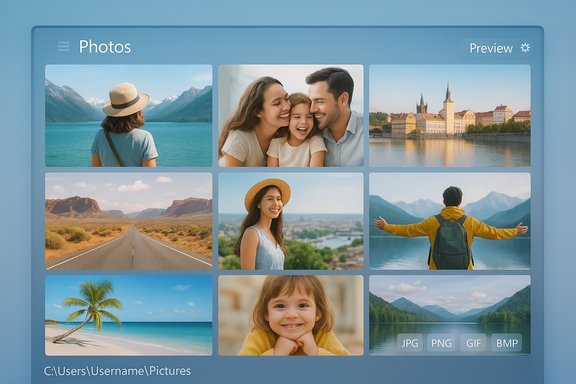
Screensavers began as a practical solution to prevent burn‑in on CRT displays, but today they serve mostly for personalization and as a lightweight way to lock a workstation when idle. Modern Windows still ships with a built‑in Photos screensaver that runs a simple slideshow engine and supports common image formats like JPG, PNG, BMP, and GIF. This built‑in option is convenient because it needs no extra software and integrates with the Control Panel screen saver UI.
Windows exposes screensaver controls through the familiar Screen Saver Settings dialog; advanced users can also add context‑menu slideshow options or generate .scr screensaver files with third‑party tools if they want video content or richer transitions. Practical concerns — like whether to use a screensaver at all instead of sleep mode, or how screensavers interact with device power settings and screen lock — are still relevant. For many users, a photos slideshow is an easy way to personalize a machine and optionally enforce a logon screen on resume for security.
For power users who want video content or advanced transitions, a trusted third‑party screensaver authoring tool is the safer and more flexible route than converting random .scr files from the web. When problems occur, the short checklist above (formats, drive availability, power settings, drivers, group policy) resolves the majority of issues quickly.
Use these steps and tips to personalize your idle screen responsibly: balance appearance with energy and security concerns, and keep backups of any registry or installer changes so you can always revert if needed.
Source: Windows Report Use Photos As Screen Saver On Windows: Step By Step Guide
 Background
Screensavers began as a practical solution to prevent burn‑in on CRT displays, but today they serve mostly for personalization and as a lightweight way to lock a workstation when idle. Modern Windows still ships with a built‑in Photos screensaver that runs a simple slideshow engine and supports common image formats like JPG, PNG, BMP, and GIF. This built‑in option is convenient because it needs no extra software and integrates with the Control Panel screen saver UI.Windows exposes screensaver controls through the familiar Screen Saver Settings dialog; advanced users can also add context‑menu slideshow options or generate .scr screensaver files with third‑party tools if they want video content or richer transitions. Practical concerns — like whether to use a screensaver at all instead of sleep mode, or how screensavers interact with device power settings and screen lock — are still relevant. For many users, a photos slideshow is an easy way to personalize a machine and optionally enforce a logon screen on resume for security.
Overview: What this guide will cover
- A concise, step‑by‑step walkthrough to use your photos as a screensaver in Windows.
- How to prepare image folders so the slideshow runs smoothly.
- All the Photos screensaver settings you can tweak (folder, speed, shuffle).
- Troubleshooting the most common problems on Windows 10 and Windows 11.
- Advanced options: creating custom .scr files, using third‑party apps, and adding slideshow menu options via the registry.
- Performance, security, and power considerations to help you choose the right setup.
Quick summary of the easiest method
- Put your desired pictures into a single folder (JPG/PNG recommended).
- Open Screen Saver Settings (Control Panel or the command control desk.cpl,,1).
- Choose “Photos” from the screensaver dropdown and click Settings.
- Browse to the folder, set slide speed and shuffle, Save.
- Preview, Apply, and OK.
Step‑by‑step: Use Photos as a screensaver (detailed)
1. Prepare your photo folder
- Create a new folder anywhere on your PC (Desktop, Pictures library, or an external drive).
- Copy or move the images you want into that folder. Keep them in common formats: .jpg, .jpeg, .png, .bmp, .gif.
- For the smoothest experience, keep the folder size reasonable — hundreds of very large RAW or ultra‑high‑resolution files can slow down loading and previews.
2. Open Screen Saver settings (two quick ways)
- Fast method: Press Windows + R, type:
control desk.cpl,,1
and press Enter. This launches the classic Screen Saver Settings dialog directly. - Alternate: Open Settings → Personalization → Lock screen → Screen saver settings.
3. Select the Photos screensaver
- In the Screen Saver Settings window select Photos from the dropdown.
- Click the Settings button next to the dropdown to configure the slideshow source and behavior.
4. Configure slideshow settings
Inside the Photos screensaver Settings:- Click Browse and navigate to the folder you prepared.
- Set the slide speed (options usually include Slow, Medium, Fast).
- Toggle Shuffle to randomize the image order or leave it off for sequential display.
- Save the settings and return to the main Screen Saver Settings dialog.
5. Apply and preview
- Click Preview to test the slideshow. Move the mouse or press a key to exit preview.
- Click Apply, then OK to save your screensaver and wait time.
Troubleshooting: Photos screen saver not working (common causes & fixes)
If your Photos screensaver fails to start, shows a blank screen, or only displays a static image, check the following items in order:- Folder empty or unsupported file types: Ensure the folder contains supported image formats (JPG/PNG/BMP/GIF). Screensaver engines commonly ignore unsupported formats.
- External/USB drive disconnected: If your slideshow folder is on a USB stick or a network share, the drive must be present and accessible every time the screensaver runs. If the drive is offline, the screensaver may fall back to blank or fail.
- Power & sleep settings: If your PC is configured to go to Sleep faster than the screensaver wait time, the screensaver may never be visible. Put screensaver wait shorter than or equal to sleep timing, or prevent sleep while testing.
- Group Policy or system restrictions: On work or school devices, admins can disable screensaver or personalization options using Group Policy. If options are greyed out, check with your administrator.
- Corrupt or missing Photos app components: On Windows 11, rare bugs in the Photos app or system components can prevent slideshow previews. Running Windows Update or repairing the Photos app may help. If problems persist, the classic Screen Saver Settings dialog still controls the Photos screensaver.
- Graphics drivers: Out‑of‑date GPU drivers can produce rendering glitches. Update drivers from your GPU vendor (NVIDIA/AMD/Intel) if slideshow exhibits stuttering or artifacts.
Advanced options and alternatives
Create a proper .scr screensaver (videos and custom behavior)
Windows screensavers are executable files with the .scr extension. Converting a video to an .scr or building a custom screensaver is possible but requires caution:- Generating or installing .scr files from unknown sources is a security risk because .scr files are executables.
- Free converters and some third‑party tools exist that convert video to .scr, but many are unreliable or add watermarks; approach with skepticism.
Third‑party slideshow & screensaver tools
For features beyond the built‑in Photos screensaver (music, timed captions, video support, or branded transitions) look at reputable apps that specialize in screensavers and slideshows. They usually offer:- Support for video files and advanced transitions.
- Packaged .scr installers and uninstallers.
- GUI editors to build a screensaver experience from images, video, and audio.
Context‑menu Slide Show in Windows 11 (add / remove)
If you want a quick right‑click Slide Show option in File Explorer (handy for instant previews), there are two common methods:- Run a prepared .REG file that adds the Slide Show command to the context menu (the simplest approach).
- Manually create the registry key under HKEY_CLASSES_ROOT*\shell\ and add a command delegate value.
Practical tips: make your slideshow better
- Image resolutions: Use images sized reasonably for your display (e.g., 1920×1080 for 1080p monitors, 3840×2160 for 4K). Very high‑res or RAW files slow down loading.
- Organization: Use subfolders for themed slideshows (vacation, family, art) and point the screensaver to a single folder per slideshow.
- Shuffle vs sequence: For continuous background slideshows, use Shuffle. For presentations or curated showcases, turn Shuffle off.
- Password on resume: If using the screensaver for security, enable On resume, display logon screen to require credentials after the screensaver exits. This uses the logon mechanism rather than the screensaver itself for security.
- Cloud images & network shares: If your folder lives on OneDrive or a network share, ensure the folder is available at the time the screensaver runs. If sync is paused, files may be unavailable and the slideshow can fail.
Performance, energy, and security considerations
- Energy vs looks: Screensavers consume some resources and power. If you want to save battery or energy, prefer Sleep or Turn off display over an animated screensaver, especially on laptops. Modern sleep modes are more energy efficient than running a slideshow.
- Security: The screensaver can act as a lightweight security feature only when On resume, display logon screen is enabled. That setting ensures the workstation is locked when the screensaver is interrupted.
- Display burn‑in: For most LCD/LED displays, burn‑in is no longer a major concern, but OLED panels can have burn‑in risk. If you use an OLED display and leave static images for long periods, keep movement or use sleep mode instead.
Troubleshooting checklist (stepwise)
- Confirm the folder contains supported image formats and isn’t empty.
- If using USB/network location, connect and ensure it’s online.
- Test with a tiny local folder (2–5 JPGs) to isolate problems.
- Verify power settings so screensaver can run before Sleep.
- Update graphics drivers if rendering is glitchy.
- Check Group Policy or IT restrictions on corporate devices.
When to avoid the Photos screensaver and what to use instead
- Use Sleep mode instead of a screensaver if your primary goal is energy savings and quick resume.
- Use a third‑party screensaver authoring tool if you need video, music, or advanced transitions.
- For kiosk displays or public presentations, use dedicated slideshow display software with scheduling and remote management features.
Safety and security notes about .scr and third‑party software
- .scr files are executables. Do not download or install .scr screensavers from untrusted sources; they can contain malware.
- Prefer signed installers and well‑reviewed applications from reputable vendors if you need a richer screensaver than Photos provides.
Final thoughts and recommended workflow
Using your photos as a screensaver on Windows is straightforward and quick: centralize the images in a single folder, open Screen Saver Settings via control desk.cpl,,1, pick Photos, point to your folder, choose speed and shuffle, then preview and apply. For most home users, the built‑in Photos screensaver delivers a no‑fuss, low‑risk way to display memories or art without extra software.For power users who want video content or advanced transitions, a trusted third‑party screensaver authoring tool is the safer and more flexible route than converting random .scr files from the web. When problems occur, the short checklist above (formats, drive availability, power settings, drivers, group policy) resolves the majority of issues quickly.
Use these steps and tips to personalize your idle screen responsibly: balance appearance with energy and security concerns, and keep backups of any registry or installer changes so you can always revert if needed.
Source: Windows Report Use Photos As Screen Saver On Windows: Step By Step Guide
