

Windhawk has become one of the most interesting ways to push Windows 11 beyond Microsoft’s built-in customization limits, and that matters because the operating system still leaves a lot of power users wanting more. The latest generation of mods does not just change colors or nudge icons around; it can restore older behaviors, reshape shell UI surfaces, and alter the way core Windows components look and react. That combination has turned Windhawk into a niche but remarkably influential tool for people who want Windows 11 to feel personal instead of merely polished.
What makes the current Windhawk ecosystem especially compelling is that it sits in the gap between safe, supported tweaking and risky system patching. Microsoft’s own guidance covers a limited set of Start menu and taskbar options, while Windhawk’s mod catalog goes much further by targeting shell components directly and exposing styling hooks that Windows itself does not surface. The result is a platform that can deliver practical quality-of-life gains for enthusiasts, even if it comes with the usual caveat that third-party shell modifications can break after updates and should be treated with care.
Windows 11 arrived with a clear design philosophy: simplify the desktop, streamline the shell, and make the interface feel more consistent across devices. In practice, that meant removing or hiding many of the power-user conveniences people had grown used to in earlier releases. Microsoft still provides some customization through taskbar alignment, Start menu folder shortcuts, and notification settings, but the system increasingly favors curated experiences over open-ended control. Microsoft’s own support pages confirm that the taskbar can be aligned and the Start menu can be customized, but within a fairly narrow range of choices.
That restraint is exactly why tools like Windhawk found an audience. Rather than replacing core Windows files or relying on brittle transformation packs, Windhawk loads mods dynamically into running processes and alters behavior at runtime. In practical terms, that means a mod can intercept UI rendering or shell behavior without permanently rewriting system binaries. The Windhawk project’s mod pages also show that many of these changes target specific processes like
That technical approach matters because Windows 11’s shell is modular, but not especially open to user control. The taskbar, Start menu, File Explorer, and notification flyouts are all separate pieces of the experience, and each can behave differently depending on Windows build and feature updates. Windhawk’s catalog reflects that reality by offering separate mods for each major surface, from taskbar positioning to Explorer styling to classic context menus.
It also helps explain why some users see Windhawk as a modern answer to the old Windows tweak culture. In the past, enthusiasts relied on registry hacks, shell replacements, or unsupported patches to regain control. Windhawk tries to keep the same spirit while reducing the risks associated with permanent file changes. That does not make it risk-free, but it does make experimentation much less destructive than the transformation suites of the past.
Windhawk is valuable because it targets the exact places where those frustrations tend to land. If the taskbar feels too limited, there is a mod for that. If File Explorer feels too rigid, there is a mod for that. If the Start menu and notification surfaces do not match the rest of the desktop, there are mods for those too. The ecosystem is large enough now that customization is no longer a one-off tweak; it is a framework.
That said, dynamic injection is still a serious technique. It works because it reaches into live processes and alters how they behave, which is why the mods can be so powerful. It is also why users should not confuse “safer than patching binaries” with “harmless.” A shell mod that misbehaves can still destabilize Explorer, Start, or a notification flyout.
That distinction matters because the Windows 11 taskbar is one of the most criticized parts of the OS. Users want transparency, spacing control, and better control over visual density, especially on large monitors or high-DPI displays. Windhawk gives enthusiasts a way to recreate older aesthetics, such as Windows 7-like styling or macOS-inspired docking cues, without replacing the shell entirely. The result is a taskbar that can feel less like a fixed product decision and more like a component the user actually owns.
For advanced users, the manual layer is where things become interesting. Resource variables and control styles allow fine-grained overrides, which is the kind of control that power users have wanted for years. The downside is that the more specific your customizations become, the more likely you are to run into quirks after a Windows update.
This is especially important for users who want the desktop to be legible, not just pretty. Strong transparency can look impressive in screenshots but become distracting in daily work. The better taskbar mods, by contrast, are about visual hierarchy and usability, not only aesthetics.
For some users, top-aligned taskbars are a memory of earlier Windows versions. For others, they are a productivity choice tied to ultrawide monitors and multitasking. Either way, the mod taps into a surprisingly durable preference: some people simply do not want the main control bar sitting at the bottom. Windhawk makes that preference viable again, even if Windows itself does not.
Still, the existence of these imperfections does not diminish the mod’s importance. It proves that users are willing to tolerate some rough edges if it means reclaiming control over the desktop’s structure. That is a powerful signal about how much value people place on layout consistency.
That is why this mod matters beyond nostalgia. It turns an aesthetic preference into a measurable workflow adjustment. Even if not every user likes it, the fact that the option exists outside Microsoft’s own settings is part of Windhawk’s appeal.
This is where Windhawk’s value becomes deeply functional rather than merely aesthetic. The mod helps users create a compact, space-efficient taskbar on smaller laptops or a larger, more touch-friendly bar on tablets and high-resolution displays. The ability to set icon size separately is especially important because Windows 11’s default downscaling can make icons look less crisp than they should.
The cleaner icon rendering is also important. The mod’s support for 32x32 icons instead of smaller downscaled assets means the taskbar can look sharper and less compressed. That may sound minor, but in a UI that is visible all day long, visual quality matters.
It also demonstrates one of Windhawk’s strongest ideas: not every modification has to be dramatic to be transformative. Sometimes a few pixels of height and a more sensible icon size are enough to make the whole OS feel better.
That opens the door to all kinds of visual reinterpretations, from softer translucent looks to older Windows-inspired designs. For users who have never fully adjusted to the centered, content-light Windows 11 Start experience, this mod can dramatically improve day-to-day comfort. It does not just alter appearance; it changes the emotional tone of the desktop.
Thematically, this matters because the Start menu is a visual anchor. If the shell looks custom everywhere else but the Start menu remains stock, the whole desktop can feel unfinished. The mod helps resolve that mismatch.
Even so, the payoff is strong enough that many users will accept the maintenance burden. The menu is simply too central to ignore.
That is important because File Explorer is not an edge case. It is one of the most heavily used apps in Windows. If an Explorer customization improves the visibility of controls, makes the command bar less intrusive, or adds translucency that actually helps readability, the benefit compounds quickly.
Community themes also matter here. A good theme can make Explorer feel cleaner, less dense, and more coherent with the rest of a customized desktop. That may seem cosmetic at first, but interface coherence affects perceived quality more than many people realize.
That makes it powerful, but also fragile. The more Microsoft changes Explorer’s internal layout, the more likely the mod will need maintenance. For enthusiasts, that is a reasonable tradeoff. For enterprise environments, it is a reminder that shell customization should be controlled and tested.
That is why Explorer mods tend to feel so satisfying. They restore a sense of ownership over a tool many people interact with more than any other desktop app. In daily use, that can be more valuable than a dramatic visual overhaul.
This is a great example of how a small change can dramatically affect perceived speed. Right-click menus are one of the few interactions that many users perform dozens of times per day. Removing an extra step may not sound like much, but it adds up quickly in file management, app launching, and general shell navigation.
That is why this mod has such strong appeal among power users. It is not an aesthetic preference dressed up as a productivity tweak. It is a concrete way to reduce clicks.
Still, its popularity says something important: many users do not want a cleaner first impression if it costs them efficiency.
This mod is particularly interesting because it demonstrates how shell customization extends beyond static windows and into transient interfaces. Those are often the hardest things to make look intentional, because they appear and disappear based on context. Windhawk’s styling approach turns them into something closer to custom-designed panels.
The ability to hide sections, tweak spacing, or apply different blur styles is useful for both minimalists and maximalists. Some want less clutter; others want a more premium glass-like effect. Windhawk supports both instincts.
In practical terms, this gives enthusiasts a way to make the right edge of the OS feel designed instead of default. That is a surprisingly high-value result for something most users barely notice until it feels wrong.
For a user, that translates into a very different customization experience. You install Windhawk, enable a mod, and let it attach to the relevant process. If the modification misbehaves, you can often disable it or remove it without undoing permanent system edits. That alone makes it much friendlier than older shell-hacking methods.
It also means Windhawk can support a wide range of mod styles, from simple behavior tweaks to rich XAML-based skinning. That flexibility is the backbone of the platform’s success.
For most enthusiasts, that is an acceptable compromise. But it is still a compromise.
The other thing to watch is whether Microsoft begins to close the gap with more meaningful native customization. The existence of popular mods for taskbar position, menu styling, and Explorer cleanup is a useful signal that users still want more control than Microsoft currently offers. If enough of those expectations eventually make their way into the OS, Windhawk may end up influencing the product roadmap indirectly.
The enterprise angle is also worth watching. In unmanaged enthusiast systems, the risk-reward balance often favors experimentation. In business environments, however, shell mods are harder to justify unless they are tightly controlled, explicitly tested, and deployed with clear rollback plans. That divide will likely keep Windhawk strongest among advanced home users rather than broad corporate fleets.
Source: Windows Central 7 Windhawk mods that completely changed how I use Windows 11
What makes the current Windhawk ecosystem especially compelling is that it sits in the gap between safe, supported tweaking and risky system patching. Microsoft’s own guidance covers a limited set of Start menu and taskbar options, while Windhawk’s mod catalog goes much further by targeting shell components directly and exposing styling hooks that Windows itself does not surface. The result is a platform that can deliver practical quality-of-life gains for enthusiasts, even if it comes with the usual caveat that third-party shell modifications can break after updates and should be treated with care.
 Background
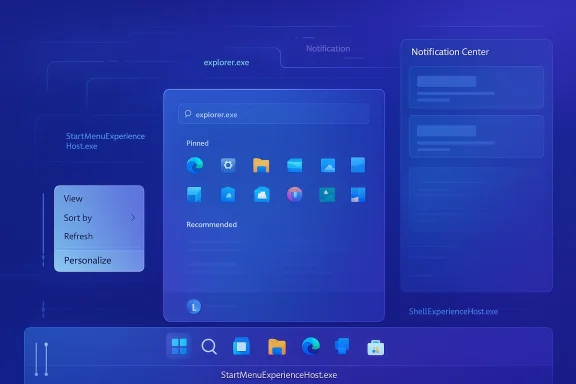
Windows 11 arrived with a clear design philosophy: simplify the desktop, streamline the shell, and make the interface feel more consistent across devices. In practice, that meant removing or hiding many of the power-user conveniences people had grown used to in earlier releases. Microsoft still provides some customization through taskbar alignment, Start menu folder shortcuts, and notification settings, but the system increasingly favors curated experiences over open-ended control. Microsoft’s own support pages confirm that the taskbar can be aligned and the Start menu can be customized, but within a fairly narrow range of choices.That restraint is exactly why tools like Windhawk found an audience. Rather than replacing core Windows files or relying on brittle transformation packs, Windhawk loads mods dynamically into running processes and alters behavior at runtime. In practical terms, that means a mod can intercept UI rendering or shell behavior without permanently rewriting system binaries. The Windhawk project’s mod pages also show that many of these changes target specific processes like
explorer.exe, ShellExperienceHost.exe, or StartMenuExperienceHost.exe, reinforcing that this is deep shell customization, not just cosmetic theming.That technical approach matters because Windows 11’s shell is modular, but not especially open to user control. The taskbar, Start menu, File Explorer, and notification flyouts are all separate pieces of the experience, and each can behave differently depending on Windows build and feature updates. Windhawk’s catalog reflects that reality by offering separate mods for each major surface, from taskbar positioning to Explorer styling to classic context menus.
It also helps explain why some users see Windhawk as a modern answer to the old Windows tweak culture. In the past, enthusiasts relied on registry hacks, shell replacements, or unsupported patches to regain control. Windhawk tries to keep the same spirit while reducing the risks associated with permanent file changes. That does not make it risk-free, but it does make experimentation much less destructive than the transformation suites of the past.
Why these mods matter now
Windows 11 has matured enough that many people are no longer asking whether it is stable, but whether it is adaptable. The tension between consistency and customization has become more visible as Microsoft has polished the shell while still leaving longtime desktop habits unresolved. For some users, that means the default interface is acceptable but not ideal. For others, it means the operating system is a starting point rather than a finished product.Windhawk is valuable because it targets the exact places where those frustrations tend to land. If the taskbar feels too limited, there is a mod for that. If File Explorer feels too rigid, there is a mod for that. If the Start menu and notification surfaces do not match the rest of the desktop, there are mods for those too. The ecosystem is large enough now that customization is no longer a one-off tweak; it is a framework.
- Microsoft’s native controls are useful, but limited.
- Windhawk expands shell customization into higher-impact territory.
- The most popular mods focus on visible, daily-use UI surfaces.
- Power users can restore habits Windows 11 removed or obscured.
- The approach is modular, so changes can be scoped more precisely.
- The tradeoff is that shell mods can be sensitive to updates.
A different model from old-school tweaking
One of the reasons Windhawk feels modern is that it avoids the old “replace system file, hope for the best” pattern. Instead, it behaves more like a live customization layer that attaches to the process you want to influence. That makes it easier to enable, disable, or fine-tune individual behaviors without reimaging a PC.That said, dynamic injection is still a serious technique. It works because it reaches into live processes and alters how they behave, which is why the mods can be so powerful. It is also why users should not confuse “safer than patching binaries” with “harmless.” A shell mod that misbehaves can still destabilize Explorer, Start, or a notification flyout.
The Taskbar Becomes a Real Customization Surface
The Windows 11 Taskbar Styler is the clearest example of why Windhawk has such a following. Microsoft gives users taskbar alignment, icon behavior, and a handful of layout toggles, but the mod pushes into the visual structure itself. Windhawk’s own mod page shows that the taskbar styler works with themes, control styles, and resource variables, which means it can reshape how the taskbar is drawn rather than merely tinting it.That distinction matters because the Windows 11 taskbar is one of the most criticized parts of the OS. Users want transparency, spacing control, and better control over visual density, especially on large monitors or high-DPI displays. Windhawk gives enthusiasts a way to recreate older aesthetics, such as Windows 7-like styling or macOS-inspired docking cues, without replacing the shell entirely. The result is a taskbar that can feel less like a fixed product decision and more like a component the user actually owns.
Themes versus manual styling
The mod’s built-in themes are probably the smartest entry point for most people. They lower the bar by letting users choose a prebuilt look rather than editing XAML properties by hand. That keeps the experience approachable while still delivering dramatic changes.For advanced users, the manual layer is where things become interesting. Resource variables and control styles allow fine-grained overrides, which is the kind of control that power users have wanted for years. The downside is that the more specific your customizations become, the more likely you are to run into quirks after a Windows update.
- Built-in themes make advanced theming accessible.
- Manual styles provide much deeper control.
- Resource overrides can change sizing and color behavior.
- Custom themes are ideal for consistency across shells.
- Heavy customization can increase breakage risk after updates.
- Visual polish can vary depending on display scaling and theme.
Why it feels better than simple transparency tools
A lot of apps can make the taskbar translucent. Very few can make it feel intentional. Windhawk’s taskbar styling works because it treats the taskbar as a composition of elements, not a single rectangle to be frosted over. That means it can adjust margins, object sizes, and the relationship between background and icon area.This is especially important for users who want the desktop to be legible, not just pretty. Strong transparency can look impressive in screenshots but become distracting in daily work. The better taskbar mods, by contrast, are about visual hierarchy and usability, not only aesthetics.
Moving the Taskbar Changes the Entire Desktop Rhythm
The Taskbar on top for Windows 11 mod tackles one of the most-requested Windows 11 features: putting the taskbar at the top of the screen. Microsoft has not made that option part of the normal UI, so Windhawk fills a gap that many people still consider a basic desktop expectation. The mod’s relevance is not simply cosmetic; taskbar position affects how the eye scans the screen and how cursor travel feels during daily use.For some users, top-aligned taskbars are a memory of earlier Windows versions. For others, they are a productivity choice tied to ultrawide monitors and multitasking. Either way, the mod taps into a surprisingly durable preference: some people simply do not want the main control bar sitting at the bottom. Windhawk makes that preference viable again, even if Windows itself does not.
The tradeoffs are real
This is one of those mods where the gain and the glitch often arrive together. Because Windows 11 was not designed around a top-positioned taskbar, a few UI transitions still assume the old layout. The Start menu animation, for example, may not always feel as if it belongs at the top, and that disconnect can be visually noticeable.Still, the existence of these imperfections does not diminish the mod’s importance. It proves that users are willing to tolerate some rough edges if it means reclaiming control over the desktop’s structure. That is a powerful signal about how much value people place on layout consistency.
- Top taskbar placement improves cursor efficiency for some workflows.
- Ultrawide and multi-monitor users may benefit most.
- Animations and flyouts can look slightly mismatched.
- The feature remains absent from Microsoft’s native settings.
- The mod is a workaround, not a full shell redesign.
- Enthusiasts often accept the tradeoff for stronger workflow fit.
A productivity choice, not just a style preference
The taskbar’s position changes how the desktop behaves in subtle ways. A top bar can reduce vertical cursor travel when the user works mostly in maximized windows. It can also help create a more traditional, menu-bar-like desktop rhythm for people coming from Linux or older UNIX-style layouts.That is why this mod matters beyond nostalgia. It turns an aesthetic preference into a measurable workflow adjustment. Even if not every user likes it, the fact that the option exists outside Microsoft’s own settings is part of Windhawk’s appeal.
Taskbar Height and Icon Size Fix a Windows 11 Weakness
The Taskbar height and icon size mod is a practical answer to one of Windows 11’s more annoying limitations. Microsoft removed the easy small/large taskbar adjustment that many users used for years, leaving people stuck with a default that is not ideal for every screen size. Windhawk steps in by allowing independent control over taskbar height and icon scaling, so users can optimize the bar without changing global DPI behavior.This is where Windhawk’s value becomes deeply functional rather than merely aesthetic. The mod helps users create a compact, space-efficient taskbar on smaller laptops or a larger, more touch-friendly bar on tablets and high-resolution displays. The ability to set icon size separately is especially important because Windows 11’s default downscaling can make icons look less crisp than they should.
Better than system-wide scaling
System DPI settings affect everything. That is useful when the whole desktop needs resizing, but it is overkill when the problem is only the taskbar. Windhawk’s mod is more surgical, which is exactly what power users want.The cleaner icon rendering is also important. The mod’s support for 32x32 icons instead of smaller downscaled assets means the taskbar can look sharper and less compressed. That may sound minor, but in a UI that is visible all day long, visual quality matters.
When small fixes become daily wins
A lot of customization tools are judged by screenshot appeal. This mod should be judged by ergonomics. If your screen feels crowded, or if you work on a touch device where larger targets make life easier, the difference is immediate.It also demonstrates one of Windhawk’s strongest ideas: not every modification has to be dramatic to be transformative. Sometimes a few pixels of height and a more sensible icon size are enough to make the whole OS feel better.
- Independent taskbar sizing gives users more control.
- Smaller bars can reclaim valuable vertical space.
- Larger bars can improve touch usability.
- Icon sharpness improves at the right size.
- The mod avoids changing global scaling.
- It addresses a genuine regression in Windows 11 customization.
The Start Menu Gets a Second Life
The Windows 11 Start Menu Styler is one of the most useful mods for people who feel that Microsoft’s modern Start menu is too rigid. Microsoft does offer some Start menu controls, such as pin organization and folder shortcuts, but the visual structure itself remains tightly controlled. Windhawk’s mod goes much further by letting users theme the menu and adjust the presentation directly.That opens the door to all kinds of visual reinterpretations, from softer translucent looks to older Windows-inspired designs. For users who have never fully adjusted to the centered, content-light Windows 11 Start experience, this mod can dramatically improve day-to-day comfort. It does not just alter appearance; it changes the emotional tone of the desktop.
Themes make the biggest difference
Windhawk’s Start menu styler includes built-in presets, and that may be the most important part of the experience. A well-chosen preset can shift the menu from “Microsoft default” to something with personality in one click. That keeps the mod usable for non-coders while still offering enough depth for enthusiasts.Thematically, this matters because the Start menu is a visual anchor. If the shell looks custom everywhere else but the Start menu remains stock, the whole desktop can feel unfinished. The mod helps resolve that mismatch.
Stability is the hidden issue
The tradeoff is that the Start menu is one of the most update-sensitive areas in Windows 11. Windhawk’s own ecosystem reflects that reality: these mods hook into specific shell processes, and those processes can change behavior after feature updates. That is why the best advice is to treat Start menu styling as an enhancement that may occasionally need maintenance, not as a set-it-and-forget-it change.Even so, the payoff is strong enough that many users will accept the maintenance burden. The menu is simply too central to ignore.
- The Start menu is one of the most visible shell surfaces.
- Microsoft’s native options remain limited.
- Windhawk themes can dramatically change the menu’s tone.
- Presets lower the technical barrier to entry.
- Start menu mods are more vulnerable to update breakage.
- The menu’s look shapes the whole desktop’s identity.
File Explorer Becomes Less Corporate and More Personal
The Windows 11 File Explorer Styler is especially valuable because File Explorer is where many users live all day. Microsoft has modernized Explorer in stages, but it still ships with a design language that some people find too flat, too crowded, or simply too opinionated. Windhawk’s styler offers a way to adjust that environment with theme packs and XAML resource overrides.That is important because File Explorer is not an edge case. It is one of the most heavily used apps in Windows. If an Explorer customization improves the visibility of controls, makes the command bar less intrusive, or adds translucency that actually helps readability, the benefit compounds quickly.
Styling the shell that people actually use
The mod can hide or resize elements Microsoft does not easily expose. That alone makes it more than a visual toy. Explorer’s interface has changed enough over the years that many users now experience it as a compromise between old and new paradigms, and the styler helps smooth that transition.Community themes also matter here. A good theme can make Explorer feel cleaner, less dense, and more coherent with the rest of a customized desktop. That may seem cosmetic at first, but interface coherence affects perceived quality more than many people realize.
The Explorer challenge is architectural
File Explorer is increasingly tied to newer Windows UI stacks, which means old methods of skinning do not work as well as they once did. Windhawk’s approach uses process injection and XAML-level overrides to get around that. In other words, the mod is not fighting the current architecture by brute force; it is working within it.That makes it powerful, but also fragile. The more Microsoft changes Explorer’s internal layout, the more likely the mod will need maintenance. For enthusiasts, that is a reasonable tradeoff. For enterprise environments, it is a reminder that shell customization should be controlled and tested.
- File Explorer is used constantly, so gains are felt immediately.
- Theme support makes the interface less sterile.
- XAML overrides enable deeper visual change.
- The mod can reduce clutter in high-use areas.
- Explorer updates can disrupt custom styling.
- Practical gains matter more than aesthetic novelty here.
Hiding clutter is often the best upgrade
There is a strong argument that the best Explorer customization is not about adding features, but removing friction. If you can hide a control you never use, reduce unnecessary visual noise, or create a better hierarchy in the navigation pane, the app becomes easier to parse.That is why Explorer mods tend to feel so satisfying. They restore a sense of ownership over a tool many people interact with more than any other desktop app. In daily use, that can be more valuable than a dramatic visual overhaul.
The Classic Context Menu Restores a Lost Habit
The Classic context menu on Windows 11 mod addresses one of the most complained-about Windows 11 changes: the abbreviated right-click menu. Microsoft’s default design hides many actions behind an extra click, which is defensible from a UI purity standpoint but frustrating in real workflows. Windhawk’s mod restores the classic menu so users can get straight to the full list of commands.This is a great example of how a small change can dramatically affect perceived speed. Right-click menus are one of the few interactions that many users perform dozens of times per day. Removing an extra step may not sound like much, but it adds up quickly in file management, app launching, and general shell navigation.
Speed versus simplicity
Microsoft’s newer menu is cleaner, but “cleaner” is not always the same as better. The modern design cuts clutter, yet it also hides functionality behind a second layer. Windhawk’s mod restores direct access, which is often what users care about most.That is why this mod has such strong appeal among power users. It is not an aesthetic preference dressed up as a productivity tweak. It is a concrete way to reduce clicks.
Compatibility is improving, but not perfect
The mod works well enough to be useful, but context-menu behavior in Windows 11 has not stood still. Microsoft continues to revise shell interactions, and those changes can ripple through all right-click extensions. That means the mod is best seen as a response to a live design tension, not a permanent final answer.Still, its popularity says something important: many users do not want a cleaner first impression if it costs them efficiency.
- The classic menu reduces click depth.
- It preserves familiar workflows from earlier Windows versions.
- It is especially helpful for frequent file operations.
- Microsoft’s default menu prioritizes simplicity over depth.
- The mod reflects a strong preference for speed among enthusiasts.
- Context menus remain one of the OS’s most visible friction points.
Notification Center Styling Cleans Up the Right Edge of Windows
The Windows 11 Notification Center Styler targets one of the least glamorous but most constantly visible parts of the shell. Notification Center and Quick Settings are where users glance for system state, network status, brightness, focus, and alerts. Windhawk lets users adjust the layout, blur, transparency, and overall look of these flyouts, which is enough to make the right side of the desktop feel much more coherent.This mod is particularly interesting because it demonstrates how shell customization extends beyond static windows and into transient interfaces. Those are often the hardest things to make look intentional, because they appear and disappear based on context. Windhawk’s styling approach turns them into something closer to custom-designed panels.
Why flyouts matter more than people think
Notifications and quick settings may not be the stars of the OS, but they are part of the desktop’s rhythm. If they look mismatched against a themed taskbar or a styled Start menu, the whole system feels less cohesive. That is why users who go deep on customization often end up caring about these flyouts more than they expected.The ability to hide sections, tweak spacing, or apply different blur styles is useful for both minimalists and maximalists. Some want less clutter; others want a more premium glass-like effect. Windhawk supports both instincts.
Shell flyouts as design glue
Windhawk’s related Shell Flyout Positions mod also shows that the notification and action panels can be repositioned horizontally and, with specific configurations, vertically as well. That is significant because it suggests the shell can be made to match broader taskbar or layout decisions, rather than fighting them.In practical terms, this gives enthusiasts a way to make the right edge of the OS feel designed instead of default. That is a surprisingly high-value result for something most users barely notice until it feels wrong.
- Notification Center is part of the desktop’s visual grammar.
- Quick Settings benefits from cleaner spacing and structure.
- Flyout styling improves shell cohesion.
- Positioning options help match custom layouts.
- Minimal changes can have outsized visual impact.
- This is one of the best examples of “small tweak, big payoff.”
How Windhawk Actually Works Under the Hood
Windhawk’s core strength is that it does not rely on permanently altered binaries. Instead, it injects code into a running process and uses hooks to intercept functions as Windows calls them. That architecture lets a mod observe or change behavior on the fly, which is how it can alter UI rendering, reposition elements, or suppress parts of a shell component without rebuilding the app itself.For a user, that translates into a very different customization experience. You install Windhawk, enable a mod, and let it attach to the relevant process. If the modification misbehaves, you can often disable it or remove it without undoing permanent system edits. That alone makes it much friendlier than older shell-hacking methods.
Why process injection is powerful
The advantage of this model is specificity. A mod can targetexplorer.exe for File Explorer changes, StartMenuExperienceHost.exe for Start menu changes, or ShellExperienceHost.exe for notification flyouts. That means each mod can focus narrowly on the part of Windows it intends to influence, rather than trying to transform the whole operating system at once.It also means Windhawk can support a wide range of mod styles, from simple behavior tweaks to rich XAML-based skinning. That flexibility is the backbone of the platform’s success.
The risk profile is still real
Even if Windhawk is safer than binary patching, it still operates inside critical Windows processes. That means crashes, visual glitches, or shell instability are possible, especially after major Windows updates. Users should also remember that third-party shell modifications are not supported by Microsoft, which is why backups and caution remain important. Microsoft’s own support guidance only covers the native options, not these deeper modifications.For most enthusiasts, that is an acceptable compromise. But it is still a compromise.
- Windhawk modifies behavior at runtime.
- Hooks intercept Windows function calls.
- Mods can target specific shell processes.
- Changes are easier to undo than file patches.
- Updates can break assumptions inside the shell.
- Unsupported does not mean unusable, but it does mean use with care.
Strengths and Opportunities
Windhawk’s biggest strength is that it gives Windows 11 users the kind of personalization Microsoft mostly reserves for design teams. It does so in a modular way, which means users can choose exactly how deep they want to go. For enthusiasts, that opens the door to a desktop that is more expressive, more efficient, and often more comfortable in everyday use.- Deep customization without replacing the whole shell.
- Modular control so users can enable only what they need.
- Strong community ecosystem around taskbar, Start, Explorer, and flyout styling.
- Practical workflow gains from taskbar position and context-menu changes.
- Visual cohesion across shell components instead of isolated tweaks.
- Better accessibility options for users who want larger icons or different densities.
- A modern alternative to old registry hacks and transformation packs.
Risks and Concerns
The downside is that Windhawk’s power comes from operating close to the shell, which makes it inherently sensitive to change. Windows updates can alter process behavior, break styling assumptions, or introduce visual regressions. Users who depend on a perfectly stable enterprise desktop may find that level of dynamism unacceptable.- Update fragility when Microsoft changes shell internals.
- Process-level instability if a mod misbehaves.
- Unsupported status from Microsoft.
- Potential conflicts between multiple mods or XAML consumers.
- Visual glitches when moving or heavily restyling core surfaces.
- User confusion if a mod appears to “work” but creates subtle side effects.
- Security scrutiny from admins who dislike injection-based tools on managed PCs.
What to Watch Next
The big question is not whether Windhawk is useful now; it clearly is. The real question is how sustainable this model remains as Windows 11 keeps evolving. If Microsoft continues redesigning shell components, Windhawk will need to keep adapting mod by mod. That is a manageable challenge for an active community, but it means no customization layer is ever truly finished.The other thing to watch is whether Microsoft begins to close the gap with more meaningful native customization. The existence of popular mods for taskbar position, menu styling, and Explorer cleanup is a useful signal that users still want more control than Microsoft currently offers. If enough of those expectations eventually make their way into the OS, Windhawk may end up influencing the product roadmap indirectly.
The enterprise angle is also worth watching. In unmanaged enthusiast systems, the risk-reward balance often favors experimentation. In business environments, however, shell mods are harder to justify unless they are tightly controlled, explicitly tested, and deployed with clear rollback plans. That divide will likely keep Windhawk strongest among advanced home users rather than broad corporate fleets.
- New Windows builds may break or weaken specific mods.
- The community’s maintenance pace will determine long-term viability.
- Microsoft may adopt or emulate some user-requested features.
- Enterprise adoption will remain limited by support and stability concerns.
- Mod specialization may expand into more shell surfaces.
- Better documentation could make advanced mods safer for more users.
- User demand for real desktop customization is unlikely to fade.
Source: Windows Central 7 Windhawk mods that completely changed how I use Windows 11
