

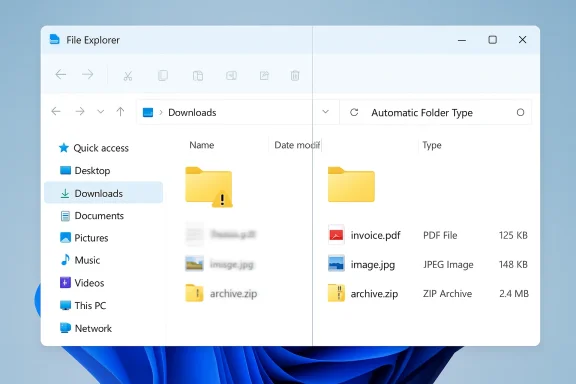
Windows 11 users have been complaining for years that File Explorer feels sluggish, inconsistent, and sometimes outright fragile. The latest wave of frustration has turned a spotlight on a deceptively simple feature: Automatic Folder Type Discovery, the long-standing Windows behavior that tries to guess what kind of files live in a folder and then switches the folder’s view template accordingly. That sounds helpful in theory, but on busy folders it can add noticeable delay every time you open them, which is why disabling it has become a popular performance tweak. Microsoft is still improving File Explorer in 2026, but this setting remains one of the few user-controlled changes that can reduce overhead without installing anything third-party.
File Explorer has always been more than a file browser. In Windows, it is also the shell’s organizing layer, a kind of policy engine that decides how folders should look and behave based on what it thinks they contain. That design made sense in the early desktop era, when music folders, photo folders, and document folders were easy to distinguish and users appreciated a tailored view.
The problem is that the modern PC is messy. The average folder can contain compressed archives, PDFs, screenshots, installers, phone backups, cloud-synced files, and mixed media all at once. When Explorer keeps trying to infer a folder’s “kind,” the system can end up doing extra work to classify content that users already understand perfectly well.
Microsoft’s own Windows documentation still reflects this broader philosophy of File Explorer as a smart organizer, with tools like search, view selection, and library-style navigation built into the interface. But official guidance does not emphasize folder auto-discovery as a performance feature; instead, it sits in the background as part of the shell’s automatic behavior.
What makes the discussion especially relevant now is that Microsoft is actively calling out File Explorer performance work again. In recent Windows Insider material, the company said it is improving responsiveness, launch speed, and folder view consistency in Windows 11, including specific changes to File Explorer. That is a useful signal: Microsoft clearly knows File Explorer has become a visible pain point, even if the causes are spread across shell logic, cloud integration, search, view state, and folder classification.
This is why a tweak that looks old-fashioned suddenly matters again. A feature introduced to make folders smarter can become a drag when the shell has to do it repeatedly, and when it does so across large trees of local files. The result is not always dramatic, but for users who open the same heavy folders all day, even a small delay feels like a tax on every workflow.
The mechanism is tightly linked to Windows shell folder types and view templates, which Microsoft documents in its Win32 shell references. Those references make clear that folder types are view templates, not just labels, and that they drive layout decisions in Explorer.
The catch is that a view template is only useful if the guess is right and if the guess happens quickly. When a folder is huge, constantly changing, or full of mixed content, the repeated detection work can become unnecessary overhead.
That kind of work is not always obvious to casual users, because it appears as a pause, a stutter, or a “not responding” moment rather than as a specific CPU spike. But from the user’s perspective, a delay is a delay, whether it comes from metadata scanning, view reconfiguration, or extension loading.
Microsoft’s own recent statements about File Explorer performance suggest that launch-time improvements and consistency fixes are still being pursued. Windows Insider build notes in April 2026 explicitly mention faster File Explorer launch and improved folder view consistency, which reinforces the idea that Explorer’s responsiveness remains a live engineering target.
Windows 11 has also seen persistent complaints about Explorer inconsistency, particularly around folder view state and context behavior. Microsoft has been shipping improvements, but the gap between “better than before” and “snappy enough for power users” is still large.
The important editorial point is that File Explorer is not failing because of one dramatic bug. It is being slowed by a stack of small decisions, and folder-type discovery is one of the easiest to remove.
That is why this tweak is best understood as a performance preference, not a universal optimization. If you like custom folder views and want Explorer to stop overriding them, the setting is especially appealing. If you rely on automatic media-specific layouts, you may prefer to leave it alone.
Microsoft Q&A discussions from users and community advisors repeatedly describe the same behavior: on local disks, Explorer may keep rescanning folders and resetting the folder type, especially in Windows 11, and that can slow things down. Those discussions do not replace formal documentation, but they do show that the complaint is persistent enough to become a recurring support topic.
It is less attractive for casual users who mostly browse small folders and appreciate Windows doing the sorting for them. For them, the feature may be more convenience than cost.
That split between power-user preference and general-user convenience is the heart of the matter. Explorer is trying to serve both audiences, but those audiences increasingly want opposite things.
The recent Microsoft roadmap underscores that the company is aware of the tension. Its official Windows Insider updates now emphasize performance, reliability, and “craft,” which is effectively a promise to reduce friction in everyday shell interactions.
A user opening a folder may not care which subsystem caused the pause. They care that the pause happened at all. That is why even a small setting like folder type discovery becomes politically important inside the Windows community.
For enterprise admins, folder view unpredictability can complicate support and create frustration in environments where users expect automation to be predictable. For consumers, the bigger issue is that Explorer can feel slow even on powerful hardware, which makes the shell seem poorly optimized regardless of the machine’s specs.
Microsoft’s current efforts suggest both audiences matter. The company is working on speed, but it is also refining consistency, restore behavior, and folder-view persistence across multiple Windows 11 builds.
Microsoft’s support pages and Windows 11 documentation still position File Explorer as a central tool for browsing, organizing, and finding files. But modern Explorer is also a highly instrumented component that touches search, indexing, cloud content, and shell metadata.
That is why the performance debate is not really about one folder setting. It is about a broader product philosophy that increasingly asks the shell to anticipate what the user wants instead of simply getting out of the way.
That is not because the idea became stupid. It is because the environment changed. What once looked like thoughtful automation now often looks like unnecessary shell logic.
Microsoft’s own shell documentation still treats folder views as a legitimate, structured concept, but modern user expectations are less forgiving when a view decision creates delay.
At the same time, these fixes do not make every complaint disappear. Explorer remains a complex shell component with a long memory and many dependencies. Even when Microsoft improves one layer, another can still feel sluggish or inconsistent.
This is why small tweaks continue to matter. Users do not live inside release notes; they live inside the interface. If a registry change makes their daily workflow faster today, it competes directly with whatever upstream fix Microsoft is still rolling out.
That dynamic has become common across Windows troubleshooting. Users combine Microsoft’s official guidance with community knowledge to get the experience they want. In this case, the community has turned a niche shell behavior into a mainstream performance tip.
That does not mean every community recommendation is correct, but it does mean the wisdom of experienced users often arrives faster than the official narrative. That is especially true for Explorer, where behavior issues can be subtle and hard to isolate.
Enterprise IT teams also tend to care about workflows that rely on fixed views, repeatable columns, and stable folder paths. Anything that reinterprets the contents of a directory can make standardization harder.
Microsoft’s broader Windows 11 messaging around performance, reliability, and improved file handling suggests enterprise readiness is part of the current roadmap, not just consumer polish.
In other words, the setting is not inherently good or bad. It is a policy preference shaped by workflow. That makes it a perfect example of why Windows often feels simultaneously flexible and frustrating.
That is why performance tips spread so quickly when they sound low-risk. Disabling folder type discovery fits that pattern perfectly because it promises a faster, less fussy Explorer with little visible downside for many users.
It is also attractive because it does not require new software, a system upgrade, or a full reset. Users can try it, decide whether they like it, and reverse course if it does not help.
That matters because File Explorer is one of the most frequently used parts of Windows. Small annoyances there become emotionally larger than equivalent annoyances in less visible apps.
The broader Windows challenge is balancing automation with simplicity. Explorer has accumulated enough intelligence that many users now view that intelligence as friction, and that is not something one build update can erase. The long-term solution is likely a mixture of performance engineering, clearer user controls, and fewer assumptions baked into the shell.
Source: bgr.com Changing This One Windows Setting Can Make File Explorer Run Much Better - BGR
 Background
File Explorer has always been more than a file browser. In Windows, it is also the shell’s organizing layer, a kind of policy engine that decides how folders should look and behave based on what it thinks they contain. That design made sense in the early desktop era, when music folders, photo folders, and document folders were easy to distinguish and users appreciated a tailored view.The problem is that the modern PC is messy. The average folder can contain compressed archives, PDFs, screenshots, installers, phone backups, cloud-synced files, and mixed media all at once. When Explorer keeps trying to infer a folder’s “kind,” the system can end up doing extra work to classify content that users already understand perfectly well.
Microsoft’s own Windows documentation still reflects this broader philosophy of File Explorer as a smart organizer, with tools like search, view selection, and library-style navigation built into the interface. But official guidance does not emphasize folder auto-discovery as a performance feature; instead, it sits in the background as part of the shell’s automatic behavior.
What makes the discussion especially relevant now is that Microsoft is actively calling out File Explorer performance work again. In recent Windows Insider material, the company said it is improving responsiveness, launch speed, and folder view consistency in Windows 11, including specific changes to File Explorer. That is a useful signal: Microsoft clearly knows File Explorer has become a visible pain point, even if the causes are spread across shell logic, cloud integration, search, view state, and folder classification.
This is why a tweak that looks old-fashioned suddenly matters again. A feature introduced to make folders smarter can become a drag when the shell has to do it repeatedly, and when it does so across large trees of local files. The result is not always dramatic, but for users who open the same heavy folders all day, even a small delay feels like a tax on every workflow.
What Automatic Folder Type Discovery Actually Does
At its core, Automatic Folder Type Discovery is Explorer’s way of guessing a folder template from the files inside it. If the majority of items look like pictures, it may present a Pictures-style layout. If audio files dominate, it may behave more like a Music folder. That means columns, sorting assumptions, and display preferences can shift automatically based on content.Why Microsoft built it this way
The original idea was convenience. Windows wanted to make folders feel context-aware, so that the shell could surface the most useful columns and views without asking the user to configure every directory manually. This was especially useful when home users stored different media types in clearly separated folders.The mechanism is tightly linked to Windows shell folder types and view templates, which Microsoft documents in its Win32 shell references. Those references make clear that folder types are view templates, not just labels, and that they drive layout decisions in Explorer.
The catch is that a view template is only useful if the guess is right and if the guess happens quickly. When a folder is huge, constantly changing, or full of mixed content, the repeated detection work can become unnecessary overhead.
- It can change the folder’s view automatically.
- It may alter columns and sorting assumptions.
- It can rescan folder contents when you open the folder.
- It is more annoying in large, mixed folders than in small, tidy ones.
Why It Can Slow File Explorer Down
Explorer performance issues are rarely caused by one single thing. The current Windows 11 shell has to juggle folder rendering, cloud sync status, search, previews, context menu extensions, and view-state persistence. Automatic folder classification adds one more moving part to that mix, and the more files a folder contains, the more work Explorer may need to do before showing it.The cost of guessing
The delay is especially noticeable in folders that change often. A Downloads folder, for example, can contain installers, PDFs, screenshots, archives, audio, video, and temporary work files all at once. If Explorer keeps trying to decide whether that folder should be treated as Documents, Pictures, Music, or something else, it may spend extra time inspecting the contents before the window fully loads.That kind of work is not always obvious to casual users, because it appears as a pause, a stutter, or a “not responding” moment rather than as a specific CPU spike. But from the user’s perspective, a delay is a delay, whether it comes from metadata scanning, view reconfiguration, or extension loading.
Microsoft’s own recent statements about File Explorer performance suggest that launch-time improvements and consistency fixes are still being pursued. Windows Insider build notes in April 2026 explicitly mention faster File Explorer launch and improved folder view consistency, which reinforces the idea that Explorer’s responsiveness remains a live engineering target.
- Large folders magnify the cost.
- Mixed-content folders confuse the classifier.
- Frequent reopening makes the delay feel repetitive.
- Users notice pauses more than they notice subtle benefits.
What the user actually experiences
For some people, the problem is not “slow” in the abstract. It is the sensation that Explorer opens, hesitates, rearranges itself, and only then becomes usable. That is especially frustrating when users are trying to batch-move files or compare folder contents quickly.Windows 11 has also seen persistent complaints about Explorer inconsistency, particularly around folder view state and context behavior. Microsoft has been shipping improvements, but the gap between “better than before” and “snappy enough for power users” is still large.
The important editorial point is that File Explorer is not failing because of one dramatic bug. It is being slowed by a stack of small decisions, and folder-type discovery is one of the easiest to remove.
How to Disable It
Disabling Automatic Folder Type Discovery is typically done through a Registry-based change or by using a trusted utility that exposes the same underlying setting. The exact steps vary depending on whether you are on Windows 10 or Windows 11, and whether you want the change to apply broadly or only to certain folder behaviors.The practical trade-off
The upside is straightforward: Explorer stops trying so hard to infer folder type, which can reduce view churn and make folders open more predictably. The downside is also straightforward: you lose some of the automatic “smart” folder behavior that can be useful in media-heavy workflows.That is why this tweak is best understood as a performance preference, not a universal optimization. If you like custom folder views and want Explorer to stop overriding them, the setting is especially appealing. If you rely on automatic media-specific layouts, you may prefer to leave it alone.
Microsoft Q&A discussions from users and community advisors repeatedly describe the same behavior: on local disks, Explorer may keep rescanning folders and resetting the folder type, especially in Windows 11, and that can slow things down. Those discussions do not replace formal documentation, but they do show that the complaint is persistent enough to become a recurring support topic.
- You gain more predictable folder opening behavior.
- You may reduce the chance of view resets.
- You may lose automatic media-specific folder layouts.
- The change is most useful on local, heavily used folders.
Who should use it
This tweak is most attractive to users who maintain big working directories, local archives, photo repositories, or download caches. It also makes sense for anyone who values consistent layout more than automatic categorization.It is less attractive for casual users who mostly browse small folders and appreciate Windows doing the sorting for them. For them, the feature may be more convenience than cost.
That split between power-user preference and general-user convenience is the heart of the matter. Explorer is trying to serve both audiences, but those audiences increasingly want opposite things.
Why Windows 11 Feels Worse Than Windows 10 to Many Users
A lot of the File Explorer backlash is really a broader complaint about Windows 11 shell behavior. Users do not just want their files accessible; they want the interface to stop surprising them. When Explorer reopens to different views, changes folder types, shifts focus, or lags after opening, it creates the impression that the operating system is making decisions on the user’s behalf.The role of accumulated complexity
Windows 11 File Explorer has become more ambitious over time. Microsoft has layered in modern UI changes, cloud integration, Microsoft 365 hooks, new context menu behaviors, and other shell features that were never part of the older, simpler Explorer experience. Each feature brings value, but each also adds opportunities for delay or inconsistency.The recent Microsoft roadmap underscores that the company is aware of the tension. Its official Windows Insider updates now emphasize performance, reliability, and “craft,” which is effectively a promise to reduce friction in everyday shell interactions.
A user opening a folder may not care which subsystem caused the pause. They care that the pause happened at all. That is why even a small setting like folder type discovery becomes politically important inside the Windows community.
- More features mean more possible failure points.
- UI polish does not automatically improve responsiveness.
- Cloud-aware behavior can feel heavier than local-only behavior.
- Stability often matters more than novelty in File Explorer.
Consumer versus enterprise expectations
Consumers usually notice the annoyance first. They open Downloads, Pictures, or a project folder and feel the lag every day. Enterprise users, meanwhile, often care about scale: thousands of files, standardized workflows, and consistent behavior across managed devices.For enterprise admins, folder view unpredictability can complicate support and create frustration in environments where users expect automation to be predictable. For consumers, the bigger issue is that Explorer can feel slow even on powerful hardware, which makes the shell seem poorly optimized regardless of the machine’s specs.
Microsoft’s current efforts suggest both audiences matter. The company is working on speed, but it is also refining consistency, restore behavior, and folder-view persistence across multiple Windows 11 builds.
The Bigger Pattern: Windows Tends to Favor “Smart” Defaults
Automatic Folder Type Discovery is not an isolated case. Windows has long leaned toward features that attempt to infer the user’s intent. Search suggestions, preview panes, content indexing, known-folder shortcuts, and cloud-backed File Explorer Home all reflect the same philosophy: reduce manual work by having the OS make educated guesses.When helpful becomes intrusive
This design works best when the guess is cheap and accurate. It works poorly when the guess requires repeated scanning, or when the user’s intent is already obvious from the way they organize files. In those cases, “smart” can become slow.Microsoft’s support pages and Windows 11 documentation still position File Explorer as a central tool for browsing, organizing, and finding files. But modern Explorer is also a highly instrumented component that touches search, indexing, cloud content, and shell metadata.
That is why the performance debate is not really about one folder setting. It is about a broader product philosophy that increasingly asks the shell to anticipate what the user wants instead of simply getting out of the way.
- Smart defaults can reduce clicks.
- Smart defaults can also override user intent.
- Repeated inference creates hidden overhead.
- Power users tend to prefer deterministic behavior.
Historical continuity from XP to Windows 11
The feature’s age is part of the story. Automatic folder typing dates back decades, which means it was designed for a different era of usage patterns, hardware speeds, and storage habits. In the Windows XP era, folder specialization felt neat and orderly; in the cloud-synced, mixed-media, SSD world of Windows 11, it can feel like baggage.That is not because the idea became stupid. It is because the environment changed. What once looked like thoughtful automation now often looks like unnecessary shell logic.
Microsoft’s own shell documentation still treats folder views as a legitimate, structured concept, but modern user expectations are less forgiving when a view decision creates delay.
What Microsoft Is Doing About File Explorer
Microsoft has not ignored the complaints. Recent Windows Insider and release preview notes mention improvements to File Explorer launch speed, reliability, and folder view consistency. That matters because it shows the company is targeting the experience holistically rather than treating Explorer as frozen legacy code.Incremental fixes matter more than big promises
The company’s April 2026 release preview notes say File Explorer launch speed has improved and that folder-view consistency has been enhanced so customized settings apply more reliably across different ways of opening a folder. That is exactly the kind of quality-of-life work Windows users have been asking for.At the same time, these fixes do not make every complaint disappear. Explorer remains a complex shell component with a long memory and many dependencies. Even when Microsoft improves one layer, another can still feel sluggish or inconsistent.
This is why small tweaks continue to matter. Users do not live inside release notes; they live inside the interface. If a registry change makes their daily workflow faster today, it competes directly with whatever upstream fix Microsoft is still rolling out.
- Microsoft is acknowledging Explorer performance issues.
- Release preview builds now include speed and reliability improvements.
- Improvements are arriving incrementally, not as a single overhaul.
- Users still need practical workarounds in the meantime.
Why community advice fills the gap
Community advice spreads because it is immediate, specific, and often repeatable. A user who finds that folder type discovery is causing delays can disable it in minutes, whereas an official fix may still be months away or bundled inside a larger update.That dynamic has become common across Windows troubleshooting. Users combine Microsoft’s official guidance with community knowledge to get the experience they want. In this case, the community has turned a niche shell behavior into a mainstream performance tip.
That does not mean every community recommendation is correct, but it does mean the wisdom of experienced users often arrives faster than the official narrative. That is especially true for Explorer, where behavior issues can be subtle and hard to isolate.
Enterprise Impact: Standards, Support, and Predictability
For IT departments, folder type discovery is less about raw speed and more about consistency. A shell that behaves differently across folders, drives, and user habits creates support noise, especially when employees think their settings are being ignored.Why admins care
In managed environments, the goal is rarely to make every folder “smart.” It is to make every workstation predictable. If folder-type inference causes layouts to shift, it can confuse users and generate unnecessary help desk tickets.Enterprise IT teams also tend to care about workflows that rely on fixed views, repeatable columns, and stable folder paths. Anything that reinterprets the contents of a directory can make standardization harder.
Microsoft’s broader Windows 11 messaging around performance, reliability, and improved file handling suggests enterprise readiness is part of the current roadmap, not just consumer polish.
- Predictability reduces support requests.
- Stable views help standard operating procedures.
- Fewer surprise changes improve user confidence.
- Standardized desktops benefit from fewer shell assumptions.
A note on policy versus preference
This is where the distinction between a personal tweak and an IT standard matters. A home user can decide folder view automation is annoying and shut it off. An IT department may need to weigh that choice against the needs of specific teams, such as media production, design, or content management.In other words, the setting is not inherently good or bad. It is a policy preference shaped by workflow. That makes it a perfect example of why Windows often feels simultaneously flexible and frustrating.
Consumer Impact: The Quick Win Most People Actually Want
For ordinary users, the appeal is simple: make File Explorer stop thinking so hard. People do not want to spend time tuning the shell unless the payoff is obvious, and here the payoff is easy to understand.The everyday pain points
Most users feel Explorer problems in the same places: opening Downloads, navigating photo folders, browsing external drives, or switching between many files quickly. If those folders hesitate or reformat themselves, the experience feels broken even if the underlying issue is “just” extra shell logic.That is why performance tips spread so quickly when they sound low-risk. Disabling folder type discovery fits that pattern perfectly because it promises a faster, less fussy Explorer with little visible downside for many users.
It is also attractive because it does not require new software, a system upgrade, or a full reset. Users can try it, decide whether they like it, and reverse course if it does not help.
Why the change feels satisfying
There is a psychological dimension here too. When Windows stops trying to second-guess the user, the system feels cleaner. Even if the performance gain is modest, the reduction in friction can make the PC feel more dependable.That matters because File Explorer is one of the most frequently used parts of Windows. Small annoyances there become emotionally larger than equivalent annoyances in less visible apps.
- Less reclassification means fewer visual surprises.
- Faster folder opens reduce workflow interruptions.
- Stable layouts help muscle memory.
- A calmer shell feels more “finished.”
Strengths and Opportunities
Disabling Automatic Folder Type Discovery is not a magic bullet, but it does offer a clear set of advantages for users who are bothered by Explorer’s hesitation. The larger opportunity is that it lets Windows feel more deterministic without requiring a broader system overhaul.- Faster folder opening in large or mixed-content directories.
- More consistent views when you want Explorer to stop reinterpreting your folders.
- Less friction for frequent file-management workflows.
- Better predictability across repeated folder visits.
- Lower cognitive load because Explorer changes its mind less often.
- Easy to test and easy to reverse if the result is not helpful.
- Useful for power users who value control over automation.
Risks and Concerns
The downside is not dramatic, but it is real: turning off folder-type discovery removes one of Explorer’s automatic convenience layers. For some users, especially those who depend on specialized media views, that trade-off may be annoying enough to outweigh the gains.- Loss of automatic media-oriented layouts for music, photos, or videos.
- Reduced convenience for users who like Windows to organize for them.
- Possible mismatch with workflows that benefit from template switching.
- Registry changes can feel intimidating to less technical users.
- Results vary depending on folder size, contents, and Windows build.
- It may not solve all File Explorer slowdowns because other causes still exist.
- Future Windows updates could alter related Explorer behaviors again.
Looking Ahead
Microsoft appears to understand that File Explorer needs more than cosmetic tuning. The company’s recent Insider and release preview messages make clear that it is still working on launch speed, reliability, and folder-view consistency, which suggests more improvements are likely to arrive over time. The question is whether those improvements will be enough to make the user community stop reaching for workaround tweaks.The broader Windows challenge is balancing automation with simplicity. Explorer has accumulated enough intelligence that many users now view that intelligence as friction, and that is not something one build update can erase. The long-term solution is likely a mixture of performance engineering, clearer user controls, and fewer assumptions baked into the shell.
- File Explorer performance improvements are still actively shipping.
- Folder-view consistency is becoming a more visible priority.
- Users want fewer surprises, not just more features.
- Small shell settings will keep mattering until Microsoft closes the gap.
- Community workarounds will remain relevant as long as Explorer feels inconsistent.
Source: bgr.com Changing This One Windows Setting Can Make File Explorer Run Much Better - BGR
