

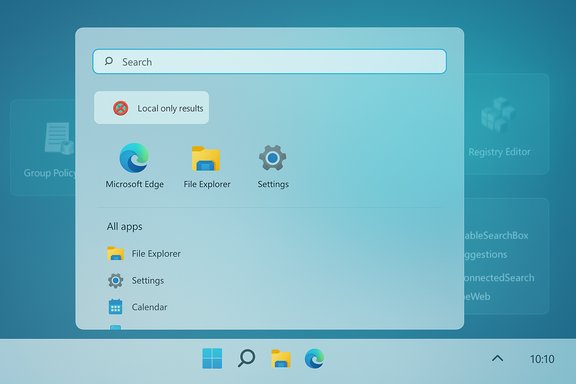
The Start menu in Windows 11 can be a useful launcher for apps and files, but its built‑in web suggestions — Bing results and online recommendations that appear when you type into Start/search — frequently clutter the experience and generate unnecessary network activity. You can remove those web results and force Search to return local-only results, but the method differs depending on your Windows edition and carries important caveats. This article explains the supported and pragmatic ways to disable web search in Windows 11, verifies the technical steps against multiple independent sources, and evaluates the benefits and risks so you can decide whether to apply the change on your systems.
Windows Search in modern builds integrates online results (Bing-powered) with local results to provide a blended experience. Microsoft exposes some controls through Settings and enterprise policy, but there is no single “turn off web search” switch in the standard Home settings UI — so power users and admins rely on Group Policy or registry policies to remove web results. The official policy mapping and supported MDM options show that web results can be blocked by configuration, and community guides provide step‑by‑step registry and Group Policy methods that work on current Windows 11 builds. Disabling web results:
HKEY_CURRENT_USER\Software\Policies\Microsoft\Windows\Explorer
Add a DWORD (32‑bit) value named DisableSearchBoxSuggestions and set its value to 1. After a reboot, Start/search will stop returning web suggestions and limit results to local apps and files. The same setting can be applied under HKEY_LOCAL_MACHINE to affect all users.
HKLM\SOFTWARE\Policies\Microsoft\Windows\Windows Search
Set the DWORD ConnectedSearchUseWeb to 0 to stop web queries, and optionally set ConnectedSearchUseWebOverMeteredConnections to 0 to cover metered networks. Combining these with DisableSearchBoxSuggestions gives a comprehensive policy-based block. Administrators often script these registry edits via PowerShell for consistency across devices. Example PowerShell (run as Administrator) to apply both HKLM and HKCU policy keys:
After applying these, reboot the system. Many administrators use a logoff/logon or a full reboot to ensure Search packages read the new policy values.
If the goal is a calmer, more private, and local-focused Start menu, disabling web results is a low‑risk, reversible, and effective setting to change — provided you follow the safeguards in this guide: back up the registry, prefer Group Policy when possible, and verify behavior after updates.
Disabling web results in Windows 11 is a short maintenance task that yields a noticeably quieter Start/search experience; with the right precautions and the recommended approach for your edition (Group Policy for Pro/Enterprise, registry for Home), you can make Start work the way you want it to — focused on apps and files, not web clutter.
Source: bgr.com 5 Essential Windows 11 Settings You Should Change Immediately - BGR
 Background / Overview
Windows Search in modern builds integrates online results (Bing-powered) with local results to provide a blended experience. Microsoft exposes some controls through Settings and enterprise policy, but there is no single “turn off web search” switch in the standard Home settings UI — so power users and admins rely on Group Policy or registry policies to remove web results. The official policy mapping and supported MDM options show that web results can be blocked by configuration, and community guides provide step‑by‑step registry and Group Policy methods that work on current Windows 11 builds. Disabling web results:- Improves privacy and reduces background network calls.
- Simplifies the Start/search UI (fewer promotional or news items).
- Is reversible, but changes may be affected by future Windows updates or organization-level policies.
How Microsoft exposes web-search controls (short technical primer)
Windows exposes the ability to allow or disallow web results through policy-level settings that administrators and MDM providers can apply. The relevant enterprise policy names map to registry keys used by local policies:- The policy shown as "Don't search the web or display web results in Search" maps to the registry area under SOFTWARE\Policies\Microsoft\Windows\Windows Search (ConnectedSearchUseWeb). Setting this to a disabling value prevents Search from performing web queries.
- A companion and commonly used policy is DisableSearchBoxSuggestions under SOFTWARE\Policies\Microsoft\Windows\Explorer; setting this DWORD to 1 suppresses the search suggestion UI that surfaces web suggestions. Community guides and troubleshooting scripts commonly apply this key for Home and Pro users.
The simple, supported option for Windows 11 Pro / Enterprise: Group Policy
If you run Windows 11 Pro, Enterprise, or Education, the Local Group Policy Editor is the cleanest approach. Group Policy updates the policy registry keys in the supported locations and is more future‑resilient than ad hoc registry edits.Steps (Group Policy Editor)
- Press Win + R, type gpedit.msc, and press Enter to open the Local Group Policy Editor.
- Navigate to Computer Configuration → Administrative Templates → Windows Components → Search.
- Double-click Do not allow web search and set it to Enabled.
- Double-click Don't search the web or display web results in Search and set it to Enabled.
- Reboot the PC to enforce the policy.
The practical method for Windows 11 Home: Registry edit
Windows 11 Home does not include gpedit.msc, so the usual method is to set the policy values directly in the registry. The common, well‑documented registry path for per‑user changes is:HKEY_CURRENT_USER\Software\Policies\Microsoft\Windows\Explorer
Add a DWORD (32‑bit) value named DisableSearchBoxSuggestions and set its value to 1. After a reboot, Start/search will stop returning web suggestions and limit results to local apps and files. The same setting can be applied under HKEY_LOCAL_MACHINE to affect all users.
Step‑by‑step (registry)
- Open Start, type regedit, and launch Registry Editor. Approve the UAC prompt.
- Navigate to:
- Computer\HKEY_CURRENT_USER\Software\Policies\Microsoft\Windows
- If the key Explorer does not exist under Windows, right‑click Windows → New → Key → name it Explorer.
- Select Explorer, then in the right pane right‑click → New → DWORD (32‑bit) Value.
- Name the value DisableSearchBoxSuggestions.
- Double‑click it and set Value data to 1.
- Close Registry Editor and reboot the PC.
Optional/advanced: Using the ConnectedSearchUseWeb key (machine scope) and PowerShell automation
For a fuller, machine-wide enforcement you can also set the Windows Search policy keys under:HKLM\SOFTWARE\Policies\Microsoft\Windows\Windows Search
Set the DWORD ConnectedSearchUseWeb to 0 to stop web queries, and optionally set ConnectedSearchUseWebOverMeteredConnections to 0 to cover metered networks. Combining these with DisableSearchBoxSuggestions gives a comprehensive policy-based block. Administrators often script these registry edits via PowerShell for consistency across devices. Example PowerShell (run as Administrator) to apply both HKLM and HKCU policy keys:
Code:
# Create machine policy key and set values
New-Item -Path "HKLM:\SOFTWARE\Policies\Microsoft\Windows\Explorer" -Force | Out-Null
Set-ItemProperty -Path "HKLM:\SOFTWARE\Policies\Microsoft\Windows\Explorer" -Name "DisableSearchBoxSuggestions" -Type DWord -Value 1 -Force New-Item -Path "HKLM:\SOFTWARE\Policies\Microsoft\Windows\Windows Search" -Force | Out-Null
Set-ItemProperty -Path "HKLM:\SOFTWARE\Policies\Microsoft\Windows\Windows Search" -Name "ConnectedSearchUseWeb" -Type DWord -Value 0 -Force
Set-ItemProperty -Path "HKLM:\SOFTWARE\Policies\Microsoft\Windows\Windows Search" -Name "ConnectedSearchUseWebOverMeteredConnections" -Type DWord -Value 0 -Force # Also set per-user policy so the UI picks it up immediately
New-Item -Path "HKCU:\SOFTWARE\Policies\Microsoft\Windows\Explorer" -Force | Out-Null
Set-ItemProperty -Path "HKCU:\SOFTWARE\Policies\Microsoft\Windows\Explorer" -Name "DisableSearchBoxSuggestions" -Type DWord -Value 1 -ForceWhat to expect after you disable web results
- Search becomes local-only: You will see apps, files, settings, and local indexed content — no Bing articles, news, or suggested web results. This is the primary benefit for most users who use Start solely to find local items.
- Settings may gray out: Some UI toggles (like search highlights or “Show search suggestions”) may be grayed out after a policy is applied because the policy supersedes the user preference. This is expected behavior for policy-level changes.
- Minor performance/network changes: Disabling web results reduces occasional network calls and might slightly decrease background activity tied to fetching online suggestions. Expect marginal, not dramatic, performance differences.
Risks, trade-offs, and caveats
- Registry edits can be risky — Mistyping keys or changing unrelated values can destabilize the OS. Always export the registry key you change or create a System Restore point first. Back up before making changes. Community and guide articles consistently emphasize this precaution.
- Updates can reintroduce settings — Microsoft occasionally adjusts default behaviors during feature updates; community reports document instances where promotional items or search behavior returned after major updates. Check your Start/search behavior after each major feature update. If you manage many machines, use centralized Group Policy or MDM to reapply the policy when needed.
- Managed devices may block changes — Corporate or school-managed devices often enforce policies that prevent local overrides. Changing local registry keys on a managed device may be overridden by domain GPOs or Intune profiles. Always consult IT before changing corporate hardware.
- Loss of some helpful features — The blended search experience can surface relevant web results that are useful in some scenarios (e.g., quick reference facts or troubleshooting links). Disabling web results removes that convenience. Balance privacy/cleanliness against convenience.
- Behavior may vary by build — The exact key names and UI labels can shift between Windows 11 builds. While DisableSearchBoxSuggestions is commonly used and effective on recent builds, always verify after a major update that the behavior still holds. Flag any unverifiable or build-dependent claims when applying at scale.
Practical verification steps after making the change
- Reboot the PC (or sign out and back in). Policies are applied at sign-on and on boot. A reboot is the most reliable way to ensure the Search UI reads the new keys.
- Test Start/search by typing a query that previously returned web results (for example, “weather” or a general search term). You should only see local apps, files, and settings.
- Check the registry keys you set to confirm values are present:
- HKCU:\Software\Policies\Microsoft\Windows\Explorer\DisableSearchBoxSuggestions = 1
- HKLM:\SOFTWARE\Policies\Microsoft\Windows\Windows Search\ConnectedSearchUseWeb = 0 (if set)
- If the UI still shows web results, verify there are no conflicting policies from domain GPOs, or residual search caches such as per-user Search packages that might repopulate suggestions — community troubleshooting threads and scripts show how to inspect Search app packages and clear caches if necessary.
How to revert the change
If you want web suggestions back:- Remove the registry DWORD(s) you added (or set their values to 0).
- If you used Group Policy, set the search policies to Not Configured.
- Reboot the PC.
Recommendations and best practices
- For individual Home users who dislike Start web suggestions, apply the registry key under HKCU and reboot. Test and monitor for a couple of days to ensure nothing unintended appears. Back up the registry first.
- For Pro/Enterprise environments, use Group Policy or MDM so the setting is centrally managed and more resilient across updates. Prefer policy over manual registry edits on production machines.
- Combine policy keys for a more comprehensive block: DisableSearchBoxSuggestions (Explorer) + ConnectedSearchUseWeb = 0 (Windows Search) for machine-wide coverage. Automate with signed PowerShell scripts where permitted.
- After major Windows feature updates, validate the configuration on representative machines and watch for settings that may be reset or UI elements repopulated. Maintain a short runbook for reapplying or checking the policy.
- If you manage organizational devices, coordinate with support: some troubleshooting scenarios ask admins to reenable optional diagnostics or web search temporarily — keep change windows and communication plans in place.
Final analysis — is disabling web results worth it?
There are clear and practical benefits: a cleaner Start UI, fewer network calls for search suggestions, and a modest privacy improvement for users who prefer local-only search. For privacy-minded power users and many enterprise deployments, the change improves predictability and reduces surface area for unsolicited content. The configuration is supported by Microsoft’s policy mapping and broadly documented by independent technical outlets and community sources. However, the change is not without trade-offs. A registry edit is brittle compared with managed policy, and major Windows updates can reintroduce behaviors or change key names. Some users may miss the convenience of blended web results. For organizations, always prefer Group Policy/MDM and test policy rollout across representative device images.If the goal is a calmer, more private, and local-focused Start menu, disabling web results is a low‑risk, reversible, and effective setting to change — provided you follow the safeguards in this guide: back up the registry, prefer Group Policy when possible, and verify behavior after updates.
Disabling web results in Windows 11 is a short maintenance task that yields a noticeably quieter Start/search experience; with the right precautions and the recommended approach for your edition (Group Policy for Pro/Enterprise, registry for Home), you can make Start work the way you want it to — focused on apps and files, not web clutter.
Source: bgr.com 5 Essential Windows 11 Settings You Should Change Immediately - BGR
