

Windows’ Fast Startup promised a small speed bonus — but after turning it off I found the trade-offs often outweighed that upside, and for many users the safest, least frustrating choice is to disable it and accept a few extra seconds at boot for a clearer, more predictable system state.
Fast Startup (sometimes called “hybrid shutdown”) was introduced with Windows 8 and remains enabled by default on many Windows 10 and Windows 11 systems. Instead of performing a full kernel cold boot on every shutdown, Windows saves the kernel session and loaded kernel‑mode drivers into the hibernation file (hiberfil.sys) and restores that state on the next power‑on. That makes a cold boot feel faster because Windows avoids reinitializing the kernel and many drivers. Microsoft documents this behavior as part of the fast startup/hybrid shutdown design and the hibernation infrastructure it reuses. That design produces real benefits on certain hardware — especially older systems using mechanical hard drives — but it also creates persistent system state that can interfere with troubleshooting, updates, dual‑boot setups, firmware access, and, in some cases, power behavior. Practical community and vendor guidance repeatedly list Fast Startup as the first troubleshooting toggle for stubborn shutdown/boot, cross‑OS, and update‑apply problems.
Disabling it is quick, reversible, and often removes a perplexing layer from everyday troubleshooting: updates that don’t apply, drivers that appear stubborn, BIOS hot‑key windows that vanish, and cross‑OS filesystem problems that prevent Linux from writing safely to NTFS. The actual boot‑time penalty on modern SSDs is small; the stability gains are frequently larger and more tangible. If you need a clean, repeatable system state — or if you’ve chased intermittent shutdown/boot oddities — disabling Fast Startup should be at or near the top of your checklist.
Source: How-To Geek Why I Wish I Had Disabled Windows Fast Startup Sooner
 Background / Overview
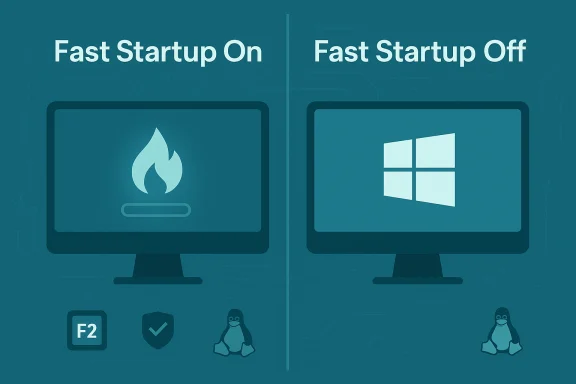
Fast Startup (sometimes called “hybrid shutdown”) was introduced with Windows 8 and remains enabled by default on many Windows 10 and Windows 11 systems. Instead of performing a full kernel cold boot on every shutdown, Windows saves the kernel session and loaded kernel‑mode drivers into the hibernation file (hiberfil.sys) and restores that state on the next power‑on. That makes a cold boot feel faster because Windows avoids reinitializing the kernel and many drivers. Microsoft documents this behavior as part of the fast startup/hybrid shutdown design and the hibernation infrastructure it reuses. That design produces real benefits on certain hardware — especially older systems using mechanical hard drives — but it also creates persistent system state that can interfere with troubleshooting, updates, dual‑boot setups, firmware access, and, in some cases, power behavior. Practical community and vendor guidance repeatedly list Fast Startup as the first troubleshooting toggle for stubborn shutdown/boot, cross‑OS, and update‑apply problems. What Fast Startup actually does (a short technical primer)
- On a normal full shutdown, Windows logs you off, closes applications, and clears the kernel and driver state so the next boot starts fresh.
- With Fast Startup enabled, Windows:
- Logs off user sessions as usual,
- Sends power notifications to drivers to prepare for hibernation,
- saves the kernel session and loaded kernel‑mode drivers to Hiberfil.sys, then shuts down.
- On the next power on, Windows loads that cached kernel image and resumes from it rather than doing a complete kernel initialization, shortening the time until the lock screen or desktop appears. This is documented in Microsoft’s driver and power guidance.
Why disabling Fast Startup often “fixes” more than it costs
1) It removes a persistent kernel state that can mask problems
Many standard troubleshooting steps start with “restart the PC.” That works because a cold boot clears transient state (driver memory, kernel state, device initialization sequences). Fast Startup preserves kernel and driver state across shutdowns, so a shutdown followed by a power on may not clear the very state you hoped to reset. This means a problem that should disappear after a shutdown can persist — and people often waste time chasing symptoms that a true cold boot would have fixed. Microsoft explicitly notes that some updates and changes require a full boot to complete, and that Fast Startup can prevent these from finishing after a shutdown.2) It can block or delay some Windows and driver updates
Because Fast Startup boots from a cached kernel image, components that expect a clean kernel init may not apply correctly until the system performs a full boot. Microsoft documents situations where updates won’t complete after a shutdown if Fast Startup is enabled; the workaround is a Restart (which always fully boots). If you’ve ever installed a driver or firmware and felt the update didn’t “take” until you explicitly restarted, this is why.3) It can cause cross‑OS and file‑system hazards in dual‑boot setups
When Fast Startup leaves an NTFS volume in a hibernated‑like state, other OSes (notably Linux) will refuse to mount the partition read/write to avoid corruption. That’s a common, repeatable failure mode for dual‑boot users and a primary reason experts recommend disabling Fast Startup on multi‑boot machines. Practical how‑tos and community guides emphasize disabling Fast Startup before installing or using another OS to prevent data integrity problems.4) It reduces the time window available to hit firmware (BIOS/UEFI) keys
If you frequently need to enter BIOS/UEFI or boot menus, Fast Startup shortens the firmware handover and narrows the window to press hotkeys like F2, Del, or Esc. That makes firmware tasks — changing boot order, flashing firmware, troubleshooting device enumeration — more annoying than necessary. Community troubleshooting notes and vendor guidance call this out as a practical downside.5) It can interact with device power features in odd ways (possible wakeups)
Fast Startup leverages hibernation infrastructure and interacts with device power states. In some configurations — typically where drivers or firmware improperly handle S‑state transitions — users report unexpected wake behavior after shutdown or slightly higher battery drain on laptops. The magnitude and frequency vary by hardware and driver stack; available reports are largely anecdotal and hardware‑specific, so treat broad battery‑drain claims cautiously. That said, disabling Fast Startup is a common and often effective step when a device won’t remain off.Reasons to leave Fast Startup enabled (it’s not universally bad)
- On older machines with mechanical HDDs the absolute boot‑time savings can be significant; Fast Startup can shave tens of seconds.
- Single‑boot systems that are stable and where you rarely change firmware, install kernel‑level drivers, or access BIOS menus will benefit most with minimal downside.
- If you rely on hibernation for session persistence, note that disabling Fast Startup by turning off hibernation (powercfg /hibernate off) also disables hibernation itself; use the Control Panel toggle if you want to preserve hibernate.
How to disable Fast Startup (clear, step‑by‑step)
The GUI method is the easiest and preserves hibernation (so you can re‑enable hibernate later if you want):- Open Control Panel → Hardware and Sound → Power Options.
- Click “Choose what the power buttons do” on the left.
- Click “Change settings that are currently unavailable” (requires admin elevation).
- Under Shutdown settings uncheck “Turn on fast startup (recommended).”
- Click Save changes and perform a full shutdown to confirm behavior.
- Open an elevated Command Prompt or PowerShell and run:
- powercfg /hibernate off
- To re‑enable: powercfg /hibernate on
- For managed environments you can set the policy at Computer Configuration → Administrative Templates → System → Shutdown (Require use of fast startup) to enforce the behavior centrally. Test before wide deployment.
A practical troubleshooting and verification checklist after disabling Fast Startup
- 1. Disable Fast Startup (Control Panel method).
- 2. Shut down and verify the system stays powered off for at least 30 seconds (no LED blinks, fans, or odd wake events).
- 3. If you were troubleshooting an update/driver issue, install the update and perform a full shutdown → cold boot to confirm the update applied.
- 4. If you dual‑booted and Linux still sees NTFS as hibernated, run a reboot into Windows, re‑disable Fast Startup (if necessary), then shutdown again; some updates or previous hibernation snapshots can linger until a clean shutdown is done. Linux utilities like ntfsfix can help in edge cases but should be used only when you understand the risk.
- 5. Check Event Viewer → Applications and Services Logs → Microsoft → Windows → Diagnostics‑Performance → Operational (Event ID 100) to measure BootDuration before/after. This gives objective boot metrics beyond subjective impressions.
Risks, caveats, and things to watch for
- Boot time penalty: Disabling Fast Startup increases cold boot time. On SSD machines that’s usually a couple of seconds; on HDD systems it can be tens of seconds. Measure with Event Viewer if boot time matters.
- If you disable hibernation (powercfg /hibernate off) you’ll lose hibernate and hybrid sleep functionality; don’t do that if you need hibernate for long‑term session state.
- Group policy or corporate device management may override local settings; coordinate with IT before changing settings on managed devices.
- Unverifiable claims: reports of exact battery‑drain numbers or how often Fast Startup causes wake events vary widely by hardware and driver. Many of these accounts are anecdotal; treat them as hardware‑specific troubleshooting hints rather than universal truths. If you suspect battery drain or random wakes, disable Fast Startup and measure battery performance over a controlled interval.
- BitLocker bases recovery decisions on changes in the measured boot state — TPM PCRs, boot order, attached devices, and firmware state. Changes in boot configuration, firmware updates, docks/undocks, or USB devices in the boot list can all trigger BitLocker to ask for the recovery key. While Fast Startup itself is not the usual direct cause of repeated BitLocker recovery prompts, interactions between hibernation, firmware changes, and boot configuration can produce unexpected behavior. If you expect to change firmware or boot settings, suspend BitLocker before proceeding or ensure you have the recovery key available. Popular vendor documentation (Dell, ASUS, OEMs) and enterprise guidance describe this precaution for docking/undocking and firmware changes.
Decision tree — should you disable Fast Startup?
- Dual‑booting with Linux or another OS → Disable Fast Startup now. The NTFS “hibernated” flag will prevent safe read/write mounts from other systems and risks data corruption.
- Frequently flashing firmware, changing boot order, or accessing BIOS/UEFI → Disable Fast Startup while you perform those tasks; it makes entering firmware menus consistent.
- Experiencing shutdowns that don’t stick, random wakeups, or drivers/updates that don’t apply → Disable Fast Startup and re‑test; it’s a low‑risk first troubleshooting step.
- Single‑boot, stable machine with HDD and boot latency is a priority → Leave Fast Startup on, but document the potential caveats for future troubleshooting.
- Single‑boot SSD machine with a few seconds’ boot advantage and no problems → Consider disabling for determinism, but expect only marginal boot‑time impact.
Advanced notes for power users and IT pros
- If the Fast Startup checkbox is missing or greyed out, check:
- Whether hibernation is enabled (powercfg /availablesleepstates and powercfg /hibernate on/off).
- Whether the platform supports the ACPI S4 sleep state required for the feature.
- For mass deployments use Group Policy or MDM to set power preferences; pilot first because firmware and driver diversity across models can produce unexpected behavior.
- When troubleshooting boot or driver issues:
- Disable Fast Startup.
- Turn off “Automatically restart” under System → Advanced system settings → Startup and Recovery to capture stop codes if the machine crashes during shutdown.
- Inspect Device Manager power‑management settings (NICs, USB root hubs) for wake‑allowed devices.
Real‑world example and measurable impact
Community tests and real‑world checks demonstrate the trend: an HDD system might save tens of seconds with Fast Startup, while a modern NVMe/SSD rig typically saves only a few seconds. For many users the operational reliability gained by disabling Fast Startup is more valuable than a tiny boot improvement. Measure before/after with Event Viewer (Event ID 100) for an objective comparison on your hardware.Conclusion
Fast Startup is a pragmatic engineering trade‑off: a modest convenience that speeds cold boots by preserving kernel and driver state. For single‑user machines that rarely change firmware and that use mechanical drives, the feature is useful. For power users, testers, dual‑booters, sysadmins, or anyone who values predictability over a handful of seconds at power‑on, the sensible choice is to turn Fast Startup off.Disabling it is quick, reversible, and often removes a perplexing layer from everyday troubleshooting: updates that don’t apply, drivers that appear stubborn, BIOS hot‑key windows that vanish, and cross‑OS filesystem problems that prevent Linux from writing safely to NTFS. The actual boot‑time penalty on modern SSDs is small; the stability gains are frequently larger and more tangible. If you need a clean, repeatable system state — or if you’ve chased intermittent shutdown/boot oddities — disabling Fast Startup should be at or near the top of your checklist.
Source: How-To Geek Why I Wish I Had Disabled Windows Fast Startup Sooner
