

To downgrade an iPhone or iPad from iOS 27 beta or iPadOS 27 beta to iOS 26, you must erase the device and restore it with a Mac or Windows PC. This applies to Apple Developer Program, Apple Beta Software Program, and other beta installations. As of July 19, 2026, Apple’s current public iOS 26 release is iOS 26.5.2; a restore installs the current public non-beta release that Apple provides for your device, not necessarily the exact iOS 26 build you previously used.
Turning off beta updates only stops future beta downloads. It does not remove iOS 27 beta from the device.
Downgrading removes all data, settings, apps, and accounts from the iPhone or iPad.
A backup made while the device was running iOS 27 beta generally cannot be restored onto iOS 26. Apple supports restoring an archived backup created before the beta was installed, provided that backup was made on a compatible iOS 26 or iPadOS 26 version.
Before proceeding, identify which of these situations applies:
On iOS 16.4, iPadOS 16.4, or later:
Open Finder, Apple Devices, or iTunes first. Then use the button sequence that matches the device. Keep holding the final button until the recovery mode screen appears. Do not release it when the Apple logo appears.
If the software download takes more than 15 minutes, the iPhone or iPad can exit recovery mode and restart normally. Let the download finish, then repeat the recovery-mode button sequence and choose Restore again.
When the restore is finished, the device displays the Hello screen.
An encrypted computer backup may require the backup password. This password is separate from the Apple Account password and device passcode. Without it, the encrypted backup cannot be restored.
Then check Settings > General > Software Update > Beta Updates and confirm it is set to Off. If a standard iOS 26 update is available, install it after setup so the device has the latest security fixes available for that public release.
If a physical button is stuck, broken, or prevents recovery mode from opening, or if the device repeatedly fails to restore after trying a known-good cable and another computer, arrange service with Apple or an Apple Authorized Service Provider.
Turning off beta updates only stops future beta downloads. It does not remove iOS 27 beta from the device.
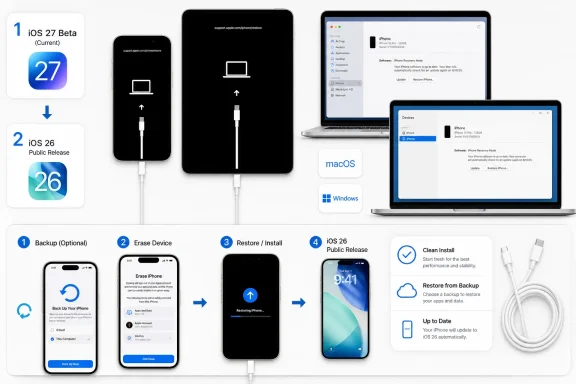 Know what you can restore before erasing
Downgrading removes all data, settings, apps, and accounts from the iPhone or iPad.A backup made while the device was running iOS 27 beta generally cannot be restored onto iOS 26. Apple supports restoring an archived backup created before the beta was installed, provided that backup was made on a compatible iOS 26 or iPadOS 26 version.
Before proceeding, identify which of these situations applies:
- You have an archived pre-beta computer backup: You can restore the device, then restore that backup during setup.
- You have an iCloud backup from before the beta: You may be able to restore it after the device returns to iOS 26.
- You only have a backup made on iOS 27 beta: Do not rely on it for a downgrade. Keep it as a reference, but plan to set up the device as new unless you have an older compatible backup.
- You have no usable pre-beta backup: Copy important items elsewhere first, such as photos, files stored locally, notes not synchronized to an account, and authenticator recovery codes.
Prepare the Mac or Windows PC
You need:- A reliable USB-C, Lightning, or Apple-certified cable.
- Internet access so the computer can download the restore software.
- A current Mac or Windows PC with sufficient free disk space.
- Your Apple Account password. You may need it after the erase to disable Activation Lock.
- The iPhone or iPad passcode, if the device is still usable.
- Mac running macOS Catalina or later: Open Finder.
- Mac running macOS Mojave or earlier: Open iTunes.
- Windows 11 or Windows 10: Install and open the Apple Devices app. If you use an older iTunes-based setup instead, open iTunes.
Stop receiving beta updates after the downgrade
You can disable beta updates now, but this does not replace the restore procedure.On iOS 16.4, iPadOS 16.4, or later:
- Open Settings.
- Tap General.
- Tap Software Update.
- Tap Beta Updates.
- Select Off.
- Open Settings.
- Tap General.
- Tap VPN & Device Management.
- Select the iOS or iPadOS beta software profile.
- Tap Remove Profile.
- Enter the device passcode if requested, then confirm removal.
Put the iPhone or iPad into recovery mode
Connect the device directly to a USB port on the computer. Avoid USB hubs, keyboard USB ports, and damaged cables.Open Finder, Apple Devices, or iTunes first. Then use the button sequence that matches the device. Keep holding the final button until the recovery mode screen appears. Do not release it when the Apple logo appears.
iPhone 8 or later, including iPhone SE (2nd generation and later)
- Press and quickly release Volume Up.
- Press and quickly release Volume Down.
- Press and hold the Side button.
- Continue holding it until the recovery mode screen appears, showing a cable and computer.
iPhone 7 or iPhone 7 Plus
- Press and hold the Side button and Volume Down button together.
- Keep holding both buttons until the recovery mode screen appears.
iPhone 6s, iPhone SE (1st generation), or earlier
- Press and hold the Home button and the Top or Side button together.
- Keep holding them until the recovery mode screen appears.
iPad without a Home button
- Press and quickly release the volume button closest to the Top button.
- Press and quickly release the volume button farthest from the Top button.
- Press and hold the Top button.
- Continue holding it until the recovery mode screen appears.
iPad with a Home button
- Press and hold the Home button and Top button together.
- When the iPad turns off, release the Top button but continue holding the Home button.
- Release the Home button only when the recovery mode screen appears.
Restore the current public iOS 26 or iPadOS 26 release
Warning: Choosing Restore erases the device. Do not select it until you have confirmed that any needed data is safely stored or that you have a compatible pre-beta backup.- In Finder, Apple Devices, or iTunes, select the connected iPhone or iPad.
- A message should say there is a problem with the device and offer Update or Restore.
- Choose Restore.
- Confirm the prompt, if one appears.
- Leave the device connected while the computer downloads and installs the current public iOS or iPadOS release.
If the software download takes more than 15 minutes, the iPhone or iPad can exit recovery mode and restart normally. Let the download finish, then repeat the recovery-mode button sequence and choose Restore again.
When the restore is finished, the device displays the Hello screen.
Set up the device and restore compatible data
- Disconnect the device only after the Hello screen appears.
- Follow the on-screen setup process.
- Connect to Wi-Fi or cellular service when prompted.
- Sign in with the Apple Account previously used on the device if Activation Lock appears.
- At the Apps & Data screen, choose the appropriate option:
- Restore from Mac or PC for an archived pre-beta computer backup.
- Restore from iCloud Backup for a compatible pre-beta iCloud backup.
- Don’t Transfer Apps & Data if no compatible backup exists.
An encrypted computer backup may require the backup password. This password is separate from the Apple Account password and device passcode. Without it, the encrypted backup cannot be restored.
Verify that the beta is gone
After setup completes:- Open Settings.
- Tap General.
- Tap About.
- Check iOS Version or iPadOS Version.
Then check Settings > General > Software Update > Beta Updates and confirm it is set to Off. If a standard iOS 26 update is available, install it after setup so the device has the latest security fixes available for that public release.
If the restore fails
Try these fixes in order:- Update Finder’s macOS host, Apple Devices, or iTunes.
- Use a different Apple-certified cable.
- Connect directly to a different USB port on the computer.
- Restart both the computer and the iPhone or iPad, then retry recovery mode.
- Try another Mac or Windows PC on a different network.
- Temporarily review third-party security software on Windows if it blocks Apple Devices or iTunes from contacting Apple’s update servers.
If a physical button is stuck, broken, or prevents recovery mode from opening, or if the device repeatedly fails to restore after trying a known-good cable and another computer, arrange service with Apple or an Apple Authorized Service Provider.
References
- Primary source: MacRumors
Published: 2026-07-17T12:06:42+00:00
How to Downgrade From iOS 27 Beta to iOS 26
If you installed iOS 27 Beta or iPadOS 27 Beta through Apple's Developer Program, you may decide you want to downgrade because of usability or stability issues. Keep reading to learn how it's done. Apple's beta versions of its major software updates can be buggy, especially the...www.macrumors.com
