

EaseUS released EaseUS Partition Master 20.5 on June 23, 2026, adding a new Clean hub for Windows PCs that combines space analysis, junk-file cleanup, application removal, and data migration inside one storage-management workflow. The feature is less a reinvention of disk utilities than a packaging decision with a clear bet behind it: ordinary Windows storage problems have become too fragmented for ordinary users to solve confidently. For Windows enthusiasts and admins, the more interesting question is not whether another cleanup button exists, but why partition software is becoming a control panel for PC hygiene.
Partition managers used to be the sort of software you opened with a plan, a backup, and a little dread. They were for resizing volumes, converting partition tables, cloning disks, and moving operating systems from one device to another. EaseUS Partition Master has long lived in that world, competing with built-in Windows tools and more specialized utilities by wrapping risky storage operations in a friendlier interface.
Version 20.5 moves the product further away from that narrow identity. The new Clean hub places cleanup and app management beside migration, treating low disk space as a workflow rather than a single maintenance chore. That makes commercial sense, because the most common storage crisis on a Windows PC is rarely “I need to resize a GPT partition” and far more often “my C: drive is full and I don’t know what is safe to delete.”
That pivot also reflects a broader change in the Windows utility market. Microsoft has improved Windows’ own storage controls over the years, but the experience still feels distributed across Settings, Disk Cleanup remnants, app lists, OneDrive prompts, Windows Update cleanup, and vendor-preloaded software. Third-party tools keep finding oxygen because Windows offers the pieces, but not always the story.
EaseUS is trying to supply that story. The Clean hub says, in effect: first show the user what is happening, then remove obvious waste, then uninstall what they no longer need, then move what should not be on the system drive. That is not conceptually radical. It is, however, closer to how non-expert users experience the problem.
There is a reason this kind of visual language persists. Windows users may not know what a reserved partition is or why WinSxS grows over time, but they understand a red bar. It turns storage from an abstract accounting exercise into a simple warning.
That simplicity can be useful, but it also deserves scrutiny. A system with 18 percent free on a 2TB drive is not in the same condition as one with 18 percent free on a 128GB SSD. Percentage-based warnings are easy to understand, but they can flatten important context such as absolute free space, workload, update requirements, page file behavior, hibernation settings, and the write-amplification realities of SSDs.
Still, the C: drive remains where Windows users feel pain first. It is where feature updates stage files, where installers default, where user profiles swell, where caches accumulate, and where OEMs often add software the user did not ask for. By putting C: at the center of the Clean hub, EaseUS is following the user’s mental model rather than the storage engineer’s.
But the direction of travel is believable. Temporary files, browser caches, leftover update packages, installer debris, crash dumps, thumbnails, log files, and app caches can accumulate quickly on machines that have been upgraded in place or used heavily for years. The question is not whether junk exists. The question is whether a utility can distinguish between safe cleanup and overreach.
That is where consumer cleanup software has historically earned both fans and critics. A good cleaner removes redundant files and gives users a clear preview. A bad cleaner treats every cache as waste, every registry key as an emergency, and every gigabyte recovered as proof of virtue. The best storage tools resist the temptation to gamify deletion.
EaseUS is describing Clean Genius as a streamlined engine for finding temporary files, caches, upgrade remnants, and unused file extensions. The important phrase there is not “one-click”; it is what gets selected before the click. Windows users do not need more buttons that promise magic. They need understandable defaults, reversible choices where possible, and conservative handling of anything tied to user data or app state.
EaseUS says Partition Master 20.5 lists installed programs, including preloaded apps, with publisher, size, and install date details. It also says the tool supports uninstalling preinstalled Windows apps, with a claimed 95 percent success rate for most Windows apps. That is the sort of feature users will immediately understand, because unwanted apps are visible in a way that temporary files are not.
The word “safely” matters here. Removing some bundled software is straightforward. Removing driver-adjacent utilities, OEM update tools, audio control panels, firmware helpers, or hardware-specific services can create unexpected friction later. The challenge for any uninstaller is not merely whether it can remove an app, but whether it can warn users when an app may be tied to device functionality.
Microsoft has also complicated the definition of bloat. Some Windows inbox apps are easily removed, some are provisioned for all users, some return during major updates, and some are tied into experiences Microsoft would prefer to keep present. A third-party utility can make removal easier, but it is operating in an ecosystem where the platform owner controls the rules.
For enthusiasts, the attraction is obvious. For IT admins, the calculation is different. Enterprise software removal is usually governed by imaging, provisioning packages, Intune, Group Policy, PowerShell, Autopilot, or endpoint management tooling. A consumer-facing cleanup hub may be handy on individual machines, but fleet hygiene still belongs in policy-driven deployment and configuration management.
Cleanup can recover a few gigabytes. App removal can recover more if the machine is cluttered. But migration addresses the more durable problem: the wrong things living on the wrong volume. On PCs with a small SSD for Windows and a larger secondary drive for data, moving bulky apps, media, project files, or libraries can buy time without forcing a reinstall.
EaseUS claims typical migration sessions reclaim about 20GB of C: drive space and that more than 90 percent of users reported successful transfers without data loss. Again, those are internal figures, not independent lab results. But migration is plausibly the differentiator because Windows itself still makes some relocation tasks awkward.
There are risks. Moving installed applications is more complex than moving documents. Apps may store paths in the registry, place services under system directories, depend on shared runtimes, or update poorly when relocated. Games and modern app stores often handle library movement better than legacy Win32 software, but Windows remains a museum of installation behaviors.
That is why the hub design is important. If EaseUS uses migration as a guided step after analysis and cleanup, it can help users choose sensible candidates. If it presents migration as a universal cure, it risks turning storage relief into support tickets. The difference between a useful utility and a dangerous one is often the quality of its warnings.
And yet none of this has eliminated the market for third-party storage utilities. The reason is partly inertia and partly interface fragmentation. Microsoft’s tools are safer because they are native, but they often feel like separate instruments rather than a single dashboard. Users bounce from one page to another, never quite sure whether they are cleaning cache, removing apps, shrinking a partition, or relocating data.
EaseUS is stepping into that gap. Its bet is that users will trade the comfort of Microsoft-native tooling for a consolidated workflow that explains the problem in plain language. That bet is strongest among home users, small-office operators, and enthusiasts who maintain multiple family or client PCs.
For administrators, the appeal is narrower but not nonexistent. A sysadmin is unlikely to standardize a fleet on a consumer cleanup hub, but they may still use partition and migration tools during break-fix work, disk upgrades, lab maintenance, or one-off remediation. In those scenarios, consolidation saves time as long as the tool remains predictable.
The danger for third-party vendors is trust. Storage tools operate close to the user’s data, and cleanup tools ask for permission to delete at scale. Every claim about gigabytes recovered must be balanced against the implicit question: what exactly did it delete, and could I get it back?
These numbers are useful as signals, but not as proof. EaseUS does not provide sample size, test methodology, PC age, Windows build distribution, OEM mix, region, workload type, or whether “junk” includes cache files that applications may later regenerate. Internal scans can be directionally informative while still being poor substitutes for independent testing.
That does not make the claims meaningless. Anyone who has cleaned a family member’s laptop after years of updates and browser use knows that wasted space is real. The more interesting limitation is that recovered space is not always permanent. Caches return, updates arrive, applications grow, and users keep downloading things.
A storage utility should therefore be judged not only by how much space it frees on day one, but by whether it changes user behavior on day thirty. Does it make large folders easier to understand? Does it prevent the same drive from filling again? Does it explain why Documents, Downloads, Teams caches, game libraries, virtual machines, or phone backups are the real culprits? A one-time cleanup is maintenance. A good dashboard is education.
There is a cynical reading of that trend. Vendors add adjacent features because core utility categories mature, and a broader dashboard gives them more reasons to upsell. “Clean,” “optimize,” and “boost” are among the most overused verbs in consumer PC software, often attached to thin features and aggressive prompts.
But there is also a practical reading. The average Windows problem does not respect product categories. A user with a full C: drive may need cleanup, uninstalling, migration, partition resizing, or disk cloning. They do not care which feature belongs to which utility taxonomy. They care whether the PC updates successfully and stops nagging them about low storage.
EaseUS is strongest when it treats the hub as an intake point rather than a marketing carousel. The best version of this idea would diagnose storage pressure, rank likely causes, explain tradeoffs, and guide the user to the least risky fix first. The worst version would turn every scan into a funnel toward deletion, migration, and paid conversion.
The release language suggests a workflow-first design, but real judgment depends on execution. WindowsForum readers know the difference between a helpful dashboard and a utility that manufactures urgency. A red bar is only useful if it leads to calm, accurate choices.
For cleanup specifically, users should inspect categories before deletion. Temporary files and old update remnants are usually fair game, but application caches can contain offline work, previews, or data that will take time and bandwidth to rebuild. Browser cache deletion is normally low-risk, while deleting downloads blindly is not cleanup at all; it is data loss wearing a tidy label.
For app removal, the safest targets are obvious consumer apps, trials, duplicate utilities, abandoned games, and software with a clear publisher and purpose. Hardware utilities, VPN clients, security software, encryption tools, backup agents, and anything tied to business workflows deserve more care. Removing the wrong “bloat” can break the feature a user quietly depends on.
For migration, the dividing line is even sharper. Moving personal data libraries is one thing. Moving installed applications is another. Users should be especially careful with developer tools, database software, virtual machine platforms, creative suites, and anything that runs background services.
A single space-management hub can help only if it respects that complexity. The useful version of the feature will show users what is large, what is safe, what is optional, and what should be moved rather than deleted. It will avoid treating every reclaimable byte as equally valuable.
The visual progress bar is a good entry point, but the deeper value is prioritization. A user does not need a beautiful red warning if the next step is a confusing list of temporary files. They need a hierarchy: obvious waste first, unused apps second, large user-controlled data third, structural migration last.
That hierarchy is also what separates consumer convenience from professional confidence. IT pros can tolerate automation when they can see the logic underneath. They distrust black boxes, especially black boxes with delete permissions.
That map could be useful. The best cleanup experience is not the one that boasts the biggest number at the end of a scan, but the one that leaves the user understanding why the number appeared in the first place. If EaseUS can make storage pressure visible without oversimplifying it, the hub will earn its place.
The practical lessons are straightforward:
 EaseUS Turns Partitioning Into Housekeeping
Partition managers used to be the sort of software you opened with a plan, a backup, and a little dread. They were for resizing volumes, converting partition tables, cloning disks, and moving operating systems from one device to another. EaseUS Partition Master has long lived in that world, competing with built-in Windows tools and more specialized utilities by wrapping risky storage operations in a friendlier interface.Version 20.5 moves the product further away from that narrow identity. The new Clean hub places cleanup and app management beside migration, treating low disk space as a workflow rather than a single maintenance chore. That makes commercial sense, because the most common storage crisis on a Windows PC is rarely “I need to resize a GPT partition” and far more often “my C: drive is full and I don’t know what is safe to delete.”
That pivot also reflects a broader change in the Windows utility market. Microsoft has improved Windows’ own storage controls over the years, but the experience still feels distributed across Settings, Disk Cleanup remnants, app lists, OneDrive prompts, Windows Update cleanup, and vendor-preloaded software. Third-party tools keep finding oxygen because Windows offers the pieces, but not always the story.
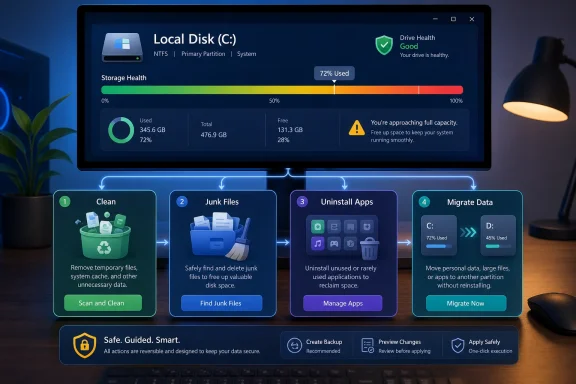
EaseUS is trying to supply that story. The Clean hub says, in effect: first show the user what is happening, then remove obvious waste, then uninstall what they no longer need, then move what should not be on the system drive. That is not conceptually radical. It is, however, closer to how non-expert users experience the problem.
The C: Drive Is Still the Emotional Center of Windows
The release leans heavily on a familiar anxiety: the system drive turning red. EaseUS says the Clean page automatically scans the primary drive, defaulting to C:, and uses a color-coded bar to frame free space as health. Green means 70 to 100 percent free, light green means 40 to 70 percent, yellow means 20 to 40 percent, and red means 0 to 20 percent.There is a reason this kind of visual language persists. Windows users may not know what a reserved partition is or why WinSxS grows over time, but they understand a red bar. It turns storage from an abstract accounting exercise into a simple warning.
That simplicity can be useful, but it also deserves scrutiny. A system with 18 percent free on a 2TB drive is not in the same condition as one with 18 percent free on a 128GB SSD. Percentage-based warnings are easy to understand, but they can flatten important context such as absolute free space, workload, update requirements, page file behavior, hibernation settings, and the write-amplification realities of SSDs.
Still, the C: drive remains where Windows users feel pain first. It is where feature updates stage files, where installers default, where user profiles swell, where caches accumulate, and where OEMs often add software the user did not ask for. By putting C: at the center of the Clean hub, EaseUS is following the user’s mental model rather than the storage engineer’s.
The Cleanup Pitch Is Really About Confidence
EaseUS says its internal testing found typical Windows 11 PCs carrying 8GB to 15GB of junk files and around 10GB of unwanted applications. It also claims the new version can, in some cases, free up 20GB or raise available free space to 60 percent or higher. Those are vendor figures, and they should be read as marketing claims rather than independent benchmarks.But the direction of travel is believable. Temporary files, browser caches, leftover update packages, installer debris, crash dumps, thumbnails, log files, and app caches can accumulate quickly on machines that have been upgraded in place or used heavily for years. The question is not whether junk exists. The question is whether a utility can distinguish between safe cleanup and overreach.
That is where consumer cleanup software has historically earned both fans and critics. A good cleaner removes redundant files and gives users a clear preview. A bad cleaner treats every cache as waste, every registry key as an emergency, and every gigabyte recovered as proof of virtue. The best storage tools resist the temptation to gamify deletion.
EaseUS is describing Clean Genius as a streamlined engine for finding temporary files, caches, upgrade remnants, and unused file extensions. The important phrase there is not “one-click”; it is what gets selected before the click. Windows users do not need more buttons that promise magic. They need understandable defaults, reversible choices where possible, and conservative handling of anything tied to user data or app state.
Bloatware Has Become the Convenient Villain
The release repeatedly invokes Windows 11 bloatware, and that framing will resonate. Many new PCs still arrive with trialware, OEM utilities, vendor control panels, support assistants, game launchers, security trials, and promotional apps. Some are harmless, some are useful on specific hardware, and some simply consume storage, startup time, notifications, and user patience.EaseUS says Partition Master 20.5 lists installed programs, including preloaded apps, with publisher, size, and install date details. It also says the tool supports uninstalling preinstalled Windows apps, with a claimed 95 percent success rate for most Windows apps. That is the sort of feature users will immediately understand, because unwanted apps are visible in a way that temporary files are not.
The word “safely” matters here. Removing some bundled software is straightforward. Removing driver-adjacent utilities, OEM update tools, audio control panels, firmware helpers, or hardware-specific services can create unexpected friction later. The challenge for any uninstaller is not merely whether it can remove an app, but whether it can warn users when an app may be tied to device functionality.
Microsoft has also complicated the definition of bloat. Some Windows inbox apps are easily removed, some are provisioned for all users, some return during major updates, and some are tied into experiences Microsoft would prefer to keep present. A third-party utility can make removal easier, but it is operating in an ecosystem where the platform owner controls the rules.
For enthusiasts, the attraction is obvious. For IT admins, the calculation is different. Enterprise software removal is usually governed by imaging, provisioning packages, Intune, Group Policy, PowerShell, Autopilot, or endpoint management tooling. A consumer-facing cleanup hub may be handy on individual machines, but fleet hygiene still belongs in policy-driven deployment and configuration management.
Migration Is the Feature That Makes the Hub More Than a Cleaner
The most consequential part of the Clean hub may not be cleanup at all. EaseUS has folded data migration into the same workflow, letting users move apps and data from the C: drive to another partition without leaving the hub. That is where the product’s partition-management heritage shows.Cleanup can recover a few gigabytes. App removal can recover more if the machine is cluttered. But migration addresses the more durable problem: the wrong things living on the wrong volume. On PCs with a small SSD for Windows and a larger secondary drive for data, moving bulky apps, media, project files, or libraries can buy time without forcing a reinstall.
EaseUS claims typical migration sessions reclaim about 20GB of C: drive space and that more than 90 percent of users reported successful transfers without data loss. Again, those are internal figures, not independent lab results. But migration is plausibly the differentiator because Windows itself still makes some relocation tasks awkward.
There are risks. Moving installed applications is more complex than moving documents. Apps may store paths in the registry, place services under system directories, depend on shared runtimes, or update poorly when relocated. Games and modern app stores often handle library movement better than legacy Win32 software, but Windows remains a museum of installation behaviors.
That is why the hub design is important. If EaseUS uses migration as a guided step after analysis and cleanup, it can help users choose sensible candidates. If it presents migration as a universal cure, it risks turning storage relief into support tickets. The difference between a useful utility and a dangerous one is often the quality of its warnings.
Microsoft’s Built-In Tools Leave Room for a Middleman
Windows already includes storage-management features. Storage Sense can delete temporary files and manage cloud-backed content. Settings can display app sizes and uninstall many programs. Disk Management and newer Settings pages can handle basic volume operations. Power users can reach for PowerShell, DISM, winget, and deployment tools.And yet none of this has eliminated the market for third-party storage utilities. The reason is partly inertia and partly interface fragmentation. Microsoft’s tools are safer because they are native, but they often feel like separate instruments rather than a single dashboard. Users bounce from one page to another, never quite sure whether they are cleaning cache, removing apps, shrinking a partition, or relocating data.
EaseUS is stepping into that gap. Its bet is that users will trade the comfort of Microsoft-native tooling for a consolidated workflow that explains the problem in plain language. That bet is strongest among home users, small-office operators, and enthusiasts who maintain multiple family or client PCs.
For administrators, the appeal is narrower but not nonexistent. A sysadmin is unlikely to standardize a fleet on a consumer cleanup hub, but they may still use partition and migration tools during break-fix work, disk upgrades, lab maintenance, or one-off remediation. In those scenarios, consolidation saves time as long as the tool remains predictable.
The danger for third-party vendors is trust. Storage tools operate close to the user’s data, and cleanup tools ask for permission to delete at scale. Every claim about gigabytes recovered must be balanced against the implicit question: what exactly did it delete, and could I get it back?
The Marketing Numbers Need Independent Daylight
The release is full of attractive statistics. It says 50 percent of users had more than 5GB of junk files, 20 percent had more than 10GB, and about 20 percent of Windows users saw the space analysis bar turn red. It also claims many users can recover 3GB to 10GB in minutes, with higher gains possible depending on usage.These numbers are useful as signals, but not as proof. EaseUS does not provide sample size, test methodology, PC age, Windows build distribution, OEM mix, region, workload type, or whether “junk” includes cache files that applications may later regenerate. Internal scans can be directionally informative while still being poor substitutes for independent testing.
That does not make the claims meaningless. Anyone who has cleaned a family member’s laptop after years of updates and browser use knows that wasted space is real. The more interesting limitation is that recovered space is not always permanent. Caches return, updates arrive, applications grow, and users keep downloading things.
A storage utility should therefore be judged not only by how much space it frees on day one, but by whether it changes user behavior on day thirty. Does it make large folders easier to understand? Does it prevent the same drive from filling again? Does it explain why Documents, Downloads, Teams caches, game libraries, virtual machines, or phone backups are the real culprits? A one-time cleanup is maintenance. A good dashboard is education.
The Partition Manager Is Becoming a PC Triage Console
EaseUS Partition Master 20.5 fits a pattern across PC utilities: specialized tools are broadening into triage consoles. Backup tools offer ransomware protection. Driver tools offer device health dashboards. Security tools offer performance cleanup. Partition tools now offer bloatware removal and junk scanning.There is a cynical reading of that trend. Vendors add adjacent features because core utility categories mature, and a broader dashboard gives them more reasons to upsell. “Clean,” “optimize,” and “boost” are among the most overused verbs in consumer PC software, often attached to thin features and aggressive prompts.
But there is also a practical reading. The average Windows problem does not respect product categories. A user with a full C: drive may need cleanup, uninstalling, migration, partition resizing, or disk cloning. They do not care which feature belongs to which utility taxonomy. They care whether the PC updates successfully and stops nagging them about low storage.
EaseUS is strongest when it treats the hub as an intake point rather than a marketing carousel. The best version of this idea would diagnose storage pressure, rank likely causes, explain tradeoffs, and guide the user to the least risky fix first. The worst version would turn every scan into a funnel toward deletion, migration, and paid conversion.
The release language suggests a workflow-first design, but real judgment depends on execution. WindowsForum readers know the difference between a helpful dashboard and a utility that manufactures urgency. A red bar is only useful if it leads to calm, accurate choices.
Where Enthusiasts Should Be Cautious
Partition and cleanup tools deserve a different level of caution from ordinary productivity software. If a text editor misbehaves, you lose a document. If a storage tool misbehaves, you can lose a partition, corrupt an app, or delete files you did not mean to touch. The first rule remains unchanged: back up before making structural storage changes.For cleanup specifically, users should inspect categories before deletion. Temporary files and old update remnants are usually fair game, but application caches can contain offline work, previews, or data that will take time and bandwidth to rebuild. Browser cache deletion is normally low-risk, while deleting downloads blindly is not cleanup at all; it is data loss wearing a tidy label.
For app removal, the safest targets are obvious consumer apps, trials, duplicate utilities, abandoned games, and software with a clear publisher and purpose. Hardware utilities, VPN clients, security software, encryption tools, backup agents, and anything tied to business workflows deserve more care. Removing the wrong “bloat” can break the feature a user quietly depends on.
For migration, the dividing line is even sharper. Moving personal data libraries is one thing. Moving installed applications is another. Users should be especially careful with developer tools, database software, virtual machine platforms, creative suites, and anything that runs background services.
The Clean Hub’s Real Test Will Be Restraint
The new EaseUS hub arrives at a moment when Windows PCs are both more capable and more opaque. SSDs are faster, but entry-level machines still ship with cramped storage. Windows Update is more robust, but its servicing footprint remains mysterious to many users. App ecosystems are richer, but they scatter data across user profiles, ProgramData, package folders, caches, and cloud sync locations.A single space-management hub can help only if it respects that complexity. The useful version of the feature will show users what is large, what is safe, what is optional, and what should be moved rather than deleted. It will avoid treating every reclaimable byte as equally valuable.
The visual progress bar is a good entry point, but the deeper value is prioritization. A user does not need a beautiful red warning if the next step is a confusing list of temporary files. They need a hierarchy: obvious waste first, unused apps second, large user-controlled data third, structural migration last.
That hierarchy is also what separates consumer convenience from professional confidence. IT pros can tolerate automation when they can see the logic underneath. They distrust black boxes, especially black boxes with delete permissions.
A Storage Utility Wins Only If It Makes Windows Less Mysterious
The most concrete reading of EaseUS Partition Master 20.5 is simple: it adds a central Clean hub to a mature partition manager. The more revealing reading is that the Windows maintenance experience still leaves enough confusion for third-party vendors to build businesses around interpretation. EaseUS is not just selling deletion. It is selling a map.That map could be useful. The best cleanup experience is not the one that boasts the biggest number at the end of a scan, but the one that leaves the user understanding why the number appeared in the first place. If EaseUS can make storage pressure visible without oversimplifying it, the hub will earn its place.
The practical lessons are straightforward:
- EaseUS Partition Master 20.5 brings cleanup, app removal, analysis, and migration into one workflow instead of treating them as separate utilities.
- The new Clean hub is aimed primarily at Windows users whose C: drives are filling up from temporary files, unused applications, update remnants, and misplaced data.
- The vendor’s recovery figures are plausible but should be treated as internal marketing claims until independent testing verifies them.
- App removal and migration are potentially more valuable than simple junk cleanup, but they also carry more risk when users target system-adjacent software.
- Windows’ built-in tools remain the safer first stop for many users, but their fragmented design leaves room for third-party dashboards.
- Anyone using a partition or migration tool should make a current backup before changing disk layouts, moving applications, or deleting large categories of files.
References
- Primary source: StreetInsider
Published: 2026-06-23T17:18:31.220873
EaseUS Unveils New Update to Its Partition Manager Software - EaseUS Partition Master 20.5 with New Clean Hub to Streamline Space Management
NEW YORK, June 23, 2026 /PRNewswire/ -- EaseUS, a global leader in...www.streetinsider.com - Related coverage: prnewswire.com
EaseUS Unveils Partition Master 20.0 with Breakthrough exFAT Solution, the First Complete Partition Manager Shattering 4GB Limits Across All Devices
/PRNewswire/ -- EaseUS, a global leader in partition management and disk optimization software, announced the upcoming release of EaseUS Partition Master 20.0,... www.prnewswire.com
- Related coverage: easeus.jp
EaseUs | EaseUS - 手軽なディスク管理ソフトならEaseUSの「Partition Master」
EaseUS - 手軽なディスク管理ソフトならEaseUSの「Partition Master」www.easeus.jp
- Related coverage: easeus.com
Smarter Workflow, One-Click Partitioning & Full exFAT Management
EaseUS Partition Master 20.0 is a powerful Windows disk and partition management tool that helps users resize, create, merge, and manage partitions safely and efficiently. It introduces one-click partitioning, full exFAT support, and an AI assistant to simplify both basic and advanced disk...www.easeus.com
- Related coverage: es.easeus.com
