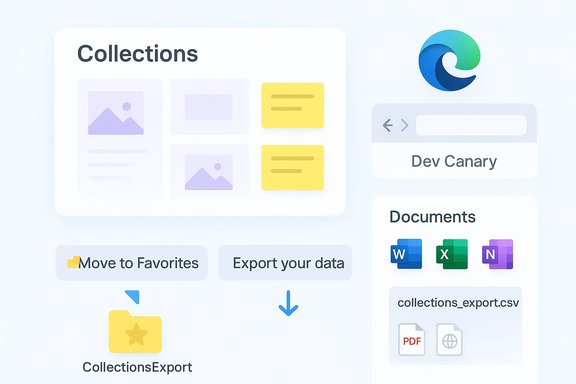
Microsoft Edge's Collections feature is being retired in preview builds, and the abrupt migration choices Microsoft provides are leaving many users scrambling to preserve thumbnails, clipped images, and inline notes that will not survive the conversion to Favorites or the CSV export option.
Collections arrived in Chromium‑based Microsoft Edge as a visual, research‑friendly workspace — a place to clip web pages, save images, write quick notes, and export organized boards to Office apps. For some users it resembled a lightweight project binder inside the browser, useful for shopping comparisons, classroom materials, or multi‑step research projects. Collections synced to a signed‑in Microsoft account and supported exports to Word, Excel and OneNote, which made it appealing for people embedded in the Microsoft 365 ecosystem.
Over the last year Edge’s UI has been reoriented around Copilot and a smaller set of instrumentable surfaces, such as the Sidebar and built‑in assistant panes. That strategic refocus — intended to simplify engineering, telemetry and AI integration — has produced a wave of UI experiments and removals in preview channels (Dev/Canary). The Collections retirement prompt first appeared in these preview builds, creating a visible split between what Microsoft documents as a supported feature and what users are actually seeing in test channels.
On one hand, de‑prioritizing low‑usage features and consolidating around a small set of instrumentable surfaces like Copilot is a rational product decision that reduces QA burden and accelerates higher‑value integrations. From an engineering and telemetry standpoint, simplicity can be a net win.
On the other hand, the current migration — a binary choice between losing fidelity (Move to Favorites) or exporting a non‑interactive CSV — is an inadequate migration experience for people who treated Collections as a visual, annotatable workspace. Without a richer, automated import path into OneNote, Loop, or Copilot‑based boards, Microsoft is forcing users into manual, lossy migrations that damage trust. The lack of a firm, public timeline or robust enterprise guidance makes the move feel rushed and poorly communicated.
Where Microsoft can improve: provide a high‑fidelity packaged export (visual board + notes) that can be imported into an alternative Microsoft product (OneNote/Loop/Copilot workspace) or offer an API/connector for third‑party archival/import. That would reduce user friction and demonstrate a clearer commitment to preserving customer data.
For anyone who relies on Collections, the sensible immediate actions are straightforward: export to Word/Excel/OneNote for highest fidelity, back up the CSV, archive critical pages as PDFs, and consider third‑party tools for long‑term research workflows. IT teams should inventory usage, export critical data into managed storage, and use Group Policy to control migration states across fleets.
This episode raises a larger question about platform trust: if browsers prune and pivot repeatedly without robust migration tooling, users will be reluctant to adopt built‑in productivity surfaces for anything beyond transient needs. The right balance is a product roadmap that values both engineering simplicity and faithful data migration — and one that treats user content as something worth preserving, not something to be sacrificed for the sake of a cleaner toolbar.
Source: Windows Central Microsoft shuts down Edge Collections, and users are caught in the mess
 Background / Overview
Collections arrived in Chromium‑based Microsoft Edge as a visual, research‑friendly workspace — a place to clip web pages, save images, write quick notes, and export organized boards to Office apps. For some users it resembled a lightweight project binder inside the browser, useful for shopping comparisons, classroom materials, or multi‑step research projects. Collections synced to a signed‑in Microsoft account and supported exports to Word, Excel and OneNote, which made it appealing for people embedded in the Microsoft 365 ecosystem.Over the last year Edge’s UI has been reoriented around Copilot and a smaller set of instrumentable surfaces, such as the Sidebar and built‑in assistant panes. That strategic refocus — intended to simplify engineering, telemetry and AI integration — has produced a wave of UI experiments and removals in preview channels (Dev/Canary). The Collections retirement prompt first appeared in these preview builds, creating a visible split between what Microsoft documents as a supported feature and what users are actually seeing in test channels.
What users are seeing right now
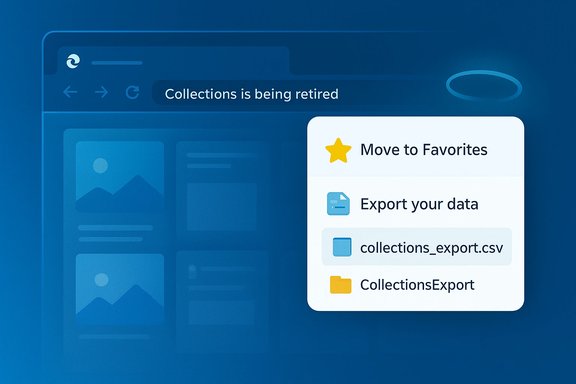
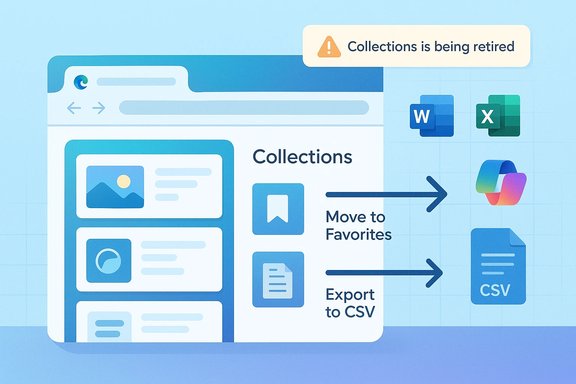
In Edge Dev and Canary builds some users now encounter a blunt in‑product notice that reads: “Collections is being retired. You will no longer be able to add new items to Collections. To keep your saved content, you can export it, or move all pages to your Favorites before removal.” The dialog makes two explicit migration options available: Move to Favorites and Export your data.- The Move to Favorites flow creates a folder (often named CollectionsExport) and migrates saved page URLs into subfolders. Important caveat: images, clipped screenshots, thumbnails and inline notes are not preserved during this migration. Users retain links inside the browser but lose the visual and annotated context that made Collections useful.
- The Export your data flow writes a CSV file (commonly collections_export.csv) to the Documents folder. This CSV records items and URLs in a machine‑readable format but is not a functional, in‑browser workspace — it does not restore visual thumbnails, notes, or the Collections UI.
The technical specifics: what the migration does and doesn't preserve
Understanding exactly what each path preserves is critical before you act. The current behavior observed in preview builds can be summarized as:- Send to Word/Excel/OneNote
- What it keeps: Better fidelity for pages and notes when compared to CSV; images and contextual layout fare better because the content is opened in Office web documents.
- When to use: High‑value or active projects where you need editable, visual backups.
- Caveat: Requires a Microsoft account and typically places the export into OneDrive or your browser’s download area.
- Move to Favorites
- What it keeps: URL links and basic folder organization inside Edge Favorites.
- What it loses: All images, clipped thumbnails, and in‑Collection notes. This is a bookmarks‑style fallback, not a like‑for‑like migration.
- Export to CSV
- What it keeps: A machine‑readable index of collection items and URLs; useful as an inventory or for automated import into other tools.
- What it loses: Visual fidelity and note attachments; the CSV cannot recreate the Collections UI or thumbnails.
- Advanced/profile‑level backup
- What it can keep: A snapshot of the Collections SQLite database inside your Edge profile can preserve more of the original state.
- Caveat: This is an advanced, unsupported method that requires copying profile files with Edge closed and handling SQLite files directly — risky for casual users.
Quick, prioritized migration checklist (what to do first)
If you rely on Collections for ongoing projects, act now. The following steps prioritize fidelity and redundancy.- Export any active collections to Word, Excel or OneNote using the Collections menu → Send to options; save those exported documents to OneDrive or a secure backup folder. This preserves layout, images and notes better than a CSV.
- Use the built‑in Export your data to generate collections_export.csv and copy that file to at least two secure locations (OneDrive, external drive). The CSV is a useful inventory for automated restores or scripted imports later.
- For visual fidelity on the highest‑value pages, open the page and Save as PDF (File → Print → Save as PDF) or use a web‑archive tool that captures full pages and embedded images. PDFs preserve visuals and are portable across systems.
- If you’re technically comfortable, back up your Edge profile’s Collections SQLite file (found under %LocalAppData%\Microsoft\Edge\User Data\<Profile>\Collections). Make full profile backups first — this is an advanced step.
- If you prefer to keep pages inside the browser, use Move to Favorites as a last resort, but accept that notes and clipped images will be lost. Create a dedicated folder (CollectionsExport) to separate migrated items.
Why Microsoft might be doing this — product logic and tradeoffs
There are three widely discussed strategic reasons behind the change:- Consolidation around Copilot and instrumentable surfaces. By shrinking the number of small, independent UI surfaces (Sidebar apps, toolbar extras, Collections), Microsoft can concentrate telemetry and add agentic features that depend on a predictable host environment — for example, multi‑tab synthesis or cross‑document summarization delivered by Copilot. This is a defensible engineering and product strategy.
- Low usage and long‑tail maintenance cost. Collections appears to have lower active usage compared to core browser features, and migrating a lightly used feature to maintenance mode consumes engineering resources that can be reallocated. Some believe Microsoft moved Collections from a native implementation to a web‑based one, and that change reduced reliability and adoption.
- Product simplification and strategic focus. Microsoft appears to be prioritizing features that feed Microsoft 365 and Copilot ecosystems; a smaller set of surfaces is simpler to QA, localize, instrument for AI and monetise in enterprise contexts.
The real harms: data fidelity, workflows and trust
The technical differences between a link list and a visual research board are not academic; they affect real workflows.- Data fidelity loss: Moving pages to Favorites preserves only URLs. Research boards that relied on thumbnails, clipped images, or inline notes will be materially degraded. CSVs capture text and links but not the visual context. Users losing months of curated screenshots and annotations is plausible under the current migration paths.
- Workflow interruption and rebuilding costs: Teams and individuals who structured work around Collections must rebuild project boards in Office docs, OneNote, Notion, Raindrop.io or other tools. That takes time, creates duplication, and can break continuity for ongoing projects.
- Enterprise compliance and custodianship issues: Collections content can be part of training materials or internal research. Exports to Office (Word/Excel/OneNote) change custodianship (OneDrive or local storage), which may affect retention, legal hold, and discovery processes. Administrators must assess export storage locations and update policies accordingly.
- Erosion of trust: For longtime Edge users, this pattern — launch a feature, let it stagnate, then quietly remove it — creates anxiety about investing time in browser‑native workflows. Lack of a firm deprecation timeline or formal enterprise guidance amplifies that distrust.
Alternatives and replacements (practical options)
If Collections is removed for you, these alternatives cover typical use cases:- Built‑in Edge options
- Favorites (Bookmarks): Good for preserving URLs inside the browser but not images/notes. Fast and policy‑friendly for managed fleets.
- Send to Word/Excel/OneNote: Best fidelity among the official Edge export options; recommended for editable archives.
- Edge Bar / PWAs / Pin tabs: Useful for recreating glanceable or pinned workflows formerly hosted in the Sidebar.
- Third‑party services
- Pocket / Instapaper: Read‑later services that preserve article content and images; mobile apps available.
- Raindrop.io / Pinboard: Modern bookmark managers with thumbnails, tags and cross‑browser sync — strong choices for long‑term research libraries.
- Zotero: For academic researchers who need metadata and citation exports.
- Local storage and archiving
- Save pages as PDF, or use WARC/web archive tools to capture full page content, images and scripts for long‑term archival fidelity.
Enterprise guidance: what admins should do now
IT teams should treat this as an urgent but manageable transition:- Inventory usage: Identify users and groups relying on Collections through telemetry, helpdesk tickets and surveys. Prioritize high‑impact projects for immediate export.
- Export and archive: Require immediate export of critical Collections to Word/Excel/OneNote and back those files into managed storage that meets your retention and discovery needs. Keep CSV inventories as supplementary records.
- Use Group Policy where appropriate: Edge exposes an EdgeCollectionsEnabled policy that lets admins enable or disable Collections centrally. Consider enforcing a predictable state across devices during migration to avoid hybrid, partially‑migrated states.
- Pilot replacements and validate DLP: If Microsoft is steering users toward Copilot or Office‑centric workflows, pilot those surfaces behind DLP (Data Loss Prevention) and governance policies to evaluate telemetry and data ingestion behaviors.
- Communicate timelines: Even if a stable‑channel removal date is not public, set an internal deadline for exports and communicate clear user guidance to reduce support load.
A critical view: pragmatic cleanup or feature erosion?
Both frames contain truth.On one hand, de‑prioritizing low‑usage features and consolidating around a small set of instrumentable surfaces like Copilot is a rational product decision that reduces QA burden and accelerates higher‑value integrations. From an engineering and telemetry standpoint, simplicity can be a net win.
On the other hand, the current migration — a binary choice between losing fidelity (Move to Favorites) or exporting a non‑interactive CSV — is an inadequate migration experience for people who treated Collections as a visual, annotatable workspace. Without a richer, automated import path into OneNote, Loop, or Copilot‑based boards, Microsoft is forcing users into manual, lossy migrations that damage trust. The lack of a firm, public timeline or robust enterprise guidance makes the move feel rushed and poorly communicated.
Where Microsoft can improve: provide a high‑fidelity packaged export (visual board + notes) that can be imported into an alternative Microsoft product (OneNote/Loop/Copilot workspace) or offer an API/connector for third‑party archival/import. That would reduce user friction and demonstrate a clearer commitment to preserving customer data.
Practical migration walkthrough (step‑by‑step)
- Open Collections quickly: press Ctrl+Shift+Y. If Collections are hidden, re‑enable the toolbar button at edge://settings/appearance/customizeToolbar.
- Export to Office: select a collection → Sharing and more → Send to Word/Excel/OneNote. Save the created document to OneDrive and download a local copy.
- Generate a CSV: if the retirement prompt appears, choose Export your data → copy collections_export.csv from Documents to managed storage.
- Archive high‑value pages as PDFs: open the page → File → Print → Save as PDF. Keep these in a dedicated archival folder.
- For power users: Back up the Collections SQLite file from your profile folder (Edge closed) to a secure location. This is an advanced step for potential raw recovery.
What remains uncertain — marked cautions
- Whether and when the retirement will reach stable Edge builds, mobile variants or enterprise‑staged channels has not been publicly announced. Preview‑channel behavior is a strong signal but not definitive policy. Treat the retirement prompt as a high‑priority warning, not an absolute, dated removal notice.
- It is not publicly clear whether Microsoft plans to rehome Collections’ capabilities (visual boards, notes) into Copilot, OneNote, Loop or another product with an automated import path. Until Microsoft publishes a formal migration plan or API, users should assume manual exports are the only reliable preservation path.
Conclusion
Microsoft Edge’s apparent retirement of Collections — visible today in Dev/Canary channels — is a case study in how product consolidation and AI‑first strategy collide with user workflows. The company’s migration choices are pragmatic but blunt: move pages to Favorites (losing images and notes) or export a CSV (losing the in‑browser workspace). That dichotomy preserves links and creates inventories, but it does not preserve the visual, annotated context that made Collections valuable to many users.For anyone who relies on Collections, the sensible immediate actions are straightforward: export to Word/Excel/OneNote for highest fidelity, back up the CSV, archive critical pages as PDFs, and consider third‑party tools for long‑term research workflows. IT teams should inventory usage, export critical data into managed storage, and use Group Policy to control migration states across fleets.
This episode raises a larger question about platform trust: if browsers prune and pivot repeatedly without robust migration tooling, users will be reluctant to adopt built‑in productivity surfaces for anything beyond transient needs. The right balance is a product roadmap that values both engineering simplicity and faithful data migration — and one that treats user content as something worth preserving, not something to be sacrificed for the sake of a cleaner toolbar.
Source: Windows Central Microsoft shuts down Edge Collections, and users are caught in the mess