

Microsoft Edge’s New Tab is no longer a simple gateway to the web — it now opens a full Copilot workspace by default for many users, and Microsoft’s effort to make Edge an “AI-first” browser has blurred the line between assistant and browser in ways that matter for privacy, performance, and user control.
Microsoft’s Edge began life as a proprietary browser built to integrate tightly with Windows, then pivoted to Chromium in 2020 to fix compatibility issues and gain speed. That shift preserved several of Edge’s identity-defining features — vertical tabs, Collections, and a focused New Tab experience — while leveraging Chromium’s rendering compatibility. Over time, Microsoft has layered Copilot across Windows, Office, and Edge, repositioning the company around assistant-led productivity.
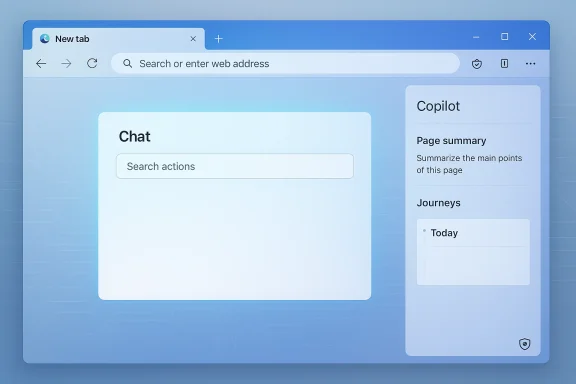
In 2025 Microsoft introduced Copilot Mode inside Edge — a grouping of features that moves beyond a sidebar helper and turns the New Tab page into an interactive composer, session-aware assistant, and automation surface. What started as an opt‑in preview has increasingly become part of the default experience for many users, and that change is what’s prompting the current wave of complaints.
Microsoft’s official settings expose Copilot features under AI-focused controls (for example, an “AI innovations” section), and there are toggles for Copilot Mode, Copilot button visibility, and related privacy/training options. But the presence of server-side controls and staggered rollouts means the experience can be inconsistent across channels and devices, which is fueling confusion.
Why it matters: the address bar is fundamental. Any behavior that undermines predictable address navigation damages trust and slows workflows. For power users who expect instant navigation from paste-or-go, losing that to an assistant layer is a regression in user experience.
What you can do from the Edge UI:
Privacy
Potential downstream effects include:
If you’re uncomfortable with the direction Edge is taking, the good news is that you have tools to push Copilot’s UI back out of sight. The less-good news is that eliminating every Copilot-related behavior may require extra steps — and a careful audit of privacy and background settings. Users and administrators should treat the current shift as a moment to re-evaluate their browser policies, preferences, and expectations: the future of browsing will be shaped as much by design defaults and governance as it will by the AI models themselves.
Source: Windows Latest Microsoft Edge feels more like Copilot than a browser now, but some AI features can be turned off
 Background
Microsoft’s Edge began life as a proprietary browser built to integrate tightly with Windows, then pivoted to Chromium in 2020 to fix compatibility issues and gain speed. That shift preserved several of Edge’s identity-defining features — vertical tabs, Collections, and a focused New Tab experience — while leveraging Chromium’s rendering compatibility. Over time, Microsoft has layered Copilot across Windows, Office, and Edge, repositioning the company around assistant-led productivity.In 2025 Microsoft introduced Copilot Mode inside Edge — a grouping of features that moves beyond a sidebar helper and turns the New Tab page into an interactive composer, session-aware assistant, and automation surface. What started as an opt‑in preview has increasingly become part of the default experience for many users, and that change is what’s prompting the current wave of complaints.
Overview: What changed in Edge
Microsoft’s Copilot Mode is not a single checkbox feature; it is a branded experience that bundles several capabilities:- A New Tab page that centers a Copilot compose box for chat, search, and command-style prompts.
- A persistent Copilot sidebar that can summarize pages, perform multi‑step “Actions,” and reference session history (Journeys).
- Tight integration with Microsoft account signals and cross-product personalization when enabled.
- Options that allow Copilot to read visible page content with permission, enabling tasks like form-filling, summarization, and comparisons across tabs.
Microsoft’s official settings expose Copilot features under AI-focused controls (for example, an “AI innovations” section), and there are toggles for Copilot Mode, Copilot button visibility, and related privacy/training options. But the presence of server-side controls and staggered rollouts means the experience can be inconsistent across channels and devices, which is fueling confusion.
The address bar oddity: when the URL becomes a chat prompt
A recurring and especially irritating behavior reported by many users is that the address bar sometimes doesn’t behave like an address bar. In a subset of cases, pasting or typing a URL immediately after opening Edge sends the input into the Copilot composer instead of opening the URL in a new tab. The pattern looks like this:- Open Edge (or a new tab).
- Paste a URL or start typing.
- The text is redirected into the Copilot compose field rather than navigating to the site.
Why it matters: the address bar is fundamental. Any behavior that undermines predictable address navigation damages trust and slows workflows. For power users who expect instant navigation from paste-or-go, losing that to an assistant layer is a regression in user experience.
Can you turn Copilot off? What control you actually have
Short answer: you can turn many Copilot surfaces off, but there are important caveats and a few places where AI remains present unless you take extra steps.What you can do from the Edge UI:
- Disable Copilot Mode: Edge exposes an on/off control for Copilot Mode in Settings (look for the AI innovations or Copilot section). Turning this off restores a classic New Tab layout for many users and prevents the Copilot composer from appearing as the default entry point.
- Hide the Copilot button: Edge’s toolbar or title bar can show a Copilot (or Copilot-like) button. Recent builds added obvious options to hide that icon from the toolbar.
- Change the New Tab and Start/Home settings: you can switch the New Tab page away from Copilot to a custom page or a blank page, reducing Copilot’s surface area.
- Opt out of model training / personalization: Copilot and Copilot-adjacent products expose model training toggles. If you want to prevent your Copilot conversations or certain telemetry from being used to improve models, turn off the relevant model training settings in Copilot privacy controls and in Game Bar / Copilot app settings where applicable.
- Background processes: some Copilot capabilities rely on background processes or on Edge components running in the background to deliver quick summaries or to surface context. Disabling the visible UI does not necessarily stop all network requests tied to Copilot services unless you explicitly opt out of telemetry, disable background apps, and remove the Copilot app where permitted.
- Enterprise-managed environments: corporate policy can override local settings. Administrators can enable Copilot features centrally, and in some managed scenarios users cannot permanently turn Copilot off without admin action.
- OS-level shortcuts and integrations: Copilot is integrated into the wider Windows ecosystem. Keyboard shortcuts and Windows-level Copilot app behavior can still surface AI experiences even if the Edge UI is minimized.
Privacy and performance concerns
Two recurring and legitimate user concerns with Copilot in Edge are privacy exposure and performance impact.Privacy
- Model-training toggles: Copilot and related agents sometimes include toggles labeled “model training on text” or similar. Reports indicate these can be enabled by default in some components, and users must turn them off to prevent conversational or textual data from being considered for model improvements. Microsoft provides opt‑out controls, but the availability and default state of these controls can vary by product and channel.
- Cross-product signals: Copilot’s personalization may pull signals from Bing, MSN, and other Microsoft services to improve memory and context. This can be convenient but also means the assistant has a broader view of your activity unless you explicitly limit cross-product access.
- Transparency gaps: Some users report that UI and privacy controls are not always easy to find, and server-side toggles can re-enable experiences without clear prompts, which has generated complaints.
- Background resource use: Certain Copilot features require Edge processes to run in the background (for quick access, summaries, or Gaming Copilot workflows). Users have reported measurable impacts on CPU and frame rates in games when Copilot-related components are running.
- New Tab load times: Replacing the native New Tab page with a cloud-powered Copilot page can increase tab open latency, especially on slower connections, because the composer and history may be served from cloud components rather than local assets.
Edge vs Chrome: different philosophies for AI in the browser
Microsoft and Google have taken visibly different approaches to integrating AI into their browsers.- Microsoft Edge emphasizes a full Copilot workspace, integrating chat, automation (Actions), and session memory into the New Tab and sidebar. The assistant can be front-and-center and — in some builds or rollouts — is the default landing zone.
- Google’s Chrome integrates Gemini more subtly: an icon in the title bar (a diamond/assistant button) gives you quick access to Gemini features without commandeering the home page. The homepage and New Tab typically remain dedicated to shortcuts and the address bar, keeping AI accessible but less intrusive.
Edge’s identity: features lost and the cost of convergence
Part of the backlash comes from perception as much as function. Over the years Microsoft preserved a handful of signature features in Edge that gave it a reason to exist alongside Chrome. Users appreciated:- Collections for research curation.
- The vertical tabs layout for heavy tab users.
- A thoughtful New Tab page that matched Windows aesthetics.
Potential downstream effects include:
- User churn: users who valued Edge’s distinct features may migrate back to other browsers or adopt extensions to restore the older experience.
- Enterprise friction: organizations that adopted Edge for controllable, predictable behavior may push back if Copilot surfaces cannot be reliably disabled via policy.
- Regulatory scrutiny: aggressive integration of assistant features across OS and browser boundaries could attract attention from competition and privacy regulators if defaults favor Microsoft services.
Practical guide: how to reclaim your browser (step-by-step)
If you want to reduce Copilot’s footprint in Edge and get back to a more traditional browser experience, follow these steps in order:- Open Edge Settings and navigate to AI innovations (or search Settings for “Copilot”).
- Toggle Copilot Mode off to restore a classic New Tab layout.
- In Appearance or Toolbar settings, disable the Copilot/Copilot button to remove the icon from the title bar.
- Set the New Tab page to a custom page or choose a blank/default New Tab option under Start, home, and new tab page.
- In the Copilot app (if installed), open Privacy → Model training and turn off any toggles you don’t want.
- Disable Startup Boost (Settings → System) to prevent Edge components from running constantly in the background.
- Review Edge’s Cookies and Site Permissions and disable features like “Allow Microsoft to access page content” if you want to prevent Copilot from reading page content automatically.
- For enterprises: use the Microsoft Edge administrative templates and Group Policy to centrally disable Copilot features or enforce a non-AI New Tab experience.
- If you need an immediate UI replacement, consider a New Tab extension that restores a plain, local New Tab page or a Windows-style layout. Be cautious: third-party extensions carry their own trade-offs.
- Keep Edge updated and monitor release notes; recent builds sometimes move UI controls or add a simple Copilot toggle in the three-dot menu for discoverability.
Risks and trade-offs: what users and admins should watch for
- Incomplete opt-out: turning off visible Copilot surfaces may not stop all network calls or background tasks related to assistant features. Users who need a strict data-restricted environment must audit the Copilot app settings and enterprise controls thoroughly.
- Fragmented documentation: Microsoft ships Copilot features across Windows, Edge, and Microsoft 365; privacy and control settings are sometimes duplicated in multiple places, leaving potential gaps where data could be used unless each toggle is turned off.
- Performance regressions: keeping Copilot components active in the background can increase memory and CPU usage, with observable effects in gaming and resource-sensitive workflows.
- User confusion: inconsistent deployment across channels (Stable, Beta, Canary), server-side toggles, and staggered rollouts create experience drift, which can undermine user confidence.
- Erosion of differentiation: if Edge’s unique features are deprecated in favor of Copilot parity with other AI assistants, Microsoft risks losing the product-level reasons users adopted Edge in the first place.
What Microsoft should do (and what users should demand)
For Microsoft:- Provide a single, clear master control to opt out of all Copilot surfaces and background activity for users who want a traditional browsing experience.
- Make privacy defaults conservative: require explicit opt-in for model training and cross-product personalization.
- Improve discoverability of Copilot toggles and add clear in-product notices when server-side defaults are changed.
- Keep a stable, customizable New Tab option that respects user choice, especially for users on older hardware or enterprise fleets.
- Audit privacy and background settings immediately after updates.
- Use enterprise management tools if you are in an organization — insist on explicit Group Policy options regarding Copilot.
- Provide feedback through Microsoft’s built-in feedback channels so usability bugs (like the address bar focus issue) are prioritized.
- Consider lightweight New Tab extensions only after verifying extension privacy policies.
Conclusion
Microsoft Edge is at an inflection point. Turning a general-purpose browser into an AI-first workspace is a bold, strategic choice that promises new productivity paradigms. But the execution matters: defaults, discoverability, privacy controls, and background behavior determine whether that promise becomes a useful productivity boost or a disruptive, opinionated change that degrades the browsing experience.If you’re uncomfortable with the direction Edge is taking, the good news is that you have tools to push Copilot’s UI back out of sight. The less-good news is that eliminating every Copilot-related behavior may require extra steps — and a careful audit of privacy and background settings. Users and administrators should treat the current shift as a moment to re-evaluate their browser policies, preferences, and expectations: the future of browsing will be shaped as much by design defaults and governance as it will by the AI models themselves.
Source: Windows Latest Microsoft Edge feels more like Copilot than a browser now, but some AI features can be turned off
