

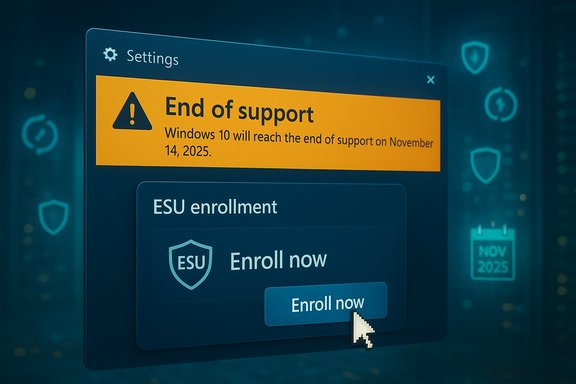
Microsoft has quietly issued an out‑of‑band (emergency) Windows update to fix a string of problems that left some Windows 10 PCs unable to enroll in Extended Security Updates (ESU) and — in at least one case — falsely warned users that their installation had already “reached the end of support.” The patch chain affects several recent cumulative updates and the November security rollup: administrators and power users need to act now to ensure ESU‑eligible devices remain protected and to avoid needless alarm caused by a misleading Settings banner.
Windows 10 reached its official end of mainstream support on October 14, 2025. Microsoft provided a consumer ESU path that extends security updates for one year (through October 13, 2026) for eligible devices, with multiple enrollment options for individuals: sync with Windows Backup to a Microsoft Account, redeem Microsoft Rewards points, or pay a one‑time fee. Enterprises have separate ESU arrangements and multi‑year commercial options.
In the weeks after the October cumulative release, several interlocking problems emerged:
The immediate consequence was user confusion. Individuals and IT teams seeing the banner assumed entitlement had been lost, prompting support tickets, unnecessary panic, or premature decisions to upgrade hardware. Crucially, the erroneous banner did not mean the machine had lost ESU entitlement — devices that were properly enrolled and activated continued to receive security updates — but the Settings UI did not reflect that reality in all cases.
The enrollment failures were particularly common where devices had restrictive network/firewall policies, where OneSettings/cloud downloads were blocked, or on machines with certain regional configurations. Managed enterprise devices that enroll via volume licensing or Windows 365 entitlements followed different activation paths and were affected in different ways.
However, the episode exposes three broader issues enterprises and advanced users must take seriously:
Even when updates seem like an inconvenience, the core takeaway is unchanged: security updates close real attack vectors. Install the preparation package if it appears in Windows Update, complete ESU enrollment if you plan to rely on extended coverage, and use the authoritative verification checks to confirm your devices are receiving the protection they need.
Source: Forbes ‘Upgrade Now’ Microsoft Warns As Urgent Windows Update Confirmed
 Background / Overview
Windows 10 reached its official end of mainstream support on October 14, 2025. Microsoft provided a consumer ESU path that extends security updates for one year (through October 13, 2026) for eligible devices, with multiple enrollment options for individuals: sync with Windows Backup to a Microsoft Account, redeem Microsoft Rewards points, or pay a one‑time fee. Enterprises have separate ESU arrangements and multi‑year commercial options.In the weeks after the October cumulative release, several interlocking problems emerged:
- The October cumulative update produced a display bug in Settings that could show the message “Your version of Windows has reached the end of support” even on devices that were properly licensed for ESU.
- The ESU consumer enrollment wizard — the guided flow in Settings that allows individuals to opt in — failed for some eligible devices, returning generic errors such as “Something went wrong.”
- Because the November monthly security rollup depends on successful enrollment or activation of ESU entitlements, devices affected by these failures could not receive November’s security fixes until the enrollment and diagnostic issues were resolved.
What exactly went wrong
The misleading “end of support” banner
After the October cumulative update, some Windows 10 devices began to show an “end of support” message in Settings → Windows Update even though they were entitled to ESU coverage. This was a UI/diagnostic error: the display logic used a local diagnostic flag or cloud‑delivered configuration that, under certain circumstances, incorrectly reported a lifecycle state to the Settings UI.The immediate consequence was user confusion. Individuals and IT teams seeing the banner assumed entitlement had been lost, prompting support tickets, unnecessary panic, or premature decisions to upgrade hardware. Crucially, the erroneous banner did not mean the machine had lost ESU entitlement — devices that were properly enrolled and activated continued to receive security updates — but the Settings UI did not reflect that reality in all cases.
Enrollment wizard failures
Separate but related was a failure in the consumer ESU enrollment wizard. Eligible devices trying to opt into the free one‑year consumer ESU option (or the points / paid options) sometimes encountered wizard failures or opaque errors. That left many users unable to enroll and therefore unable to download the November security rollup that depends on ESU enrollment for delivery to consumer devices.The enrollment failures were particularly common where devices had restrictive network/firewall policies, where OneSettings/cloud downloads were blocked, or on machines with certain regional configurations. Managed enterprise devices that enroll via volume licensing or Windows 365 entitlements followed different activation paths and were affected in different ways.
The patch chain and the correct KBs
There are three relevant blocks of updates to understand:- The October cumulative that introduced the display issue.
- The out‑of‑band update Microsoft released to fix enrollment wizard failures (the small preparation package administrators must install so ESU downloads will be offered).
- The November security rollup that includes the fix for the Settings banner and the monthly security patches ESU recipients need.
What to do right now — step‑by‑step
If you are responsible for one PC or one thousand, treat the sequence below as the safe flow to restore enrollment and ensure you receive November security fixes.- Confirm your Windows 10 edition and build.
- Open Settings → System → About or run winver to confirm you are on Windows 10, version 22H2 (the consumer ESU path and the recent fixes are targeted to 22H2 on consumer devices; LTSC editions have different lifecycles).
- Check for the out‑of‑band preparation update.
- Open Settings → Windows Update → Check for updates. Install any available out‑of‑band update that appears (it will be labeled as an OOB/preparation package).
- Reboot when prompted.
- Run the ESU enrollment wizard.
- After the OOB package is installed and the device has restarted, revisit Settings → Windows Update and use the “Enroll now” or ESU wizard link as shown. Follow the steps to enroll by one of the consumer options: Windows Backup sync, redeem Rewards points, or paid enrollment.
- After enrollment completes, check again for updates and install the November security rollup.
- The November cumulative will be offered only after the OOB/ESU preparation steps are completed and the device reports enrollment.
- If your Settings UI still shows the “end of support” message after enrollment, verify entitlement using authoritative checks (do not rely only on the banner — see verification steps below).
Verification steps (authoritative)
- Run an elevated Command Prompt and execute: slmgr.vbs /dlv
- Inspect the output for any ESU product name or license entries. For key‑based activations the output should show ESU program details and a License Status of “Licensed.”
- Check the ClipESU event log:
- Open Event Viewer → Applications and Services Logs → Microsoft → Windows → ClipESU → Operational. Event ID entries (for example, Event ID 113) indicate successful ESU license application.
- Inspect the registry eligibility flag (advanced):
- HKEY_LOCAL_MACHINE\SOFTWARE\Microsoft\Windows NT\CurrentVersion\SoftwareProtectionPlatform\ESU\…
- A value indicating Win10CommercialW365ESUEligible = 1 is one of the indicators cloud paths use.
- Confirm update history:
- Settings → Windows Update → View update history. If ESU‑labelled cumulatives are present and recent, the machine is receiving security updates.
Workarounds and enterprise options
- If the cloud fix does not arrive (offline devices, firewalled networks, or OneSettings cloud downloads disabled), deploy the Known Issue Rollback (KIR) Group Policy that Microsoft published as a temporary measure. The KIR entry for the relevant October update can be configured under Computer Configuration → Administrative Templates → [the KB‑specific Known Issue Rollback] — set the value to Disabled for the particular policy noted in the Microsoft documentation and restart.
- For managed environments, ensure your management tools (WSUS, SCCM / Configuration Manager, or Microsoft Intune) are set to accept out‑of‑band updates and that catalogs are refreshed. Push the OOB package from the update catalog if automatic cloud delivery is blocked.
- If you manage ESU activations using key‑based MAKs (enterprise commercial ESU), install and activate the ESU MAK via slmgr.vbs /ipk <ESU‑MAK> and then slmgr.vbs /ato <Activation‑ID>. Verify with slmgr.vbs /dlv.
Why this matters: security and operational risks
There are three practical reasons this situation matters and why administrators should act promptly.- Security updates are cumulative and time sensitive.
- Several high‑severity vulnerabilities were addressed in the October and November cumulatives, and one high‑impact server side vulnerability in patching infrastructure has previously prompted emergency out‑of‑band releases. The ESU delivery pipeline must be functional otherwise endpoints miss critical fixes.
- Confusing messaging increases operational risk.
- A false “end of support” banner can trigger mass helpdesk calls, misinformed migrations, or risky decisions (e.g., disabling update services, manual registry edits, or unnecessary reimaging). Clarity from verification tools reduces risk.
- The upgrade/entropy problem.
- Microsoft continues to push Windows 11 as the preferred, longer‑term secure platform and highlights hardware‑backed protections. Many users and organizations still run Windows 10 on older hardware or with local accounts. The presence of a one‑year consumer ESU safety net is useful, but it is temporary — planning for migration remains essential.
Microsoft’s response — strengths and weaknesses
Strengths
- Rapid out‑of‑band fixes: Microsoft shipped an OOB preparation package quickly after the enrollment failures and made the November security rollup include the UI fix. For a company managing billions of endpoints, targeted OOB patches are the correct operational response to reduce attack surface.
- Multiple enrollment options for consumers: The consumer ESU program offers a pragmatic set of routes (free via Windows Backup, Rewards points, or paid enrollment) that avoid forcing a hardware upgrade on users who need an extra year of supported security.
- Clear administrative workarounds: The Known Issue Rollback and management centric activation mechanisms (slmgr for MAK, VAMT and volume licensing portal paths for enterprises) give administrators control over remediation and mass rollout.
Weaknesses and risks
- Messaging and telemetry dependence: The Settings app and Windows Update UI pull from a mix of local metadata and cloud flags. That makes the UI brittle in corner cases and over‑dependent on network/cloud state — problematic for isolated or air‑gapped systems.
- Microsoft account requirement for consumer ESU: The consumer ESU free path ties entitlement to a Microsoft Account and cloud sync, which many privacy‑conscious users or organizations avoid. That constraint forces a trade‑off between convenience and control.
- Public confusion from inconsistent reporting: Different outlets used different KB numbers when covering the OOB update, which increased confusion. Administrators should always verify KB IDs directly on target systems before applying or scripting updates.
- Upgrade pressure vs compatibility realities: Microsoft’s emphasis on Windows 11 security is valid in capability terms, but forcing or heavily nudging upgrades while many legacy applications or devices remain incompatible creates friction and potential business‑risk if migrations are rushed.
Practical checklist for IT teams
- Inventory: Confirm how many devices run Windows 10, which editions (Home, Pro, Enterprise, LTSC) and whether they are 22H2.
- Update baseline: Ensure all devices have at least the required October preparatory updates deployed before attempting ESU enrollment.
- Network checks: Validate firewall rules and OneSettings (cloud configuration) connectivity so cloud fixes and KIR updates can land.
- Verify entitlement: Use slmgr /dlv, ClipESU event logs, and registry checks to prove ESU activation rather than relying on Settings banners.
- Deployment strategy:
- For unmanaged consumer fleet: instruct users to Check for updates in Settings, install any OOB update, follow the enrollment wizard, and then install the November cumulative.
- For managed enterprise fleet: stage the OOB update via WSUS or Configuration Manager, activate ESU MAKs (if applicable), and run verification scripts across endpoints.
- Plan migration: Use the one‑year ESU window to plan, test, and execute a managed migration to Windows 11 or other supported platforms.
Short policy and privacy note
The consumer ESU free route requires a Microsoft Account and cloud backup to OneDrive. That implies at least some telemetry and cloud‑linked identifiers are used to tie ESU entitlements to an account. Organizations with strict privacy or regulatory requirements should prefer commercial ESU licensing and key‑based enterprise activation rather than consumer cloud enrollment.Final assessment and recommendations
Microsoft’s emergency response was the right technical move: targeted out‑of‑band updates repaired enrollment flows and suppressed misleading warnings. The fix pathway is straightforward for most users: install the OOB package, enroll via Settings, and install the November security rollup.However, the episode exposes three broader issues enterprises and advanced users must take seriously:
- Don’t trust a Settings banner alone — verify entitlement with command‑line tools and event logs before assuming a support failure.
- Do not delay: missing a monthly security rollup exposes endpoints to vulnerabilities patched that month. If you manage devices that cannot be online or are heavily firewalled, plan for manual deployment of the OOB package from the update catalog.
- Use the ESU window strategically: treat ESU as breathing space, not a permanent solution. Use the one year to prioritize migrations for high‑risk systems and to modernize hardware for the security features Windows 11 demands.
Even when updates seem like an inconvenience, the core takeaway is unchanged: security updates close real attack vectors. Install the preparation package if it appears in Windows Update, complete ESU enrollment if you plan to rely on extended coverage, and use the authoritative verification checks to confirm your devices are receiving the protection they need.
Source: Forbes ‘Upgrade Now’ Microsoft Warns As Urgent Windows Update Confirmed
