

Bluetooth is enabled from the operating system’s Settings or quick-controls panel, after which the accessory must be placed in pairing mode and selected from the available-device list. The instructions below cover Windows 11 and Windows 10, current macOS, iPhone and iPad, standard Android, Samsung Galaxy, ChromeOS, and Ubuntu with the GNOME desktop. Menu names can vary on manufacturer-customized Android devices and managed work or school hardware.
Check these items first:
To pair directly from Quick Settings:
If the Mac uses an external USB Bluetooth adapter, the normal on/off control may not appear. Connect the adapter to enable its Bluetooth hardware; unplugging it disables that adapter.
To disable Bluetooth completely, use Settings > Bluetooth and turn the switch off. To reconnect after a Control Center disconnection, tap the Bluetooth button again, select the accessory through an appropriate audio control, or return to Settings > Bluetooth.
Some apps also require permission to communicate with Bluetooth devices:
To use Quick Settings:
On Samsung Galaxy devices using the separate Quick panel layout introduced with One UI 7, swipe down from the top-right corner to open Quick settings. Devices using One UI 6.1.1 or earlier normally open the complete Quick settings panel by swiping down with two fingers.
If Bluetooth is not present in the panel, edit the Quick settings buttons and add it. Samsung notes that panel layouts can differ by device model, carrier, and One UI version.
To pair an accessory:
ChromeOS does not use ordinary Bluetooth pairing to connect a phone as though it were a headset or keyboard. Use Chromebook’s connected-device and Phone Hub features when linking an Android phone to a Chromebook.
Some laptops have a physical wireless switch or keyboard radio key. If Ubuntu’s Bluetooth control is unavailable, enable the hardware switch first. The keyboard shortcut may require holding Fn while pressing the key marked with a wireless or Bluetooth symbol.
Once paired, most accessories reconnect automatically when they are switched on, within range, and not connected to another host.
For vehicle systems, remove the phone from the vehicle’s saved-device list as well as removing the vehicle from the phone. Then restart both systems and create a fresh pairing.
After reconnecting an audio accessory, play sound and verify that the Bluetooth device is selected as the active audio output. A Paired status without Connected can mean the accessory is available but currently connected elsewhere or not selected for the required audio function.
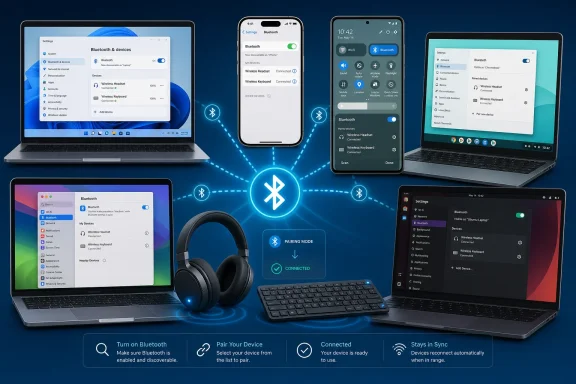 Before turning Bluetooth on
Check these items first:- Confirm that the computer, phone, or tablet includes Bluetooth hardware. Desktop PCs may require a USB Bluetooth adapter.
- Charge and switch on the accessory you want to connect.
- Place the accessory in pairing or discovery mode. This usually requires holding its power or Bluetooth button until an indicator flashes.
- Disconnect the accessory from another nearby device if it automatically reconnects there.
- Turn off Airplane mode unless your device allows Bluetooth to be enabled separately while Airplane mode remains active.
- On managed work or school devices, an administrator may disable Bluetooth or prevent pairing with particular device types.
Enable Bluetooth in Windows 11
Use Settings
- Select Start.
- Open Settings.
- Select Bluetooth & devices.
- Turn the Bluetooth switch On.
Use Quick Settings
- Select the combined Network, Sound, or Battery area beside the clock on the taskbar.
- Select the Bluetooth tile.
To pair directly from Quick Settings:
- Put the accessory in pairing mode.
- Open Quick Settings.
- Select the Manage Bluetooth devices chevron beside the Bluetooth tile.
- Find the accessory under New devices.
- Select it and complete any confirmation prompts.
Enable Bluetooth in Windows 10
- Select Start.
- Open Settings.
- Select Devices.
- Select Bluetooth & other devices.
- Turn Bluetooth On.
- Select Add Bluetooth or other device.
- Select Bluetooth.
- Choose the discoverable accessory.
- Confirm the displayed PIN if Windows and the accessory show matching numbers.
- Select Done when pairing finishes.
Turn on Bluetooth on a Mac
Current macOS releases use System Settings. Older releases may call the application System Preferences.Use System Settings
- Open the Apple menu.
- Select System Settings.
- Select Bluetooth in the sidebar. You may need to scroll.
- Turn Bluetooth on.
Use Control Center
- Select Control Center in the menu bar.
- Select Bluetooth.
- Turn Bluetooth on.
If the Mac uses an external USB Bluetooth adapter, the normal on/off control may not appear. Connect the adapter to enable its Bluetooth hardware; unplugging it disables that adapter.
Enable Bluetooth on an iPhone or iPad
Use Settings when you need the main Bluetooth control:- Open Settings.
- Tap Bluetooth.
- Turn Bluetooth on.
- Leave this page open while the accessory is in pairing mode.
- Tap the accessory when it appears.
Understand the Control Center button
The Bluetooth button in Control Center does not always disable the Bluetooth radio completely. Tapping it can disconnect most accessories while leaving Bluetooth available for Apple features such as Apple Watch, Apple Pencil, AirDrop, Handoff, and Instant Hotspot.To disable Bluetooth completely, use Settings > Bluetooth and turn the switch off. To reconnect after a Control Center disconnection, tap the Bluetooth button again, select the accessory through an appropriate audio control, or return to Settings > Bluetooth.
Some apps also require permission to communicate with Bluetooth devices:
- Open Settings.
- Select Privacy & Security.
- Select Bluetooth.
- Enable access for the required app.
Enable Bluetooth on Android
Android menu names vary by phone manufacturer and software version. On Google Pixel and other devices using a standard Android-style interface, try:- Open Settings.
- Select Connected devices.
- Select Connection preferences if it appears.
- Select Bluetooth.
- Turn Use Bluetooth on.
To use Quick Settings:
- Swipe down from the top of the screen.
- Swipe down again if only notifications are visible.
- Tap the Bluetooth tile.
Use Fast Pair on supported Android devices
- Turn on Bluetooth and Location.
- Unlock the phone.
- Put the Fast Pair accessory in pairing mode near the phone.
- Tap Connect when the setup notification appears.
- Follow any remaining prompts.
Enable Bluetooth on a Samsung Galaxy phone or tablet
Samsung uses the Connections section for the full Bluetooth controls:- Open Settings.
- Select Connections.
- Select Bluetooth.
- Turn on the switch.
- Put the accessory in pairing mode.
- Select it under Available devices.
- Approve the pairing request or matching PIN.
On Samsung Galaxy devices using the separate Quick panel layout introduced with One UI 7, swipe down from the top-right corner to open Quick settings. Devices using One UI 6.1.1 or earlier normally open the complete Quick settings panel by swiping down with two fingers.
If Bluetooth is not present in the panel, edit the Quick settings buttons and add it. Samsung notes that panel layouts can differ by device model, carrier, and One UI version.
Enable Bluetooth on a Chromebook
- Select the Time in the lower-right corner.
- Select Bluetooth.
- Turn Bluetooth on.
To pair an accessory:
- Put the accessory in pairing mode.
- Select Time.
- Select Bluetooth.
- Select Pair new device.
- Choose the accessory.
- Complete any on-screen confirmation.
- Reopen the Bluetooth panel and verify that the accessory appears under Currently connected.
ChromeOS does not use ordinary Bluetooth pairing to connect a phone as though it were a headset or keyboard. Use Chromebook’s connected-device and Phone Hub features when linking an Android phone to a Chromebook.
Enable Bluetooth in Ubuntu
These instructions apply to Ubuntu installations using the standard GNOME desktop:- Open the Activities overview.
- Type Bluetooth.
- Open the Bluetooth settings panel.
- Turn on the switch at the top.
Some laptops have a physical wireless switch or keyboard radio key. If Ubuntu’s Bluetooth control is unavailable, enable the hardware switch first. The keyboard shortcut may require holding Fn while pressing the key marked with a wireless or Bluetooth symbol.
Pair an accessory after Bluetooth is enabled
The exact button combination comes from the accessory manufacturer, but the general procedure is the same:- Charge the accessory and turn it on.
- Put it in pairing mode.
- Keep it close to the phone or computer.
- Open the device’s Bluetooth settings.
- Select Pair new device, Add device, Connect, or the equivalent command.
- Select the accessory’s name.
- Compare any numbers shown on both screens.
- Accept the pairing request only when the numbers match.
- Wait for a Connected or Paired status.
Once paired, most accessories reconnect automatically when they are switched on, within range, and not connected to another host.
Fix a missing Bluetooth switch in Windows
A missing switch usually means Windows cannot detect an enabled Bluetooth adapter. It is not fixed by repeatedly opening Settings.Check Airplane mode and hardware controls
- Open Windows Quick Settings.
- Make sure Airplane mode is off.
- Check the laptop for a wireless switch or function-key shortcut.
- If using a USB Bluetooth adapter, reconnect it directly to another USB port rather than through a hub.
- Restart Windows.
Run the Windows Bluetooth troubleshooter
On Windows 11, open Get Help, search for Bluetooth troubleshooting, and run the automated Bluetooth troubleshooter. Apply the recommended changes and restart if requested.Update the Bluetooth driver
- Right-click Start.
- Select Device Manager.
- Expand Bluetooth.
- Right-click the Bluetooth adapter—not a paired headset or peripheral.
- Select Update driver.
- Select Search automatically for drivers.
- Install any offered driver.
- Restart the PC.
Reinstall the adapter
Use this only when updating the driver did not restore Bluetooth.- Open Device Manager.
- Expand Bluetooth.
- Right-click the Bluetooth adapter.
- Select Uninstall device.
- Confirm the removal.
- Restart the PC.
Roll back a recently changed driver
If Bluetooth disappeared immediately after an update:- Open Device Manager.
- Expand Bluetooth.
- Right-click the adapter and select Properties.
- Open the Driver tab.
- Select Roll Back Driver, if available.
- Complete the prompts and restart Windows.
Fix Bluetooth that is on but will not connect
Work through these checks in order:- Move the devices close together.
- Charge both devices.
- Confirm that the accessory is in pairing mode, not merely powered on.
- Disconnect it from other computers, phones, vehicles, or televisions.
- Turn Bluetooth off and back on.
- Restart both devices.
- Remove the existing pairing and pair again.
For vehicle systems, remove the phone from the vehicle’s saved-device list as well as removing the vehicle from the phone. Then restart both systems and create a fresh pairing.
After reconnecting an audio accessory, play sound and verify that the Bluetooth device is selected as the active audio output. A Paired status without Connected can mean the accessory is available but currently connected elsewhere or not selected for the required audio function.
References
- Primary source: Technobezz
Published: 2026-07-14T16:46:51.645000+00:00
How to Enable Bluetooth on Any Device in 2026 | Technobezz
How to enable Bluetooth on Windows 11, Mac, iPhone, Android, Chromebook, and Ubuntu using current settings paths.www.technobezz.com - Official source: support.microsoft.com
Pair a Bluetooth device in Windows | Microsoft Support
Learn how to turn on Bluetooth in Windows and connect a Bluetooth devicesupport.microsoft.com
