

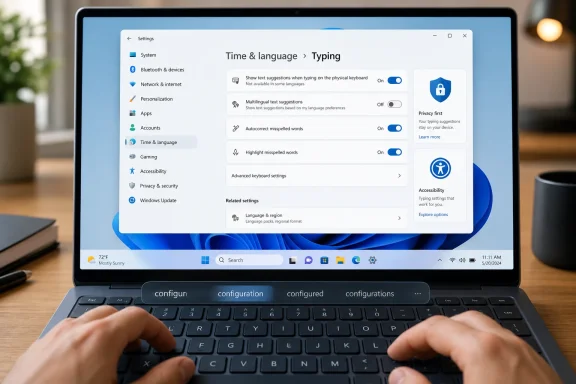
Windows 11 includes a built-in predictive text feature for physical keyboards that can be enabled from Settings > Time & language > Typing, where Microsoft offers “Show text suggestions when typing on the physical keyboard” alongside related autocorrect options. The interesting part is not that Windows can guess the next word; phones have trained everyone to expect that. The interesting part is that Microsoft has quietly imported a mobile typing habit into the desktop, where it feels both more useful and more awkward than it should.
The feature surfaced again this week through a How-To Geek essay describing it as a “hidden typing tool” that the author initially dismissed and then kept using. That reaction is telling. Windows is full of small assists that are technically available, barely advertised, and only discovered when someone wanders into the Settings app with time to spare. Predictive text for hardware keyboards is one of the better examples: not transformative, not glamorous, but a small signal of where Windows input is heading.
Predictive text on a desktop sounds unnecessary until you remember how much modern PC work is not grand writing but repetitive typing. Emails, chat replies, tickets, configuration notes, browser forms, documentation, and internal messages all involve the same vocabulary loops. The value is not that Windows finishes a novel for you; it is that it occasionally saves you from typing “configuration” for the eighth time before lunch.
That makes the feature less like Copilot and more like a power steering system. You still drive. You still decide. The machine simply reduces a little friction in a motion you repeat all day.
Microsoft’s own support guidance describes the feature in practical terms: enable text suggestions in Windows settings, then try typing in places such as Teams, Word, or a browser comment box. That positioning matters because it frames predictive text not as a writing assistant, but as an operating-system-level input convenience. It sits below the app layer, which is exactly where small Windows quality-of-life features either become indispensable or disappear into obscurity.
The awkwardness is that Windows still treats it like a buried preference rather than a first-class input mode. The toggle lives under Time & language, then Typing, which is logical once you know where it is and almost invisible if you do not. For a feature that changes typing behavior across the system, that is a very Windows compromise.
A full-sized keyboard does not have that problem. Most people who type all day have muscle memory, shortcuts, text expansion utilities, browser autofill, and years of habits wrapped around their workflow. A suggestion bar popping up above typed text can feel like the PC is solving a problem that was already solved by hardware.
But that distinction has blurred. Windows is no longer just a desktop operating system in the old sense. It runs on tablets, convertibles, compact laptops, handheld PCs, touch displays, and machines used by people who switch constantly between keyboard, pen, touch, voice, and mouse. The old line between mobile input and desktop input has been fading since Windows 8, even if Microsoft’s execution has often been uneven.
Predictive text for physical keyboards fits that long transition. It is not a mobile feature bolted onto Windows so much as a recognition that input now happens across contexts. A user might type on a laptop keyboard in Teams, tap on a touchscreen in a browser, dictate into a text field, and paste from the clipboard history without thinking of those as separate modes.
That is the strategic logic behind the feature. The user experience, however, still has to justify itself keystroke by keystroke.
That is why long, common, repetitive words are the sweet spot. “Notification,” “application,” “configuration,” “accessibility,” “deployment,” and “authentication” are the kinds of words that appear constantly in technical work and are just long enough to make completion feel satisfying. Saving six or eight characters is trivial once; saving them dozens of times becomes noticeable.
The bigger benefit is cognitive rather than mechanical. Typing is not just finger movement. It is attention management. Every time a user pauses to spell a long word, correct a typo, or decide whether to use an emoji picker, a little context leaks out of the task.
Predictive text works when it keeps the user in the sentence. It fails when the suggestion itself becomes the task. That is the line Microsoft has to walk, and it is also why the feature’s optional nature is so important. If the suggestion is right, accept it. If it is wrong, ignore it and keep moving.
On phones, predictive text sits directly above the keyboard and is tapped with the same thumbs doing the typing. On PCs, the suggestion UI is floating in a world built around keyboard focus, caret position, mouse pointers, app-specific shortcuts, and accessibility layers. It is a harder design problem, but Microsoft has had enough years with Windows input to make the basics feel more elegant.
The missing piece is a universally discoverable, low-friction keyboard gesture. Tab is already overloaded in many apps. Enter may submit forms or send messages. Ctrl and Alt combinations collide with application shortcuts. Microsoft cannot simply grab a key without consequences, but the current behavior is still too hesitant for a feature that depends on rhythm.
This is where Windows’ strength as a general-purpose platform becomes a weakness. The feature has to work in Word, Teams, Notepad, browsers, Electron apps, line-of-business software, and whatever ancient Win32 program a finance department still needs. A phone keyboard controls the text environment more tightly. Windows has to negotiate with decades of application assumptions.
That category makes sense historically because keyboard layouts, language packs, IMEs, spelling, and input methods are tied to locale. But for a user thinking, “Can Windows help me type faster?” the path is not obvious. The feature’s placement almost guarantees that many people will never encounter it unless an article, forum post, or support page points them there.
This is a recurring Windows pattern. Some of the operating system’s best everyday conveniences are hidden behind toggles with bureaucratic names. Clipboard history, mouse pointer visibility settings, focus controls, live captions, voice typing, dictation punctuation, text cursor indicators, and keyboard accessibility options all sit somewhere in the system, waiting for users to discover that Windows can do something they assumed required a third-party utility.
Predictive text suffers from the same under-marketing. It is not flashy enough for a keynote. It is not controversial enough for a Windows Insider blog debate. It is simply useful in a quiet way, which means it risks becoming one more feature only power users know exists.
That does not mean predictive text should be treated only as an accessibility feature. The best accessibility improvements often become mainstream conveniences. Captions help people in noisy rooms. Voice typing helps people who are temporarily away from a keyboard. Text suggestions help anyone who has to type the same terminology repeatedly.
Microsoft’s support material also connects text suggestions with inclusive classroom scenarios, which is the right lens. In education, the issue is not merely speed. It is participation. If a student can get words onto the screen with less friction, they can spend more attention on the idea they are trying to express.
For IT administrators, that matters because accessibility features increasingly overlap with baseline employee experience. Organizations standardize browsers, identity systems, endpoint security, and productivity suites, but they often leave input settings to chance. A small feature like predictive text may not belong in a security baseline, yet it belongs in the broader conversation about making managed Windows devices more humane.
That wariness is rational. The keyboard is the most sensitive input surface on a PC. Passwords, search terms, medical details, internal company names, legal drafts, and personal messages all pass through it. Even if a feature is designed to operate safely, users and administrators deserve clarity about data handling.
The broader Windows ecosystem makes this more complicated because Microsoft now ships several overlapping text-related experiences. There is system-level predictive text. There is autocorrect. There is voice typing. There are IMEs. There are app-level editors in Office, browser-based writing tools, and AI assistants that may process text through cloud services. To an ordinary user, those distinctions blur quickly.
This is where Microsoft should be more explicit inside Settings itself. A toggle that affects system-wide typing should tell users not only what it does, but how suggestions are generated and what privacy boundary applies. A “learn more” link is not enough for a feature sitting between the user’s thoughts and the screen.
For most organizations, this feature is unlikely to be a crisis. It is not a new remote access surface or a browser extension with broad permissions. But it touches enough sensitive workflows that cautious admins will want documentation before recommending it widely. Legal, healthcare, finance, and public-sector environments tend to ask these questions early, even for small features.
There is also the practical issue of consistency. If text suggestions appear in some apps but not others, or work for some language layouts but not others, users may interpret that as a bug. If accepting a suggestion behaves differently depending on the application, the help desk gets dragged into explaining an input feature nobody formally deployed.
That is why Microsoft’s understated approach cuts both ways. Quiet features reduce backlash. They also reduce readiness. If a Windows convenience is going to live across apps, languages, and user profiles, enterprise IT needs more than a toggle buried in Settings.
A sysadmin may write a PowerShell note, reply to a Teams message, update a ticket, and send a quick “thanks” with an emoji in the same hour. The operating system does not know which of those moments is “professional” in the old sense. It only sees text fields.
Windows already has an emoji picker, but invoking it is a separate action. Suggestions collapse that distance. If an emoji appears as part of the same typing flow, it behaves less like a special character panel and more like language.
That is a small cultural shift. The PC keyboard was designed around letters, numbers, commands, and shortcuts. Windows increasingly has to handle a style of communication that includes symbols, reactions, multilingual text, and informal shorthand. Predictive text is one of the places where that shift becomes visible.
That modesty is a strength. Windows users have become skeptical of features that arrive with grand claims and unclear tradeoffs. A small typing suggestion that can be turned on or off is easier to trust because its value is immediately testable. Either it helps in the next sentence or it does not.
It also highlights a product lesson Microsoft should remember as it pushes more intelligence into Windows. The best assistive features often work at the edge of attention. They do not demand that the user change the whole workflow. They fit into a gesture, a sentence, a shortcut, or a habit.
Predictive text is not “AI PC” marketing, but it is part of the same continuum: the operating system making inferences about user intent. The difference is scale and humility. Sometimes Windows does not need to summarize a meeting; it just needs to finish “authentication” before your fingers do.
The feature surfaced again this week through a How-To Geek essay describing it as a “hidden typing tool” that the author initially dismissed and then kept using. That reaction is telling. Windows is full of small assists that are technically available, barely advertised, and only discovered when someone wanders into the Settings app with time to spare. Predictive text for hardware keyboards is one of the better examples: not transformative, not glamorous, but a small signal of where Windows input is heading.
 Microsoft’s Quietest Typing Feature Is Also One of Its Most Revealing
Predictive text on a desktop sounds unnecessary until you remember how much modern PC work is not grand writing but repetitive typing. Emails, chat replies, tickets, configuration notes, browser forms, documentation, and internal messages all involve the same vocabulary loops. The value is not that Windows finishes a novel for you; it is that it occasionally saves you from typing “configuration” for the eighth time before lunch.That makes the feature less like Copilot and more like a power steering system. You still drive. You still decide. The machine simply reduces a little friction in a motion you repeat all day.
Microsoft’s own support guidance describes the feature in practical terms: enable text suggestions in Windows settings, then try typing in places such as Teams, Word, or a browser comment box. That positioning matters because it frames predictive text not as a writing assistant, but as an operating-system-level input convenience. It sits below the app layer, which is exactly where small Windows quality-of-life features either become indispensable or disappear into obscurity.
The awkwardness is that Windows still treats it like a buried preference rather than a first-class input mode. The toggle lives under Time & language, then Typing, which is logical once you know where it is and almost invisible if you do not. For a feature that changes typing behavior across the system, that is a very Windows compromise.
The Desktop Has Been Borrowing From the Phone for Years
The initial skepticism around desktop predictive text is understandable. Predictive typing became culturally associated with phones because touchscreens made text entry slower, less precise, and more error-prone. On a phone, suggestions are not just convenient; they compensate for the physical limitations of glass keyboards.A full-sized keyboard does not have that problem. Most people who type all day have muscle memory, shortcuts, text expansion utilities, browser autofill, and years of habits wrapped around their workflow. A suggestion bar popping up above typed text can feel like the PC is solving a problem that was already solved by hardware.
But that distinction has blurred. Windows is no longer just a desktop operating system in the old sense. It runs on tablets, convertibles, compact laptops, handheld PCs, touch displays, and machines used by people who switch constantly between keyboard, pen, touch, voice, and mouse. The old line between mobile input and desktop input has been fading since Windows 8, even if Microsoft’s execution has often been uneven.
Predictive text for physical keyboards fits that long transition. It is not a mobile feature bolted onto Windows so much as a recognition that input now happens across contexts. A user might type on a laptop keyboard in Teams, tap on a touchscreen in a browser, dictate into a text field, and paste from the clipboard history without thinking of those as separate modes.
That is the strategic logic behind the feature. The user experience, however, still has to justify itself keystroke by keystroke.
The Real Gain Is Flow, Not Speed
The How-To Geek piece lands on the right point: predictive text probably will not double anyone’s typing speed. For many experienced typists, reaching for a suggestion may even be slower than finishing the word manually. The feature becomes useful only when the suggestion arrives at the exact moment the user recognizes it as the word they were already about to type.That is why long, common, repetitive words are the sweet spot. “Notification,” “application,” “configuration,” “accessibility,” “deployment,” and “authentication” are the kinds of words that appear constantly in technical work and are just long enough to make completion feel satisfying. Saving six or eight characters is trivial once; saving them dozens of times becomes noticeable.
The bigger benefit is cognitive rather than mechanical. Typing is not just finger movement. It is attention management. Every time a user pauses to spell a long word, correct a typo, or decide whether to use an emoji picker, a little context leaks out of the task.
Predictive text works when it keeps the user in the sentence. It fails when the suggestion itself becomes the task. That is the line Microsoft has to walk, and it is also why the feature’s optional nature is so important. If the suggestion is right, accept it. If it is wrong, ignore it and keep moving.
Windows Still Makes Acceptance More Clumsy Than It Should Be
The problem is that accepting a suggestion from a physical keyboard is not as seamless as the idea demands. Users commonly report that they need to use arrow keys and Enter, or reach for the mouse, to choose a suggestion. That interaction can feel backwards: a feature meant to reduce interruption can require a hand movement that interrupts the typist.On phones, predictive text sits directly above the keyboard and is tapped with the same thumbs doing the typing. On PCs, the suggestion UI is floating in a world built around keyboard focus, caret position, mouse pointers, app-specific shortcuts, and accessibility layers. It is a harder design problem, but Microsoft has had enough years with Windows input to make the basics feel more elegant.
The missing piece is a universally discoverable, low-friction keyboard gesture. Tab is already overloaded in many apps. Enter may submit forms or send messages. Ctrl and Alt combinations collide with application shortcuts. Microsoft cannot simply grab a key without consequences, but the current behavior is still too hesitant for a feature that depends on rhythm.
This is where Windows’ strength as a general-purpose platform becomes a weakness. The feature has to work in Word, Teams, Notepad, browsers, Electron apps, line-of-business software, and whatever ancient Win32 program a finance department still needs. A phone keyboard controls the text environment more tightly. Windows has to negotiate with decades of application assumptions.
The Feature Is Hidden Because Windows Settings Are Still a Maze
Microsoft has spent years moving Windows away from Control Panel sprawl toward the Settings app, but the migration has not solved the discovery problem. The Settings app is cleaner than the old world, yet it still buries features in categories that make sense to the product team more than to users. “Time & language” is not where most people instinctively go looking for typing productivity.That category makes sense historically because keyboard layouts, language packs, IMEs, spelling, and input methods are tied to locale. But for a user thinking, “Can Windows help me type faster?” the path is not obvious. The feature’s placement almost guarantees that many people will never encounter it unless an article, forum post, or support page points them there.
This is a recurring Windows pattern. Some of the operating system’s best everyday conveniences are hidden behind toggles with bureaucratic names. Clipboard history, mouse pointer visibility settings, focus controls, live captions, voice typing, dictation punctuation, text cursor indicators, and keyboard accessibility options all sit somewhere in the system, waiting for users to discover that Windows can do something they assumed required a third-party utility.
Predictive text suffers from the same under-marketing. It is not flashy enough for a keynote. It is not controversial enough for a Windows Insider blog debate. It is simply useful in a quiet way, which means it risks becoming one more feature only power users know exists.
Accessibility Is the Stronger Argument Than Productivity
The productivity framing is easy, but accessibility is the more durable reason for this feature to exist. Not every Windows user is a fast typist. Not every user has the same motor control, spelling confidence, language fluency, or keyboard comfort. A system-wide suggestion layer can reduce effort for people who find typing physically or cognitively demanding.That does not mean predictive text should be treated only as an accessibility feature. The best accessibility improvements often become mainstream conveniences. Captions help people in noisy rooms. Voice typing helps people who are temporarily away from a keyboard. Text suggestions help anyone who has to type the same terminology repeatedly.
Microsoft’s support material also connects text suggestions with inclusive classroom scenarios, which is the right lens. In education, the issue is not merely speed. It is participation. If a student can get words onto the screen with less friction, they can spend more attention on the idea they are trying to express.
For IT administrators, that matters because accessibility features increasingly overlap with baseline employee experience. Organizations standardize browsers, identity systems, endpoint security, and productivity suites, but they often leave input settings to chance. A small feature like predictive text may not belong in a security baseline, yet it belongs in the broader conversation about making managed Windows devices more humane.
The Privacy Question Lurks Beneath Every Keyboard Prediction
Any feature that watches text as it is typed raises an obvious question: what is being processed, where, and by whom? Predictive text is not the same as a cloud writing assistant, and Microsoft’s basic support pages do not market it as one. Still, users have been trained to be wary of anything that appears to analyze their words.That wariness is rational. The keyboard is the most sensitive input surface on a PC. Passwords, search terms, medical details, internal company names, legal drafts, and personal messages all pass through it. Even if a feature is designed to operate safely, users and administrators deserve clarity about data handling.
The broader Windows ecosystem makes this more complicated because Microsoft now ships several overlapping text-related experiences. There is system-level predictive text. There is autocorrect. There is voice typing. There are IMEs. There are app-level editors in Office, browser-based writing tools, and AI assistants that may process text through cloud services. To an ordinary user, those distinctions blur quickly.
This is where Microsoft should be more explicit inside Settings itself. A toggle that affects system-wide typing should tell users not only what it does, but how suggestions are generated and what privacy boundary applies. A “learn more” link is not enough for a feature sitting between the user’s thoughts and the screen.
IT Pros Will See Convenience, Then Ask About Control
In unmanaged home environments, predictive text is a personal preference. In businesses, schools, and government environments, it becomes a policy question. Administrators want to know whether it can be enabled, disabled, standardized, audited, or left alone without causing help desk noise.For most organizations, this feature is unlikely to be a crisis. It is not a new remote access surface or a browser extension with broad permissions. But it touches enough sensitive workflows that cautious admins will want documentation before recommending it widely. Legal, healthcare, finance, and public-sector environments tend to ask these questions early, even for small features.
There is also the practical issue of consistency. If text suggestions appear in some apps but not others, or work for some language layouts but not others, users may interpret that as a bug. If accepting a suggestion behaves differently depending on the application, the help desk gets dragged into explaining an input feature nobody formally deployed.
That is why Microsoft’s understated approach cuts both ways. Quiet features reduce backlash. They also reduce readiness. If a Windows convenience is going to live across apps, languages, and user profiles, enterprise IT needs more than a toggle buried in Settings.
The Emoji Detail Explains the Modern Windows User
One of the more revealing notes in the How-To Geek piece is that Windows text suggestions can surface emojis. That might sound trivial to an old-school desktop crowd, but it explains why the feature feels contemporary. Modern workplace writing is no longer cleanly divided between formal documents and casual chat.A sysadmin may write a PowerShell note, reply to a Teams message, update a ticket, and send a quick “thanks” with an emoji in the same hour. The operating system does not know which of those moments is “professional” in the old sense. It only sees text fields.
Windows already has an emoji picker, but invoking it is a separate action. Suggestions collapse that distance. If an emoji appears as part of the same typing flow, it behaves less like a special character panel and more like language.
That is a small cultural shift. The PC keyboard was designed around letters, numbers, commands, and shortcuts. Windows increasingly has to handle a style of communication that includes symbols, reactions, multilingual text, and informal shorthand. Predictive text is one of the places where that shift becomes visible.
Small Features Matter More in an AI-Saturated Windows
The irony is that predictive text feels more grounded than many of Microsoft’s louder AI-era features. It does not promise to rewrite your job. It does not need a sidebar, a subscription pitch, or a dramatic demo. It simply offers a word when you are already typing one.That modesty is a strength. Windows users have become skeptical of features that arrive with grand claims and unclear tradeoffs. A small typing suggestion that can be turned on or off is easier to trust because its value is immediately testable. Either it helps in the next sentence or it does not.
It also highlights a product lesson Microsoft should remember as it pushes more intelligence into Windows. The best assistive features often work at the edge of attention. They do not demand that the user change the whole workflow. They fit into a gesture, a sentence, a shortcut, or a habit.
Predictive text is not “AI PC” marketing, but it is part of the same continuum: the operating system making inferences about user intent. The difference is scale and humility. Sometimes Windows does not need to summarize a meeting; it just needs to finish “authentication” before your fingers do.
The Hidden Toggle Says More About Windows Than the Suggestion Bar
The practical advice is simple: if you type a lot on Windows 11, the feature is worth trying for a few days rather than judging from the concept. It may be too distracting, too inconsistent, or too clumsy to accept suggestions regularly. But it may also become one of those tiny conveniences that disappears into muscle memory.- Windows 11’s physical-keyboard text suggestions are enabled from Settings > Time & language > Typing.
- The feature is most useful for long, repeated words and everyday messages rather than dramatic writing acceleration.
- Accepting suggestions can still feel awkward because the keyboard interaction is less fluid than predictive text on phones.
- The feature’s value is strongest when it preserves writing flow instead of demanding attention.
- Privacy, language support, and enterprise manageability deserve clearer explanation from Microsoft as text prediction becomes more normal on PCs.
- The best reason to try it is not hype, but reversibility: if it does not fit your workflow, turning it off is easy.
References
- Primary source: How-To Geek
Published: Thu, 02 Jul 2026 10:30:29 GMT
Windows 11's predictive text is the hidden typing tool I never knew I needed
It can be a game-changer for desktop keyboards too. www.howtogeek.com
- Official source: support.microsoft.com
Enable text suggestions in Windows | Microsoft Support
Use text suggestions to quickly complete words as you type a document, chat message, web form, or more.support.microsoft.com - Official source: microsoft.com
Voice Navigation and Typing for Accessibility | Microsoft Windows
Explore Windows 11 accessibility with voice navigation and typing. Use advanced voice recognition to transcribe your spoken words into text on your PC.www.microsoft.com
- Official source: learn.microsoft.com
typing suggestions not showing even though it's on - Microsoft Q&A
basically what the title says i've been turning my pc on and off and nothing workslearn.microsoft.com - Related coverage: cleversupport.ca
- Related coverage: community.acer.com
- Related coverage: thurrott.com
Windows 11 Tip: Enable Text Suggestions - Thurrott.com
In writing the book, I was reminded of a hidden feature in Windows that Mary Jo had encountered previously: as-you-type text suggestions while using a hardware keyboard.www.thurrott.com - Related coverage: windowscentral.com
Windows 11 25H2: Settings app redesign and new features explained | Windows Central
Windows 11's Settings app in 2025 introduced a slew of changes, including a new "Advanced" page and an AI agent for search. Key additions include Quick Machine Recovery, the ability to show the clock in the Notification Center, more Recall controls, and more.www.windowscentral.com
