

The Epson EcoTank ET-4850 most often appears offline on Windows in 2026 because the printer is reachable only on a 2.4 GHz network, Windows is holding a stale print queue or offline flag, or the computer is still pointing at an old printer IP address. The good news is that this is rarely a dead printer story. It is usually a network-state story, and Windows has never been especially graceful about telling users which layer failed.
That distinction matters because the ET-4850 sits in the awkward middle of modern home and small-office printing. It is capable enough to be treated like infrastructure, but it is still configured like a consumer appliance. When it goes “offline,” the temptation is to reinstall everything, reset everything, or blame the inkjet gods; the better approach is to prove the hardware works, then walk outward through Windows, Wi-Fi, addressing, drivers, and finally reset options.
“Offline” sounds definitive, but Windows uses the word broadly. It can mean the printer is powered off, unreachable over the network, paused by the print subsystem, blocked behind a stuck job, installed through a broken port, or simply marked offline by a setting the user never touched. That ambiguity is why printer troubleshooting feels so much worse than the problem usually deserves.
The ET-4850 adds another layer because it supports several ways to print: Wi-Fi, Wi-Fi Direct, Ethernet, USB, AirPrint, Epson software, and ordinary Windows print plumbing. Each path can fail differently while producing the same user-facing result. A phone may still see the printer while a Windows laptop insists it is offline, which is a clue that the printer itself is not the villain.
The first rule, then, is to stop treating “offline” as a single error. Treat it as a checkpoint. Your job is to find out whether the printer, the network, or the operating system has lost the plot.
That means the fastest fix is not always the most dramatic one. A power cycle, a cleared queue, or a corrected Wi-Fi band can do more than a full software reinstall. The trick is doing those steps in an order that preserves evidence rather than burying it.
Then print a nozzle check pattern or another built-in report from the printer’s control panel. If the ET-4850 can print from its own menu, the print engine, paper path, ink system, and basic hardware are working. That immediately narrows the case: the problem is no longer “my printer is broken,” but “my computer is not reaching a working printer.”
That shift is important. Users often waste time cleaning printheads, checking ink bottles, or reinstalling unrelated software when the actual break is in the path between device and printer. The ET-4850’s cartridge-free tank system may be the product’s marquee feature, but an offline error is almost never about ink.
If the printer cannot print a local test page, stop the network troubleshooting and investigate the device itself. Check for control-panel errors, paper jams, open covers, or service messages. But if the local page prints, move on with confidence: the machine is ready; the connection is not.
On Windows 11, open Settings, go to Bluetooth & devices, then Printers & scanners, select the Epson printer, and open the print queue. On Windows 10, the path is Settings, Devices, then Printers & scanners. Cancel anything pending, especially old jobs that have been sitting there since the first failed print attempt.
Then look for the printer menu in the queue window and make sure “Use Printer Offline” is not selected. This setting has survived across Windows generations because it is occasionally useful in managed environments, but for most home and small-office users it functions mainly as a trapdoor. If it is checked, uncheck it and send a fresh test page.
If the queue will not clear, restart the Print Spooler service or reboot the PC. The spooler is the Windows service that manages print jobs; when it is wedged, the printer can be fine and the network can be fine while the local machine behaves as though both have disappeared. This is one of those cases where the reboot is not superstition — it is a way to restart the machinery that brokers the print job.
Power-cycle the router before tearing into advanced settings. Unplug it, wait a short period, plug it back in, and allow it to fully come back online. Then restart the computer and try again. This sequence forces a fresh conversation among the router, PC, and printer.
It is tempting to dismiss this as folk wisdom, but network gear often accumulates stale client state. Printers are particularly vulnerable because they sit idle for long stretches, wake slowly, and may not renegotiate as gracefully as phones and laptops. A router reboot is crude, but it is also a clean way to reestablish the table stakes.
If the printer’s Wi-Fi icon shows no connection after the router returns, do not keep hammering the print button. The computer cannot print to a network printer that has fallen off the network. At that point, the issue has moved from Windows print settings to the printer’s wireless setup.
The confusion often comes from combined SSIDs. Many modern routers broadcast one network name and steer devices between bands automatically. That is convenient for phones, but it can be miserable for printers that only understand the older 2.4 GHz band. The printer may not see the network cleanly, may join inconsistently, or may appear to vanish depending on how the router handles band steering.
The practical fix is simple: make sure the ET-4850 joins the 2.4 GHz network. If your router lets you split network names, give the bands distinct labels such as “Home-2.4” and “Home-5.” Then join the printer to the 2.4 GHz SSID using that band’s password.
Placement matters more on 2.4 GHz than many users expect. The band travels farther than 5 GHz, but it is crowded and easily disturbed by microwaves, old cordless phones, metal furniture, thick walls, and neighboring networks. A printer tucked beside a filing cabinet under a desk may be in exactly the wrong place, even if every other device in the room works fine.
This is also where mesh Wi-Fi can complicate an otherwise simple fix. Some mesh systems are excellent with low-power 2.4 GHz clients; others are too clever by half. If the ET-4850 keeps disappearing, temporarily move it near the main router or connect it by Ethernet to determine whether the problem is Wi-Fi coverage or printer configuration.
From the home screen, select the network or Wi-Fi icon, choose Wi-Fi Recommended, then start setup or change settings. Use the Wi-Fi Setup Wizard, choose the correct 2.4 GHz network name, enter the password, and save the connection. If the network does not appear, enter the SSID manually and check for typos with almost insulting care.
This step is boring, which is why people skip it. But it is the cleanest way to ensure the printer itself has joined the right network. Driver installers and mobile apps can help with setup, but they cannot overcome a wrong SSID, a wrong password, or a router that is steering the printer somewhere it cannot operate.
After setup, print a network connection report or status sheet. Do not rely only on a Wi-Fi icon. The report gives you a concrete address and connection state, which becomes crucial if Windows is still trying to send jobs to the wrong place.
This happens because most home routers assign IP addresses dynamically using DHCP. A printer might be 192.168.1.42 today and 192.168.1.57 after a router reboot, lease renewal, network reset, or hardware change. If the Windows printer port is configured for the old address, the print job goes nowhere useful.
The ET-4850 can print a Network Status Sheet from its control panel. Use the network settings and connection check options to print the report, then read the listed IP address. That number is the printer’s current location on the network.
Now compare that address with the one Windows is using. In Printer properties, the Ports tab will show the port tied to the device. If Windows is pointing to an old address, you have found a classic cause of a printer that is “offline” despite being fully awake and connected.
Once the port points at the correct address, print a test page. If it works, the underlying problem was not the driver, the ink system, or the printer’s health. It was simply Windows trying to talk to a stale destination.
For a longer-term fix, reserve the printer’s IP address in the router. This is usually done in the router’s DHCP reservation or LAN settings by binding the printer’s hardware address to a fixed local IP. The vocabulary varies by router brand, but the principle is the same: the printer gets the same address every time.
A reserved address is especially useful in small offices where multiple PCs share the same printer. Otherwise, each machine may eventually end up with its own stale idea of where the ET-4850 lives. Static addressing is not glamorous, but it is one of the most reliable ways to turn a consumer printer into something that behaves like office equipment.
This is not just a workaround. It is a test. If AirPrint or the Epson app sees the printer and successfully prints, the printer and network are probably functioning. The failure has narrowed to the Windows installation, Windows port, print queue, spooler, firewall behavior, or driver stack.
If the phone cannot see the printer either, the problem is more likely at the network layer. The printer may be on the wrong SSID, isolated by a guest network, blocked by client isolation, or disconnected from Wi-Fi entirely. Many routers have “guest” or “IoT” networks that intentionally prevent devices from seeing each other, which is good for security and terrible for printing unless configured deliberately.
For mixed households and small offices, this test is often the fastest way to avoid false certainty. A printer that works from an iPhone but not a Windows PC is a different case from a printer nobody can reach. Troubleshooting should follow the evidence.
Firmware updates can resolve device-side bugs, improve network behavior, and correct edge cases that are invisible from Windows. Driver updates can fix mismatched software, incomplete installations, and cases where Windows is using a generic print path that lacks Epson-specific behavior. The best source is the official ET-4850 support page, not a third-party driver bundle.
On newer Windows 11 systems, there is another subtlety. Microsoft has been moving the Windows printing ecosystem toward inbox class drivers and modern print support, while older vendor packages still exist for many devices. That transition is broadly good for security and manageability, but in the real world it can leave users juggling multiple ways to install the same printer.
The practical advice is to remove duplicate ET-4850 entries before reinstalling. Users often accumulate “Epson ET-4850,” “Epson ET-4850 Series,” “Epson ET-4850 Network,” and WSD variants that point to different ports. Keeping the known-good entry and deleting the dead ones reduces confusion, especially when applications choose a default printer automatically.
Ethernet removes the 2.4 GHz variable entirely. There is no band steering, no microwave interference, no weak signal in the corner of the room. The printer still needs a valid IP address, and Windows still needs to point at that address, but the physical layer becomes dramatically less fragile.
USB is even simpler for a single computer. If the ET-4850 is used by one desktop PC, a direct USB cable can bypass the network stack altogether. The trade-off is that other devices will not automatically share that connection unless the computer is configured to share the printer, which introduces its own Windows dependencies.
If you use USB, inspect the cable and ports. A loose or damaged cable can mimic intermittent offline behavior. Swap the cable before assuming a more exotic failure, especially if the printer appears and disappears in Windows depending on movement or desk vibration.
When the earlier steps fail, use the targeted network reset first. On the ET-4850, the restore defaults menu includes an option for Network Settings. That clears the printer’s network configuration without wiping everything else. Afterward, run the Wi-Fi Setup Wizard again and join the correct 2.4 GHz network.
Only after that should a full reset be considered. The “Clear All Data and Settings” option is a broader action that resets control-panel settings and deletes stored information. It is appropriate when the printer configuration is clearly corrupted or when the device is being handed off, not as the default response to one offline episode.
If a network reset followed by a clean Wi-Fi setup still leaves the ET-4850 offline across multiple devices, escalation is reasonable. At that point, Epson support can look at device-specific behavior, firmware state, and possible hardware issues. The point is not that support is magic; it is that you have already eliminated the usual local causes.
That is why the best fix is often architectural rather than procedural. Give the printer a stable 2.4 GHz SSID. Reserve its IP address. Prefer Ethernet if the physical layout allows it. Remove duplicate printer entries. Keep firmware and drivers current, but do not use reinstalls as a substitute for network hygiene.
For Windows users, the uncomfortable truth is that the operating system’s “offline” label often arrives too late and explains too little. It tells you the print path failed, not where it failed. A better Windows print experience would distinguish between “printer unreachable,” “queue paused,” “port address failed,” “driver unavailable,” and “spooler blocked” in plain language.
Until then, the user has to supply the diagnostic discipline Windows lacks. Start with the printer, move to the queue, test the network, verify the address, then touch drivers and resets. That order turns a maddening black box into a finite checklist.
That distinction matters because the ET-4850 sits in the awkward middle of modern home and small-office printing. It is capable enough to be treated like infrastructure, but it is still configured like a consumer appliance. When it goes “offline,” the temptation is to reinstall everything, reset everything, or blame the inkjet gods; the better approach is to prove the hardware works, then walk outward through Windows, Wi-Fi, addressing, drivers, and finally reset options.
 The Offline Label Is a Symptom, Not a Diagnosis
“Offline” sounds definitive, but Windows uses the word broadly. It can mean the printer is powered off, unreachable over the network, paused by the print subsystem, blocked behind a stuck job, installed through a broken port, or simply marked offline by a setting the user never touched. That ambiguity is why printer troubleshooting feels so much worse than the problem usually deserves.The ET-4850 adds another layer because it supports several ways to print: Wi-Fi, Wi-Fi Direct, Ethernet, USB, AirPrint, Epson software, and ordinary Windows print plumbing. Each path can fail differently while producing the same user-facing result. A phone may still see the printer while a Windows laptop insists it is offline, which is a clue that the printer itself is not the villain.
The first rule, then, is to stop treating “offline” as a single error. Treat it as a checkpoint. Your job is to find out whether the printer, the network, or the operating system has lost the plot.
That means the fastest fix is not always the most dramatic one. A power cycle, a cleared queue, or a corrected Wi-Fi band can do more than a full software reinstall. The trick is doing those steps in an order that preserves evidence rather than burying it.
Start by Making the Printer Prove It Is Alive
Before touching Windows, make the ET-4850 do something by itself. Turn the printer off, wait briefly, and turn it back on. If the printer had a temporary firmware or connection hiccup, this clears the simplest class of failures without changing your configuration.Then print a nozzle check pattern or another built-in report from the printer’s control panel. If the ET-4850 can print from its own menu, the print engine, paper path, ink system, and basic hardware are working. That immediately narrows the case: the problem is no longer “my printer is broken,” but “my computer is not reaching a working printer.”
That shift is important. Users often waste time cleaning printheads, checking ink bottles, or reinstalling unrelated software when the actual break is in the path between device and printer. The ET-4850’s cartridge-free tank system may be the product’s marquee feature, but an offline error is almost never about ink.
If the printer cannot print a local test page, stop the network troubleshooting and investigate the device itself. Check for control-panel errors, paper jams, open covers, or service messages. But if the local page prints, move on with confidence: the machine is ready; the connection is not.
Windows Still Has the Most Embarrassing One-Click Failure Mode
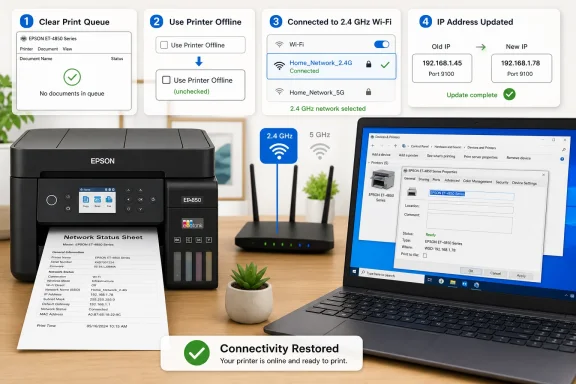
The most common Windows-side fix remains almost comically mundane: clear the print queue and make sure Windows has not been told to use the printer offline. A stuck job can block every job behind it, and the “Use Printer Offline” setting can leave a perfectly reachable printer marooned from the operating system’s point of view.On Windows 11, open Settings, go to Bluetooth & devices, then Printers & scanners, select the Epson printer, and open the print queue. On Windows 10, the path is Settings, Devices, then Printers & scanners. Cancel anything pending, especially old jobs that have been sitting there since the first failed print attempt.
Then look for the printer menu in the queue window and make sure “Use Printer Offline” is not selected. This setting has survived across Windows generations because it is occasionally useful in managed environments, but for most home and small-office users it functions mainly as a trapdoor. If it is checked, uncheck it and send a fresh test page.
If the queue will not clear, restart the Print Spooler service or reboot the PC. The spooler is the Windows service that manages print jobs; when it is wedged, the printer can be fine and the network can be fine while the local machine behaves as though both have disappeared. This is one of those cases where the reboot is not superstition — it is a way to restart the machinery that brokers the print job.
The Router Is Part of the Printer, Whether You Like It or Not
Once Windows is no longer obviously sabotaging itself, the network becomes the next suspect. The ET-4850 can only be as reliable as the path between it and the device sending the job. That path usually includes a router, a Wi-Fi band decision, a DHCP lease, and sometimes a mesh system making choices the user never sees.Power-cycle the router before tearing into advanced settings. Unplug it, wait a short period, plug it back in, and allow it to fully come back online. Then restart the computer and try again. This sequence forces a fresh conversation among the router, PC, and printer.
It is tempting to dismiss this as folk wisdom, but network gear often accumulates stale client state. Printers are particularly vulnerable because they sit idle for long stretches, wake slowly, and may not renegotiate as gracefully as phones and laptops. A router reboot is crude, but it is also a clean way to reestablish the table stakes.
If the printer’s Wi-Fi icon shows no connection after the router returns, do not keep hammering the print button. The computer cannot print to a network printer that has fallen off the network. At that point, the issue has moved from Windows print settings to the printer’s wireless setup.
The 2.4 GHz Detail Is the Fix Hiding in Plain Sight
The ET-4850’s built-in Wi-Fi is 2.4 GHz 802.11 b/g/n. It is not a 5 GHz printer. In a world where laptops, phones, and routers aggressively prefer 5 GHz or 6 GHz bands, that single specification explains a surprising number of “offline” complaints.The confusion often comes from combined SSIDs. Many modern routers broadcast one network name and steer devices between bands automatically. That is convenient for phones, but it can be miserable for printers that only understand the older 2.4 GHz band. The printer may not see the network cleanly, may join inconsistently, or may appear to vanish depending on how the router handles band steering.
The practical fix is simple: make sure the ET-4850 joins the 2.4 GHz network. If your router lets you split network names, give the bands distinct labels such as “Home-2.4” and “Home-5.” Then join the printer to the 2.4 GHz SSID using that band’s password.
Placement matters more on 2.4 GHz than many users expect. The band travels farther than 5 GHz, but it is crowded and easily disturbed by microwaves, old cordless phones, metal furniture, thick walls, and neighboring networks. A printer tucked beside a filing cabinet under a desk may be in exactly the wrong place, even if every other device in the room works fine.
This is also where mesh Wi-Fi can complicate an otherwise simple fix. Some mesh systems are excellent with low-power 2.4 GHz clients; others are too clever by half. If the ET-4850 keeps disappearing, temporarily move it near the main router or connect it by Ethernet to determine whether the problem is Wi-Fi coverage or printer configuration.
Rejoining Wi-Fi Beats Guessing at It
If the printer has lost its saved network or needs to be moved to a dedicated 2.4 GHz SSID, use the ET-4850’s control panel rather than hoping a computer-side reinstall will fix the wireless connection. The printer must first know where the network is before Windows can reliably talk to it.From the home screen, select the network or Wi-Fi icon, choose Wi-Fi Recommended, then start setup or change settings. Use the Wi-Fi Setup Wizard, choose the correct 2.4 GHz network name, enter the password, and save the connection. If the network does not appear, enter the SSID manually and check for typos with almost insulting care.
This step is boring, which is why people skip it. But it is the cleanest way to ensure the printer itself has joined the right network. Driver installers and mobile apps can help with setup, but they cannot overcome a wrong SSID, a wrong password, or a router that is steering the printer somewhere it cannot operate.
After setup, print a network connection report or status sheet. Do not rely only on a Wi-Fi icon. The report gives you a concrete address and connection state, which becomes crucial if Windows is still trying to send jobs to the wrong place.
The IP Address Is Where a Working Printer Becomes Invisible
Many offline errors are not really Wi-Fi failures. They are address failures. The printer is online, the PC is online, and both are on the same network, but Windows is still aiming at an IP address the printer used last week.This happens because most home routers assign IP addresses dynamically using DHCP. A printer might be 192.168.1.42 today and 192.168.1.57 after a router reboot, lease renewal, network reset, or hardware change. If the Windows printer port is configured for the old address, the print job goes nowhere useful.
The ET-4850 can print a Network Status Sheet from its control panel. Use the network settings and connection check options to print the report, then read the listed IP address. That number is the printer’s current location on the network.
Now compare that address with the one Windows is using. In Printer properties, the Ports tab will show the port tied to the device. If Windows is pointing to an old address, you have found a classic cause of a printer that is “offline” despite being fully awake and connected.
Repointing Windows Is Cleaner Than Reinstalling the Printer
When the IP address has changed, the fix is not to keep reinstalling random software until something sticks. Add or update the printer port so Windows sends jobs to the ET-4850’s current address. In the printer’s properties, open the Ports tab, add a port, select the appropriate EpsonNet Print Port or TCP/IP-style network port option, and enter the IP address from the Network Status Sheet.Once the port points at the correct address, print a test page. If it works, the underlying problem was not the driver, the ink system, or the printer’s health. It was simply Windows trying to talk to a stale destination.
For a longer-term fix, reserve the printer’s IP address in the router. This is usually done in the router’s DHCP reservation or LAN settings by binding the printer’s hardware address to a fixed local IP. The vocabulary varies by router brand, but the principle is the same: the printer gets the same address every time.
A reserved address is especially useful in small offices where multiple PCs share the same printer. Otherwise, each machine may eventually end up with its own stale idea of where the ET-4850 lives. Static addressing is not glamorous, but it is one of the most reliable ways to turn a consumer printer into something that behaves like office equipment.
Mobile Printing Can Be a Diagnostic Tool, Not Just a Convenience
If Windows refuses to print, try printing from a phone or tablet on the same network. The Epson Smart Panel app supports setup, monitoring, printing, copying, and scanning from iOS, iPadOS, and Android devices. Apple users can also use AirPrint without installing a separate app, provided the Apple device and ET-4850 are on the same wireless network.This is not just a workaround. It is a test. If AirPrint or the Epson app sees the printer and successfully prints, the printer and network are probably functioning. The failure has narrowed to the Windows installation, Windows port, print queue, spooler, firewall behavior, or driver stack.
If the phone cannot see the printer either, the problem is more likely at the network layer. The printer may be on the wrong SSID, isolated by a guest network, blocked by client isolation, or disconnected from Wi-Fi entirely. Many routers have “guest” or “IoT” networks that intentionally prevent devices from seeing each other, which is good for security and terrible for printing unless configured deliberately.
For mixed households and small offices, this test is often the fastest way to avoid false certainty. A printer that works from an iPhone but not a Windows PC is a different case from a printer nobody can reach. Troubleshooting should follow the evidence.
Drivers and Firmware Are the Fix After the Network Is Honest
Driver reinstalls are overprescribed because they feel decisive. In reality, they should come after the basics: printer self-test, queue, offline flag, Wi-Fi band, router restart, current IP address, and port configuration. Once those are verified, updating firmware and reinstalling Epson’s current driver package becomes a sensible next move rather than a ritual sacrifice.Firmware updates can resolve device-side bugs, improve network behavior, and correct edge cases that are invisible from Windows. Driver updates can fix mismatched software, incomplete installations, and cases where Windows is using a generic print path that lacks Epson-specific behavior. The best source is the official ET-4850 support page, not a third-party driver bundle.
On newer Windows 11 systems, there is another subtlety. Microsoft has been moving the Windows printing ecosystem toward inbox class drivers and modern print support, while older vendor packages still exist for many devices. That transition is broadly good for security and manageability, but in the real world it can leave users juggling multiple ways to install the same printer.
The practical advice is to remove duplicate ET-4850 entries before reinstalling. Users often accumulate “Epson ET-4850,” “Epson ET-4850 Series,” “Epson ET-4850 Network,” and WSD variants that point to different ports. Keeping the known-good entry and deleting the dead ones reduces confusion, especially when applications choose a default printer automatically.
USB and Ethernet Are Not Defeats
Wi-Fi is convenient, but it is not sacred. The ET-4850 includes USB and 10/100 Ethernet, and both can be more reliable than wireless in the right environment. If the printer sits near a router or switch, Ethernet may be the most boring and best answer.Ethernet removes the 2.4 GHz variable entirely. There is no band steering, no microwave interference, no weak signal in the corner of the room. The printer still needs a valid IP address, and Windows still needs to point at that address, but the physical layer becomes dramatically less fragile.
USB is even simpler for a single computer. If the ET-4850 is used by one desktop PC, a direct USB cable can bypass the network stack altogether. The trade-off is that other devices will not automatically share that connection unless the computer is configured to share the printer, which introduces its own Windows dependencies.
If you use USB, inspect the cable and ports. A loose or damaged cable can mimic intermittent offline behavior. Swap the cable before assuming a more exotic failure, especially if the printer appears and disappears in Windows depending on movement or desk vibration.
The Reset Button Should Be the Last Tool, Not the First One
Resetting network settings can be useful, but it should not be the opening move. A reset destroys clues. If the real problem was a stale Windows port or a router-side IP change, wiping the printer’s network configuration may create more work without addressing the cause.When the earlier steps fail, use the targeted network reset first. On the ET-4850, the restore defaults menu includes an option for Network Settings. That clears the printer’s network configuration without wiping everything else. Afterward, run the Wi-Fi Setup Wizard again and join the correct 2.4 GHz network.
Only after that should a full reset be considered. The “Clear All Data and Settings” option is a broader action that resets control-panel settings and deletes stored information. It is appropriate when the printer configuration is clearly corrupted or when the device is being handed off, not as the default response to one offline episode.
If a network reset followed by a clean Wi-Fi setup still leaves the ET-4850 offline across multiple devices, escalation is reasonable. At that point, Epson support can look at device-specific behavior, firmware state, and possible hardware issues. The point is not that support is magic; it is that you have already eliminated the usual local causes.
The ET-4850 Exposes the Weakest Link in Home Office IT
The ET-4850 is not unusual because it goes offline. It is unusual only in how clearly it reveals the fragility of home office infrastructure. A printer that depends on 2.4 GHz Wi-Fi, DHCP addressing, Windows spooler behavior, vendor drivers, mobile discovery protocols, and router settings is not a single appliance anymore. It is a small distributed system with an ink tank attached.That is why the best fix is often architectural rather than procedural. Give the printer a stable 2.4 GHz SSID. Reserve its IP address. Prefer Ethernet if the physical layout allows it. Remove duplicate printer entries. Keep firmware and drivers current, but do not use reinstalls as a substitute for network hygiene.
For Windows users, the uncomfortable truth is that the operating system’s “offline” label often arrives too late and explains too little. It tells you the print path failed, not where it failed. A better Windows print experience would distinguish between “printer unreachable,” “queue paused,” “port address failed,” “driver unavailable,” and “spooler blocked” in plain language.
Until then, the user has to supply the diagnostic discipline Windows lacks. Start with the printer, move to the queue, test the network, verify the address, then touch drivers and resets. That order turns a maddening black box into a finite checklist.
The Fixes That Separate a Glitch From a Weekend Project
The ET-4850 offline problem is manageable when treated as a path failure instead of a printer failure. The fastest wins are the ones that restore a known-good path without wiping the setup you may need to inspect.- Confirm the ET-4850 can print a local test page before changing Windows or router settings.
- Clear the Windows print queue and make sure “Use Printer Offline” is not enabled.
- Put the printer on a real 2.4 GHz network, not a 5 GHz-only SSID or an unreliable band-steered setup.
- Print a Network Status Sheet and make Windows point to the printer’s current IP address.
- Reserve the printer’s IP address in the router if the address keeps changing.
- Use Ethernet or USB when Wi-Fi reliability matters more than placement convenience.
References
- Primary source: Technobezz
Published: 2026-06-28T03:20:17.662000
Epson EcoTank ET-4850 Offline? 10 Fixes That Actually Work (2026) | Technobezz
You hit print, the page never lands, and your Epson EcoTank ET-4850 sits there reading "offline" even though it is plugged in and powered up.www.technobezz.com - Official source: support.microsoft.com
Troubleshooting offline printer problems in Windows | Microsoft Support
Find out how to change your printer's status from "offline" to "online" in Windows.support.microsoft.com - Related coverage: files.support.epson.com
- Related coverage: epson.com
EcoTank ET-4850 Wireless Color All-in-One Cartridge-Free Supertank Printer with Scanner, Copier, Fax, ADF and Ethernet | Products | Epson US
Discover a New Type of Printing Experience.epson.com - Related coverage: download4.epson.biz
- Related coverage: support2.epson.net
- Related coverage: techbloat.com
Why Is My Printer Offline? How to Get It Back Online in Windows - TechBloat
Resolving Windows Printer Offline Issues: A Guide www.techbloat.com
- Related coverage: hometechops.com
Printer shows offline after a Windows 11 update
A network printer stuck offline on Windows 11 after an update? The real causes: SNMP status polling, a changed printer IP, a spooler glitch, and the fixes.hometechops.com - Related coverage: windowsforum.com
Fix Windows 10/11 Printers Stuck “Offline”: Clear Queue, Reset Spooler, Reconnect | Windows Forum
The thread focuses on how to fix Windows 10/11 printers that suddenly show as “Offline,” mainly by clearing the print queue, restarting (and if needed d...windowsforum.com
