

Canon printers show as “Offline” on Windows 10 or Windows 11 when the PC cannot reliably communicate with the printer, usually because of a stale connection, a stuck print job, the Windows Print Spooler, an incorrect offline setting, or an outdated Canon driver. That answer sounds mundane because the problem is mundane. But that is exactly why it persists: Windows printing is a stack of old assumptions, newer Settings screens, vendor utilities, Wi-Fi discovery, and driver state, all pretending to be one simple Print button.
The practical fix is not to treat “Offline” as a single error. Treat it as a status report from a chain of components, then restart and verify that chain from the printer outward. Canon owners do not need heroic registry edits or mystery driver packs; they need a disciplined order of operations that starts with power and ends, only if necessary, with a clean reinstall.
The most important thing to understand about a Canon printer marked offline is that Windows is not always saying the printer itself is broken. It is saying the Windows print system does not currently consider that device reachable or usable. That distinction matters because users often attack the printer when the fault is in the queue, the port, the spooler, or the driver entry.
Printing on Windows still depends on a surprisingly layered path. An application sends a job to Windows, Windows hands it to the print queue, the Print Spooler manages that queue, the driver translates the job, and the operating system sends it over USB, Wi-Fi, Ethernet, or a discovered network port. If any one of those links stalls, the user sees the same blunt label: offline.
That is why the safest repair sequence starts with the least invasive fixes. A power cycle cannot corrupt your configuration. Reseating a USB cable cannot make driver state worse. Clearing a queue is far less risky than deleting devices, ports, or software. The right approach is boring by design.
This is also where many online “printer offline” guides go wrong. They jump too quickly to reinstalling drivers or downloading tools, because those steps sound decisive. In reality, the majority of home and small-office Canon offline cases are more likely to be solved by refreshing the connection, cancelling a jammed job, or clearing the Use Printer Offline toggle.
That waiting period is not superstition. Printers maintain their own small state machines for network association, sleep state, paper handling, cartridge checks, and job receipt. A fast off-and-on tap can leave some of that state uncleared, while a real power cycle gives the device a clean restart.
Once the printer is ready, send a test page from Windows rather than immediately retrying the original document. A fresh test page narrows the problem. If the test works, the old job or application may have been the culprit; if it fails, the issue is still somewhere in the connection or Windows print pipeline.
This step deserves its place at the top because it changes almost nothing permanently. No settings are removed, no drivers are replaced, and no ports are rewritten. It is the printer equivalent of reseating a server cable before rebuilding the service.
For Wi-Fi printers, the key question is whether the printer and PC are on the same network. A Canon printer can be powered on, connected to Wi-Fi, and still unreachable from the computer if it is joined to a guest network, a different SSID, a mesh node with client isolation, or an old router profile. Use the printer’s control panel or printed network status page to confirm the network name.
Restarting the PC at this stage is also reasonable, especially for wireless printers. Windows network discovery and printer status detection can lag behind reality after sleep, roaming between Wi-Fi networks, or router restarts. A reboot gives Windows a fresh attempt to rediscover the device.
The trap is assuming “the printer has Wi-Fi” means “Windows has a route to the printer.” Those are different claims. The Canon may be happily connected to the router while Windows is still talking to an old printer instance, a stale IP address, or a driver entry created during a previous setup.
This is one of the rare cases where the built-in troubleshooter is worth trying early. Printers are exactly the kind of peripheral Windows can often repair by resetting a service, nudging a queue, or correcting a status flag. If the tool applies a fix, test printing again before continuing.
The reason to run it here, rather than at the end, is that it preserves the low-risk order. You have already restarted the printer and checked the connection. Letting Windows inspect its own print subsystem is less disruptive than removing the device or replacing drivers.
Still, do not treat the troubleshooter as an oracle. If it says no problem was found and the Canon remains offline, keep going. Automated diagnostics are helpful, but Windows printing failures often live in the gap between Microsoft’s generic model and each vendor’s driver package.
If that setting is checked, Windows will behave as if the printer is unavailable even when the device is powered on and connected. Clearing the check mark tells Windows to resume sending jobs to the device. It is one of the simplest fixes, and it often looks more mysterious than it is because the printer itself never changed state.
Canon’s own IJ Printer Assistant Tool can expose the same control through the printer status and print queue views. Open the Canon IJ Printer Assistant Tool, choose View Printer Status, then Display Print Queue, and check the Printer menu for the same Use Printer Offline option. Menu names can vary by model and driver generation, but Canon’s route generally lands in the Windows queue where that toggle lives.
This dual path is a reminder that Canon’s utility and Windows are not separate universes. The vendor software often wraps or launches Windows print components. That can be helpful, but it also means the same bad state may appear in both places.
On Windows 10, open Settings, Devices, Printers & scanners, select the Canon printer, and open the queue. Cancel pending documents from the Document menu or by selecting the listed jobs and cancelling them. On Windows 11, the path moves through Settings, Bluetooth & devices, Printers & scanners, then Open print queue, where pending jobs can be cancelled.
After clearing the queue, send a new, simple test page. Do not immediately resend the same PDF, spreadsheet, label template, or browser page that first failed. If the test page prints, the original job may have been the problem, not the printer.
This is where the advice becomes less satisfying but more accurate: sometimes the print job is the bug. A badly rendered PDF, a driver-unfriendly paper size, or a job sent during a network drop can lodge in the queue. Clearing it is not a workaround; it is part of maintaining an aging print system that still depends heavily on serialized jobs.
The Print Spooler is the Windows service that manages print jobs and hands them to the appropriate printer driver. When it hangs or loses track of state, every printer attached to the PC can behave strangely, not just the Canon device. Restarting it is a targeted reset of the Windows printing pipeline.
This is not the same as rebooting the printer. The printer can be perfectly healthy while the spooler is stuck. Conversely, restarting the spooler will not fix a printer that has fallen off Wi-Fi, run into a hardware error, or joined the wrong network.
For administrators, this is familiar territory. The spooler has long been both essential and troublesome: a compatibility layer, a queue manager, and historically a security-sensitive service. In the home, it mostly reveals itself when a document refuses to die.
On Windows 10, go to Settings, Devices, Printers & scanners, and disable the option that lets Windows manage the default printer. Then select the Canon and set it as the default. On Windows 11, the same idea lives under Settings, Bluetooth & devices, Printers & scanners.
This step is less about “offline” in the strict sense and more about the user experience that gets reported as offline. If jobs are landing on the wrong device, the real Canon may sit idle while Windows appears to be doing nothing. Duplicate printer entries make this especially confusing, because one Canon listing may work while another stale listing remains offline forever.
The cleanest test is to print directly from the Canon’s queue or printer properties after setting it as default. If that works, the problem may have been routing rather than connectivity. The fix is not more software; it is making sure Windows is aiming at the correct target.
This forces Windows to rebuild the printer entry. For network printers, that can mean discovering the current address and recreating the port. For USB printers, it can refresh the device association. For driver-based Canon installs, it can also clear an object that has outlived the setup conditions that created it.
The caution is that removing a printer is more invasive than clearing a queue. If you have custom paper sizes, label settings, color profiles, shared-printer configuration, or office deployment policies, note them before deleting anything. Home users can usually proceed without much risk, but small offices should be more deliberate.
Re-adding the printer also exposes another common failure: Windows may discover multiple versions of the same Canon printer. Pick the entry that matches the actual Canon driver and connection method, not a generic remnant that merely has a similar name. The right listing is usually the one that reports status correctly after the printer wakes.
Driver reinstallations help when the current driver is damaged, outdated, mismatched, or bound to a broken port. They are also useful after a major Windows update, a migration from an older PC, or a failed initial setup. But they should not be the first move, because a new driver will not fix a loose USB cable, a checked offline toggle, or a queue full of stuck jobs.
The exact Canon package matters. Canon’s consumer inkjet, MegaTank, imageCLASS, PIXMA, and office models do not all use the same tools or naming conventions. A driver that is “close enough” by family name may still be wrong for status monitoring, scanner integration, maintenance utilities, or bidirectional communication.
After installing, restart the PC. That final reboot is not ritual; it gives Windows a chance to reload services, settle driver registration, and rebuild the printer view after setup. Then send a test page before returning to the original document that failed.
Windows 10 users also live with the added pressure of an aging platform. The operating system remains widely deployed, but its mainstream story is now dominated by migration, support timelines, and compatibility maintenance rather than new printing experiences. That means many households and offices will keep troubleshooting the same old print stack for as long as their hardware keeps working.
Windows 11 improves some Settings navigation but does not magically remove the underlying complexity. A wireless Canon still needs a stable network path. A driver still has to match the model. A spooler can still hang. A queue can still clog.
The result is a problem that feels personal but is really architectural. “Offline” is Windows compressing a dozen possible failures into one word. The fix is to unpack that word methodically.
This matters because troubleshooting can create new problems. Users who uninstall drivers too early may end up with duplicate entries, missing scanner tools, or a partially installed package. Users who change router settings before checking the queue may spend an hour fixing a network that was never broken.
There is also a psychological advantage to the ordered approach. Printer problems are infuriating because they interrupt a task that should have been trivial. A calm sequence prevents the usual panic-clicking through Settings, Control Panel, vendor utilities, and web downloads.
For IT pros, the same logic scales. Before blaming the endpoint, verify the device is reachable. Before replacing the driver, clear the queue. Before rebuilding the workstation, restart the spooler. The humble home-printer fix is just incident triage in miniature.
Likewise, if every device in the house cannot see the printer, the PC is probably not the center of the issue. Look at the printer’s Wi-Fi connection, the router, mesh settings, and whether client isolation or guest-network rules are blocking local device discovery. A Canon that cannot be reached by any computer is not a Windows-only mystery.
If only one Windows PC has the problem, focus on that PC’s queue, spooler, driver, and printer entry. If one document fails while test pages work, focus on the application or file. If the printer works over USB but not Wi-Fi, the network path is the likely suspect.
The line is simple: do not keep repeating the same fix after it fails. If power cycling did nothing twice, move on. If reinstalling the driver did not help, stop reinstalling the driver and examine the port, network, or hardware state. Troubleshooting is evidence gathering, not a ritual.
The practical fix is not to treat “Offline” as a single error. Treat it as a status report from a chain of components, then restart and verify that chain from the printer outward. Canon owners do not need heroic registry edits or mystery driver packs; they need a disciplined order of operations that starts with power and ends, only if necessary, with a clean reinstall.
 The Offline Warning Is a Symptom, Not a Diagnosis
The most important thing to understand about a Canon printer marked offline is that Windows is not always saying the printer itself is broken. It is saying the Windows print system does not currently consider that device reachable or usable. That distinction matters because users often attack the printer when the fault is in the queue, the port, the spooler, or the driver entry.Printing on Windows still depends on a surprisingly layered path. An application sends a job to Windows, Windows hands it to the print queue, the Print Spooler manages that queue, the driver translates the job, and the operating system sends it over USB, Wi-Fi, Ethernet, or a discovered network port. If any one of those links stalls, the user sees the same blunt label: offline.
That is why the safest repair sequence starts with the least invasive fixes. A power cycle cannot corrupt your configuration. Reseating a USB cable cannot make driver state worse. Clearing a queue is far less risky than deleting devices, ports, or software. The right approach is boring by design.
This is also where many online “printer offline” guides go wrong. They jump too quickly to reinstalling drivers or downloading tools, because those steps sound decisive. In reality, the majority of home and small-office Canon offline cases are more likely to be solved by refreshing the connection, cancelling a jammed job, or clearing the Use Printer Offline toggle.
The First Fix Is Still the One Everyone Skips
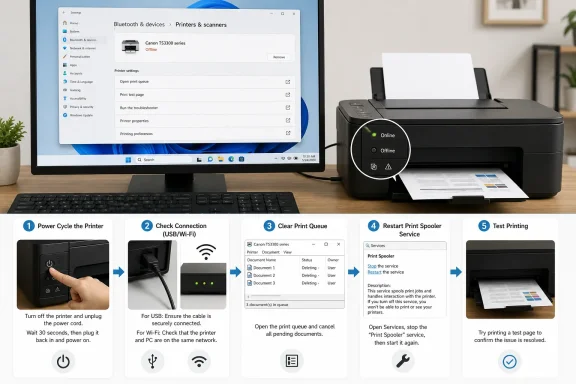
Start with a full power cycle of the printer. Turn the Canon off using its power button, disconnect the power cord from the back of the printer or the wall outlet, wait about 30 seconds, reconnect it, and then turn the printer back on. Wait until the printer finishes booting before you test again.That waiting period is not superstition. Printers maintain their own small state machines for network association, sleep state, paper handling, cartridge checks, and job receipt. A fast off-and-on tap can leave some of that state uncleared, while a real power cycle gives the device a clean restart.
Once the printer is ready, send a test page from Windows rather than immediately retrying the original document. A fresh test page narrows the problem. If the test works, the old job or application may have been the culprit; if it fails, the issue is still somewhere in the connection or Windows print pipeline.
This step deserves its place at the top because it changes almost nothing permanently. No settings are removed, no drivers are replaced, and no ports are rewritten. It is the printer equivalent of reseating a server cable before rebuilding the service.
Windows Cannot Print to a Printer It Cannot See
If the printer still appears offline, verify the physical or wireless connection before touching Windows settings. For USB-connected Canon printers, disconnect the cable at both ends and reconnect it firmly. If possible, try another USB port on the PC and avoid unpowered hubs while troubleshooting.For Wi-Fi printers, the key question is whether the printer and PC are on the same network. A Canon printer can be powered on, connected to Wi-Fi, and still unreachable from the computer if it is joined to a guest network, a different SSID, a mesh node with client isolation, or an old router profile. Use the printer’s control panel or printed network status page to confirm the network name.
Restarting the PC at this stage is also reasonable, especially for wireless printers. Windows network discovery and printer status detection can lag behind reality after sleep, roaming between Wi-Fi networks, or router restarts. A reboot gives Windows a fresh attempt to rediscover the device.
The trap is assuming “the printer has Wi-Fi” means “Windows has a route to the printer.” Those are different claims. The Canon may be happily connected to the router while Windows is still talking to an old printer instance, a stale IP address, or a driver entry created during a previous setup.
Microsoft’s Troubleshooter Is Worth Running Before You Go Manual
Windows 10 and Windows 11 both include automated printer troubleshooting through Microsoft’s Get Help workflow. It is not glamorous, and it will not solve every Canon-specific quirk, but it can detect common service, queue, and configuration failures without forcing the user to dig through legacy Control Panel screens.This is one of the rare cases where the built-in troubleshooter is worth trying early. Printers are exactly the kind of peripheral Windows can often repair by resetting a service, nudging a queue, or correcting a status flag. If the tool applies a fix, test printing again before continuing.
The reason to run it here, rather than at the end, is that it preserves the low-risk order. You have already restarted the printer and checked the connection. Letting Windows inspect its own print subsystem is less disruptive than removing the device or replacing drivers.
Still, do not treat the troubleshooter as an oracle. If it says no problem was found and the Canon remains offline, keep going. Automated diagnostics are helpful, but Windows printing failures often live in the gap between Microsoft’s generic model and each vendor’s driver package.
The Toggle That Makes an Online Printer Act Offline
The next stop is the Windows print queue, because Windows can intentionally hold a printer in offline mode. On Windows 10, open Settings, go to Devices, then Printers & scanners, select the Canon printer, and choose Open queue. In the Printer menu, make sure Use Printer Offline is not checked.If that setting is checked, Windows will behave as if the printer is unavailable even when the device is powered on and connected. Clearing the check mark tells Windows to resume sending jobs to the device. It is one of the simplest fixes, and it often looks more mysterious than it is because the printer itself never changed state.
Canon’s own IJ Printer Assistant Tool can expose the same control through the printer status and print queue views. Open the Canon IJ Printer Assistant Tool, choose View Printer Status, then Display Print Queue, and check the Printer menu for the same Use Printer Offline option. Menu names can vary by model and driver generation, but Canon’s route generally lands in the Windows queue where that toggle lives.
This dual path is a reminder that Canon’s utility and Windows are not separate universes. The vendor software often wraps or launches Windows print components. That can be helpful, but it also means the same bad state may appear in both places.
A Jammed Queue Can Masquerade as a Dead Printer
If the offline setting is clear, inspect the queue itself. A single stuck job can block every job behind it, particularly if the document was large, malformed, interrupted, or sent while the printer was asleep. Users see “offline,” but the deeper problem is that the queue has stopped making forward progress.On Windows 10, open Settings, Devices, Printers & scanners, select the Canon printer, and open the queue. Cancel pending documents from the Document menu or by selecting the listed jobs and cancelling them. On Windows 11, the path moves through Settings, Bluetooth & devices, Printers & scanners, then Open print queue, where pending jobs can be cancelled.
After clearing the queue, send a new, simple test page. Do not immediately resend the same PDF, spreadsheet, label template, or browser page that first failed. If the test page prints, the original job may have been the problem, not the printer.
This is where the advice becomes less satisfying but more accurate: sometimes the print job is the bug. A badly rendered PDF, a driver-unfriendly paper size, or a job sent during a network drop can lodge in the queue. Clearing it is not a workaround; it is part of maintaining an aging print system that still depends heavily on serialized jobs.
The Print Spooler Is the Old Windows Service Still Running the Show
When clearing the queue is not enough, restart the Print Spooler. Press Windows key + R, typeservices.msc, press Enter, find Print Spooler, right-click it, and choose Restart. Give the service a few seconds to come back before testing again.The Print Spooler is the Windows service that manages print jobs and hands them to the appropriate printer driver. When it hangs or loses track of state, every printer attached to the PC can behave strangely, not just the Canon device. Restarting it is a targeted reset of the Windows printing pipeline.
This is not the same as rebooting the printer. The printer can be perfectly healthy while the spooler is stuck. Conversely, restarting the spooler will not fix a printer that has fallen off Wi-Fi, run into a hardware error, or joined the wrong network.
For administrators, this is familiar territory. The spooler has long been both essential and troublesome: a compatibility layer, a queue manager, and historically a security-sensitive service. In the home, it mostly reveals itself when a document refuses to die.
Default Printer Management Can Send Jobs Into the Void
If the Canon is online but jobs still do not emerge, check whether Windows is sending documents to the right printer entry. Windows can manage the default printer automatically, which sounds convenient until it starts choosing a virtual printer, an old Canon instance, Microsoft Print to PDF, or a duplicate driver entry.On Windows 10, go to Settings, Devices, Printers & scanners, and disable the option that lets Windows manage the default printer. Then select the Canon and set it as the default. On Windows 11, the same idea lives under Settings, Bluetooth & devices, Printers & scanners.
This step is less about “offline” in the strict sense and more about the user experience that gets reported as offline. If jobs are landing on the wrong device, the real Canon may sit idle while Windows appears to be doing nothing. Duplicate printer entries make this especially confusing, because one Canon listing may work while another stale listing remains offline forever.
The cleanest test is to print directly from the Canon’s queue or printer properties after setting it as default. If that works, the problem may have been routing rather than connectivity. The fix is not more software; it is making sure Windows is aiming at the correct target.
Re-Adding the Printer Is the Point Where You Admit the Device Entry Is Stale
If the printer remains offline after power, connection, queue, spooler, and default-printer checks, remove and re-add it. On Windows 10, go to Settings, Devices, Printers & scanners, select the Canon, remove it, and then choose Add a printer or scanner. On Windows 11, use Settings, Bluetooth & devices, Printers & scanners, remove the device, and add it again.This forces Windows to rebuild the printer entry. For network printers, that can mean discovering the current address and recreating the port. For USB printers, it can refresh the device association. For driver-based Canon installs, it can also clear an object that has outlived the setup conditions that created it.
The caution is that removing a printer is more invasive than clearing a queue. If you have custom paper sizes, label settings, color profiles, shared-printer configuration, or office deployment policies, note them before deleting anything. Home users can usually proceed without much risk, but small offices should be more deliberate.
Re-adding the printer also exposes another common failure: Windows may discover multiple versions of the same Canon printer. Pick the entry that matches the actual Canon driver and connection method, not a generic remnant that merely has a similar name. The right listing is usually the one that reports status correctly after the printer wakes.
Drivers Are the Last Resort, Not the First Download
Only after the simpler fixes fail should you reinstall the Canon driver. Go to Canon’s official support site, choose Printers, select the exact model, and download the driver and software package for your version of Windows. Avoid third-party driver sites, “driver updater” utilities, and repackaged installers.Driver reinstallations help when the current driver is damaged, outdated, mismatched, or bound to a broken port. They are also useful after a major Windows update, a migration from an older PC, or a failed initial setup. But they should not be the first move, because a new driver will not fix a loose USB cable, a checked offline toggle, or a queue full of stuck jobs.
The exact Canon package matters. Canon’s consumer inkjet, MegaTank, imageCLASS, PIXMA, and office models do not all use the same tools or naming conventions. A driver that is “close enough” by family name may still be wrong for status monitoring, scanner integration, maintenance utilities, or bidirectional communication.
After installing, restart the PC. That final reboot is not ritual; it gives Windows a chance to reload services, settle driver registration, and rebuild the printer view after setup. Then send a test page before returning to the original document that failed.
The 2026 Reality Is That Printing Still Breaks at the Seams
What makes the Canon offline problem so persistent in 2026 is not that Canon printers are uniquely fragile. It is that Windows printing still spans several eras of PC design. There are legacy queues, modern Settings pages, vendor utilities, USB device enumeration, Wi-Fi discovery, cloud-adjacent apps, and old-fashioned spooler behavior all sharing responsibility for one click.Windows 10 users also live with the added pressure of an aging platform. The operating system remains widely deployed, but its mainstream story is now dominated by migration, support timelines, and compatibility maintenance rather than new printing experiences. That means many households and offices will keep troubleshooting the same old print stack for as long as their hardware keeps working.
Windows 11 improves some Settings navigation but does not magically remove the underlying complexity. A wireless Canon still needs a stable network path. A driver still has to match the model. A spooler can still hang. A queue can still clog.
The result is a problem that feels personal but is really architectural. “Offline” is Windows compressing a dozen possible failures into one word. The fix is to unpack that word methodically.
The Fix Order Matters More Than the Fix List
The best repair sequence is not random. Start with the printer, then the connection, then Windows diagnostics, then the offline toggle, then the queue, then the spooler, then printer selection, then reinstallation. That order moves from reversible to disruptive and from common to less common.This matters because troubleshooting can create new problems. Users who uninstall drivers too early may end up with duplicate entries, missing scanner tools, or a partially installed package. Users who change router settings before checking the queue may spend an hour fixing a network that was never broken.
There is also a psychological advantage to the ordered approach. Printer problems are infuriating because they interrupt a task that should have been trivial. A calm sequence prevents the usual panic-clicking through Settings, Control Panel, vendor utilities, and web downloads.
For IT pros, the same logic scales. Before blaming the endpoint, verify the device is reachable. Before replacing the driver, clear the queue. Before rebuilding the workstation, restart the spooler. The humble home-printer fix is just incident triage in miniature.
Where Canon Owners Should Draw the Line
There are moments when the offline label is no longer the main problem. If the printer’s own screen shows a paper jam, cartridge fault, firmware error, or network setup failure, fix that first. Windows may report offline because the printer is refusing jobs for a legitimate hardware reason.Likewise, if every device in the house cannot see the printer, the PC is probably not the center of the issue. Look at the printer’s Wi-Fi connection, the router, mesh settings, and whether client isolation or guest-network rules are blocking local device discovery. A Canon that cannot be reached by any computer is not a Windows-only mystery.
If only one Windows PC has the problem, focus on that PC’s queue, spooler, driver, and printer entry. If one document fails while test pages work, focus on the application or file. If the printer works over USB but not Wi-Fi, the network path is the likely suspect.
The line is simple: do not keep repeating the same fix after it fails. If power cycling did nothing twice, move on. If reinstalling the driver did not help, stop reinstalling the driver and examine the port, network, or hardware state. Troubleshooting is evidence gathering, not a ritual.
The Canon Offline Fix Is a Checklist, but the Lesson Is Patience
By the time you reach the end of the repair path, the Canon printer has been restarted, Windows has been forced to re-evaluate the connection, the queue has been cleared, the spooler has been reset, and the driver has been refreshed if necessary. That is not glamorous, but it is exactly the kind of layered reset this failure usually needs.- A real printer power cycle should be the first move because it clears temporary device state without changing Windows configuration.
- The PC and printer must be on the same reachable connection path, whether that is a firmly seated USB cable or the same usable Wi-Fi network.
- The Windows Use Printer Offline setting can hold a working Canon in an offline state until the user manually clears it.
- A stuck print job can block later documents, so clearing the queue is often more effective than repeatedly clicking Print.
- Restarting the Print Spooler resets the Windows service responsible for managing print jobs and can recover a printer that the hardware did not break.
- Driver reinstallation belongs near the end of the process, and the replacement should come from Canon’s official support channel for the exact printer model.
References
- Primary source: Technobezz
Published: 2026-06-02T15:20:06.465010
Canon Printer Offline on Windows 10? Here Is How to Fix It (2026) | Technobezz
You hit print, the page never comes, and Windows quietly labels your Canon printer as "Offline" even though it is powered on and sitting right next to you.www.technobezz.com - Official source: support.microsoft.com
Troubleshooting offline printer problems in Windows | Microsoft Support
Find out how to change your printer's status from "offline" to "online" in Windows.support.microsoft.com - Related coverage: ij.manual.canon
- Related coverage: support.usa.canon.com
- Related coverage: oip.manual.canon
- Related coverage: usa.canon.com
Canon Support for | Canon U.S.A., Inc.
Find support for your Canon . Browse the recommended drivers, downloads, and manuals to make sure your product contains the most up-to-date software.www.usa.canon.com
- Related coverage: techrepairdfw.com
Canon Printer Shows Offline? 8 Fixes That Work [2026]
Your Canon's IP changed after a router reboot — that's the cause 60% of the time. Set a static IP or uncheck 'Use Printer Offline' to fix it in 2 minutes. techrepairdfw.com
- Related coverage: reference.com
- Related coverage: whizz-print.com
Canon Printer Connected but Offline — Safe Step-by-Step Fix
Fix a Canon printer that’s connected but shows offline with safe, clear steps for Windows and Mac — live chat with a print expert whizz-print.com
- Official source: learn.microsoft.com
How do I turn my printer online with windows 10. - Microsoft Q&A
It is the default printer but says it is offline. Seems there used to be a place to put it on or off line but I can't find it now.learn.microsoft.com - Related coverage: downloads.canon.com
